Setting Up Your Company's Ascend Account
Last updated: June 28, 2026
This is a guide that will teach you:
How to set up your company's Ascend account
Which aspects of the insured experience you're able to control
What to do if you need additional configuration help
If you're reading this, congratulations! We're excited to help get you and your team set up to use Ascend. Thousands of insurance companies across the country are already using Ascend to streamline their invoicing, payments, and premium financing processes.
Ascend is available to all licensed insurance companies (retailer brokers, MGAs, wholesalers, and carriers) and requires a signed services agreement. If you haven't already worked with an Ascend representative, please reach out to [email protected] to get started!
The Basics
Once your Ascend representative has helped create your company's Ascend account, you can log in at dashboard.useascend.com
All setup actions require Admin permissions (there are 4 levels of permissions in Ascend). If you aren't sure who at your company is an admin, or need any help with setup, please reach out to [email protected].
Payment Processing
In order to begin processing payments with Ascend, you'll need to link your trust and operational bank accounts, plus add some business and banking details in order for us to verify your company.
Visit https://dashboard.useascend.com/settings/bank-details to complete this process or click the button that says "Complete bank details":

Under the Business Details section, click the "Edit" button
Enter the missing information, including your company's TIN (tax ID number)
Under the Business Owner section, click "Add another owner" and enter the information on your company's owner, CFO, Controller, or other person who controls the company's bank accounts.
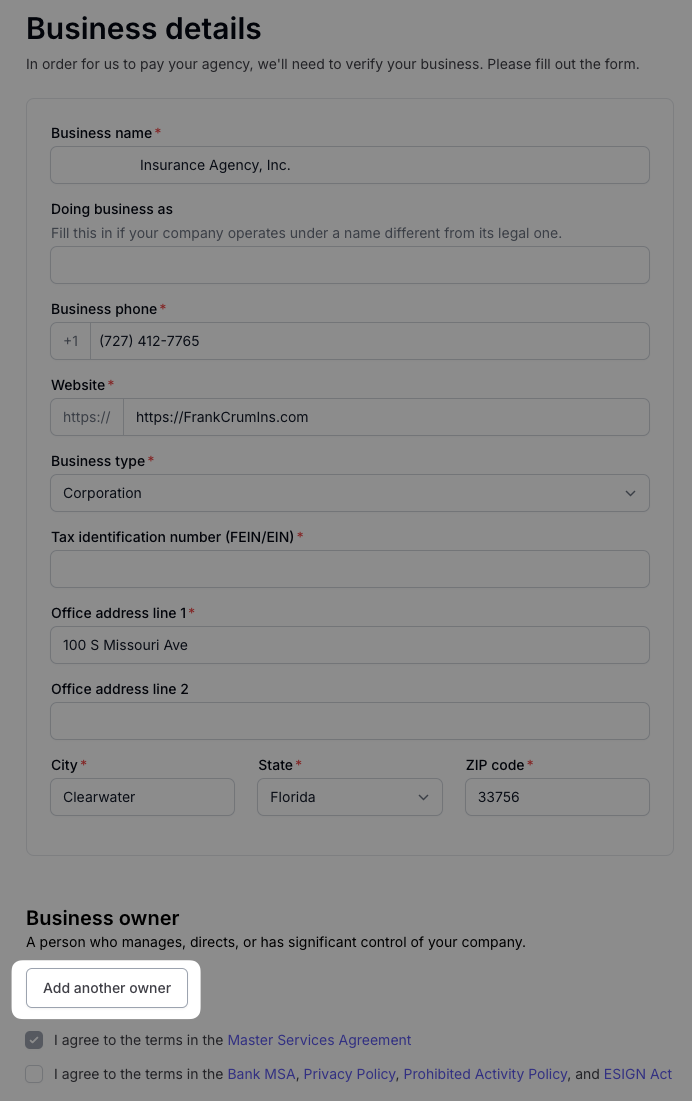
Ascend never sells any personal information about you or your business, and Ascend employees do not have access to any personally identifying information.
Click "Submit for Verification" once this is complete.

Under the Bank Details section, click the "Edit" button
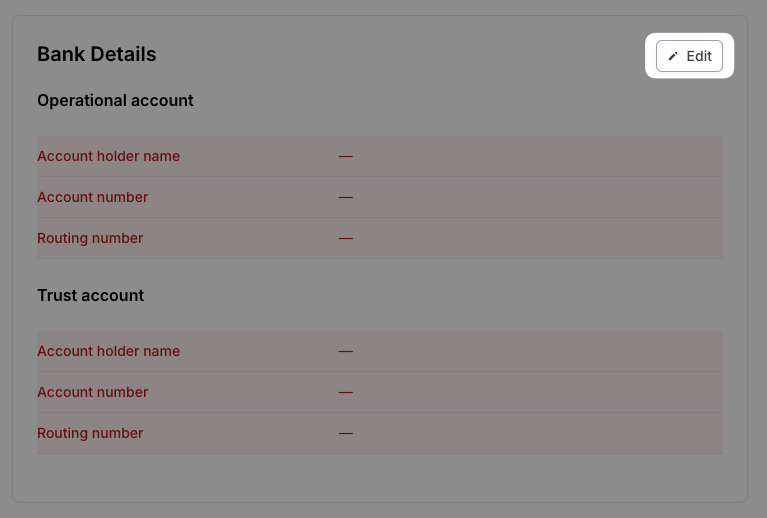
Enter the information for your operating account. This is where Ascend will send your commission.
Enter the information for your trust account. If you don't have a trust account, click the "Same as operational account" checkbox.
Click "Save Bank Details"

If you do not have a separate trust account, you can use a single bank account. Ascend recommends all insurance companies follow the pertinent trust accounting laws in your state.
Customer Experience
Ascend has the ability to send automated emails to your customers, which will be branded to your company. In order to set up the branding and customize your customer's experience, visit https://dashboard.useascend.com/settings/customer-experience
Customize your branding
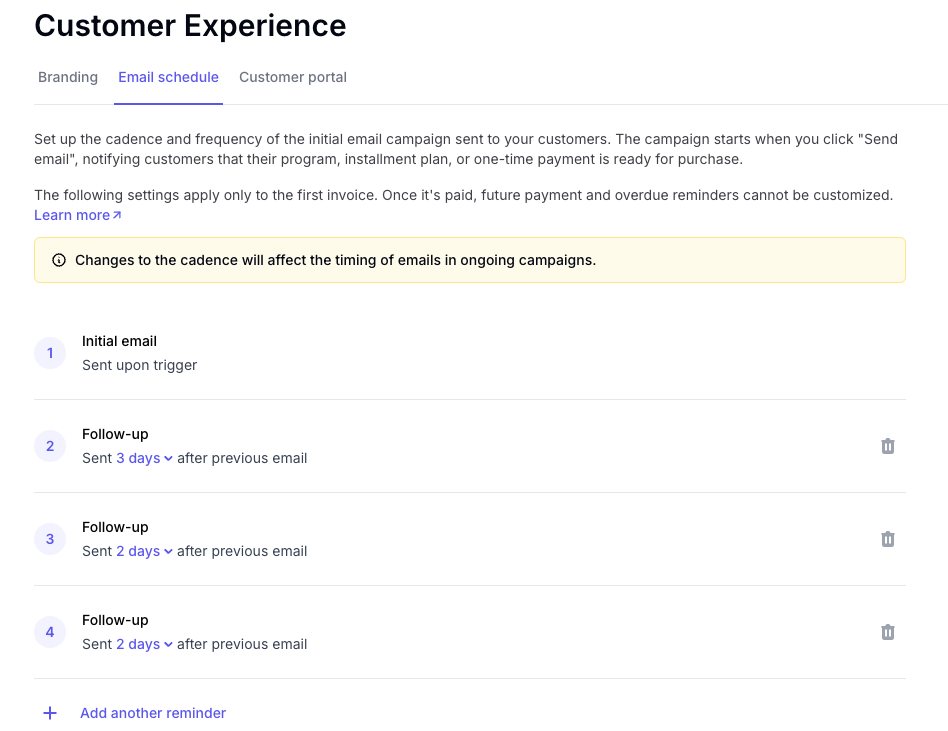
Customize the cadence of automated reminder emails from Ascend (if desired). The default cadence is 4 emails over 8 days. More information on this feature can be found here.
Save the link to your customer portal. Your customer's have 24/7 access to payment and billing information via your Ascend-provided customer portal. More information about the customer portal can be found here.
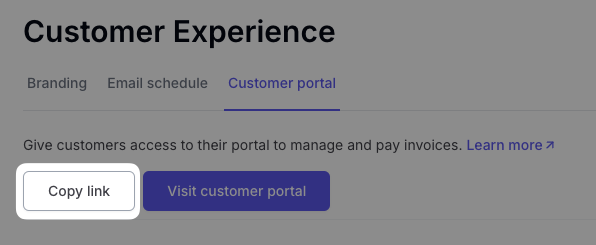
Your team can always access this link but it can also be helpful to add to your company's website or email signature. More information about this feature can be found here.
Once these steps are complete, your Ascend account is active. See below for next steps ⬇
Add team members to Ascend
To give your team access to the Ascend Dashboard, you'll need the following information:
Work email address (multiple users cannot have the same email address)
First & last name
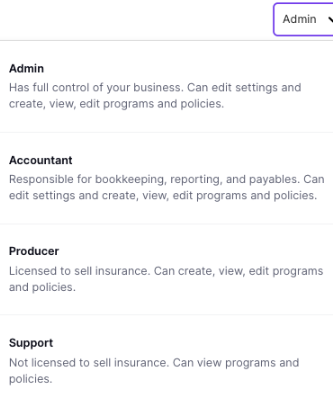
Role type (for more information on the roles/permission in Ascend, click here)
Phone number (optional)
Step-by -Step Instructions
Admin users are the only role type who have access to this Settings page
Locate the User Management page within the settings menu of the Ascend Dashboard
To. create a new user, select Add new from the top right corner of the page
Enter their details, including role type (role definitions here):
Click Save
Each user you add will receive a "welcome" email from Ascend that shows them how to log in, but you may want to ask them to bookmark dashboard.useascend.com
Configure Take Rate (Points on Finance Agreements)
If desired, you can add additional percentage points to your finance agreements with Ascend, which generates additional revenue for your company whenever a policy is financed.
Your customer will not see a breakdown of any take rate added by your team. Your adjustments will be included directly into the APR.
To add a take rate, visit: https://dashboard.useascend.com/settings/take-rate
Enter the desired Take Rate
Click Save Changes at the bottom of the page to save
Take rate is paid out on the 15th of each month for all finance agreements initiated since the 15th of the previous month.
Please note take rates are not allowed in the following states:
AL, AZ, CT, DC, KY, MD, MA, MI, NV, NM, NC, SC, TX, VA, WA, WI
Take Rate is only allowed for commercial coverage in the following states:
MA, TX
For more information on take rate, click here.
Contact Us
Need more help? Contact us at [email protected] for more help.