Default Agency Fees
Last updated: February 3, 2026
This guide will teach you how to:
Set up Default Agency Fees
Apply Default Agency Fees within program creation
Overview
Agency fee configuration allows your team to set default agency fee suggestions at the organization level, based on premium amount. When creating programs, Ascend will automatically suggest the appropriate agency fee based on the total premium.
Key Benefits
Reduce time spent entering agency fees manually
Ensure consistent fee application across all users and programs
Maintain fee structures that align with your business policies
Set Up
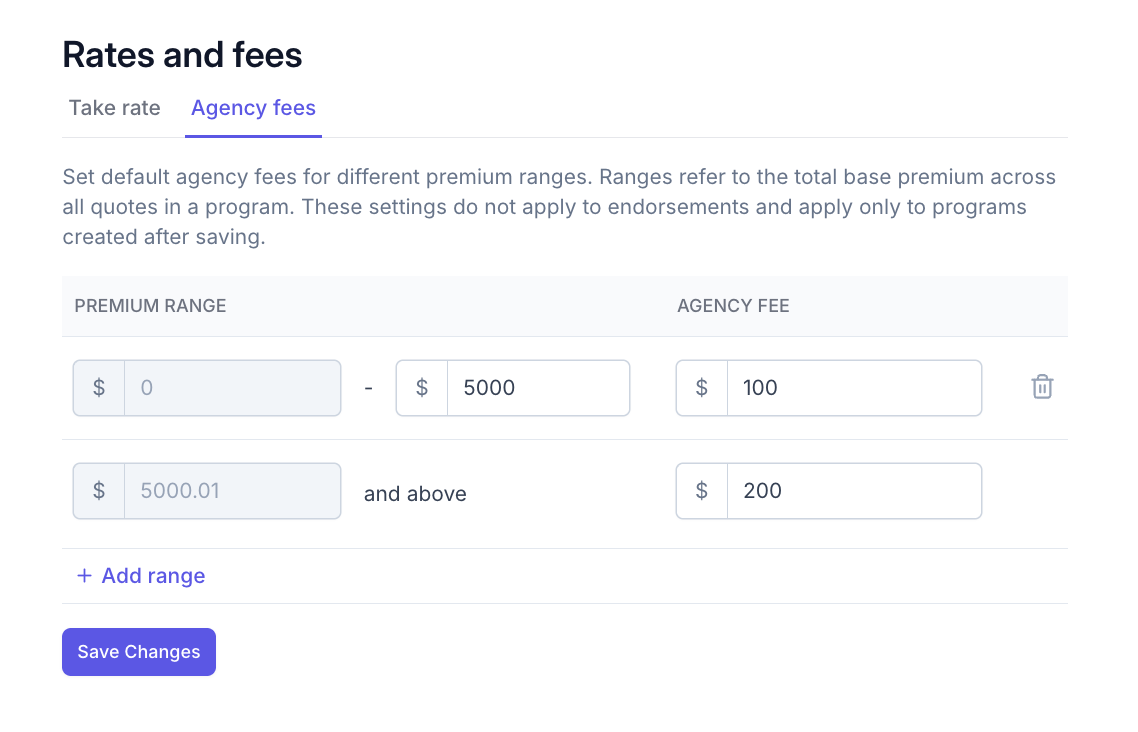
Navigate to Settings > Rates and fees
Select the Agency fees tab
You'll see a table for managing your premium ranges and corresponding fees
Creating Fee Ranges
If you haven't configured any fee ranges yet, click Add configurations to get started.
For a single fee that covers all premiums:
Add one range
The system will display "All premium ranges"
Enter your default agency fee amount
For tiered fees based on premium amounts:
Click Add range to create multiple tiers
For each range, specify:
Maximum premium - Where this range ends
Agency fee - The fee amount for programs in this range
The minimum premium will be automatically calculated.
Fee Range Rules
First range will start at $0 - The lowest tier automatically begins at $0
Ranges cannot overlap - Each premium amount should only match one range
No gaps between ranges - The next range will automatically start exactly $0.01 above the previous range's maximum
Last range is unbounded - The final range has no maximum, capturing all higher premiums
Fee must be $0 or greater - Negative fees are not allowed
Maximum 10 ranges - You can create up to 10 different premium tiers
Editing Ranges
Click the max premium field to adjust a range's boundary
When you update a max, the next range's minimum automatically adjusts
Use the trash icon to remove a range (the adjacent ranges will adjust automatically)
Saving Changes
Click Save Changes after making updates. Your new fee structure takes effect immediately for new programs.
Important: Updating fee ranges does not affect existing programs. Only programs created after saving will use the new configuration.
How to Apply Agency Fee Suggestion in Program Creation
Single Quote Programs
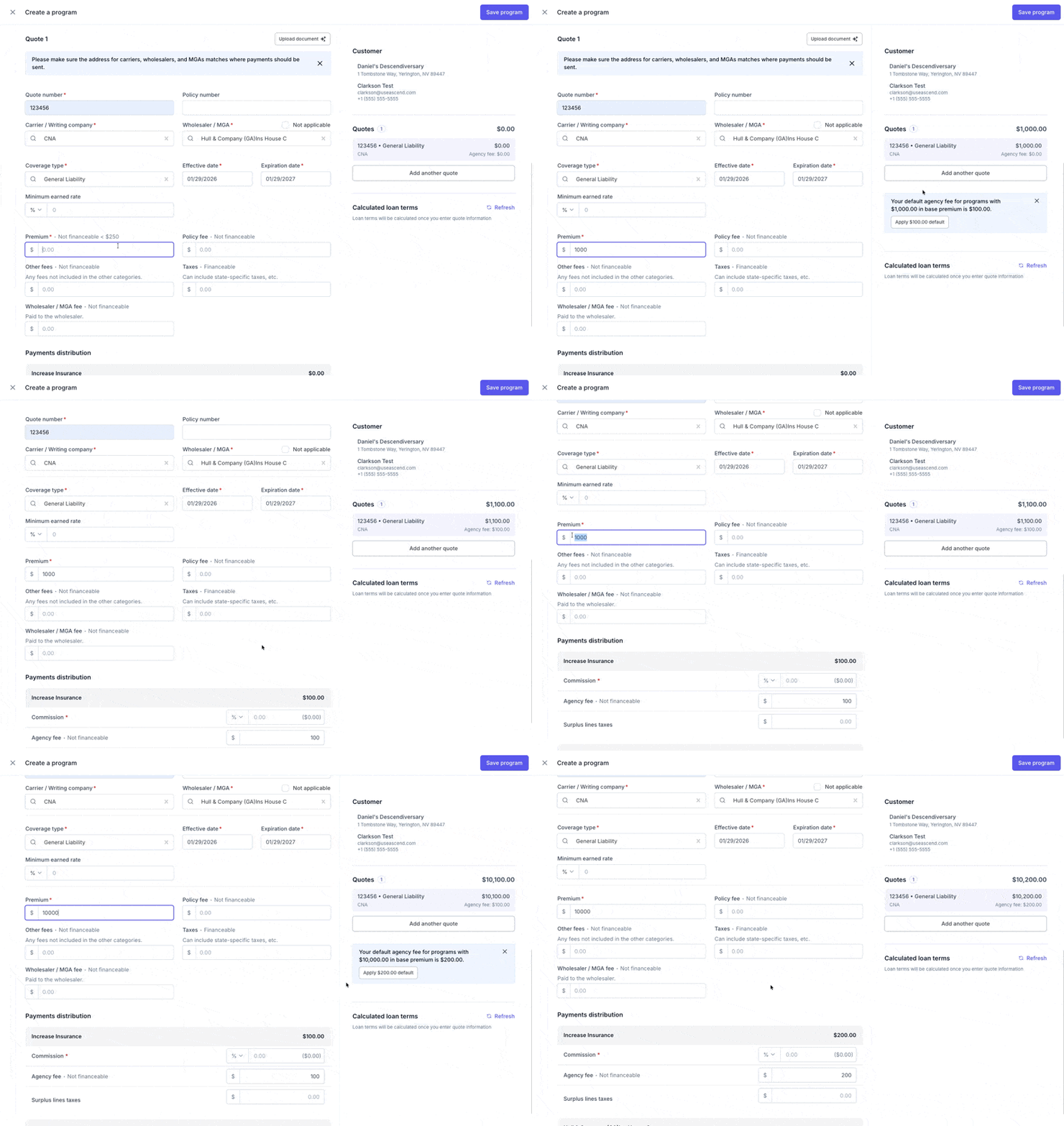
When you enter or update the premium amount in Quick Create:
The system calculates which fee range applies based on your premium
A suggestion banner appears showing your organization's default fee
Click Apply default to use the suggested fee.
Multiple Quote Programs
For programs with multiple quotes, Ascend calculates the total base premium across all quotes:
The suggestion is based on the combined premium of all quotes
When you apply the default:
The full agency fee is assigned to the quote with the highest premium
All other quotes are set to $0 agency fee
A message explains how the fee will be distributed
Document Import / Smart Inbox
When importing from a document:
If the document includes an agency fee, that fee is used (no suggestion shown)
If no agency fee is found in the document, the system suggests your default based on the premium
AMS Import
When importing from an integrated AMS:
If transaction data includes agency fee information, that fee is used
If no fee is present in the imported data, the system suggests your default
Dismissing Suggestions
You can dismiss the suggestion banner by clicking the X icon. The banner won't reappear for that program creation session, allowing you to enter custom values without interruption.
Edge Cases
Scenario | What Happens |
No fee ranges configured | No suggestion shown; enter fees manually as before |
Premium edited after initial entry | Suggestion updates to reflect new total premium |
Premium = $0 | Suggests fee from your $0–X range |
Current fees already match suggestion | No banner shown (already correct) |
Fee range updated after program created | Existing programs unchanged; only new programs use updated ranges |
Frequently Asked Questions
Q: Will this change fees on my existing programs?
A: No. Fee range changes only affect programs created after you save. Existing programs retain their original agency fees.
Q: Can I have different fees for different carriers?
A: Not currently. Agency fee defaults are set at the organization level and apply regardless of carrier.
Q: What if I don't want to use the suggested fee?
A: Simply enter your preferred amount in the agency fee field. The suggestion is just a convenience—you can always override it.
Q: How is the premium range determined for multi-quote programs?
A: The system adds up the base premium from all quotes in the program to determine which range applies.
Q: Can I configure agency fees for endorsements?
A: No. Default agency fees only apply to new program creation. Endorsements are handled separately.
Q: What happens if I delete all my fee ranges?
A: The system returns to the original behavior with no suggestions—you'll manually enter agency fees as before.
Q: Why is the minimum premium field disabled?
A: The minimum is automatically calculated based on the previous range's maximum (plus $0.01). This ensures no gaps between ranges.
Contact Us
Need more help? Contact us at [email protected] for more help.