Setting Up Your Business & Banking Details
Last updated: May 1, 2026
This is a guide that will teach you how to:
Add, update, and manage your business and banking information in Ascend
Business & Banking Details
Keeping your business and banking information up to date ensures smooth verification and uninterrupted payouts.
Ascend requires business and banking details to:
Verify your business identity
Comply with financial regulations
Enable payouts and transfers
Protect against fraud and unauthorized access
Your information is securely stored and encrypted.
Navigate to Business and Bank Details
This feature is only available to users with Admin permissions.
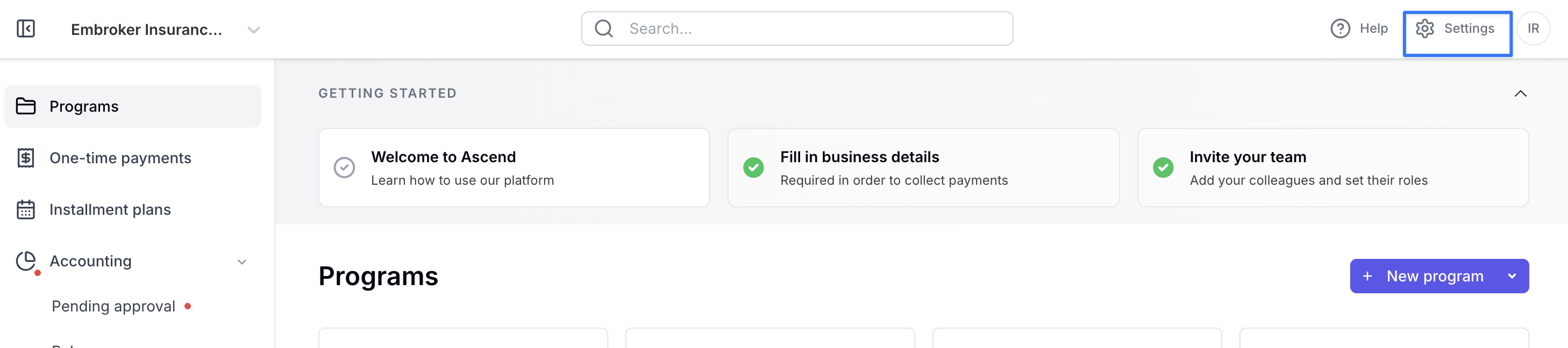
The Bank details page is available within the Settings menu of the Ascend Dashboard. Click the gear icon in the top right-hand corner of the dashboard.
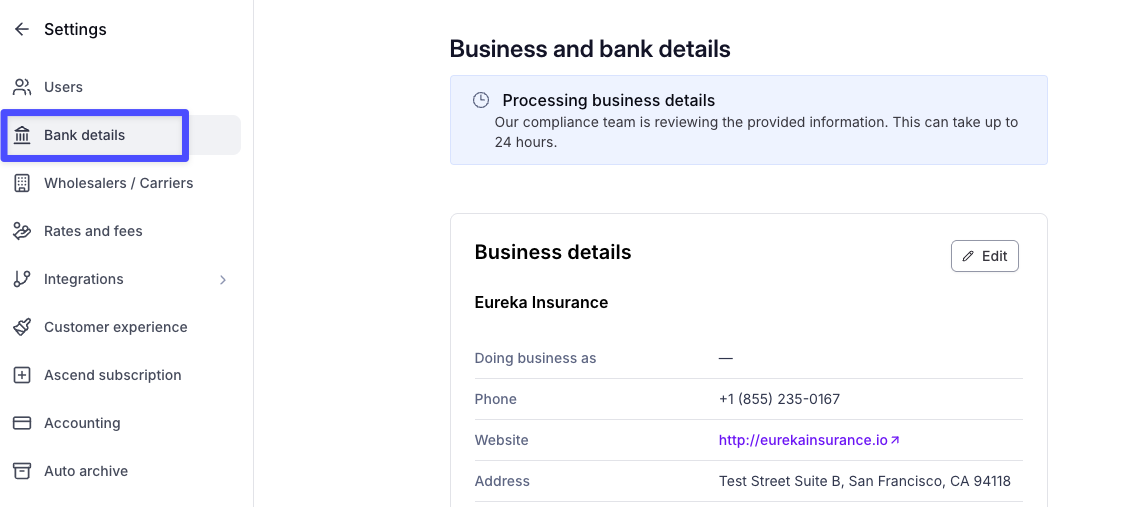
Select Bank details on the left-hand Settings Menu.
To add or update Business details, select Edit under the Business details section.
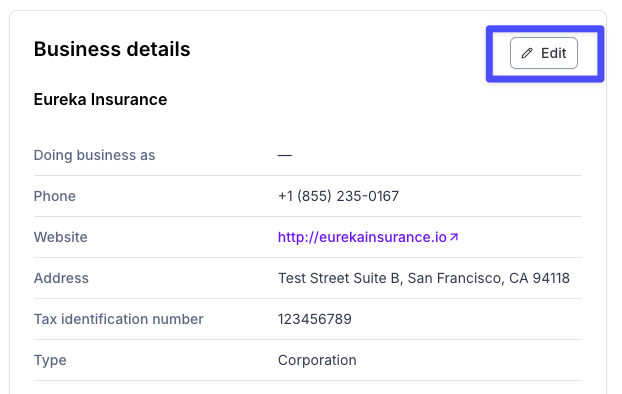
To complete verification, you will need to provide:
Legal business name
Business phone number
Business type (LLC, Corporation, Sole Proprietorship, etc.)
Employer Identification Number (EIN) or applicable tax ID
Business address
Authorized representative details
Ascend employees are not able to access this information
To add or update Banking accounts, select one of the accounts under the Bank accounts section.
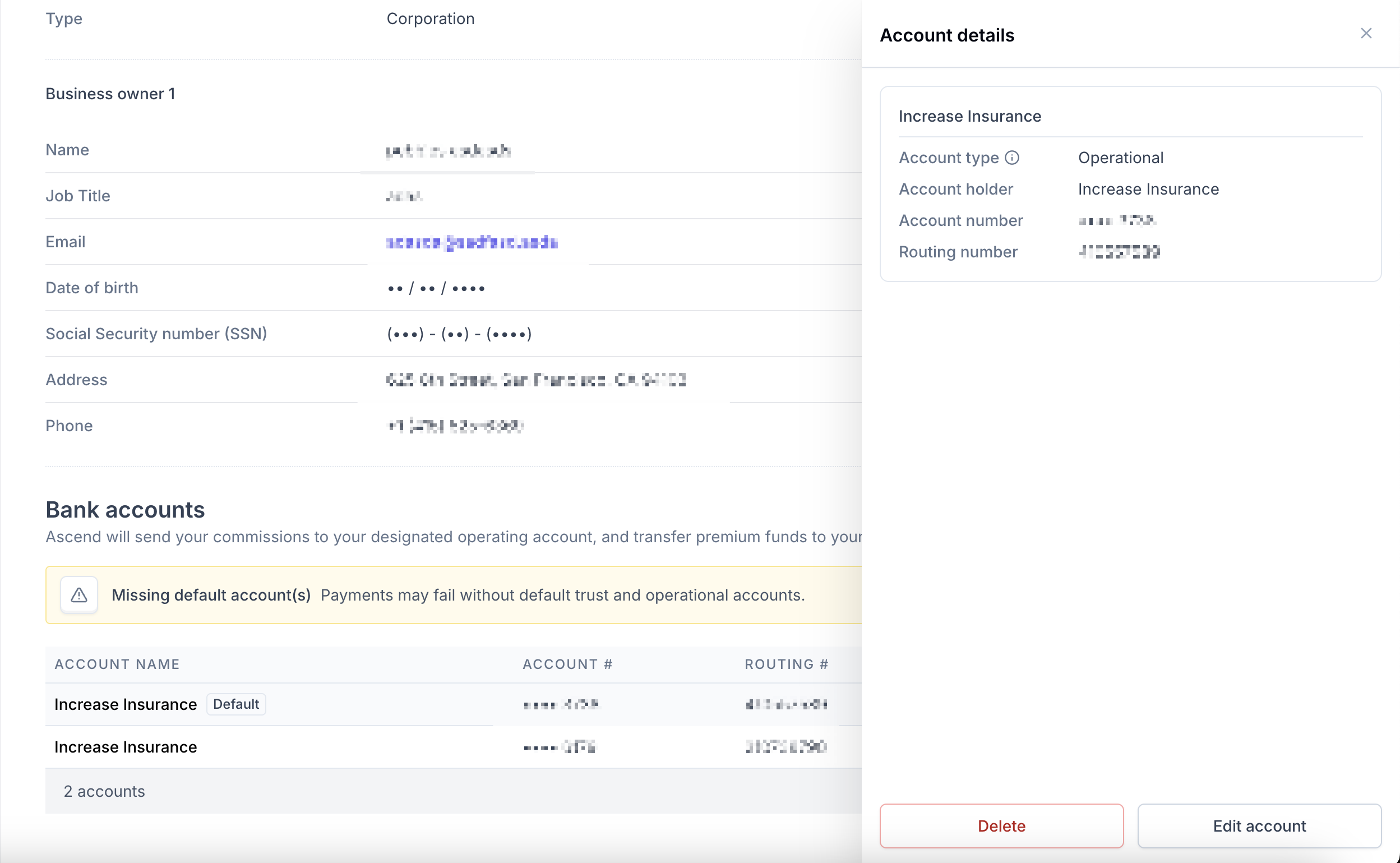
To receive payouts (commission, take rate, etc), you will need to provide, at a minimum, details of your operational/commission account. You can also add your trust account information. You will need to provide the following information for both:
Account type
Account holder name
Account number
Routing number
Organizations can add multiple trust accounts in Ascend. This feature is not enabled by default — to have it activated, contact Ascend support at [email protected].
Save changes by selecting "Submit for verification" for Business details and "Save bank details" for Bank details. Both are found at the top-right corner of the Dashboard.
For more information on payouts, click here
What Happens After You Submit Your Information?

Most updates are verified automatically
Some changes may require additional review
You’ll be notified if further documentation is needed
Frequently Asked Questions
Do I need a trust account?
Ascend recommends following your local/state laws regarding premium accounting.
Can I use a personal bank account?
In most cases, your bank account must match your registered business entity. If you’re a sole proprietor, additional verification may be required.
Will updating my bank account affect payouts?
Yes. If you update your banking details, your ability to collect payments will be temporarily paused until verification is complete.
My Business details have changed, how do I edit this in Settings?
If you need to make changes to your Business details, please reach out to [email protected]. Our support team will assist you with updating this information.
Contact Us
Need more help? Contact us at [email protected] for more help.