User Management
Last updated: October 22, 2026
This guide covers how to:
Understand the different user roles
Create a user
Edit a user's details
Change a user's role
Archive and unarchive a user
User Management lets you add, edit, and archive the people who have access to your agency's Ascend dashboard.
Everyone can see the user list. Any user with dashboard access can now open Settings → Users and see a read-only list of their teammates. Only Admins can edit.
User roles
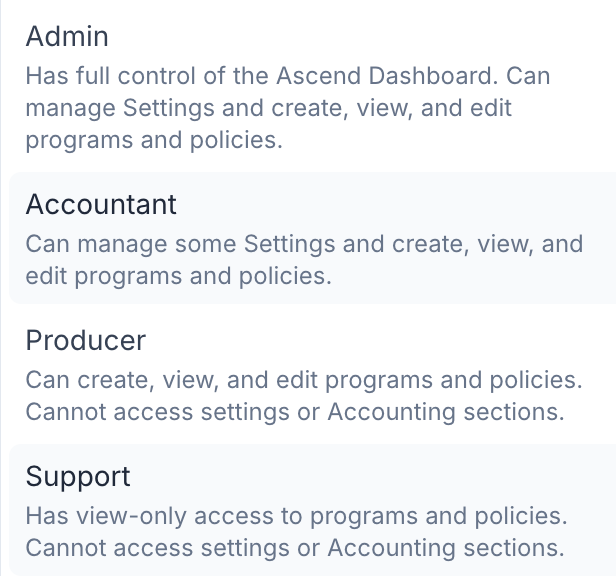
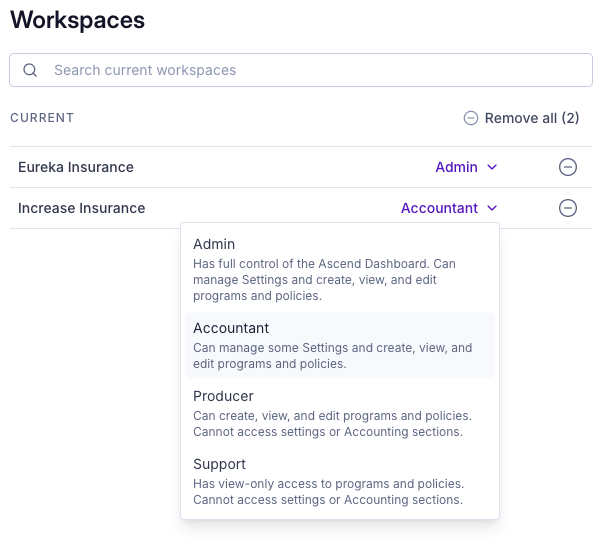
Support (lowest permission level): Can view programs and policies, send emails, and copy payment links. Support users cannot create or edit programs or payment links.
Producer: Has everything Support users have, plus the ability to create, edit, and archive programs and policies, including generating checkout links.
Accountant: Has everything Producers have, plus the ability to edit settings and approve payouts to wholesalers and carriers. Accountants are the default recipients of automated payout emails. Accountants do not have access to User Management.
Admin (highest permission level): Has everything Accountants have, plus full control of the business, including User Management, reporting, and bank setup.
If you can't do something you need to, such as approve a payout or change your own role, reach out to an Accountant or Admin at your agency. If the issue continues, contact Product Support at [email protected].
Creating a user
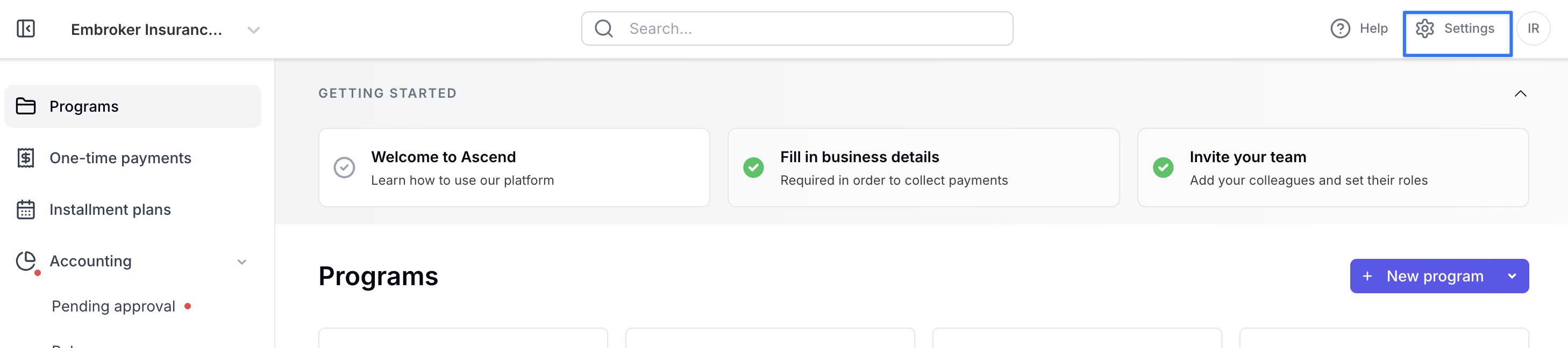
Click the gear icon in the top-left corner of the dashboard to open Settings, then go to User Management.
Click Add new in the top-right corner of the page.

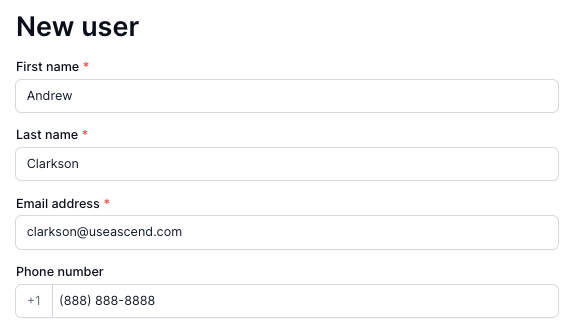
Enter the user's details.
Select a role.
Editing a user
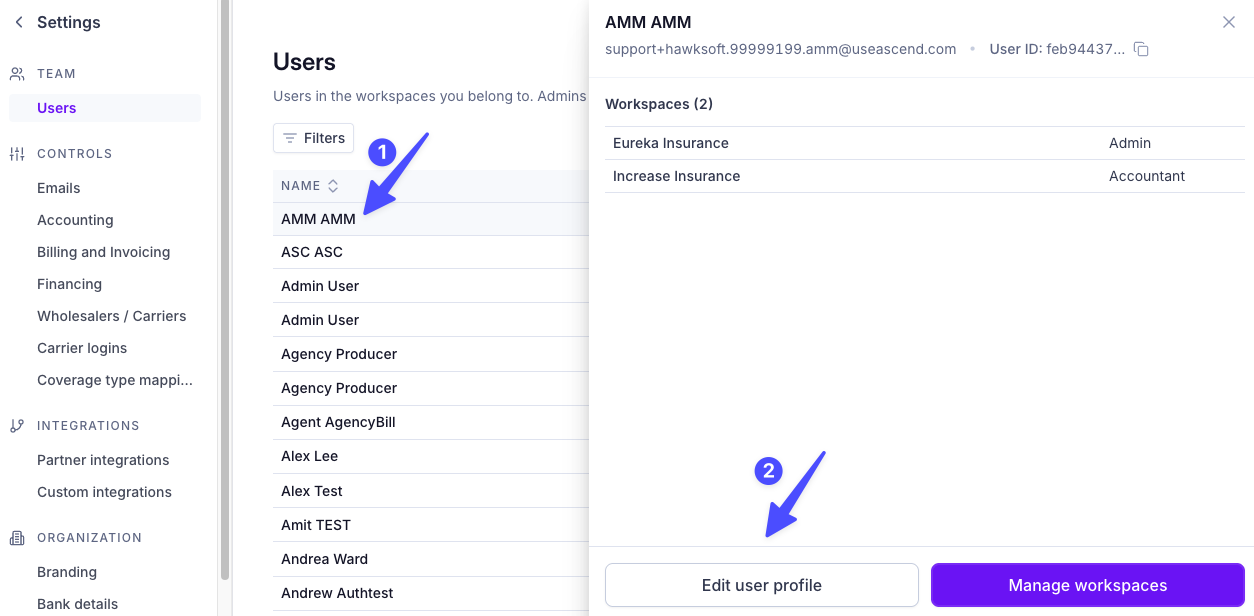
Find the user using the search bar or the list.
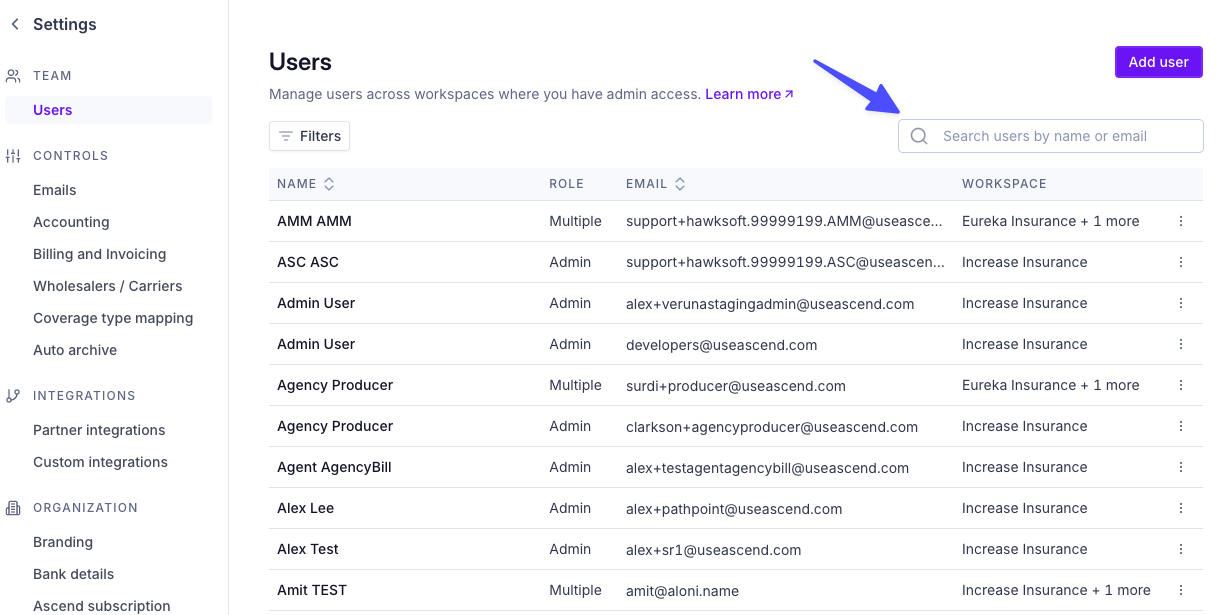
Click the user's name. A panel opens on the right; click Edit user profile at the bottom.
Update the user's name, email, or phone number in the window that appears.
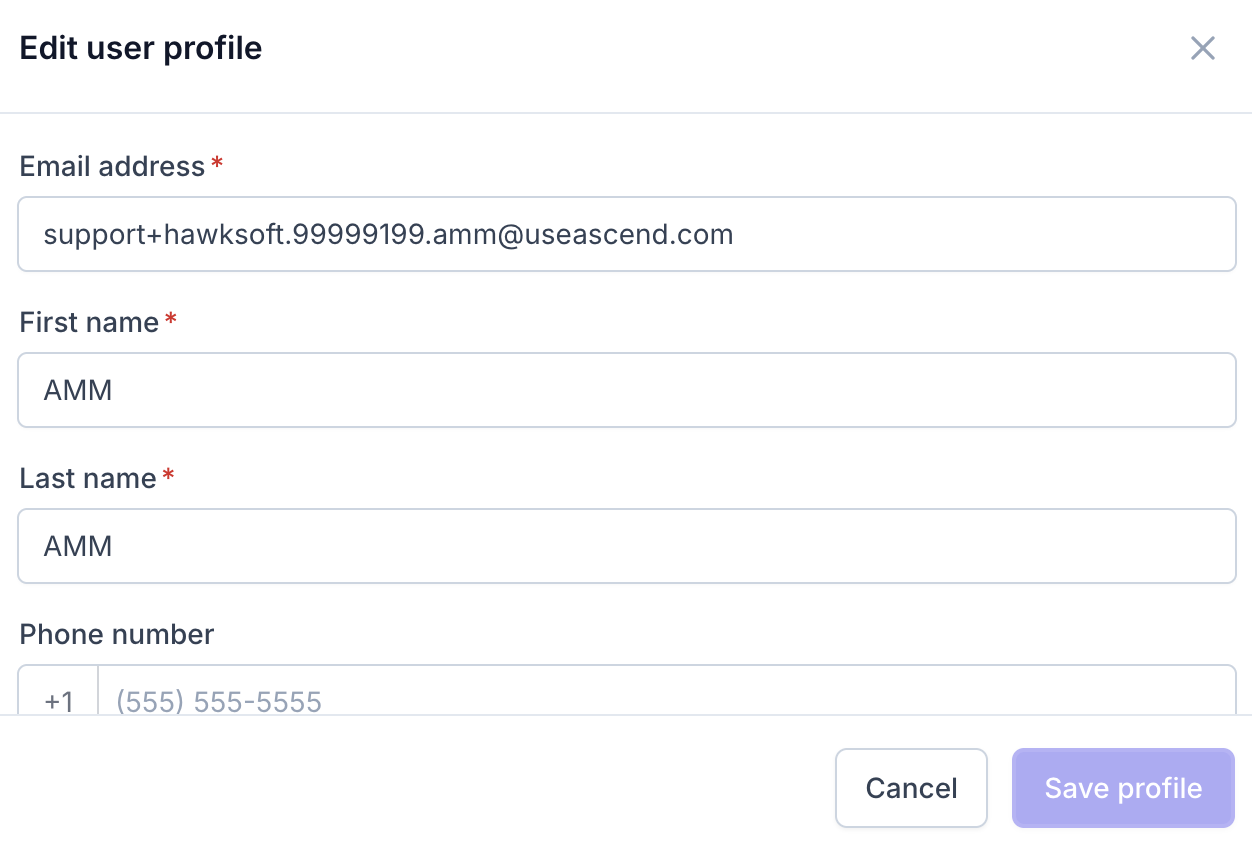
Click Save changes.

Updating a user's profile affects all the workspaces they're in.
Changing a user's role
Find the user using the search bar or the list.
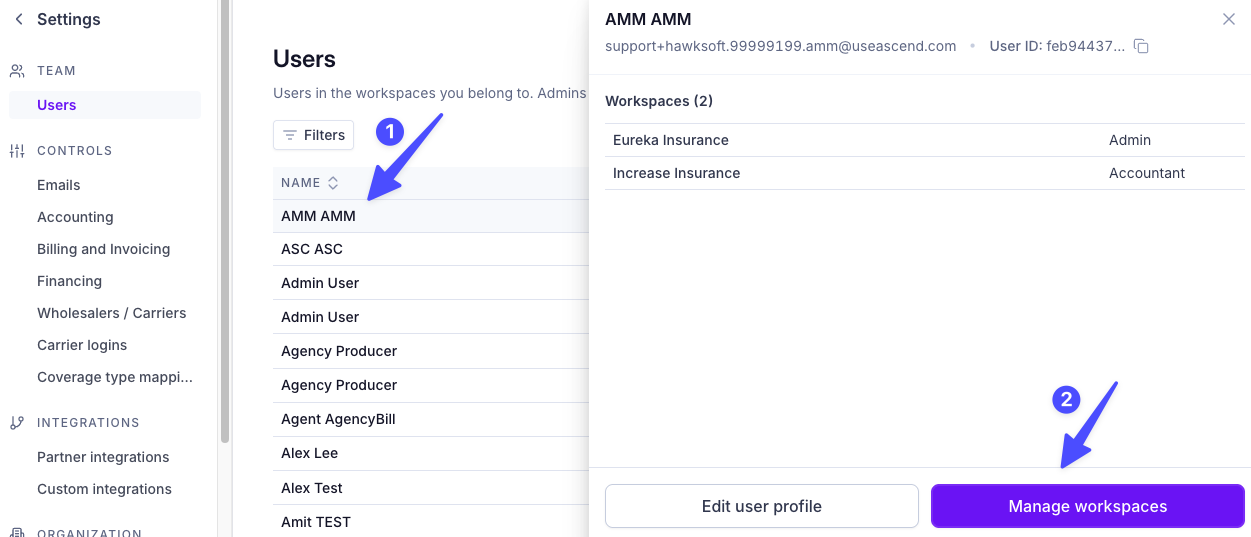
Click the user's name. A panel opens on the right showing every workspace the user belongs to and their role in each. Click Manage workspaces.
Choose a role for each workspace. A user can have a different role in each workspace.
Click Save changes at the top right.

Archiving a user
Archiving removes a user's access to a workspace. You can archive a user from one workspace and leave their access to other workspaces in place.
Find the user using the search bar or the list.
Click the user's name, then click Manage workspaces.
Click the minus icon (a circle with a minus sign) next to the workspace you want to remove the user from.
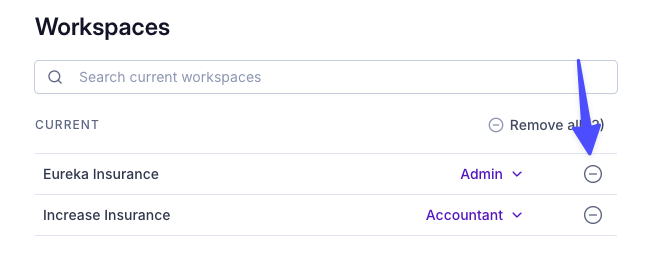
Click Save changes.
Archived users stay listed as the Account Manager or Producer on their existing programs. At renewal, make sure to update the Account Manager or Producer on those programs.
Unarchiving a user
Find the user using the search bar or the list.
Click the user's name, then click Manage workspaces.
Click + Add new to see a list of workspaces the user was previously part of, and pick the one to restore.
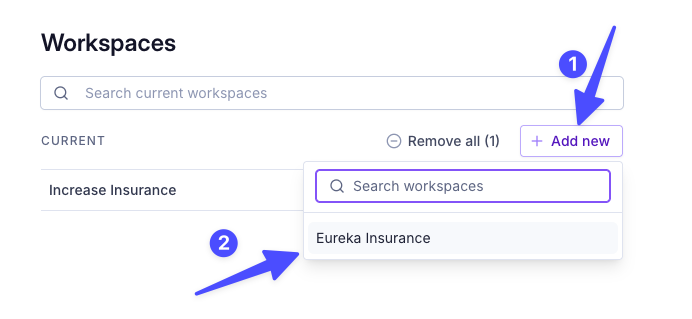
Select the user's role for that workspace.
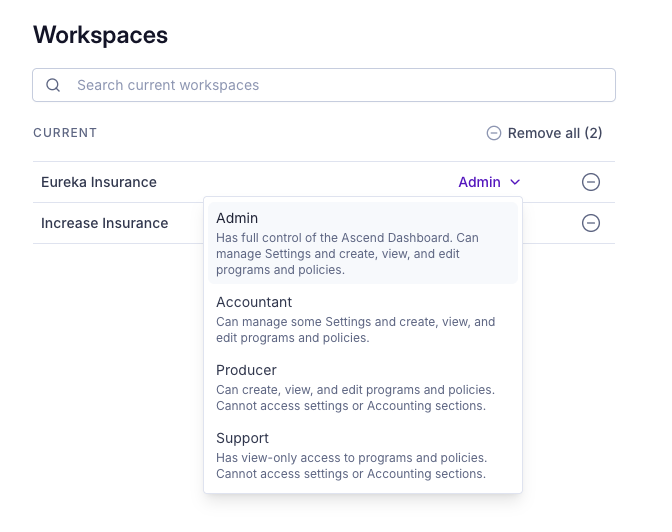
Click Save changes.

Frequently asked questions
Can one person have different roles in different workspaces?
Yes. Roles are set per workspace, so a user can be an Admin in one workspace and a Producer in another. See "Changing a user's role" above.
How do I remove someone from one workspace without removing them from all of them?
Open Manage workspaces for that user and click the minus icon only next to the workspace you want to remove them from. Their access to other workspaces is unaffected.
Can I delete a user permanently?
Users are archived rather than deleted. Archiving removes their access, and you can restore it at any time by unarchiving them.
What happens to programs assigned to a user I archive?
The archived user stays listed as the Account Manager or Producer on their existing programs. Update those programs to a new Account Manager or Producer, especially at renewal.
Contact us
Need more help? Contact us at [email protected].