Customer / Insured Portal
Last updated: August 20, 2026
This is a guide that will teach you:
What is the Customer Portal?
How to access your agency's Customer Portal
Walk through the Customer Portal
Actions the insured can take
Actions the agency can take
What is the Customer Portal?
The Customer Portal (or Insured Portal) is a dashboard where the client can view their programs and policies, view upcoming invoices and payment history, update their payment method and autopay settings, and more.
To access the portal, the client will login using the email address connected to their Ascend program or invoice, or their parties can log in on their behalf using the policy number and the insured's ZIP code.
Below is a walk through of the customer portal with screenshots and associated actions and information the insured can find on each page within the customer portal.
How to Access the Customer portal link
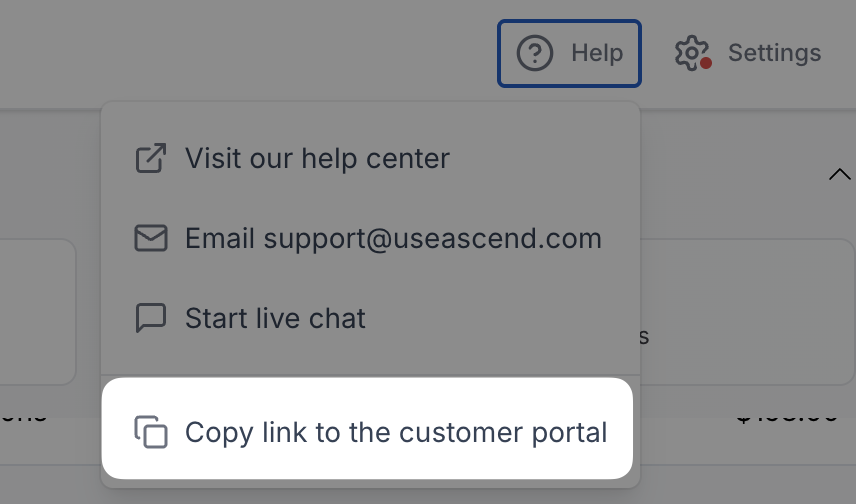
Each agency will have its own unique, branded customer portal for clients to access. You can view and copy the link to your Agency's Insured portal by clicking the "Help" button in the top right corner of the dashboard:
Walk through the Customer Portal
Have a third party pay on their behalf
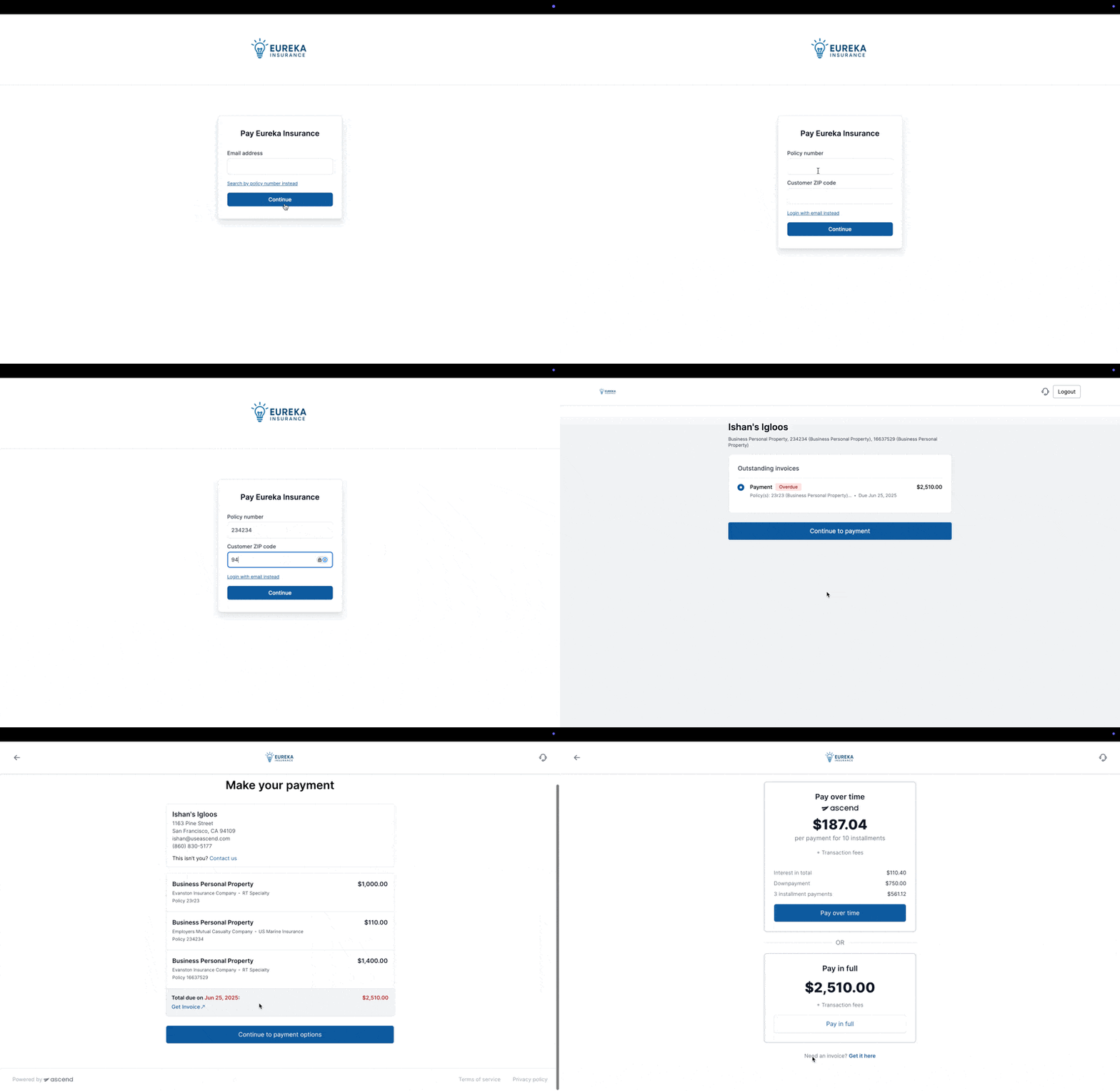
Ascend allows third parties to initiate payment on behalf of the insured named on the program. These third parties could be but are not limited to accountants, retail agencies, and wholesalers/MGAs. For a third party to remit payment on behalf of an insured, all they'd need is the policy number (or a policy number, in case multiple policies on the program) and the insured's ZIP code. This will allow the third party to view upcoming downpayment invoices, monthly installments and the overall program status.
With just the Policy Number and Insured ZIP Code, you can remit payment on behalf of the insured without directly logging in to the insured's Customer Portal.
If no policy number has been entered in Ascend, this login method will not work.
Homepage
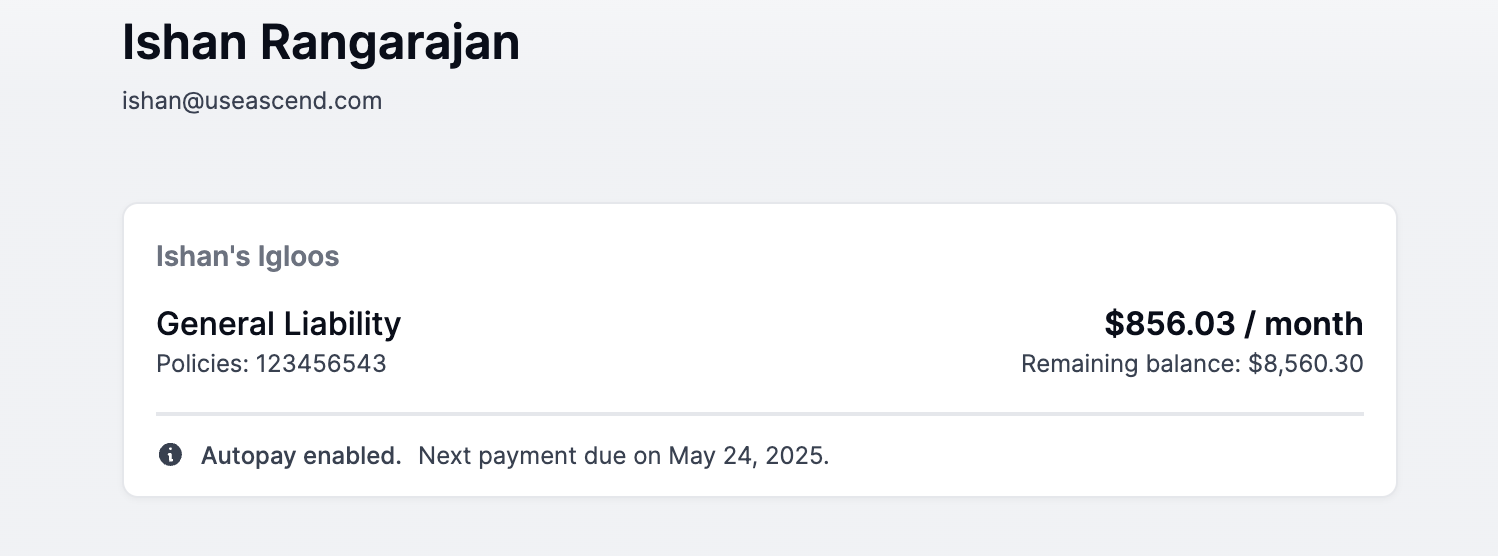
From the portal homepage, insureds can access all programs, invoices, and one time payments processed through Ascend associated with their email address.
For each program or invoice, a basic overview is displayed. Each item can then be opened for a more detailed view.
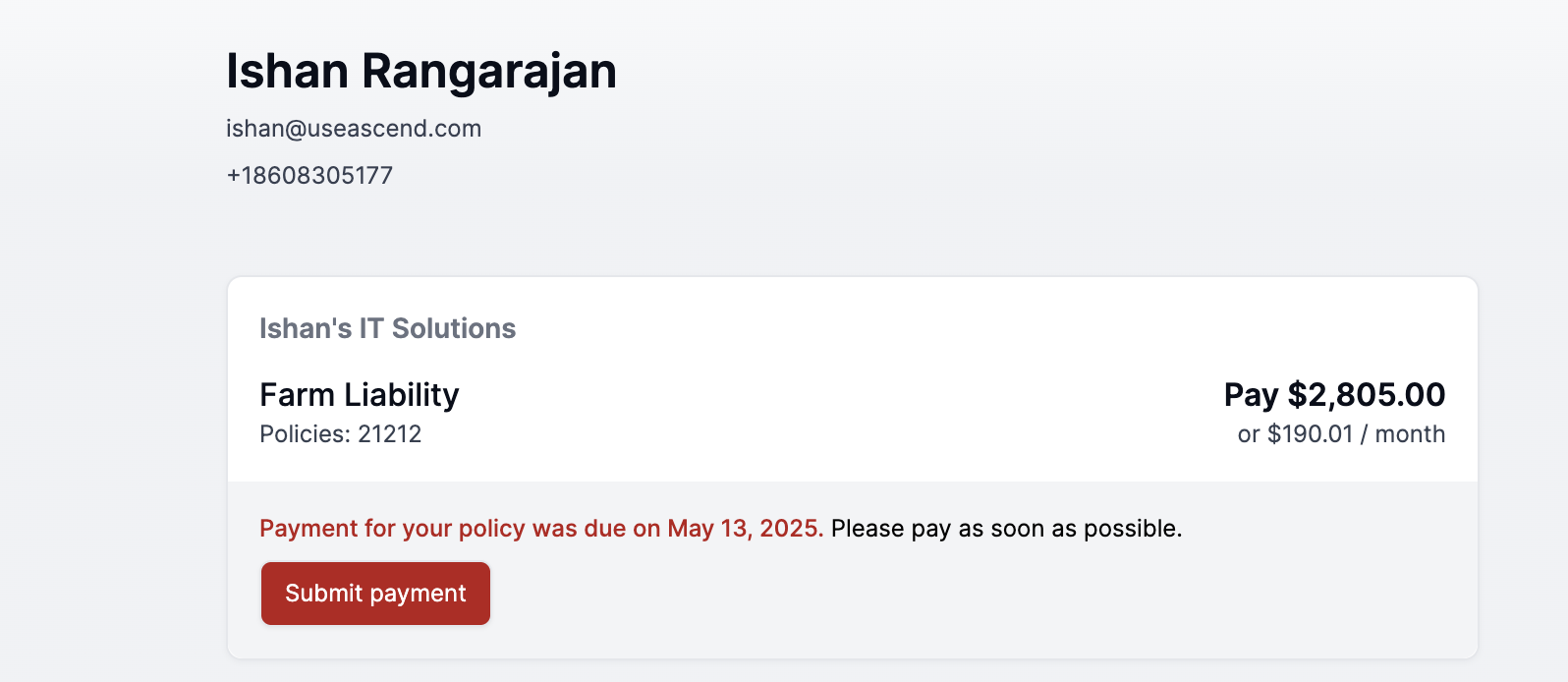
Detailed view:
When the insured clicks on the program or invoice, they are taken to the detailed view, where they can see:
Autopay settings
Finance agreement loan balance (if applicable)
Payment (upcoming and completed)
Loan details
Policy/quote details
Actions the insureds can take:
From the customer portal, insureds can edit their payment and autopay settings:
Make the initial downpayment or pay in full
Add new payment method for autopay
Advise your insureds to select the Manage Autopay button and then click on Replace Payment Method
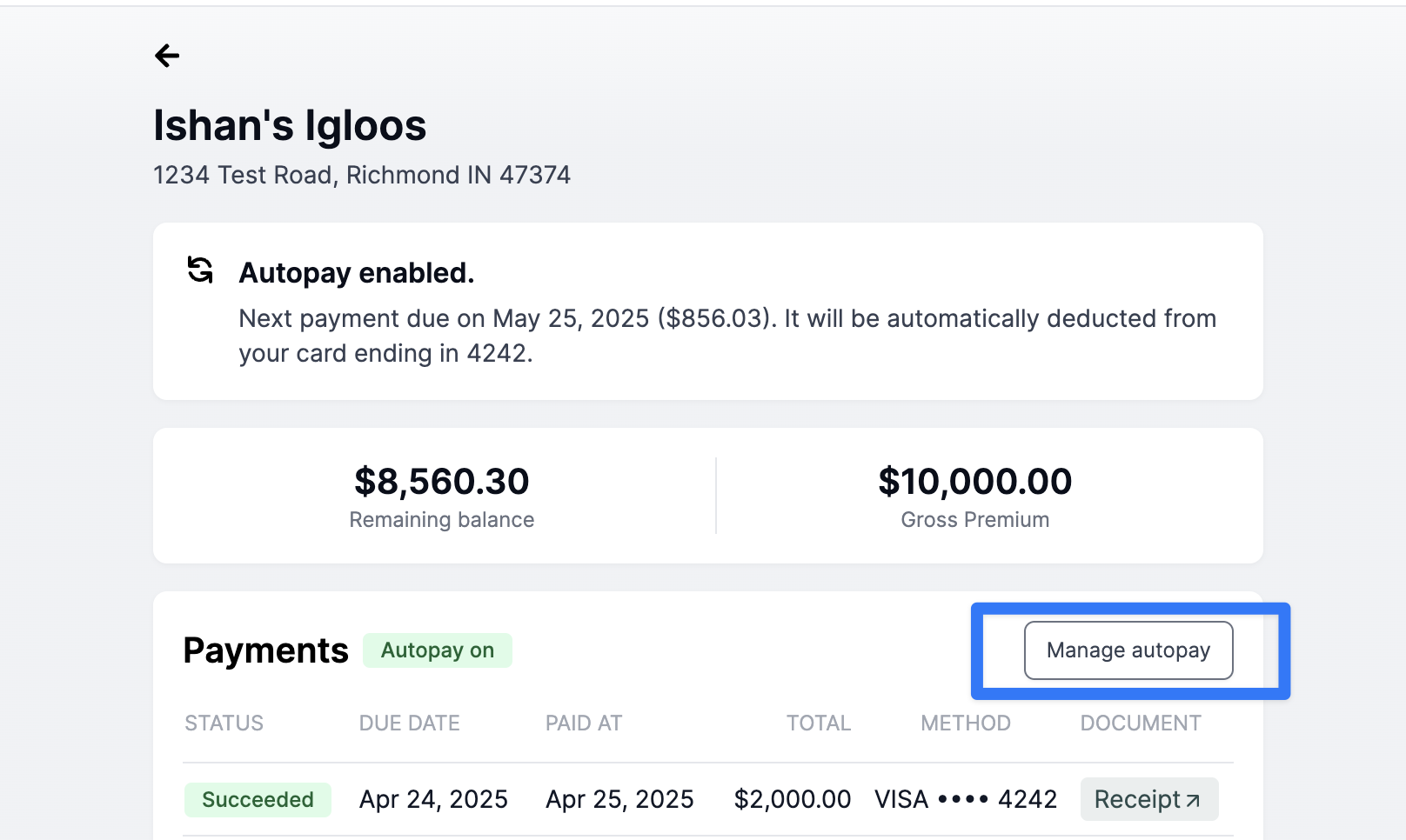
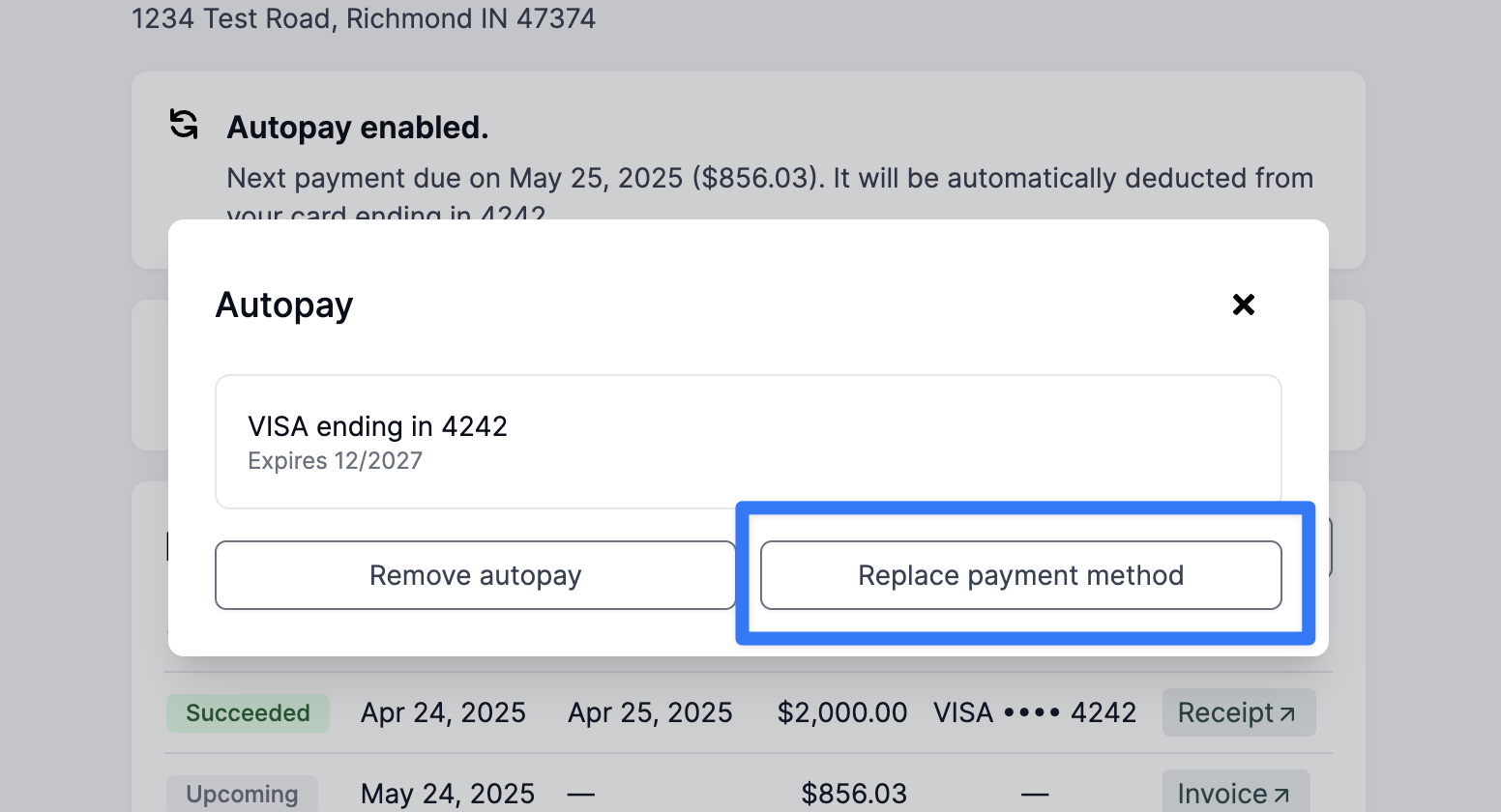
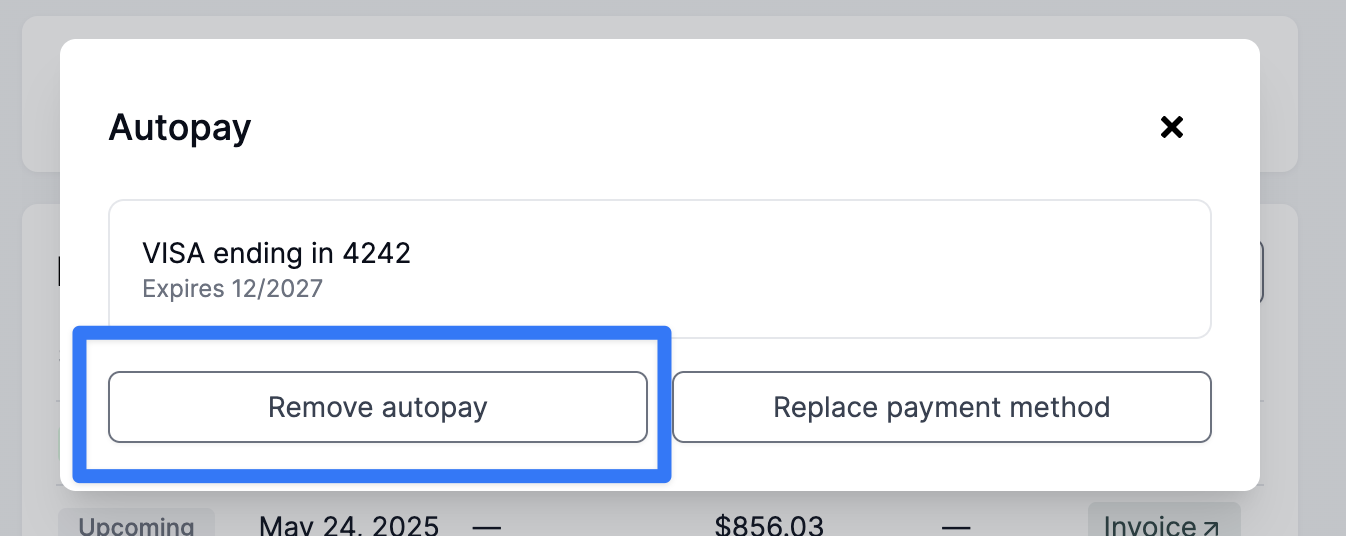
Turn autopay ON or OFF (under the Actions > Manage Autopay button)
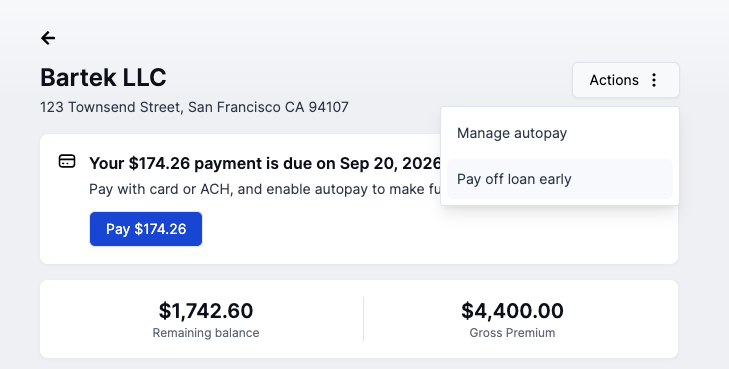
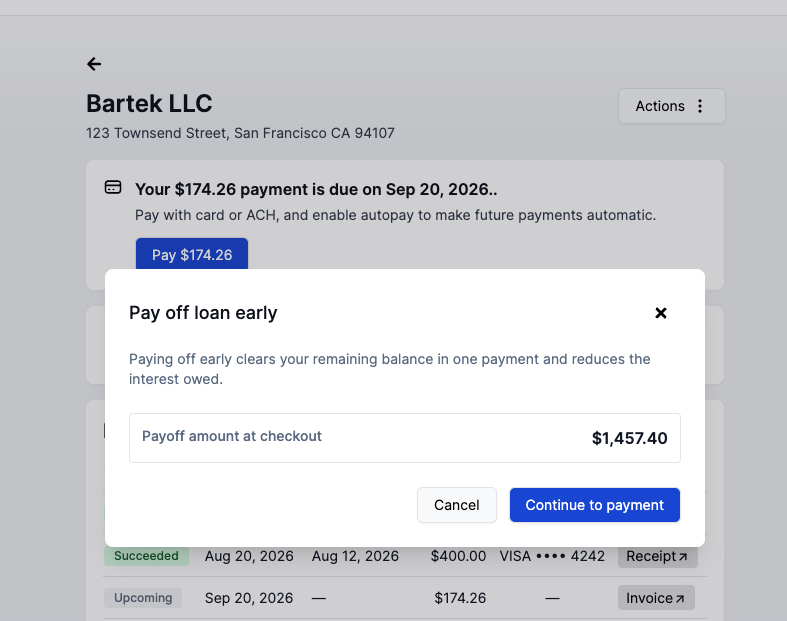
Pay off their loan early (under the Actions > Pay off loan early button)
Interest is partially removed when a loan is paid off early. No early payoff fees apply.
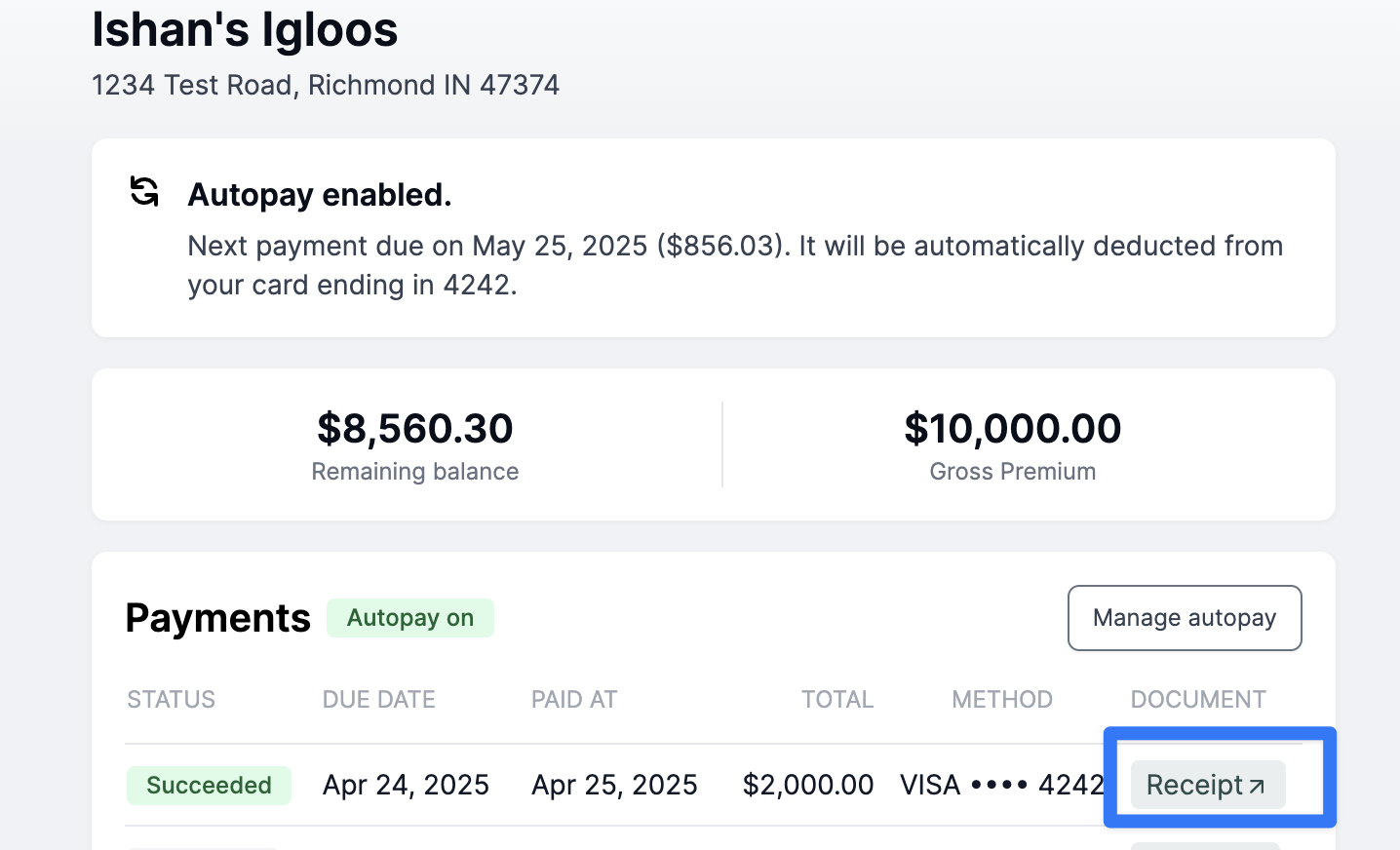
Download receipts for completed payments
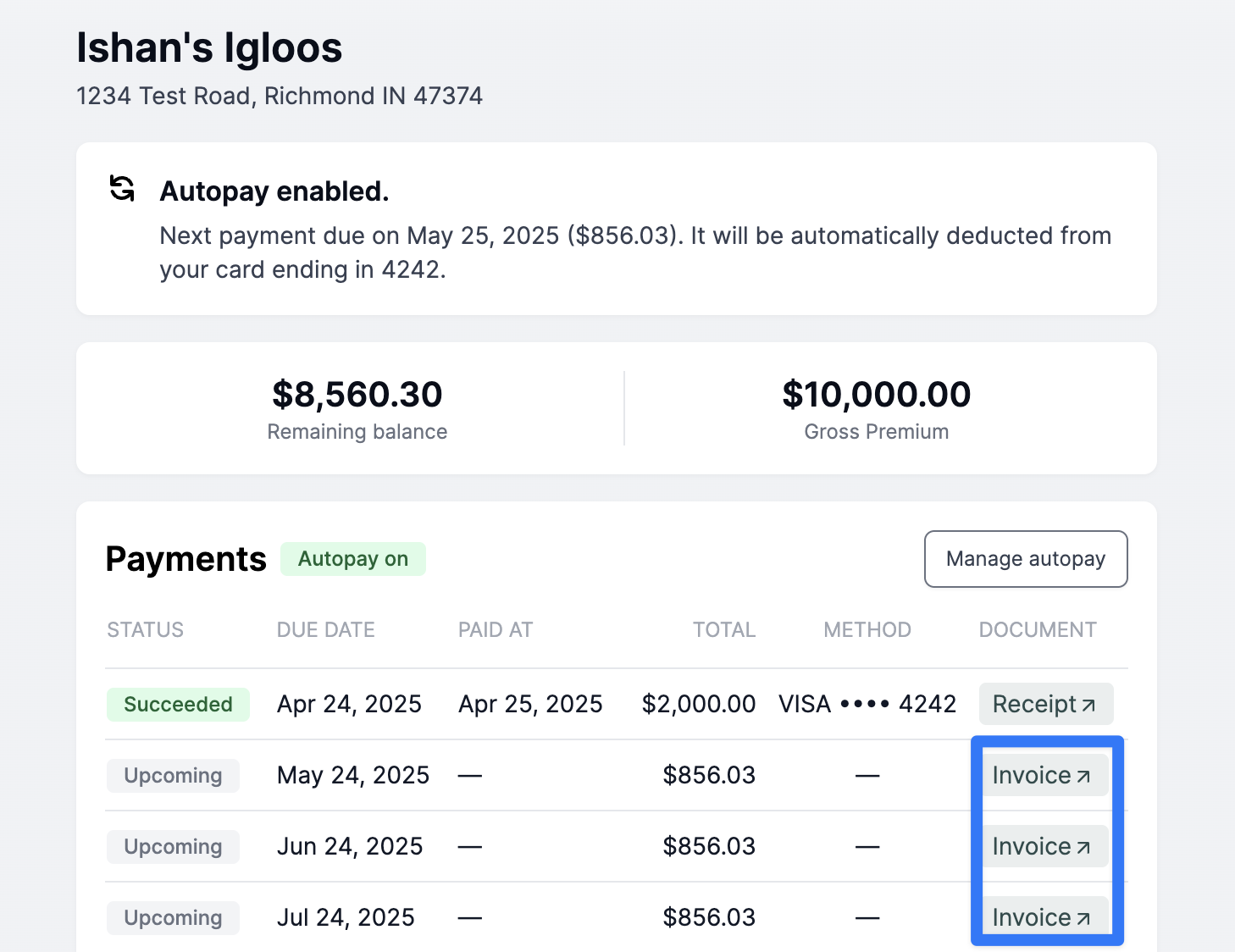
Download invoices for upcoming/unpaid payments
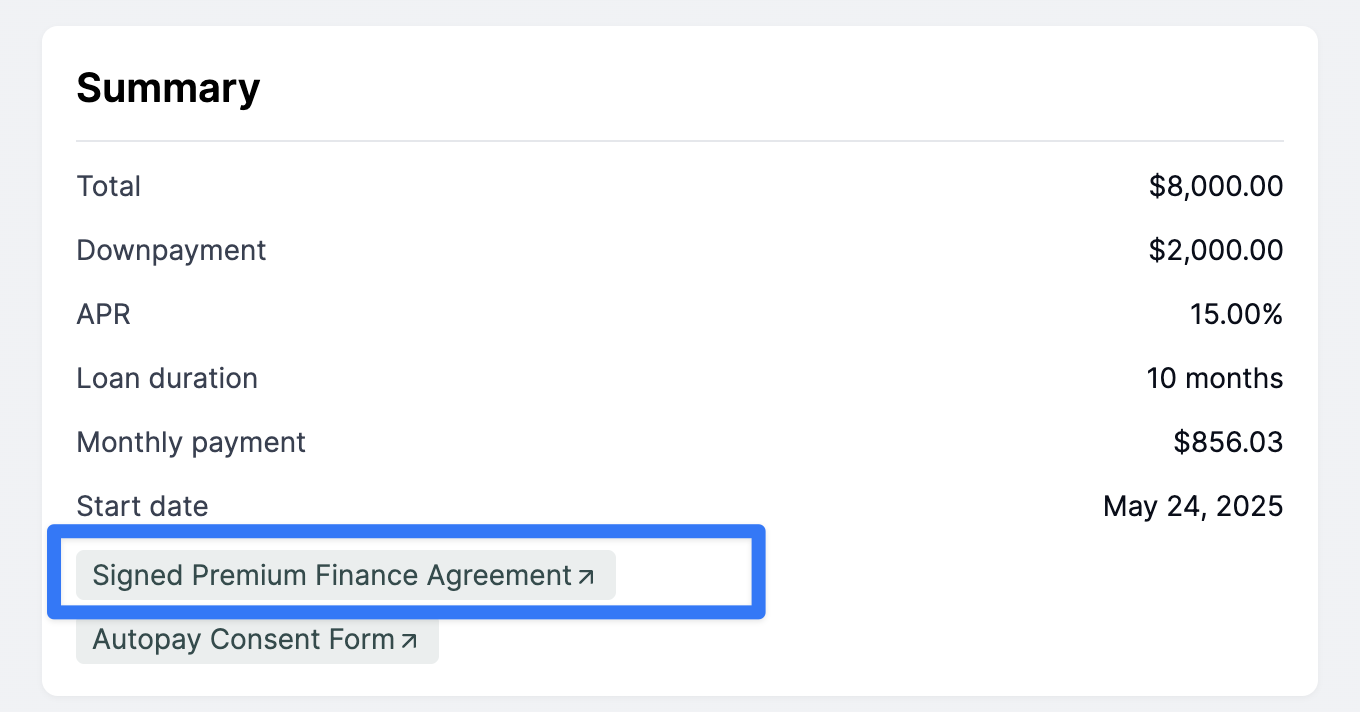
Download their signed finance agreement
Pay future installment on a finance agreement
Actions the insureds can't take but the agency can:
Contact Us
Need more help? Contact us at [email protected] for more help.