Navigating the Ascend Dashboard
Last updated: September 5, 2025
The Ascend Dashboard houses all your programs and transaction information, as well as the ability to adjust and edit. This article will help clarify where that information lives and how to navigate our system.
This Article will walk through navigating:
The navigation menu
The Programs tab
Program page pre-purchase
Program page post-purchase
On the left-hand side of every Ascend page, you will have the navigation menu.
If any of the below options are not listed on your agency's dashboard and you wish to learn more, please reach out to [email protected]
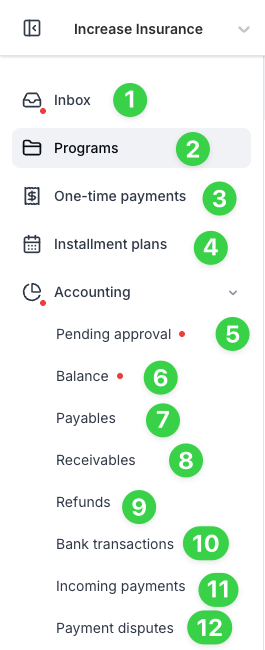
Inbox- leads directly to our Smart Inbox flow.
Programs- lists all of your agencies' programs and is where you will navigate to generate a new program.
One-time payments- is the hub for all One-Time payments and helps you create new ones.
Installment plans-This is a variation of our One-time payments, where you can generate installment plans for your clients.
Accounting tabs - These can only be accessed by team members with Admin or Accounting access.
Pending approval- All financed programs will enter the Pending approval tab before the funds are disbursed.
Balance- lists any unpaid payables owed by your Agency to Ascend
Payables- shows all the payments made by Ascend to Carriers and MGA/Wholesaler/Brokers on behalf of your agency
Receivables- shows all the funds transferred from Ascend to your agency
Refunds- shows refund payments made to the Insured for policy cancellations, premium reducing endorsements, and loan overpayments. You can also reissue and track when these checks are cashed.
Bank transactions- is a log of all deposits made into your agency's bank accounts, or withdrawals, in the case you are paying a balance back to Ascend.
Incoming payments- shows all check and wire payments coming into Ascend from insureds for invoices and program payments.
Payment disputes- disputes raised by your customers will appear here.
The Programs tab
A Program is a collection of policies and quotes that are grouped and can be under one financing agreement.
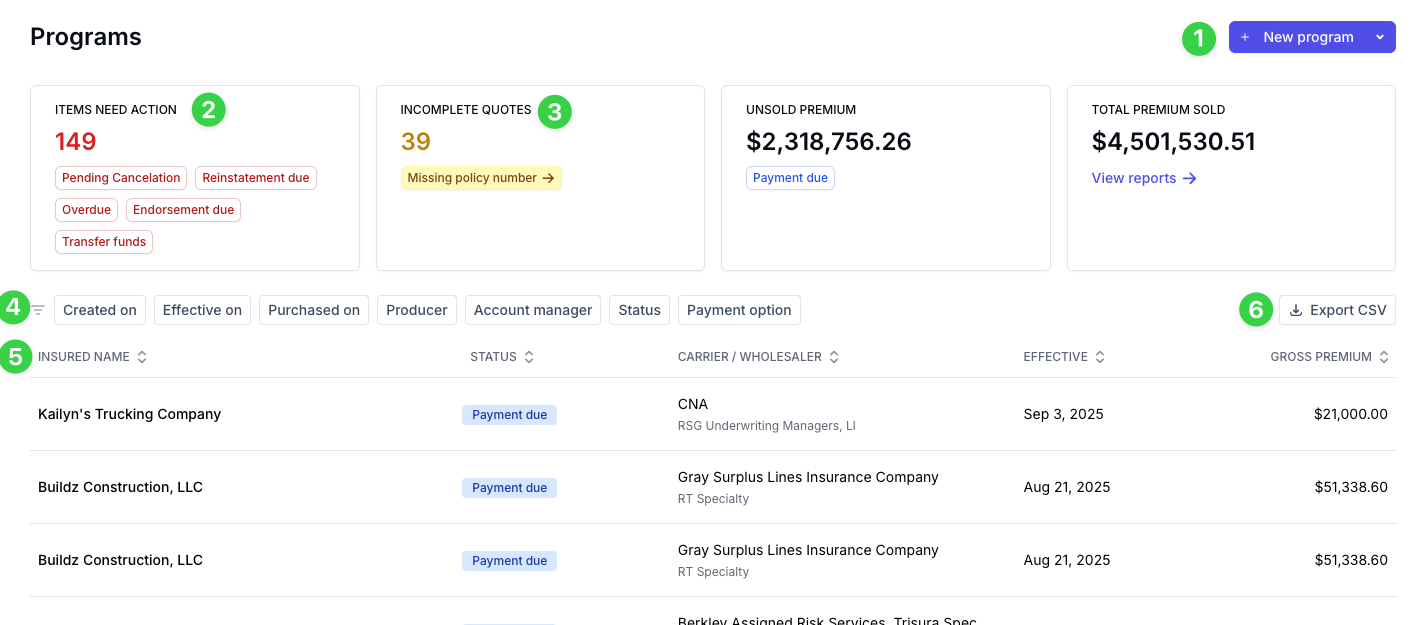
This is the start of the New Program's flow.
ITEMS NEED ACTION is the list of programs that would benefit from your agency's attention. These programs can be included in this status for many reasons, including but not limited to: Pending Cancelation, Reinstatement due, Overdue, Endorsement due, and Transfer funds.
INCOMPLETE QUOTES are programs that have not yet had their policy numbers input.
These are all filters your organization can apply to search through your programs.
The program list can be reorganized by any of the attributes in this row.
All of this data can be exported into CSV.
A program page before your client uses the checkout link
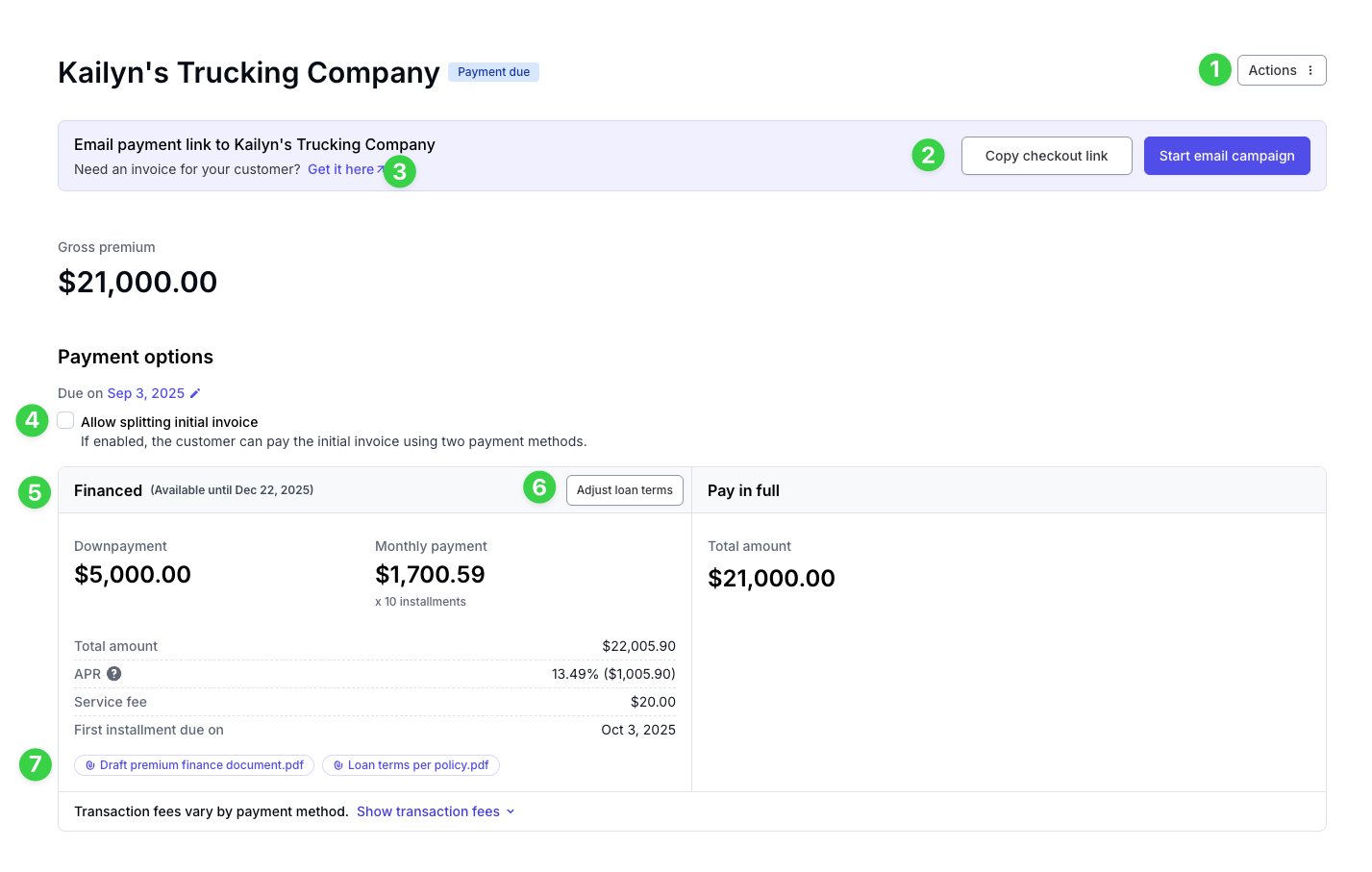
The Actions tab, before your client pays, lists the choices of "Add quote" or "Archive program."
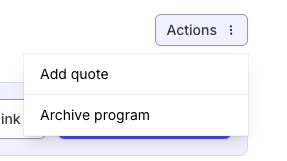
Add quote- allows you to add another policy into this program so they can both be paid for using the same checkout link/financing.
Archive program- this is the equivalent of deleting the quote. This can be reversed.
You have the option to either copy the checkout link and send it directly to your client or start an email campaign.
You will have the option of downloading an invoice to send to your client
Depending on your agency's subscription level, you will have the option of allowing your client to split their down payment over two methods.
This is where the financing terms are laid out.
The Adjust loan terms button is how you can submit underwriting requests.
These are the draft loan term documents that are available before the PFA is signed (this is signed in the checkout link, and the signed version is available once the down payment has been processed).
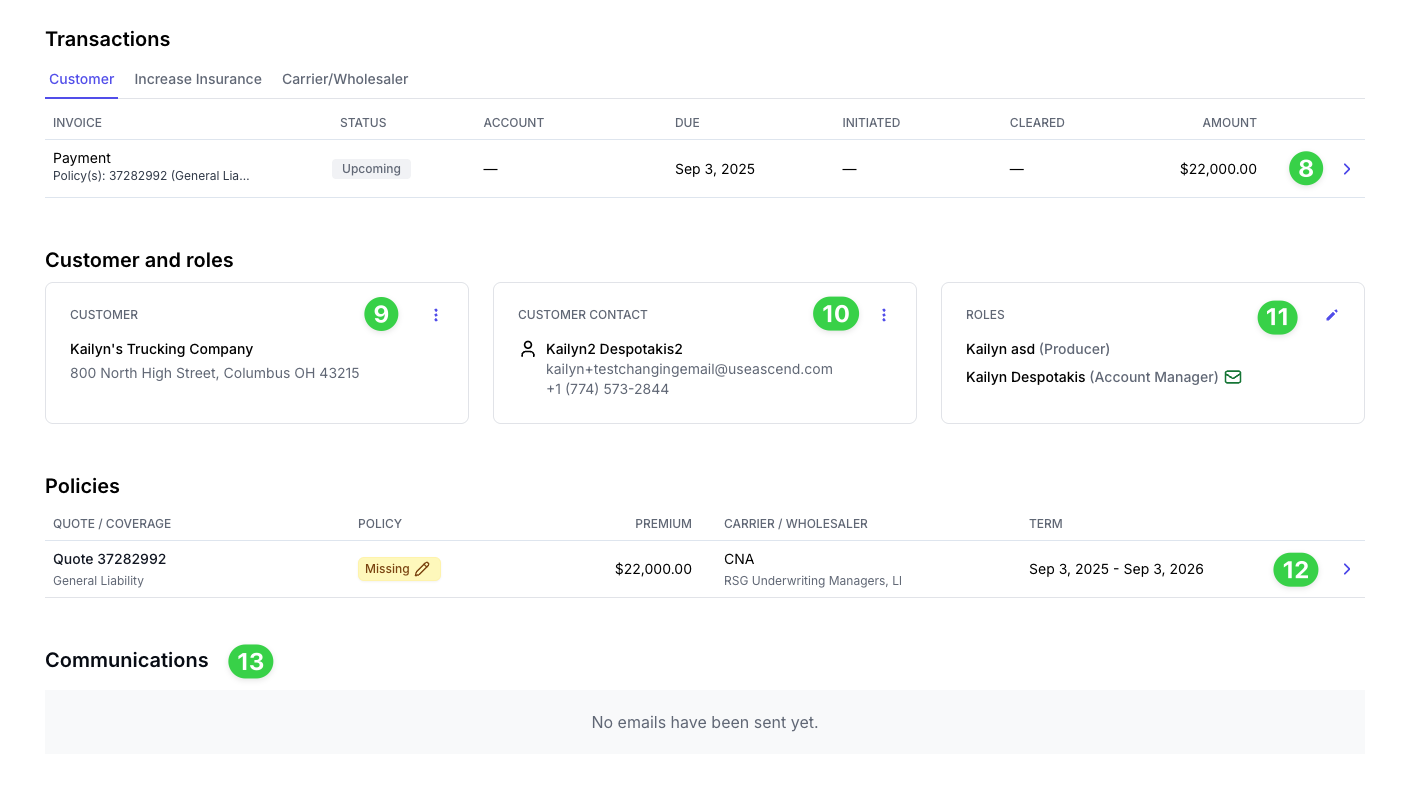
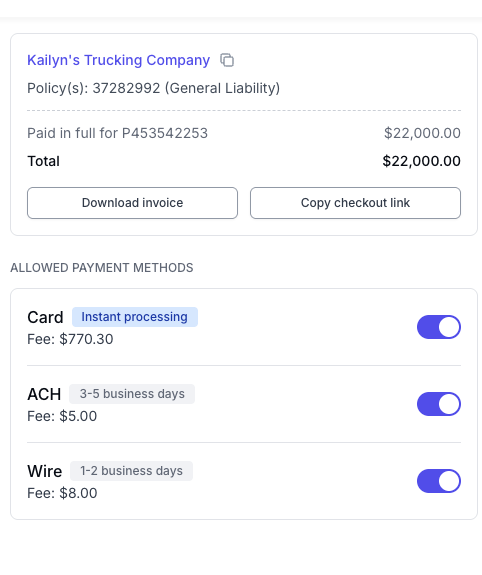
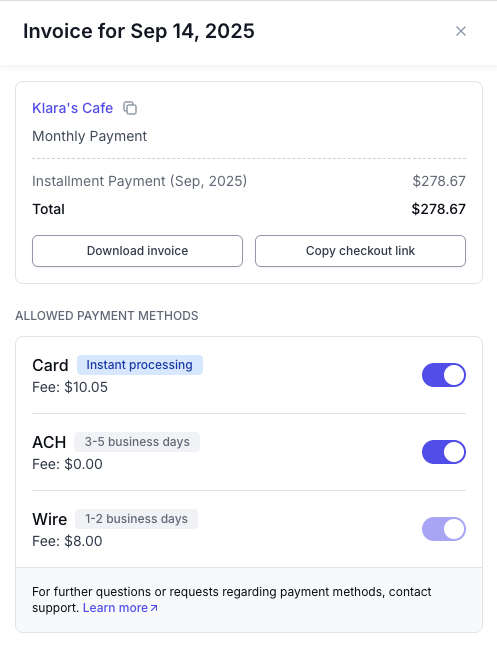
The transaction line clarifies when a payment is due, the amount due, and the status of the payment. If you select the unpaid line, the pop-up below will appear. You can download the invoice, copy the checkout link, and specify which payment methods are allowed.
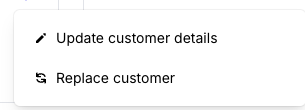
If you select the three dots next to the Customer line, you will have the options to edit the customer's information:
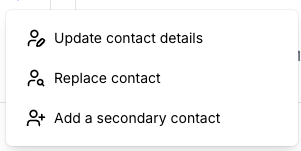
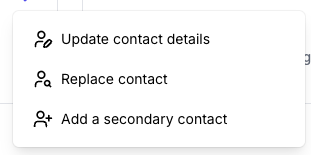
Selecting the three dots next to Customer Contact opens your editing options:
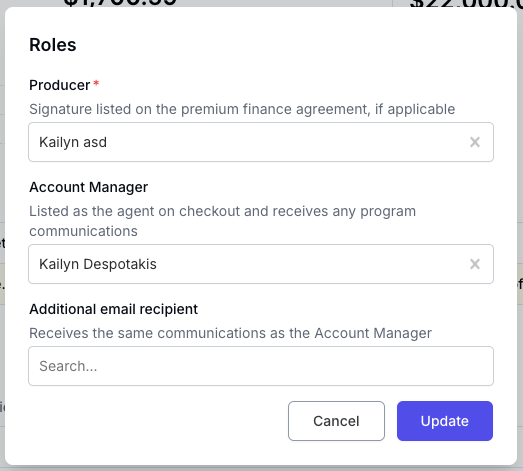
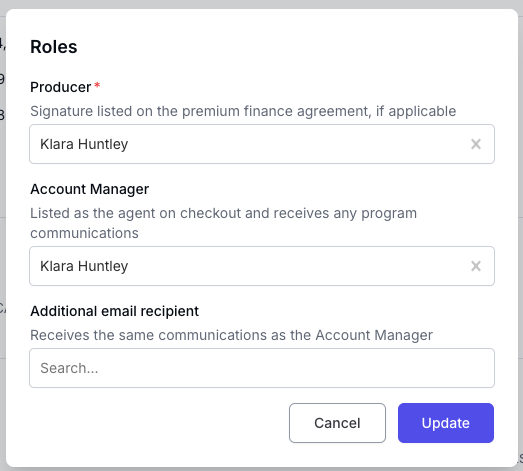
Selecting the pen tool next to Roles opens up the field that provides the option to edit who is listed under each role:
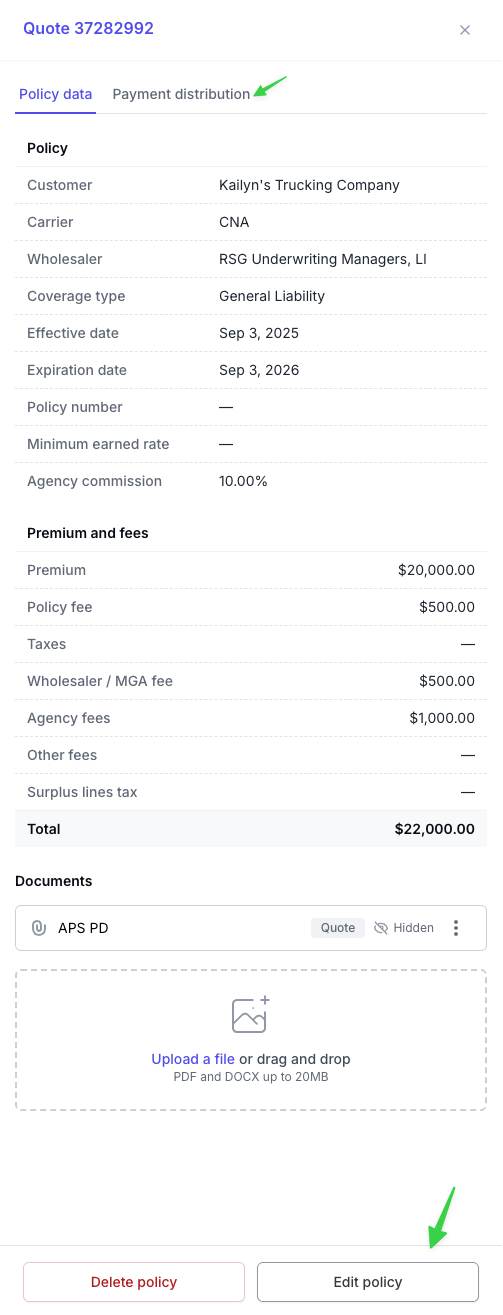
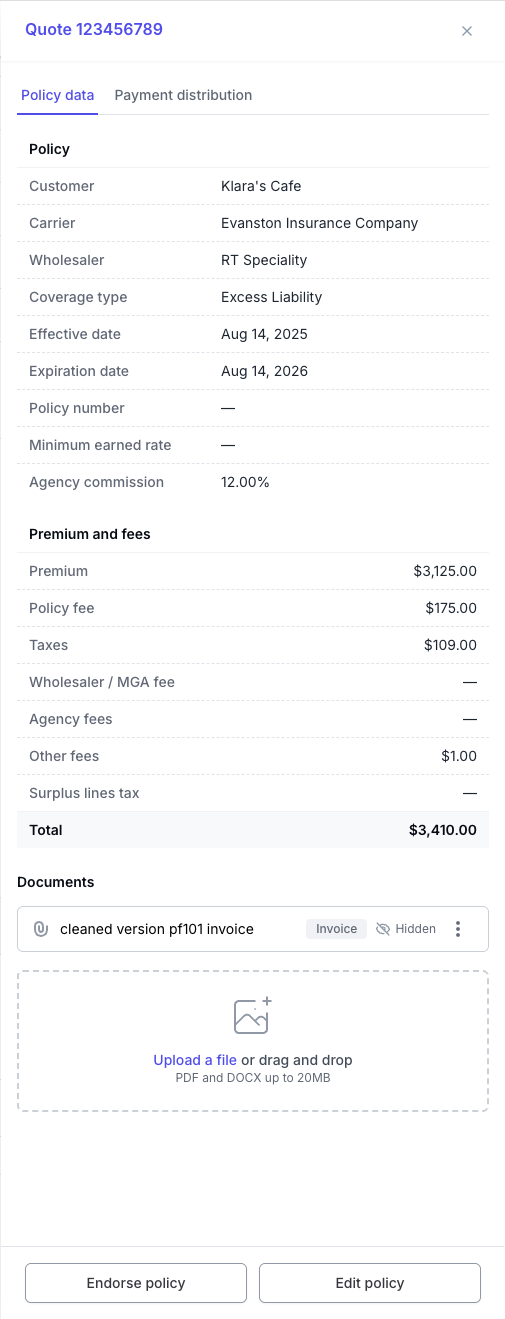
If the program has not yet been paid for, the pop-up below will generate when you select the quote. You will be able to confirm the data you have input, see how the payment will be distributed, and make edits
All emails that are sent from our system in relation to this program will be listed here
A Program page after your client has paid the down payment
This program is now considered active (as is shown on the page). An active program is a program that has been paid for and the installments are up to date.
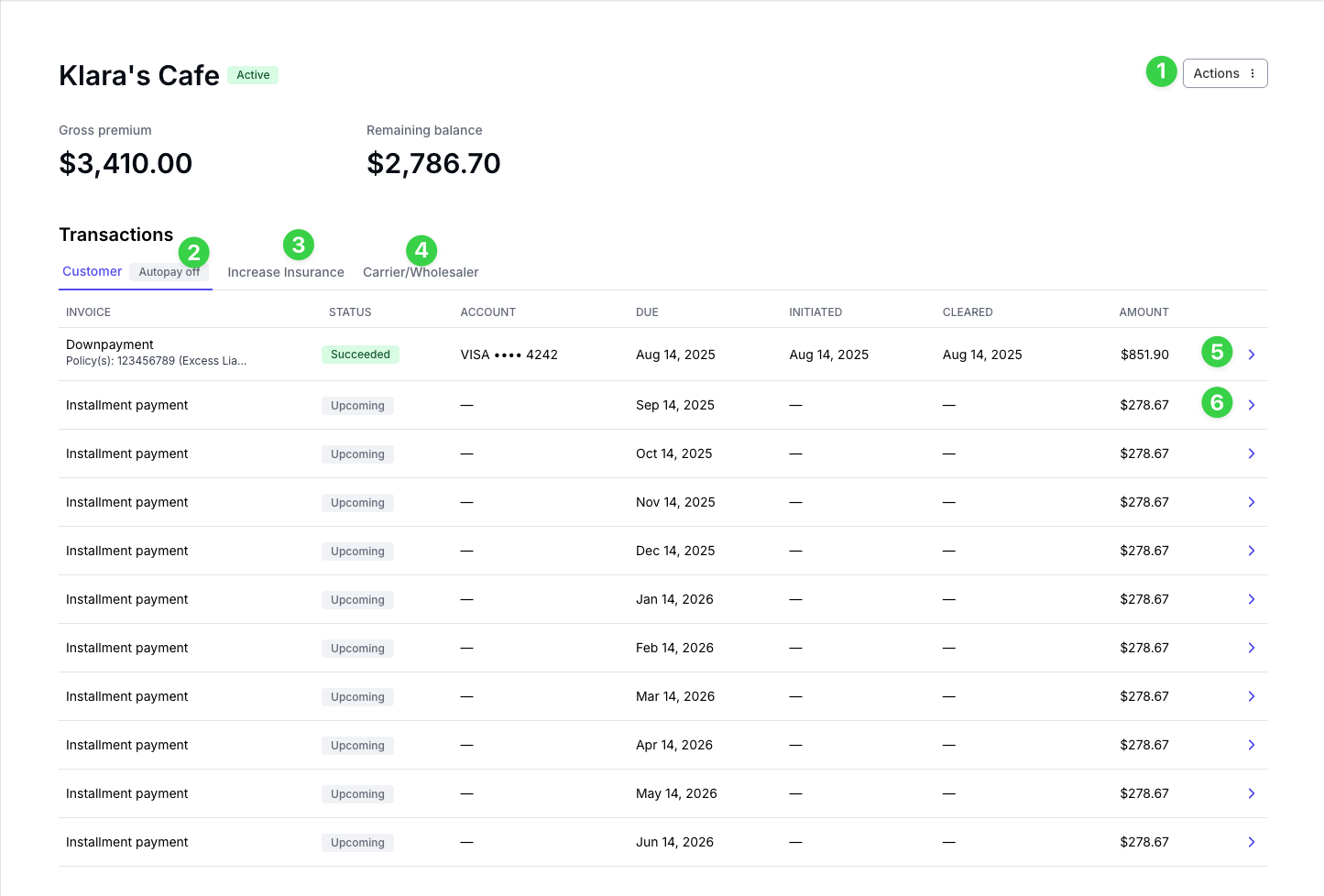
The Actions tab updates after the down payment is made to:

The Autopay status of your program will be reflected here
When you select your Agency here, you will be able to see all transactions with your agency regarding this program:

Selecting Carrier/Wholesaler allows you to see all of the transactions to and from the carrier/wholesaler regarding this program:

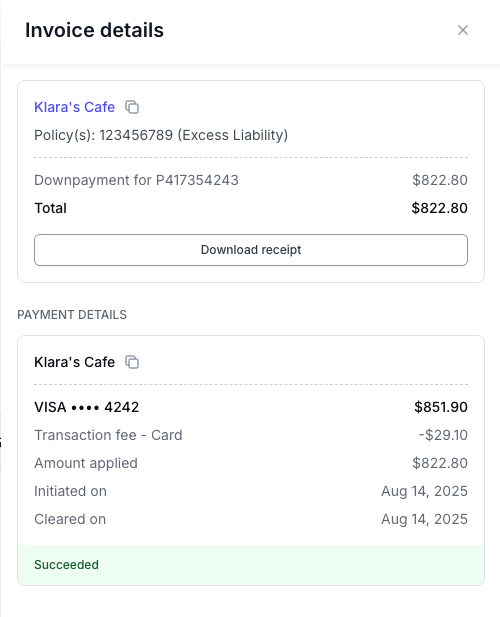
Selecting the arrow next to the transaction you would like more information about generates the pop-up below. Here you can download the transaction's receipt.
If you select the arrow for a transaction that has not yet happened, you will get the pop-up that includes the ability to download the invoice, copy the checkout link, and specify allowed payment methods.
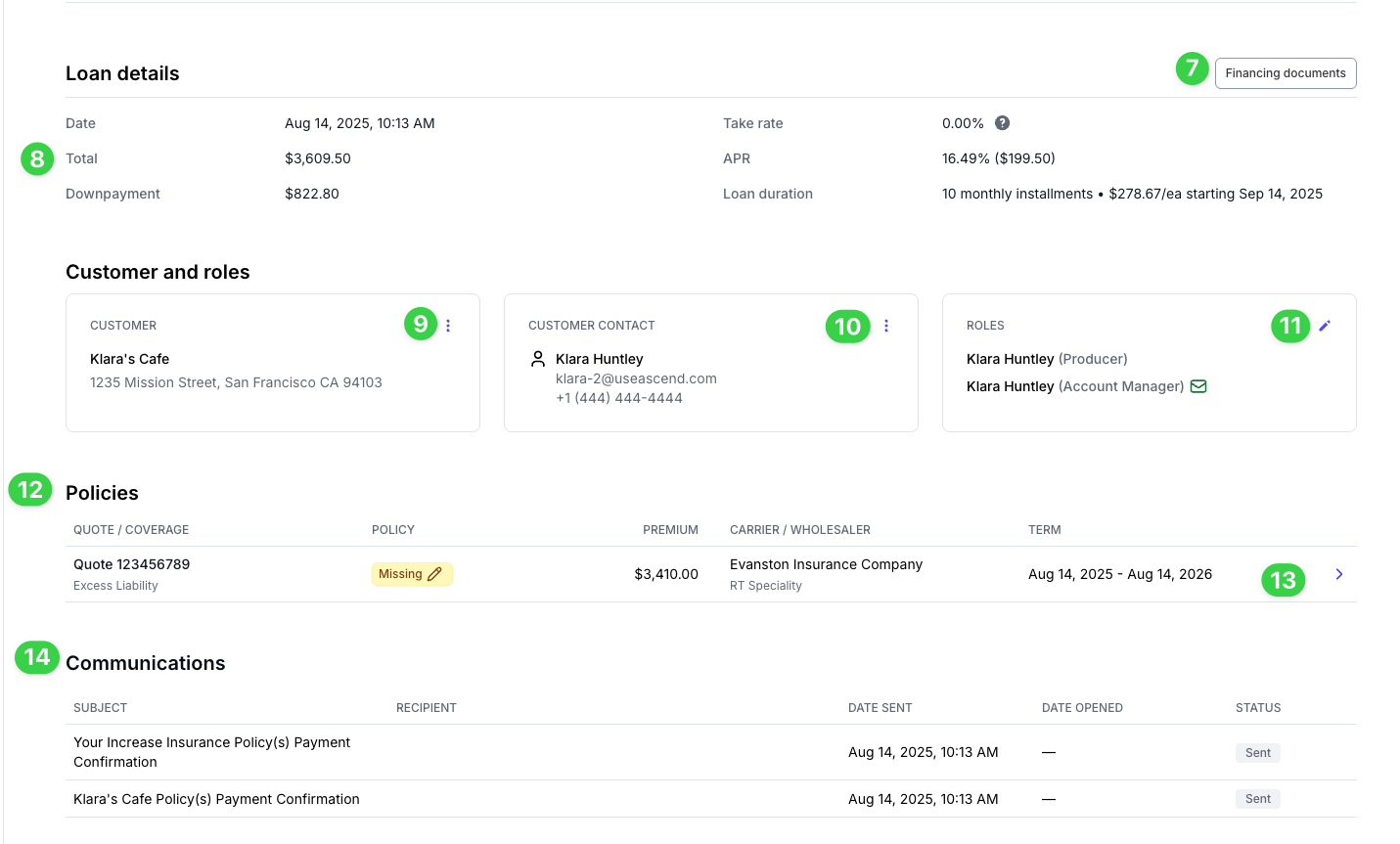
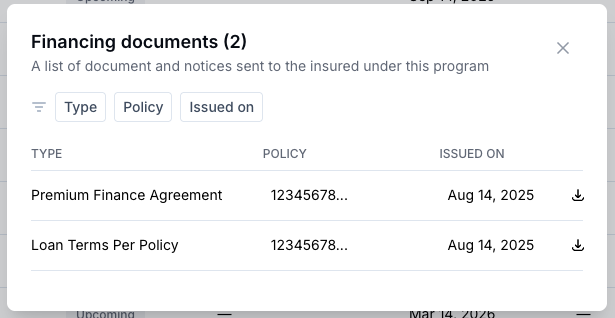
Selecting Financing documents will create a pop-up where you can download all financing documents related to the program:
The loan details will be written out on the program page
After the program is paid for, you will still be able to make edits to the customer by selecting the three dots:
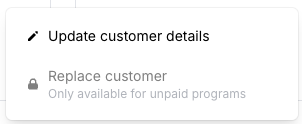
Selecting the three dots next to Customer contact will open up these editing options:
The pen icon next to the Roles will open up the following pop-up:
The Polices section will list all quotes in the program and the relevant information that might be missing.
If you select the policy line, the pop-up below will generate. Edits can still be made to the quote; however, they are more limited once the funds have been sent and will require documentation.
All emails that have been sent from our system in connection with the program are listed here. If you select any of the emails, it will show you exactly what was sent.
Contact Us
Need more help? Contact us at [email protected] for more help.