Program Page Guide
Last updated: June 16, 2026
This is a guide that will teach you:
What is a program in Ascend
Program Statuses and their definitions
Actions Menu
How to help your insured manage Autopay or pay off their loan early
How to find actions to endorse or cancel programs
Payment Options
Customer + Role Details
Policy Details
Transactions Table
How to retrieve information on insured payments, payments to the wholesaler/carrier
Program Communications
How to retrieve information on emails sent to your insured
Where to find documents related to the program (quotes, invoice, finance agreement, etc.)
What is a program?
A program is the primary billing object in Ascend, used to generate customer payment links. One program can have up to 25 quotes (policies) attached to it, which allows you to send the customer one payment link for multiple policies. To learn how to create a program, check out the article here.
Once a program is created, the Program page will be the central source of information regarding the policies, including:
Program Status
Actions
Payment Options
Customer Details
Policy Details
Transactions
Email Communications
Program Status
This program status indicates the overarching status of the program.
A few common statuses are below:
Payment Due indicates that a client has yet to initiate payment for a program. Changes can be made to all quote/policy fields while the program is in this status.
Active indicates that Ascend has received payment from a customer for a program and the program is in good standing.
Processing is when a payment has been initiated but has not yet fully cleared.
Overdue and Pending Cancelation statuses indicate a client has missed a recent installment payment or if their policy is at risk of cancelation for nonpayment.
Completed: varies based on whether the program was paid-in-full or financed.
Paid-in-Full: All policies expired and payment has been made
Financed: All policies expired and loan has been paid off
Incomplete: program has been started but has not yet been finalized or sent to the insured for payment.
Canceled: program has been canceled, either by the agency or by Ascend (loan canceled due to non-pay)
Transfer Funds: Organization needs to transfer funds to Ascend (e.g. transaction fees, return premium, etc)
Pending Reinstatement: insured has initiated payment on their reinstatement payment link and we are waiting for the funds to come through and be applied to the loan.
Reinstatement Due indicates that the program has been canceled (or is pending cancellation) due to nonpayment, and a reinstatement payment is now required to restore coverage.
Actions Menu
The Actions Menu, located in the upper right-hand corner of the Program page, provides quick access to key program-level actions. These tools allow you to manage policy changes, loan adjustments, cancellations, and customer requests directly from the program.
Depending on the program’s status, available actions may vary.
Common actions include:
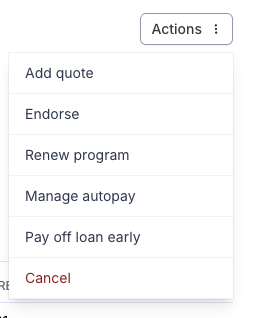
Add Quote
The Add Quote action allows you to attach an additional quote or policy to an existing program.
This is useful when:
A customer purchases another policy after the program has already been created
You want to bundle multiple policies under one payment link
You need to consolidate billing for the insured
Key details:
A program can have up to 25 quotes/policies attached
Adding a quote will update the total premium and payment options
If the program is financed, the loan terms may automatically adjust to reflect the new premium
Any premium change will be reflected in the Payment Options and Transactions sections
Depending on the program status, underwriting approval may be required before changes are finalized.
Endorse Program / Policy
Allows you to process changes to an existing policy within the program.
Use this action when:
Premium changes due to endorsements
Coverage limits are updated
Additional insureds are added
Policy details need modification
After submitting an endorsement:
Premium changes will automatically update the program balance
If financed, loan terms may adjust accordingly
Transactions related to the endorsement will appear in the Transactions tab
Renew Program
The Renew Program action allows you to create a renewal version of an existing program when policies are approaching expiration.
This action:
Carries forward relevant customer and role details
Allows you to attach renewal quotes
Generates a new payment link for the renewal term
Important notes:
Renewing a program creates a new program for the new policy term
The previous program will remain active until expiration or completion
Payment options (Financed or Pay-in-Full) can be selected for the renewal term
This helps streamline renewals and reduces the need to re-enter customer information.
Manage Autopay
The Manage Autopay action allows you to view and manage the insured’s automatic payment settings.
From here, you can:
Confirm whether Autopay is enabled
View the saved payment method
Update or replace a payment method
Disable Autopay (if requested by the insured)
Key details:
Autopay applies to installment payments on financed programs
Payments will automatically process on scheduled due dates
If a payment method fails, the program may move to Overdue
Encourage insureds to keep their payment information up to date to avoid missed payments or policy cancellation.
Early Payoff
Allows the insured to pay off the remaining loan balance early.
When selected:
A payoff amount will be generated
The insured can submit full remaining payment
Once cleared, the loan status will update accordingly
The program may move to Completed (Financed) once all policies expire
Cancel Program
Allows you to cancel the program and associated loan.
This may be used when:
The insured requests cancellation
The policy is being rewritten
Coverage is no longer needed
After cancellation:
Return premiums (if applicable) will be calculated
Adjustments will appear in the Transactions tab
The program status will update to Canceled
Payment Options
Typically, your customer will have two payment options available when purchasing a program: Financed or Pay In Full.
Details about each payment option can be found within its respective sections.
Modifications can be made to the loan terms by selecting Adjust loan terms from the top right corner of the Financed payment option details.
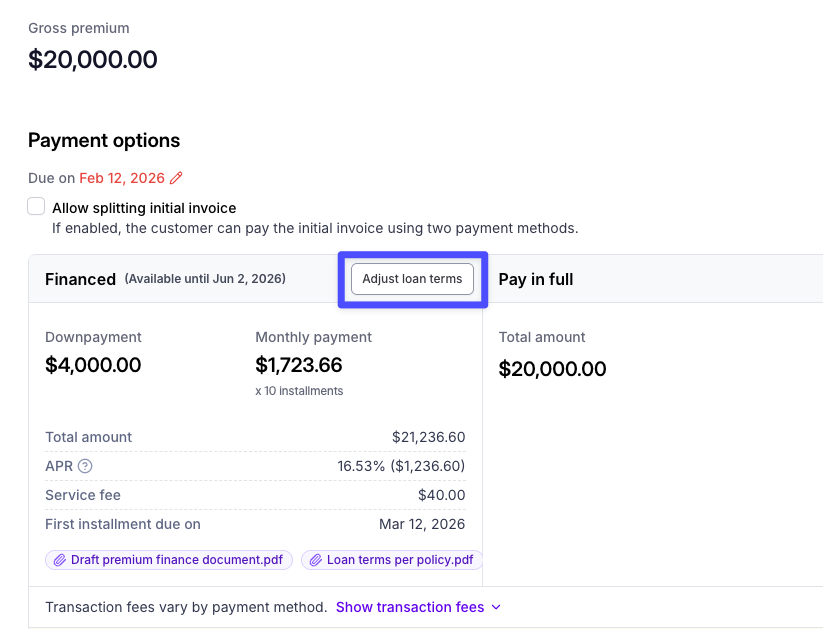
Downpayment, Interest Rate, and Payment Schedule can all be modified. Some modifications require underwriting approval. To learn more about this process, check out this article here.
Important: APR cannot be modified after the Premium Finance Agreement (PFA) has been signed by the insured. Interest rate adjustments must be requested using the “Adjust loan terms” button before the PFA is signed and the loan is finalized.
Sometimes you may see an error that financing isn't available. For more information on that error, click here.
Customer + Role Details
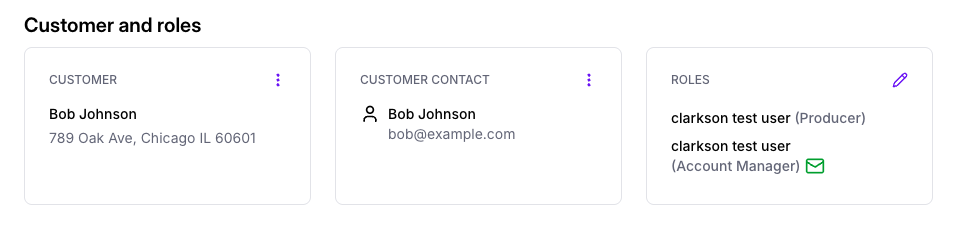
You can view and edit the customer's contact information from this section. You can also edit, add or reassign the Producer and Account Manager. Click on the three vertical dots or pencil icon at the top right of each section to edit details.
Policy Details
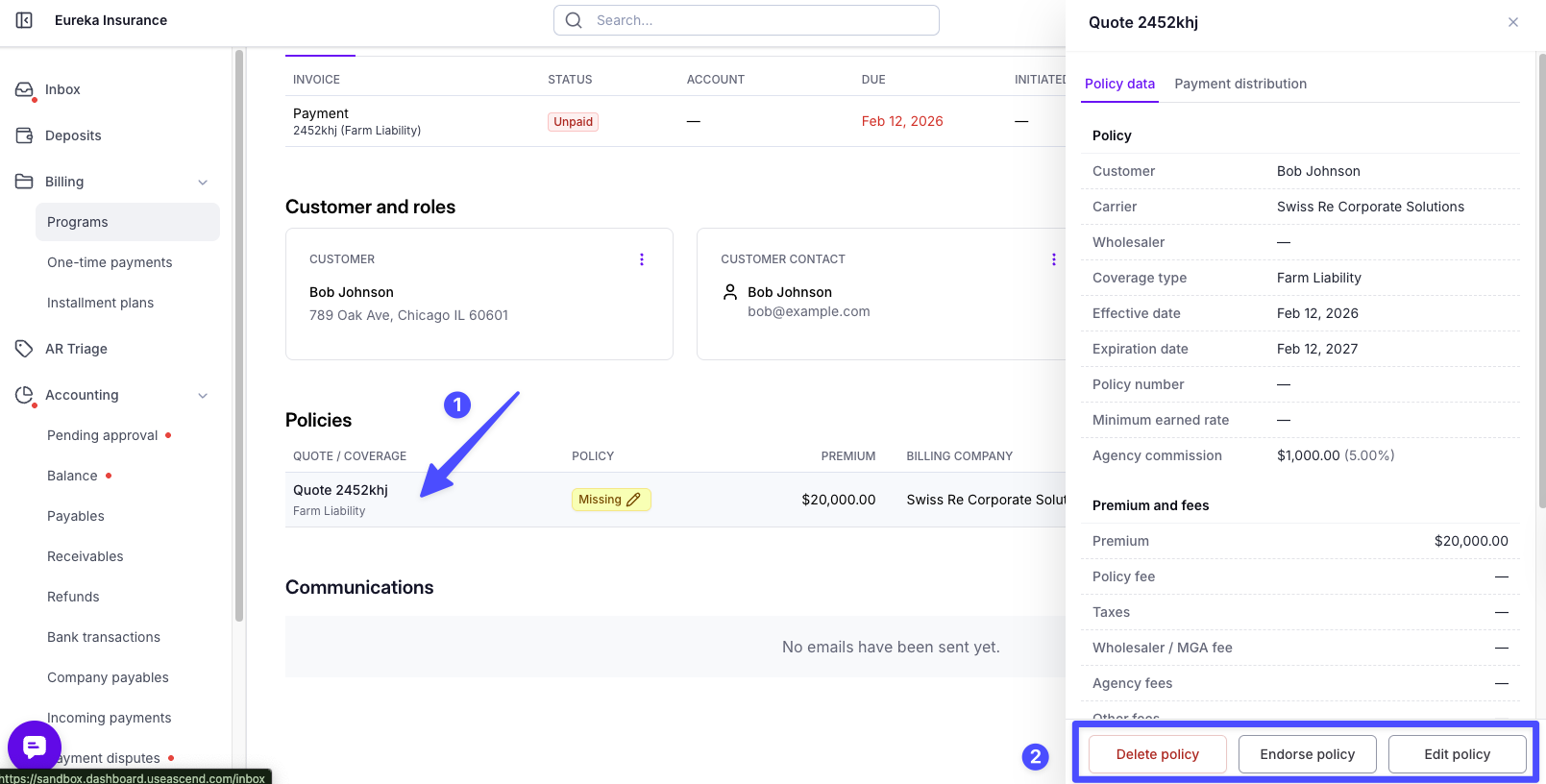
Each quote or policy added to the program will appear in this table.
Hover over the policy row to reveal additional actions like Endorse, Edit, and Delete.
Click on a policy row to view complete details.
Transactions Table
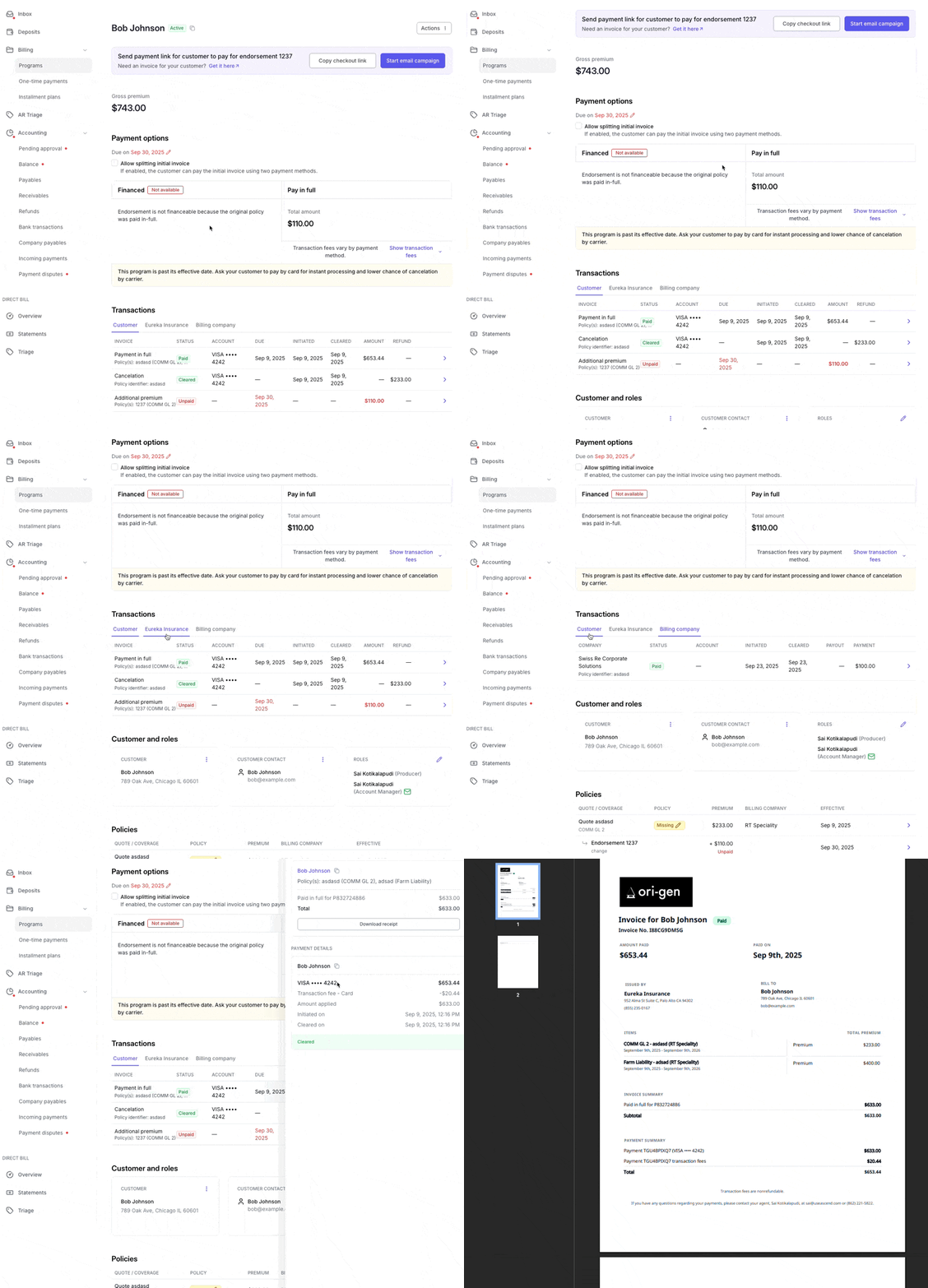
The Transactions Tab provides a complete payments ledger for the program. This is your source of truth for tracking all money movement related to the insured, your agency, and the carrier/wholesaler.
There are 3 tabs on the Transactions table:
Customer: payment history for the insured, including any upcoming, succeeded, or refunded customer payments.
Your agency: payment history to and from your agency on this program, including commissions transfers and take rates.
Carrier/Wholesaler: payments to and from the carriers and/or wholesalers/MGAs on the program, including payouts for endorsements.
You can click on each payment line for additional details or to download receipts.
Communications
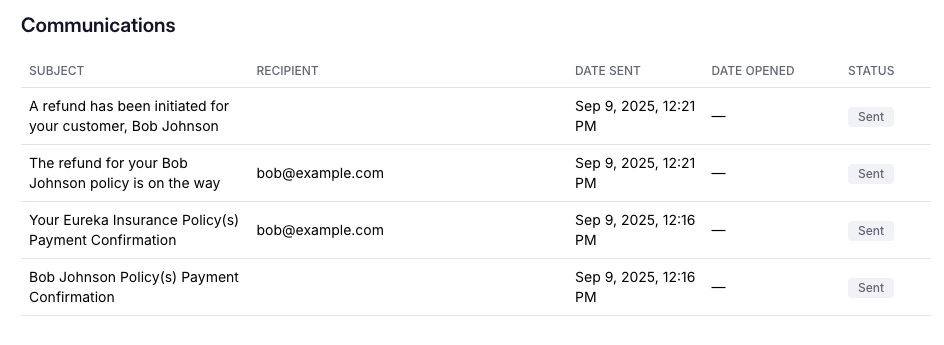
A record of all Ascend's email communications to your insured and your team for this program is published in this table. To preview a copy of the email your customer received, click on the title of the email row, and the email preview will open up in a new tab. If your browser has pop-up blockers enabled, you may have difficulty opening email previews.
Date Sent, Date Opened, and Date Clicked timestamps are published alongside the email subject. The "Failed" status indicated the email to the insured bounced.
Frequently Asked Questions (FAQ)
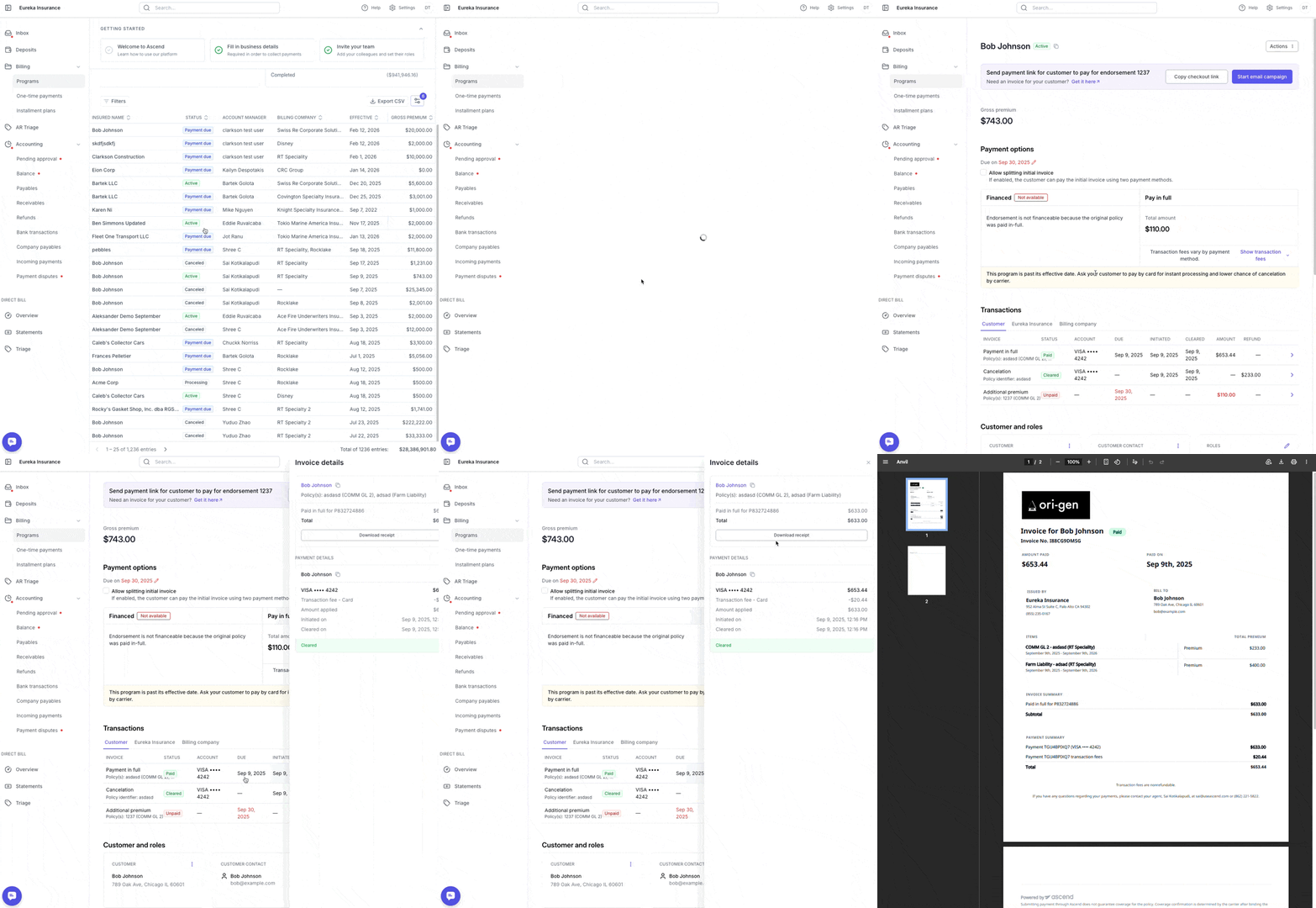
Where can I download a receipt for a customer payment?
Navigate to the Customer tab within Transactions and click on the specific payment line. If a receipt is available, you will be able to download it from the transaction details.
Why do I see a negative amount in the Transactions tab?
Negative amounts typically indicate:
Refunds
Return premiums
Reversed fees
Adjustments related to cancellations or endorsements
Click into the transaction for a full breakdown.
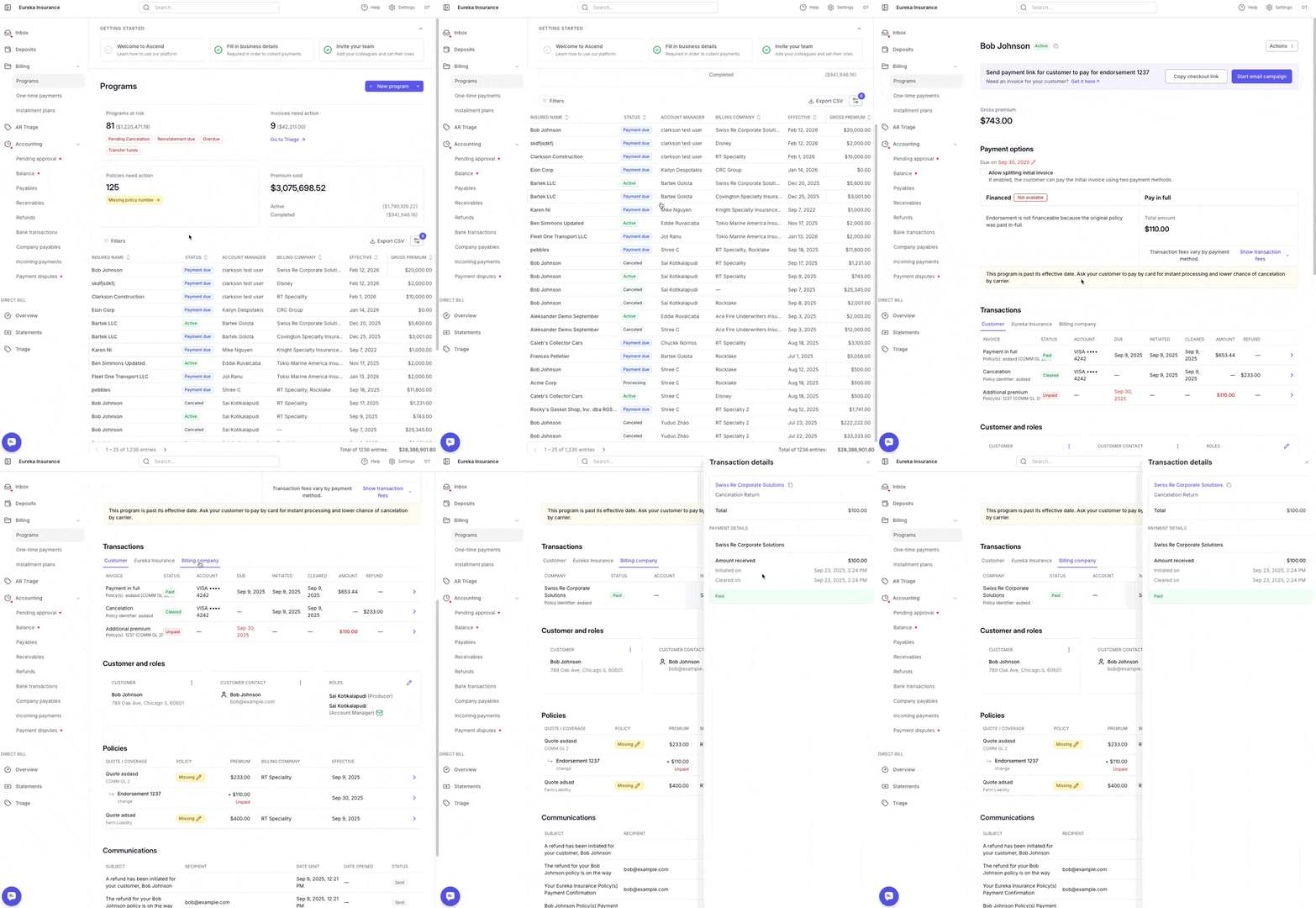
How can I confirm the carrier has been paid?
Go to the Billing company tab and review the payout transactions. A “Paid” status confirms the funds were disbursed.
Can I edit or delete a transaction?
No. Transactions are system-generated and cannot be edited or deleted. If something appears incorrect, please contact [email protected] for assistance.
Contact Us
Need more help? Contact us at [email protected] for more help