Insured Payment Experience
Last updated: July 22, 2025
Insured Payment Experience
This is a guide that will teach you:
How to send an email to your insured for an Ascend program
How to view emails sent from a program
What the checkout flow looks like
Send The Program's Payment Link
When the program is ready for purchase, use the Send email button from the banner at the top of the program page.
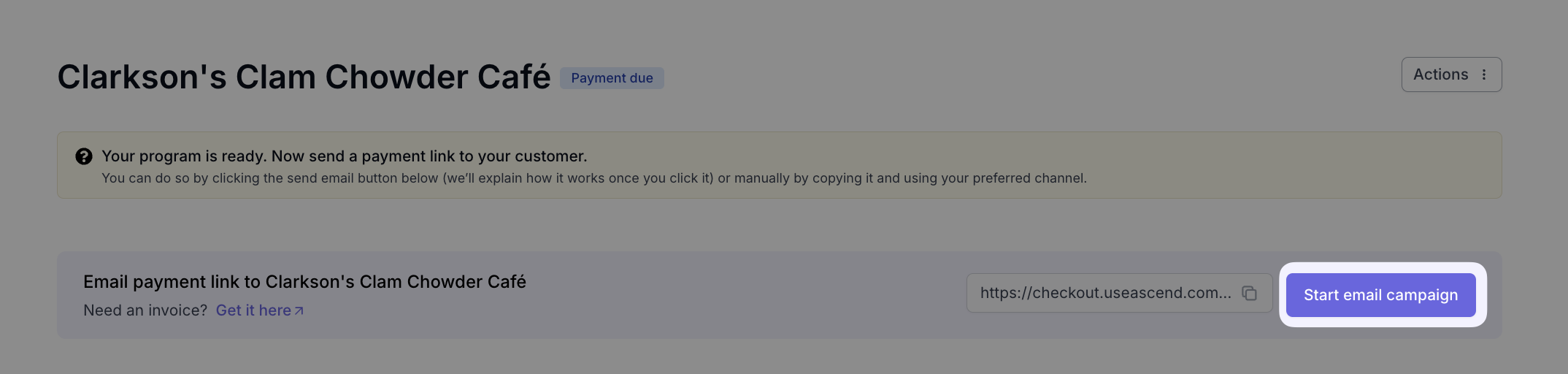
This will trigger an email campaign to your customer branded to your agency.
View Emails Sent to Insureds
A record of all email communications that Ascend has sent to your insured for this program is published in the Communications section at the bottom of the program page.
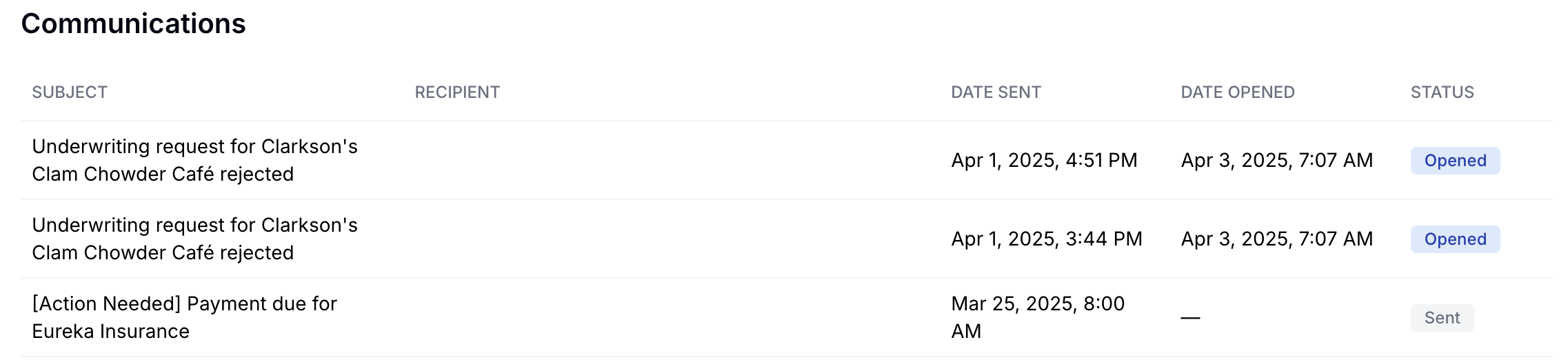
To preview a copy of the email your customer received, click on the title of the email row, and the email preview will open up in a new tab. If your browser has pop-up blockers enabled, you may have difficulty opening email previews.
Date Sent, Date Opened, and Date Clicked timestamps are published alongside the email subject. To open a preview of the email sent, click on the subject title:
The Insured's Checkout Experience
The payment due email sent from the program page will have a Make a payment button for your insured to initiate the payment due.
Upon clicking Make a payment, your customer will be directed to their payment link. This link will only accept payment once and is unique to the program your team created.
✅ Changes made by the agent to a program's policy or loan details after a purchase email is sent will be immediately reflected in the checkout link without re-sending.
❌ Changes cannot be made after a customer has completed checkout.
Agents can also find the checkout link on the Program Page in the banner alongside the Send Email button.
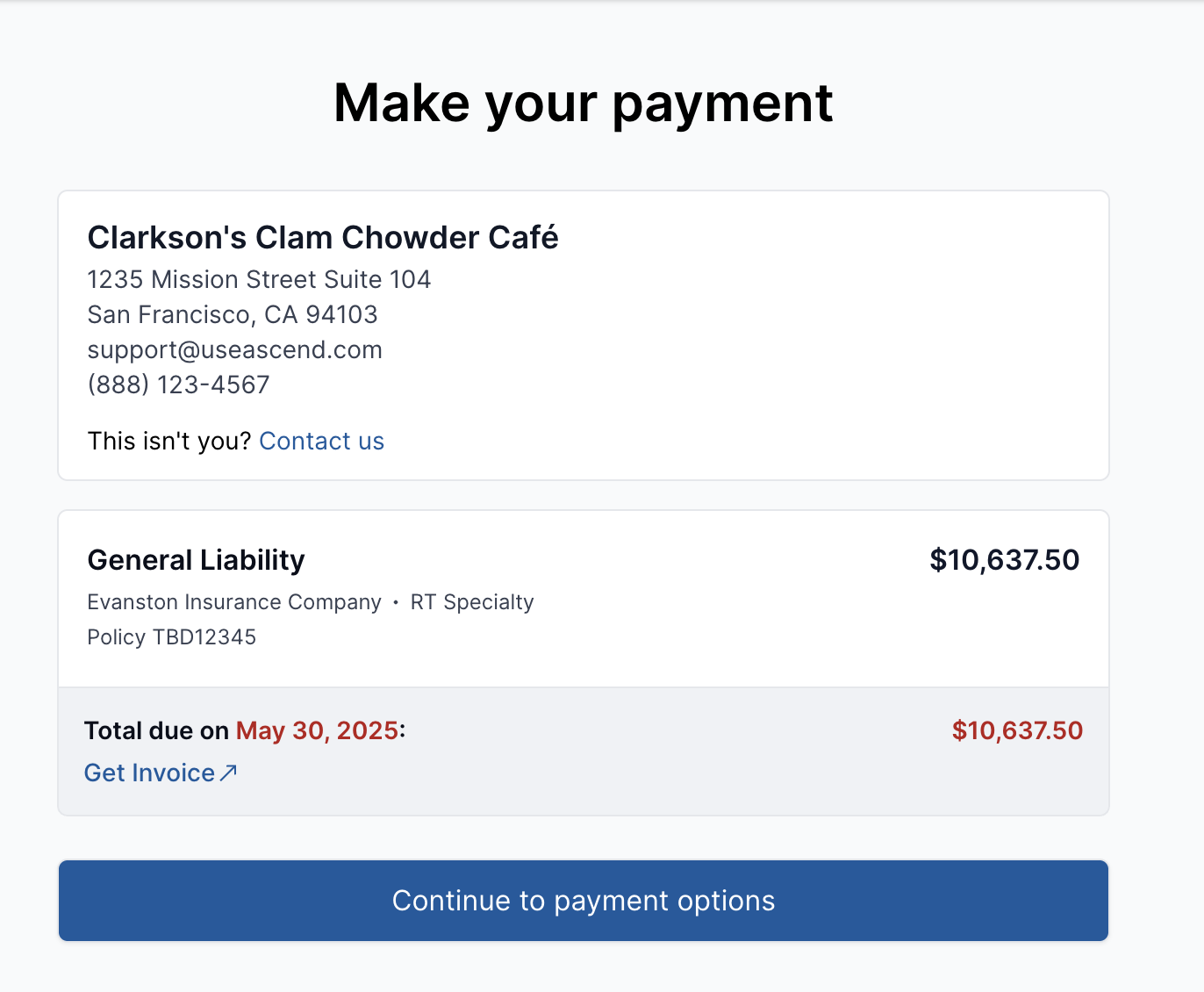
Step 1: Business and policy detail verification
Upon opening the payment link, customers will be asked to verify their details
Step 2: Payment Options
Next, the customer will see their available finance terms and pay-in-full payment options:
If the customer chooses to pay in full, they will be taken directly to a page where they will enter their payment information.
If a customer opts to pay over time, they will be taken to review the loan terms and sign the premium finance agreement
Step 3: Finance Agreement Loan Terms
The loan terms page contains all relevant information from the premium finance agreement, including down payment, APR, number of installments, etc.
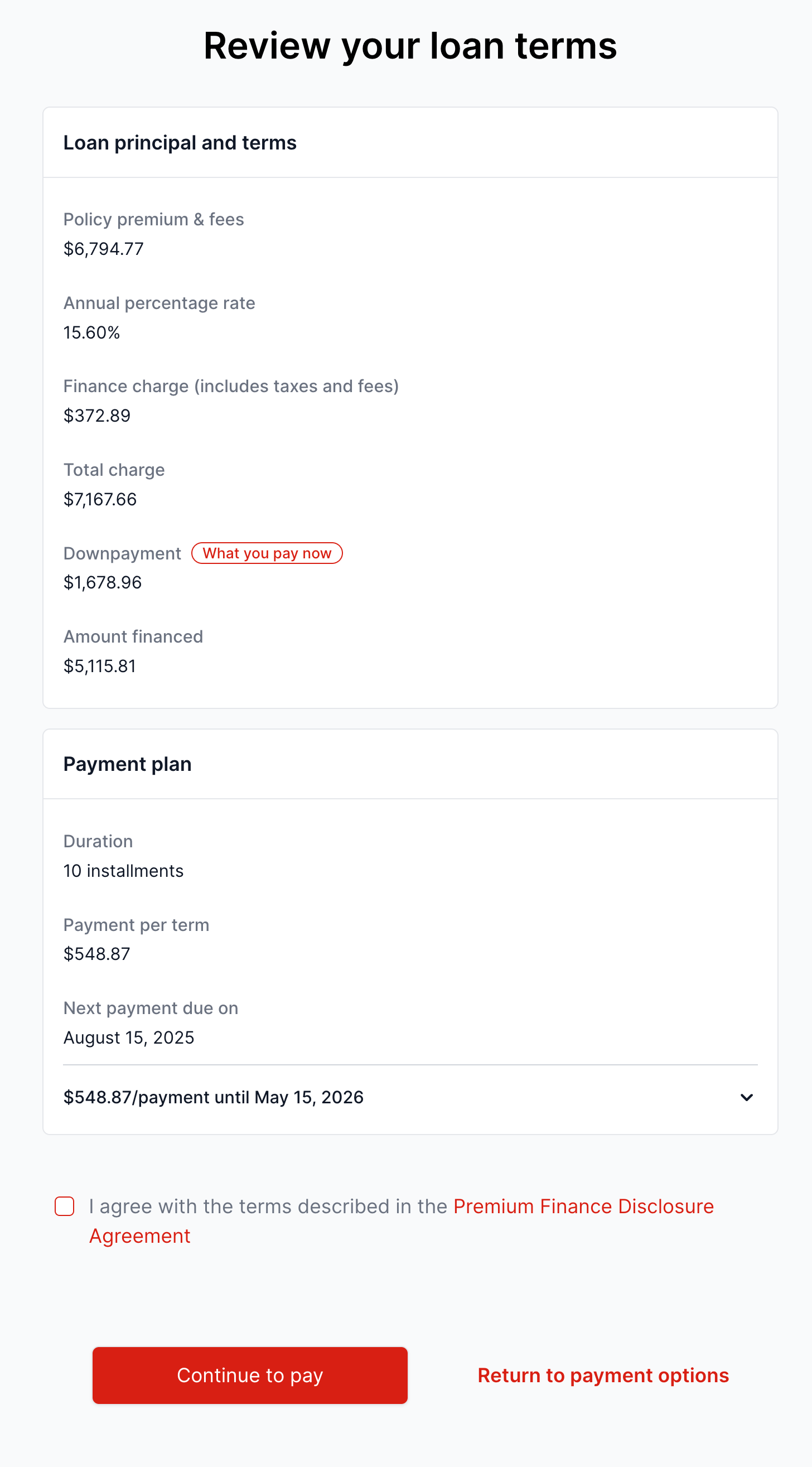
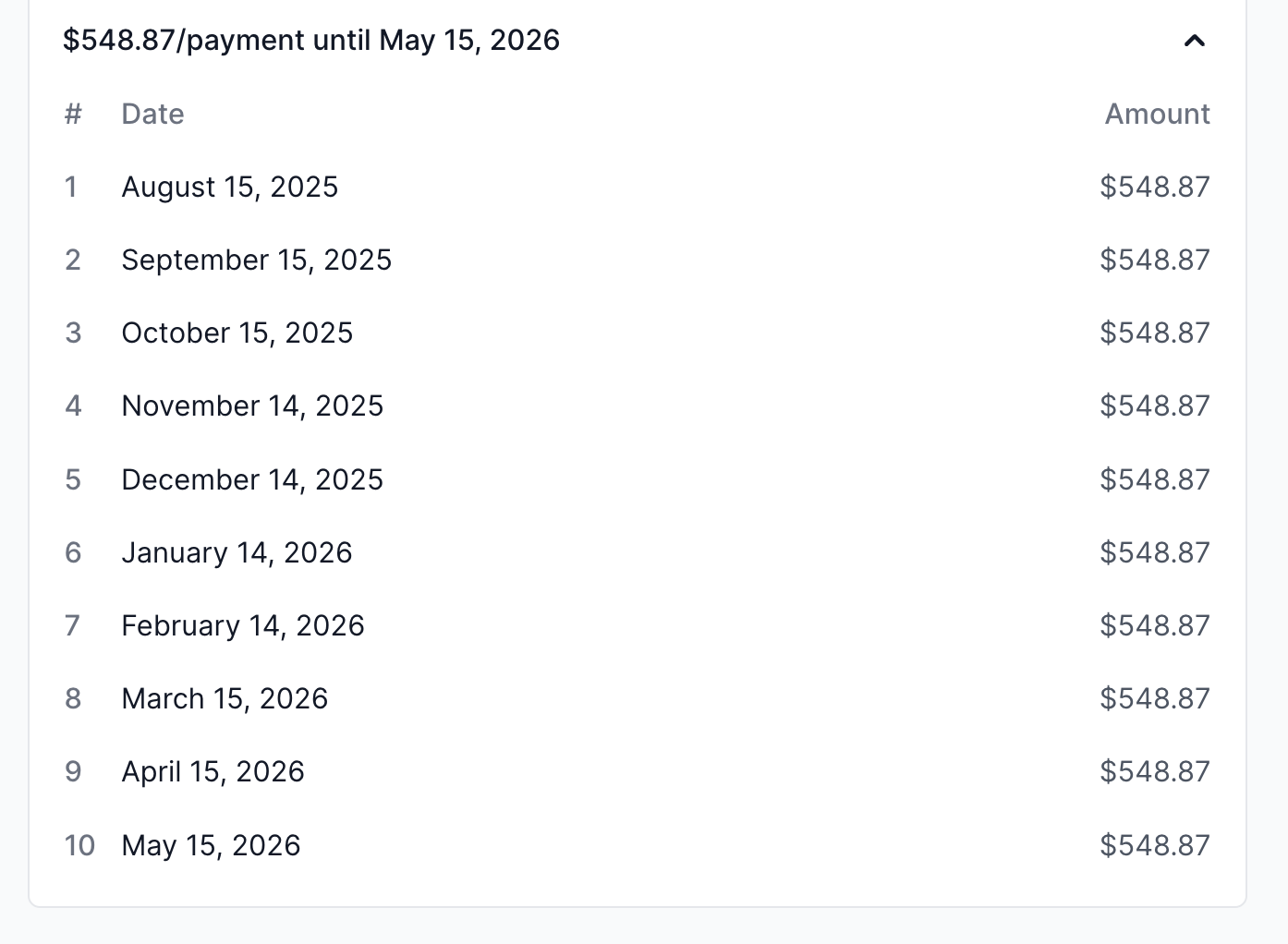
Your customer can expand the payment plan to see each due date in the installment plan.
To e-sign the Premium Finance Agreement, your customer will check the box at the bottom of the page. No additional signatures are needed.
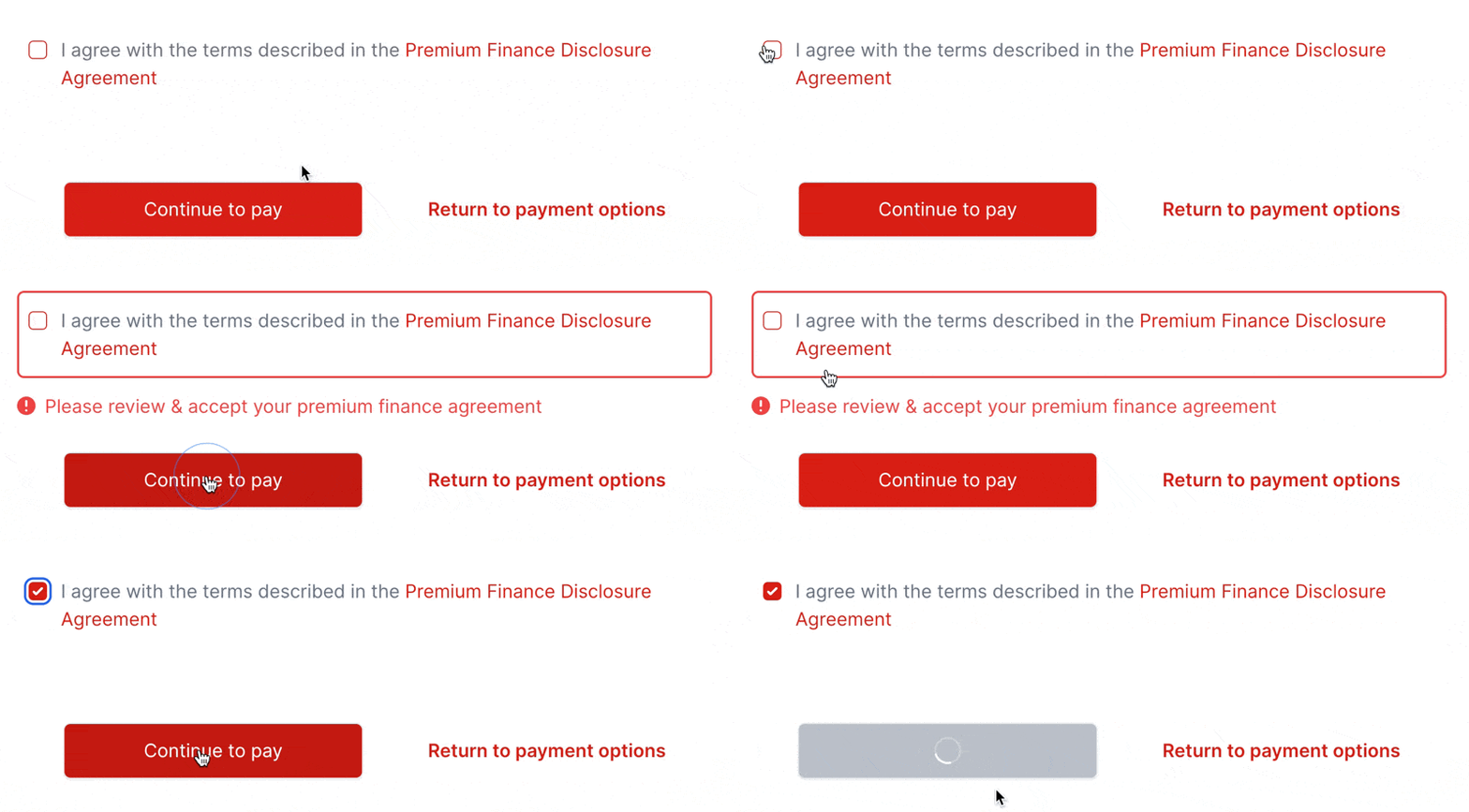
The customer will then take the customer to the payment page step.
Step 4: Payment Page
The customer enters & submits their payment method details. By default, Ascend supports customer payments via Credit Card and ACH. Wire payments can also be enabled upon request.
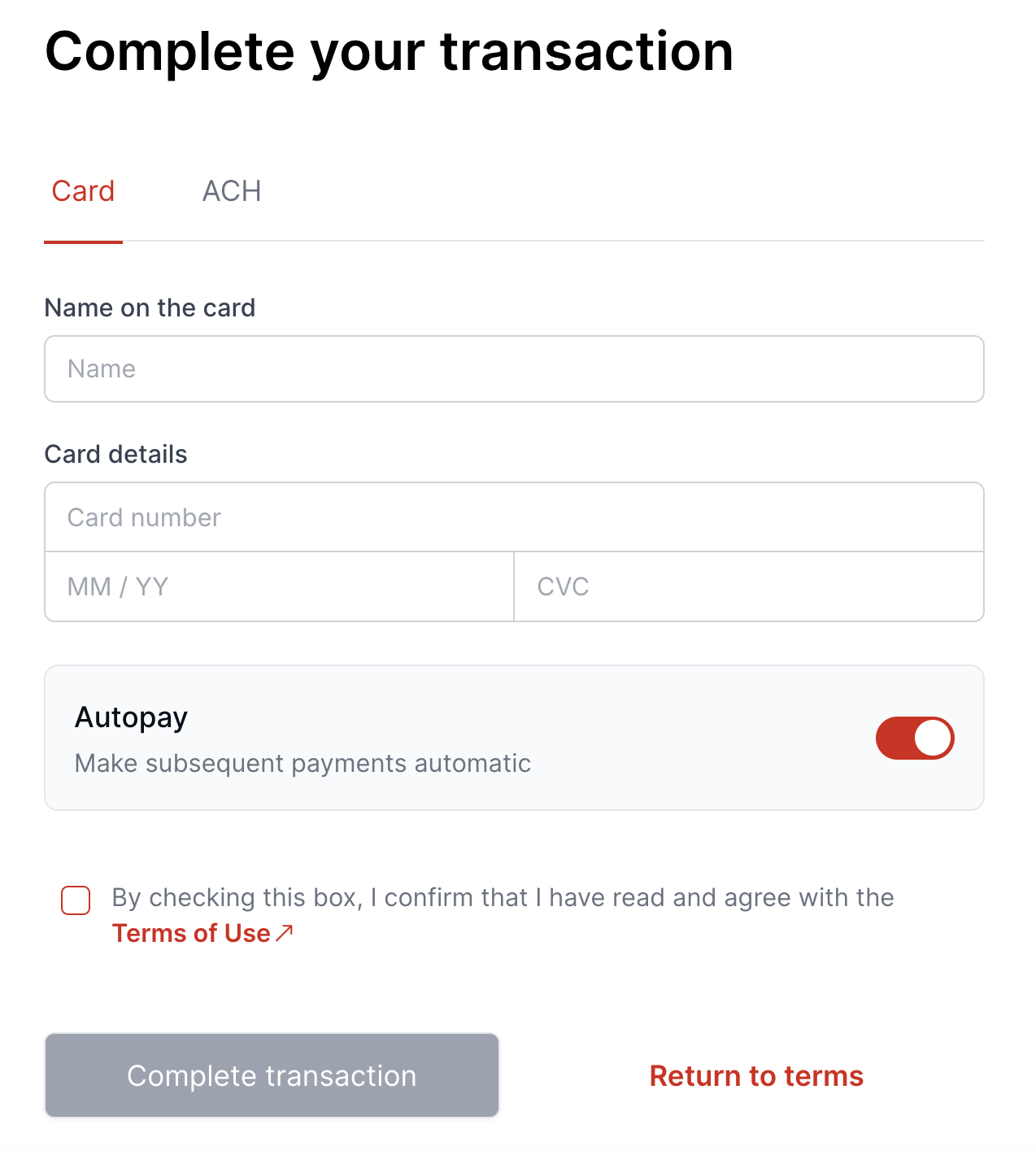
Ascend accepts payment via all major credit card companies, including Visa, Amex, Mastercard, and Discover
Purchases made via credit card will be processed immediately, while ACH transfers take 3-5 business days to process.
Ascend cannot speed up the ACH processing timeline, as this timeline relies on the customer's bank. For more info, see the article here about customer payment timelines.
Most payment methods, including credit card include a transaction fee; however, ACH payments on finance agreements are free. This includes both the down payment and monthly installments.
If financing, Autopay is on by default but can be turned off by the insured:

When the customer selects Complete transaction, the transfer will be initiated, and the customer will be taken to the payment confirmation.
Step 5: Payment Confirmation
The payment confirmation page confirms the details of the payment they submitted. The customer and the program's Agency Account Manager will receive an email notification confirming the initiated payment. Learn more about Account Manager and user role types here.
Contact Us
Need more help? Contact us at [email protected] for more help.