Creating an Ascend Payment Link (Program Creation)
Last updated: August 31, 2026
This is a guide that will teach you:
What is a program?
Step-by-step instructions on program creation
Add multiple quotes to one program
How to use Ascend's automated payment reminder emails
Frequently Asked Questions
Note that Ascend is an agency bill platform and should not be used for direct bill policies. If you want to learn more contact [email protected] or your Ascend representative.
What is a program?
A program is the landing page for policies sold by your organization to insureds. A program is similar to a shopping cart containing quotes/policies to be billed together. Each program creates a single checkout link for payment. You can add up to 25 quotes/policies to one program.
Once the program is created, the Program page will be the central source of information regarding the purchased policies, including:
Payment history
Quote / Policy details & endorsements
Insured details
Agency payouts (related to a specific policy or policies)
MGA payouts (related to a specific policy or policies)
Program email communications
How-To Guide
Watch this quick video to learn how to create a payment link for your insured to pay in full or premium finance!
Step-by-Step Instructions
How to create a new Program
Begin on your dashboard home screen
Select "+New Program" from the top right corner
[Recommended] Select "Import document" and upload a quote document or invoice to automatically pre-fill relevant policy information into the program.
Select a Producer and Account Manager for the program
The user selected as the Account Manager will receive all program-related emails (failed payment, successful payment, policy-related questions)
[Optional] Select "Add an email recipient" to add an additional user to receive program-related emails.
Enter the insured party's details (either commercial business name, or personal individual name)
If the customer already exists, you will be prompted to select that account from a dropdown. You will be able to select an existing insured entity or add another for that client.
Please note: The insured's address must be in the United States.
Proceed to enter the Quote Details.
Enter Quote number, Policy number, and Carrier / Writing company
Enter Premium, Taxes and all fees
Confirm that the pre-filled Commission (either percentage or dollar value) and Agency Fee are accurate. Adjust if needed.
Please note: Ascend defaults to funding the MGA listed. If there is no MGA listed on the quote details, we will send funding to the carrier.
At the bottom of the page, attach the quote or policy document to the program
If you have multiple quotes or policies to include, you can add another using the "add another quote" buttons located at both the bottom and the righthand side of the page.
Click "Save program" to proceed. This action will not trigger the purchase link to be sent to your client.
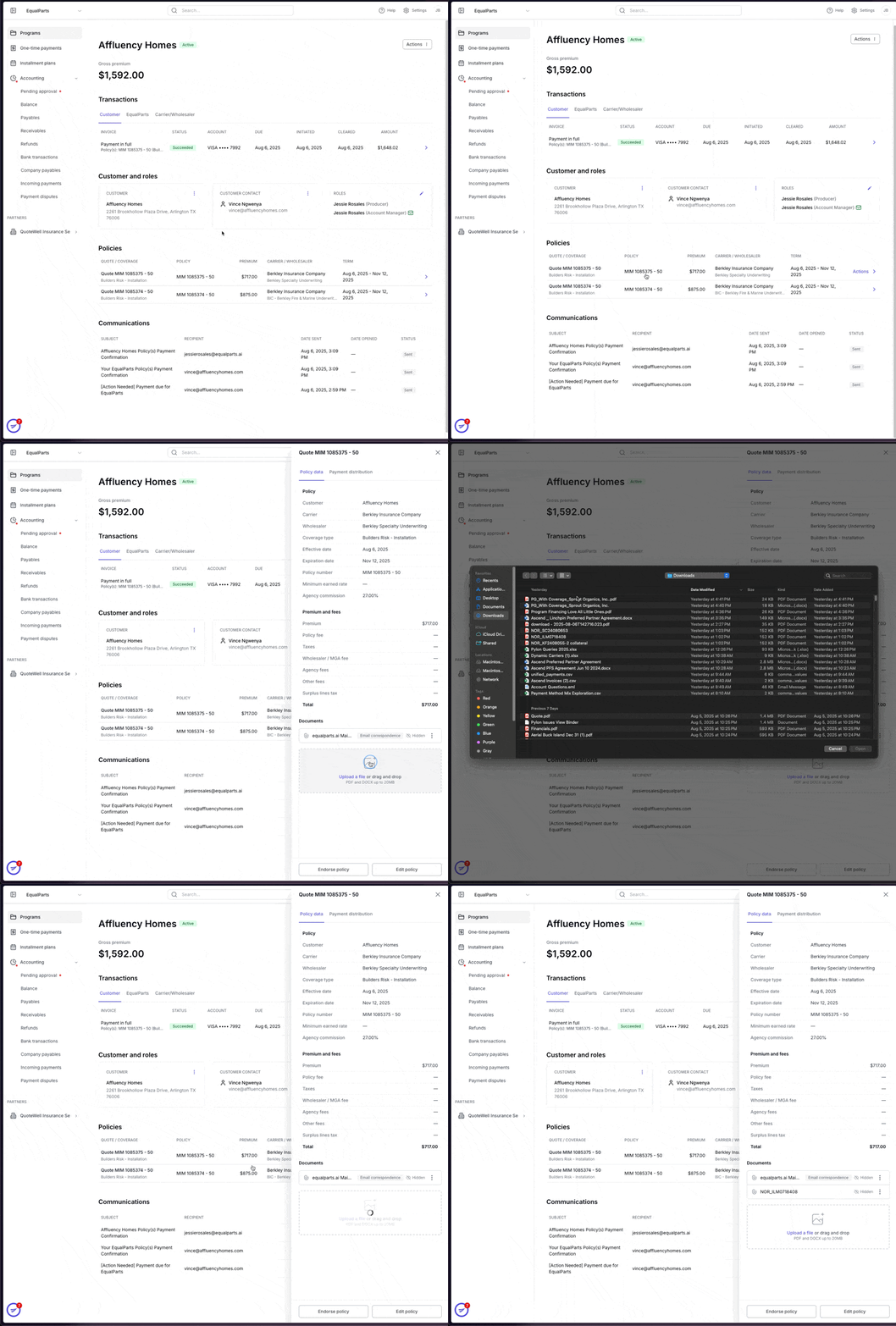
You will now be directed to the new Program Page. From this page you can view, edit, and send the purchase link to your client.
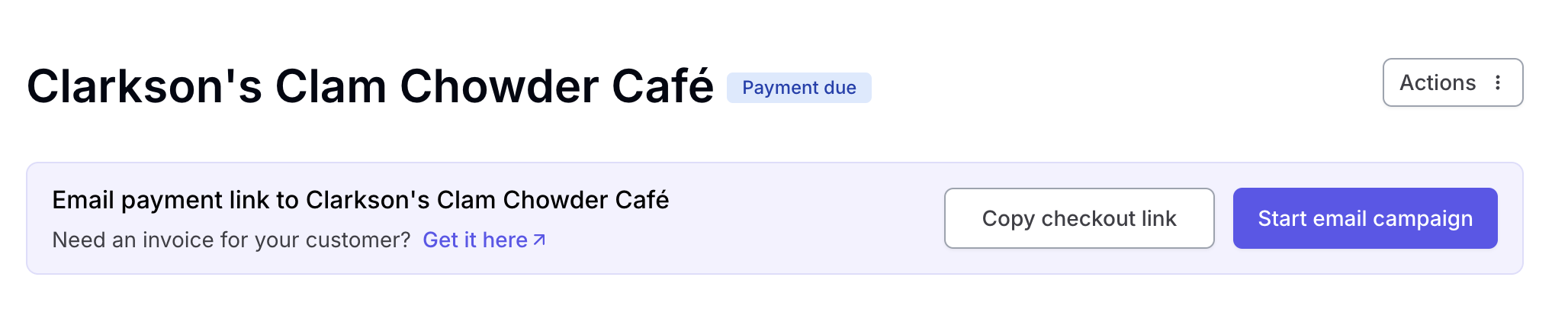
To send the link, simply click "Start email campaign" in the banner at the top of the page.
What's next? Send the link to your insured.
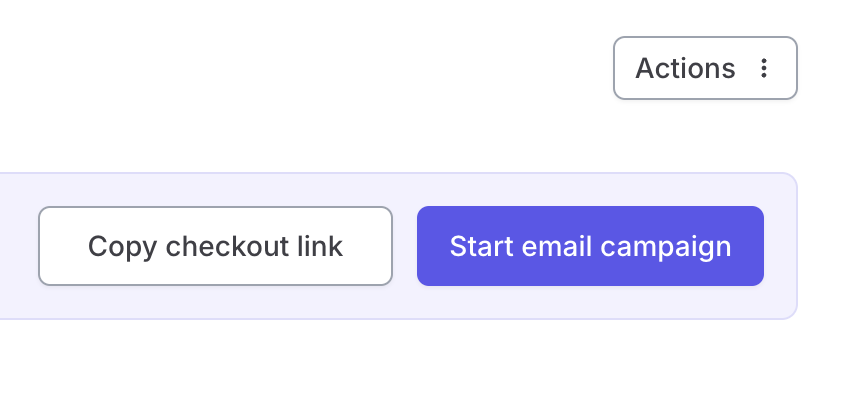
Click on the "Start email campaign" button in the purple banner at the top of the program page to send the payment link to the insured's email.
Your customer will get an immediate email branded to your agency, notifying them to make a payment. They will also get automated follow-up reminders after 24, 48, and 96 hours to gently remind them to make a payment.
Emails sent from the program will be displayed at the bottom of the program page under the Communications section.
Alternately, you have the option to send a PDF-style invoice, or can copy the payment link URL by clicking "Copy checkout link" and share directly with the insured for payment.
If you're curious, you can check out what your customer will see at checkout.
Frequently Asked Questions
How do I send the payment link to the agency or insured?
There are 2 ways to share the payment link:
From the program page, click the purple Start email campaign button near the top right side. This will begin the email campaign flow to collect payment to your insured.
Emails sent from the program will be displayed at the bottom of the program page under the Communications section.
Highlight & copy the payment link from the purple banner and share it with the agent or insured for payment directly.
How do I edit the quote details after I created the program?
Edits made to quotes must be made before payment is initiated on the program. To make changes to a program in Payment due status:
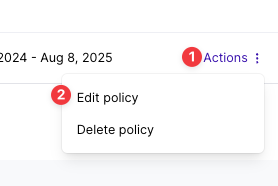
Scroll down to the Policies section on the program page
Hover over the row of the quote you'd like to edit
Click the Actions button and select Edit policy
Once all edits are made, click the Save changes button in the top right corner. The existing payment link will update as needed; you will not need a new payment link if changes are made before the initial payment has been initiated.
Can my insured split their payment
Yes, you can allow the insured to split their initial payment (ie down payment or payment in full) by clicking the checkbox that says "Allow splitting initial invoice":
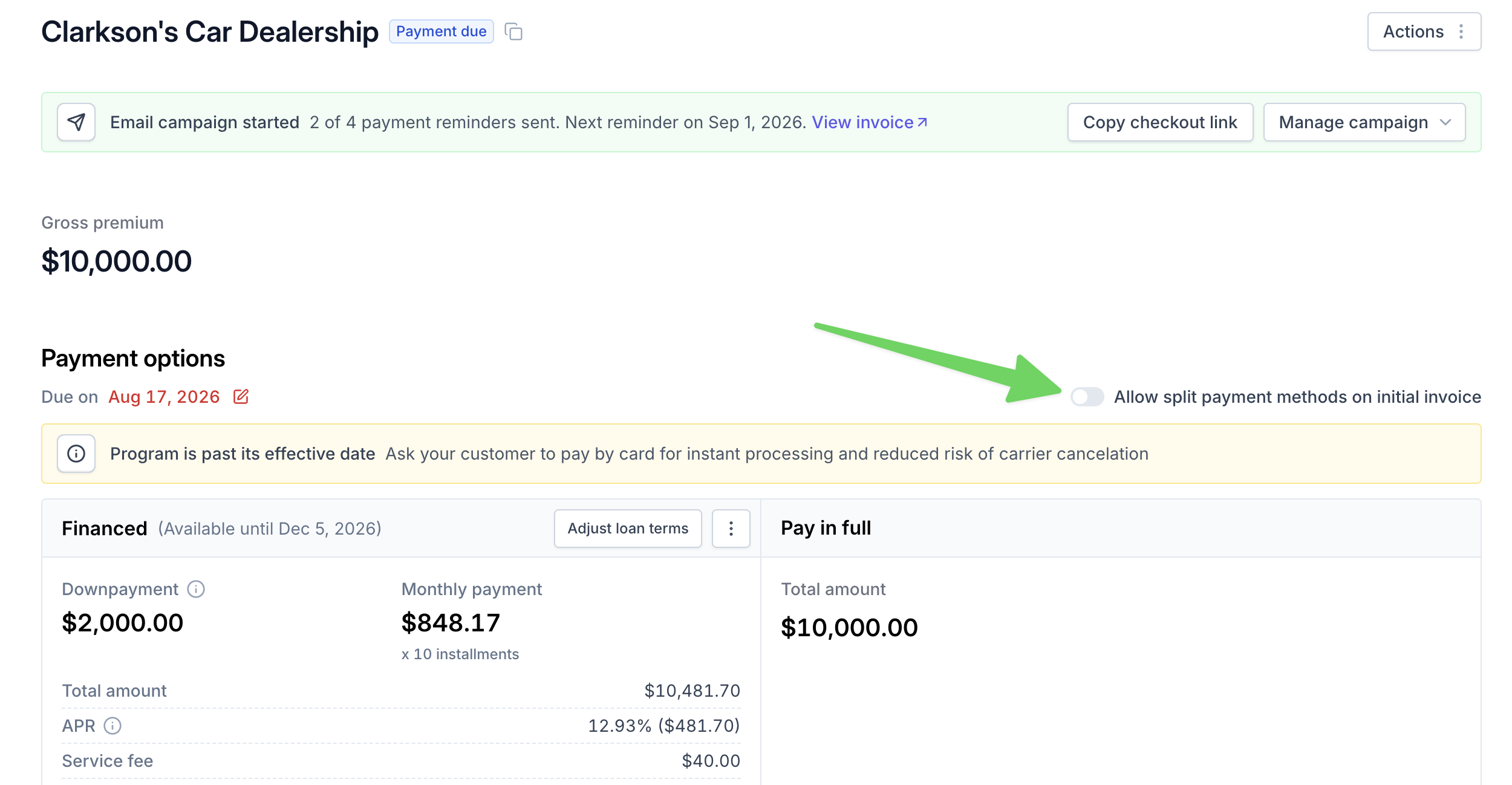
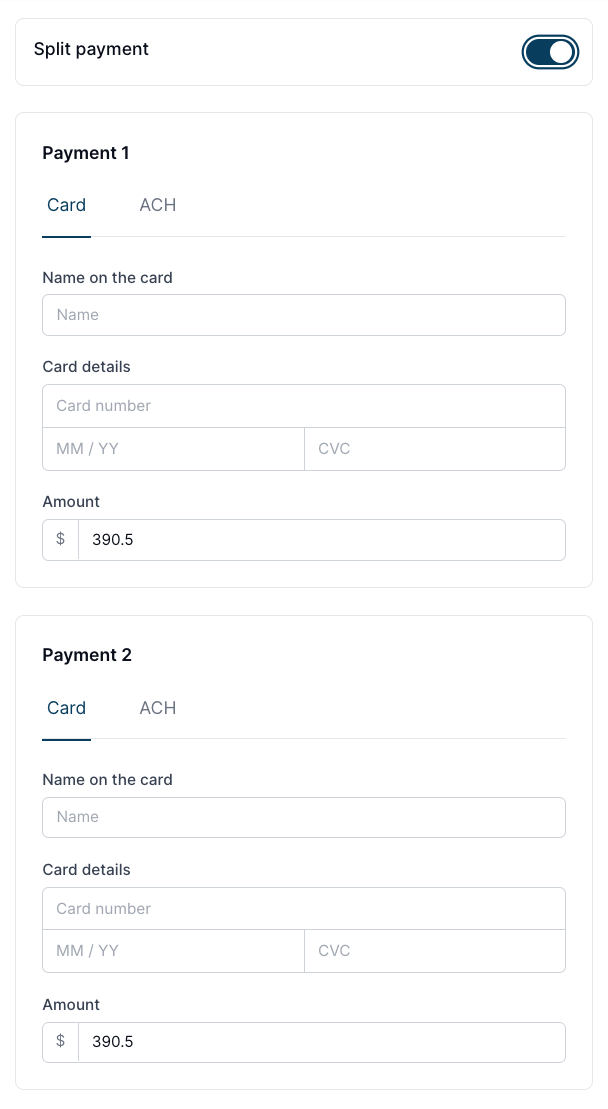
Once enabled, your insured will see the "Split payment" option on the online payment page, which will allow them to choose between two cards, two bank accounts, or one of each. They can also customize the amount they want to charge to each payment method.
Please note:
This option is not enabled by default and must be enabled by you / your agency.
Split payments is only available on full pay / down payments. Your insured is not able to split monthly installments, reinstatements, or one-time payments.
Card and ACH are the only payment methods available for splitting payments.
Payment via both methods must be submitted at the same time. Your insured is not able to split payments over multiple days.
Carrier payout will not be available to be approved until both payments have cleared.
I received the invoice, how do I upload it?
Scroll down to the "Policies" section of the program in question
Click on the policy that you received the invoice for
Drag and drop the invoice where it says "Upload a file" or click on the box to open your computer's file system.