Insured Experience: Checkout Email Notifications
Last updated: August 21, 2026
This is a guide that will teach you:
Overview of each email sent to insureds from the Ascend system
Notifications vary by Invoice Type
How to Check the status of emails sent to your insured by Ascend
Notifications by Invoice Type
The cadence and format of email notifications varies slightly depending on the parent object used to trigger that invoice.
Programs
One-time payments
Installment Plans
Payment Notifications
Programs
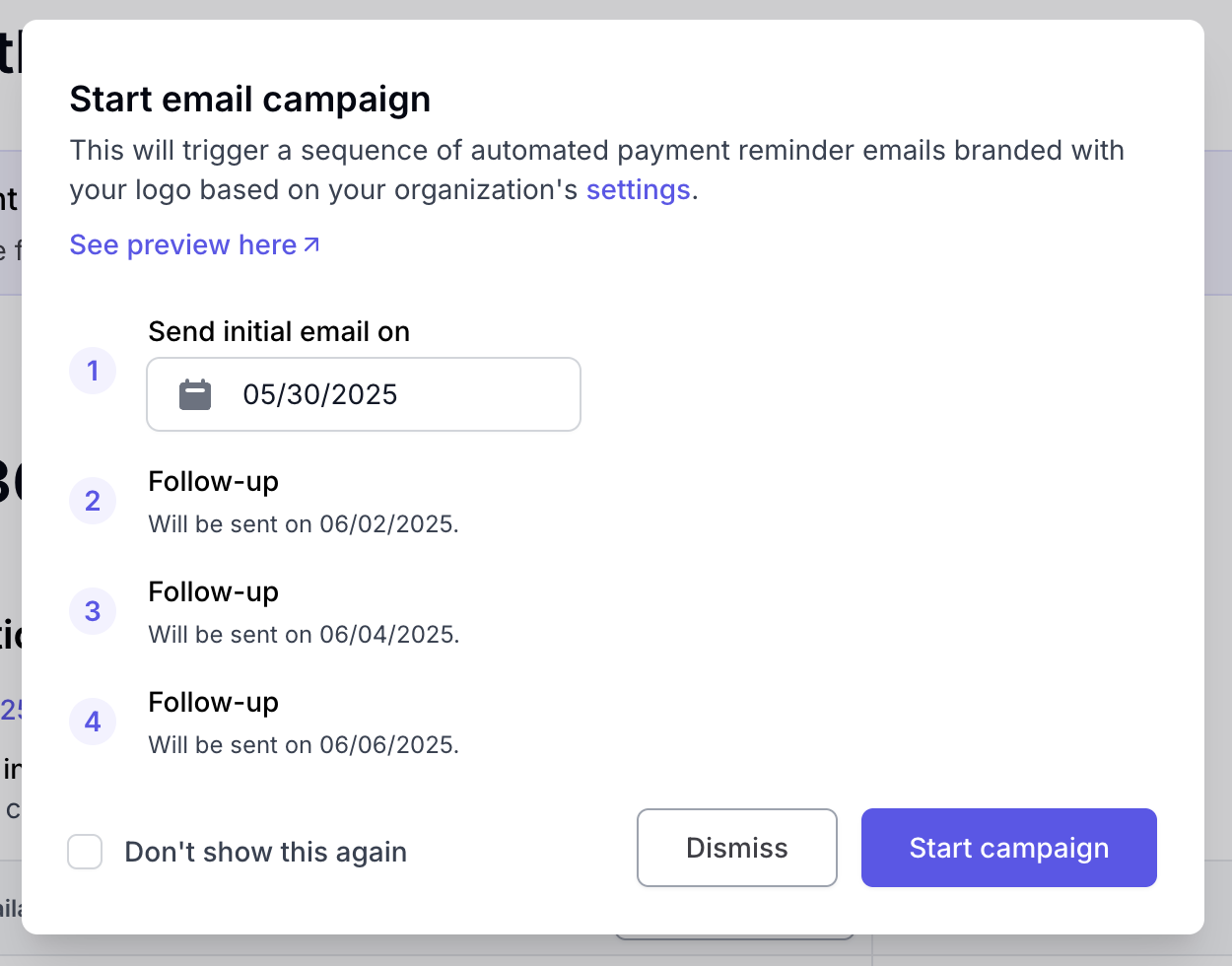
Payment notification emails can be triggered by clicking the "Start email campaign" button in the purple banner at the top of the program page.
The insured receives up to 4 email reminders to complete the initial purchase (immediately, after 2 days, after 4 days).

This will lead you to a page that allows you to initiate the email campaign and outlines what days they will be sent on
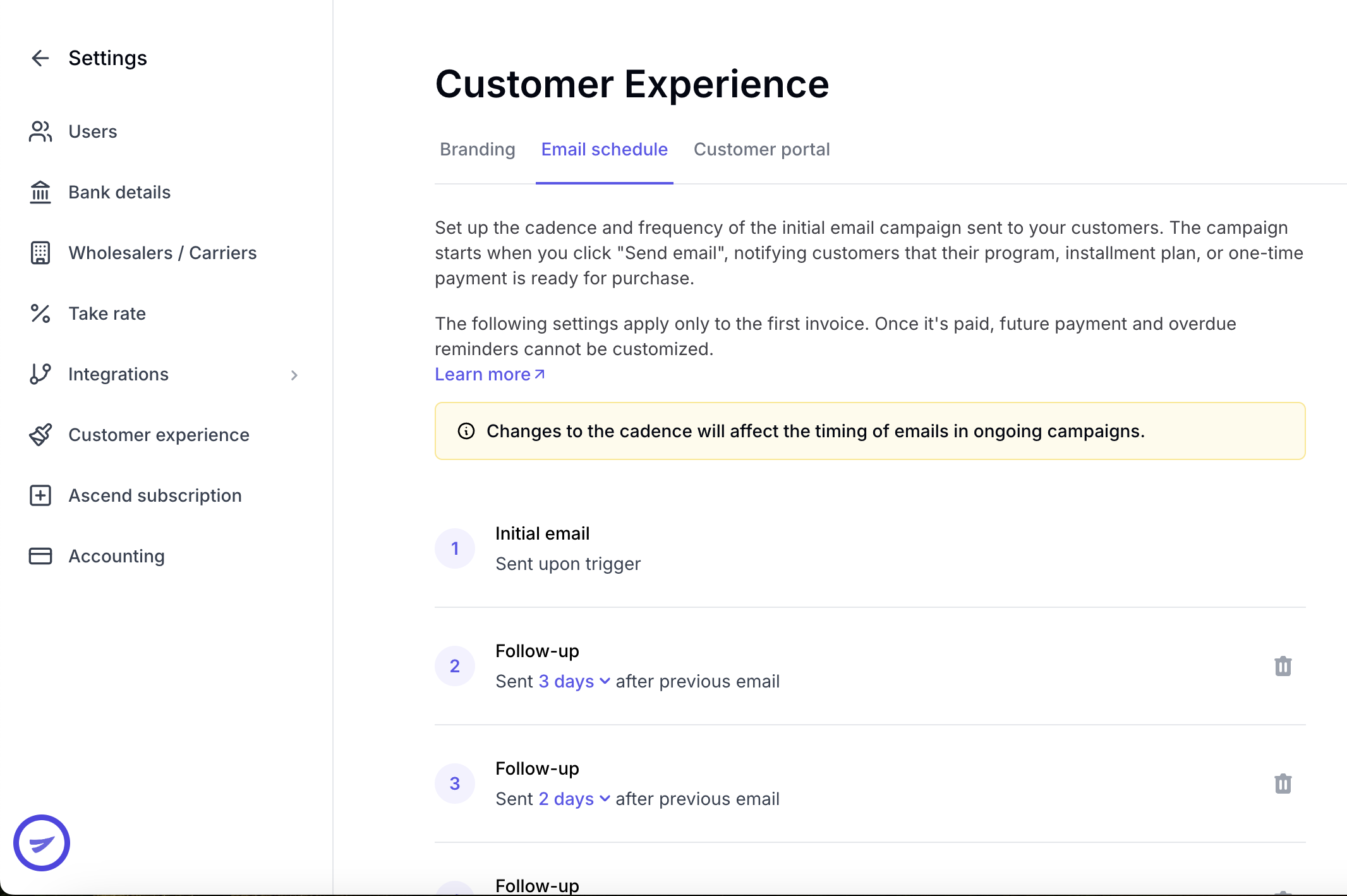
The timeline of when these emails are sent can be further customized in your agency settings, on the Customer Experience Page:
If for any reason you need to stop or restart the email campaign, you can select that under Manage campaign

Payment Notification 1
Sent to insured immediately after agent clicks "send email"
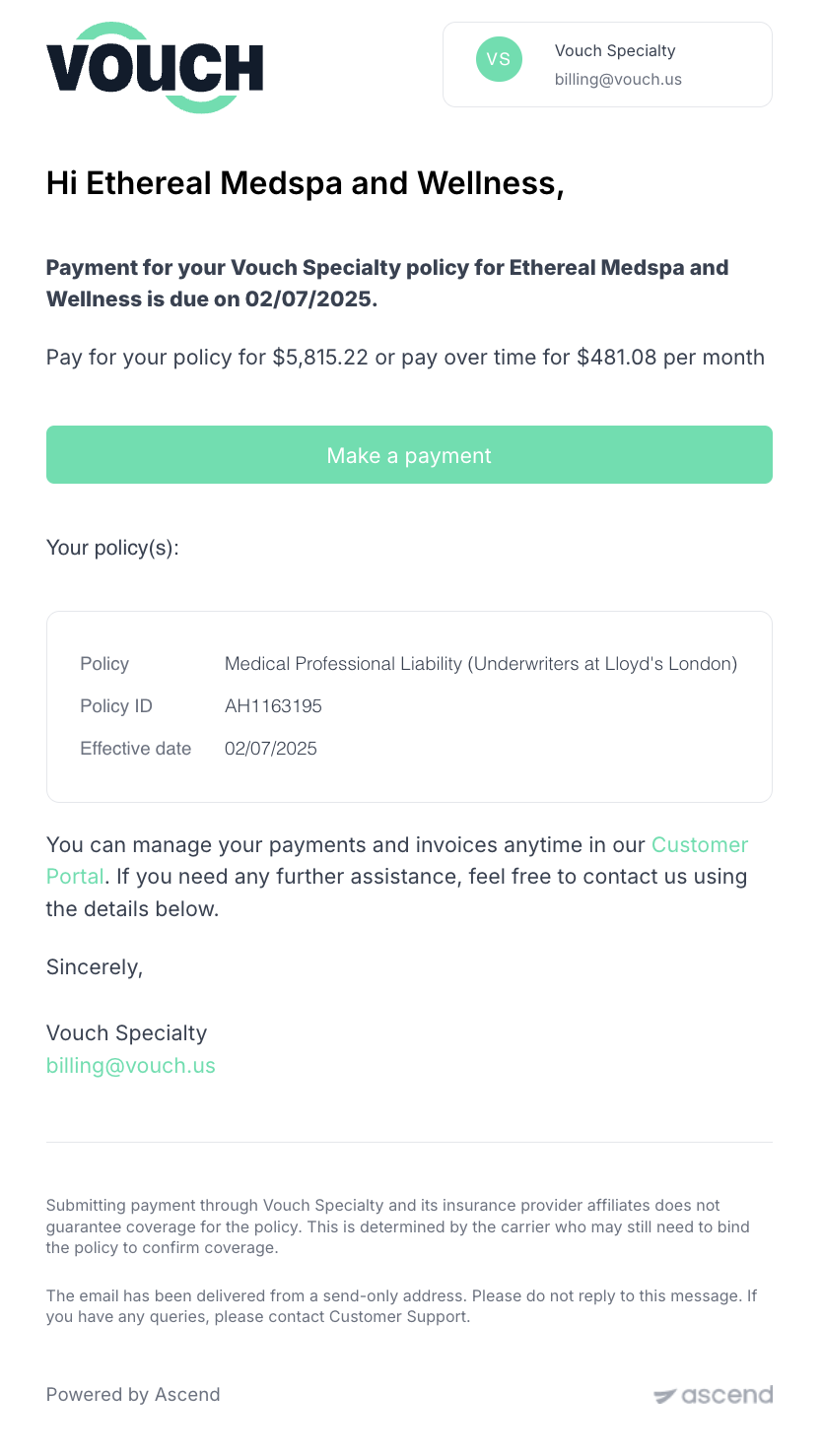
Payment Notification 2
Sent to insured 2 days later if program is not purchased.
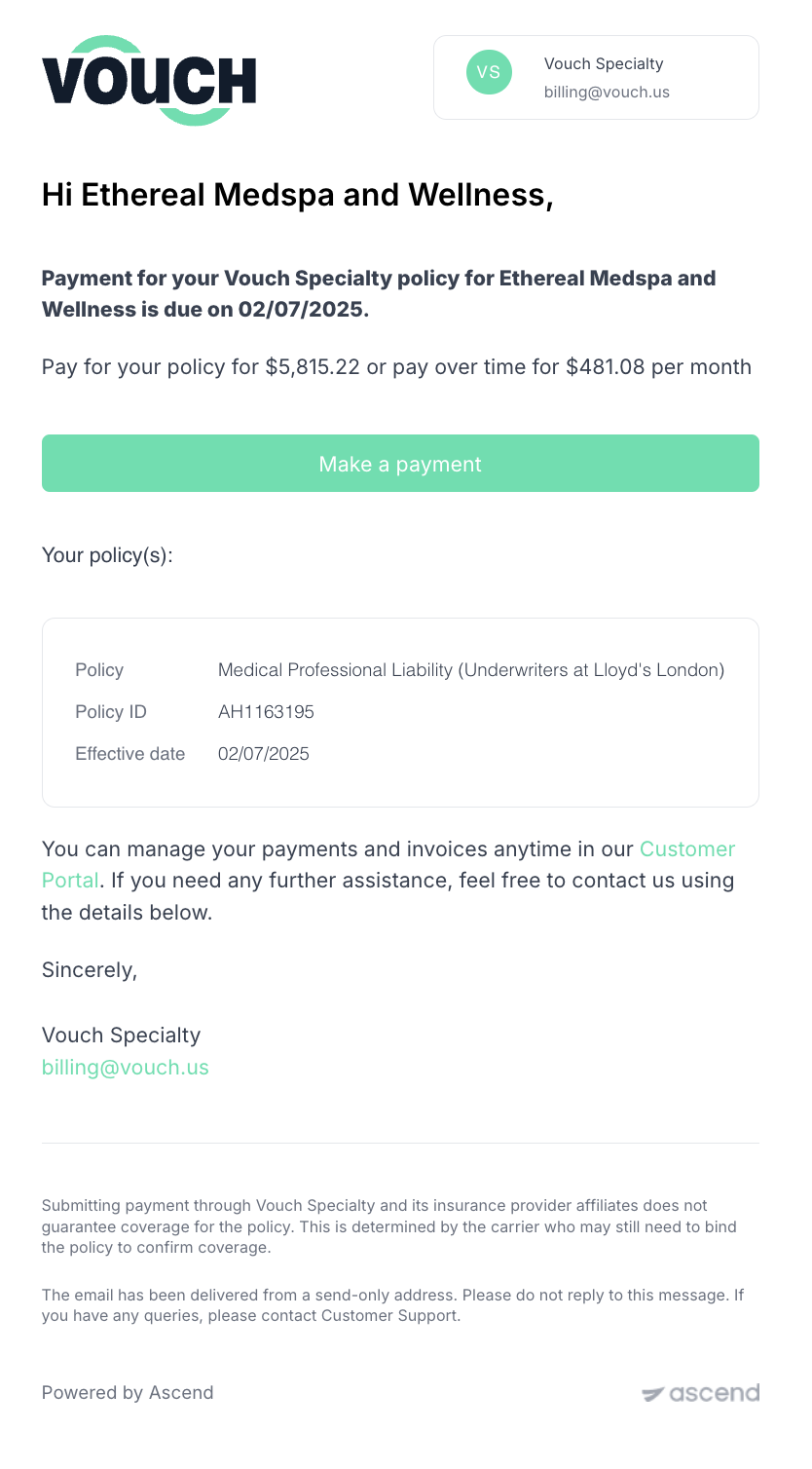
Payment Notification 3
Sent to insured 4 days later if program is not purchased.
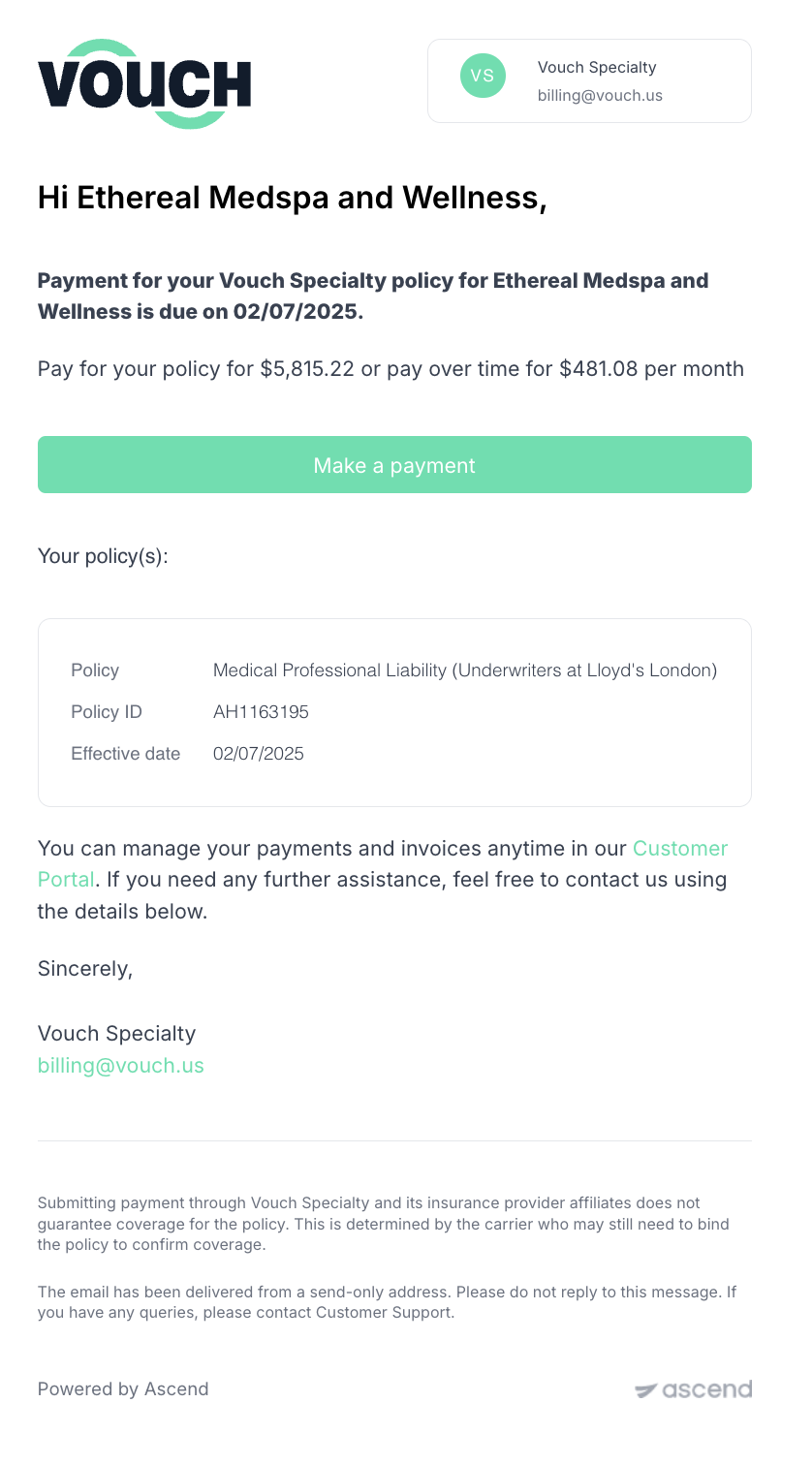
If you prefer to continue emailing your insured directly, you can copy and paste the payment link into your own email (without it looking like spam) by following these steps:
One-Time Payments
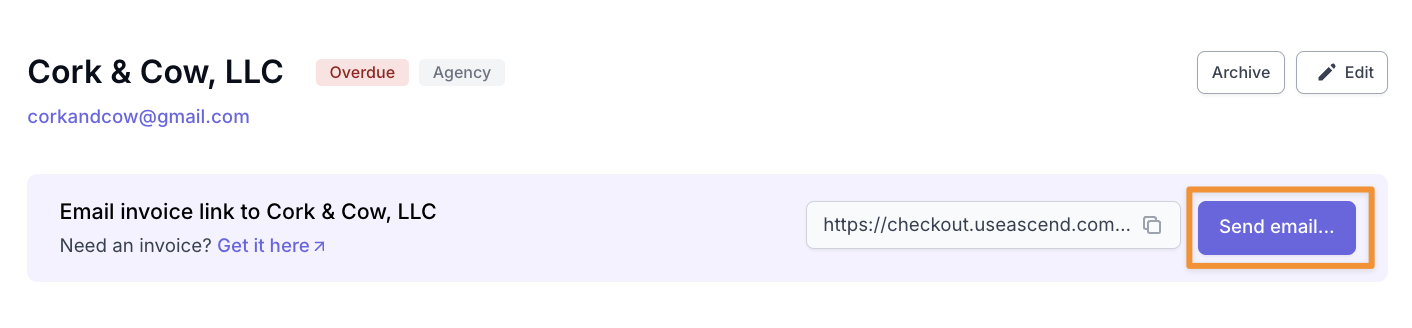
Payment notification emails can be triggered by clicking the "Send email" button in the purple banner at the top of the One-Time Payments page.
Payment Notification 1
Sent to insured immediately after agents clicks "send email"
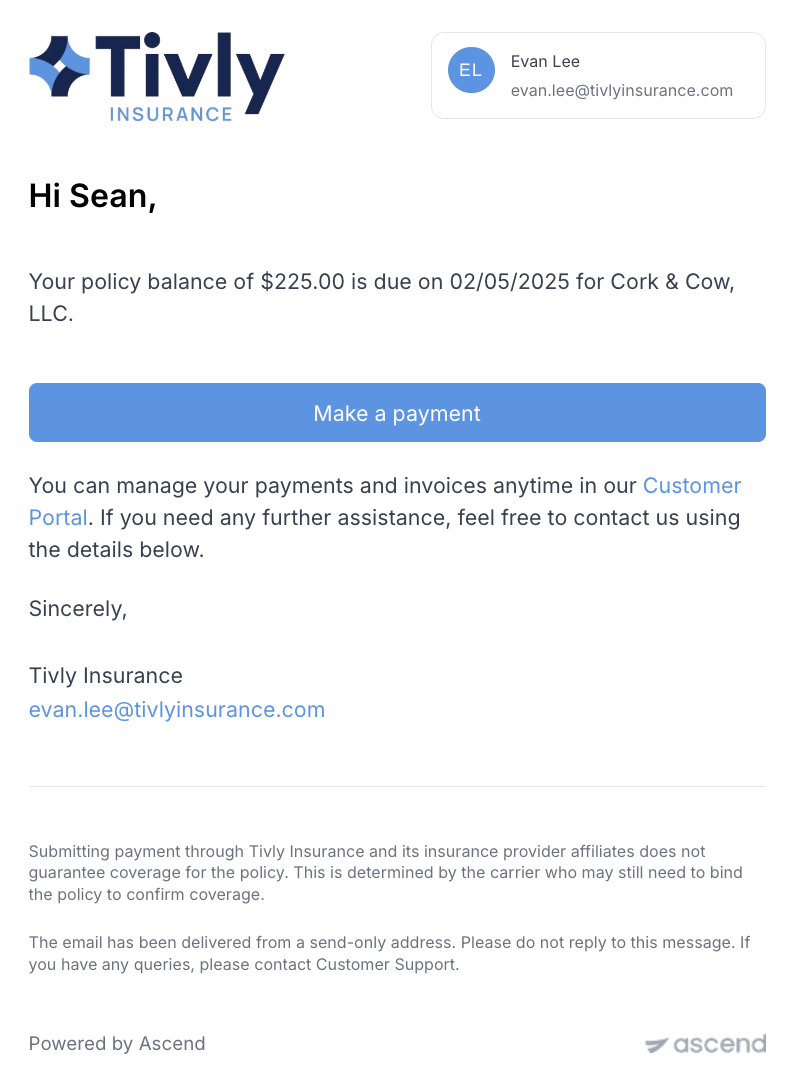
Payment Notification 2
Sent to insured 2 days later if program is not purchased.
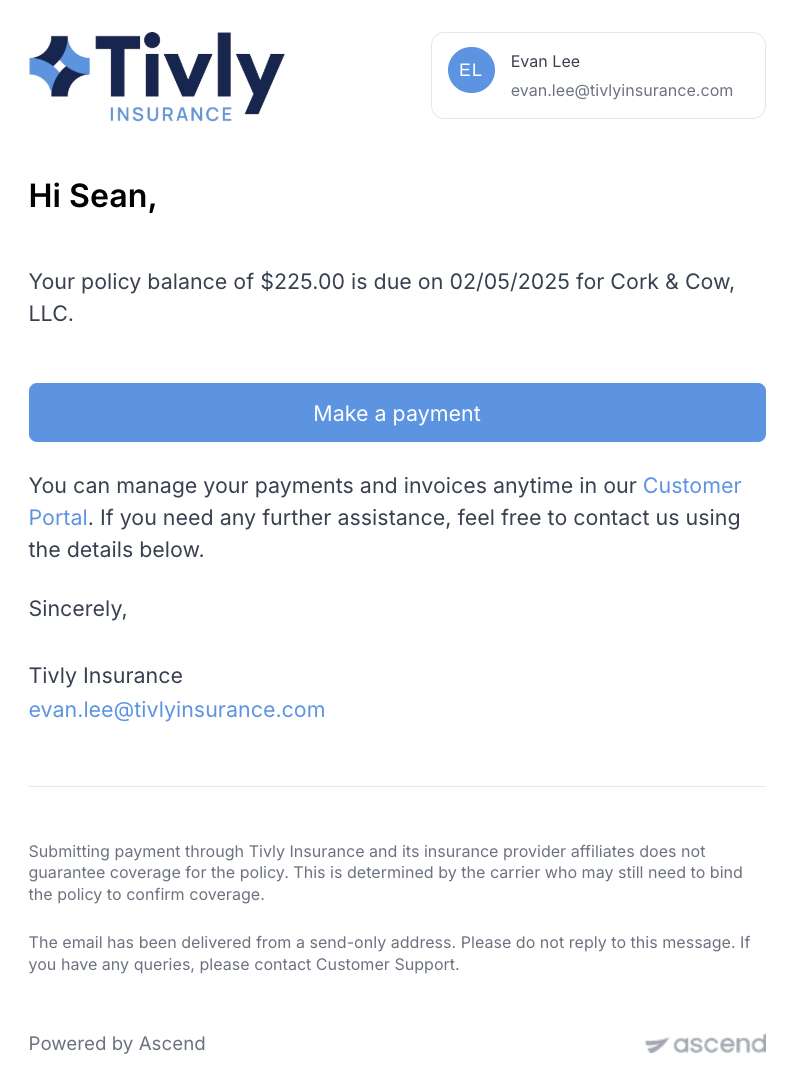
Payment Notification 3
Sent to insured 4 days later if program is not purchased.
Installment Plans
Payment notification emails can be triggered by clicking the "Send email" button in the purple banner at the top of the Installments page.
The insured receives up to 3 email reminders to complete the initial purchase (immediately, after 2 days, after 4 days,).
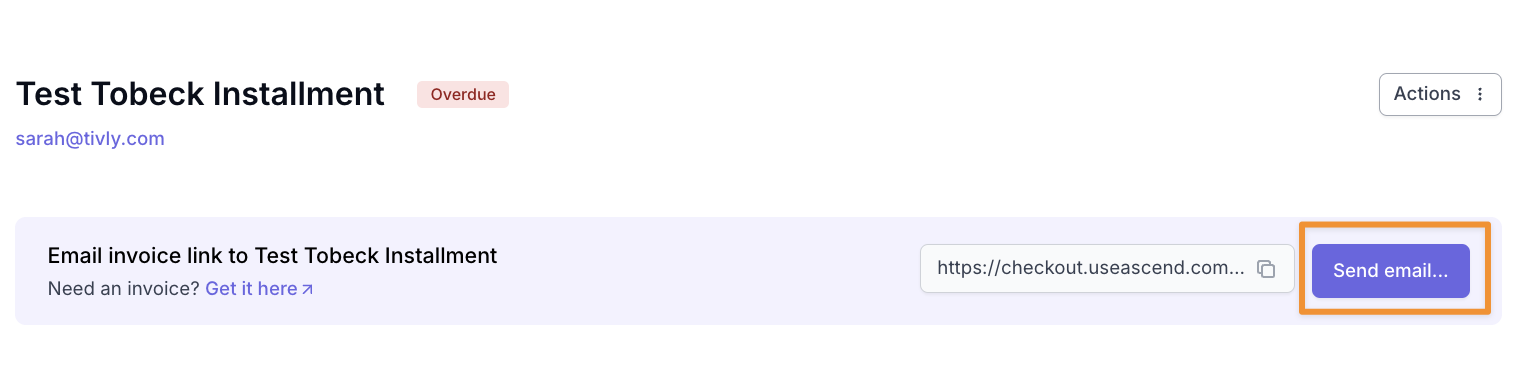
Payment notification 1:
Sent to insured immediately after agent click "Send email"
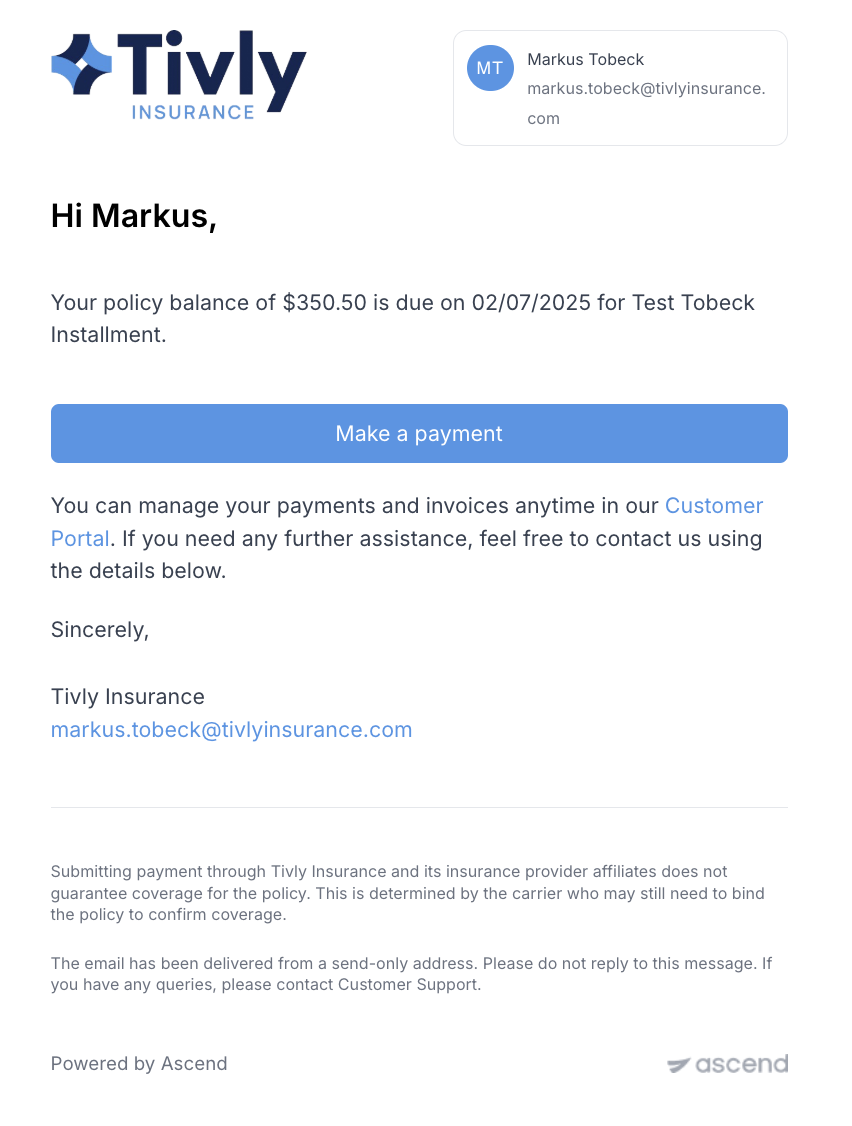
Payment Notification 2
Sent to insured 2 days later if program is not purchased.
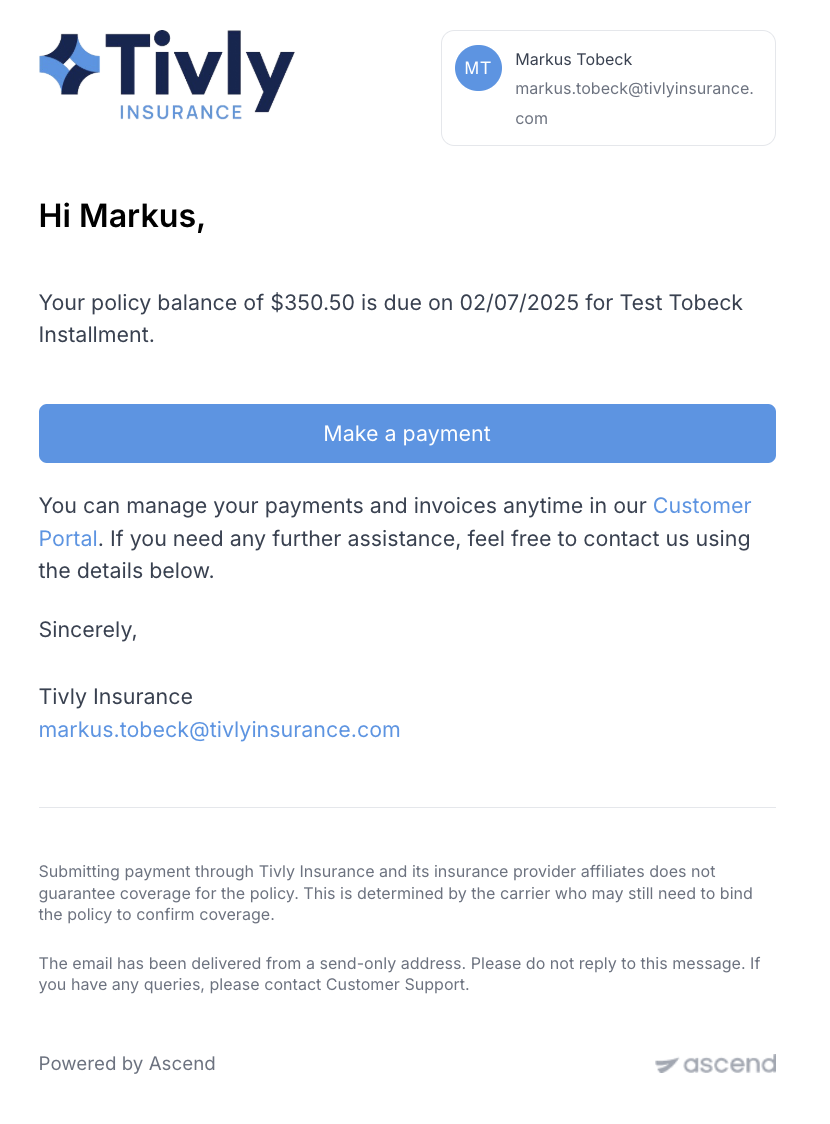
Payment Notification 3
Sent to insured 4 days later if program is not purchased.
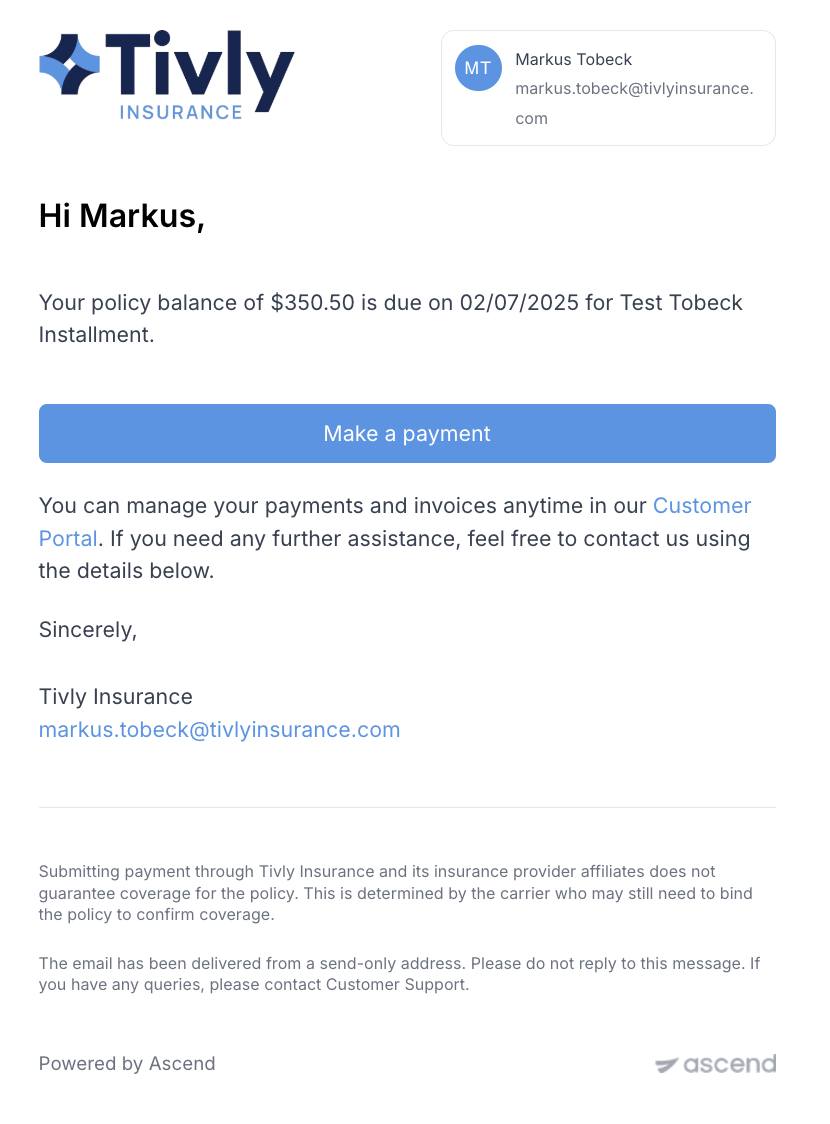
Messages when payment is processing
Processing payment (ACH only)
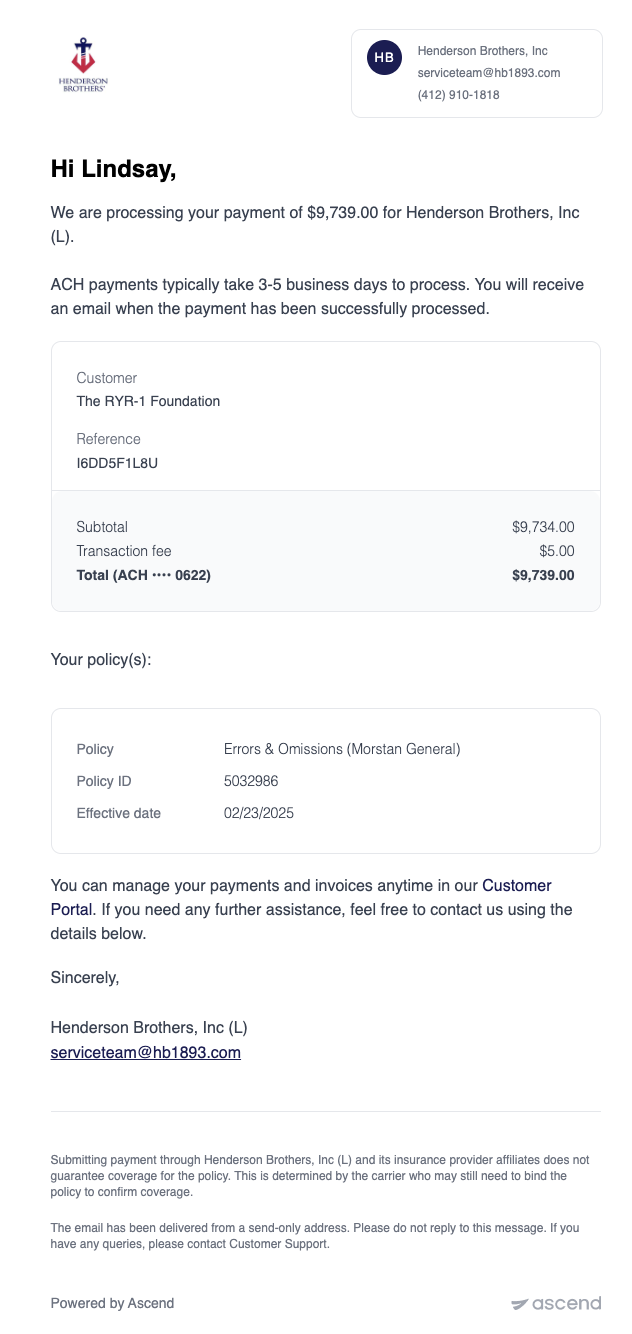
Programs
Sent to insured immediately after ACH transaction initiated payment.
One-Time Payments
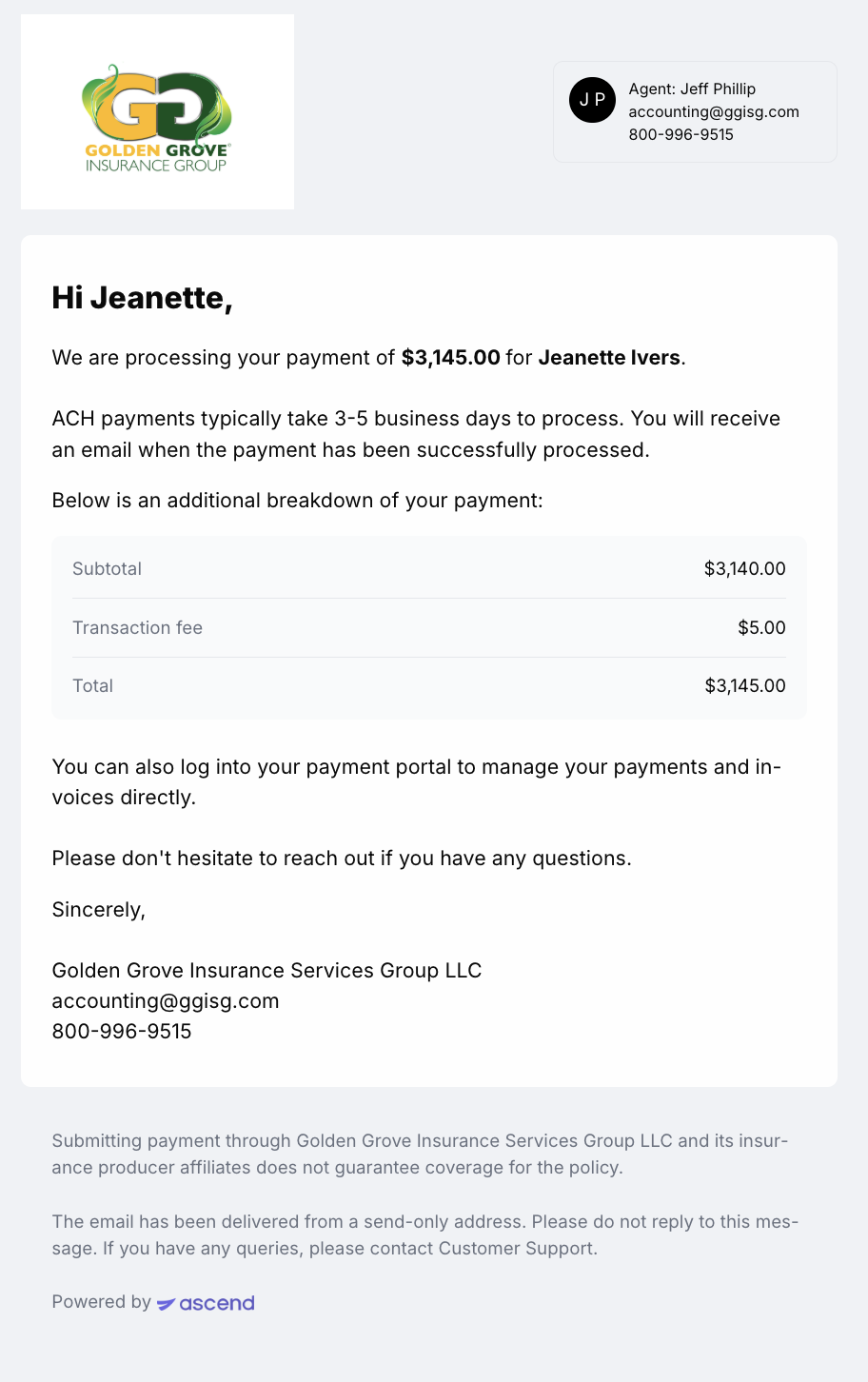
Sent to insured immediately after ACH transaction initiated payment.
Installment Plans
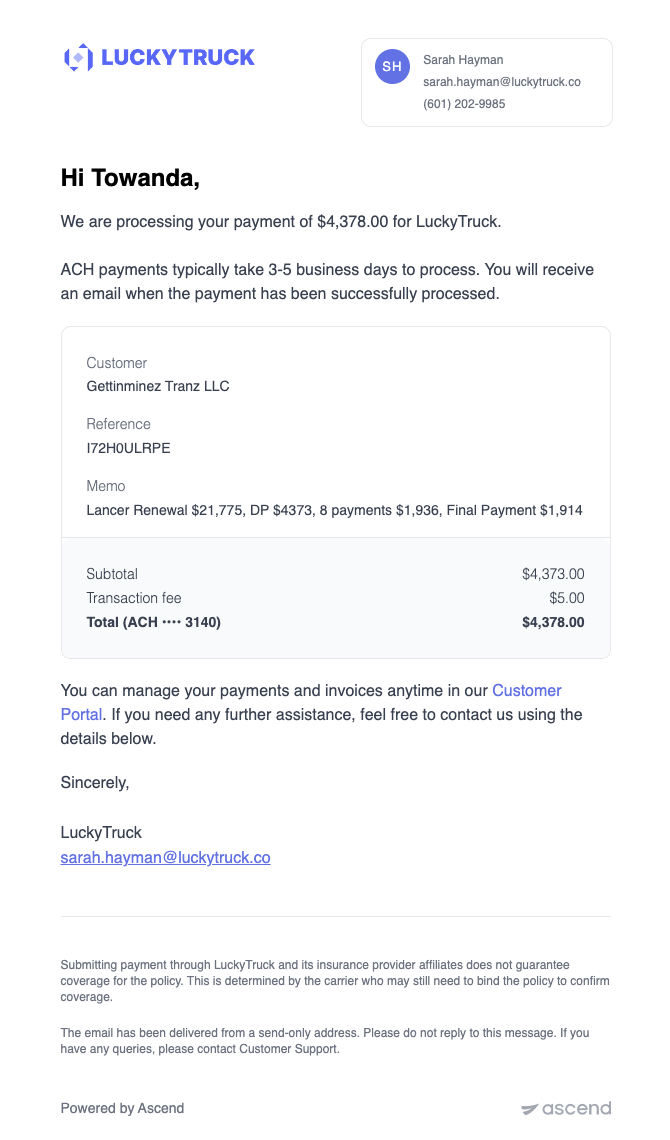
Sent to insured immediately after ACH transaction initiated payment.
Messages when payment is complete
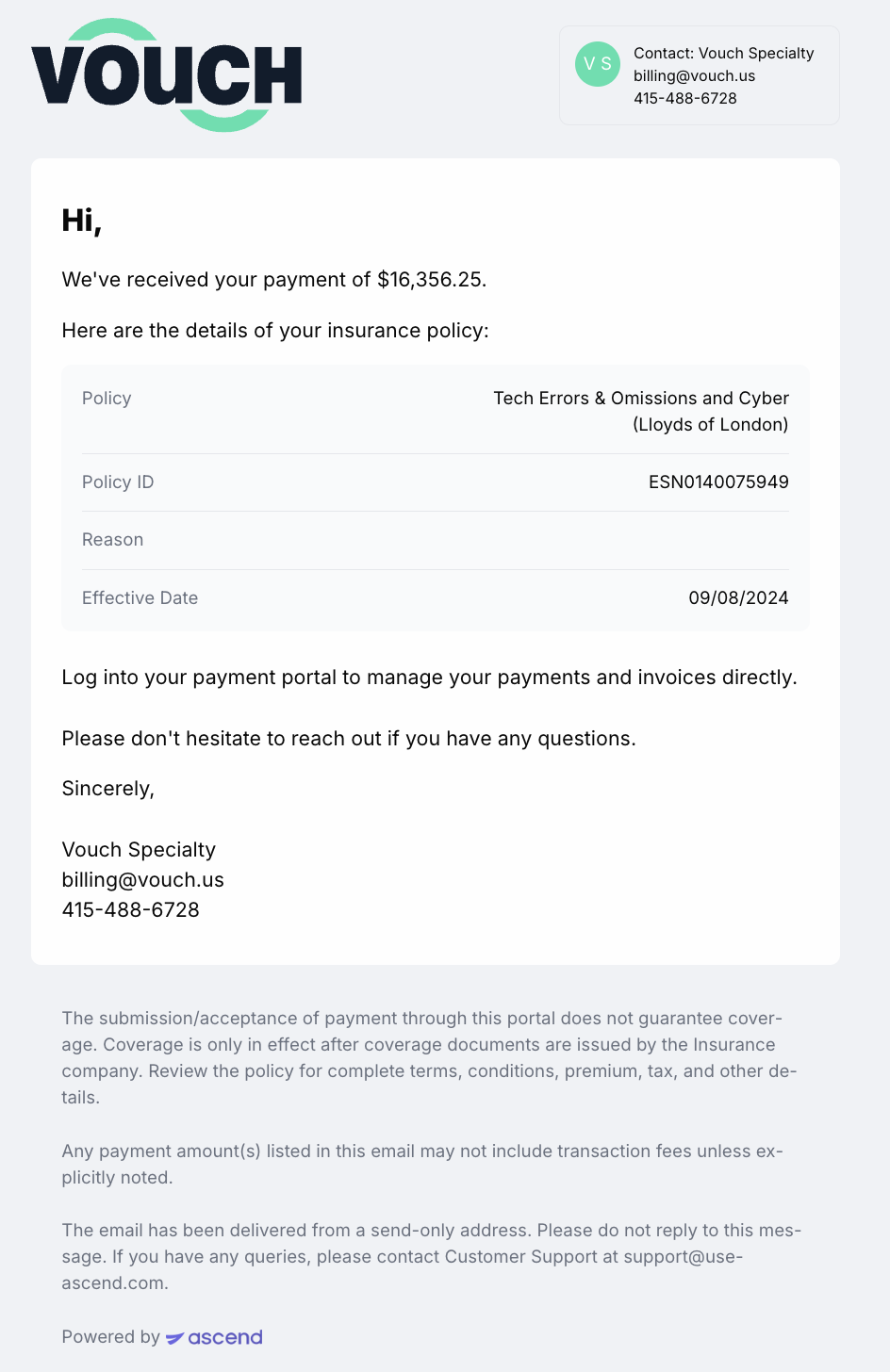
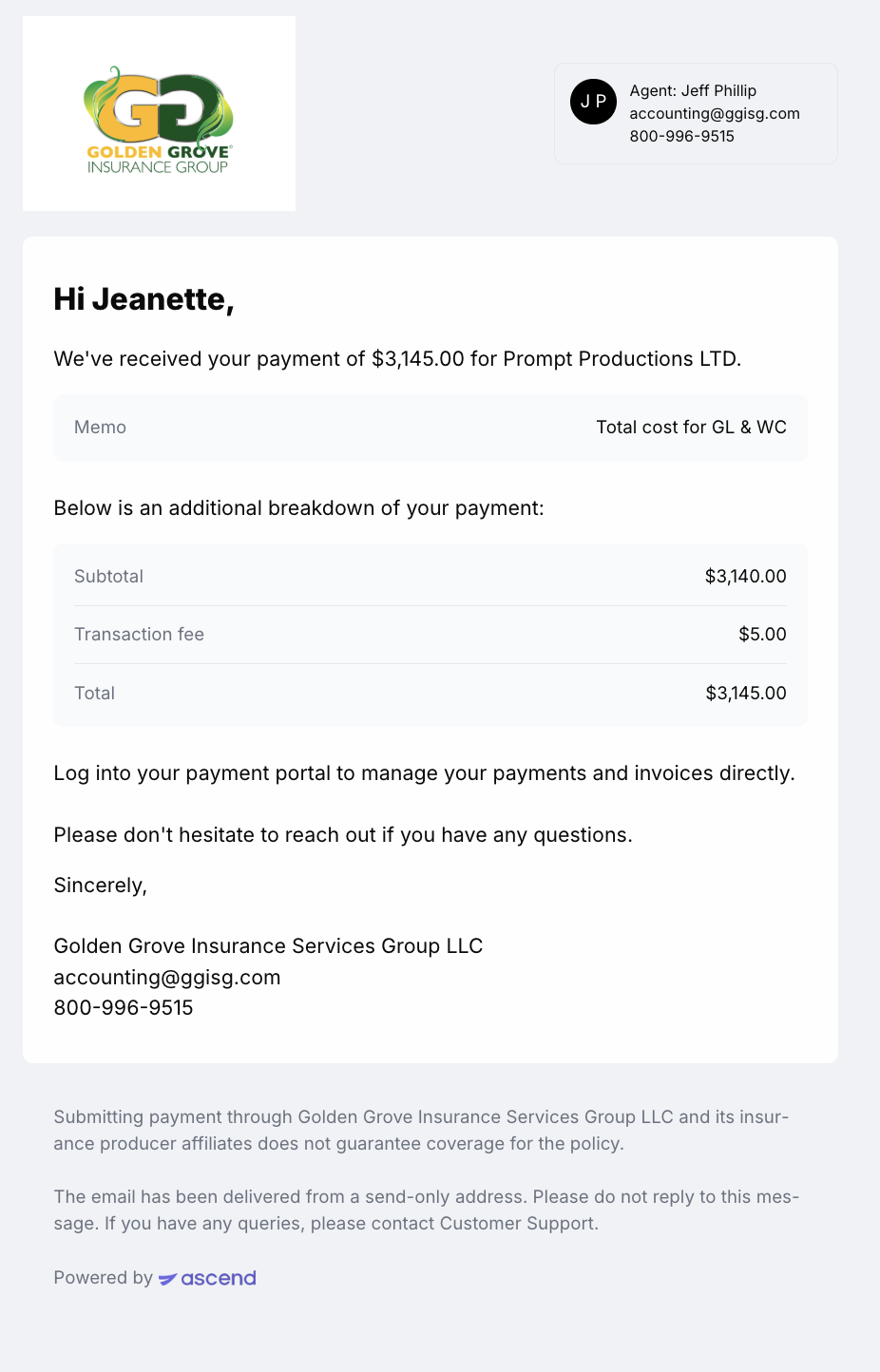
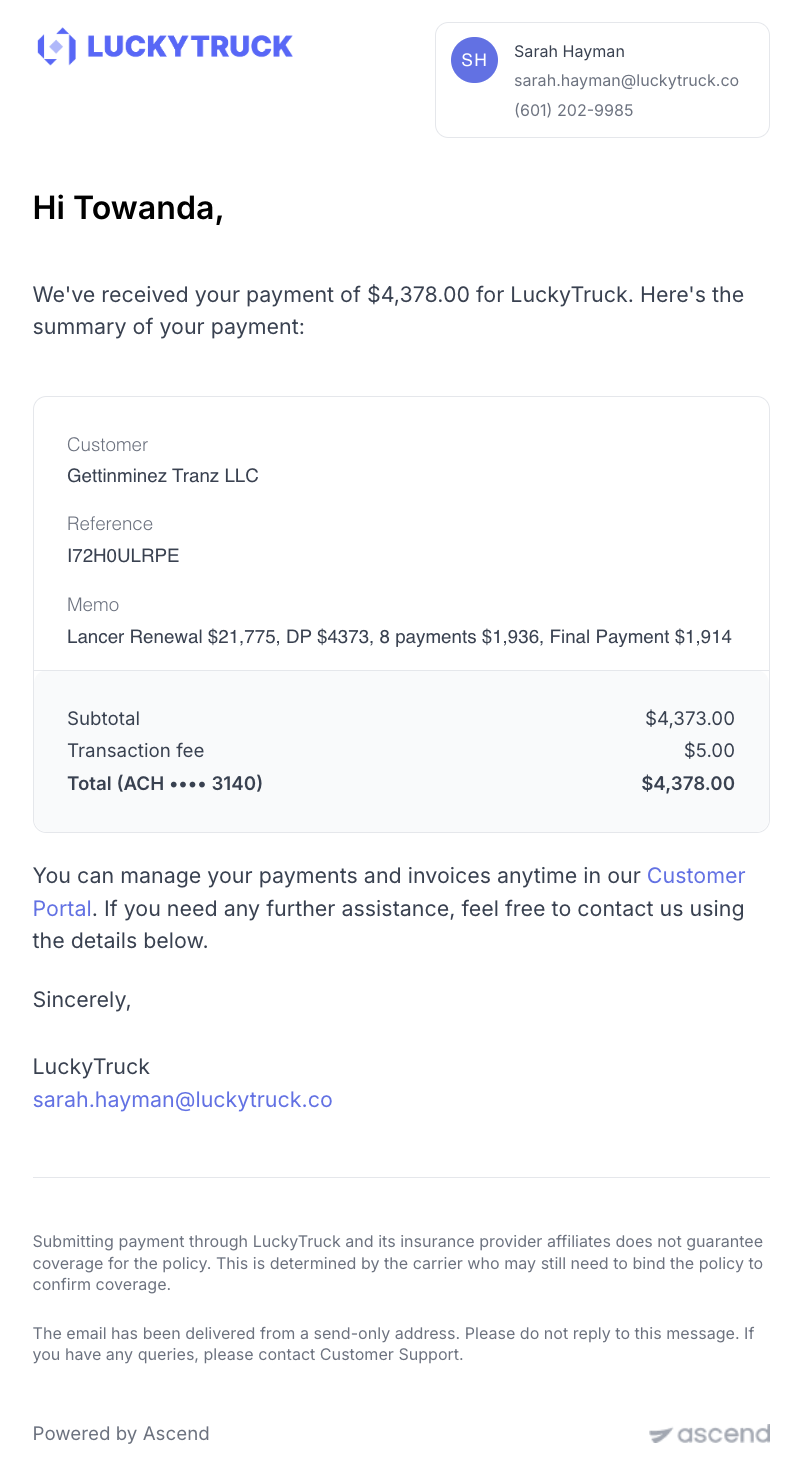
Email Confirmation
Sent to insured immediately when program is purchased successfully.
Programs
One Time Payments
Installment Plans
Messages After the installment due date has passed
Financed programs
If your client has not enrolled in autopay, they will receive six emails every two weeks reminding them to pay the next installment. This flow walks through the emails they will receive if they do not pay the installment in time.
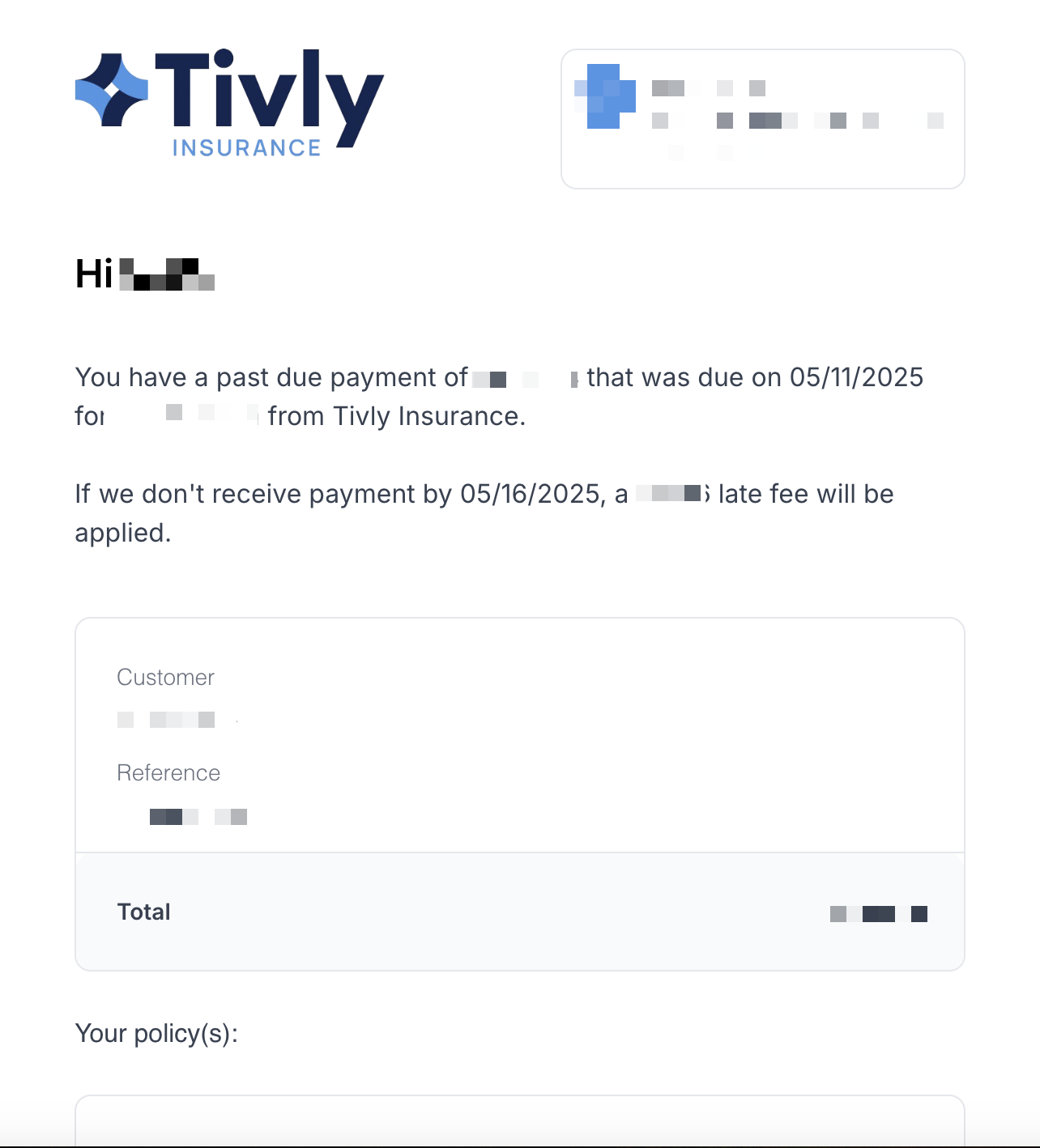
Overdue reminder emails
Your client will receive 4 of the following email that confirms payment is overdue, when a late fee will be added, how much the late fee will be, and finally, when the program will be canceled.
Email example of the 4 warning
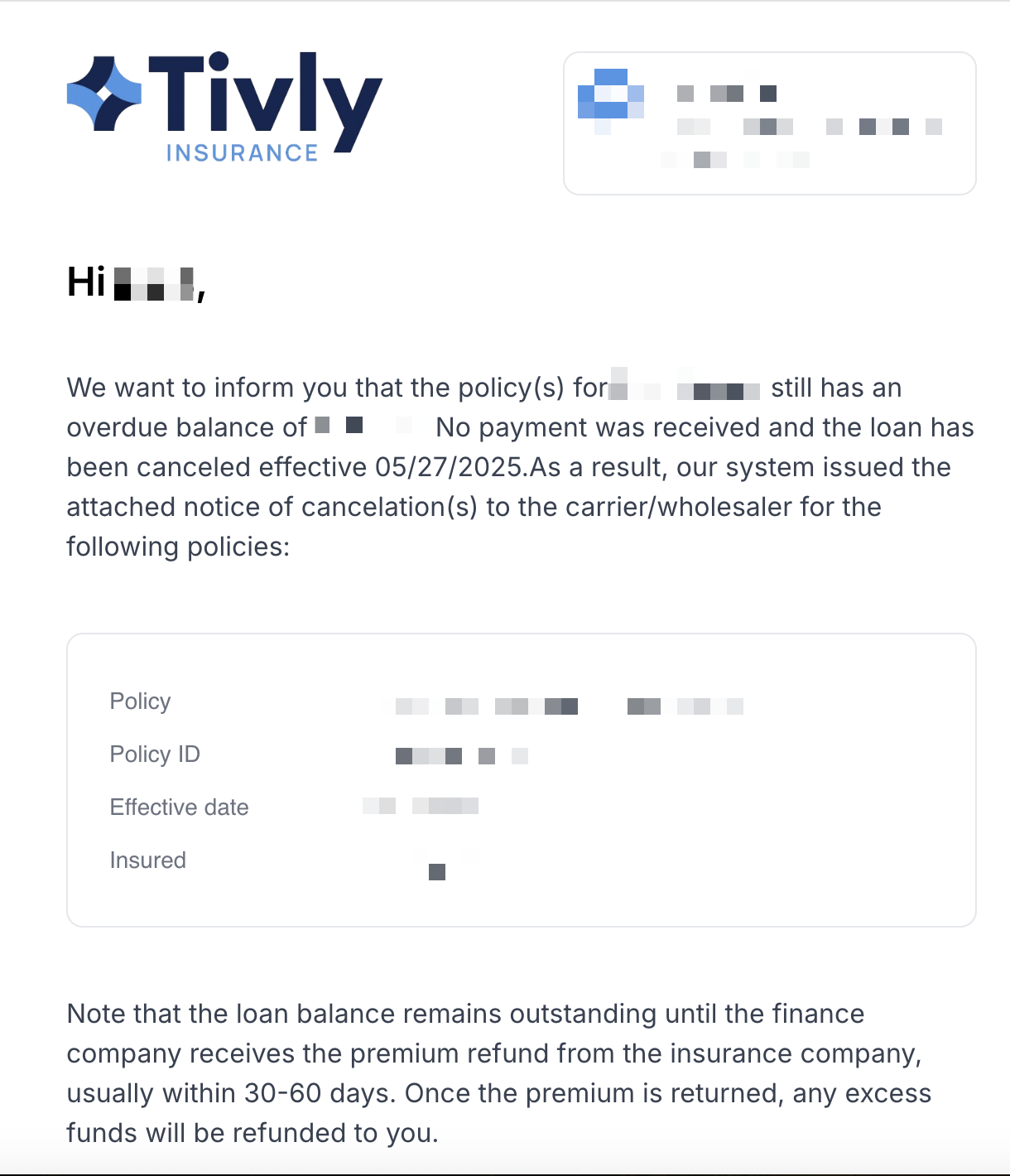
Cancelation warnings
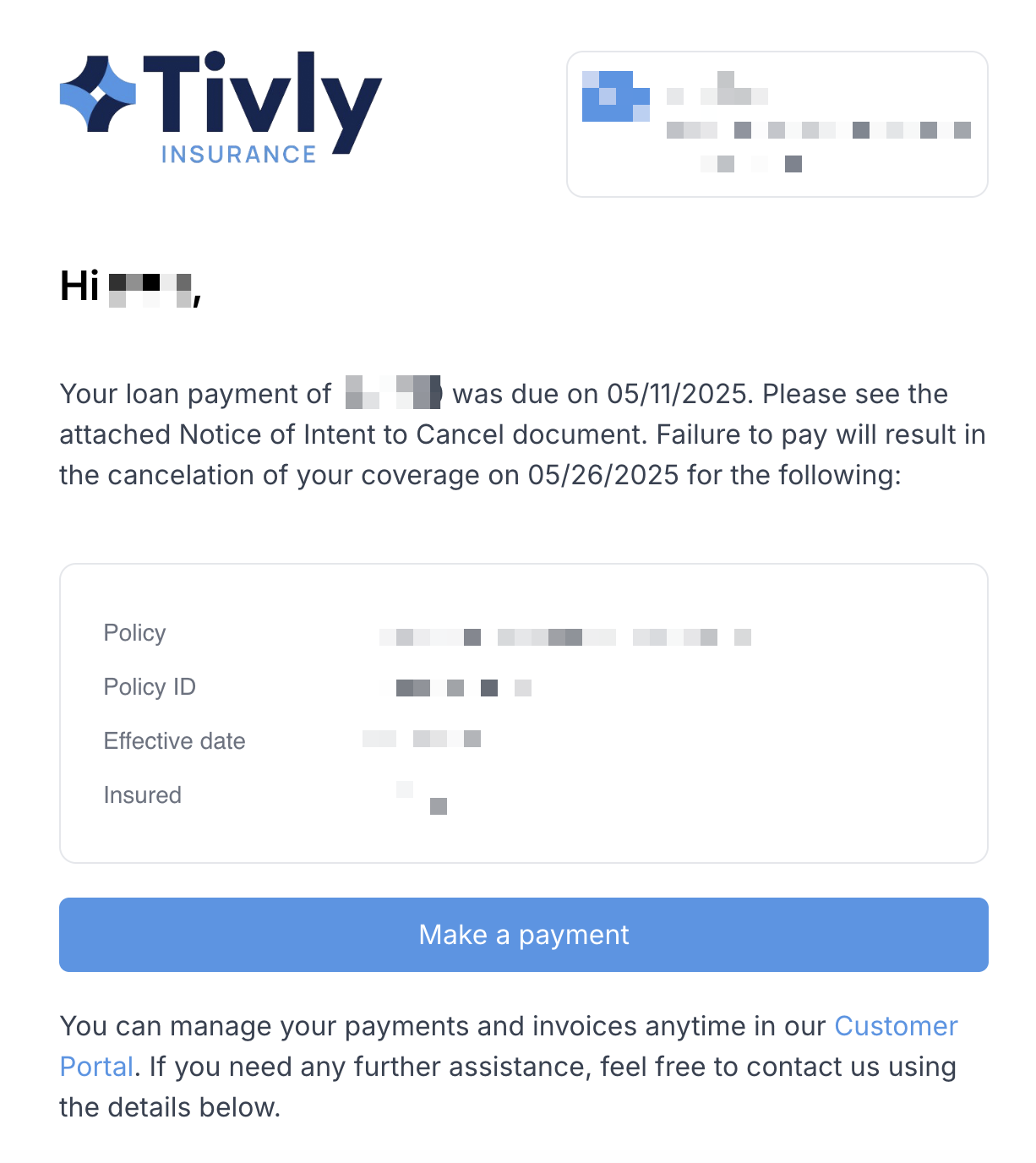
If your client has not yet paid, they will receive two cancellation warning emails, as shown below.
Cancelation notice
When the program cancels, they will receive this email confirming the cancelation due to non-payment
Installment plans
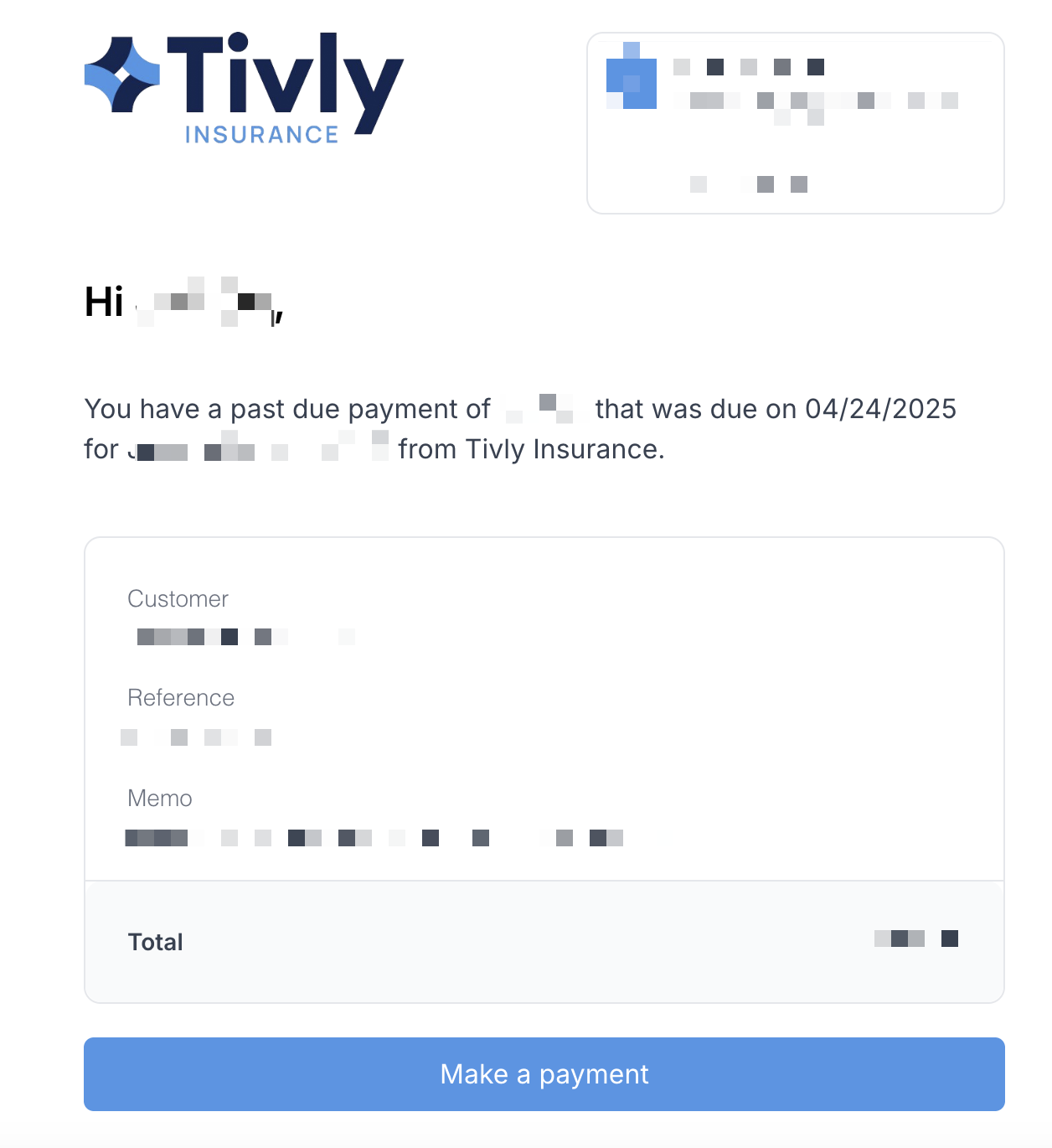
If your client doesn't pay the next installment in their installment plan, they will receive 5 emails informing them that there is a past due payment. Given that this is not a financed policy there is not a risk of cancelation nor a late fee. the emails will look like this:
Refunds
Refund Initiated
Sent to the account manager and the insured when a refund is initiated
Refund Failed
Sent to the account manager and the insured when a refund fails for any reason.
Uncashed Refund Reminder
Sent to the insured when their refund check remains uncashed after 30 days
Refund summary
A bi-weekly report of refund checks that remain uncashed after 30 days. Sent to your organization's accountants, admins, and account managers.
Failed Payments
Sent to the account manager and the insured when an ACH payment fails for any reason, and when a card payment auto-pay charge fails
Checking the status of emails sent to your insured by Ascend
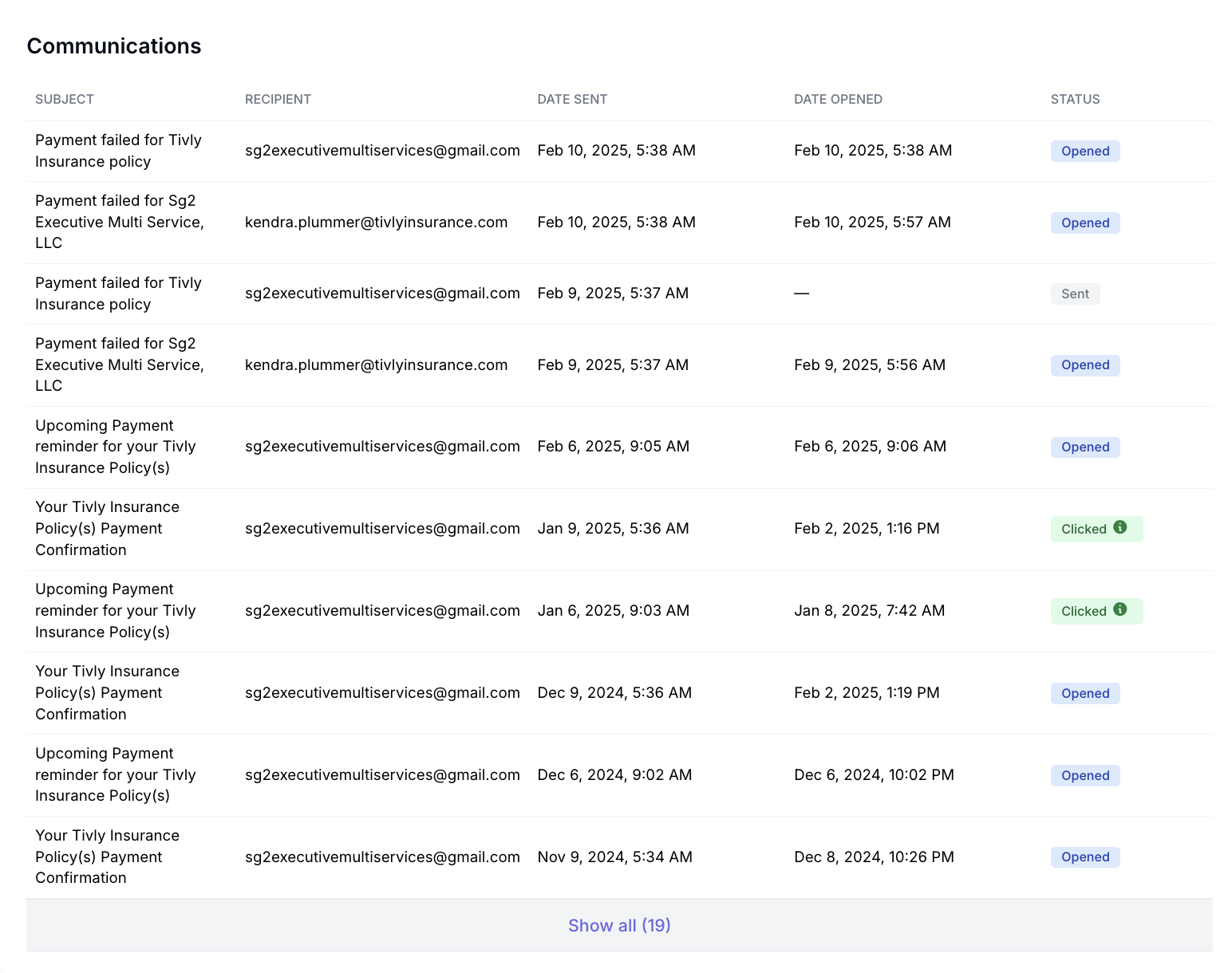
Programs, One-Time Payments, and Installment Plans all contain a Communications table, which logs each of the emails that has been triggered on that account.
The Communications table is located at the bottom of the page, and each line item
can be clicked to show a preview of the message.
Date Sent: Date and Time that Ascend sent the message
Date Opened: Date and Time that the recipient viewed the message
Status: Describes the level of action taken, Sent (unread), Opened, or Clicked (the customer clicked the payment link inside the email)
Contact Us
Need more help? Contact us at [email protected] for more help.