Agency Balance to Ascend
Last updated: June 27, 2025
This is a guide that will teach you:
What is the Balance tab
What the Batch Payments feature offers and when it can be used
Step by step instructions
What is the Balance tab
The Balance tab of the Accounting Dashboard tracks funds due back to Ascend from your agency. This typically includes unearned commission or return premium on a cancelation or premium reducing endorsement, but it can also include transaction fees that your agency has agreed to cover.
This feature is only available to users with Admin or Accounting permissions
Batch Payments
The batch payments feature allows you to combine multiple invoices back to Ascend into one transaction. From the Balance Accounting tab here, your accounting team can simply check the boxes on each row that you’d like to pay at that time, select the payment method, and initiate the transaction in a few quick clicks.
This process saves time and effort by combining multiple balances into a single transfer.
Step by step instructions
The following instructions show the process for agency account users to make a batch payment to your company.
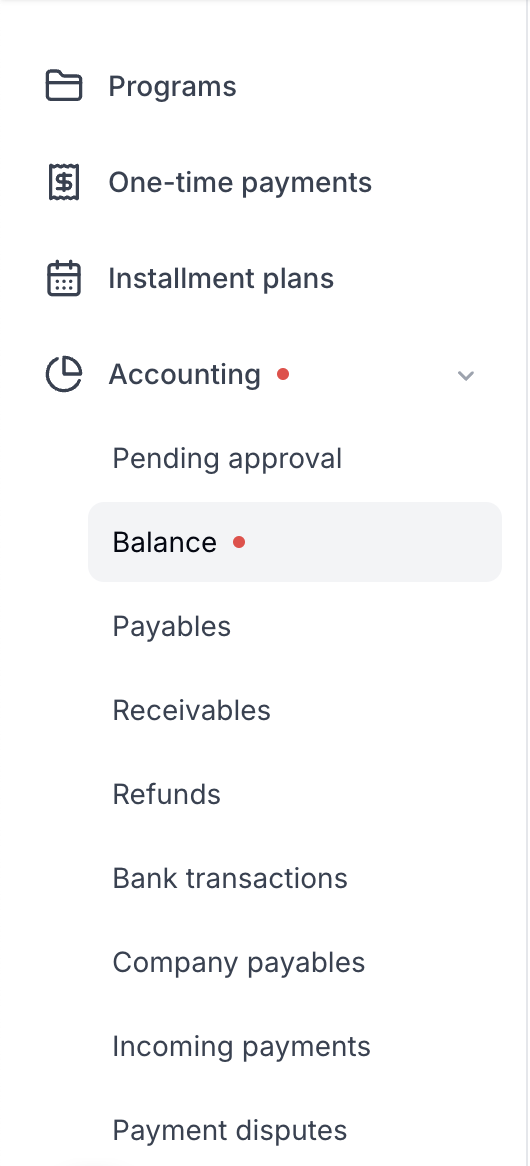
Locate the Balance tab here in the Accounting section of the sidebar
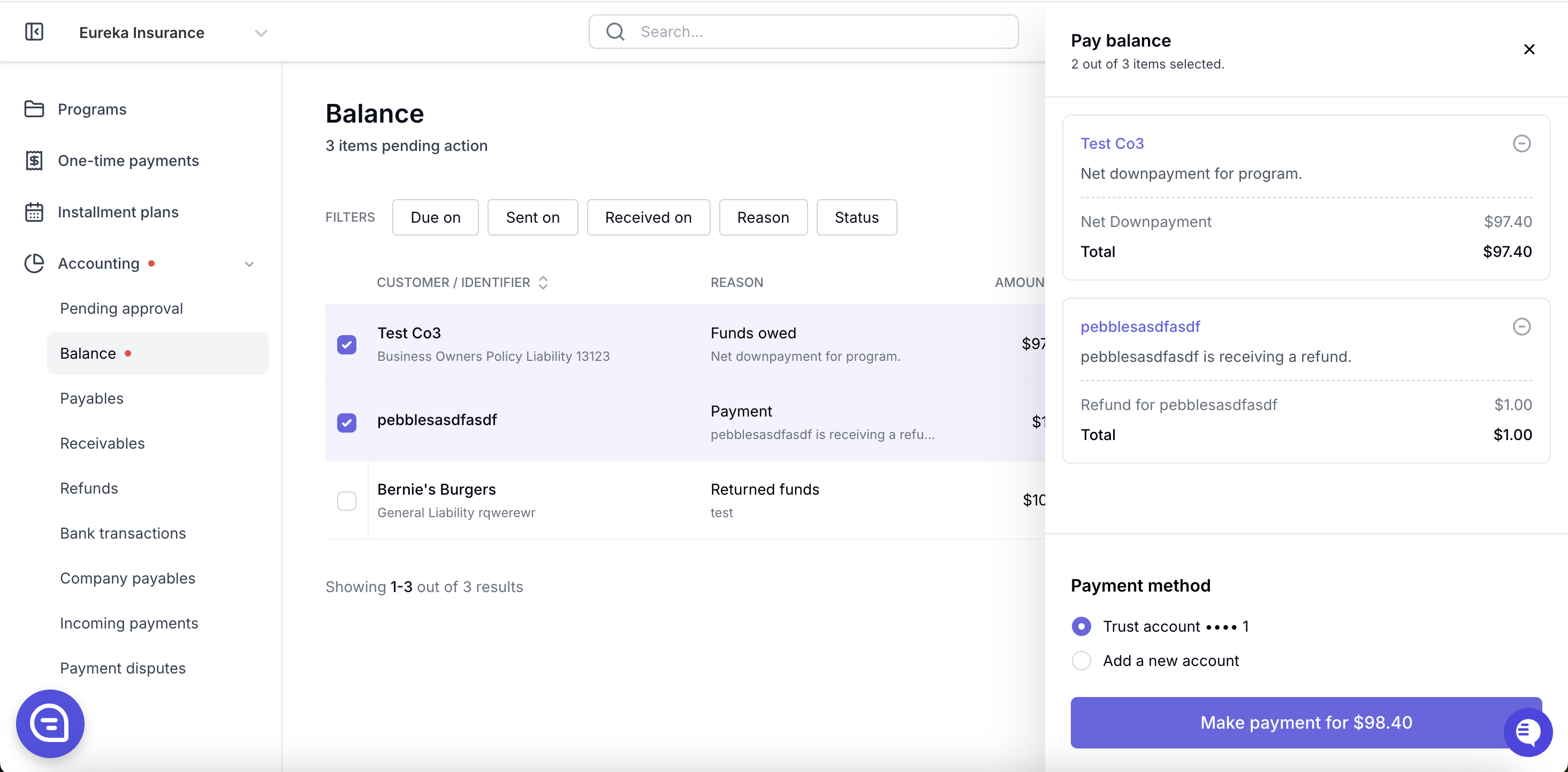
Using the checkboxes on each line item, select all invoices to be paid in the batch payment
When all desired invoices are checked, enter the payment method details, read and confirm the terms and conditions, and click Make payment
To enlarge screenshot, double click on the image below:
Once a payment is initiated, users can view the transaction details and invoice breakdown in the Bank Transactions tab here and can click on any transaction row to view the full payment details.
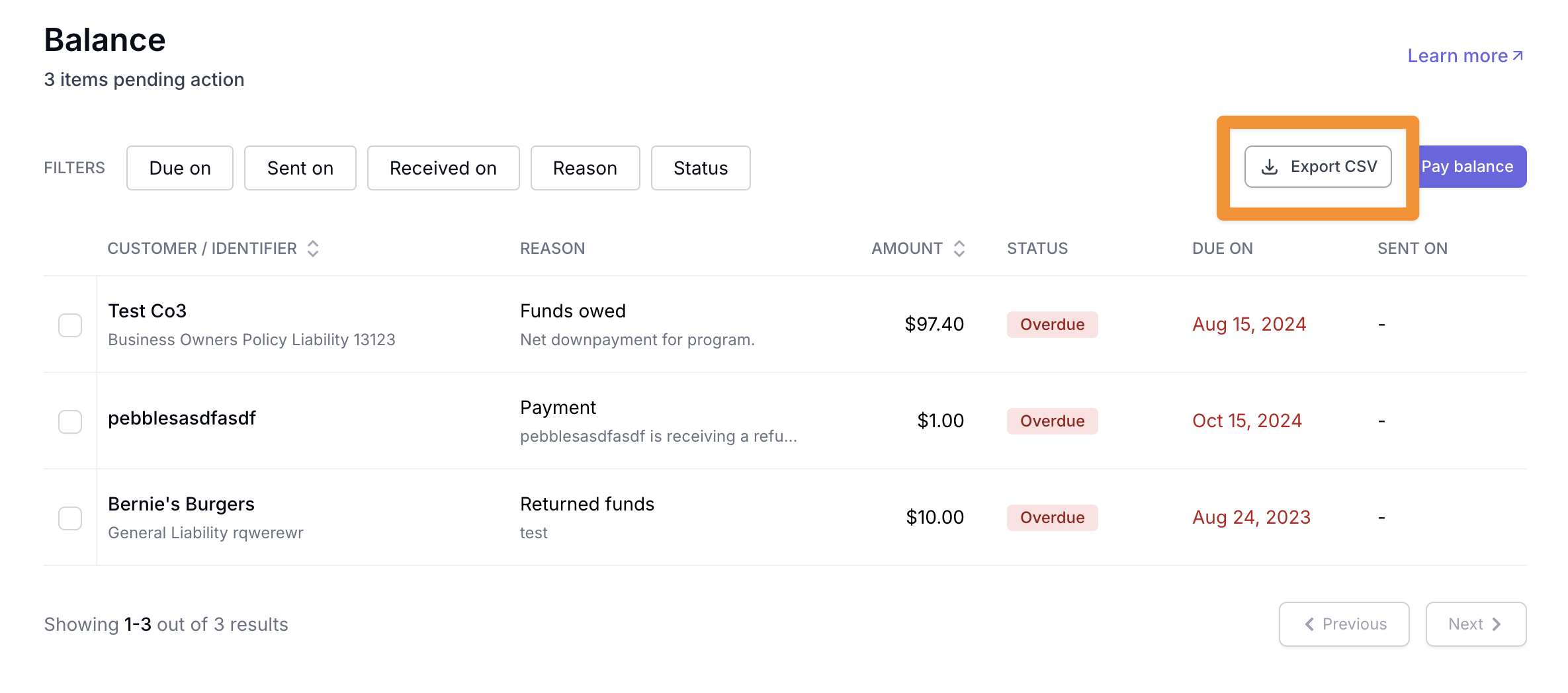
You can also filter and download reports from this tab that will show their payment history by clicking on the Export CSV button in the top right hand corner:
Frequently Asked Questions
How do I stop a payment that has been initiated?
Once an ACH payment is initiated, the recipient (Ascend) CANNOT stop or modify the payment in any way (banks won't allow us to do so). You would need to contact their bank to get the payment stopped.
Where can my agency view their batch payment history?
Once a payment is initiated, users can view the transaction details and invoice breakdown in the Bank Transactions tab here under the Accounting section in the sidebar and can click on any transaction row to view the full payment details:
Contact Us
Need more help? Contact us at [email protected] for more help.