Check Deposit From Insureds
Last updated: July 21, 2026
This is a guide that will teach you:
What is Ascend's check deposit feature
How to use the check deposit feature
This article walks through how to reconcile your clients' payments to their invoices. We do have the option to upload and reconcile return premium checks from carriers to the associated invoices. This article walks through that process in more detail.
Ascend & Paper Checks
You can use Ascend to deposit checks you receive from insureds, much like the "mobile check deposit" feature that you might use with your bank today. This allows you to upload pictures or scans of checks directly to Ascend to be processed.
This means you don't have to deposit funds into your agency's bank account or try to enter the check information into Ascend.
Important things to remember
Check deposit does not incur any payment processing fees. If you are charged a payment processing fee for a check deposit, Ascend support can assist with updating your configuration.
Check payments can take up to 10 days to clear
Uploading a Check
Go to the Incoming Payments tab under Accounting and click Upload Check,

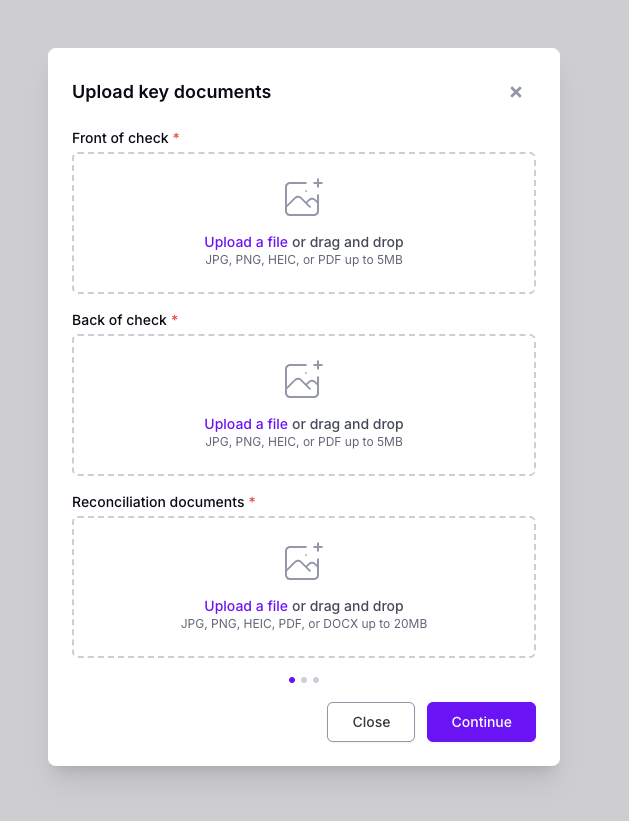
Once Upload Check has been clicked, upload the front of the check, back of the check, and reconciliation documents (ie Ascend invoice)
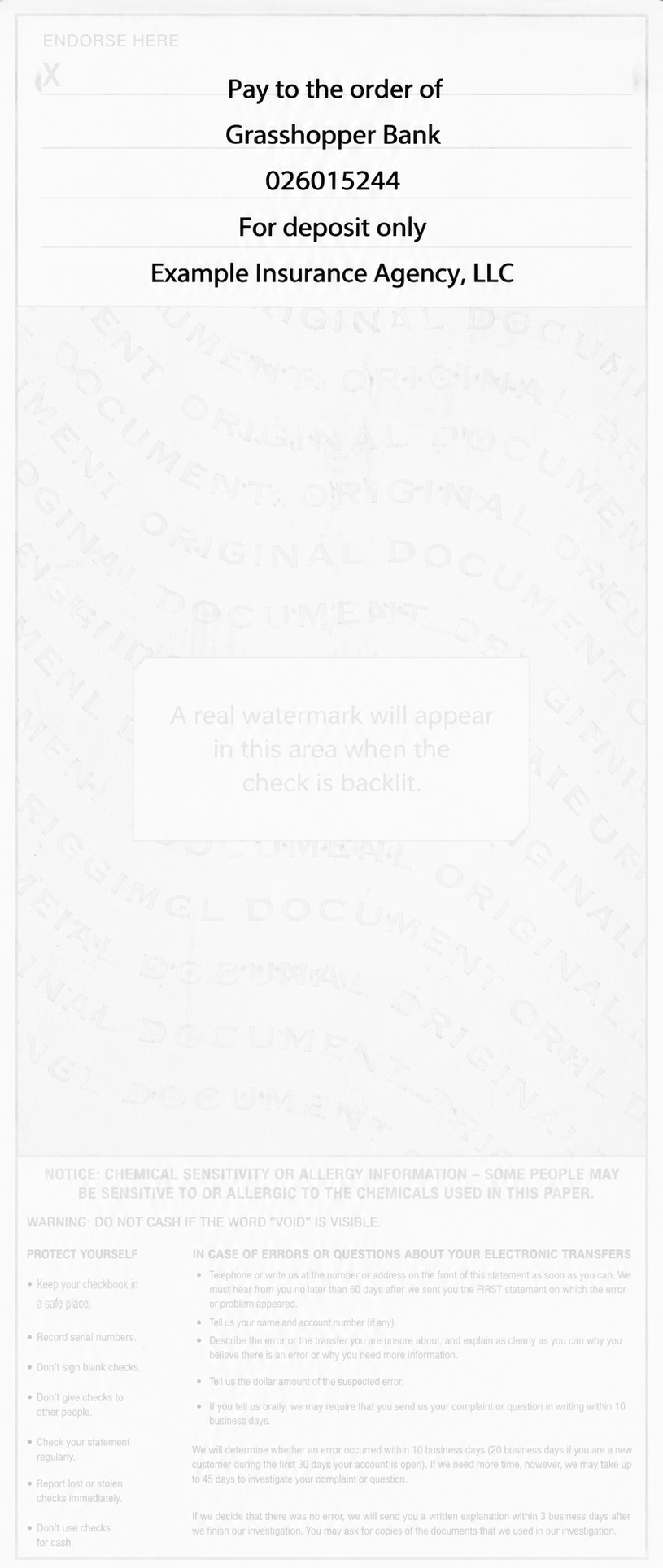
Check should be endorsed as follows:
Pay to the order of
Grasshopper Bank
026015244
For deposit only
<Your Agency's name>
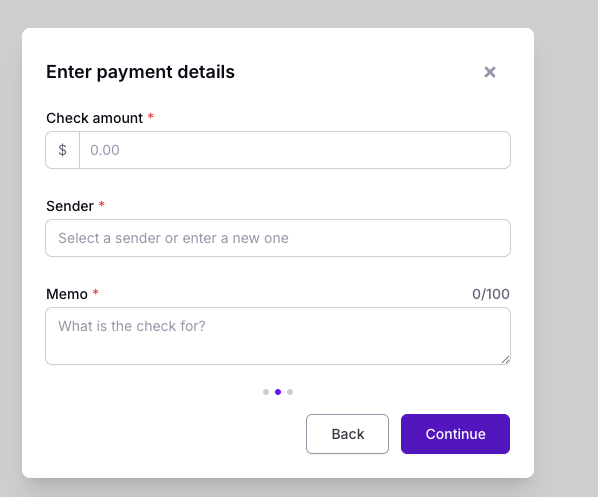
Enter check details
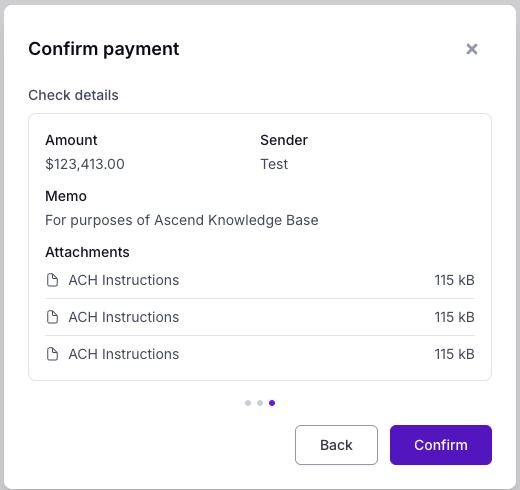
Confirm the payment
Do not attempt to deposit a check that you have processed in Ascend into your agency's account. Similarly do not attempt to process a check in Ascend that has already been deposited into your agency's account.
Applying the Payment
Once a check has been deposited, the payment needs to be reconciled to the invoice in Ascend:
Locate a payment with a
Not appliedstatusClick the row to open the reconciliation view
Review the payment details
Under Matching Invoices, find the relevant invoice(s) using the search bar using:
Program name
Sender name (most often insured name)
Invoice number, which should have been entered by the insured using the invoice wire instructions
Select relevant invoice(s)
Click "Apply payment"
If the check amount doesn't match the invoice amount, see steps here to troubleshoot.
Return Funds
Insureds can sometimes pay for an invoice twice. Once by check and the second time by either Credit Card or ACH. Since the invoice has already been paid for, this double payment will show up as an Unreconciled payment in your agency's Incoming Payments tab. For situations like these, Ascend has introduced the Return Funds feature.
Returning Funds
Locate and click on the relevant Unreconciled payment in Incoming Payments
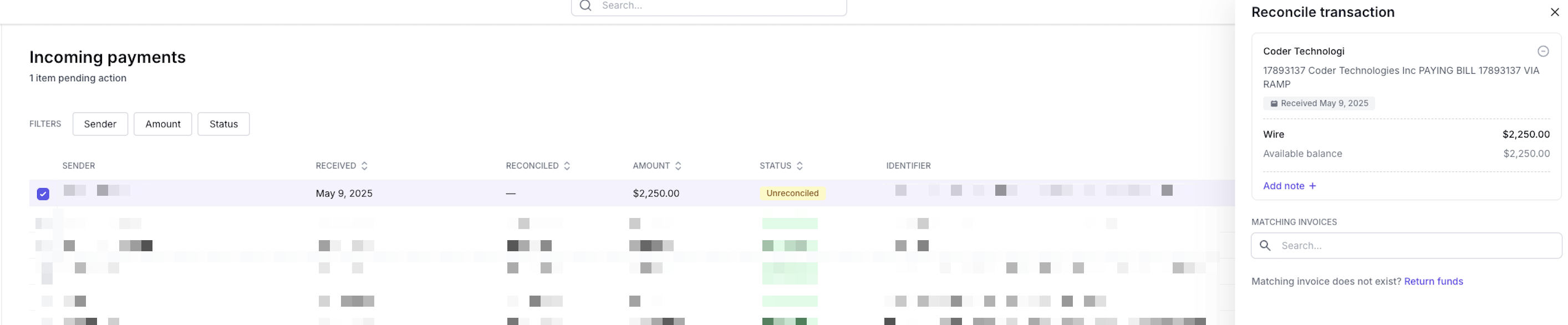
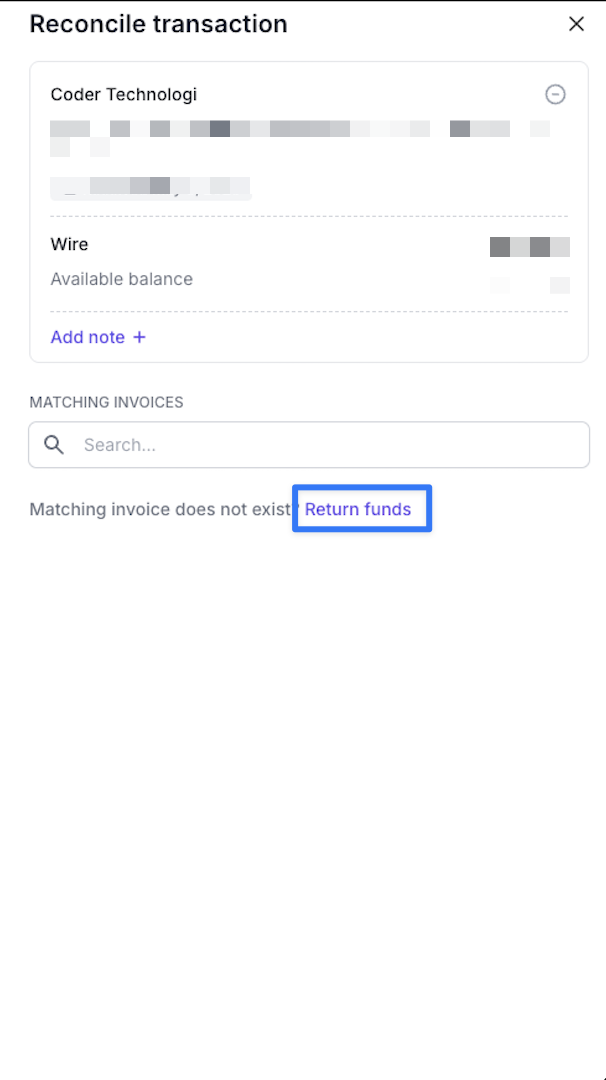
Click on Return Funds
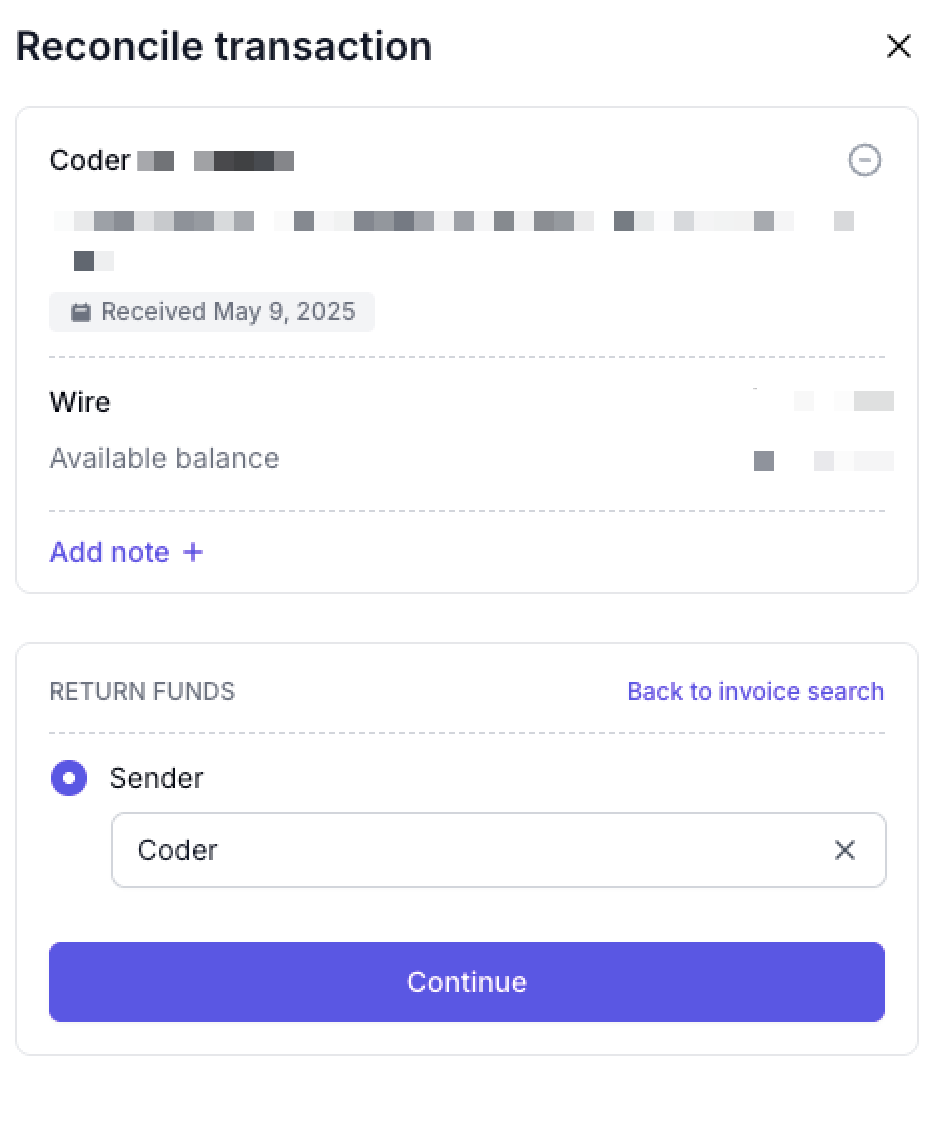
Enter the name of the Recipient and hit Continue
Add Notes
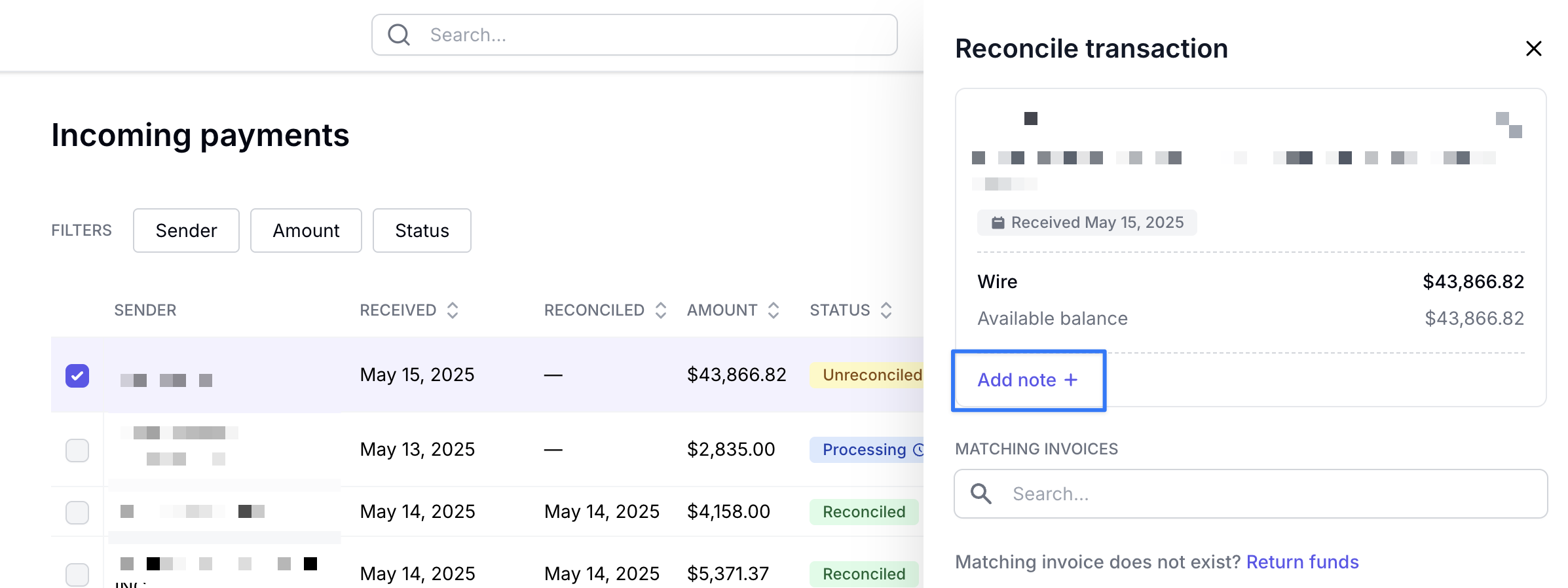
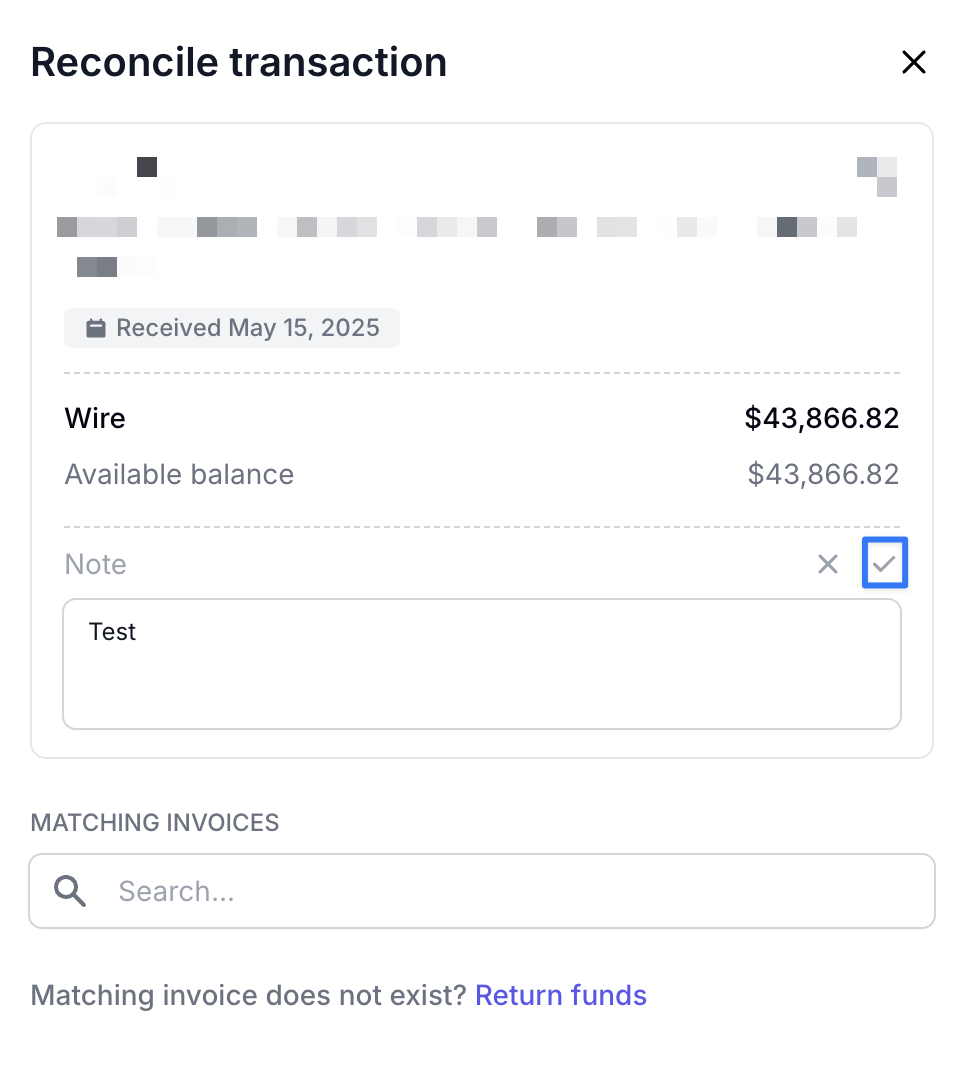
In dealing with unreconciled payments, it often helps agencies to make small notes in the margin. Agencies can now Add a note on unreconciled payments to help track remittance information and reach out to the insured if necessary.
Adding Notes
Click on an Unreconciled payment to open a details bar on the right hand side
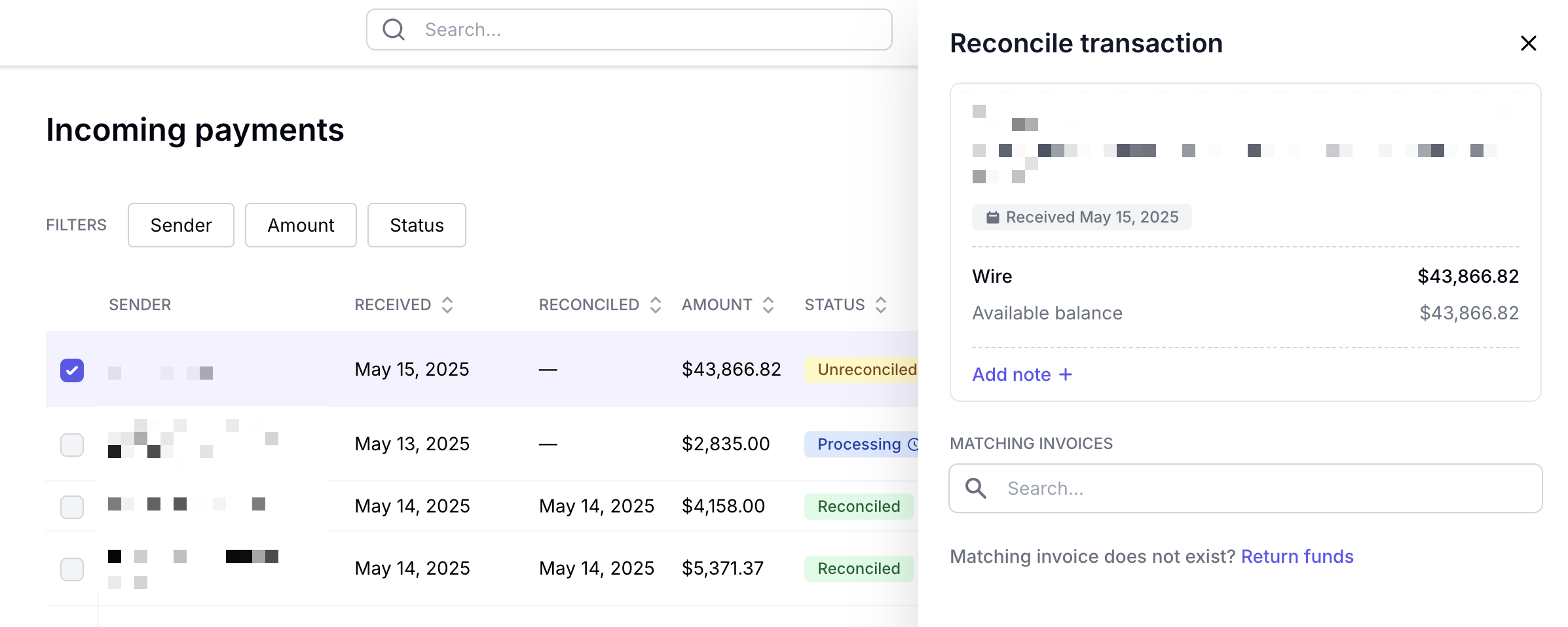
Click on Add Note
Enter your notes in the text box and click the checkmark
FAQ
Can I use this to process return premium checks from carriers/wholesalers?
Yes! Please refer to this article for specific instructions on this process
Contact Us
Need more help? Contact us at [email protected] for more help.