Incoming Payments
Last updated: August 14, 2026
This guide covers:
Overview
Payments Table
Applied Status
Why a payment may be "Not applied"
Reconciliation View
How to reconcile
Handling overpayments and underpayments
How to return funds
How to add notes to a payment
How to upload a check
FAQs
Overview
Incoming Payments shows all inbound transfers into your organization's Ascend account. This includes insured payments (wires, ACH transfers, credit card payments), check deposits, and premium finance funds.
Most incoming payments are automatically applied to their respective invoices, however, some payments must be manually applied.
This feature is only available to users with Admin or Accounting permissions
How-to Guide
Payments table
Each row in the table represents a single inbound transfer. Column visibility can be toggled using the selector in the top right of the table.
Applied status
The applied status indicates whether the inbound funds have been reconciled.
Not applied: The payment has been received but not yet reconciled to an invoice. Action required.
Partially applied: the payment has been partially reconciled — some funds remain unapplied. Action required.
Applied: The payment has been fully reconciled to one or more invoices. No action needed.
N/A: Reconciliation is not applicable for this payment (e.g. failed or canceled payments).
Why a payment may be "Not applied"
Ascend automatically reconciles incoming payments if the amount and/or sender/invoice number provided matches an open invoice/program.
If our system is unable to automatically reconcile an incoming payment, that payment must be manually reconciled.
All accounting / admin users will receive a daily email reminder that there are payments waiting to be reconciled.
Common reasons a payment is not automatically applied:
Payment amount is too high — more was sent than the invoice total
Payment amount is too low — less was sent than the invoice total
No invoice number in the memo — The payment couldn't be matched automatically
Insured has multiple programs — funds need to be split across invoices.
All accounting and admin users receive a daily email reminder when payments are waiting to be reconciled.
Reconciliation View
Clicking into a row will enter a focused reconciliation view where payments can be applied to open invoices or refunded. A sidebar provides quick navigation between payments.
How to reconcile a payment
Table View
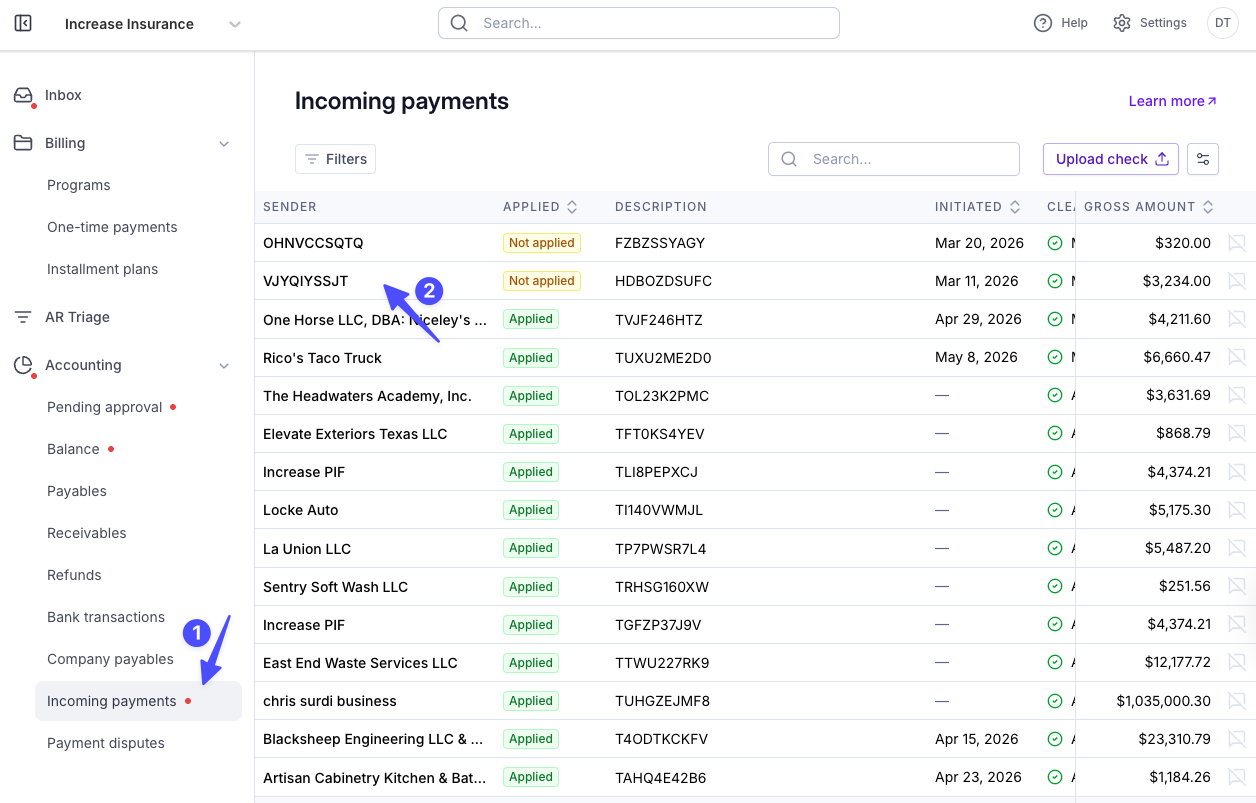
Detail View
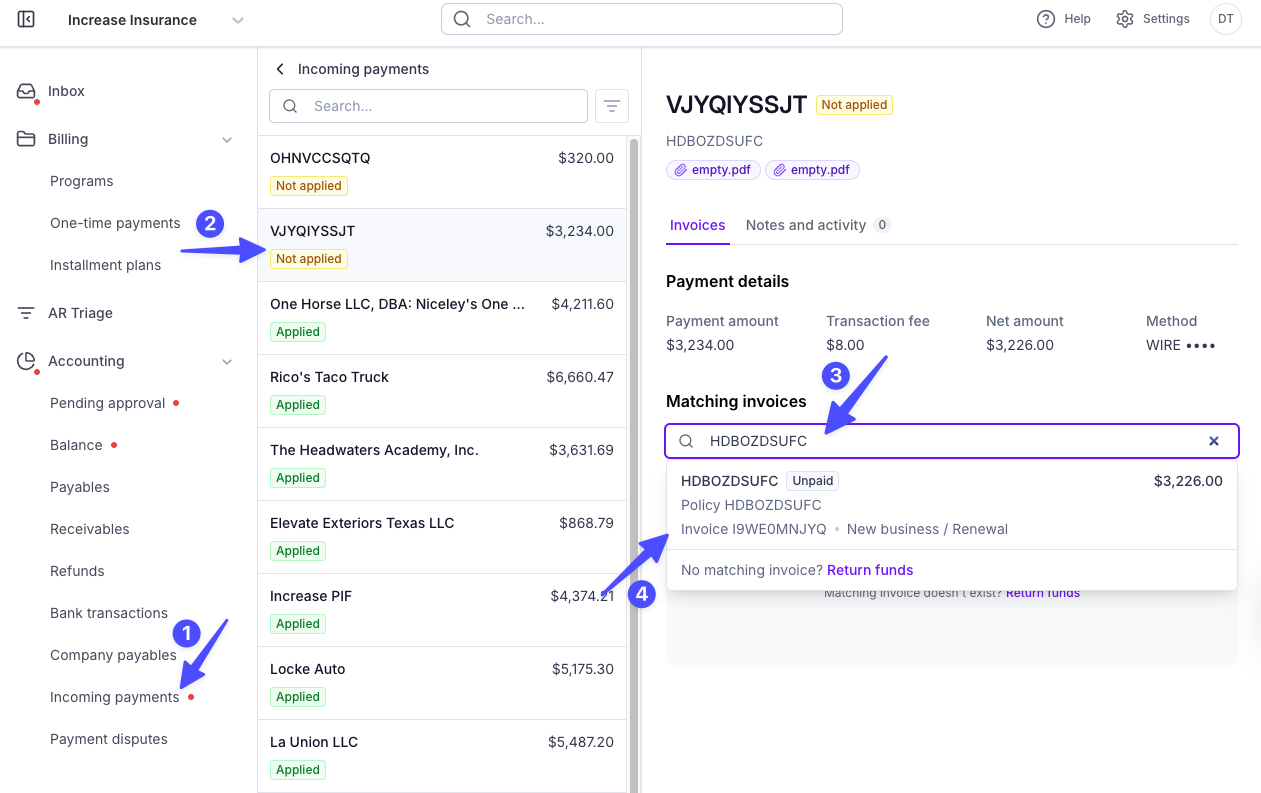
Locate a payment with a
Not appliedstatusClick the row to open the reconciliation view
Review the payment details
Under Matching Invoices, find the relevant invoice(s) using the search bar using:
Program name
Sender name (most often insured name)
Invoice number, which should have been entered by the insured using the invoice wire instructions
Select relevant invoice(s)
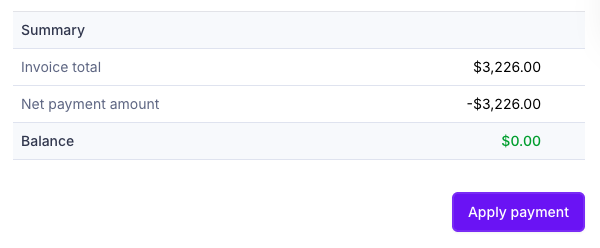
Review the summary at the bottom of the page
If the payment matches the invoice exactly, you're ready to apply
If there's an overpayment or underpayment, you'll be prompted to resolve it (see below)
Click Apply payment to complete reconciliation
Reconciliation can only be reversed by Ascend support. In the case a payment needs to be unreconciled, contact [email protected]
Underpayments, Overpayment, & Partial Payments
For in-depth how to guides, see here
Underpayments
If the insured sent less than the invoice amount, you'll see an outstanding balance warning. You must resolve this before applying the payment.
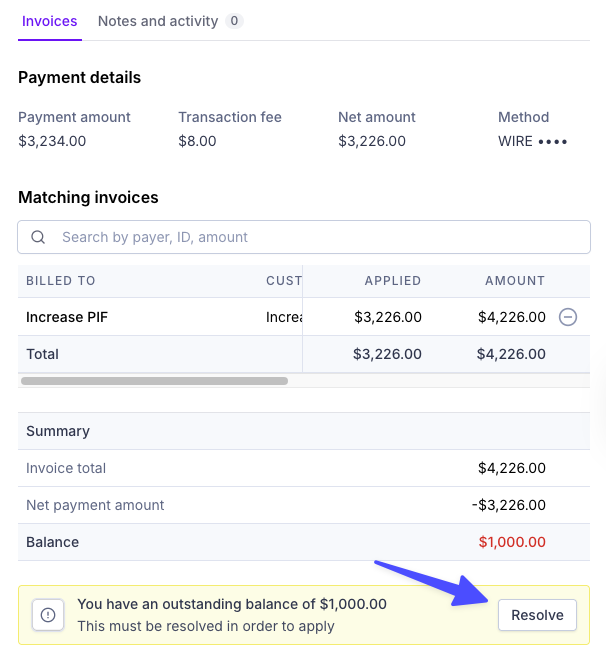
Underpayment resolutions
Cover the difference — your agency absorbs the underpayment (subject to your configured underpayment limit)
To adjust your underpayment limit contact [email protected].
Partially apply — apply what was received and leave the remainder on the invoice.
Related payouts are blocked on partially paid invoices. The invoice balance must be cleared to unblock payout.
Overpayments / Excess payments
Insured sent too much and needs to be refunded
Insured sent too much for a policy/invoice that needs to be created in the future
If the insured sent more than the invoice amount, you'll see an excess funds warning in the reconciliation summary. You must resolve this before applying the payment.
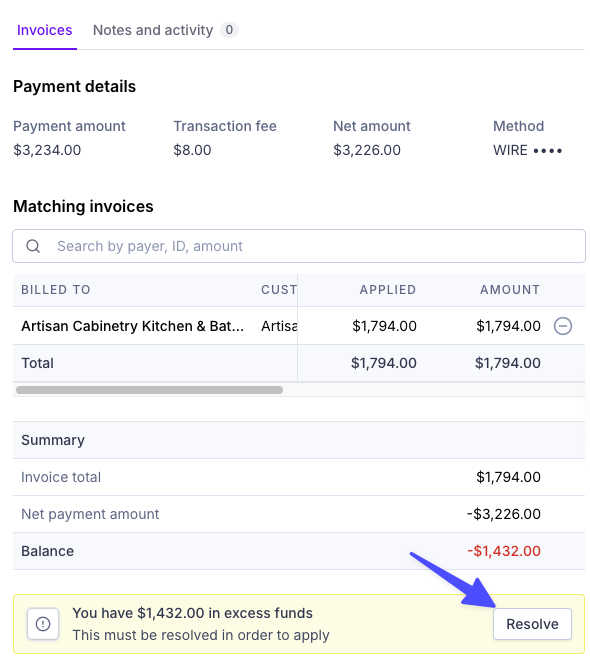
Overpayment resolutions
Refund the insured: send the overage back via check
Apply to loan balance: apply the overage to the insured's outstanding loan balance (if applicable)
Refund financing company: return the overage back to a financing company
Increase the downpayment: apply the overage to the downpayment (if applicable)
If you do not want to refund the insured but need to reconcile a partial amount, contact [email protected]
How to return funds (full refund)
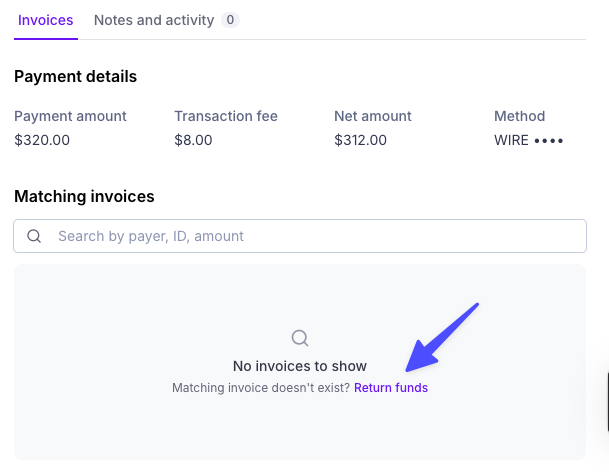
If a payment cannot be matched to any invoice, you can return the funds to the sender.
In the empty invoice section, click Return funds (visible when no invoice has been selected)
Select a recipient for the refund
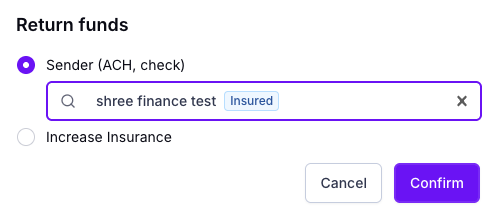
Click Confirm
Notes and activity
Use Notes to provide additional context to your team. A note icon will appear in the table for any payment with notes.
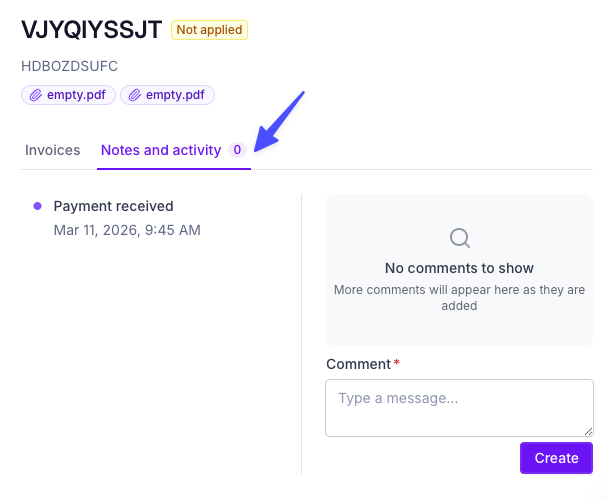
Check upload
You can also deposit a check directly into Ascend from the Incoming Payments page.
Click Upload check in the top right corner of the table
Follow the prompts to upload a check image and enter the amount
The check will appear in the table once submitted
For a full walkthrough of check deposits, see this article.
Reconciling a Down Payment
If the insured submits a down payment for a premium finance agreement, you can reconcile the payment manually.
Option 1 — Sign PFA on Insured's Behalf
Click the pencil icon under the Type column of the table
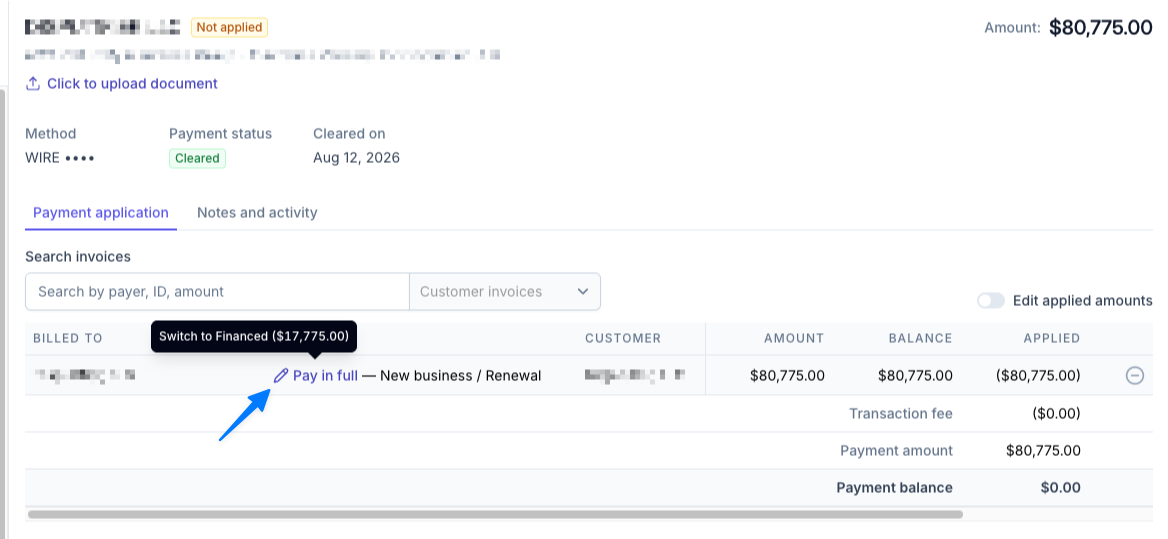
Follow the prompts to e-sign the PFA on behalf of the insured.
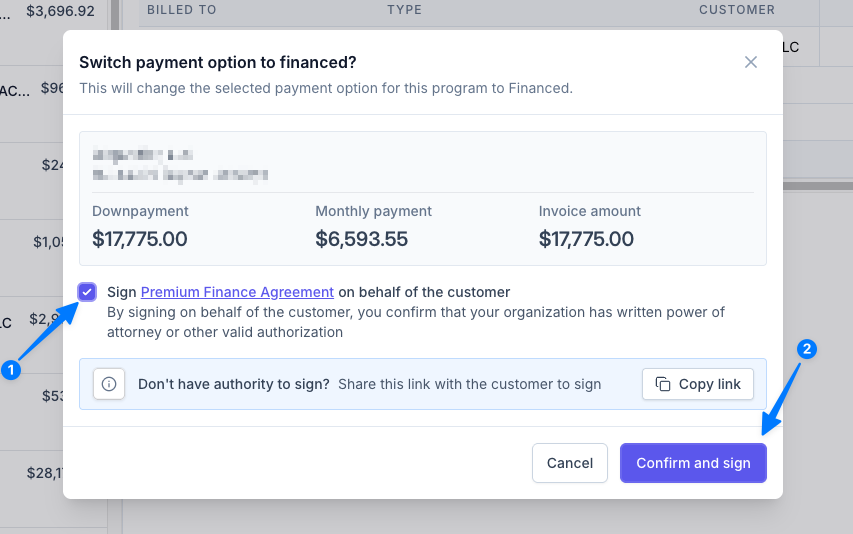
Select Apply payment to reconcile the downpayment.
Don't have authority to sign? Send the checkout link to the insured, and have them e-sign the PFA on their end.
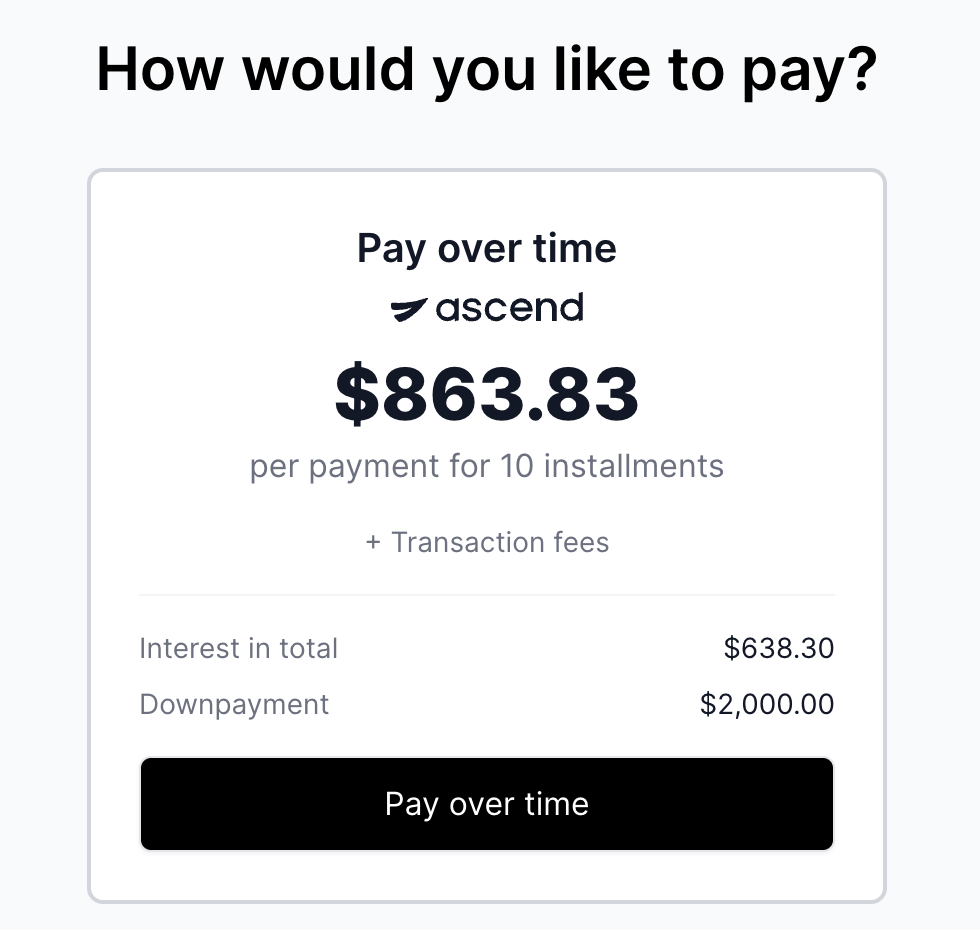
Option 2 — Insured Signs PFA
Have the insured enter the checkout link in the search bar in their browser.
Click "Continue to payment options"
On the "How would you like to pay?" page, select the option to "Pay over time"
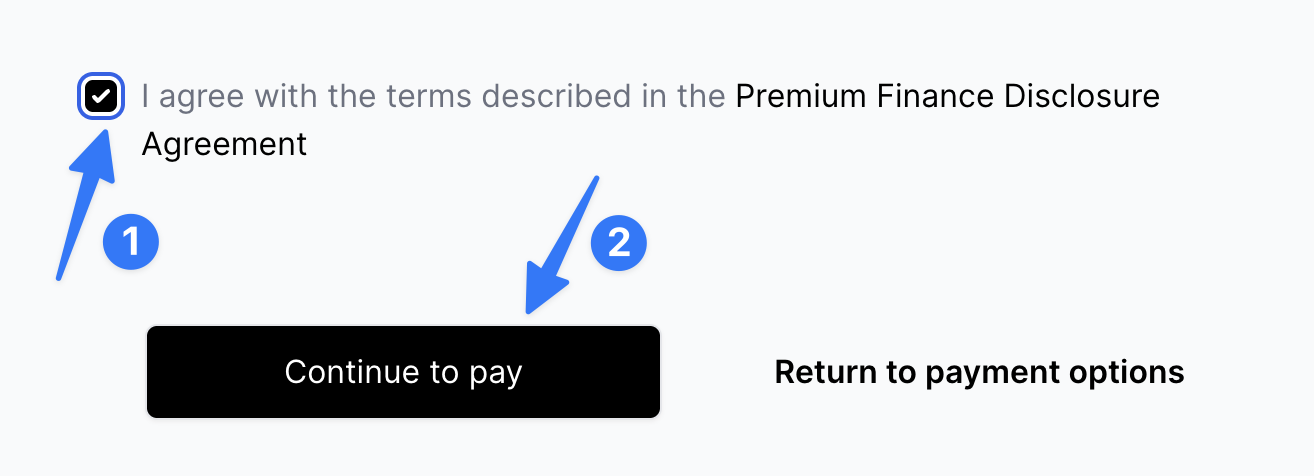
Check the "I agree with the terms described in the Premium Finance Disclosure Agreement" box, then click "Continue to pay"
Once you're on the "Complete your payment" page, you can exit this page.
Now, the down payment invoice will be available for reconciliation in the Incoming payments tab.
FAQ
Can I reconcile a payment that was applied to the wrong invoice?
No, reconciliation cannot be undone from the dashboard. Contact [email protected] for assistance.
What if the payment is for a program that has been archived?
Reconciliation is blocked for archived programs. Un-archive the program first or return the funds.
Who can reconcile incoming payments?
Only users with Admin or Accounting permissions.
Can multiple payments be reconciled at once?
No. Only one payment may be reconciled at a time. Invoices can be partially paid, and additional payments can be reconciled in quick succession.
Contact Us
Need more help? Contact us at [email protected] for more help.