Smart Inbox Quickstart Guide
Last updated: December 17, 2025
This is a guide that will teach you:
What is Smart Inbox
How to use the Smart Inbox feature
Premium-increasing endorsements
Premium-decreasing endorsements or cancelations
Policy was bound outside of Ascend
What is Smart Inbox
We recognize that many of your important workflows are document-based and live in your email inbox. It's tedious to spend your day transferring information you received in your email (ie quotes, binders, and invoices) into your AMS, other emails, e-signature platforms, and into Ascend.
That's why we built Smart Inbox: a centralized intake repository for all of your policy documents that drives real-time agency bill workflows. Our goals for Smart Inbox are to:
Save you time by eliminating manual data entry
Centralize your workflows in one place
Increase accuracy by auto-extracting billing-critical data
Improve your team's productivity with faster turnaround times
This feature is opt-in only at this time. If you aren't able to access the link please reach out to [email protected] to enable the feature.
How to use Smart Inbox
1. Billing for a new policy (renewal or new business)
Forward/send an email containing a policy document (quote/binder/invoice) to the Smart Inbox, you can find your agency's Smart Inbox email address here (you can also use the "Upload" button to upload the documents directly to the inbox):

Clicking on Upload documents opens the following interactive box
Once the inbox receives a document, it will automatically categorize it (ie is it a quote, binder, or invoice).
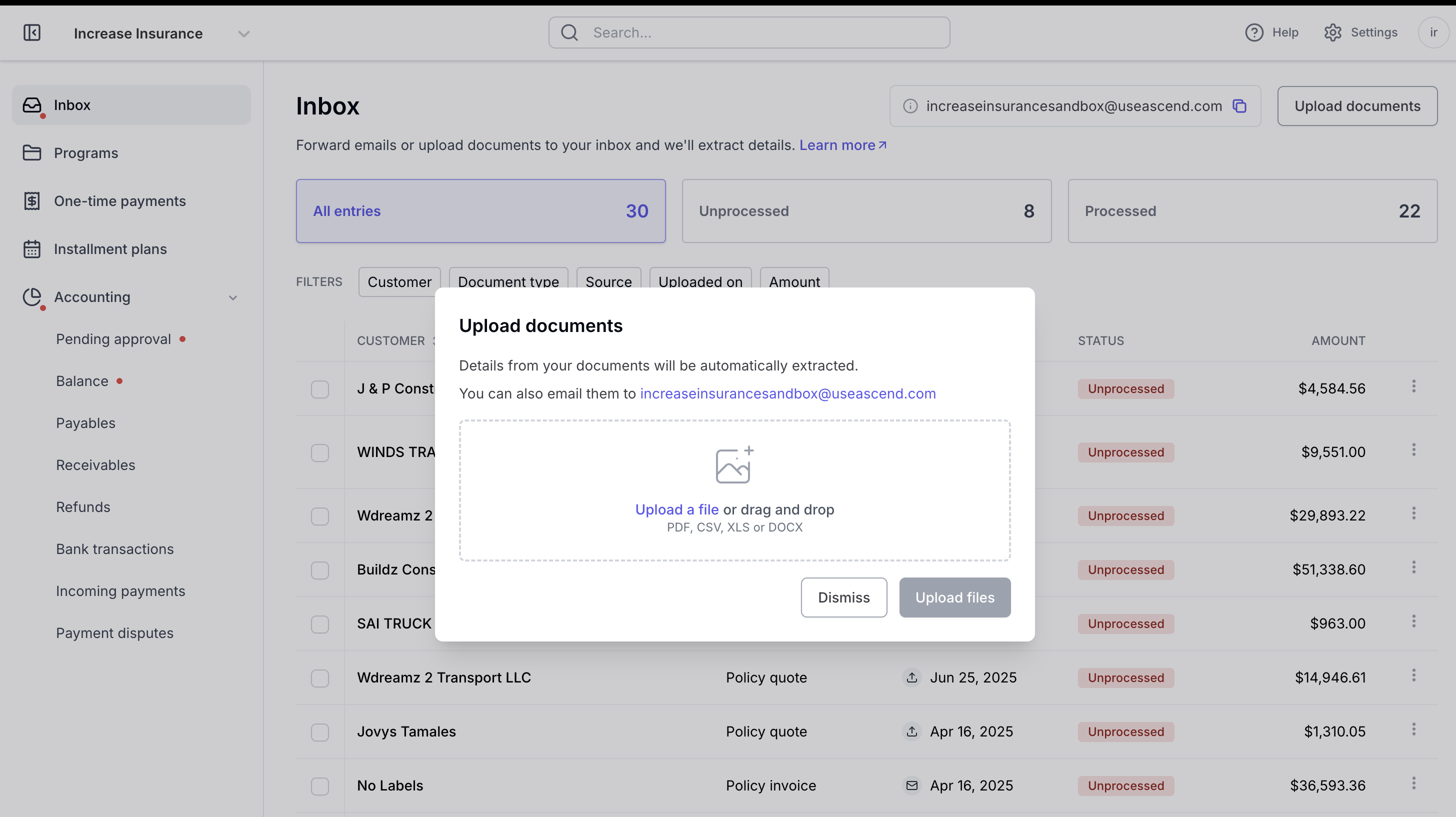
Then will begin extracting all of the key information from the document that you will need to run your agency bill process.
When you log into Ascend, visit the Inbox tab and select the pre-extracted document to create a new program.
If commission is set as a dollar value instead of a percentage on your document, smart inbox will extract commission amounts from the document and prefill the quote create form using the commission amount.
Creating a new program is just the start. Smart Inbox can also process endorsements and cancelations, removing the burden of manual data entry from all stages of the policy lifecycle.
2. Billing for endorsements or cancelations
For this feature to work properly, make sure to forward the actual invoice (not the binder). Once the inbox receives the document, it will automatically detect whether the document is an endorsement or cancelation.
Premium-increasing Endorsements
Smart inbox will extract data from the endorsement invoice to create a new checkout link for the insured to make additional payment.
Premium-reducing Endorsements or Cancelations
Smart Inbox will prompt your accounting team to return unearned commission/return premium, which will either be applied to the loan (if financed) or refunded to the insured (if paid in full).
Policy was billed outside of Ascend
You will need to create a new program before you can bill this endorsement since there isn't an pre-existing program.
Contact Us
Need more help? Contact us at [email protected] for more help.
Related articles
📄 Premium-Reducing Endorsements