Bulk Activity Creation
Last updated: September 3, 2026
Direct Bill Automation
This is a guide that will teach you:
How to create an Epic Activity for multiple entries at once
How to select the entries to include in the Activity
What information is included when the Activity is created
Overview
When an Epic Activity needs to be created for multiple entries, Ascend allows you to select the applicable entries in bulk and create a single Activity for all selected entries.
This can be used when multiple entries require the same follow-up or action in Epic, eliminating the need to create an individual Activity for each entry.
When the Activity is created, Ascend will associate the Activity with the company and include an attachment containing information related to the selected entries.
Create an Activity for Multiple Entries
To create an Epic Activity in bulk:
Navigate to the applicable entries in Ascend.
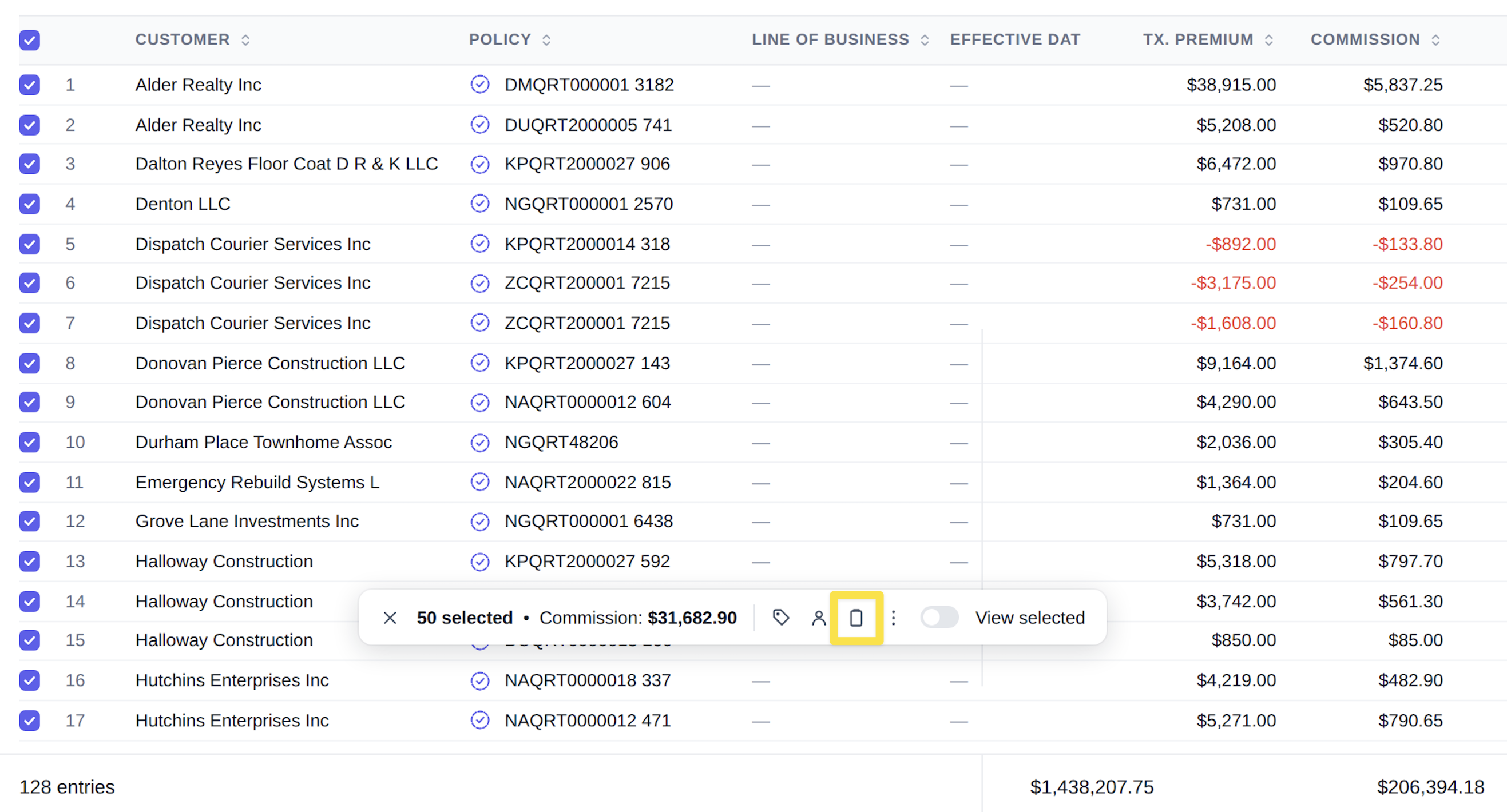
Select the entries that should be included in the Activity.
Select the option to Create Activity from the available bulk actions.
Enter the applicable Activity information.
Review the details and create the Activity.
Activity Attachment
When the Activity is created in Epic, Ascend will automatically include an attachment containing information related to the entries you selected.
This allows the Activity to contain the relevant entry details in a single location for reference and follow-up in Epic.
Contact Us
Need more help? Contact us at [email protected] for more help.