Posting to Epic
Last updated: September 3, 2026
Direct Bill Automation
This guide covers:
How to post reconciled statements to Epic
Overview
Ascend integrates directly with Epic and allows you to post matched entries to suspense in Epic.
Post to Epic
Once you are ready to post the suspended statement to Epic, follow the steps below:
Navigate to the Statements view, select the reconciled statement to post.
Click Post to your AMS.
Review the statement summary in the confirmation panel. If you need to edit the payment description, click the pencil in the right corner.
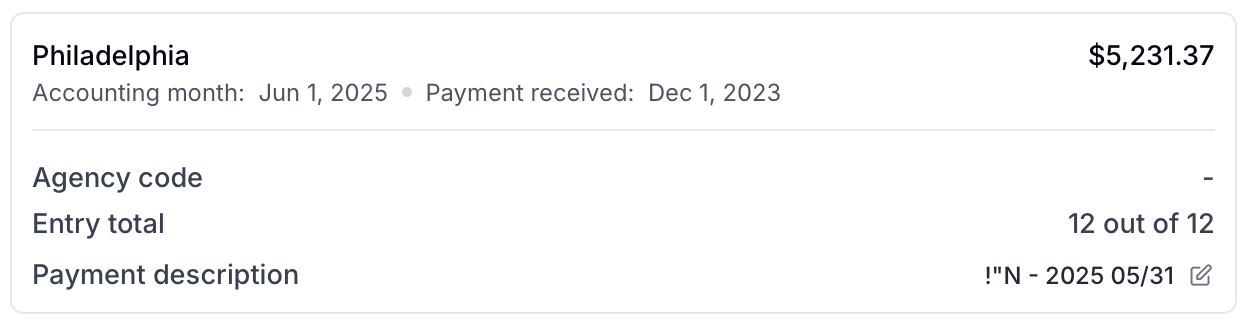
Click Confirm and post to send the reconciled entries into suspense in Epic.
Note: Whether you're posting a fully or partially reconciled statement, the posting process remains identical.
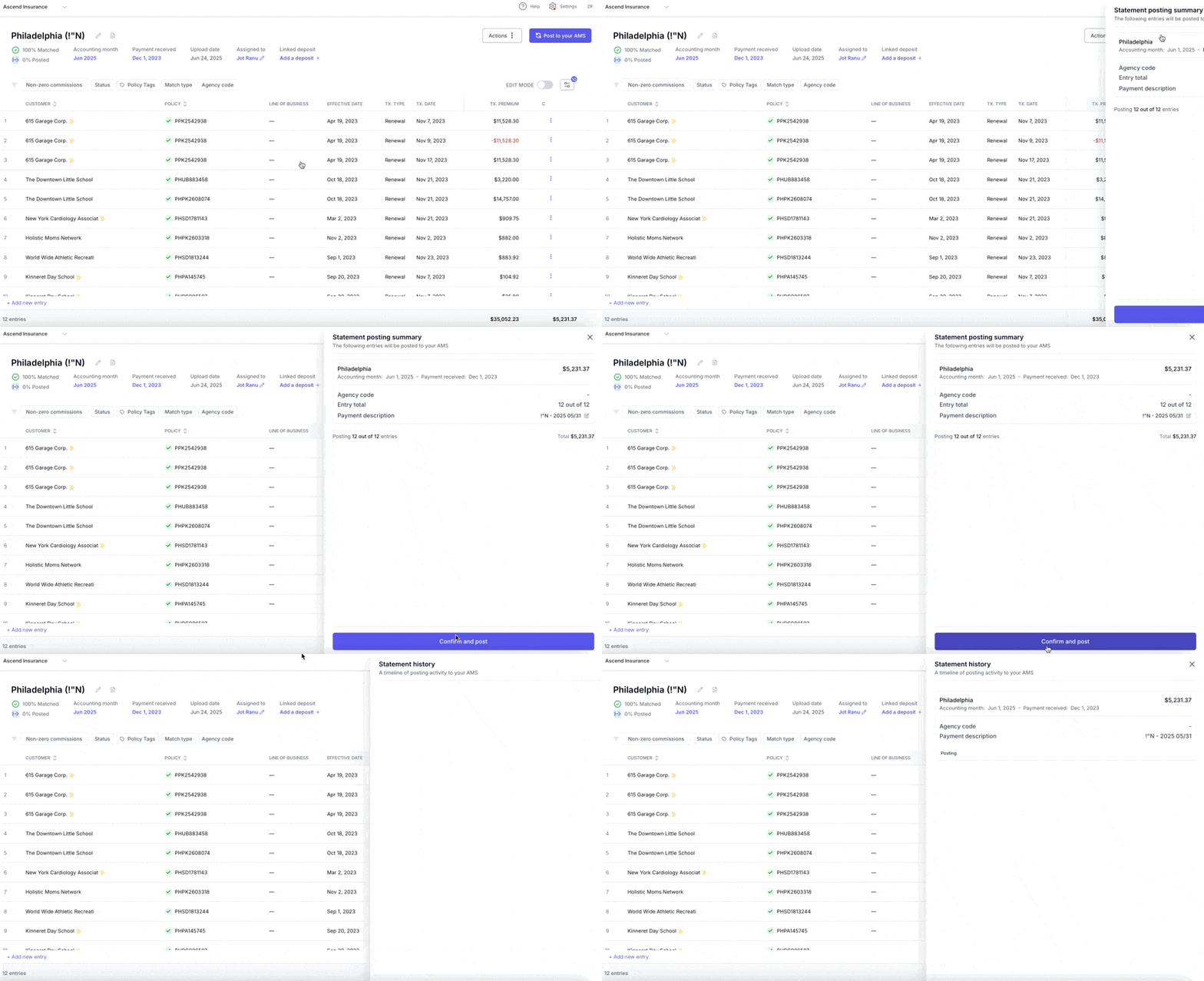
Fully Posted Statement
Indicators of a fully posted statement:
Statement Dashboard: A green circle in the Posted column denotes a fully posted statement.

Statement View: The summary bar shows 100% Posted, and each entry's Policy cell displays a blue arrow icon to indicate successful posting.


Partial Posting
Indicators for a partial post:
Statement Dashboard: A blue icon in the Posted column.

Statement View: The summary bar reflects the posted percentage, and each posted entry shows a blue arrow icon in the Policy column.
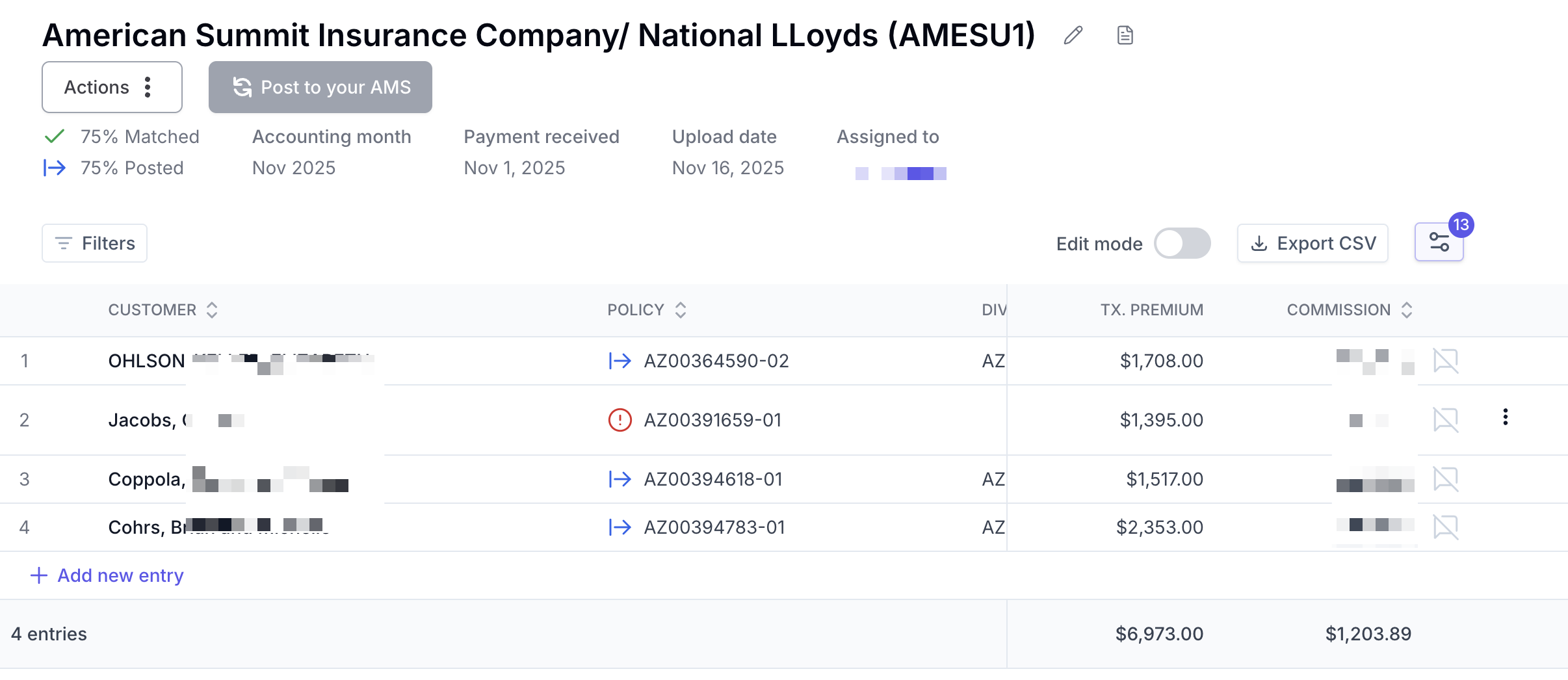
We recommend only posting fully matched statement. Posting partially matched statements will cause two suspended statements to be created in Epic.
Frequently Asked Questions
1. How long does posting take?
Posting typically completes 3-5 minutes, depending on the length of the statement.
2. Can I post only selected entries?
Not directly. Ascend posts all reconciled entries in the statement batch.
3. How do I confirm which entries were posted?
In the Statement View, look for the blue arrow icon in the Policy column for each entry. The summary bar also shows the percentage of the statement successfully posted.
Contact Us
Need more help? Contact us at [email protected] for more help.