Connecting Bank Accounts to Deposits
Last updated: October 24, 2025
Links your bank to Ascend (through Stripe Connect) so deposits are synced to Ascend and you can post/reconcile them in your AMS.
Prerequisites
Online banking username & password (or your bank’s MFA device).
Your AMS Bank Code and Agency Code (from your AMS) for the bank account.
Admin access to Ascend.
Step-by-step
Select your AMS: Go to Settings → Integrations and choose your AMS (e.g., Applied Epic, AMS360, Sagitta, HawkSoft, NowCerts).
Open “Linked accounts”: On the AMS integration page, click the Linked accounts tab.
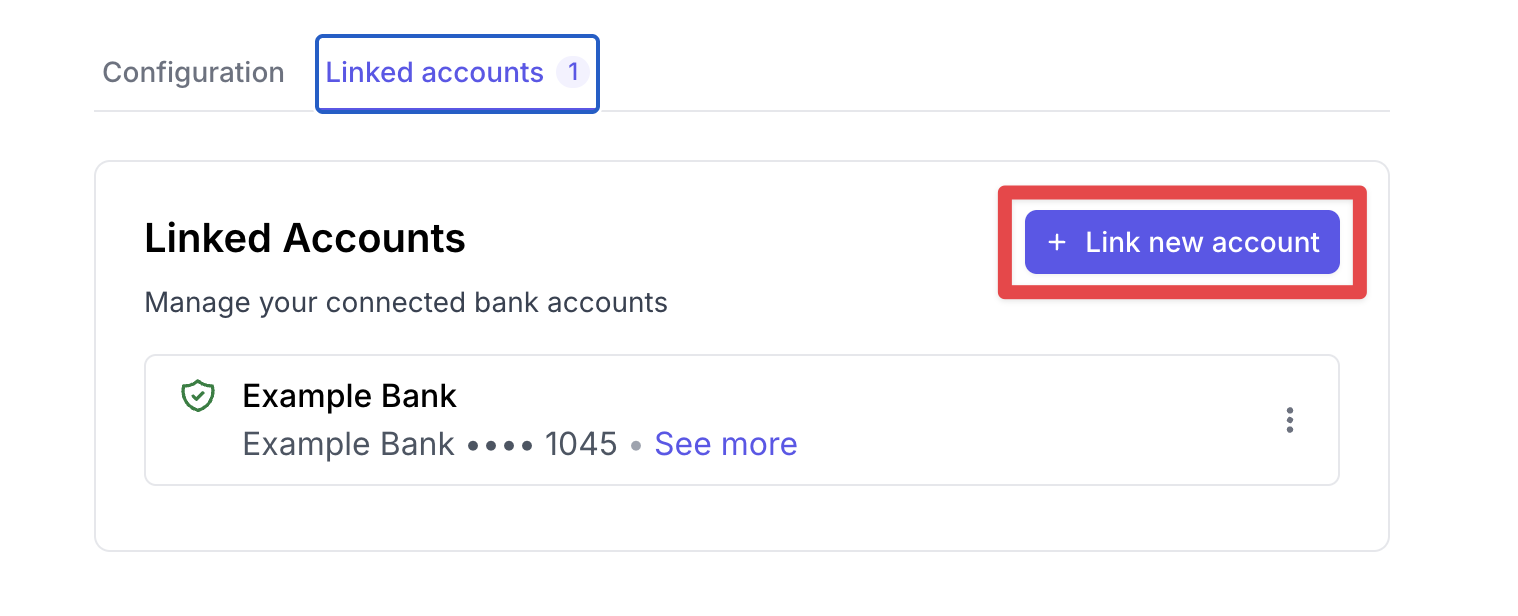
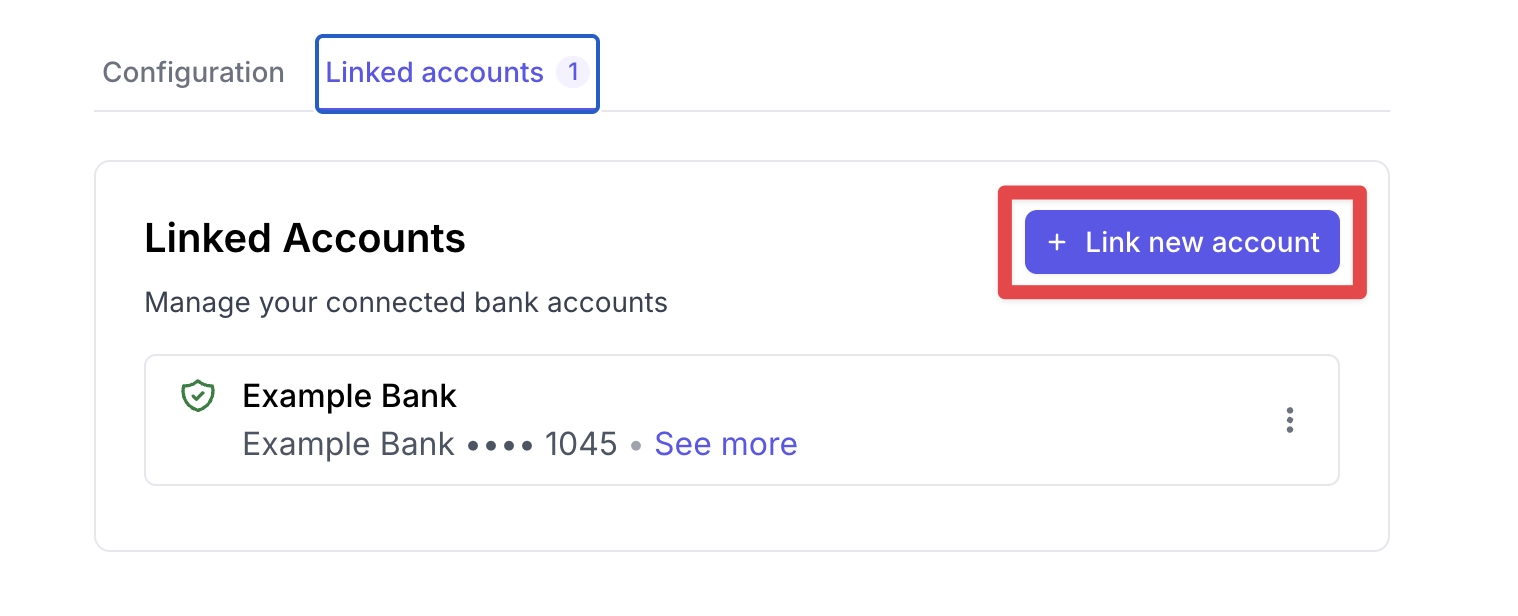
Link a new account: Click Link new account.
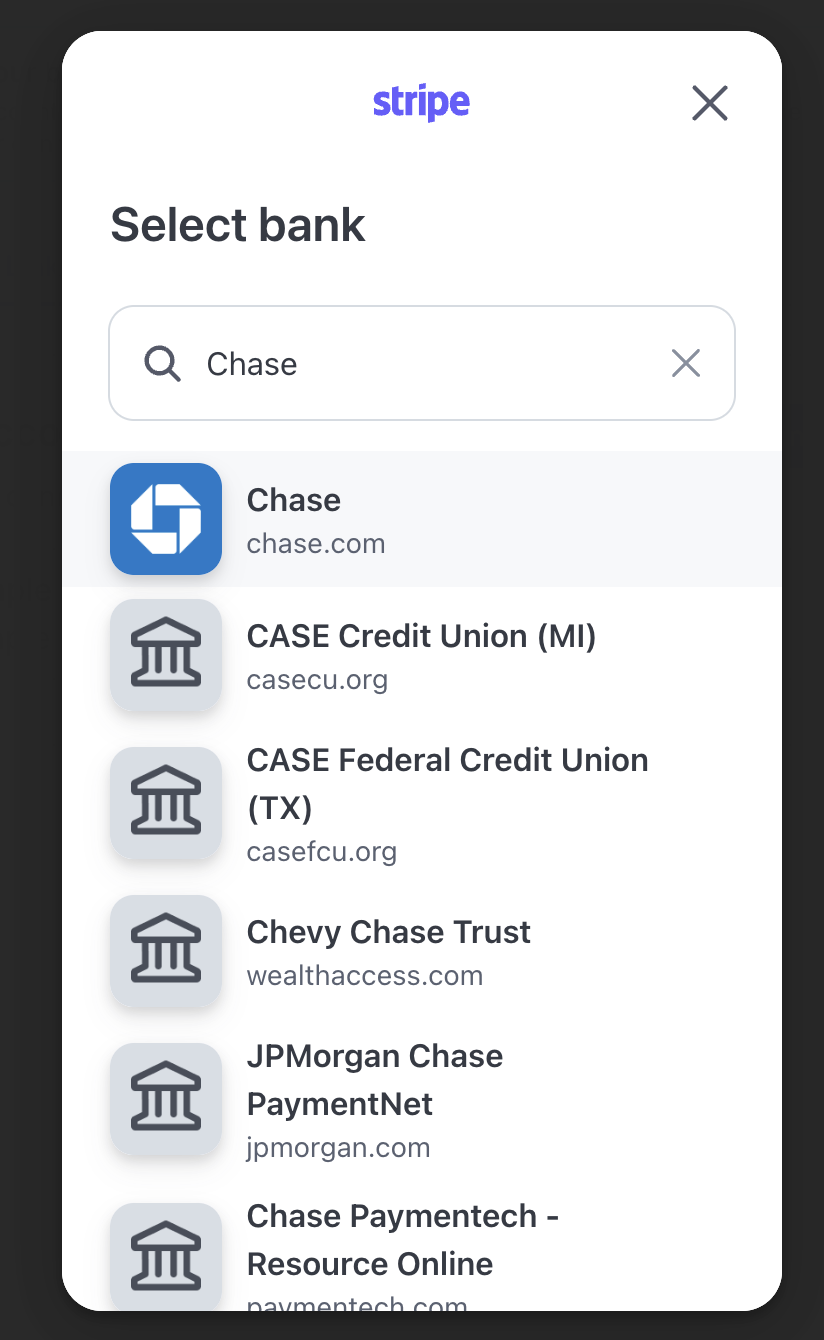
Connect through Stripe: In the Stripe window, search for your bank and sign in with your credentials.
Complete any required MFA/security prompts.
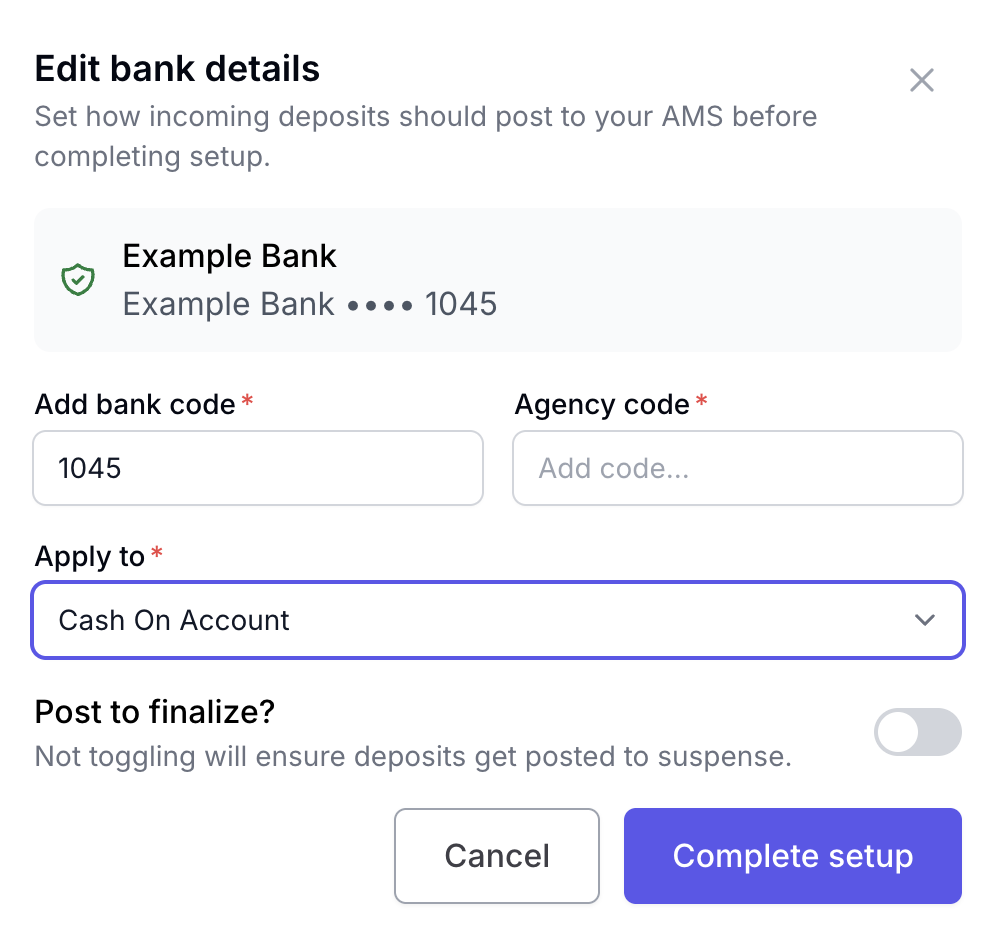
Confirm the connection & open Bank Details: You should now see your bank listed under Linked Accounts.
Click → Edit bank details (or Edit Bank Details) next to the new bank.
Map posting settings to your AMS: In the Edit bank details modal:
Bank code → enter your AMS bank code (e.g., the code you use in Epic/AMS360).
Agency code → enter your AMS agency/location code (if used).
Apply to → choose Cash On Account.
Click Complete setup.
Verification
The bank remains visible in Linked accounts with the masked account number.
New deposits will start syncing; posting behavior follows your selection (Suspense vs Finalize).
Tips & best practices
Multiple bank accounts or agencies? Repeat the linking and mapping steps for each bank/agency pair.
Keep “Post to finalize” off can be controlled at the transactional level.
Apply to often maps to Cash On Account (Epic) or your AMS’s direct-bill cash account.
Security: Credentials are handled by Stripe Connect; Ascend never stores your bank login.
Troubleshooting
Bank not found in search: Try your bank’s parent brand or “Business” banking name.
MFA failures/timeouts: Re-try and complete the full MFA flow; some banks require a one-time “Allow third-party access” toggle inside online banking.
Posting errors in AMS: Recheck Bank Code, Agency Code, and Apply to values match your AMS configuration.
Multiple currencies or divisions: Create separate linked accounts and map each to the correct code/division.