Statement Fetching and Ingestion
Last updated: September 3, 2026
Direct Bill Automation
This guide covers:
Statement upload via Inbox
Carrier login setup for automated fetching
Statement upload via the Statements dashboard
Overview
Ascend streamlines statement retrieval by automatically fetching digital statements and offering a simple upload workflow for hard‑copy statements.
You can log in to Ascend at dashboard.useascend.com and enter your email address. If you aren't able to log in, please contact your Ascend administrator or [email protected].
Inbox
Ingest Statements
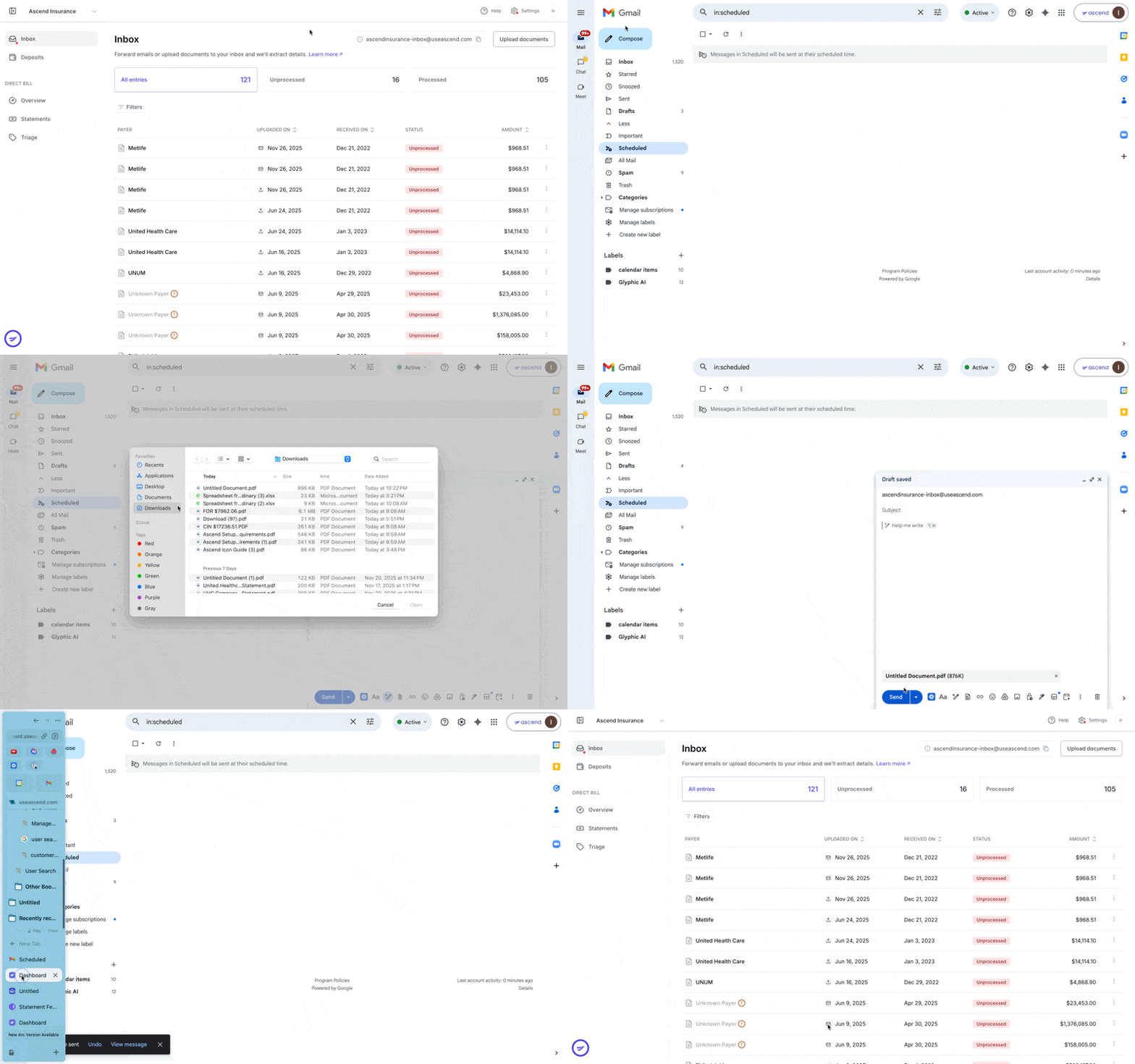
Add statements to Ascend's Inbox in two ways:
Forward by Email
Forward any carrier statement email to your unique Ascend Inbox address (shown at the top right of the screen). Ascend will automatically ingest each attachment. You may also forward emails containing statements from multiple carriers.
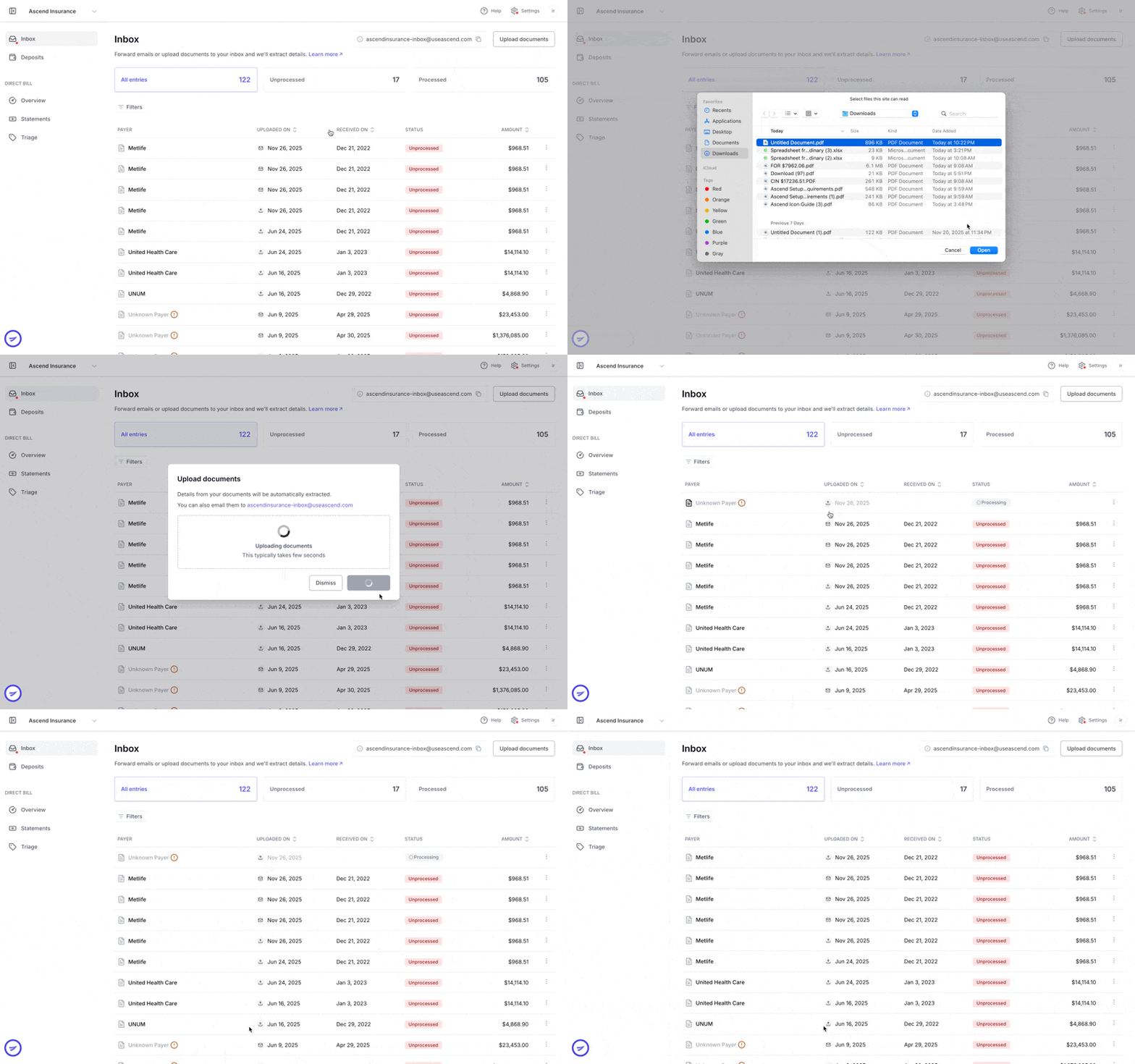
Drag & Drop Upload
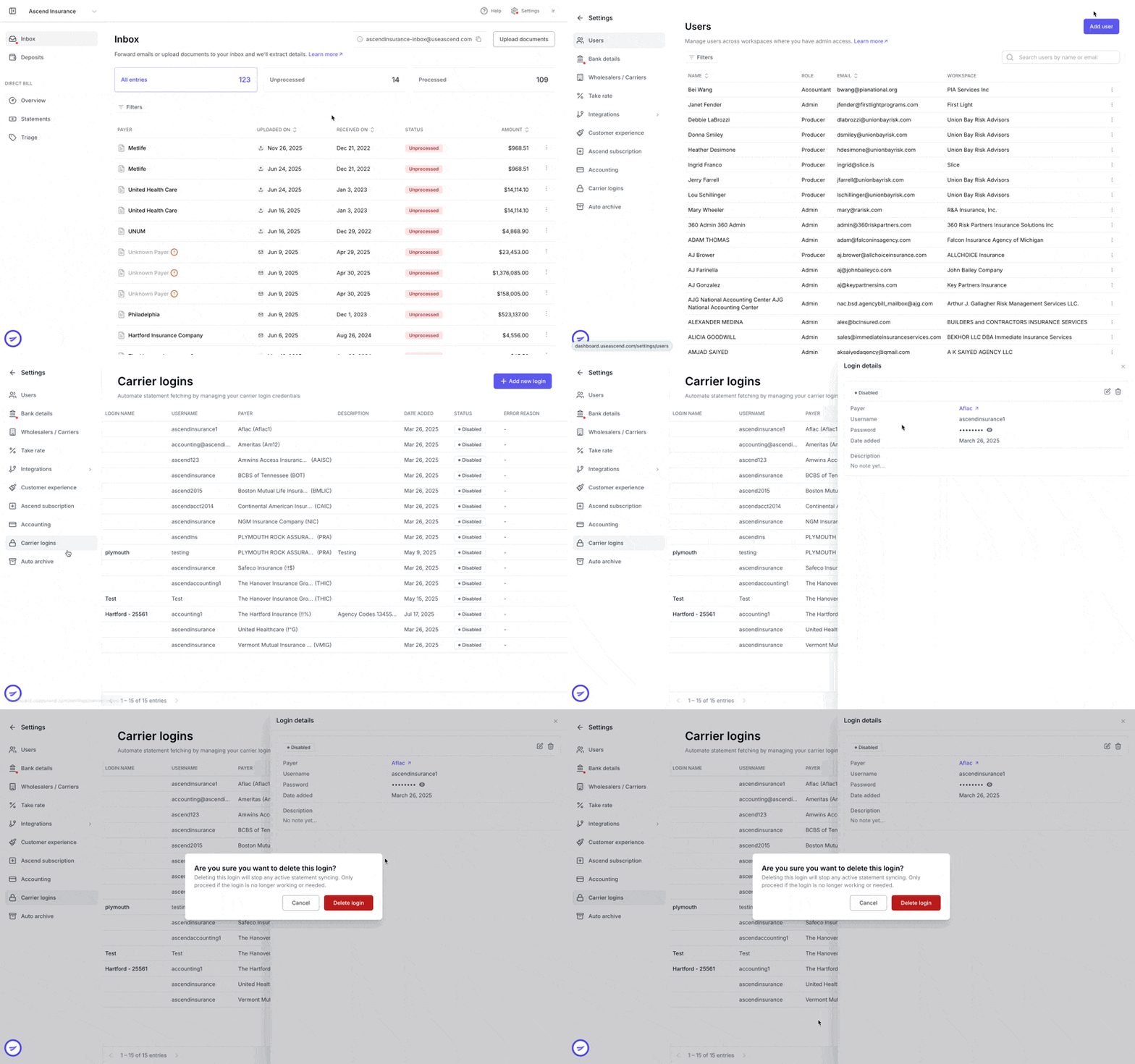
Click Upload Documents in the top-right corner of the Inbox.
In the pop-up window, upload or drag and drop a file from your computer.
Click Upload files to complete the process.
Process Statements
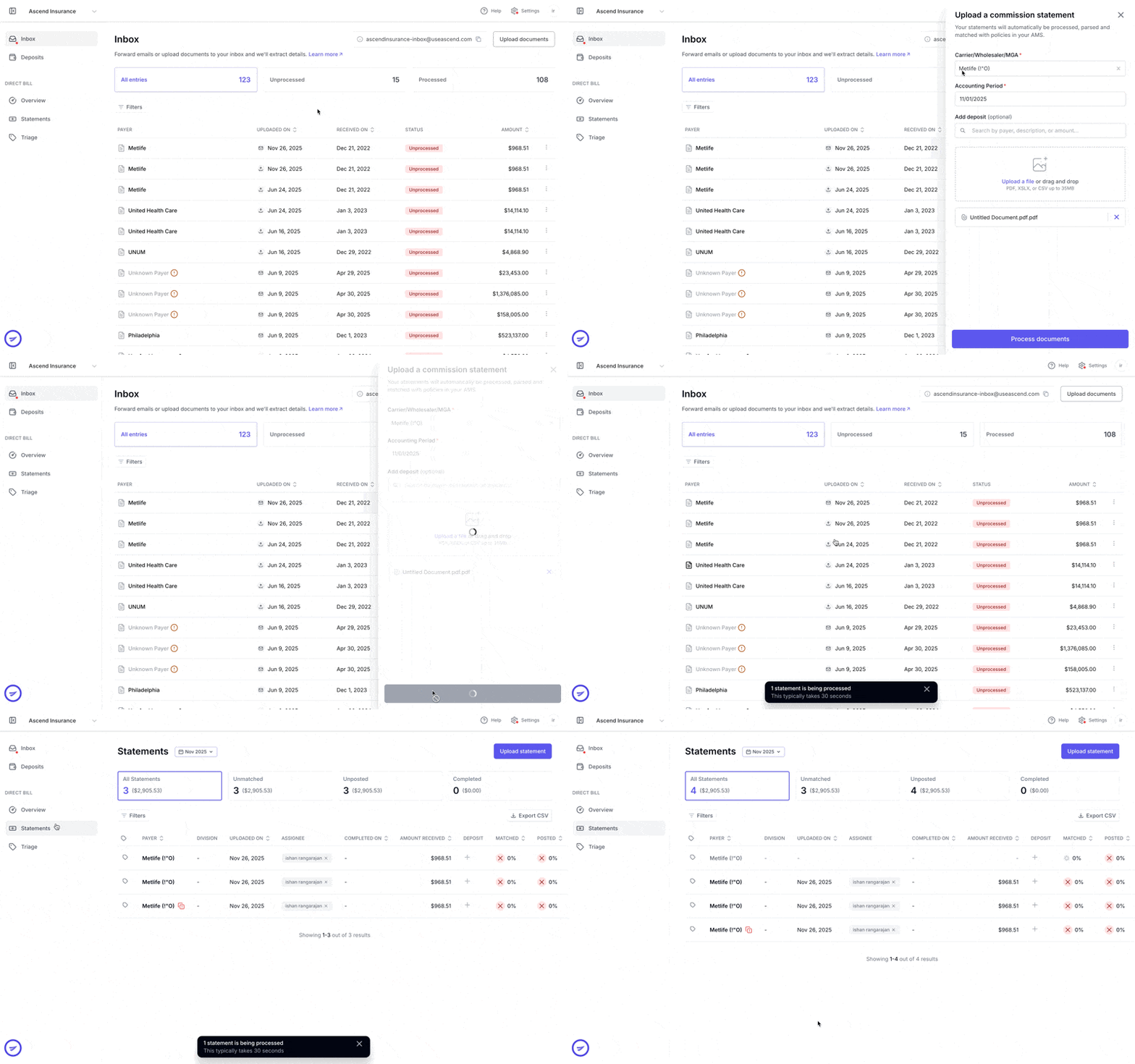
Before a statement uploaded through the Inbox can be reconciled in the Statements dashboard, you must process it in the Inbox:
Click the statement row to open its side pane.
Complete any required fields (marked *) or review suggested items.
Click Process Documents at the bottom.
The statement will move into the Statements dashboard, ready for reconciliation.
Carrier Logins
Ascend can automatically retrieve statements provided through carrier portals, excluding those that require multi-factor authentication.
This is an optional feature in beta, please reach out if you're interested in testing it out.
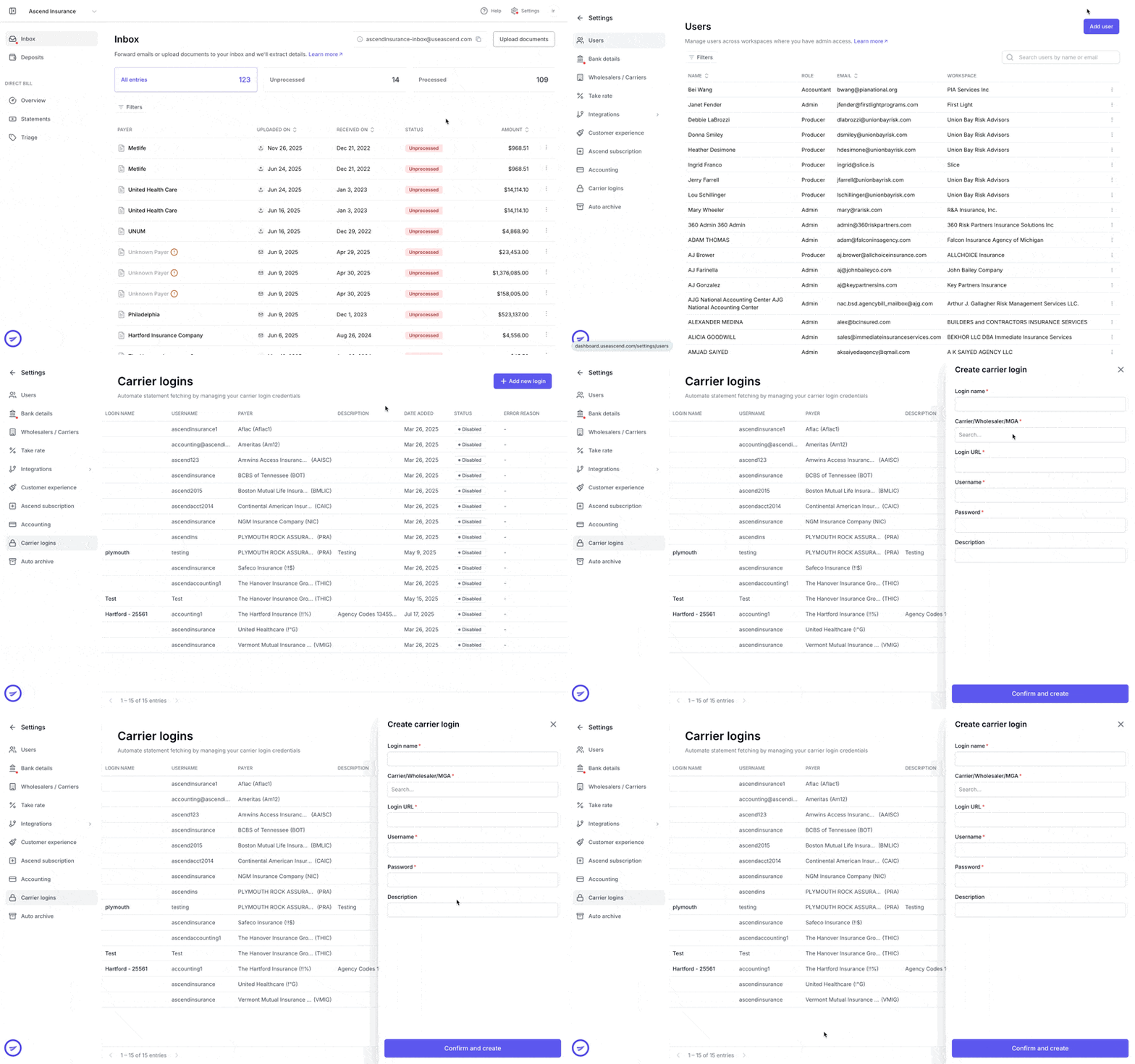
Add a New Login
Navigate to Settings in the top right of your screen.
Click on Carrier logins in the left panel. Here you will view the carrier logins that you have already created.
Click Add new login in the top right corner of the screen.
Complete the required information (marked *).
Click Confirm and create.
Ascend currently cannot access carrier portals that require text/phone based multi-factor authentication.
Delete Existing Carrier Login
Navigate to Settings in the top right of your screen.
Click on Carrier logins in the left-side panel. Here you will view the carrier logins that you have already created.
Click the three vertical dots next to the carrier login you want to delete.
Click Delete login to remove the information.
timing of fetching, where do fetched statement end up?
Statements
Upload Statements
Use the Statements view to upload multiple files from the same carrier at once:
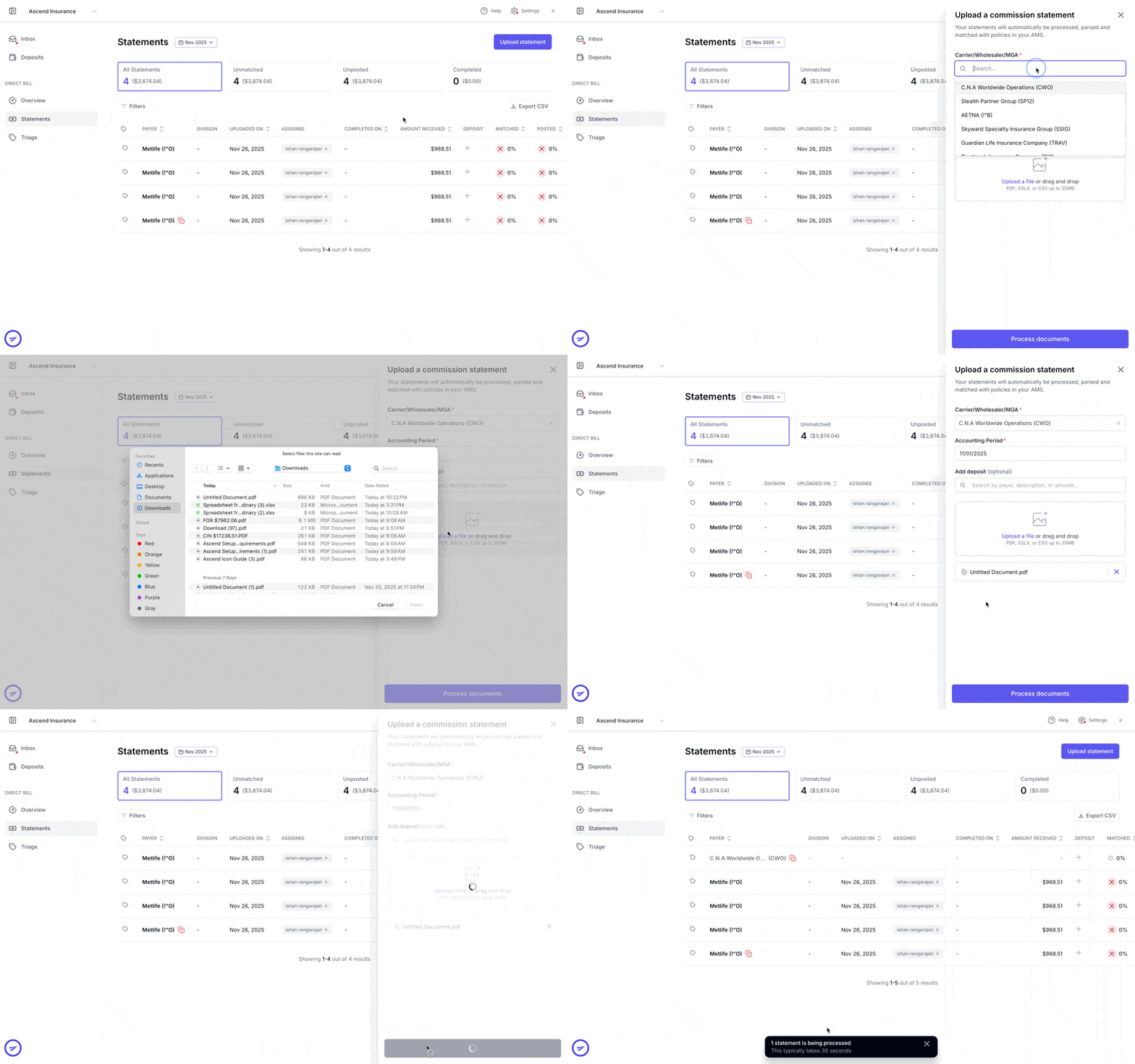
Navigate to Statements using the left-side panel.
Click Upload statement at the top right side of the screen. This opens a panel to upload a commission statement.
Complete the requested information (marked *). Upload or drag and drop a file from your computer.
Click Process documents.
Note: You can only upload multiple commission statements by carrier.
Delete Statements
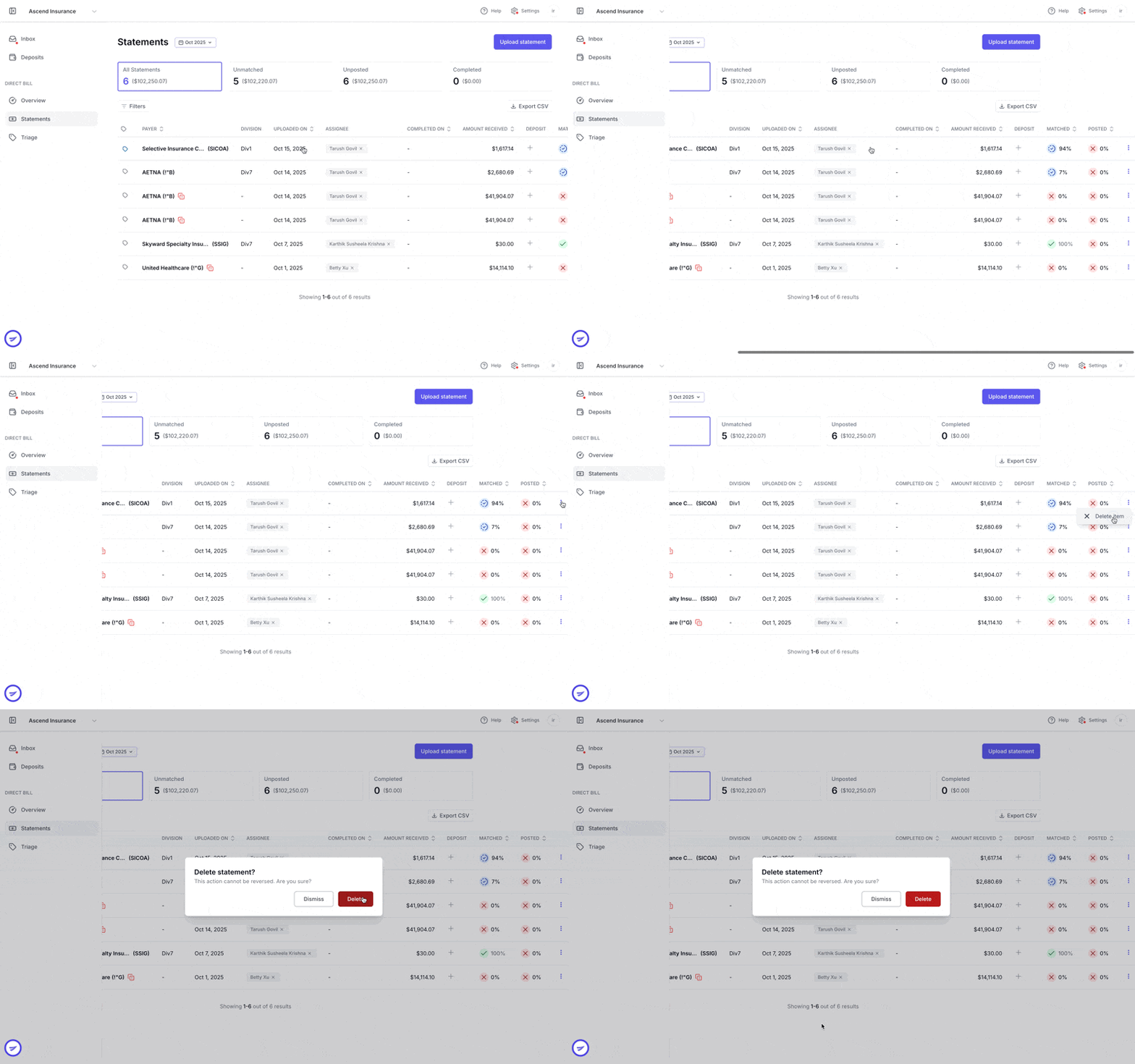
Navigate to Statements using the panel on the left.
Find the row for the statement you wish to delete.
On the right side of that row, click the three vertical dots.
Select Delete item.
In the confirmation dialog, click Delete to permanently remove the statement.
Note: If you accidentally delete a statement, you'll need to re-upload it via the Inbox or Statements view before processing and reconciliation.
Frequently Asked Questions
1. What file types can I upload to the Inbox?
PDF, CSV, XLS, and DOCX files can be uploaded to the Inbox.
2. Can I forward multiple statements in one email?
Yes, you can forward multiple statements in one email. All the statements also do not have to be from the same carrier.
3. How often does Ascend check carrier portals for new statements?
The AI agent pulls statements provided through carrier portals once a day.
4. Is there a limit to how many carrier logins I can store?
There is no limit to how many carrier logins you can have.
Contact Us
Need more help? Contact us at [email protected] for more help.