Adding Notes and Tags to Direct Bill Entries
Last updated: October 7, 2026
Direct Bill Automation
This guide covers:
Adding internal notes to an entry
Tagging entries for review or follow-up
Finding tagged entries using filters
Overview
Use notes and tags to keep context and follow-up details connected to individual Direct Bill statement entries.
Notes document findings, questions, and next steps. Tags categorize entries so your team can quickly identify issues and find items that need attention.
Add an Internal Note
Open the statement and click the relevant entry’s row to open the matching drawer.
Navigate to the Notes tab.
Enter your message.
Click Send.
Include enough detail for a teammate to understand the issue and what needs to happen next.
For example: “Policy renewal is not yet available in Epic. Requested an update from the account manager.”
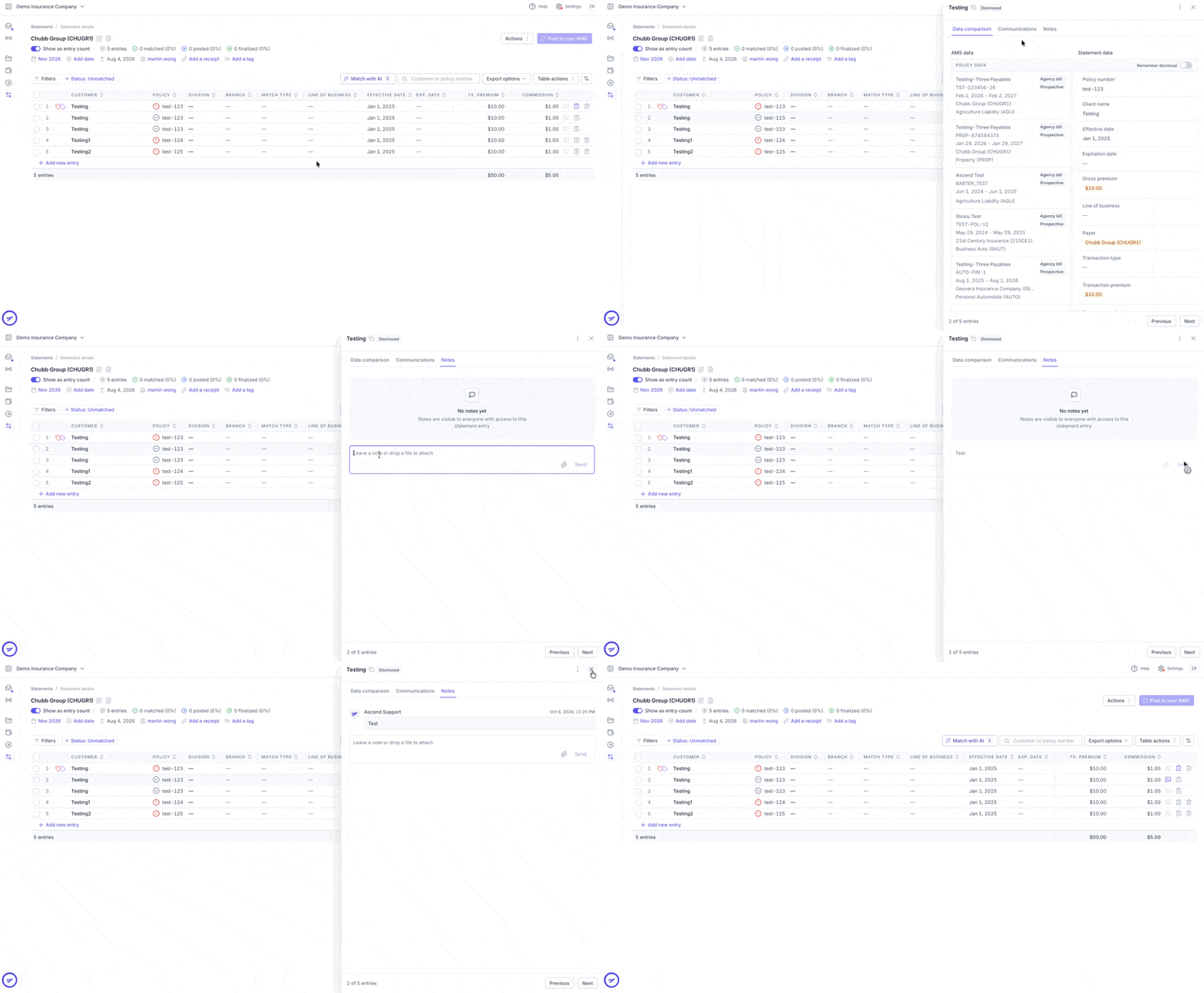
Notes provide a record of findings, questions, and next steps for anyone working on the entry. Adding a note does notnotify teammates.
Add Tags
Click the relevant entry’s row to open the matching drawer.
Click Add tags at the top of the drawer.
Select the applicable tag(s).
Tags appear on the entry in the Statement Details table. You can use them to identify the reason an entry needs review or group entries with similar issues.
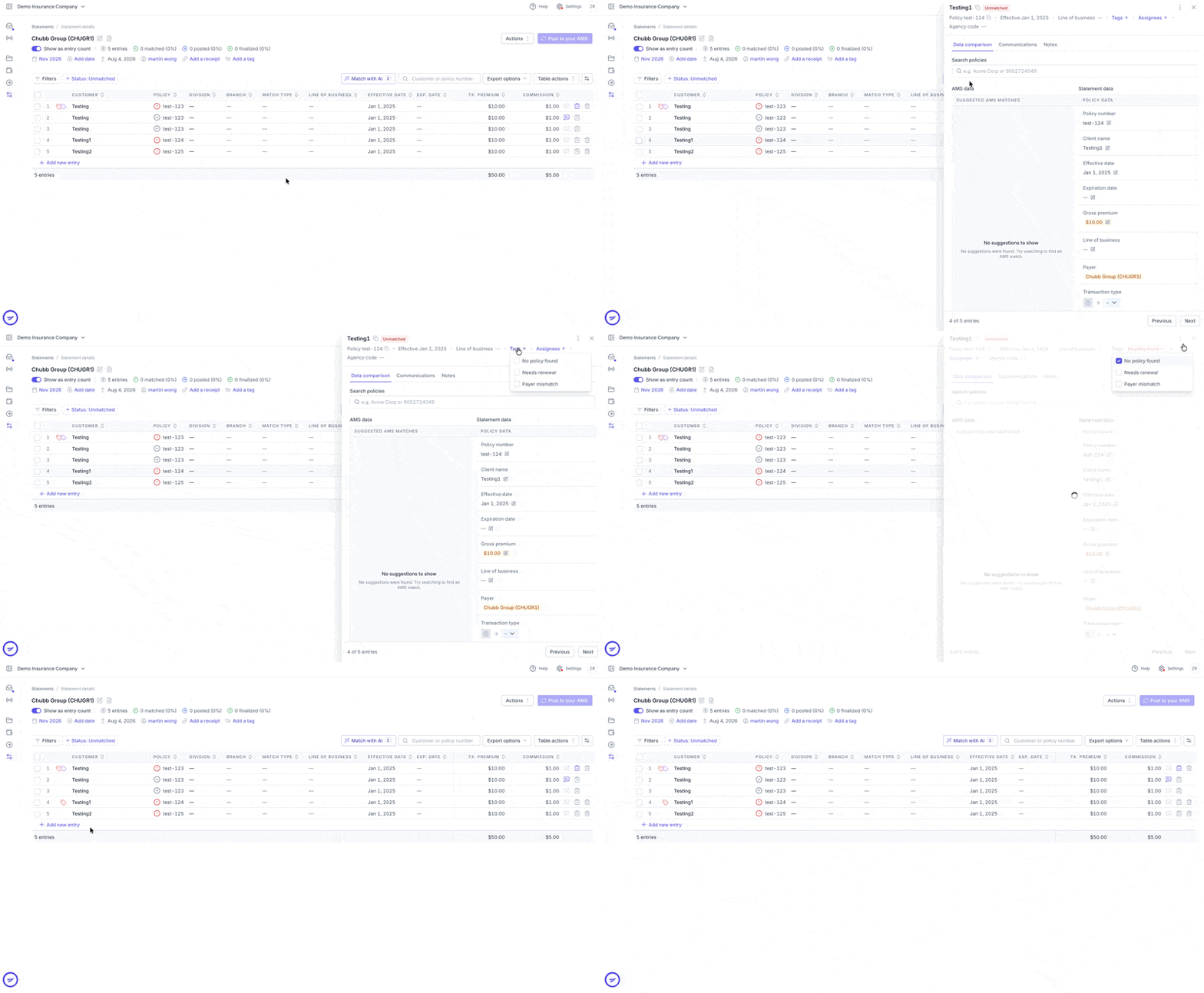
If you would like an additional entry tag available for your team, contact your Customer Success Manager.
Find Tagged Entries
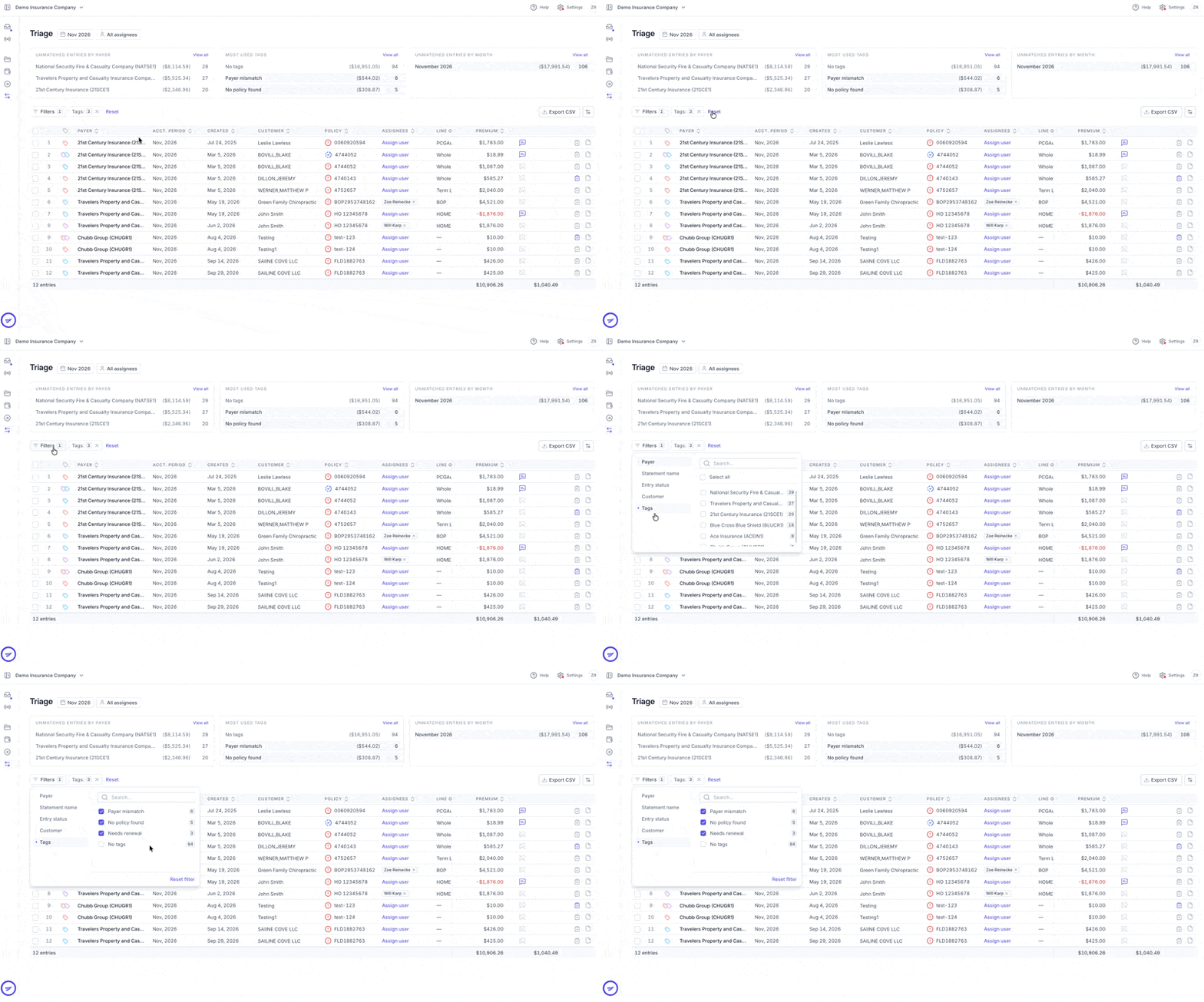
Open the Triage Dashboard. Note that the Triage Dashboard surfaces all unmatched entries.
Use the tag filter to select the tag you want to review.
Click an entry to open its matching drawer and review its notes and details.
Filtering by tags helps your team review similar issues together and prioritize follow-up.
Contact Us
Need more help? Contact us at [email protected] for more help.