AMS Payables Dashboard
Last updated: September 21, 2026
This is a guide that will teach you how to navigate the AMS Payables Dashboard, including:
Statuses & Filters
Posting
Finding Missing Documentation
Custom Views
Overview
The AMS Transactions Dashboard shows all agency bill policies pulled from Epic that have been created or modified in the last six months. You access it under Payables → Transactions, and it's the source for generating your payables report.
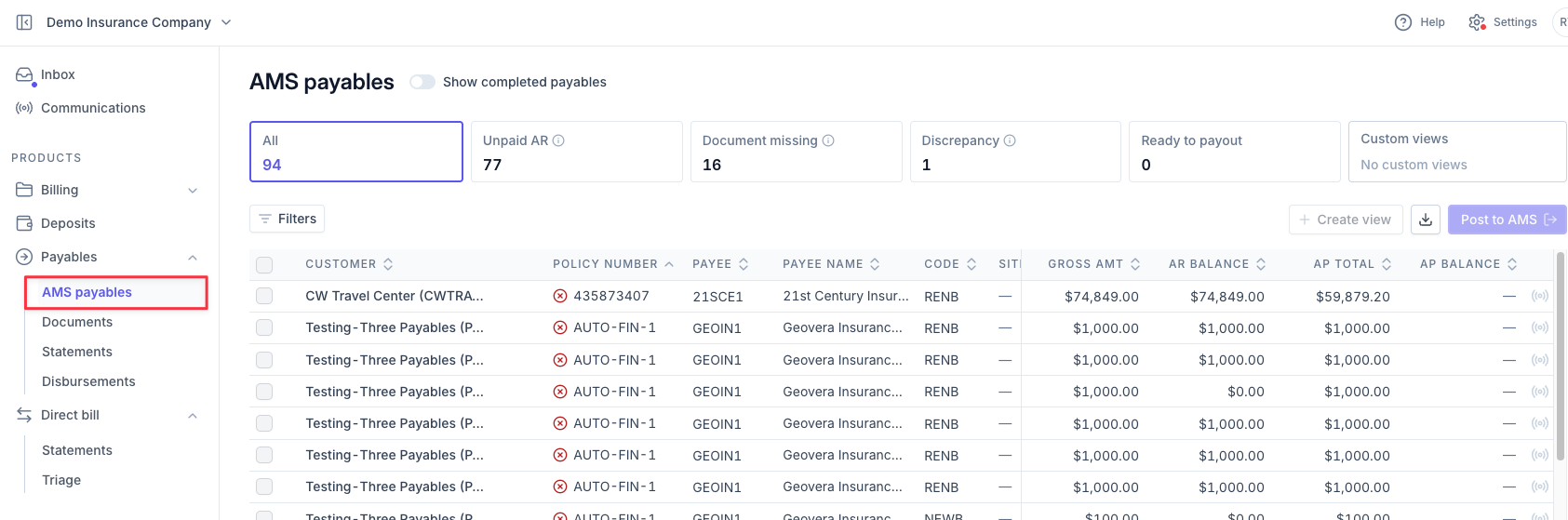
Users should use the AMS Payables dashboard after reconciling carrier statements & invoices in the Documents dashboard to assist with identifying:
Transactions with outstanding AR balances
Transactions ready to pay but are missing carrier documents
Transactions ready to pay and matched to documents but with discrepancies
Transactions ready to payout
Quick Status Filters

Stage | Meaning |
|---|---|
Needs Invoicing | Agency bill policies ready to be transacted and invoiced to your customers — priority is generating and sending invoices promptly. |
Unpaid AR | Your Accounts Receivable balance — payments still owed by customers. Requires monitoring and follow-up on aging invoices. |
Document Missing | Flagged due to a missing document or an unmatched document for transactions that do not have an outstanding AR balance |
Discrepancy | Flagged due to a matched document with discrepancies between transaction and carrier documentation for transactions that do not have an outstanding AR balance. |
Ready to Payout | Final approval stage — fully reconciled, documents in place, customer payment received. The goal state is 0 items sitting here. |
Overdue | A subset of Ready to Payout where the AP due date has already passed. |
Custom Views | Filtered views that have been saved unique to each user. |
Posting to AMS
Posting also happens from this dashboard: select matched policies (via the header checkbox or individual rows), click Post to AMS, confirm the count in the popup, then Confirm and Begin Posting.

Ascend recommends using the Post to AMS feature from the AMS Payables dashboard in scenarios where you do not need a carrier document in order to payout.
Find Missing Documentation
Leverage the Document Missing quick filter to assist with matching reconciliation and determine if you need to communicate with your servicing team to request a document from the carrier.

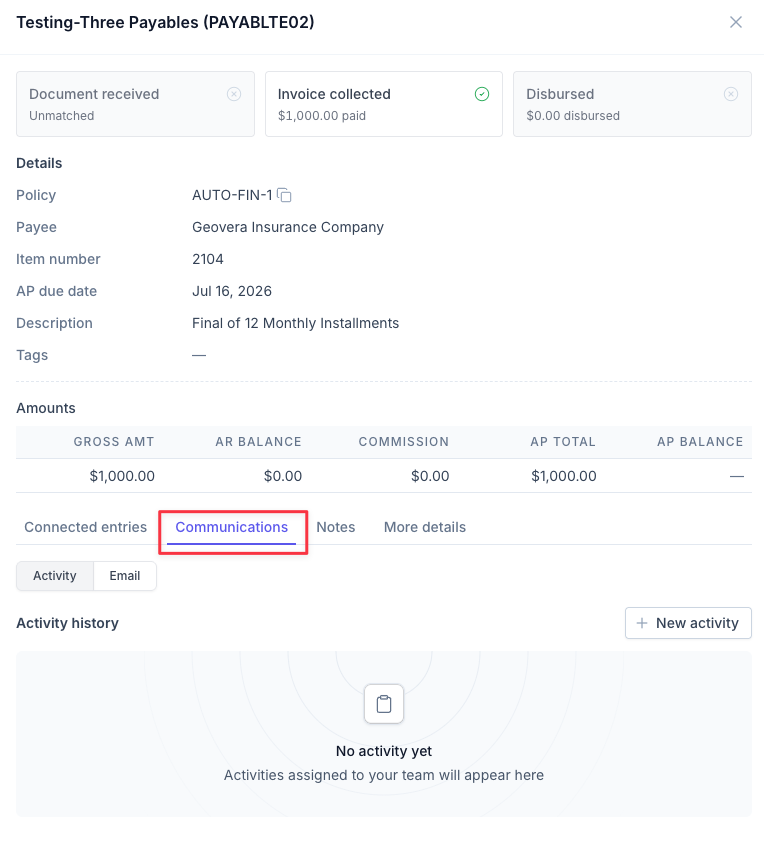
Users can create an Epic Activity or email directly from the AMS Payables dashboard to assist with this communication. Click into an entry to open the drawer and toggle to Communications:
Custom Views
Custom Views let you create custom filter views allowing for easier navigation and time savings customized to you as an individual user.
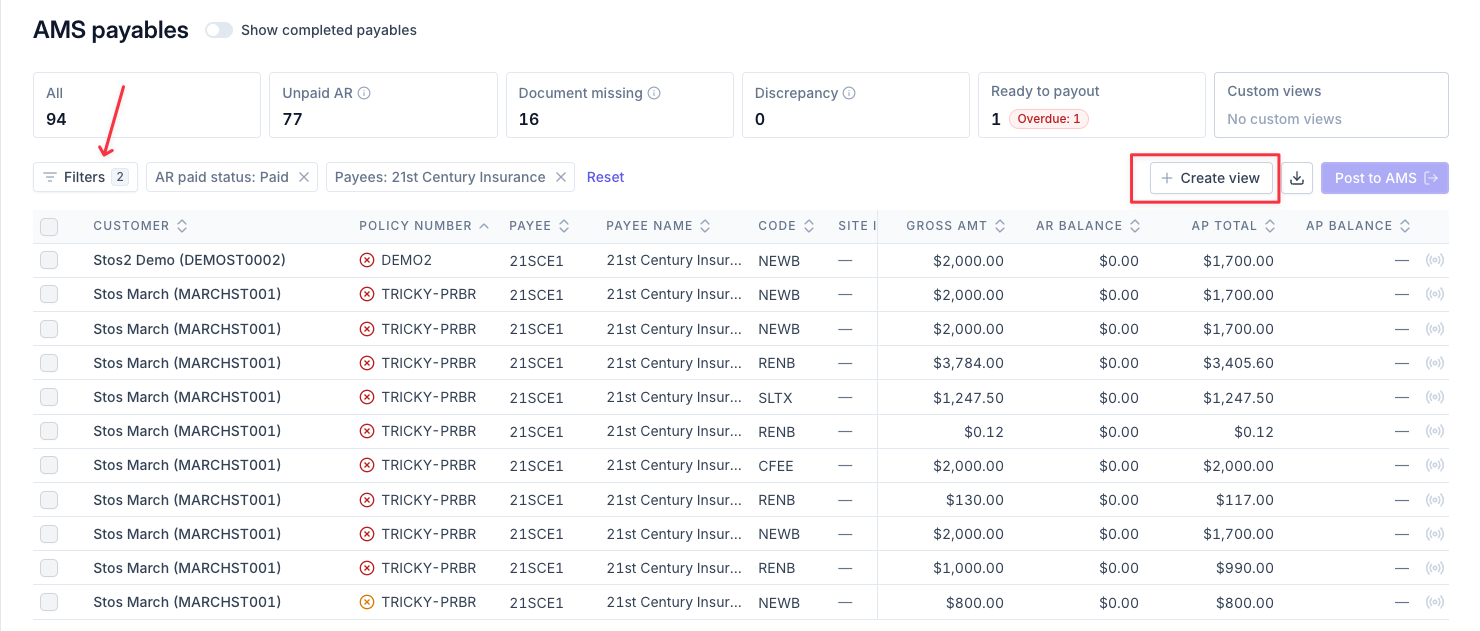
Use table filters to set your desired criteria for your custom view. Once selected, click Create view.
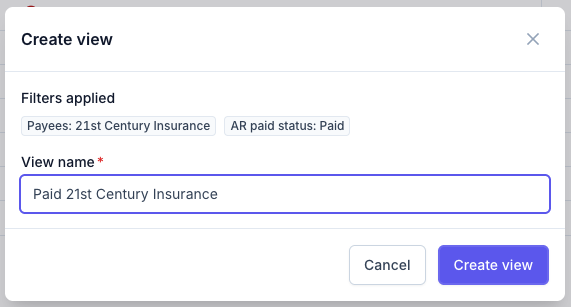
A pop-up will appear with a summary of the filters that will be included in your custom view, along with a box to name the view. Enter your preferred view name and click Create View.
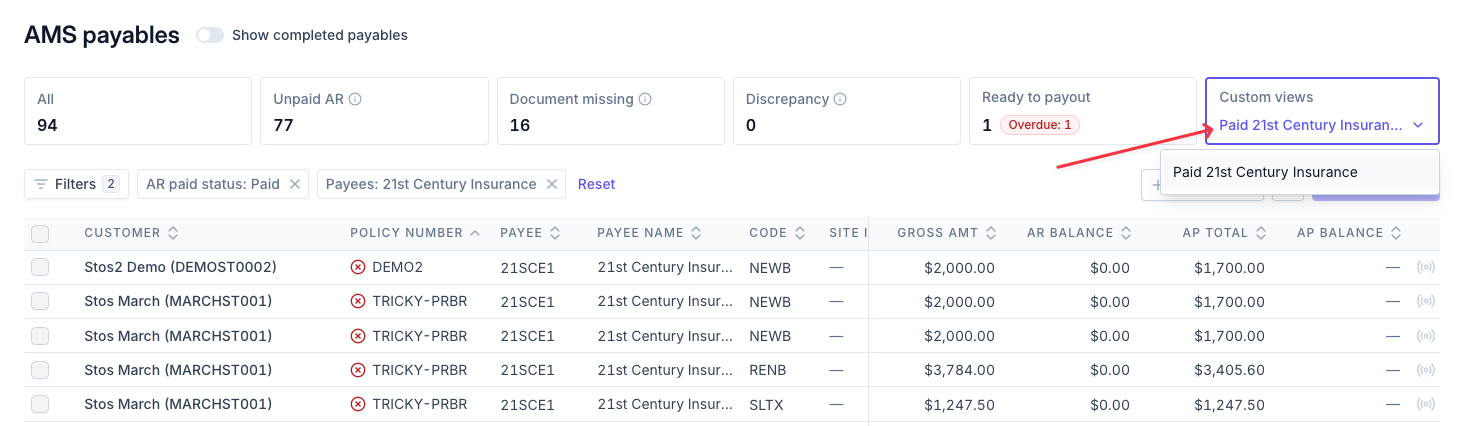
Access all of your custom views from the Custom Views filter box.
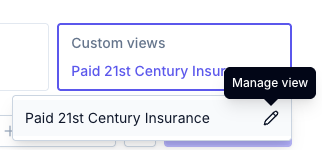
Hover over an existing view and click the pencil icon to either rename or delete the view.
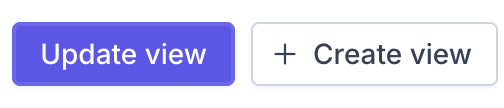
If you make a change while working in a view, you'll have the option to either Update the View or create a new view.
Contact Us
Need more help? Contact us at [email protected] for more help.