Payables Inbox
Last updated: September 19, 2026
This is a guide that will teach you how to:
Upload Documents
Understand Document Statuses & Icons
Process Documents
Remove Documents
Migrate Documents Between Inboxes
Overview
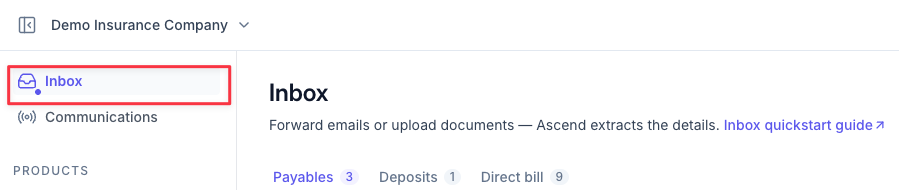
The Inbox is where all carrier documents enter the Ascend platform and is the first step in the payables workflow. To access it, click the Inbox icon in the left menu.
Upload Documents
There are three ways to upload carrier statements and invoices into the Inbox in Ascend:
Method | Description |
|---|---|
 | Forward by Email - Users can forward attachments received in personal inboxes directly to the Ascend inbox. |
 | Manually Uploaded - Users can drag & drop or upload attachments saved locally on their computer. |
 | AMS Activity Ingestion - Ascend can automatically ingest attachments from Epic Activities. Reach out to your CSM to setup this configuration. |
Option 1: Forward by Email
Locate your agency-specific email address in the top-right corner of the page.
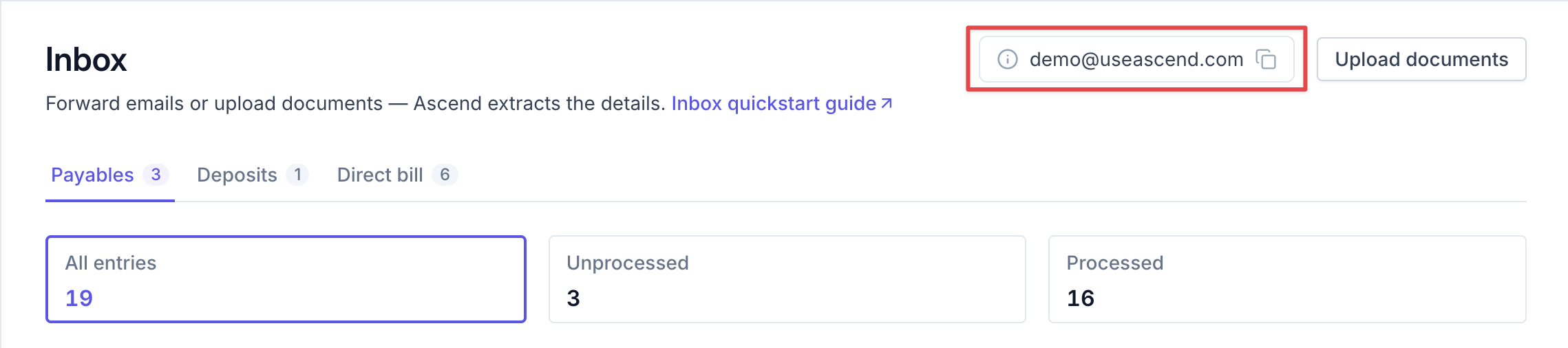
Forward any carrier statement email to that address - Ascend will automatically ingest all attached documents.
Tip - If you routinely receive statements or invoices from a set of recipients, set up auto-forwarding to the Ascend address within your inbox!
Option 2: Drag & Drop Upload
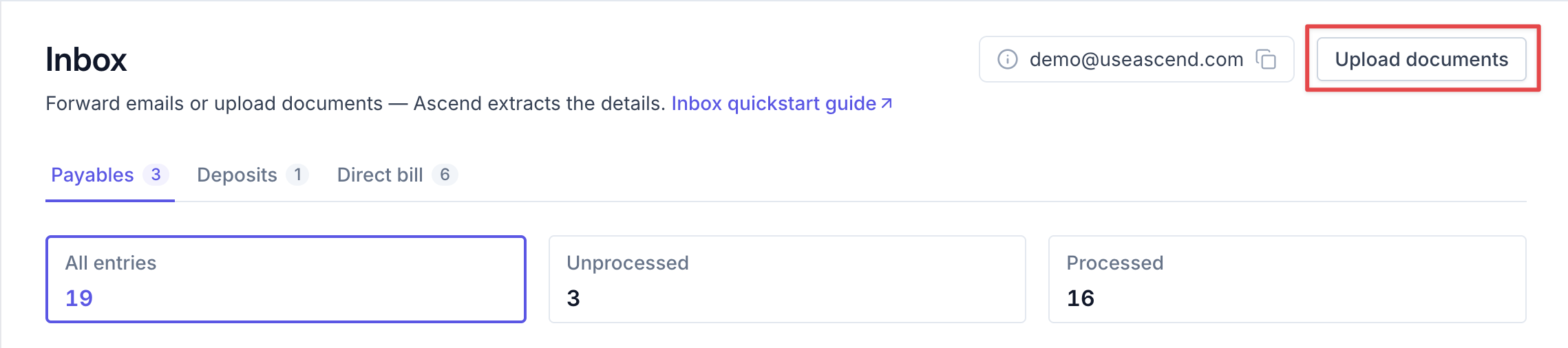
Click Upload Documents in the top-right corner of the Inbox.
In the pop-up window, drag and drop or upload statement files from your computer.
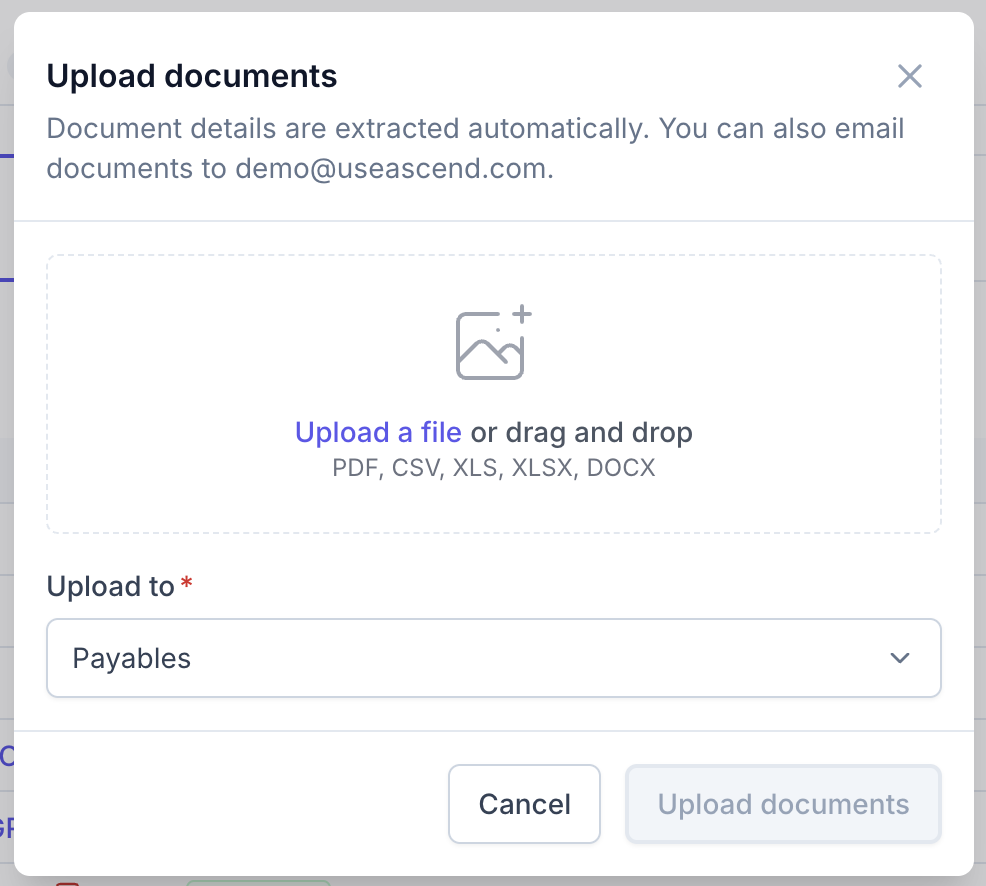
Click Upload documents to complete the process.

Tip - Users can upload multiple statement files across multiple different carriers at a single time.
Option 3: Automatic Ingestion from Epic Activities
Ascend can automatically ingest attachments (PDF, CSV, XLS, XLSX, DOCX) into the Payables Inbox from any open Epic Activity (code-specific).
If you'd like to enable this feature, please reach out to your Customer Success Manager.
Ascend can also auto-close activities once documents are ingested.
Document Statuses & Icons
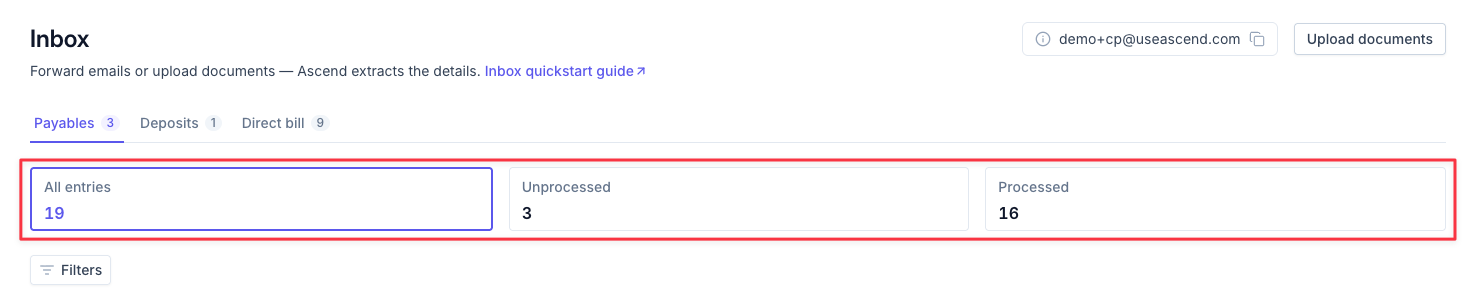
Documents in the Inbox will have a status set. The status of the document will outline what next steps, if any, are needed in the Inbox.
Filter | Description |
|---|---|
 | Documents that still need to be processed before they can be matched and reconciled. |
 | Documents that have been processed and moved to the Documents Dashboard for reconciliation. |
 | A processed document has been archived from the Documents dashboard and no longer accessible in Ascend. |
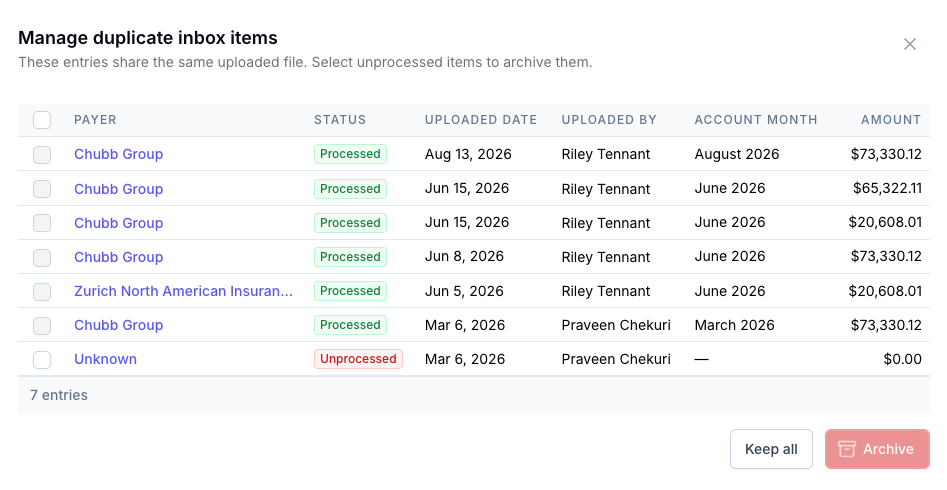
Ascend will also flag potential duplicate document uploads in the Inbox with the duplicates icon:
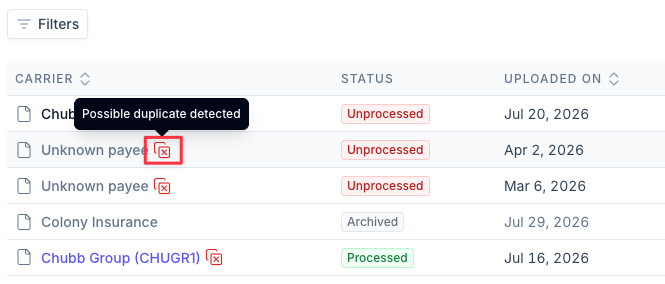
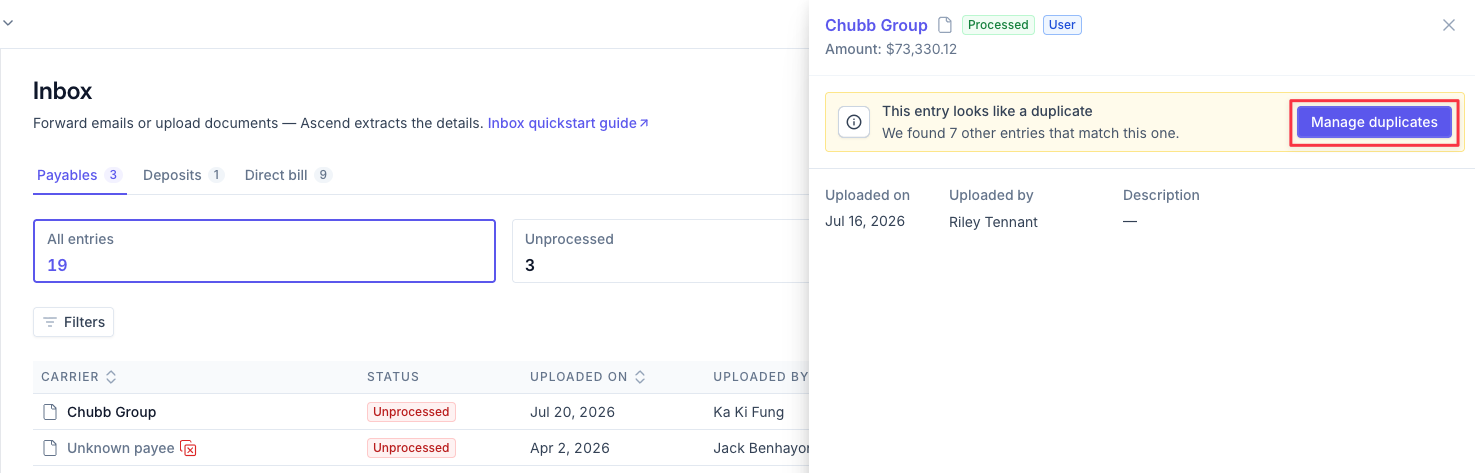
To review potential duplicates, click into the line, then select Manage duplicates.
Processing Documents in the Inbox
If Ascend cannot auto-assign the payee, follow these steps:
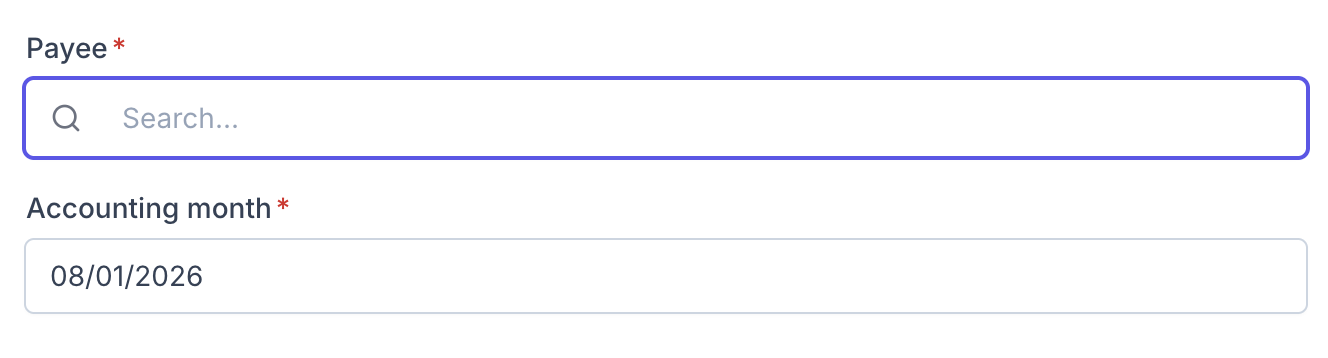
Click the statement row in the Inbox to open its side pane.

Complete any required fields (marked with an asterisk *).
Click Process documents at the bottom of the side panel.

The document will update from a status of Unprocessed to Processed, while simultaneously uploading to the Documents Dashboard, where Ascend will read and match the document information to Epic data. When a confident auto-match cannot be made, manual matching will take place there.
Ascend can automate document processing if 1) a payee can be identified from the document, and 2) the document is not flagged as a duplicate.
If you'd like to enable this feature, please reach out to your Customer Success Manager.
Removing Documents from the Inbox
Users may need to remove documents from Ascend / the Inbox. Steps to remove documents will differ depending on document status.
Unprocessed Documents
Navigate to the Inbox. Find the document row you wish to delete.
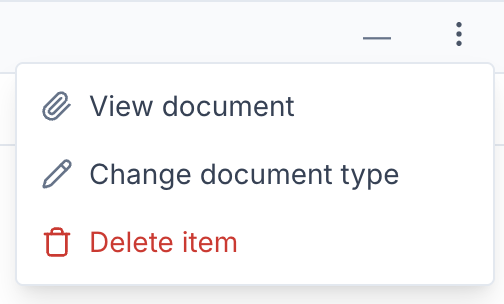
Click the three vertical dots on the right side of the row.

Select Delete item.
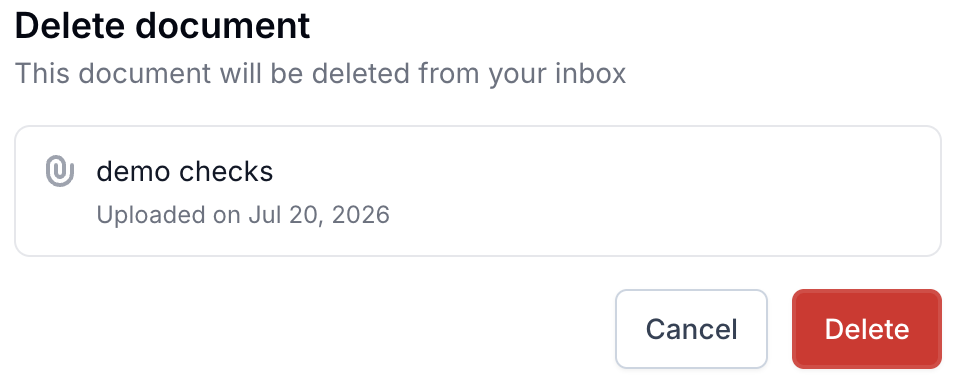
Click Delete in the confirmation dialog.
Processed Documents
Users will need to archive the document from the Documents dashboard if processed. Please see this guide for more details: Archive Documents.
Migrate Documents Between Inboxes
The Ascend Inbox is a shared workspace across all three DBA products: Payables, Deposits, and Direct Bill.
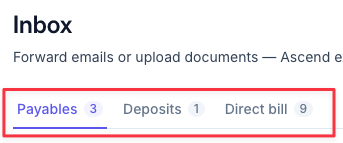
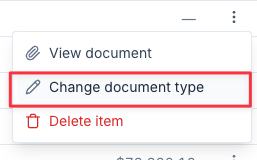
This means that a commission statement for Direct Bill may end up in the Payables Inbox. To move a document from one product inbox to another, first select the three vertical dots on the far right of the document row.

Select Change document type from the drop down menu.
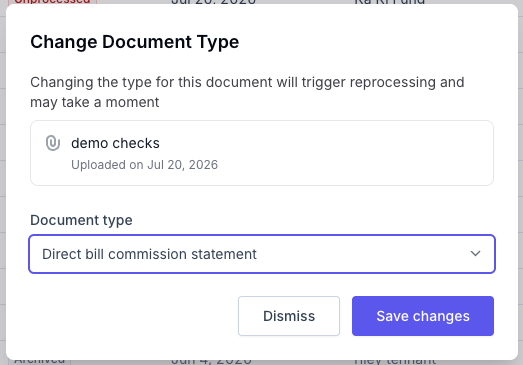
Use the Document type field to identify if the document should be a direct bill commission statement or a payable document, then save your changes.
Ascend can add +cp and +db suffixes to your organization's @useascend.com email address to help with sorting documents to the correct product's inbox. Reach out to your customer success manager to enable this feature.
Contact Us
Need more help? Contact us at [email protected] for more help.