Edit Extracted Fields from Carrier Documentation
Last updated: September 21, 2026
This is a guide that will teach you:
Edit Payable Amounts on Documentation
Edit Policy Number & Other Document Fields
Overview
If a value was missing from the carrier document, or was extracted incorrectly, you can manually update the payable amounts directly from the Matching drawer.
Edit Payable Amounts from Statement
From the Documents dashboard, select the document you'd like to update.
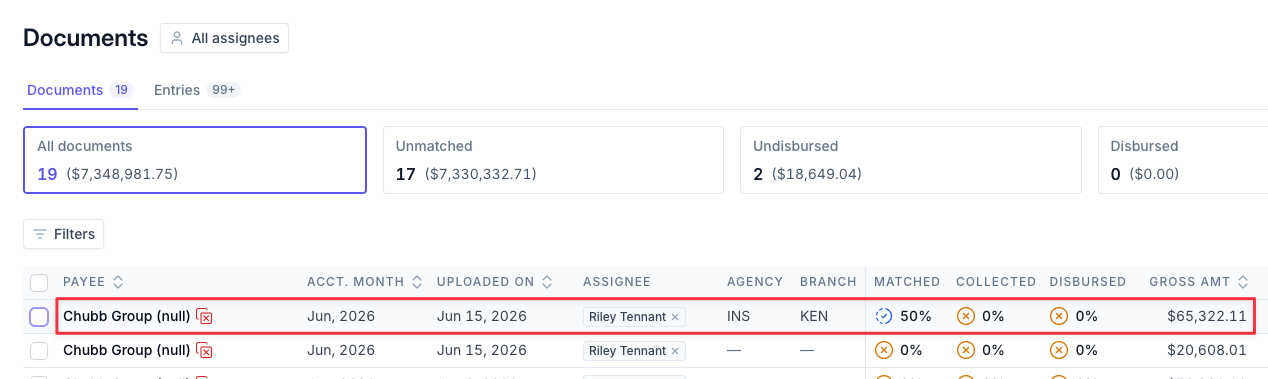
Click on the entry you'd like to update from the Document details dashboard to open the Matching drawer.
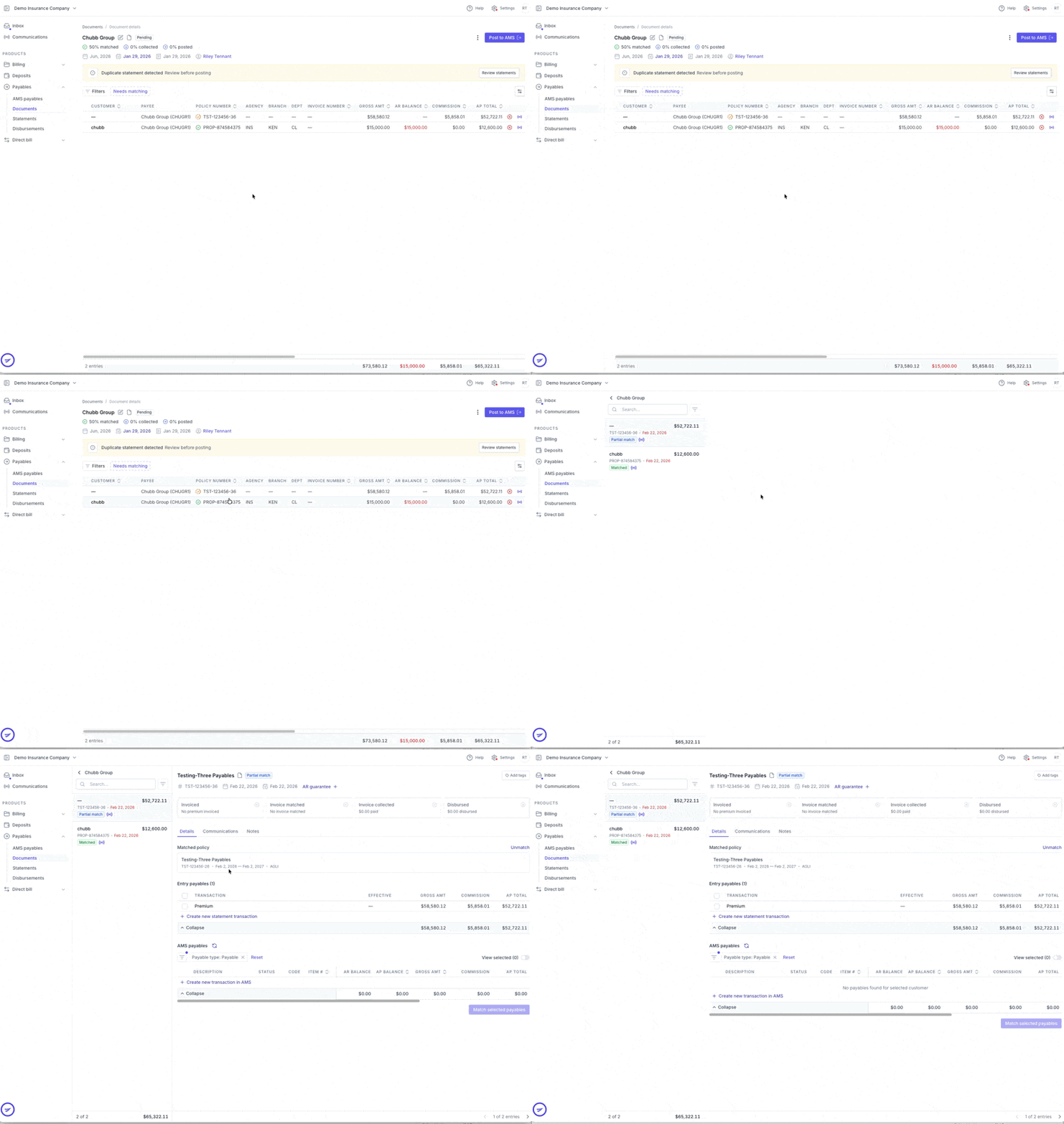
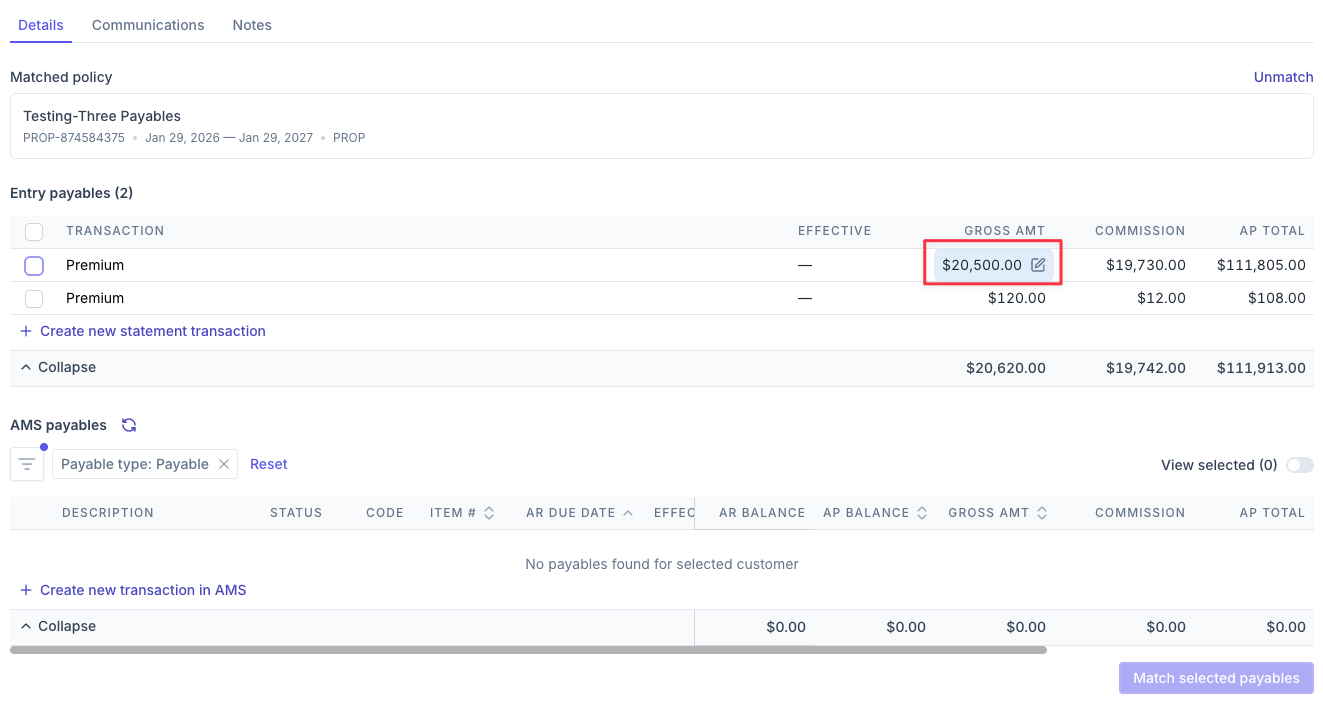
In the matching drawer, under the Entry Payables section, hover over any of the amounts (Gross, Commission, AP) to reveal the pencil icon.
Click the pencil icon to edit the amount, and type in the amount you'd like to update. Click outside the field to save your work.
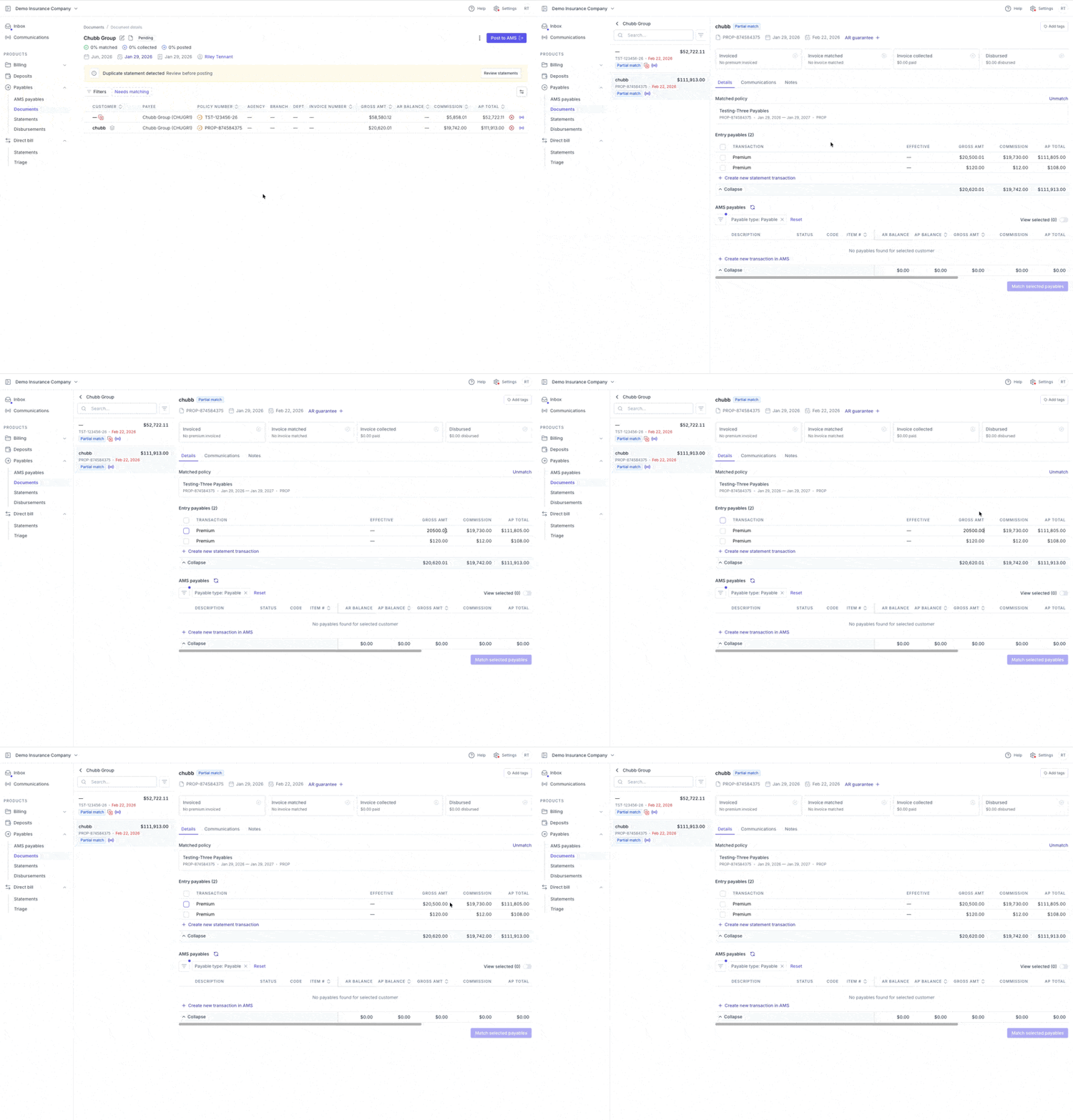
Tip - Updates can take a few seconds to sync. When you click out, the amount may revert to the original value for a few seconds. Be patient and wait for the amount to update rather than re-entering it.
Edit Policy Number & Other Document Fields
From the document, click Table Actions and select Edit Mode.
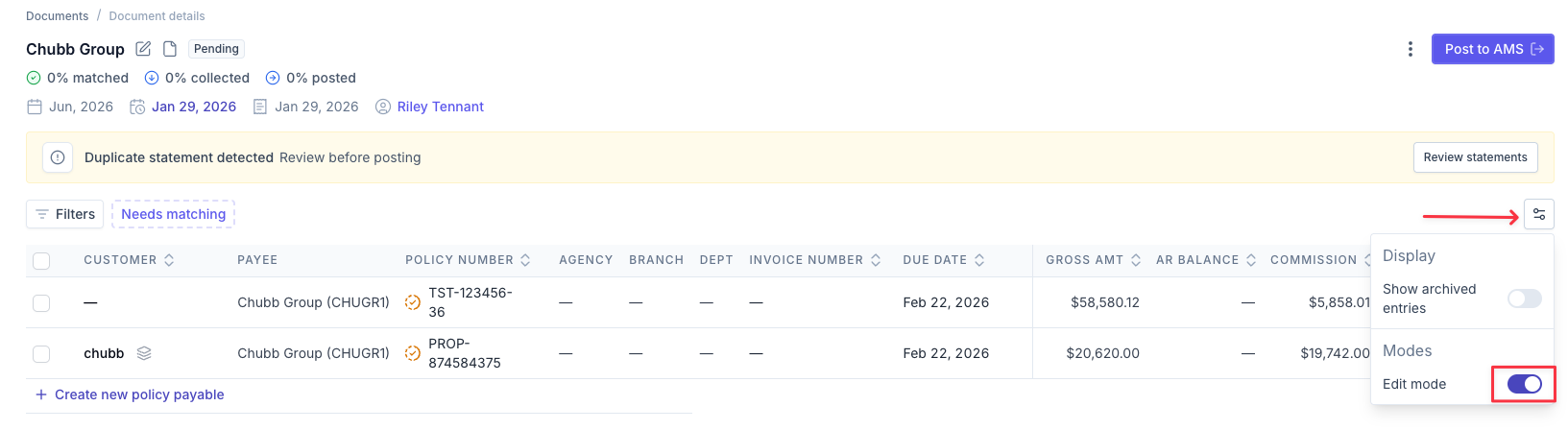
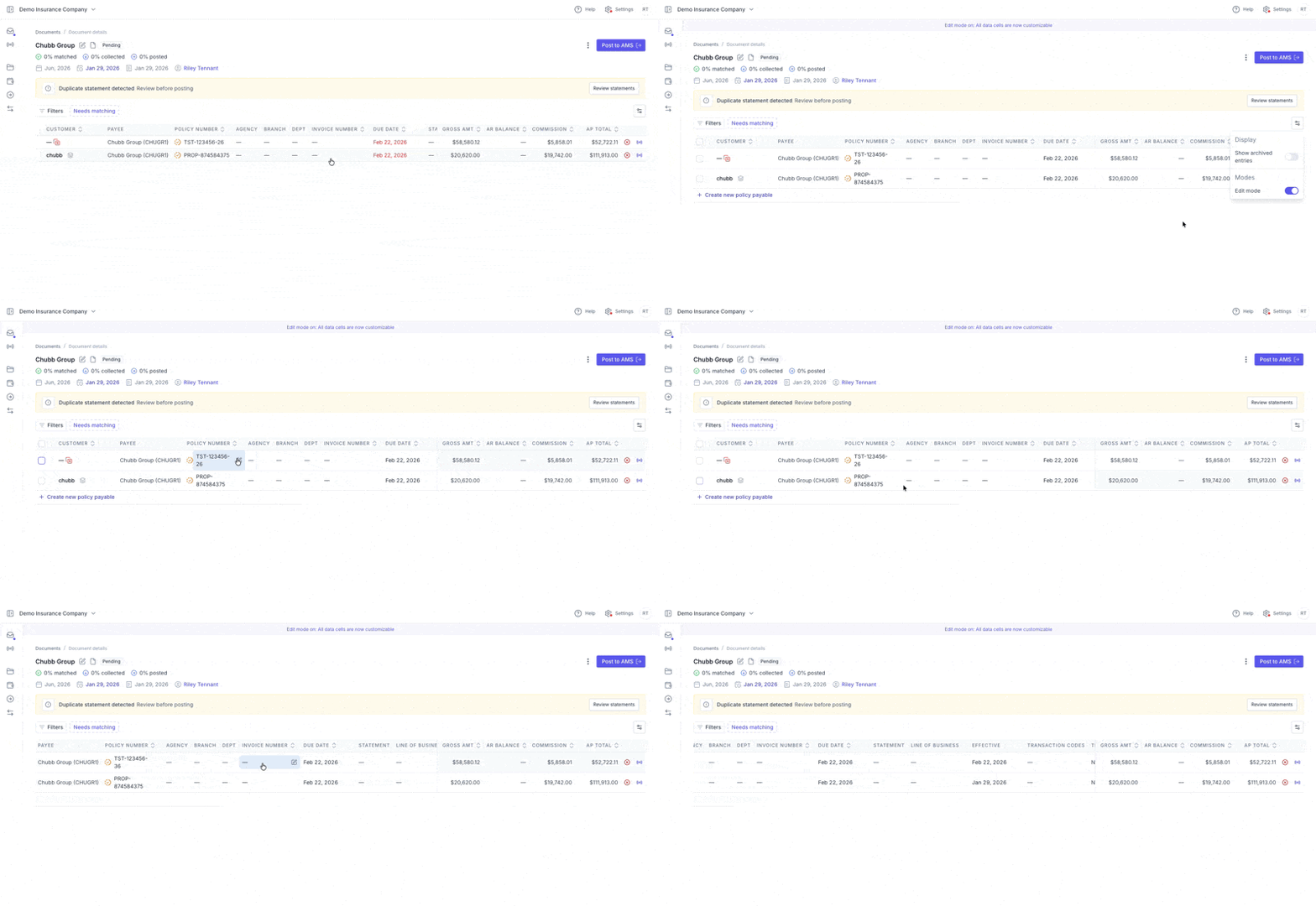
Hover over fields in the table. Any field that displays a pencil icon can be edited.
Click the pencil icon, then type in your update.
Click outside the field to save your changes.
Fields available to edit include:
Policy Number
Invoice Number
Due Date
Effective Date
Contact Us
Need more help? Contact us at [email protected] for more help.