Statuses & Icons
Last updated: September 19, 2026
This is a guide that will teach you how to understand:
Documents Dashboard - Documents View
Status Filters
Status Icons
Other Icons
Documents Dashboard - Entries View
Status Filters
Status Icons
Other Icons
Payable Statement Statuses - Statements Dashboard
Disbursement Icons - Disbursements Dashboard
Transaction Statuses - AMS Payables Dashboard
Documents Dashboard - Documents View
The Documents View shows all carrier statements and invoices uploaded to Ascend at the document level. Use this view when you want to see, manage, and reconcile a full statement as a single unit.
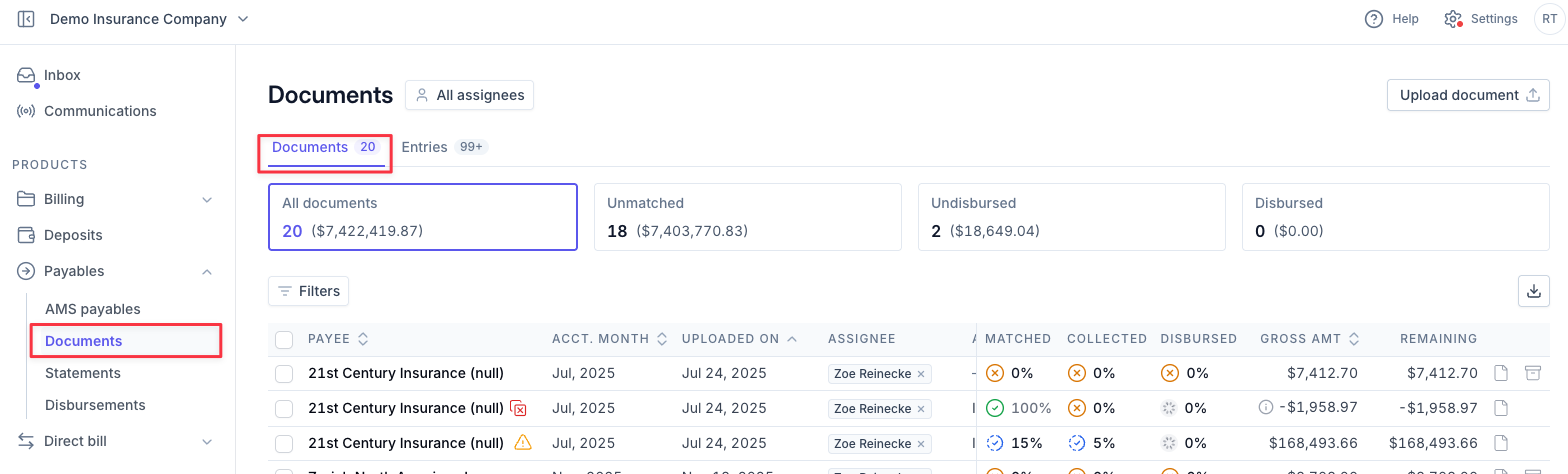
Status Filters

Filter | Description |
|---|---|
All statements | The total number of documents uploaded. |
Unmatched | Your primary action queue. Contains statements with one or more line items that could not be automatically matched to a transaction in Epic. These require manual intervention. |
Undisbursed | Fully matched and reconciled statements that are pending payment to the carrier. |
Disbursed | Statements that have been fully paid. |
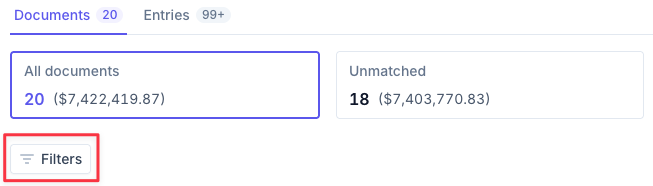
Tip - To narrow your view, click Filters at the top left of the table and select from the available options.
Status Icons
Icons in the Documents Dashboard communicate progress across three columns — Matched, Collected, and Disbursed:
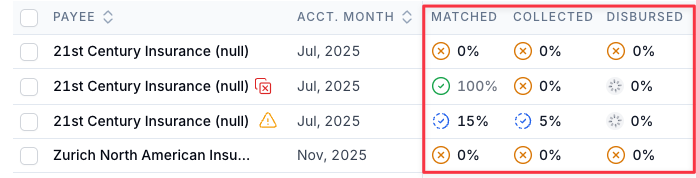
Matched | The percentage of entries on the document that are matched to a policy and a transaction.
Collected | The percentage of entries on the document that are matched to a policy and a transaction, and there is no outstanding AR balance on the matched transactions.
Disbursed | The percentage of entries on the document that are matched to a policy and a transaction, and have been disbursed in Applied Epic.
Icon | Description |
|---|---|
 | Green Check = 100% complete for that column |
 | Blue partial circle = in progress (partial percentage, e.g. 40%) |
 | Orange/red X = 0% complete for that column |
 | Spinning Grey Circle = Disbursement in progress |
Other Icons
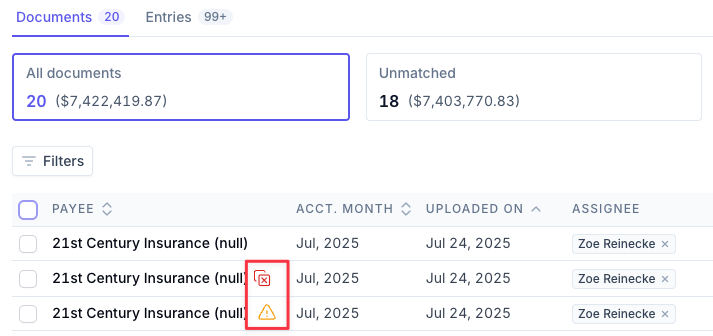
You will see other icons outside of the status columns in the Documents view to assist with your reconciliation. These icons will appear next to the payee name in the Payee column.
Icon | Description |
|---|---|
 | Possible Duplicate Detected - the entire document appears to be a duplicate. Click into the row to open the Document details page. Select Review Statements in the banner to review all documents flagged as duplicates. 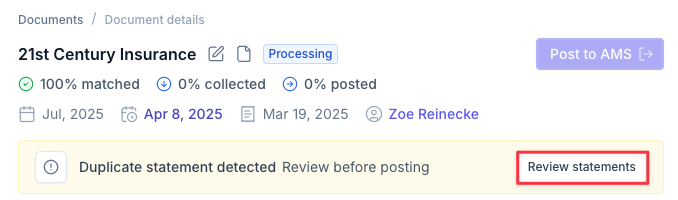 |
 | Potential Payee Mismatch - The PPE assigned to the document does not match the PPE on a matched transaction. Click into the row to open the Document details page. Review the proposed PPE and determine if any changes are needed. 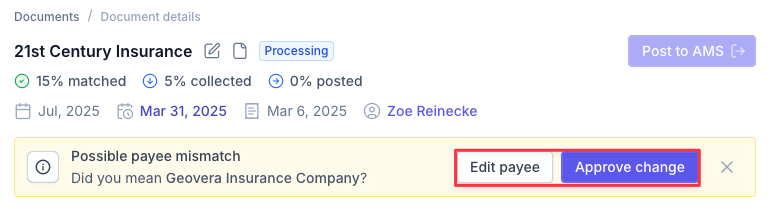 |
 | Pay-In-Full Carrier - All entries for a statement must be posted together and users will be unable to partially post for flagged carriers. Work with your CSM to configure which carriers should have this designation. |
Documents Dashboard - Entries View
The Entries View shows a flattened view of all carrier statements and invoices uploaded to Ascend. Use this view when you want to see, manage, and reconcile entries regardless of the associated document. This view is helpful for working all invoices for a particular payee at a given time.
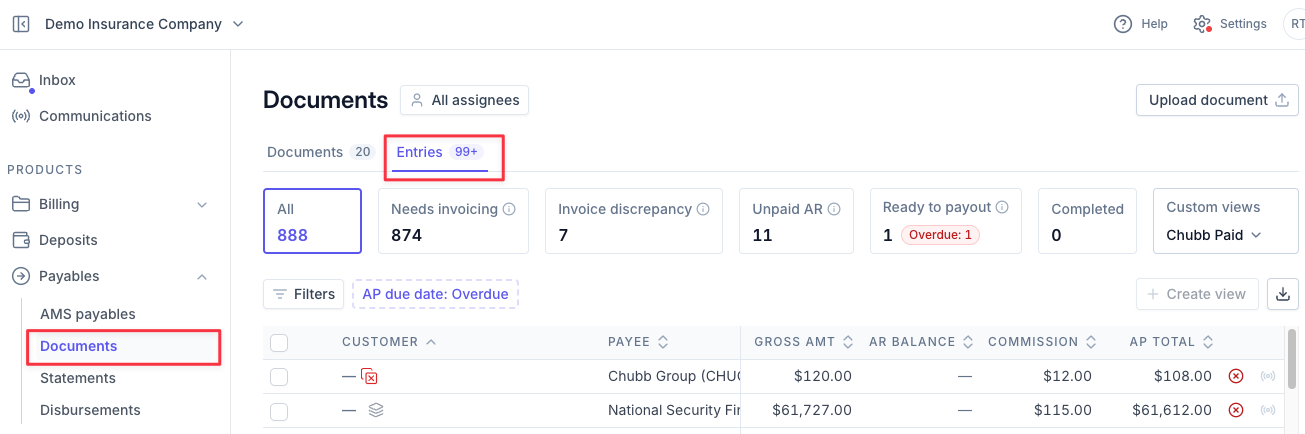
Status Filters

Status | Description |
|---|---|
Needs Invoicing | Policies need to be invoiced. |
Invoice Discrepancy | Data mismatches between AMS and linked document data. |
Unpaid AR | Invoices issued but payment not yet received. |
Ready to Payout | Fully reconciled transactions pending disbursement. |
Completed | Entries that have been fully disbursed within Epic. |
Custom Views | Filtered views that have been saved unique to each user. |
Status Icons
Icon | Description |
|---|---|
 | Matched - Policy and transaction were successfully matched. |
 | Matched with Discrepancy - Policy and transaction were matched with a discrepancy. |
 | Partially Matched - Policy was successfully matched but unable to match to transaction. |
 | Unmatched - The transaction and policy were unable to be matched. |
 | Unmatched, past due - The transaction and policy were unable to be matched and the AP Due Date has passed. |
Other Icons
You will see other icons outside of the status columns in the Entries view to assist with your reconciliation. These icons will appear next to the payee name in the Customer column.
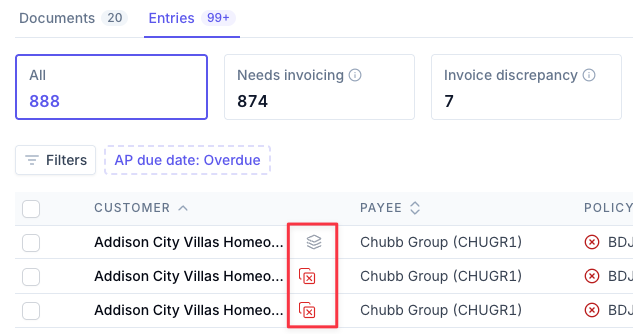
Icon | Description |
|---|---|
| Possible Duplicate Detected - the entry appears to be a duplicate. Click into the row to open the Matching drawer. Select Compare in the banner to review all entries flagged as duplicates. 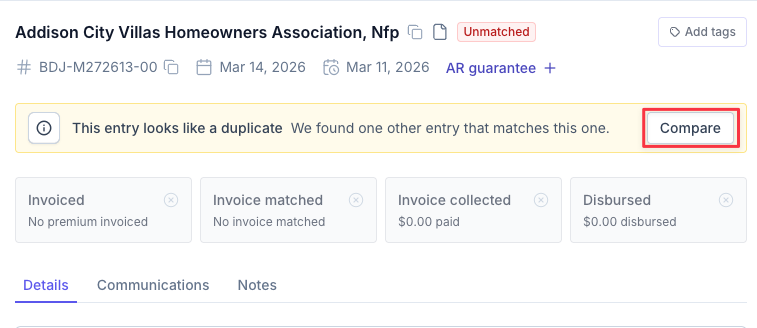 |
 | Combined transactions - Ascend automatically groups statement transactions into a single entry when they billed with the same client, policy number, and policy effective date. Please visit the Splitting Entries and Combining Entries pages for more information. |
| Pay-In-Full Carrier - All entries for a statement must be posted together and users will be unable to partially post for flagged carriers. Work with your CSM to configure which carriers should have this designation. |
 | Tags - Flag entries with custom tags to help assist with filtering & tracking. Tags are a filterable field in the Entries view to help users easily search for flagged entries. Reach out to your CSM with any tag configuration requests. 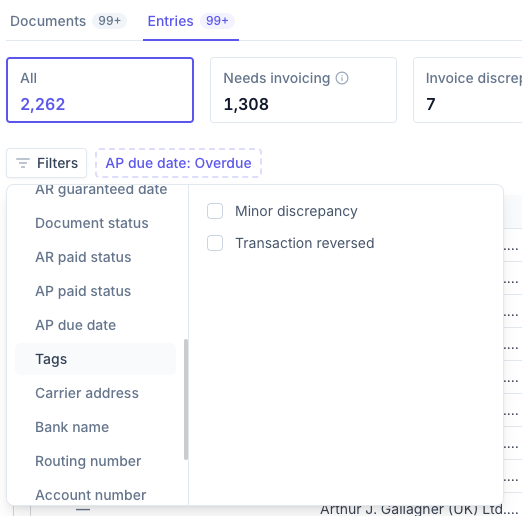 |
Payable Statement Statuses - Statements Dashboard
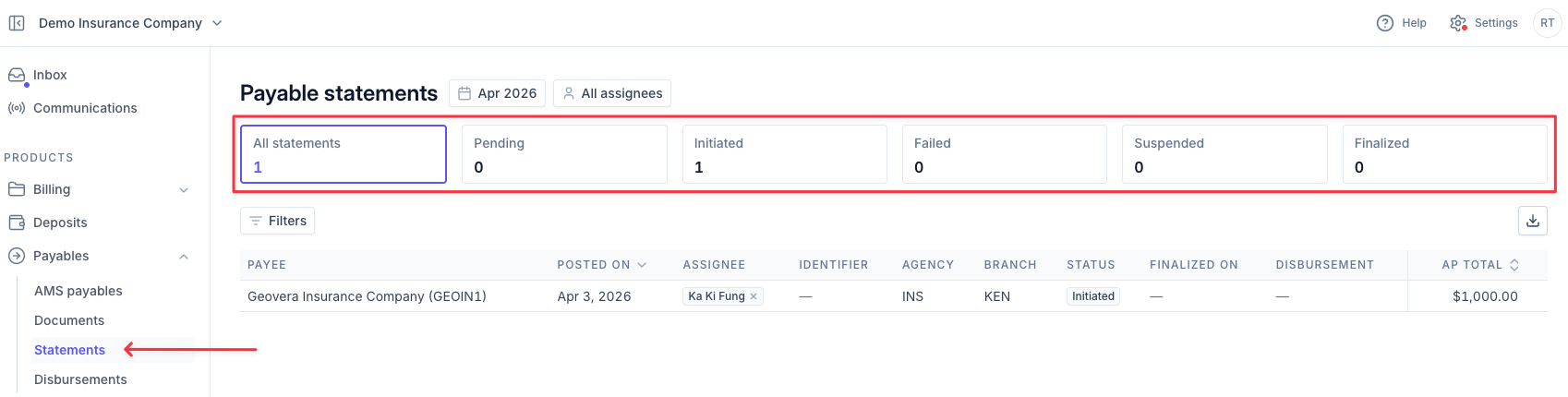
Track reconciliations created from Ascend in one place using the Payable statements dashboard. The dashboard shows the status of every statement — which are queued to post, currently posting to AMS, successfully posted, or failed.
Status | Description |
|---|---|
Pending | Queued to post but posting has not started. |
Initiated | Currently posting to AMS. |
Failed | Failed to post. Open the statement to see transaction-level errors. |
Suspended | Successfully posted and in suspended status in AMS. |
Finalized | The payable statement has been finalized in AMS. |
Disbursement Icons - Disbursements Dashboard
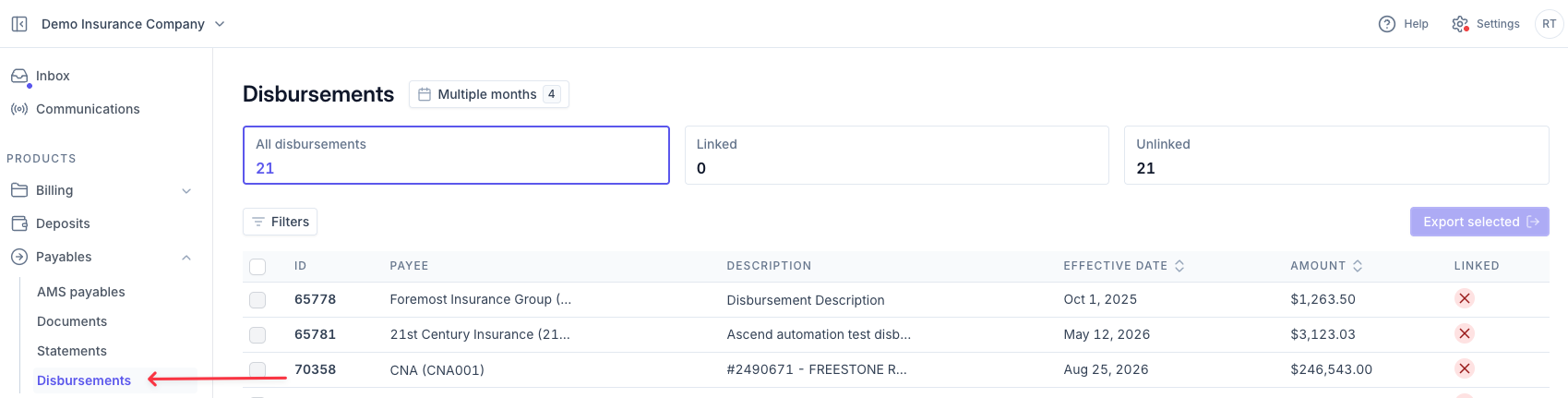
Track disbursements for reconciliations created from Ascend in one place using the Disbursements dashboard.
Icon | Description |
|---|---|
 | Linked - The disbursement has been matched to a statement or transaction in Ascend. |
 | Unlinked - The disbursement has not been matched to anything in Ascend. This status updates hourly as Ascend syncs with Epic to capture changes. |
Note - The linked/unlinked disbursement status is for reference only and does not require any action.
Transaction Statuses - AMS Payables Dashboard
A workspace that surfaces all payable transactions from AMS, whether or not a carrier document has been received. Use this dashboard to:
Identify transactions missing a carrier document
See which transactions have not been paid
Look up transactions billed under a specific policy number — without needing to open AMS

Status | Description |
|---|---|
Unpaid AR | Payable transactions in AMS have an outstanding AR balance. |
Document missing | Payable transactions in AMS with no outstanding AR balance and are not currently matched to a carrier statement or invoice in the Documents dashboard. |
Discrepancy | Payable transactions in AMS with no outstanding AR balance and are matched to a carrier document with a discrepancy. |
Ready to Payout | Payable transactions in AMS with no outstanding AR balance, are matched to a carrier document, and are not yet disbursed. |
Custom Views | A user's custom filter views. |
Contact Us
Need more help? Contact us at [email protected] for more help.