Customize Your View
Last updated: October 7, 2026
Direct Bill Automation
This is a guide that will teach you:
How to filter tables to find the information you need
How to show or hide columns
How to hide entries with $0 commission
Overview
Ascend lets you customize your table views so you can focus on the information relevant to your work. Use filters to narrow your results, choose which columns appear, and hide $0 commission entries when reviewing a statement.
Filter Your Results
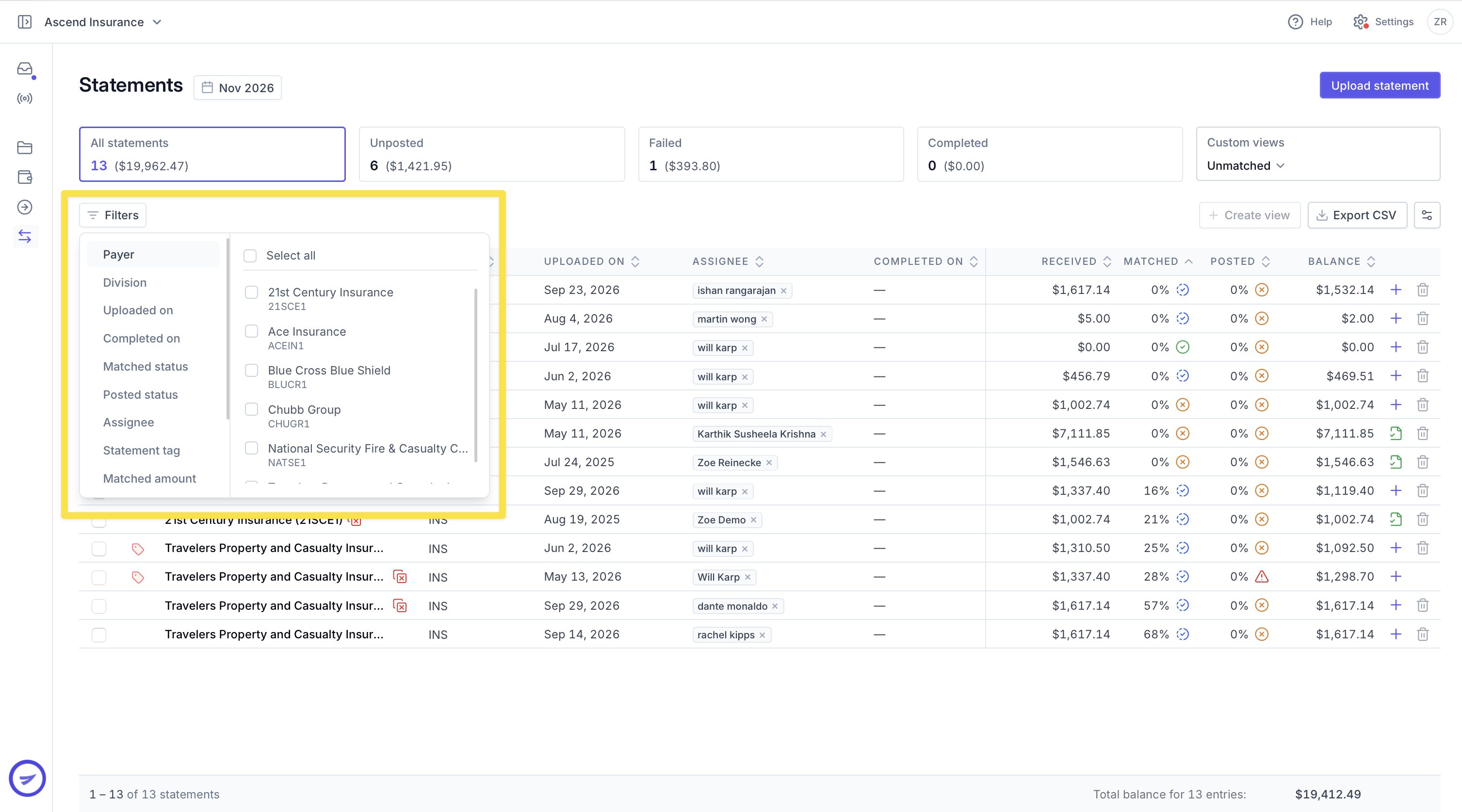
Filters help you narrow a table to records that meet specific criteria.
Go to the table you want to review.
Use the filters in the upper-left corner to select your criteria.
Review the filtered results.
The available filters vary by table. Adjust or clear them when you want to change which records appear.
Show or Hide Columns
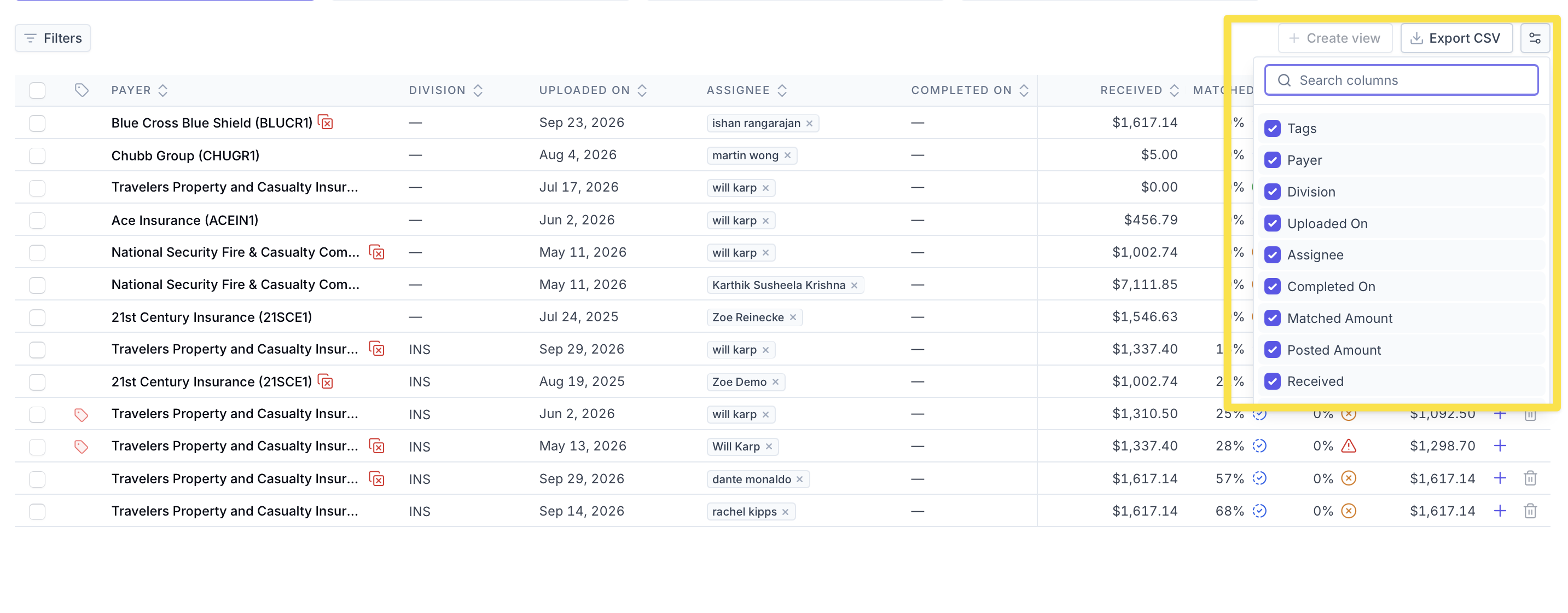
Customize the columns in a table to display the information you need.
Click the two horizontal lines in the upper-right corner of the table.
Check the box next to the columns you want to show.
Deselect the columns you want to hide.
Hiding a column only changes what appears in your view. It does not remove the underlying information.
Hide $0 Commission Entries
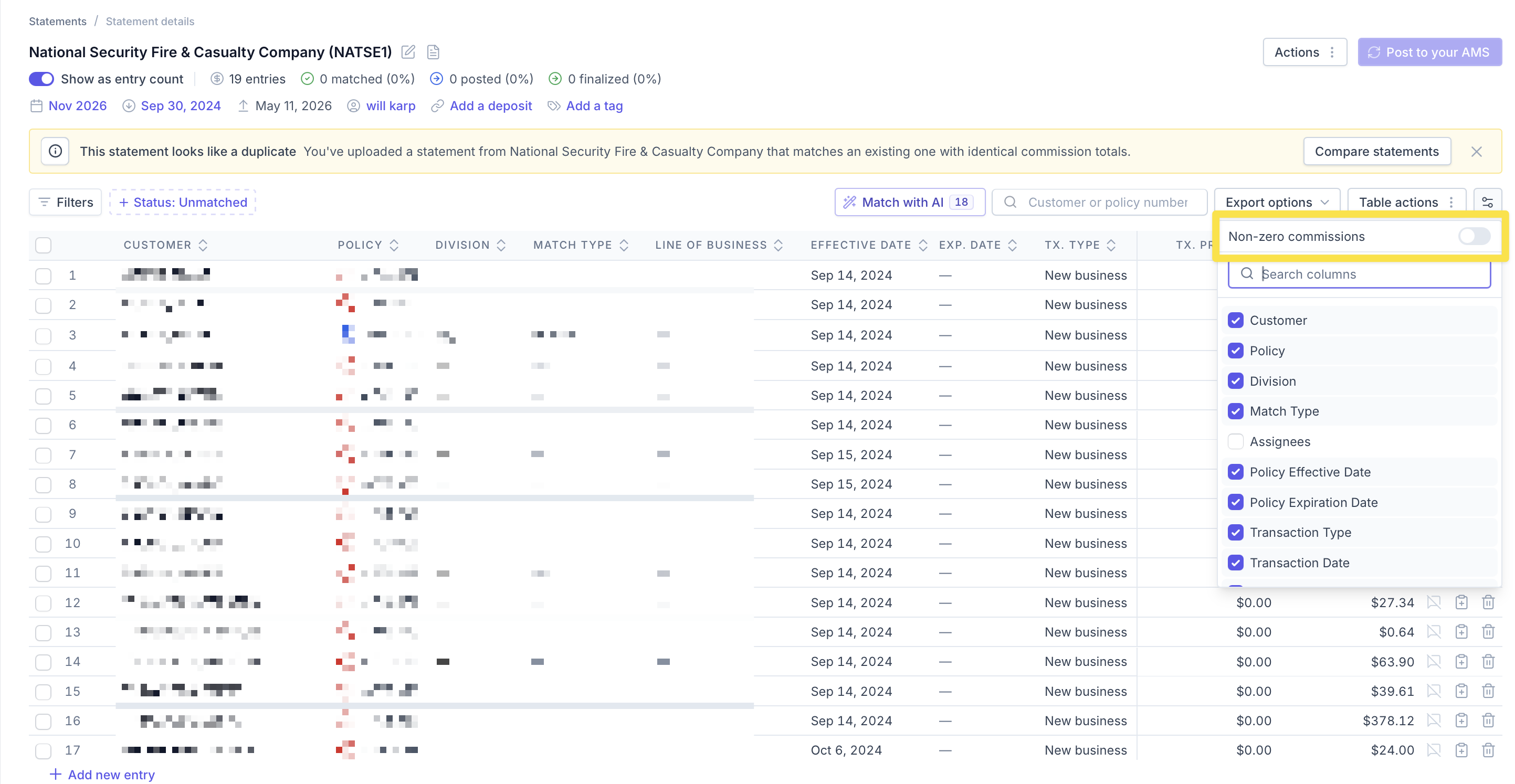
If you do not need to match entries with $0 commission, you can hide them on the Statement Details page.
Open the statement you want to review.
Click the two horizontal lines in the upper-right corner of the entries table.
Turn on Non-zero commissions.
The table will show only entries with a commission amount other than $0. Turn the toggle off to show $0 commission entries again.
Note: This setting hides $0 commission entries from your view. It does not delete them from the statement.
Contact Us
Need more help? Contact us at [email protected] for more help.