Bulk Actions for Direct Bill Entries and Statements
Last updated: October 7, 2026
Direct Bill Automation
This guide covers:
Applying actions to multiple entries at once
Applying actions to multiple statements at once
Overview
Bulk actions let you update multiple entries or statements in a single step. Select the relevant rows, then click the appropriate action icon in the toolbar.
The available actions depend on whether you select entries or statements.
Bulk Entry Actions
Available Actions
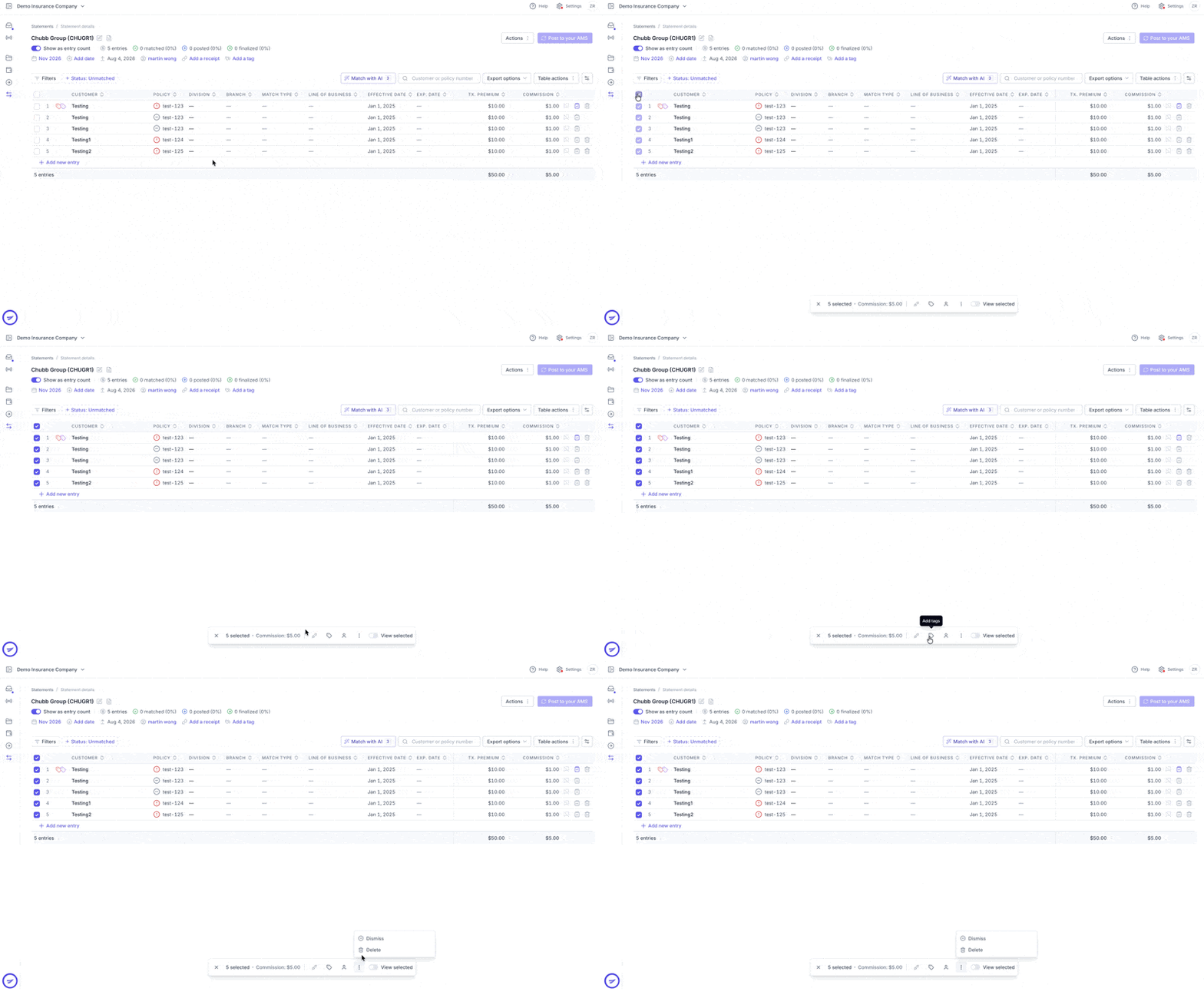
Assign: Assign the selected entries to a processor.
Tag: Apply tags to organize entries or identify items requiring follow-up.
Unmatch: Remove existing matches so the entries can be matched again.
Dismiss: Exclude entries from the statement total used for posting while keeping them visible for reference.
Delete: Delete the selected entries. Review your selection carefully before proceeding.
Apply a Bulk Action
Select the entries you want to update using the checkboxes beside their rows.
Click the appropriate action icon in the toolbar.
Complete any required selections, such as choosing a processor or tags.
Confirm the action if prompted.
Bulk Statement Actions
Available Actions
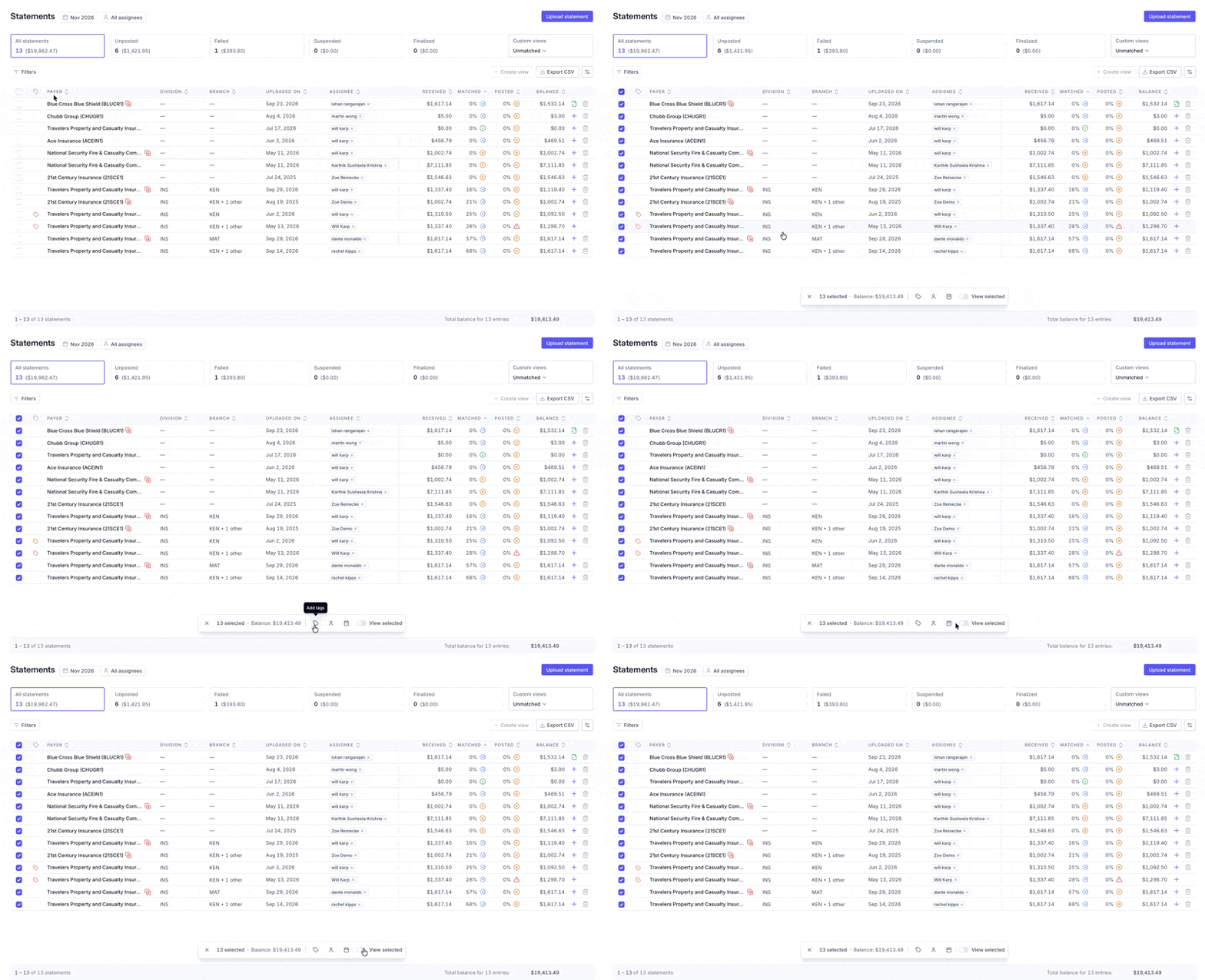
Assign: Assign the selected statements to a processor.
Tag: Apply tags to organize statements or identify items requiring follow-up.
Change accounting month: Move the selected statements to a different accounting month.
Apply a Bulk Action
Select the statements you want to update using the checkboxes beside their rows.
Click the appropriate action icon in the toolbar.
Complete any required selections, such as choosing a processor, tags, or accounting month.
Confirm the action if prompted.
Contact Us
Need more help? Contact us at [email protected] for more help.