Resyncing AMS Data in Ascend
Last updated: October 7, 2026
Direct Bill Automation
This is a guide that will teach you:
How to refresh a matched entry after making changes in your agency management system (AMS)
How to resolve a posting failure caused by out-of-date data
Overview
Ascend syncs data from your AMS on a schedule. If you make a change in your AMS and need it reflected in Ascend before the next scheduled sync, use Resync to refresh the data for a matched entry.
Resync is only available for matched entries.
Resync After an AMS Change
Open the matching drawer for the matched entry you want to refresh.
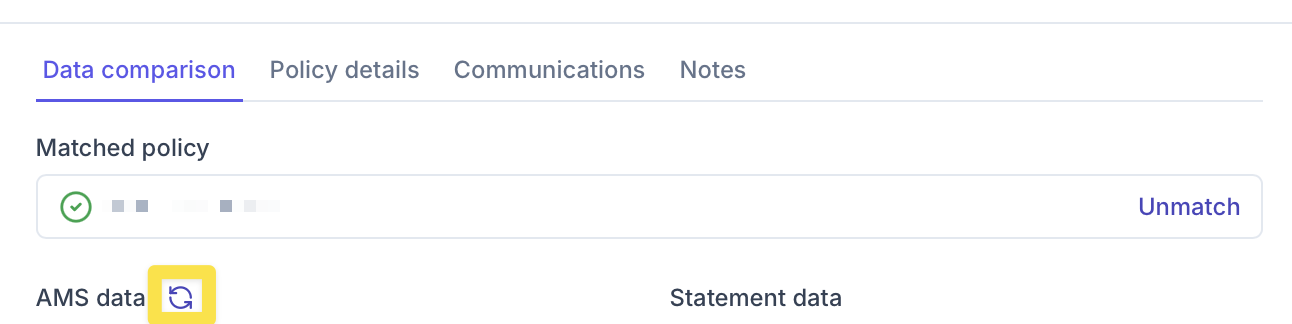
Click the purple Resync button.
Review the refreshed data before posting.
Resolve an Out-of-Date Data Error
If a posting failure indicates that an entry has out-of-date data, resync the entry to capture the latest information from your AMS.
Click Review entry in the posting failure message.
In the matching drawer, click the purple Resync button.
Review the refreshed data and confirm it is correct.
Try posting again.

Contact Us
Need more help? Contact us at [email protected] for more help.