Exporting Data from Ascend
Last updated: September 3, 2026
Direct Bill Automation
This guide explains:
How to export data from the Statements Dashboard
How to export statement data and QA comparisons from an individual statement
How to export unmatched entries from the Triage Dashboard
How filters and visible columns determine what is included in an export
Overview
Ascend allows you to export data from the Statements Dashboard, individual statement tables, and the Triage Dashboard for offline review, documentation, or further analysis.
Each export reflects the view you have configured at the time of the request. This includes:
The filters you have applied
The columns you have selected
The data available within those columns
After you request an export, Ascend generates the CSV and sends it to you by email.
Note: Before requesting an export, confirm that the appropriate filters and columns are selected. The CSV will contain only the data represented in your current view.
Export the Statements Dashboard
You can export the information displayed across the Statements Dashboard, including any filters and column selections you have applied.
To export the dashboard:
Navigate to the Statements Dashboard.
Select the filters and columns you want to include.
Click Export CSV.
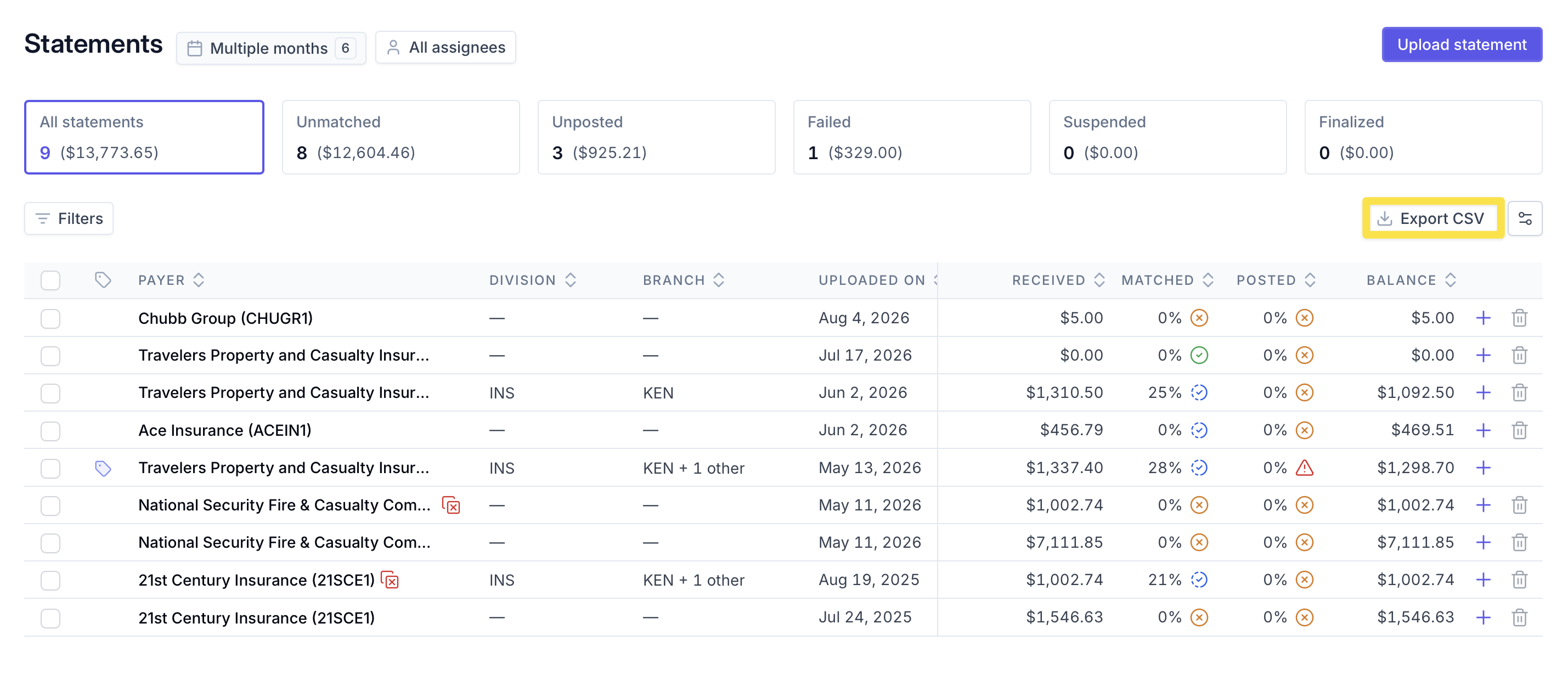
Ascend will generate a CSV containing the data from your current dashboard view and send it to you by email.
Export Data from an Individual Statement
From the Statement Details page, you can export either the data extracted from the statement or a comparison of the statement data with the matched AMS data.
Export Statement Data
This export contains the data Ascend extracted from the original statement.
To export the statement data:
Open the relevant statement.
Configure the filters and columns you want reflected in the export.
Click Export options in the upper-right corner of the statement table.
Select Export CSV from the dropdown.
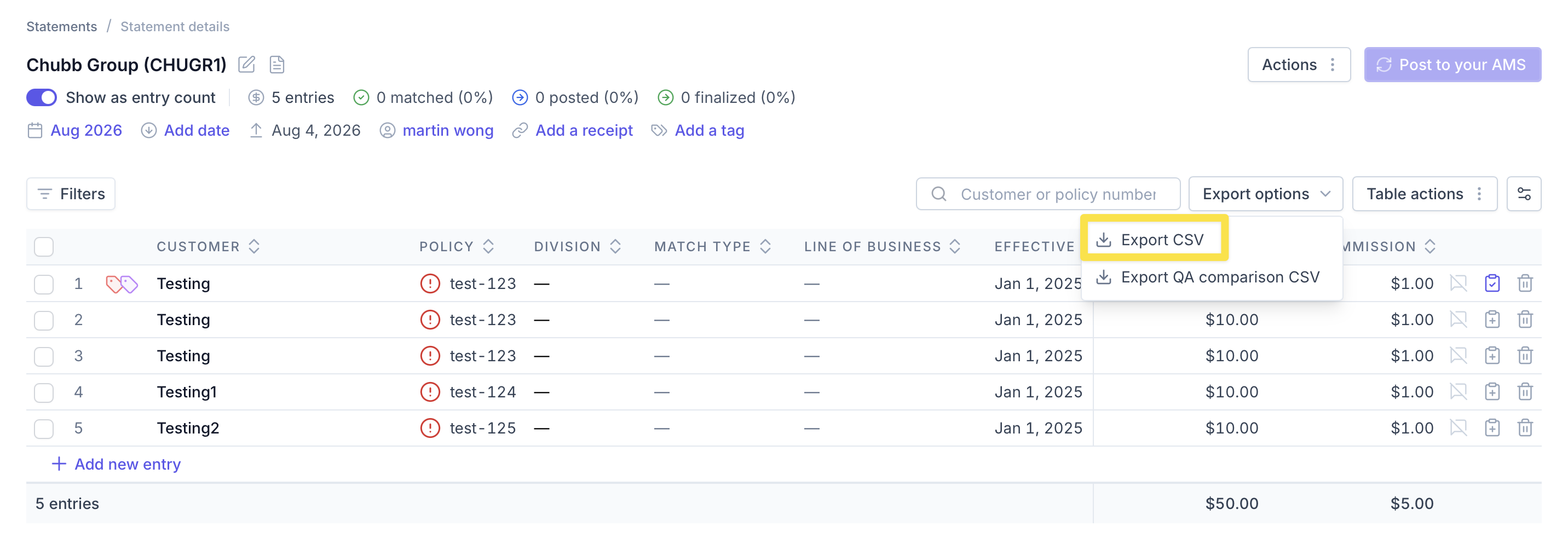
Ascend will generate a CSV containing the extracted statement data and send it to you by email.
Export a QA Comparison
The QA comparison export contains the data extracted from the statement alongside the corresponding values from the matched policy in your agency management system (AMS).
To export the QA comparison:
Open the relevant statement.
Configure the filters and columns you want reflected in the export.
Click Export options in the upper-right corner of the statement table.
Select Export QA comparison CSV from the dropdown.
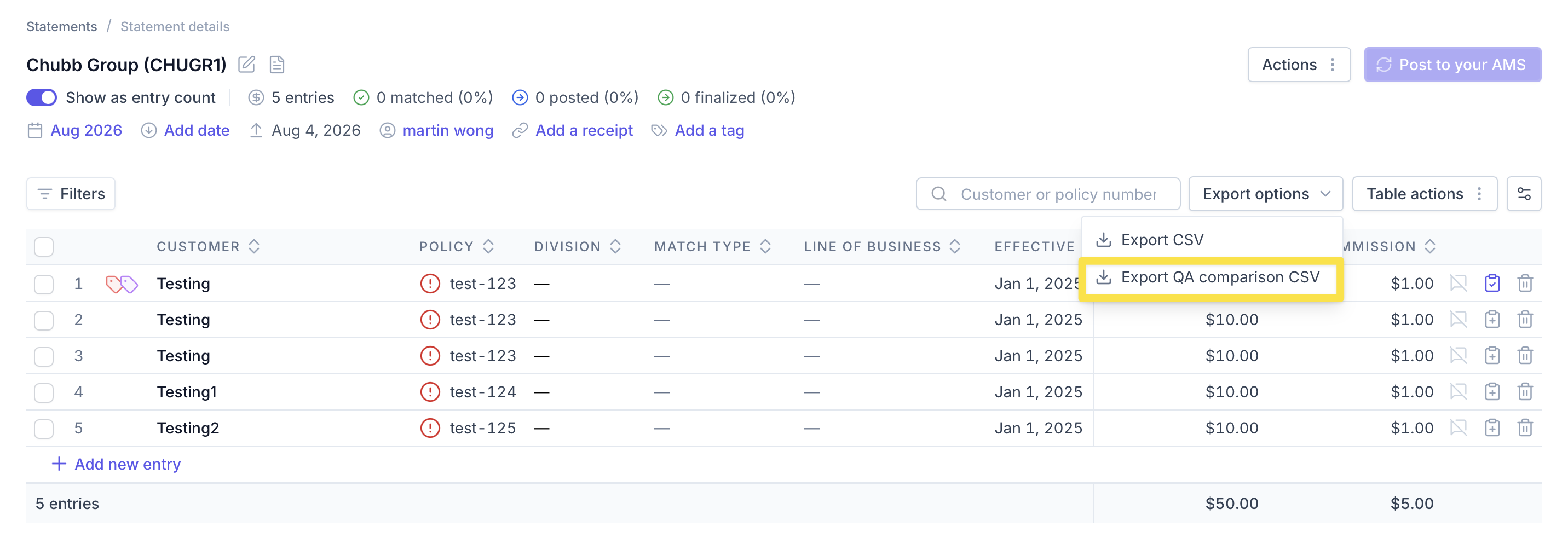
Ascend will generate the QA comparison CSV and send it to you by email.
Export the Triage Dashboard
You can export the unmatched entries displayed on the Triage Dashboard.
To export the dashboard:
Navigate to the Triage Dashboard.
Apply the filters needed to identify the entries you want to review.
Select the columns you want to include.
Click Export CSV.
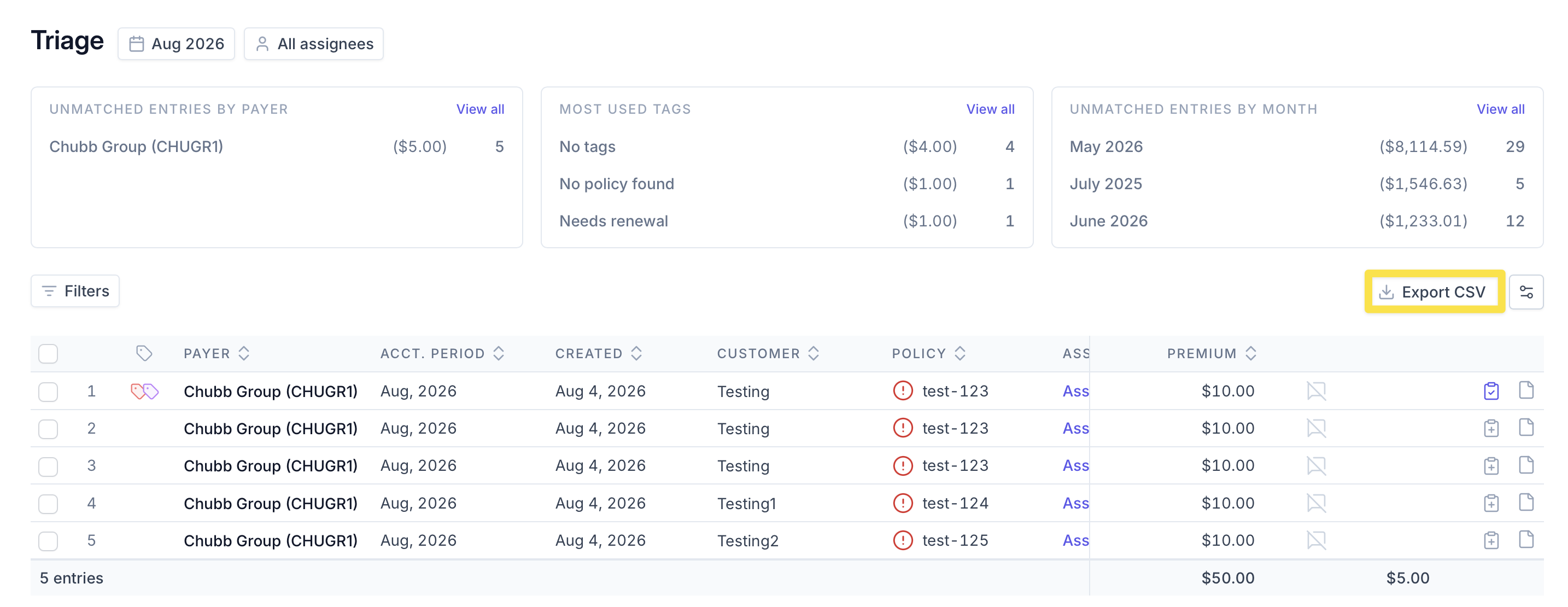
Ascend will generate a CSV reflecting the filtered dashboard view and send it to you by email.
Frequently Asked Questions
How will I receive my export?
Ascend will send the completed CSV to you by email.
Does the export include all data available in Ascend?
No. The export includes only the data represented by the columns and filters configured in your current view.
Contact Us
Need more help? Contact us at [email protected] for more help.