Matching
Last updated: September 21, 2026
This is a guide that will teach you how to:
Understand Match Status Icons
Use the Matching Drawer
Resolve Discrepancies
Overview
Ascend automatically matches document data to Epic data when a confident match is identified. For any items that require a manual match, follow the steps below. This process is the same whether you're working from the Documents View or the Entries View.
Understanding Match Status Icons
Each entry created from carrier document extractions will reflect a matching status.
Icon | Description |
|---|---|
 | Matched - Policy and transaction were successfully matched. |
 | Matched with Discrepancy - Policy and transaction were matched with a discrepancy. |
 | Partially Matched - Policy was successfully matched but unable to match to transaction. |
 | Unmatched - The transaction and policy were unable to be matched. |
Using the Matching Drawer
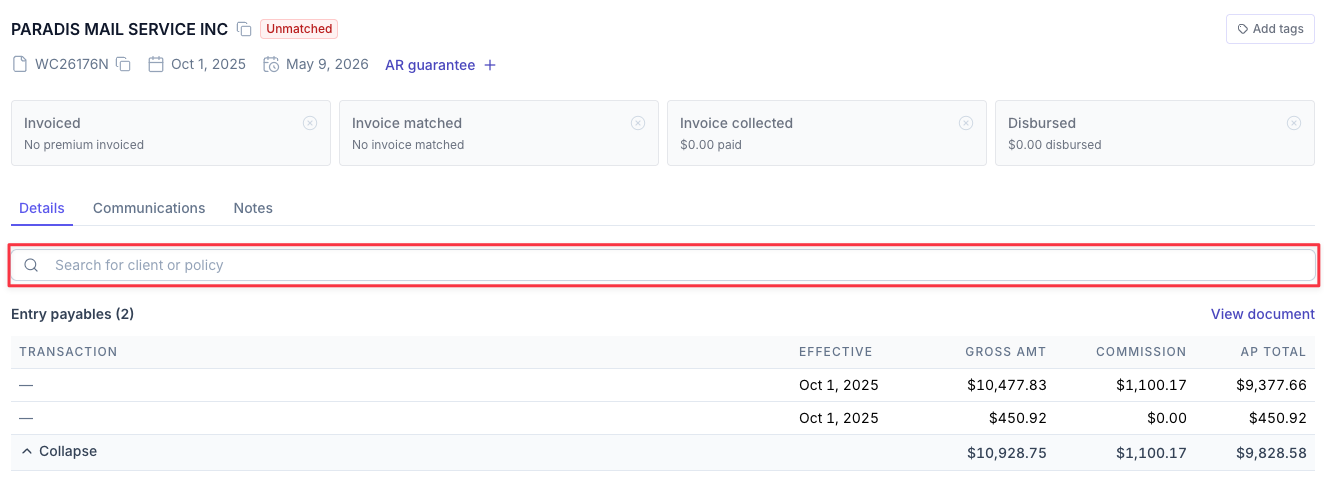
Click on the unmatched entry row to open the Matching Drawer on either the Documents View or the Entries View.

In the Details tab, use the search bar to search by customer or policy number.
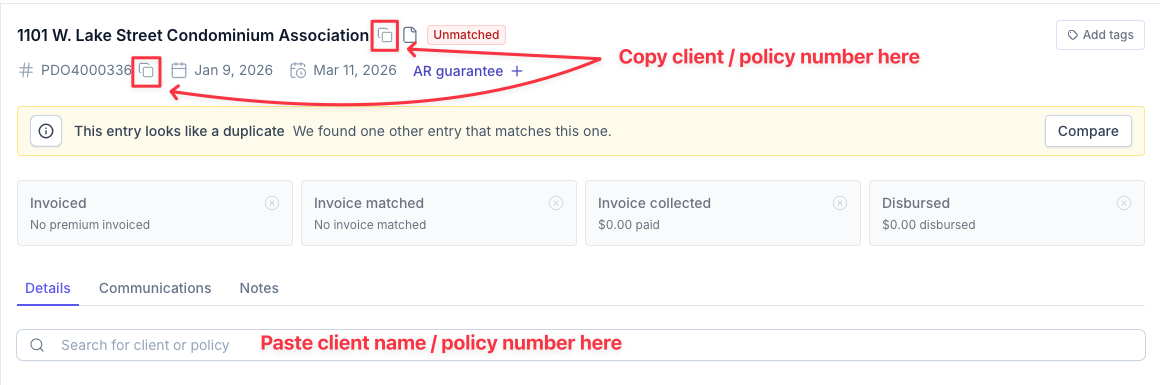
Tip: Use the stacked icon next to either the extracted client name or policy number in the Matching drawer header for a quick copy + paste.
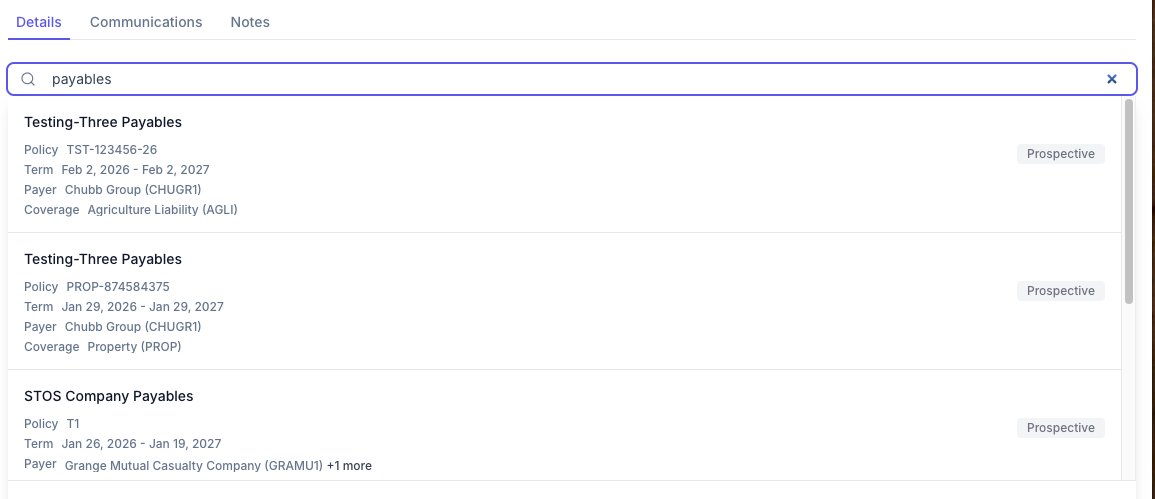
Review the search results and select the correct policy.
Ascend will display the AMS transactions related to the policy. By default, only transactions with a payable balance are shown.
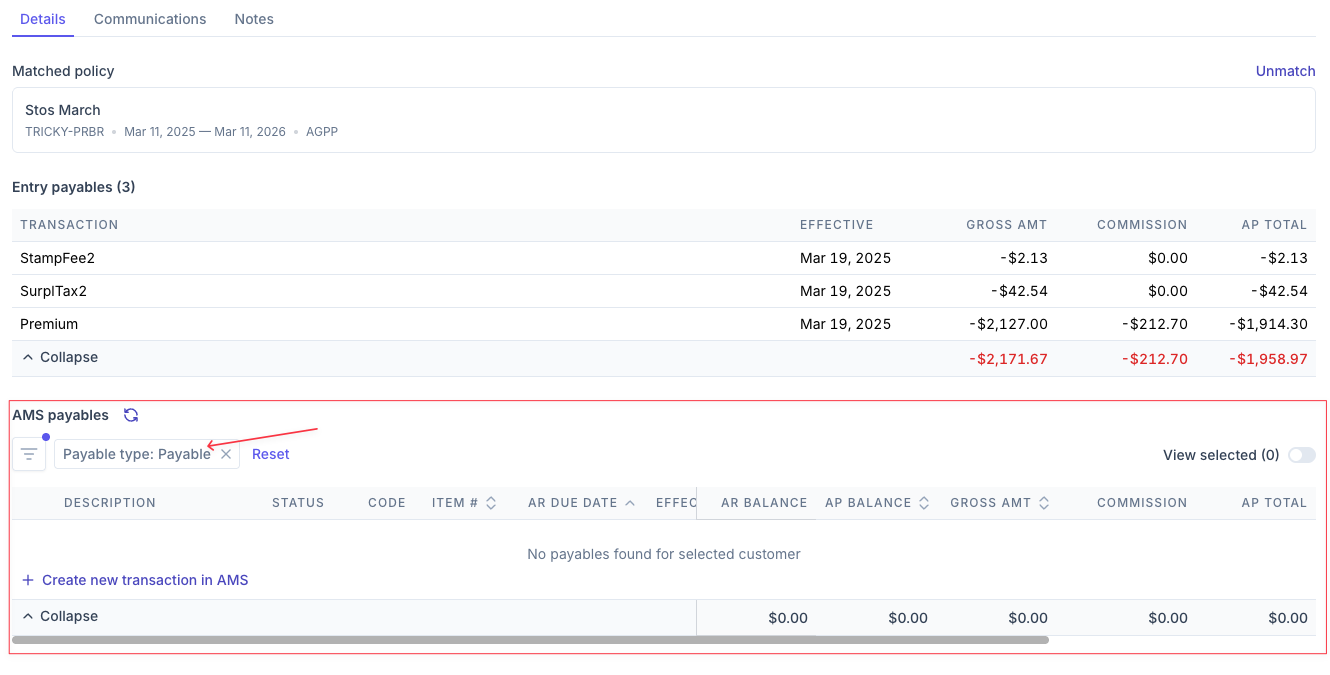
To see additional transactions, click the Payable status button and select from: Payable, Billed out: financed, Billed out: split, Government, No balance Payable, and Reversed. Helpful for reviewing if there are any reversed transactions, or transactions already matched to another document for reconciliation.
Tip - Only transactions in a 'payable' status will successfully post to AMS.
Select the correct transaction(s) and click Match selected transactions.
If there is a discrepancy, click Mark as matched in the confirmation pop-up.
Resolve Discrepancies
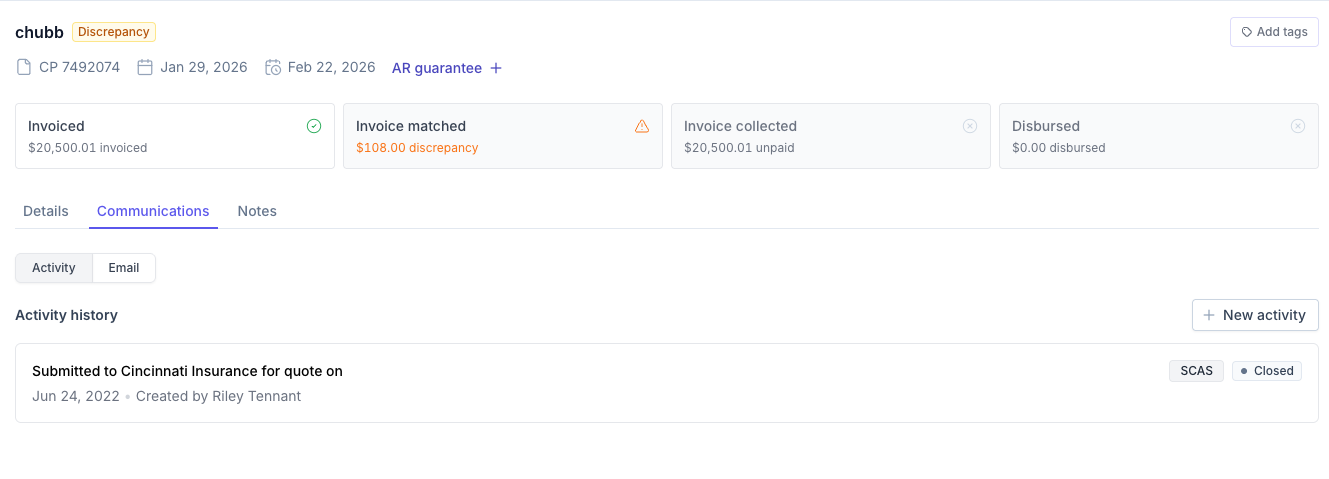
If a discrepancy needs further resolution, you can add tags, create an Epic Activity, or send an email from the matching drawer to loop in your servicing team — see our Resolving Discrepancies guide for details.
Contact Us
Need more help? Contact us at [email protected] for more help.