Custom Views
Last updated: October 7, 2026
Direct Bill Automation
This is a guide that will teach you:
How to create a Custom View on the Statements Dashboard
How to open a saved view
How to rename a viewCustom Views
Overview
Custom Views let you save filters on the Statements Dashboard so you can return to the statements you work with regularly without rebuilding your filters each time.
For example, you can save a view for a specific carrier, date range, or statement status. Each team member can create views tailored to the statements they are responsible for.
Create a Custom View
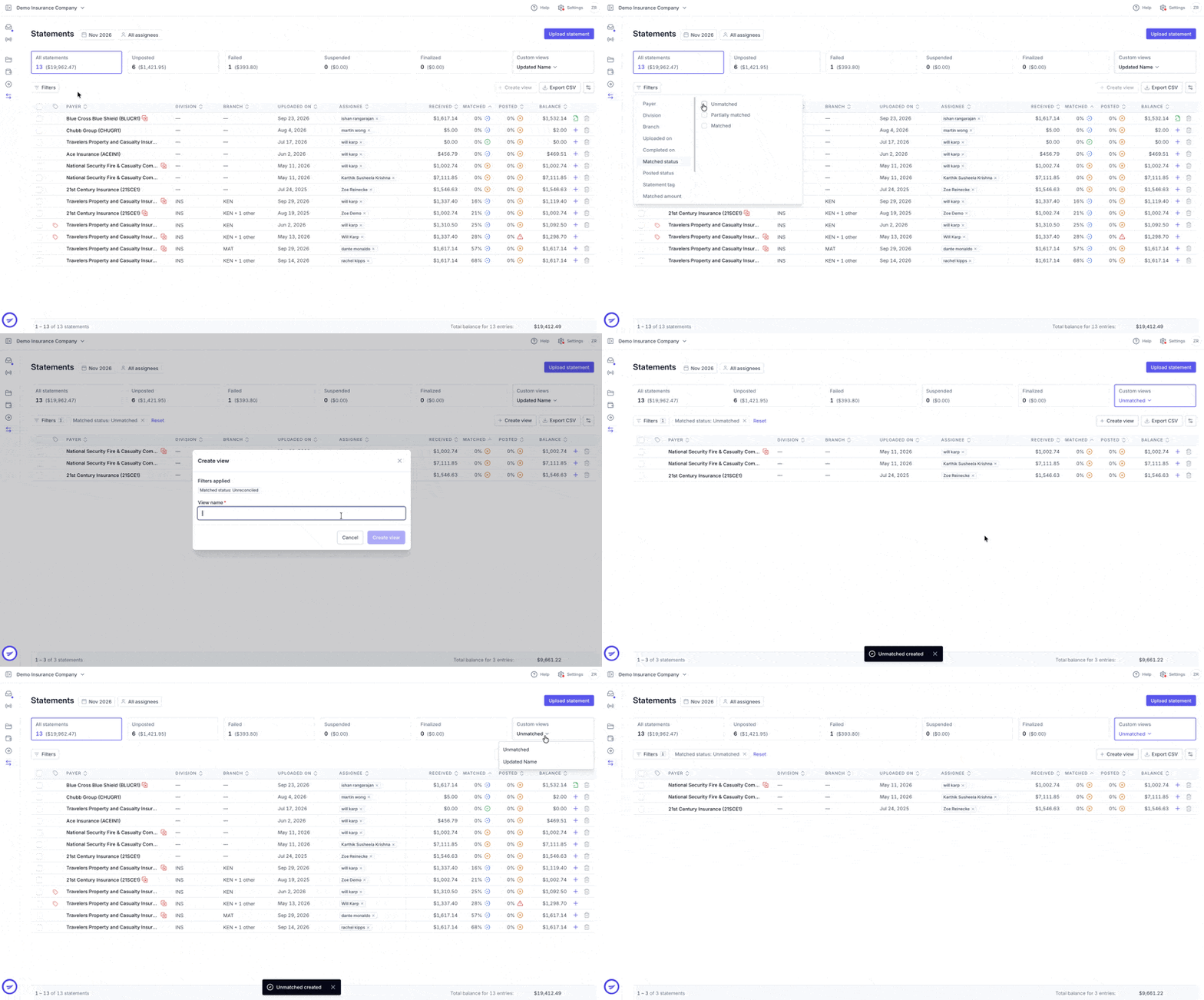
Go to the Statements Dashboard.
Apply the filters you want to save.
Click Create View.
Enter a descriptive name, such as “Unposted Statements” or “Carrier Review.”
Save the view.
Open a Saved View
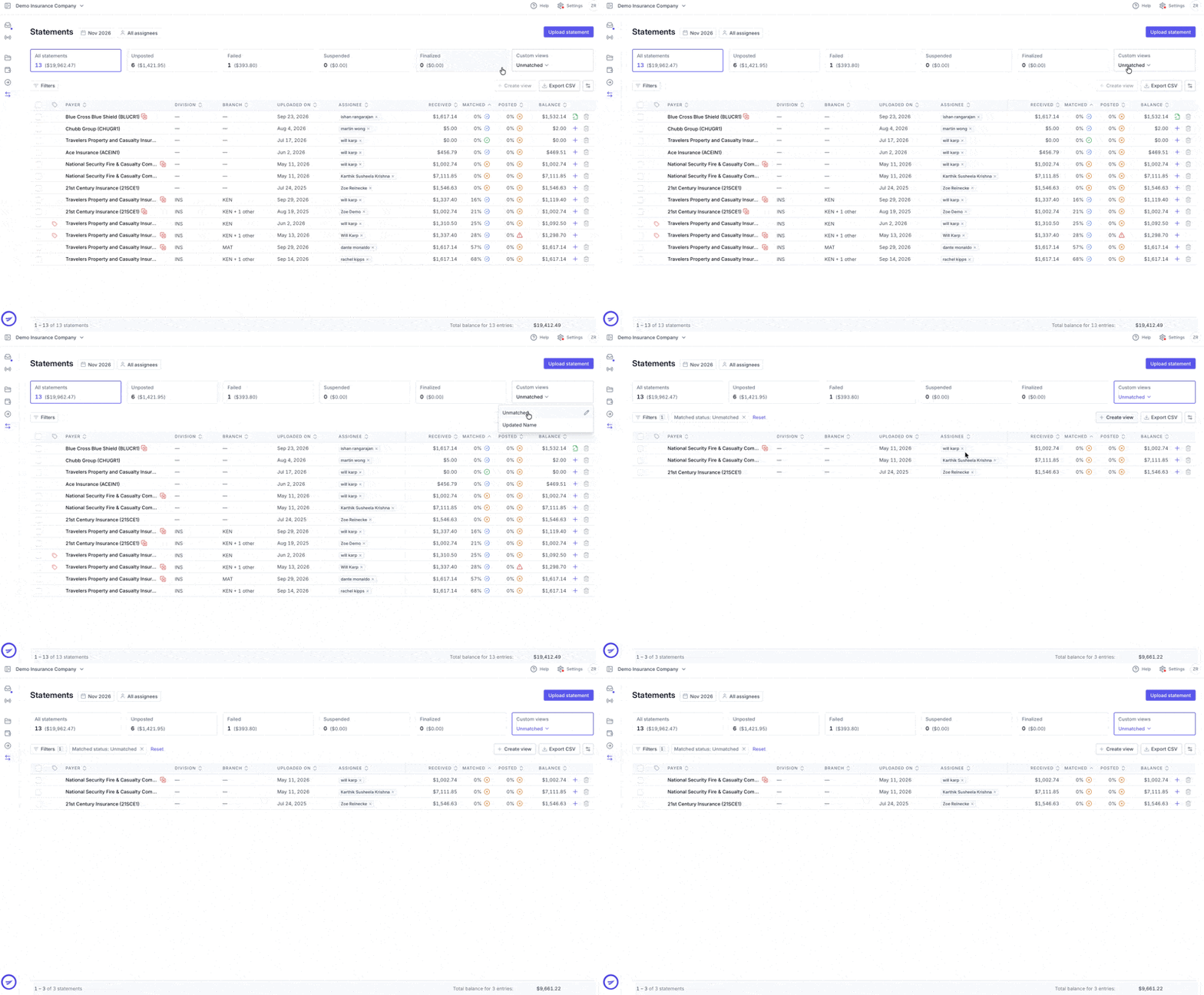
Click Custom Views in the upper-right corner of the Statements Dashboard.
Select the view you want to open.
Your saved filters will apply, displaying the statements that meet those criteria.
Rename a View
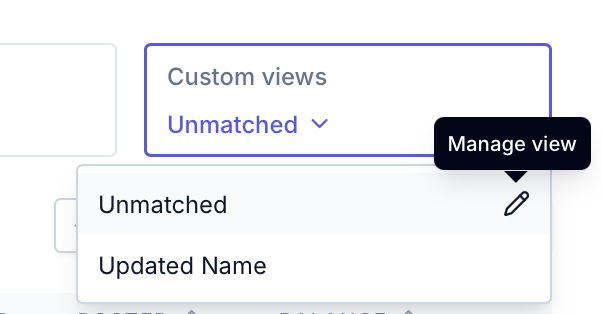
Click the pencil icon for the view you want to rename, enter the updated name, and save your changes.
Contact Us
Need more help? Contact us at [email protected] for more help.