Configure Lines of Business
Last updated: September 3, 2026
Direct Bill Automation
This guide explains:
How to map lines of business from carrier statements to coverage types in your agency management system (AMS)
How Admin users can review and manage existing mappings
How to remove individual mappings or delete an entire coverage type mapping
When to map individual lines of business or override all coverage types
Overview
The line of business listed on a carrier statement may not exactly match the coverage type used in your AMS. Ascend allows you to map these values so that statement entries can be matched to the correct policies more accurately.
Mappings are configured at the carrier level and are particularly useful for benefits carriers, where the coverage type often plays an important role in matching.
For example, if a carrier statement identifies a line of business as Dental, but your AMS uses a different coverage type for those policies, you can map the statement value to the corresponding AMS coverage type.
Configure Lines of Business
You can configure line-of-business mappings from the Statement Details view.
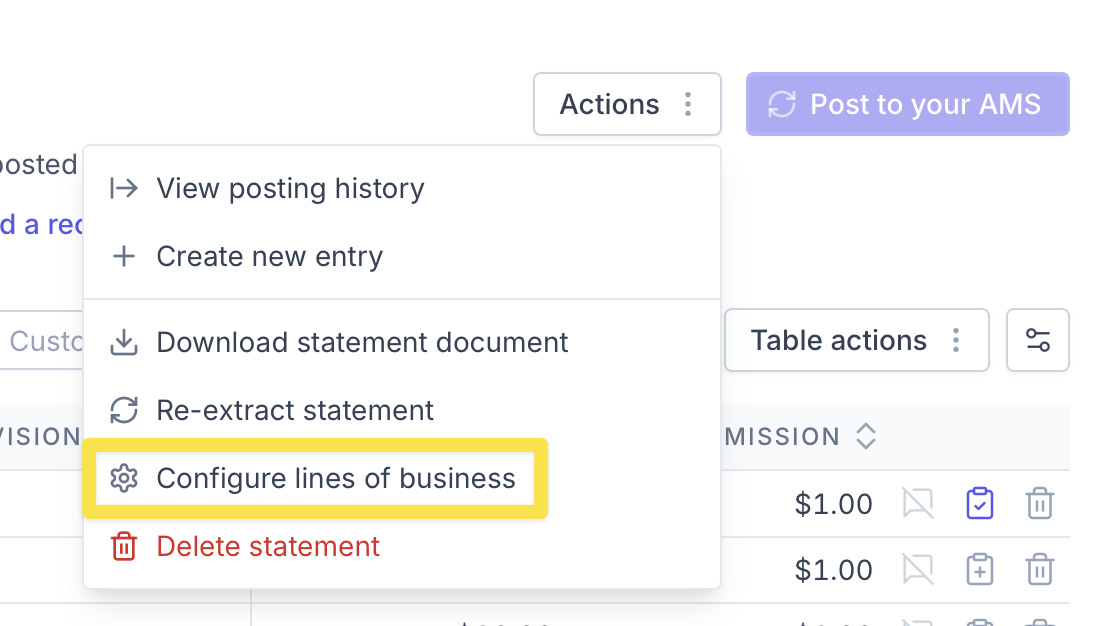
Click Actions in the upper-right corner of the page.

Select Configure lines of business.
A window will display the lines of business extracted from the carrier statement. For each statement value, open the dropdown and select the corresponding coverage type or types used in your AMS.
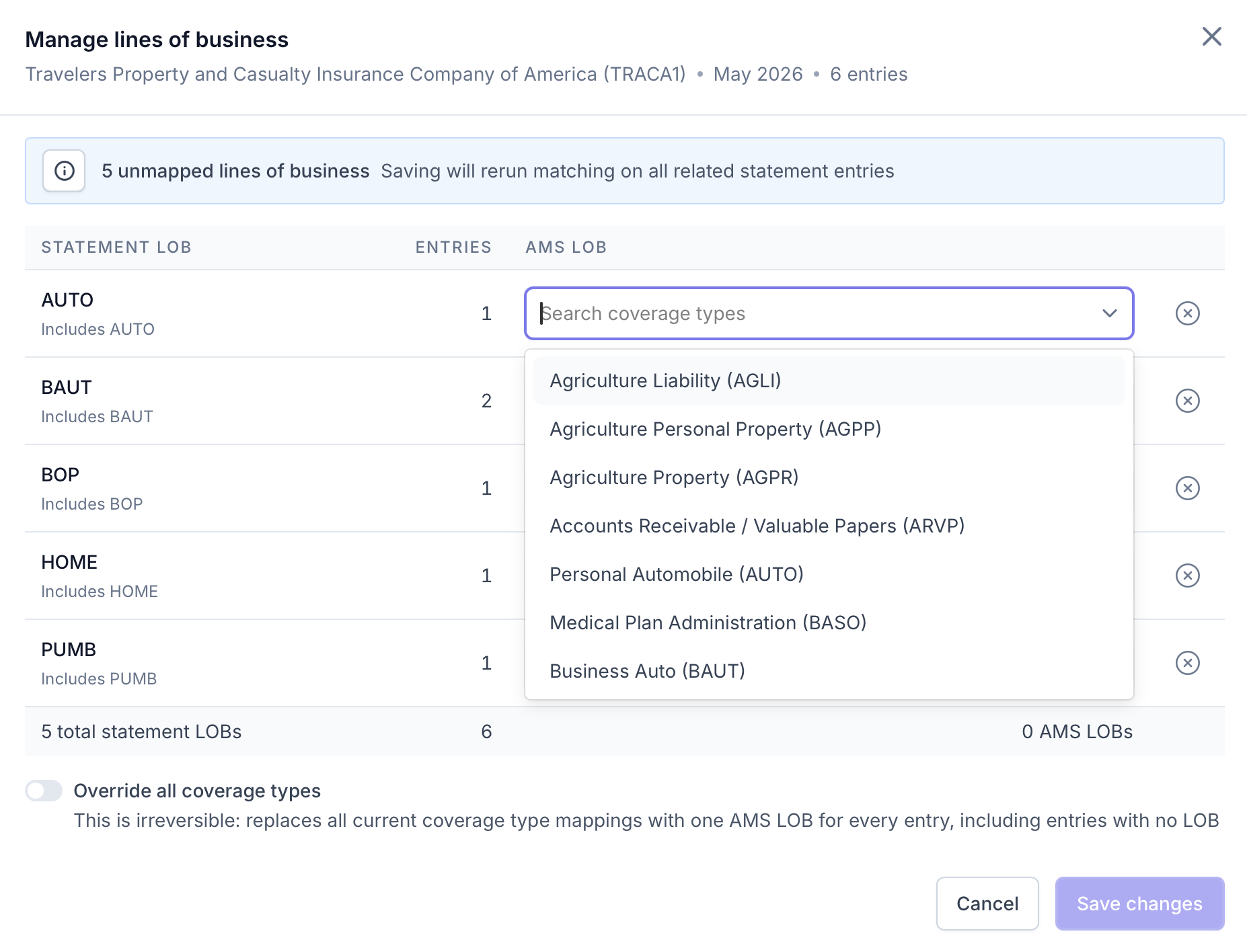
Review your selections and click Save changes.
After the changes are saved, Ascend reruns matching for the related statement entries using the updated mappings. This may increase the automatic match rate and reduce the amount of manual matching required.
Manage Existing Mappings
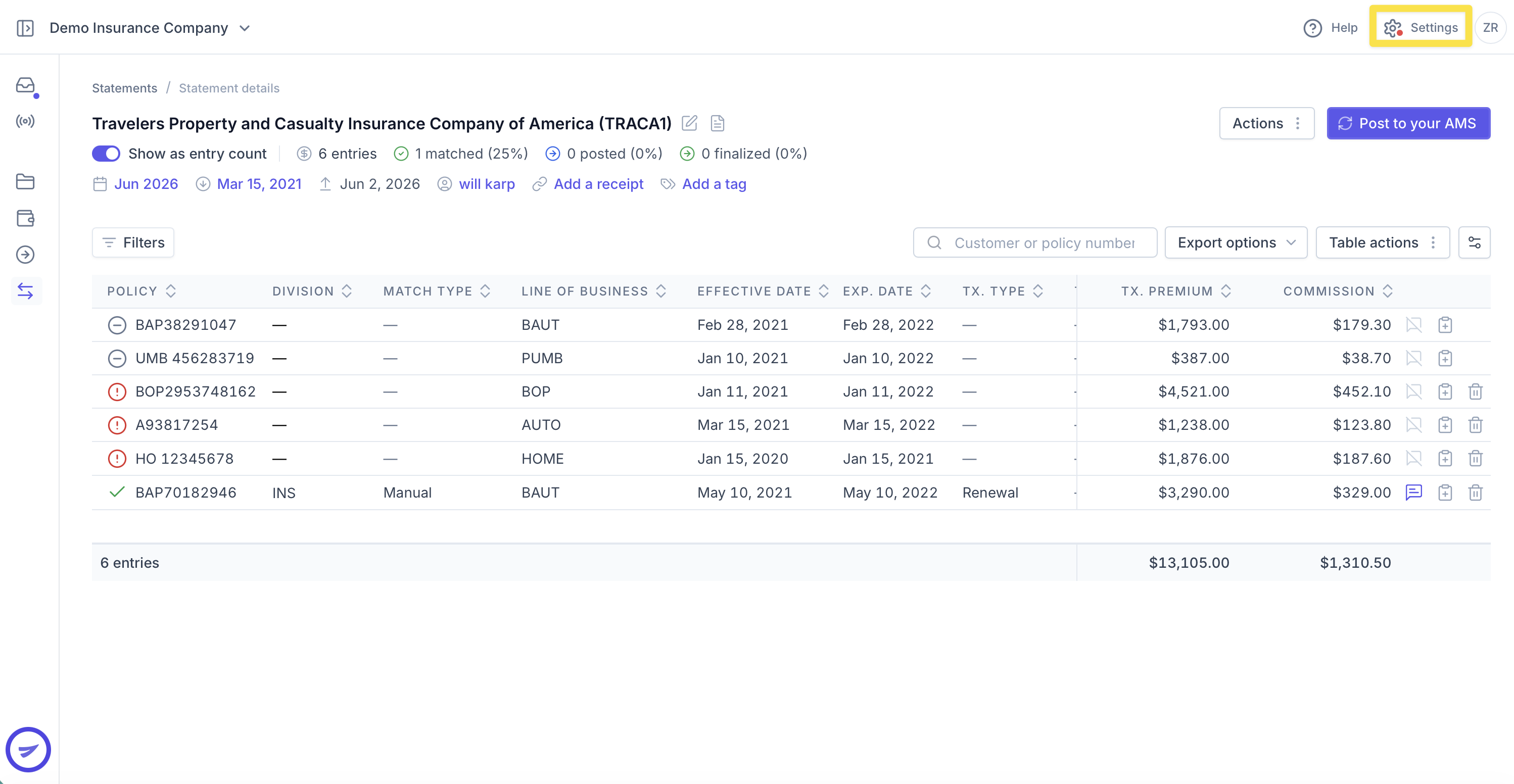
Admin users can review, update, or remove existing mappings from the Settings page.
Navigate to Settings.
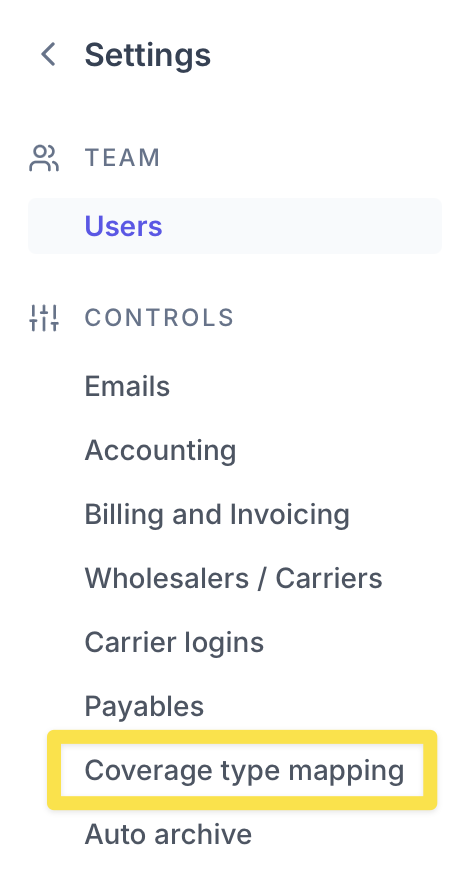
Under Controls, select Coverage Type Mapping.
Select the relevant coverage type mapping to open its details drawer.
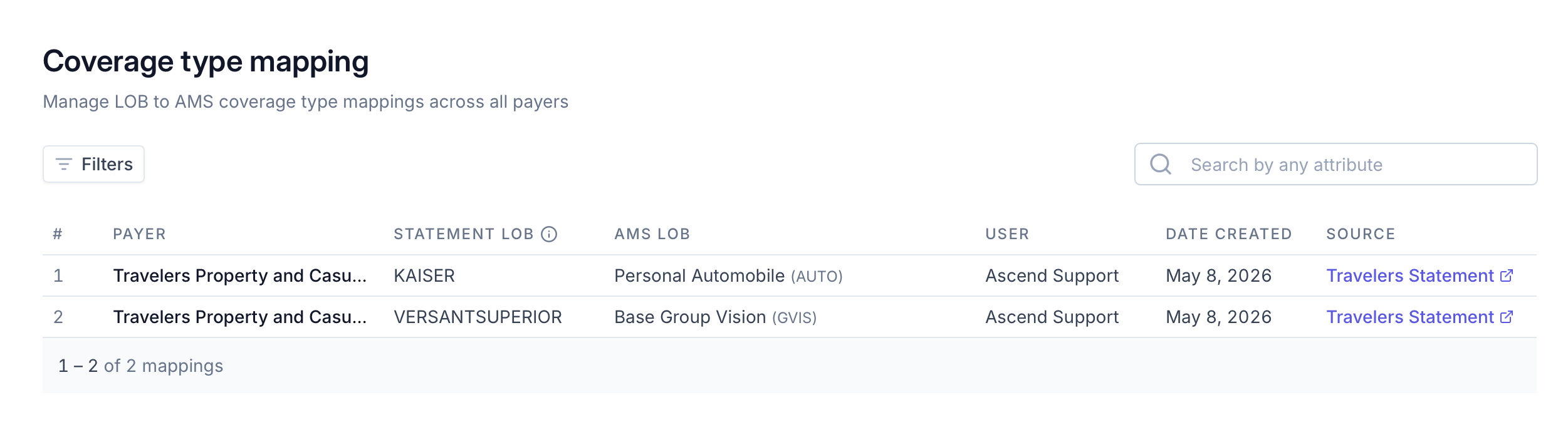
For each mapping, this page displays:
The associated payer
The line of business shown on the statement
The user who completed the configuration
The date the mapping was created
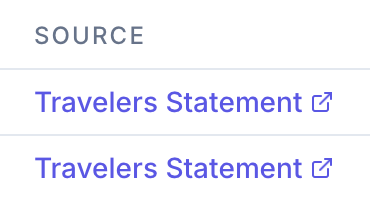
A link to the statement used to configure the mapping
Use the statement link to review the original context for the mapping before making any changes.
Remove an Individual Line-of-Business Mapping
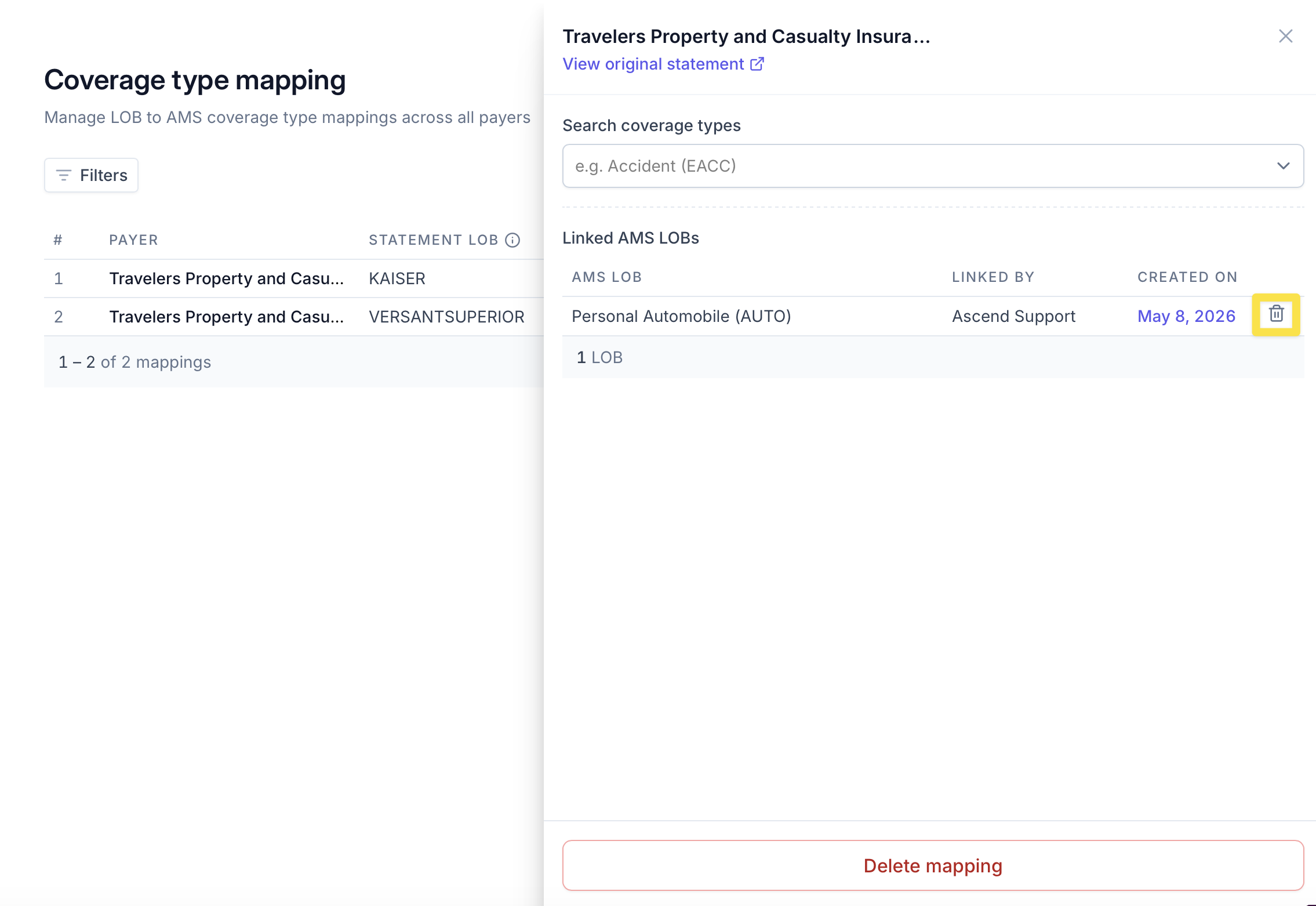
To remove a specific line-of-business mapping:
Open the relevant coverage type mapping.
Locate the line of business you want to remove.
Click the trash can icon next to that line of business.
Delete an Entire Coverage Type Mapping
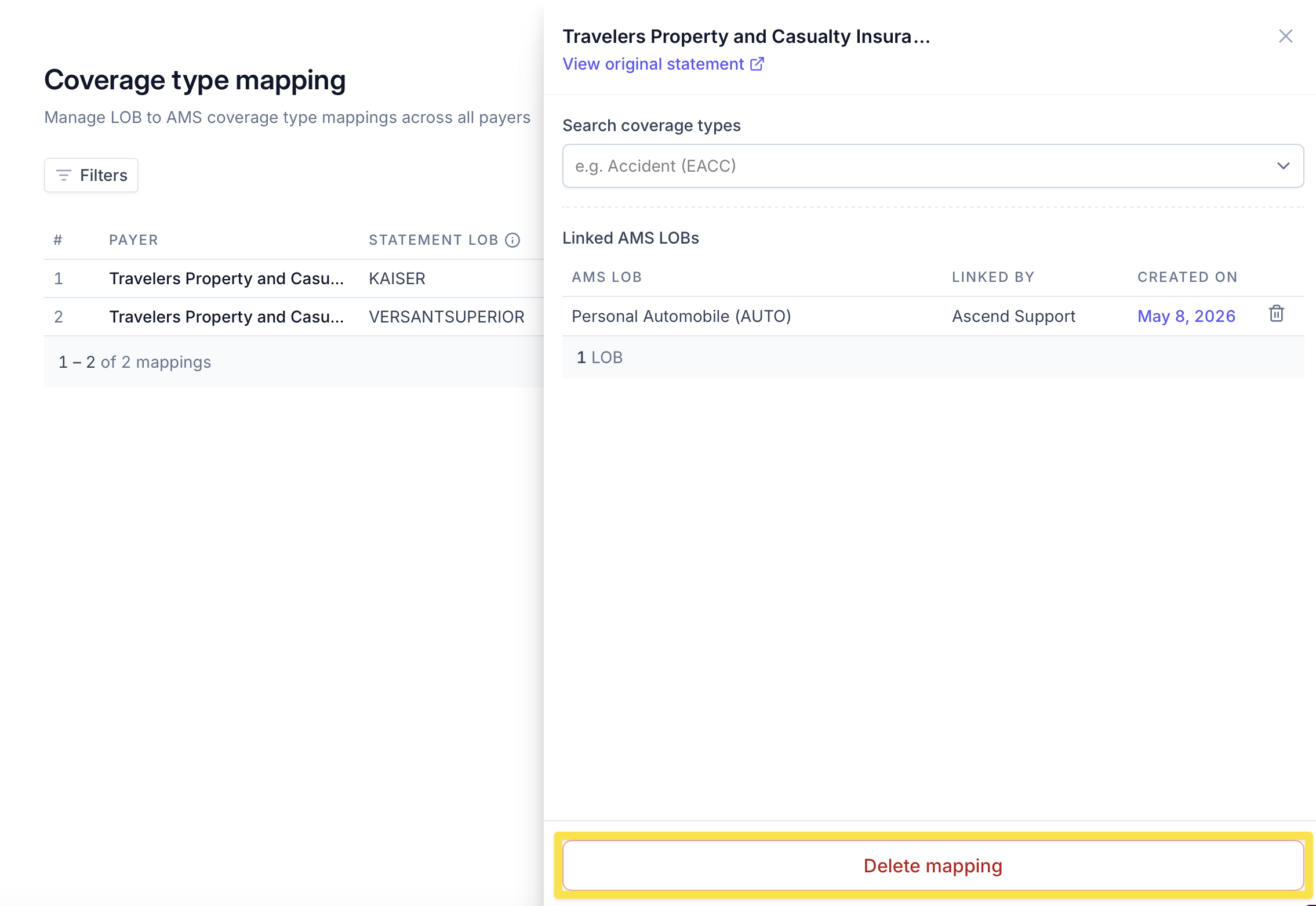
To remove the entire coverage type mapping:
Open the relevant coverage type mapping.
Select Delete mapping at the bottom of the drawer.
Review your selection carefully before removing a mapping, as this may affect Ascend’s ability to automatically match related statement entries.
Map All Coverage Types to One Line of Business
If every policy for a carrier should use the same line of business in your AMS, you can configure an override instead of mapping each statement value individually.
When this setting is enabled, Ascend uses the designated line of business when matching all entries from that carrier, regardless of the line of business or coverage type identified on the statement.
For instructions, see Mapping All Coverage Types.
Frequently Asked Questions
Why should I configure lines of business?
Configuring lines of business helps Ascend account for differences between the terminology used on carrier statements and the coverage types configured in your AMS. Aligning these values can improve policy matching.
Are mappings configured separately for each carrier?
Yes. Mappings are configured at the carrier level because carriers may use different terminology for the same type of coverage.
Can I map one statement line of business to multiple AMS coverage types?
Yes. You can select one or more AMS coverage types for each line of business extracted from a carrier statement.
What happens after I save a mapping?
Ascend reruns matching for the related statement entries using the updated configuration. Entries that were previously unmatched may match automatically if the new mapping identifies an eligible policy.
Where can I review existing mappings?
Admin users can navigate to Settings and select Coverage Type Mapping under Controls. This page provides a centralized view of the mappings configured for each carrier.
When should I use “Override all coverage types”?
Use Override all coverage types when every policy for a carrier should match to the same line of business in your AMS, regardless of the value shown on the statement. Use individual mappings when different statement values need to map to different AMS coverage types.
For additional guidance, see Mapping All Coverage Types.
Contact Us
Need more help? Contact us at [email protected] for more help.