Icon Legend
Last updated: October 7, 2026
Direct Bill Automation
This guide covers the Direct Bill Automation platform's icon system and how to interpret the visual indicators within the Statement Dashboard and Statement View.
Overview
The Direct Bill Automation platform includes a suite of visual tools designed to enhance transparency and streamline workflows associated with statement matching and posting. This guide serves as a reference for understanding the various icons used across the Statement Dashboard and Statement View, which visually represent the status of key activities such as payer identification, entry matching, and policy posting.
Statement Dashboard Orientation
Unique icons are populated in the Payer, Matched, and Posted columns.
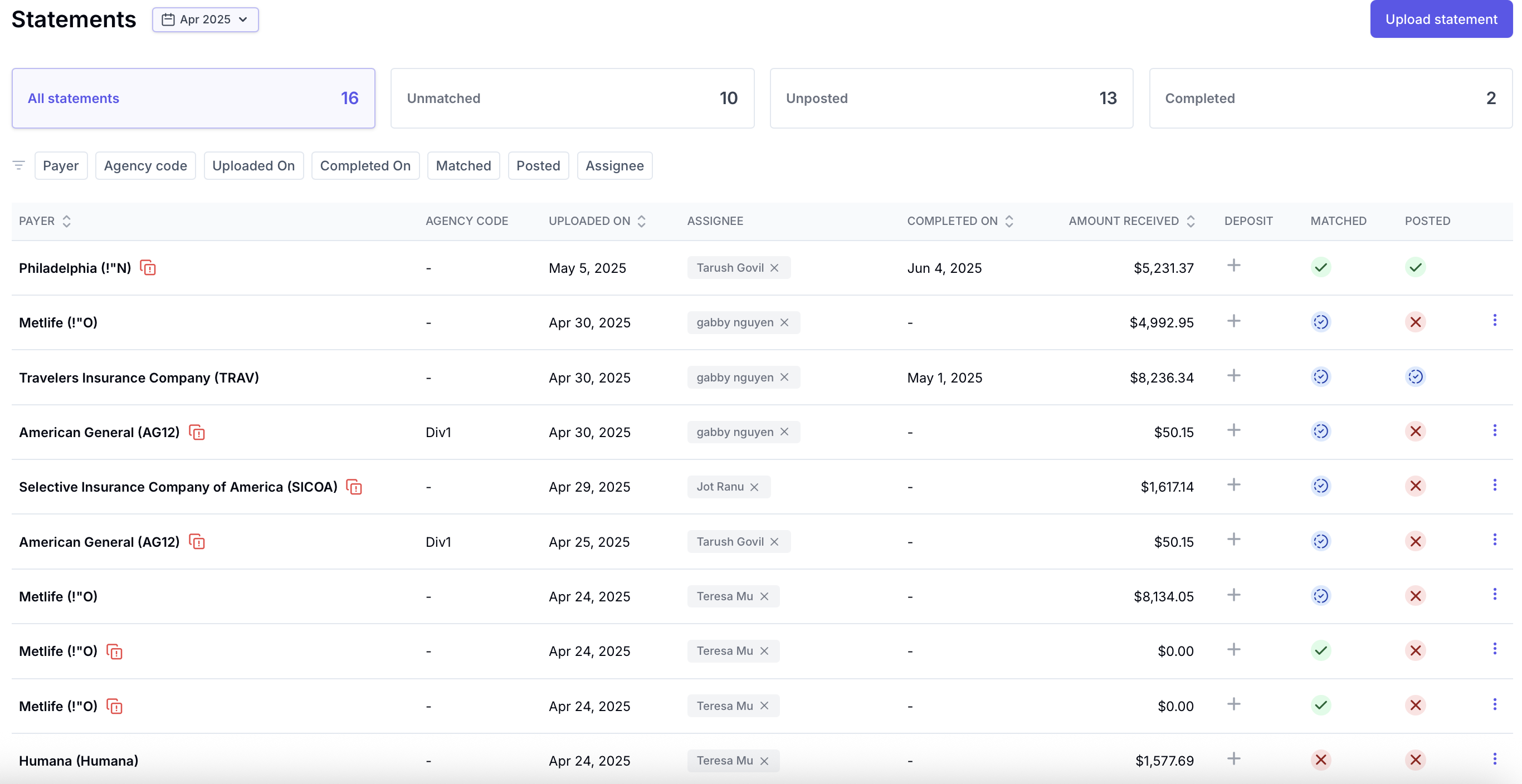
Payer Column
Document with Exclamation: Possible duplicate statement found.

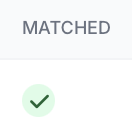
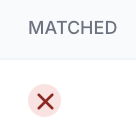
Matched Column
Green Circle: The statement has been completely matched.
Blue Circle: The statement has been partially matched.

Red Circle: None of the statement entries have been matched.
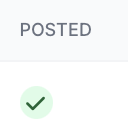
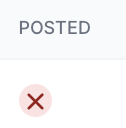
Posted Column
Green Circle: The statement has been completely posted to your AMS.
Blue Circle: The statement has been partially posted to your AMS.

Red Circle: None of the statement has been posted to your AMS.
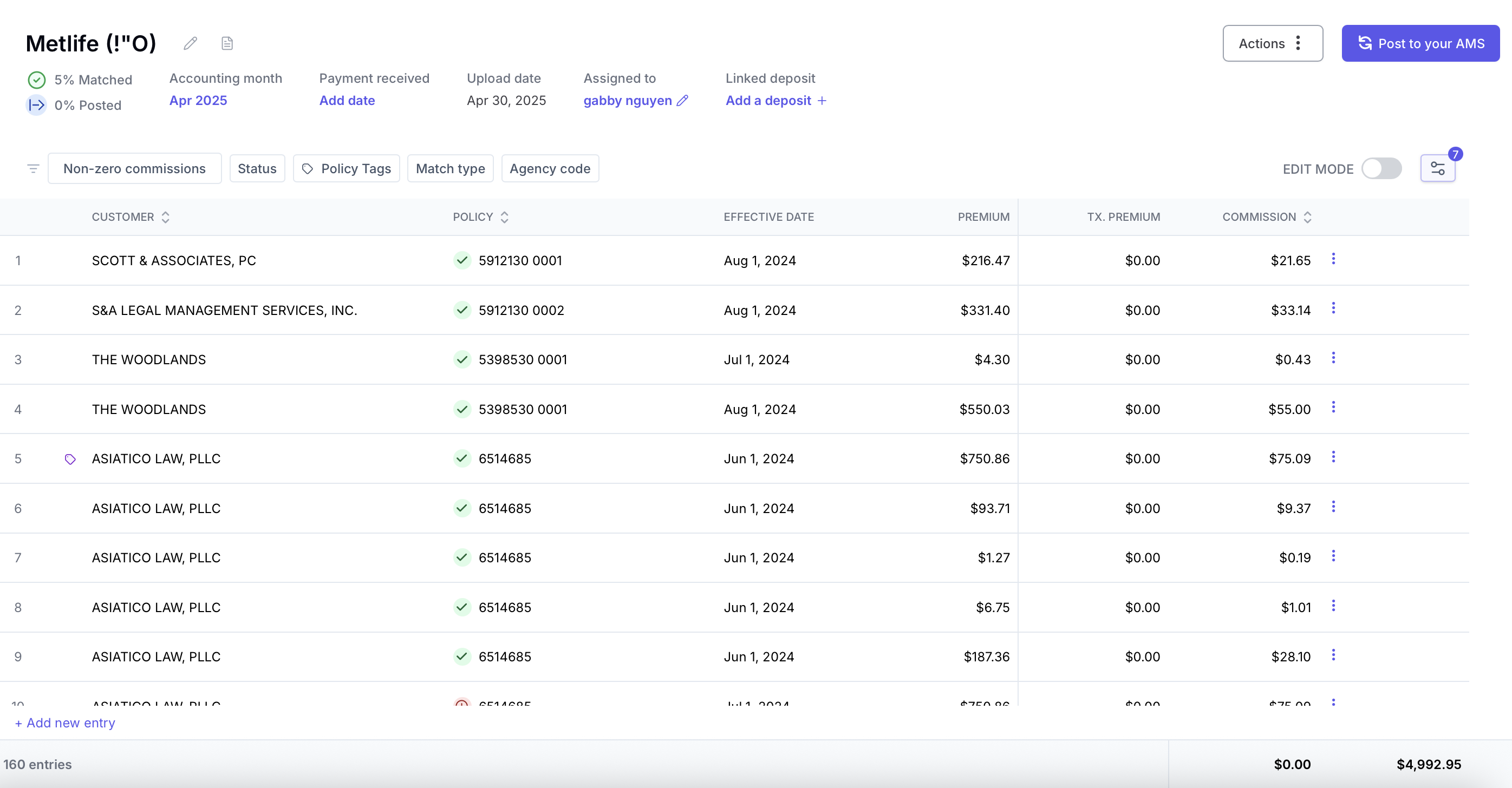
Statement View
Unique icons are populated in the Customer and Policy columns.
Customer Column
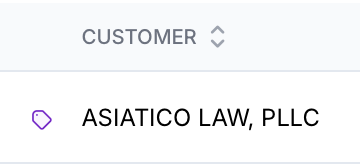
Tag Icon: Hover over the icon to view the assigned tag.
Sparkle Icon: Indicates a remembered match learned from a previous manual action.

Policy Column
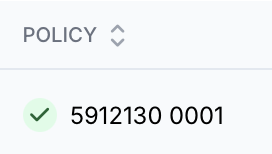
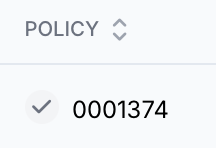
Green Circle: Entry is fully matched to a policy and line in your AMS.
Blue Circle: The entry has been partially matched. Matched to a policy but not a line.
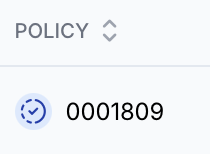
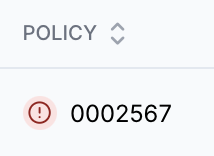
Red Circle: The entry has not been matched.
Grey Circle: The premium and commission for the policy are both $0 and will not be posted to your AMS.
Contact Us
Need more help? Contact us at [email protected] for more help.