Managing Communications in Ascend
Last updated: October 7, 2026
Direct Bill Automation
This guide covers:
Creating Epic Activities and sending emails for entry-level issues
Closing and reopening Epic Activities
Adding notes and attachments to Epic Activities
Tracking communications in the Communications Dashboard
Overview
Use Communications to follow up on issues related to individual statement entries. You can create an Epic Activity or send an email from an entry’s matching drawer, then track the communication in the Communications Dashboard.
Create an Epic Activity
Open the relevant entry’s matching drawer and navigate to the Communications tab.
Click + New activity.
Select the appropriate Activity code and click Continue.
Complete the required information.
Select any documents you want to attach:
Original document: The original commission statement uploaded to Ascend.
Upload a File: A document from your computer that is not already in Ascend.
Click Create activity.
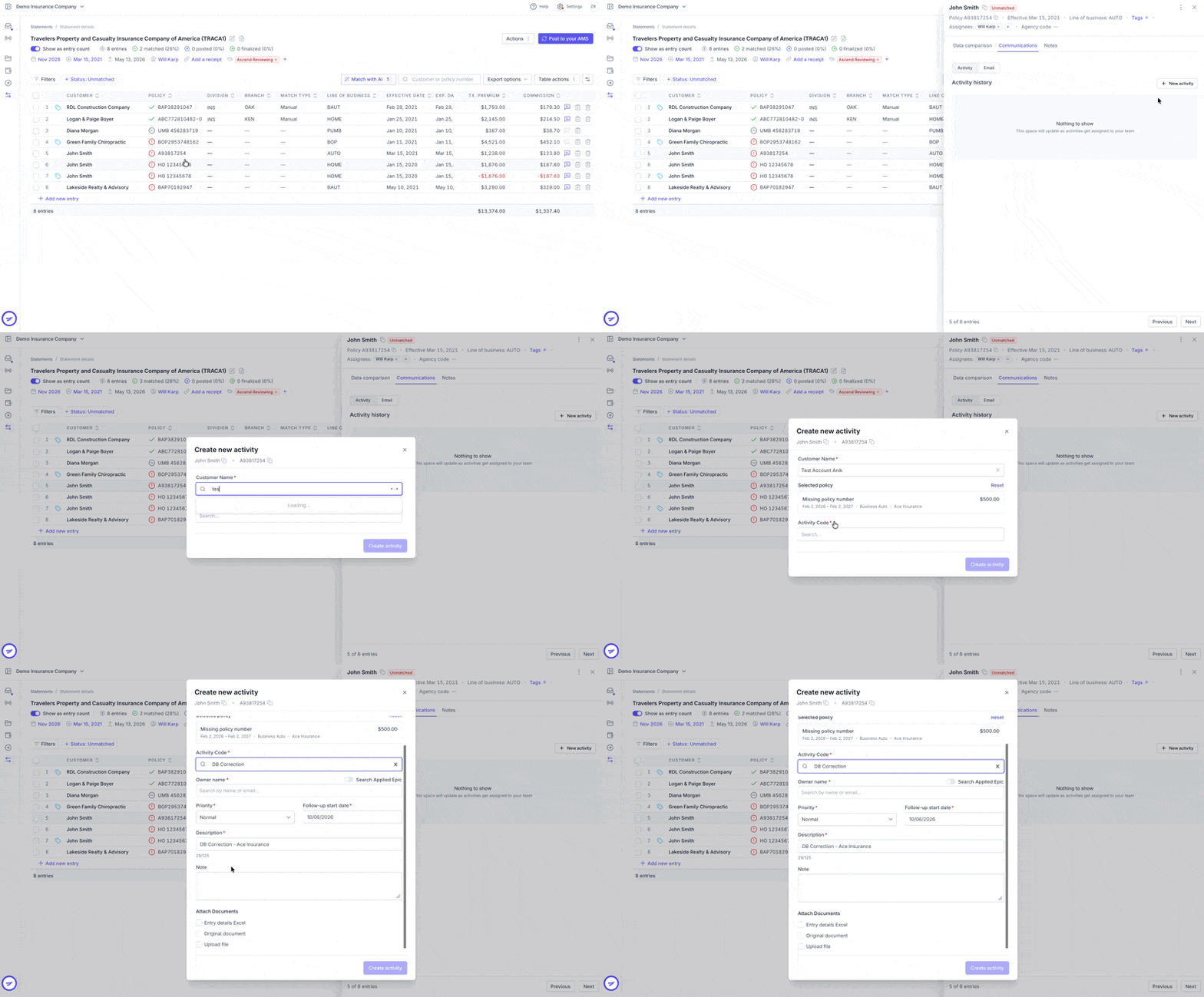
The Activity will appear in the entry’s matching drawer and the Communications Dashboard.
Manage an Epic Activity
You can close, reopen, or add notes and attachments to Activities created through Ascend.
To locate an Activity, open the relevant entry’s matching drawer and select the Communications tab. You can also select its row in the Communications Dashboard to open the associated communication directly.
Close an Activity
Open the relevant Activity.
Click the three vertical dots.
Select Mark as closed.
Reopen an Activity
An Activity created through Ascend can be reopened after it has been closed in either Epic or Ascend.
Open the relevant Activity.
Click the three vertical dots.
Select Reopen Activity.

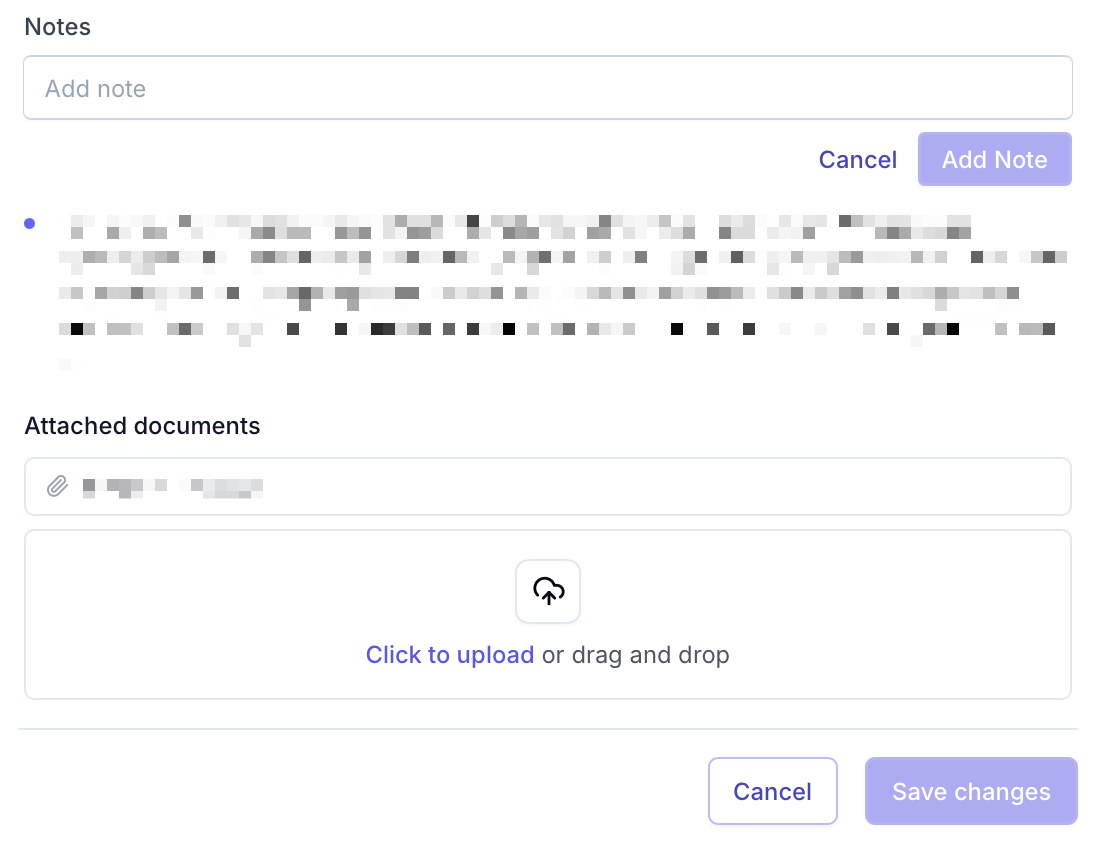
Add a Note
Open the relevant Activity.
Enter your note in the note field.
Click Add note.
Click Save changes.
Add an Attachment
Open the relevant Activity.
Drag and drop a file into the upload box, or select Click to upload.
Once the file is uploaded, click Save changes.
Send an Email
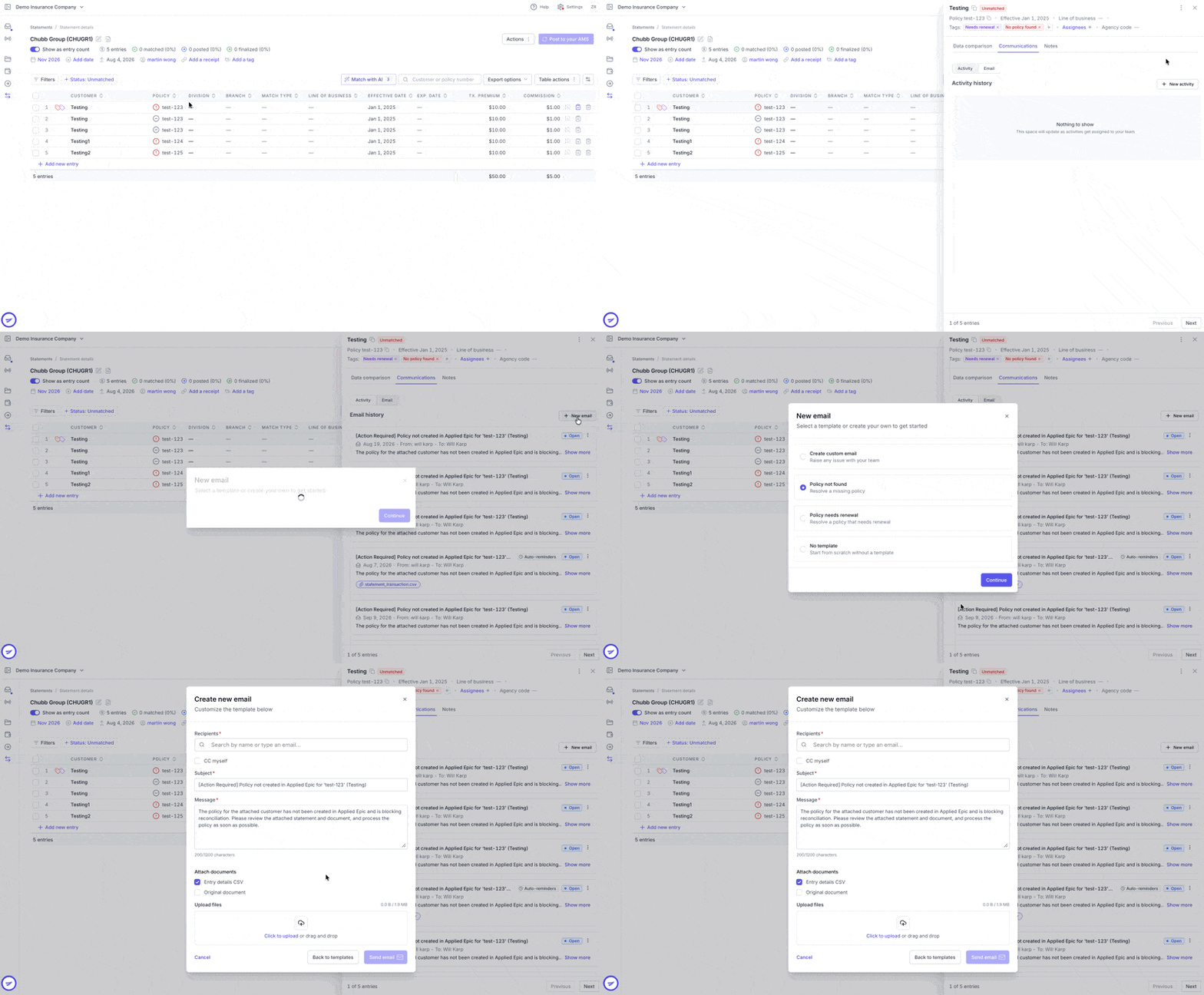
Open the relevant entry’s matching drawer and navigate to the Communications tab.
Click + New email.
Select the appropriate email template and click Continue.
Enter the recipient(s) and complete the required fields marked with an asterisk.
Choose whether to include attachments:
Entry details CSV: A CSV file containing only the related entry’s details from the statement.
Original document: The original commission statement uploaded to Ascend.
Select no attachments if neither is needed.
Review the email and click Send email.
The sent email will appear in the entry’s matching drawer and the Communications Dashboard.
Close an Email Communication
If you send an email by mistake and need to close the communication in Ascend:
Open the email communication.
Click the three vertical dots.
Select Mark as closed.
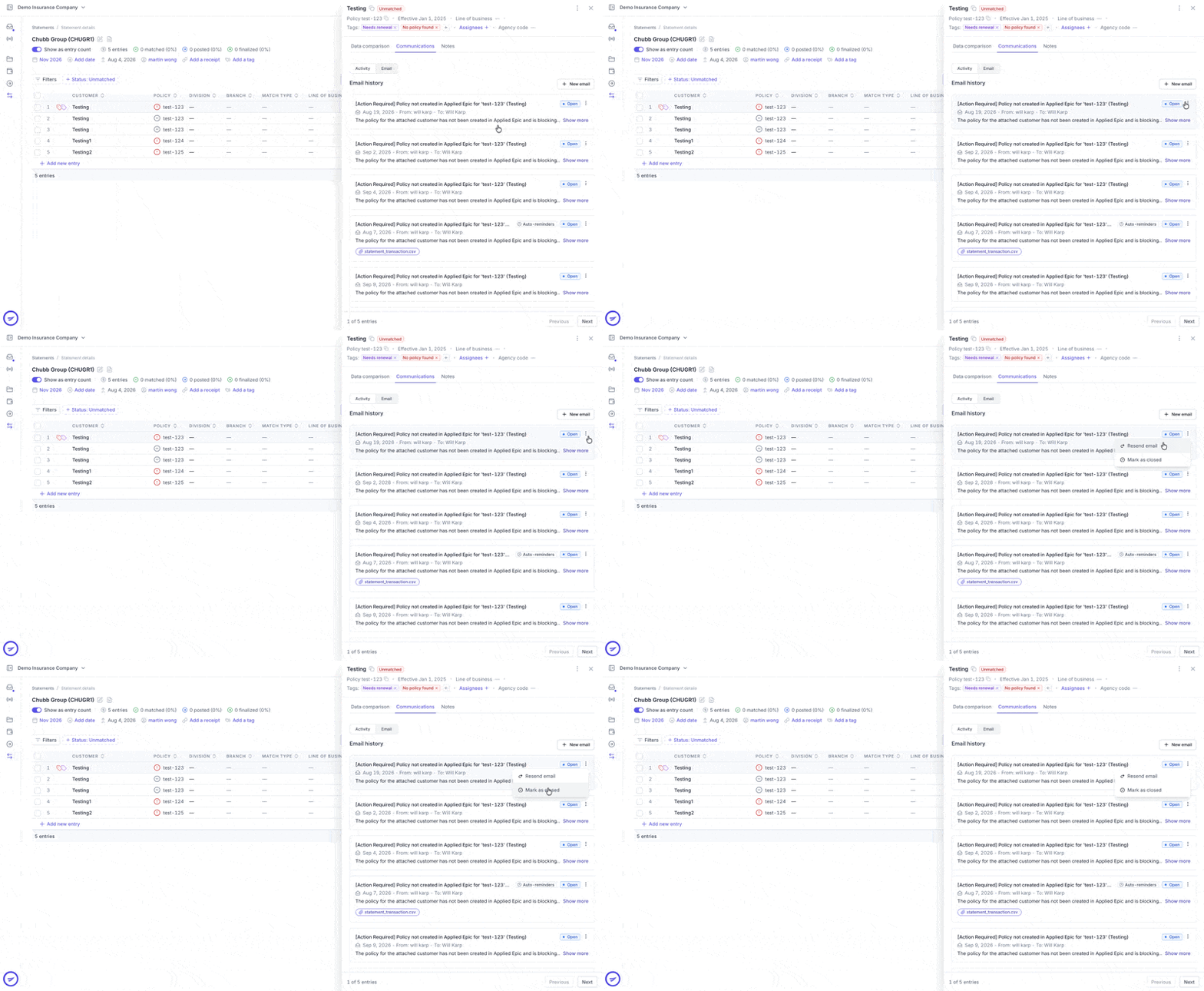
Marking an email as closed does not recall the sent email.
Track Items in the Communications Dashboard
The Communications Dashboard brings together all Epic Activities and emails created through Ascend, allowing you to track follow-ups and review their statuses.
Open the Dashboard
Click Communications, or the radio icon, in the navigation menu.
Find and Review Communications
Use filters to narrow the table to the communications you need to review.
Review each item’s status to track outstanding follow-ups.
Select a row to open the Communications section of the associated entry’s matching drawer.
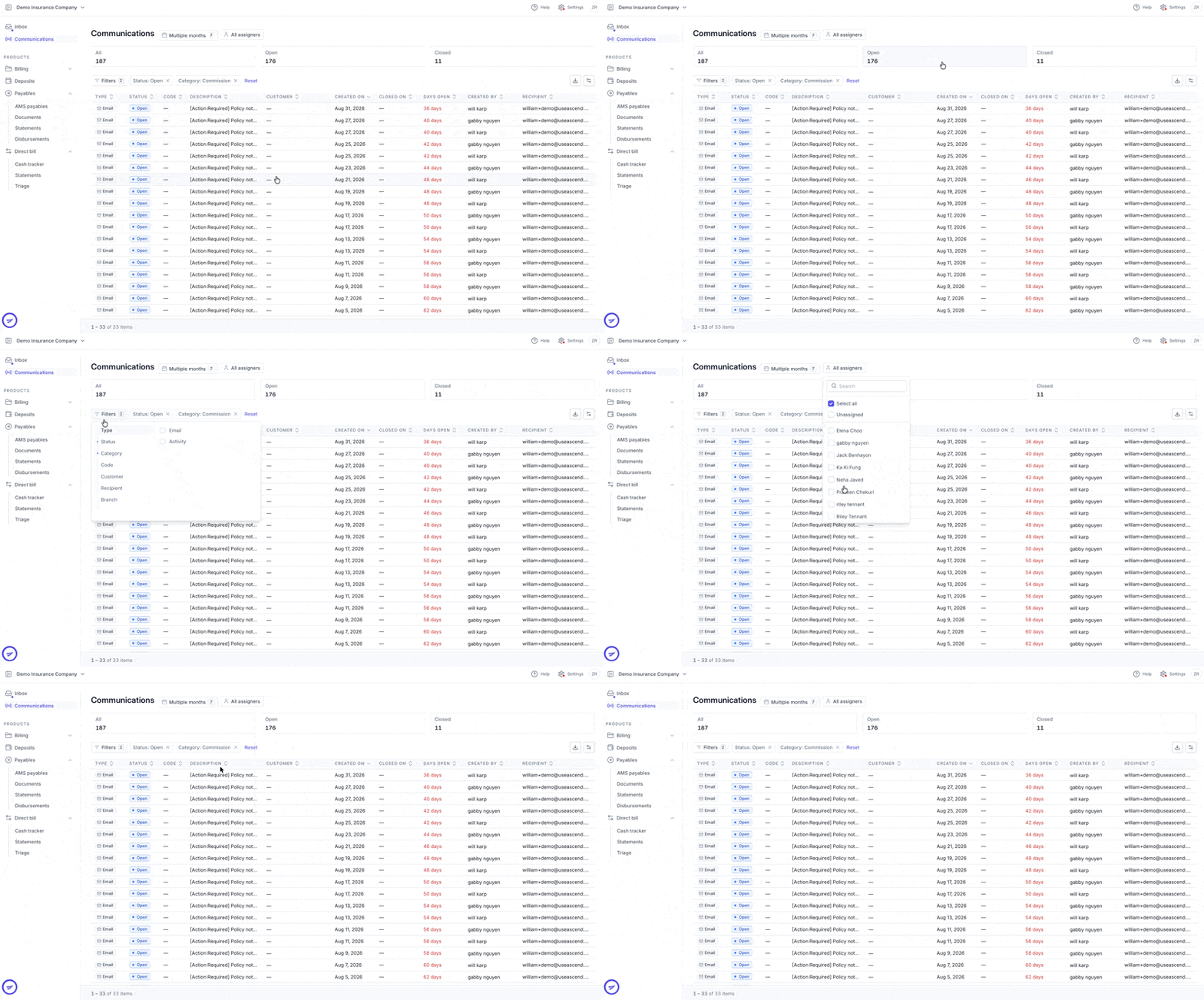
If you are a processor, your default view shows items assigned to you. Adjust the filters as needed to review other items.
Contact Us
Need more help? Contact us at [email protected] for more help.