Match with Cora
Last updated: November 24, 2026
This is a guide that will teach you:
When to use Cora
Running Cora with default or custom instructions
Writing effective instructions
Reviewing and correcting matches
Saving and reusing instructions
Viewing statement activity
Overview
Use Match with Cora to match remaining statement entries to policies in your agency management system (AMS). Ascend runs automatic and remembered matching first. Cora then works on the entries that are still unmatched.
Use the default instructions to try common matching patterns, or write custom instructions when you spot a specific difference between the statement and your AMS, such as a policy number prefix or leading zeros.
Before you begin
Check the statement data. Cora relies on accurately extracted statement data and the corresponding policy information in your AMS. If a field was extracted incorrectly, report it to your Customer Success Manager so the extraction can be corrected.
Check your coverage type mappings. Cora uses your configured mappings for line-of-business matching. A missing mapping can prevent an entry from matching fully.
Run Cora on a statement
Upload the statement and let Ascend complete automatic and remembered matching.
Review the unmatched entries for recurring differences between the statement and your AMS, such as prefixes, suffixes, spaces, or leading zeros in policy numbers. Check whether multiple policy terms could match.

Click Match with Cora.

Choose how to match the remaining entries.
Option | What to do |
|---|---|
Default instructions | Leave the Custom matching box blank. Cora will use Ascend’s default instructions, which cover common patterns customers have reported. |
Custom instructions | Describe the pattern in the Custom matching box. You can write instructions from scratch, use a template, or select a saved prompt for the payer. |
Run the match. Cora applies your instructions to the currently unmatched entries only.

If entries remain unmatched and you spot a different pattern, enter a new set of instructions and run Cora again. Each run evaluates only the entries that are unmatched at the time.
Write Effective Instructions
Tell Cora which field to compare, how to handle differences, and which policy term to use when more than one could match.
“Compare only the digits in the policy number and match to the policy term that became effective in 2026.”
Name the field and the difference. For example, “Ignore spaces and dashes in the statement policy number.”
Specify the policy term. If the policy has multiple terms in your AMS, include the effective date or policy year.
Use one pattern per run. If a statement has several unrelated patterns, run Cora separately for each one so you can review the matches each instruction produced.
Use an instruction template
Open Match with Cora.
Type
/in the instructions box to see the available templates.
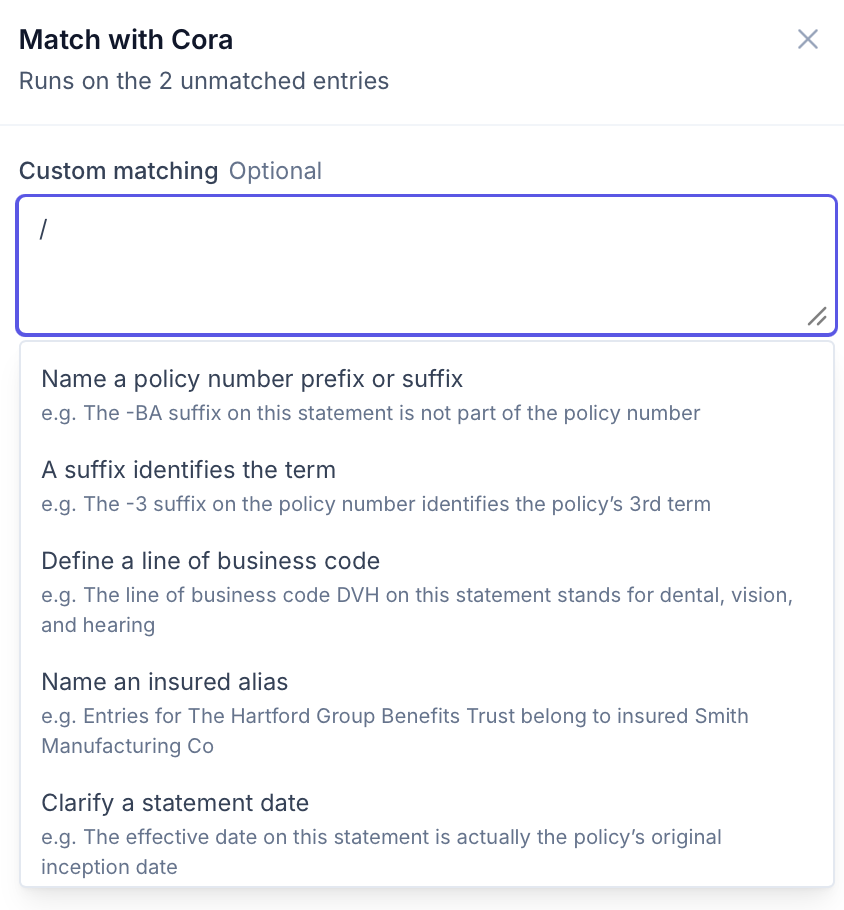
Select a template and fill in the blanks to describe the pattern on your statement.
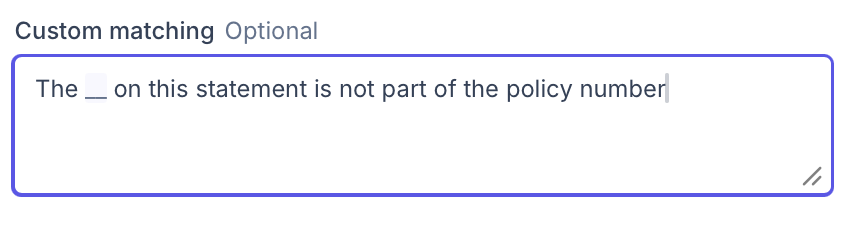
The same templates are available for every statement.
Review and Correct Matches
After a run, click Review. The QA view shows the entries Cora matched in that run.

Check that each entry matched to the correct policy and term.

If any matches are incorrect, select those entries and use the bulk unmatch workflow.
Always review Cora’s matches before posting the statement.
Save and Reuse Instructions
After reviewing a successful run, click Save Prompt to keep the instructions for other statements from the same payer (PPE).
To reuse saved instructions:
On another statement from the same payer, open Match with Cora.

Select the instructions under Saved Prompts.
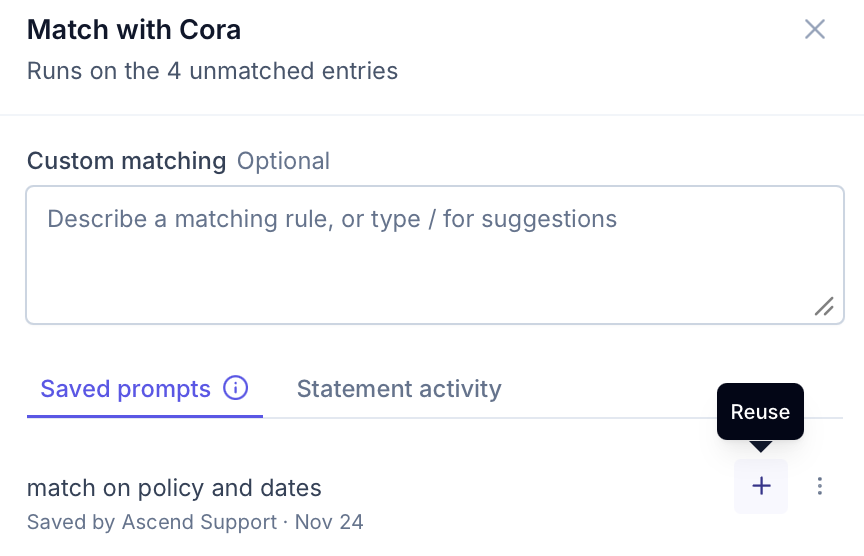
Confirm the run by clicking Match entries.
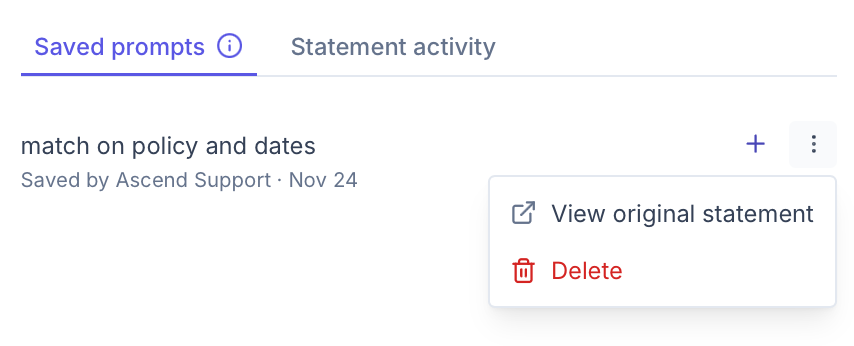
Saved prompts run only when you select and apply them. To delete a saved prompt, open the three-dot menu next to it and select Delete.
View Statement Activity
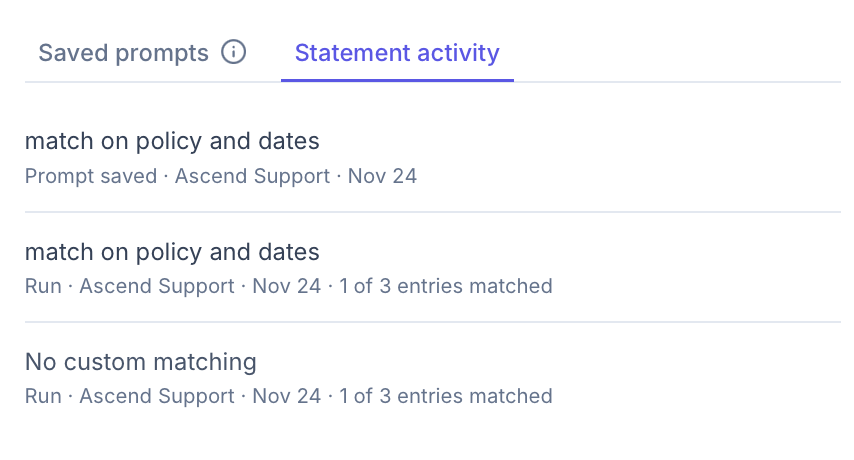
Open Match with Cora, then open Statement Activity. You can see which instructions were run, saved, reused, or deleted, who took each action, and how many entries matched in each run.
Review saved Cora prompts as an admin
Admins can review all saved Cora prompts in Settings.
Click Settings in the top-right corner of Ascend.

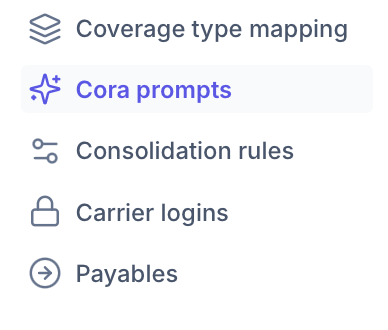
Select Cora Prompts from the left menu.
Review the details for each saved prompt. The table shows the Payer, Prompt, Source, Created By, and Created On.
Click the link in the Source column to open the original prompt. From there, you can review it and delete it if needed.
Contact Us
Need more help? Contact us at [email protected] for more help.