Filtering in the Documents Dashboard
Last updated: September 19, 2026
This is a guide that will teach you:
Use Quick Filters
Documents View
Entries View
Use Table Filters
Enable Global Filters
Overview
Ascend makes it easier to find and manage documents and entries by providing several filtering options within the Documents Dashboard. Use Quick Filters, Table Filters, Custom Views, and Global Filters to focus on the information most relevant to you.
Quick Filters
Each view in the Documents dashboard (Documents & Entries) has pre-set quick filters, displayed as rectangles across the top of the workspace, to help users distinguish different groups of documents and entries by status.
Documents View

Filter | Description |
|---|---|
All statements | The total number of documents uploaded. |
Unmatched | Your primary action queue. Contains statements with one or more line items that could not be automatically matched to a transaction in Epic. These require manual intervention. |
Undisbursed | Fully matched and reconciled statements that are pending payment to the carrier. |
Disbursed | Statements that have been fully paid. |
Entries View

Status | Description |
|---|---|
Needs Invoicing | Policies need to be invoiced. |
Invoice Discrepancy | Data mismatches between AMS and linked document data. |
Unpaid AR | Invoices issued but payment not yet received. |
Ready to Payout | Fully reconciled transactions pending disbursement. |
Completed | Entries that have been fully disbursed within Epic. |
Custom Views | Filtered views that have been saved unique to each user. For more information on how to configure Saved Views, please visit this article. |
Table Filters
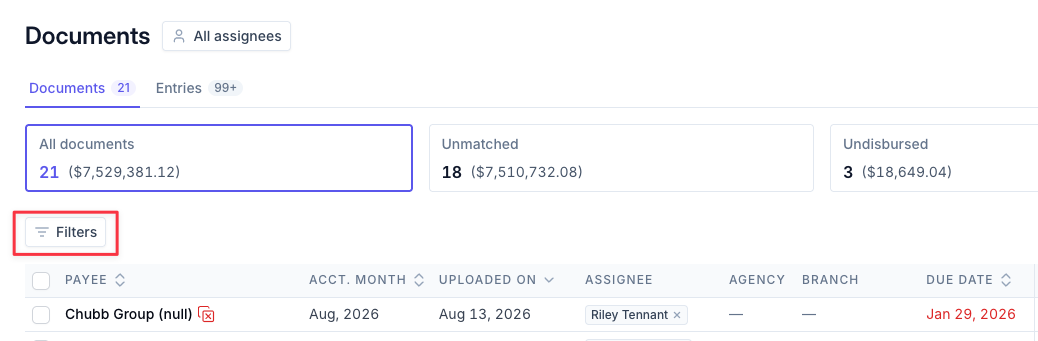
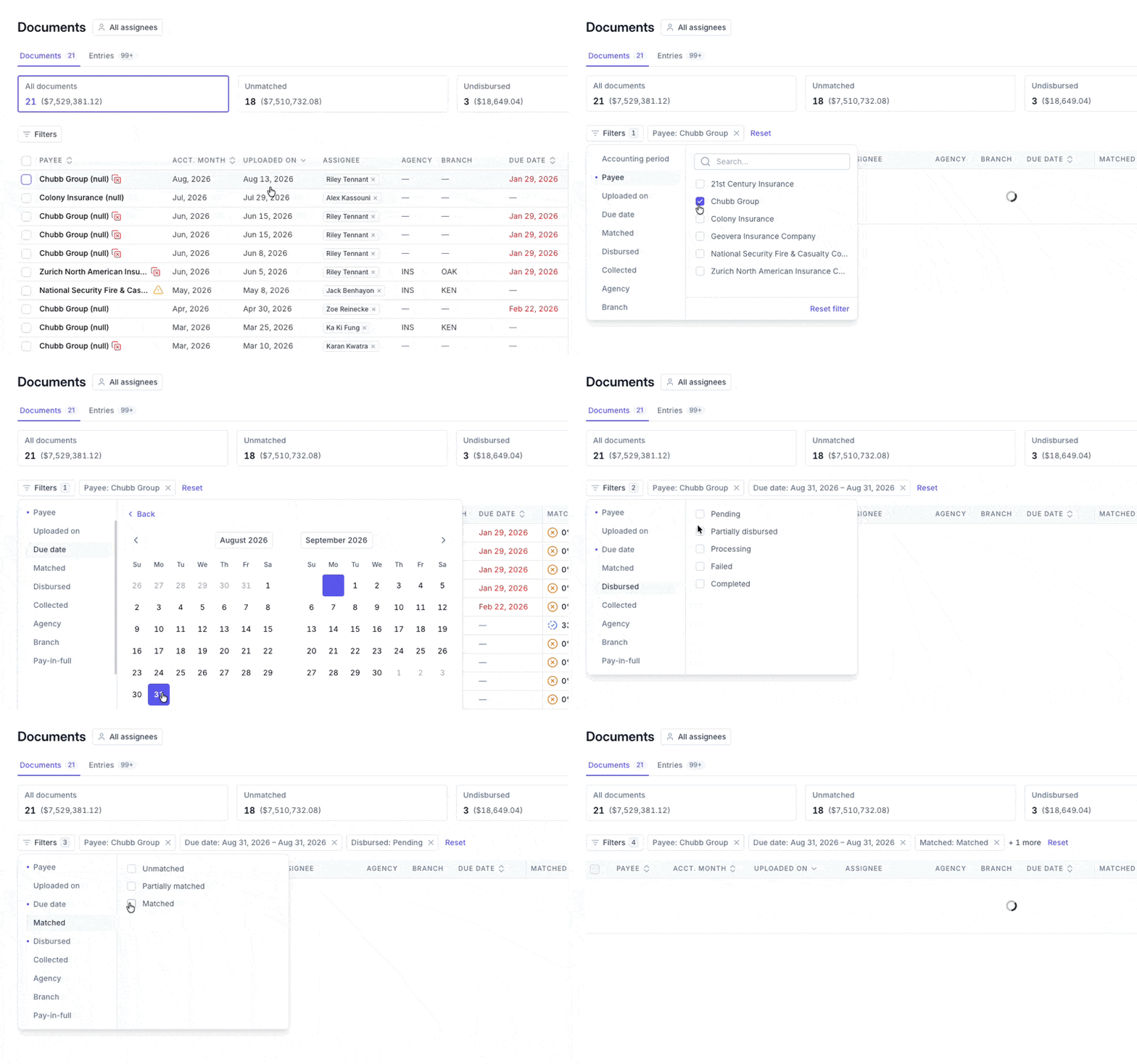
Table filters are an additional way for users to restrict the documents or entries that are visible at a given time.
Locate the filter options above the table in either the Documents or Entries view.
Add one or more filters, such as payee, AP due date (including overdue), matched, collected, and disbursed statuses, to narrow the table to only the records you need.
Global Filters
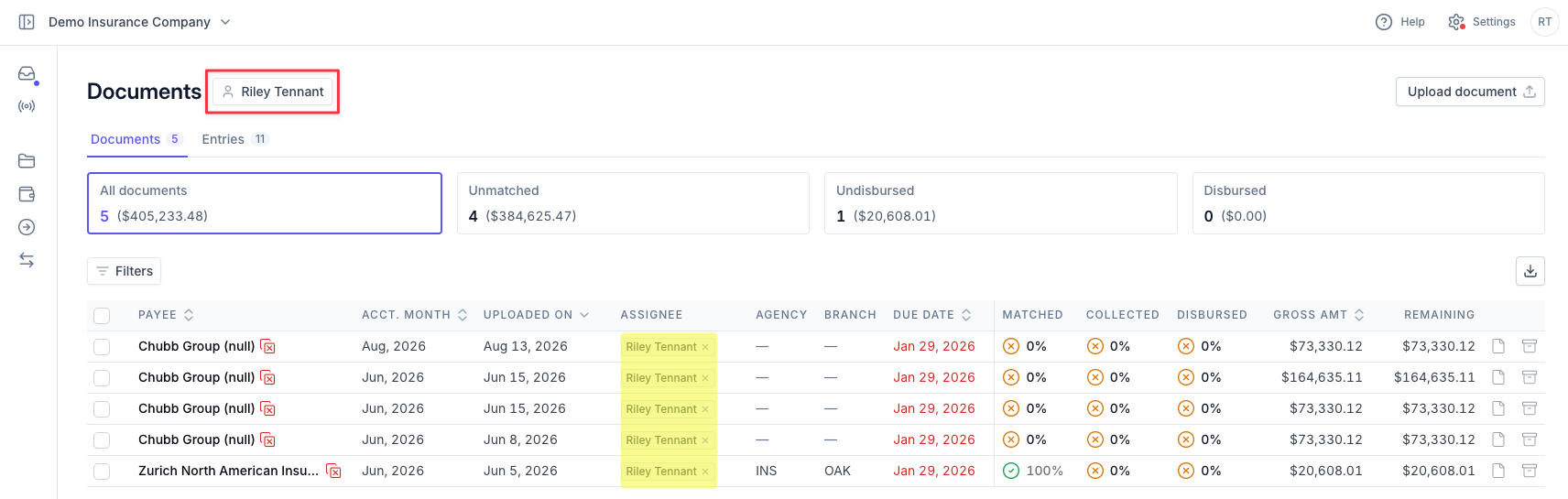
Global filters are not enabled by default. Please reach out to your Customer Success Manager if you'd like this enabled in your org's dashboard.
Once enabled, Global Filters allow you to automatically set your default view to only the documents/entries that are assigned to you, without having to apply table filters each time.
Contact Us
Need more help? Contact us at [email protected] for more help.