Statement Consolidation
Last updated: October 7, 2026
Direct Bill Automation
This is a guide that will teach you:
How statement consolidation works
Which fields you can use to group entries
How to update consolidation rules
What happens when you save changes
Overview
Statement consolidation combines related entries into a single line, helping your team spend less time reconciling large statements line by line.
Ascend groups entries when their values match across all selected consolidation fields. Entries with different values in any selected field remain separate.
For example, selecting line of business, effective date, and expiration date keeps entries separate when they belong to different lines of business or policy terms.
Available Consolidation Fields
Customer name and policy number are always required. You can select additional fields to control how entries are grouped.
Field | Required? | How it affects grouping |
|---|---|---|
Customer name | Yes | Entries must have the same customer name. |
Policy number | Yes | Entries must have the same policy number. |
Line of business | No | Keeps entries with different lines of business separate. |
Effective date | No | Keeps entries with different effective dates separate. |
Expiration date | No | Keeps entries with different expiration dates separate. |
Transaction date | No | Keeps entries with different transaction dates separate. |
Transaction type | No | Keeps entries with different transaction types separate. |
Select the fields your team needs to distinguish during reconciliation. To keep different policy terms separate, select both effective date and expiration date.
Update Consolidation Rules
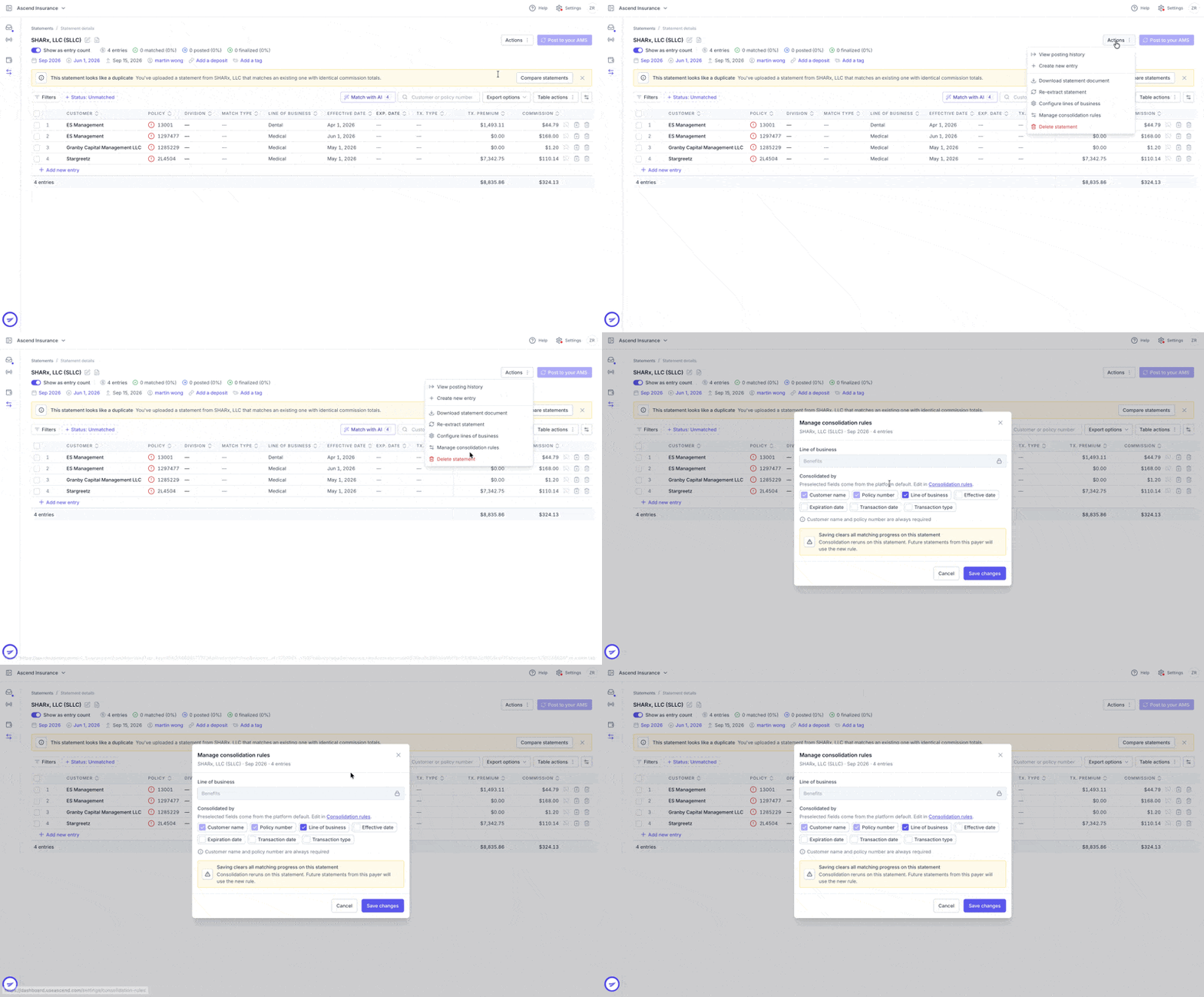
Open the statement you want to consolidate.
Open Manage consolidation rules.
Under Consolidated by, review the selected fields. Preselected fields come from the platform default.
Select or deselect the optional fields based on how you want entries grouped. Customer name and policy numberremain selected.
Review your selections, then click Save changes.
Important: Saving changes clears all matching progress on the current statement and reruns consolidation. Future statements from the same payer will use the new rule. Review the selected fields carefully before saving, especially if your team has already started matching the statement.
Platform Default Rules
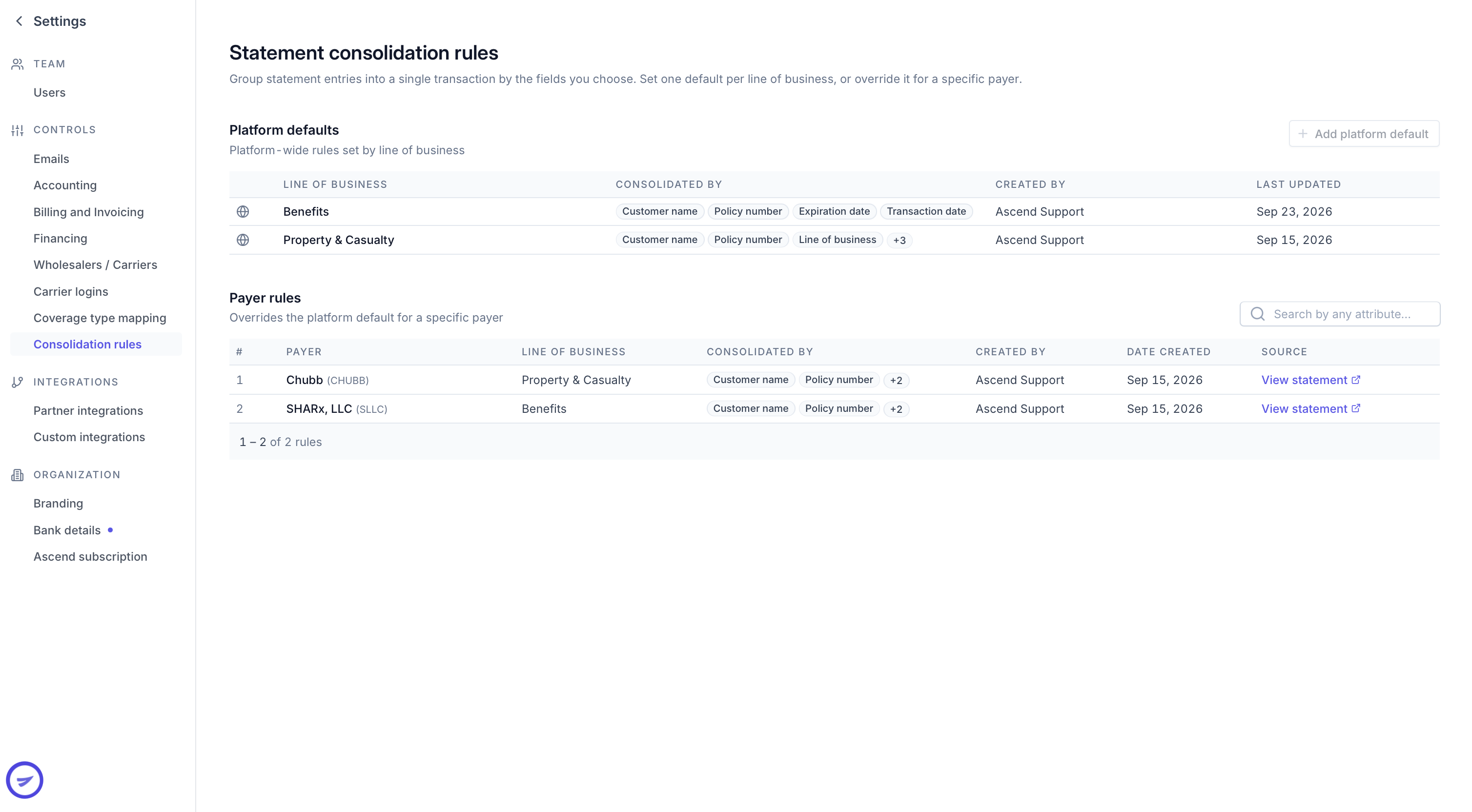
Platform default rules determine the initial fields Ascend uses to consolidate statement entries.
To review or update these rules:
Go to Settings.
Select Consolidation rules.
Choose whether the rule applies to all statements or specific payers.
Select the consolidation fields and save your changes.
These rules help your team group entries consistently across statements.
Contact Us
Need more help? Contact us at [email protected] for more help.