Commission Adjustment Workflow Guide
Last updated: September 19, 2026
This is a guide that will teach you how to:
What is commission adjustment in Ascend
How does my organization implement this feature
The commission adjustment workflow
Overview
Ascend automatically adjusts commission amounts up to a customizable dollar threshold when there's a discrepancy between the AMS payable transaction and the carrier documentation.
Implementation
Commission adjustment policies vary by organization. Contact your Ascend CSM to discuss adoption details.
Workflow
Open up the Matching drawer & match to a policy to view the associated AMS payable transaction.
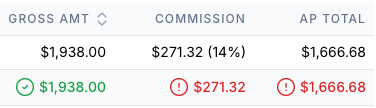
Select the transaction(s) you'd like to match in the AMS payables section. Ascend flags discrepancies by amount text color: green means no discrepancy between what's billed in Applied Epic and the Carrier Documentation, red means there is one.
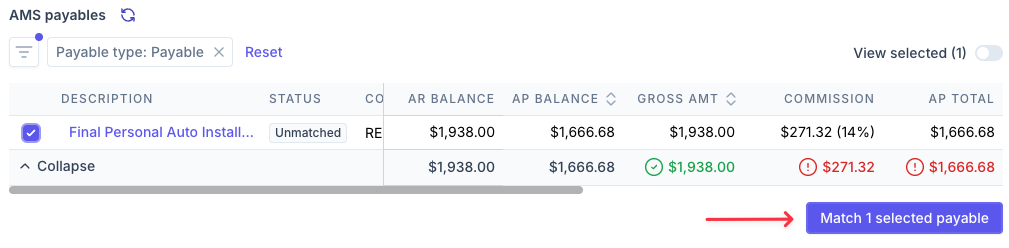
Match the payables and confirm Mark as matched in the discrepancy warning pop-up.
If the adjustment falls within your organization's threshold, the automatic adjustment calculations appear at the bottom of the Matching Drawer.
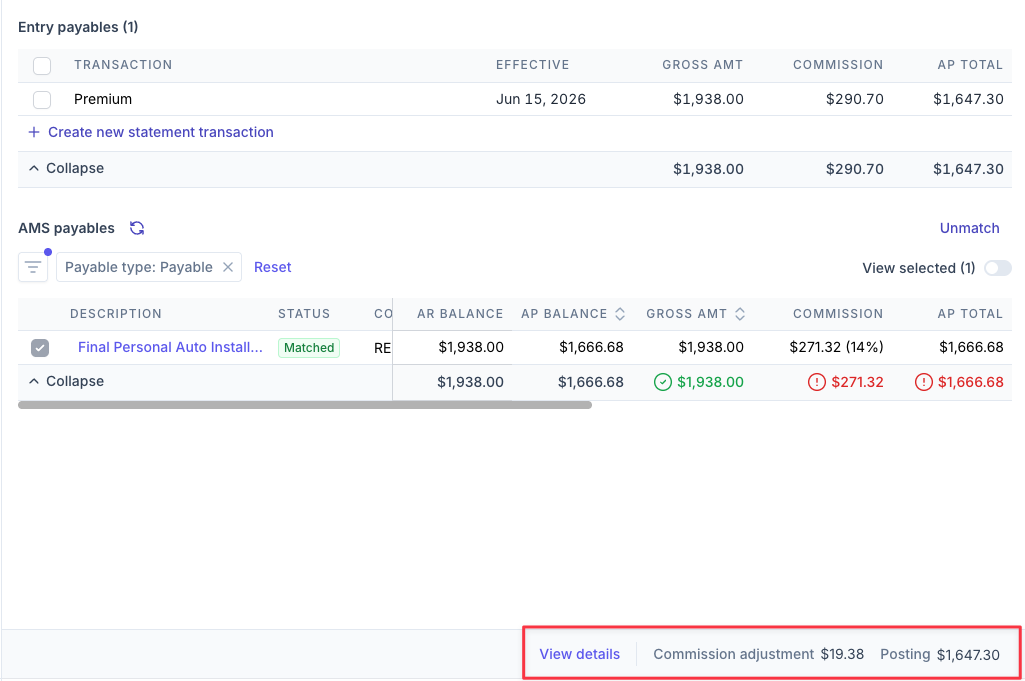
Click View details to compare a snapshot of how the transaction will post in Applied Epic:
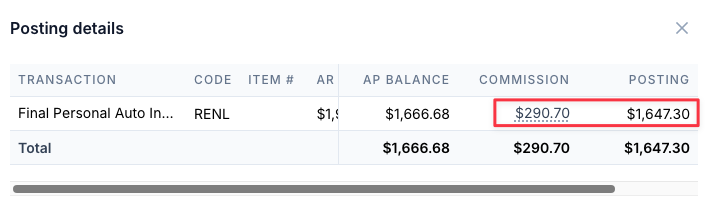
Against how it's currently billed in the Matching Drawer:

FAQs
I've selected a transaction - why am I not seeing the commission adjustment details?
You will only see the View details footer of the matching drawer if you've selected Match selected payable and the discrepancy falls within your organization's threshold for allowed adjustments.
Why did the commission and AP Total amounts in AMS payables not update to the adjusted amounts?
Ascend will adjust the transaction at the time of posting the payable statement. You will not see any changes to amounts prior. To view a preview of how the transaction will look in Applied Epic after posting, use the View details feature.
Contact Us
Need more help? Contact us at [email protected] for more help.