Assign Payers to Direct Bill Statements
Last updated: September 3, 2026
Direct Bill Automation
This guide explains:
How to assign or update the payer on a Direct Bill statement
How Ascend determines which payers are available
What to do if the payer you need does not appear in Ascend
Overview
Each Direct Bill statement must be associated with the correct payer, such as a carrier, wholesaler, or managing general agent (MGA). Ascend uses the selected payer to help identify the policies that may correspond to the statement entries.
Ascend attempts to identify the payer automatically when a statement is uploaded. You can review and update this selection before processing the statement or make changes afterward from the Statements page.
If the correct payer is not available, confirm that it is associated with an active policy in your agency management system (AMS). You may need to import an active policy into Ascend before the payer becomes available for selection.
Assign or Update a Payer
You can assign or update a payer from the Inbox before processing a statement or from the Statements page after it has been processed.
Option 1: From the Inbox
When a statement is in the Inbox with an Unprocessed status:
Select the statement you want to process.
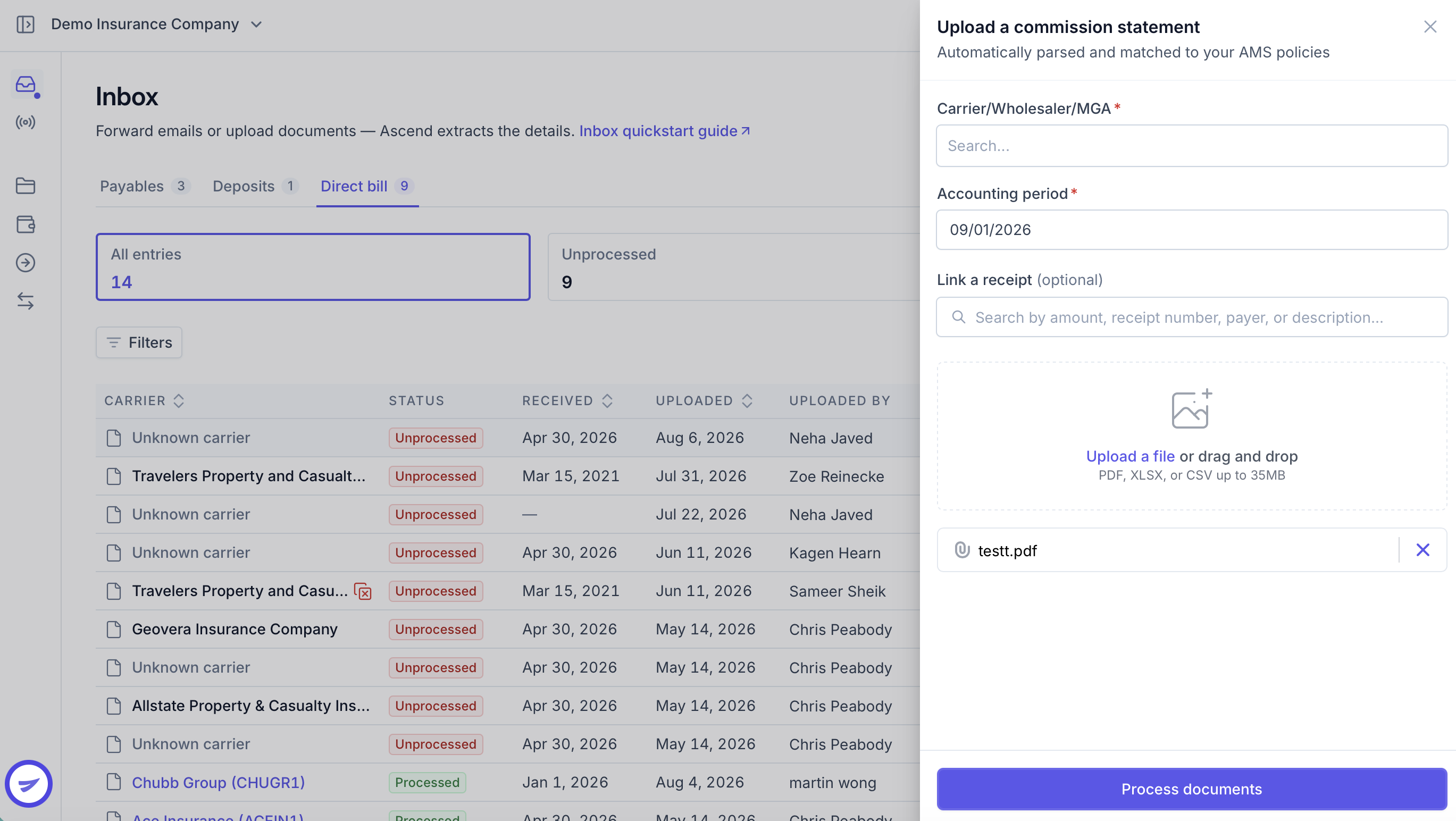
Locate the Carrier/Wholesaler/MGA field.
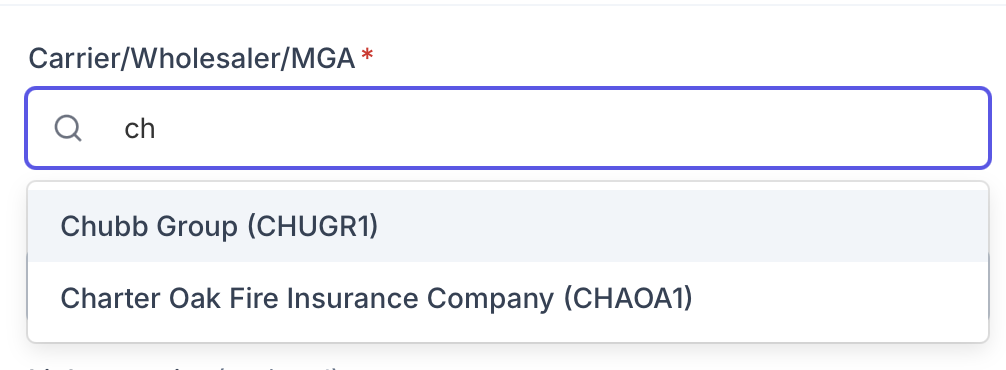
Review the payer selected by Ascend.
Once confirmed, click Process documents.

Ascend attempts to identify and automatically populate the payer based on the information in the statement. Review this selection before processing the statement and update it if the incorrect payer was selected.
Option 2: From the Statements Page
After a statement has been processed and appears on the Statements page:
Open the statement.
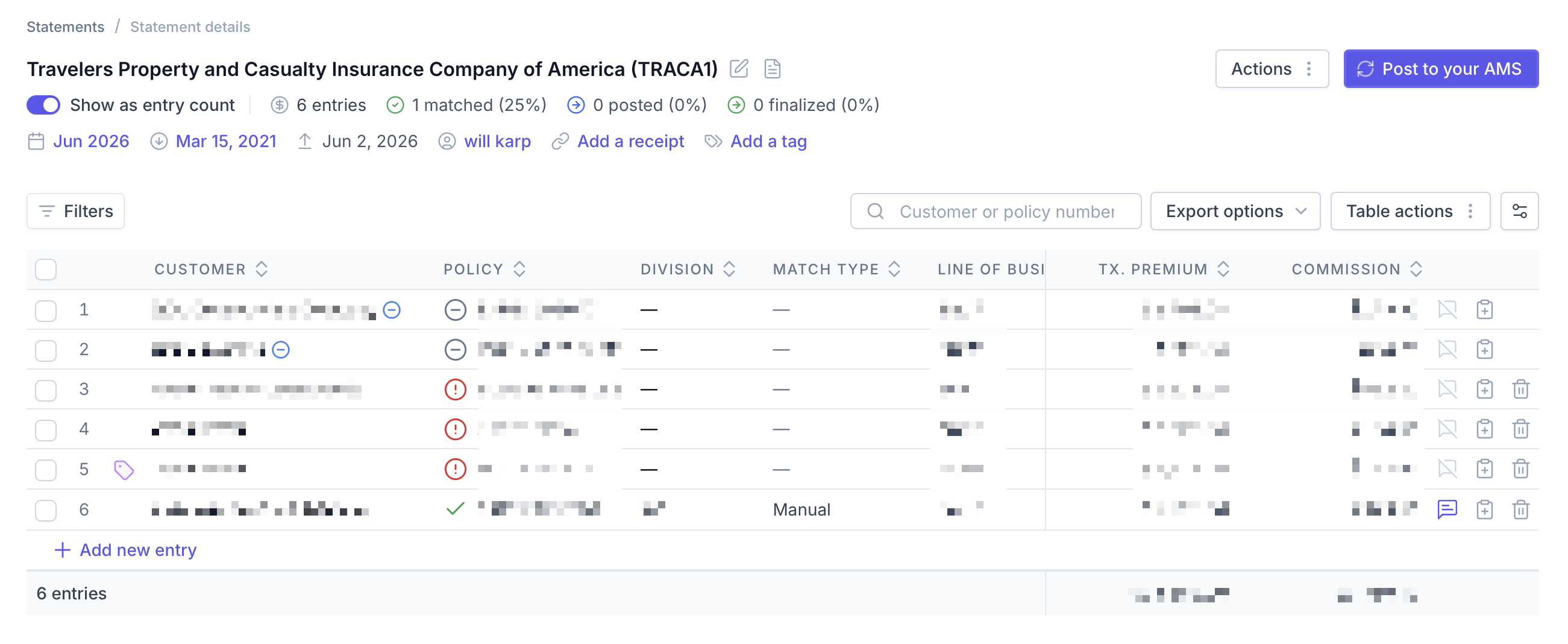
Click the pencil icon in the statement header.

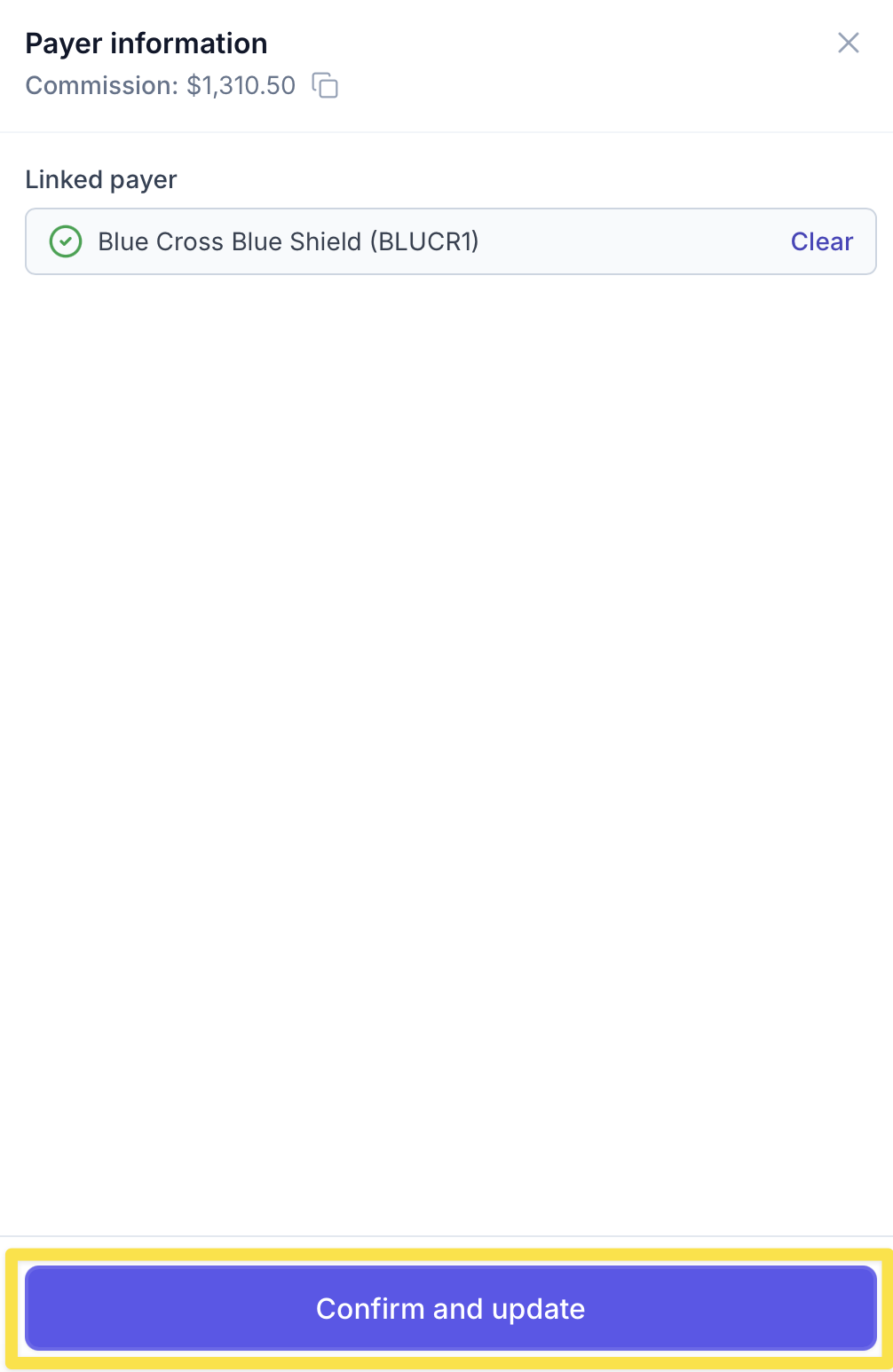
Click Clear next to the payer in the drawer.

Search for the updated payer in the search bar.
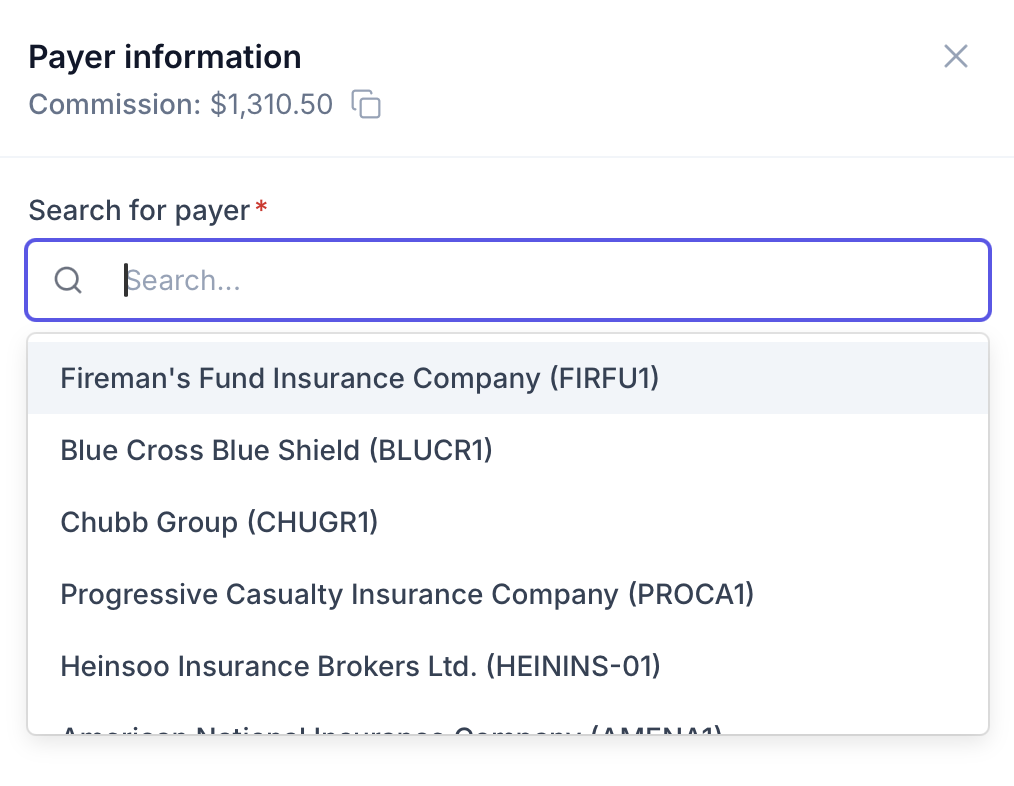
Click Confirm and update
If a Payer Does Not Appear in Ascend
Ascend automatically imports carriers associated with effective policies in your agency management system, such as Applied Epic, AMS360, or BenefitPoint, when the policy effective date falls within the past two years.
First, confirm that the payer is associated with at least one active policy in your AMS. If an active policy exists but the payer still does not appear in Ascend, import one of the payer’s active policies by following these steps:
Confirm that the payer is associated with an active policy in your AMS.
In Ascend, open any unmatched statement entry.
Click the entry to open the matching drawer.

Locate the Search bar and select Import from your AMS.
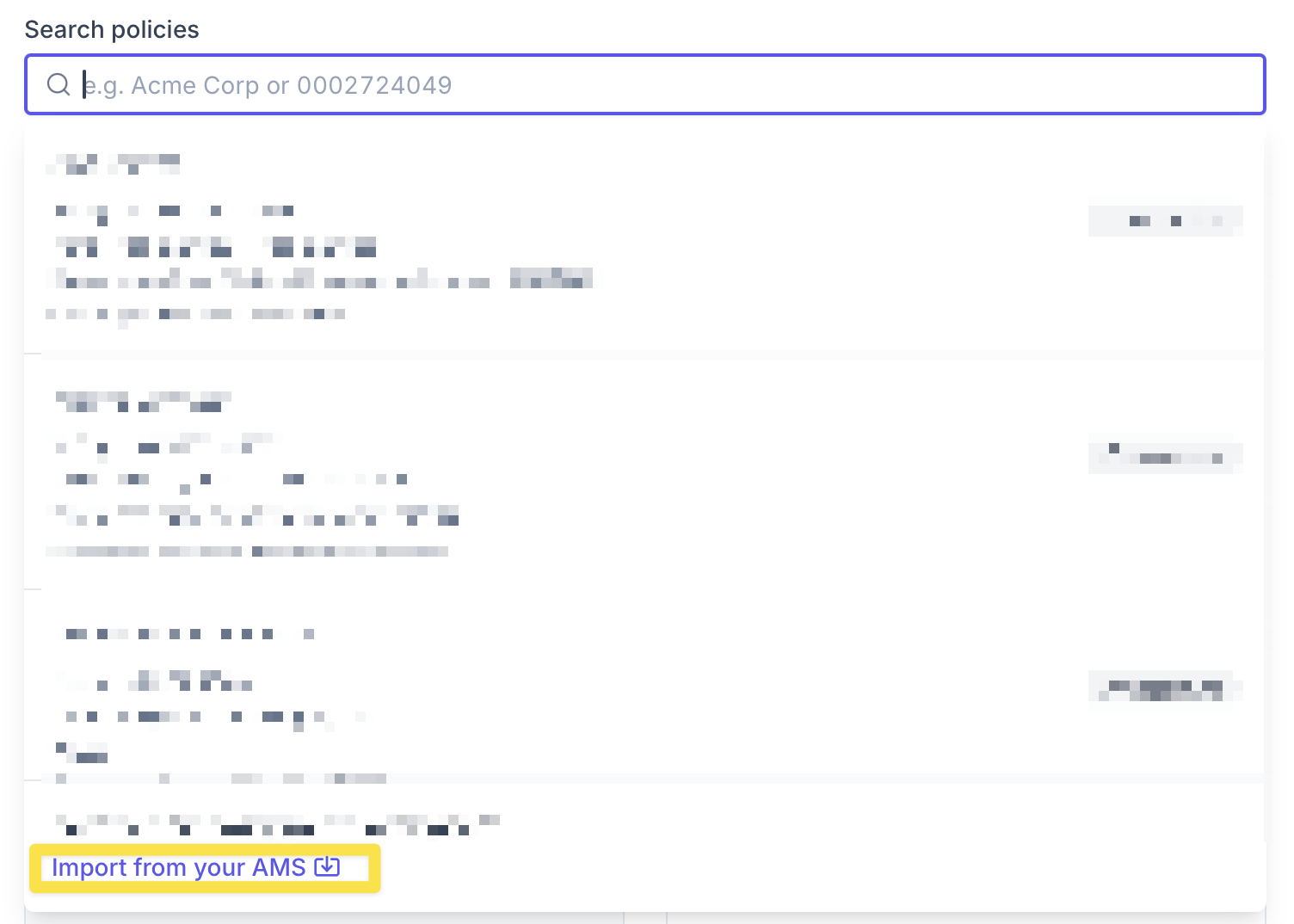
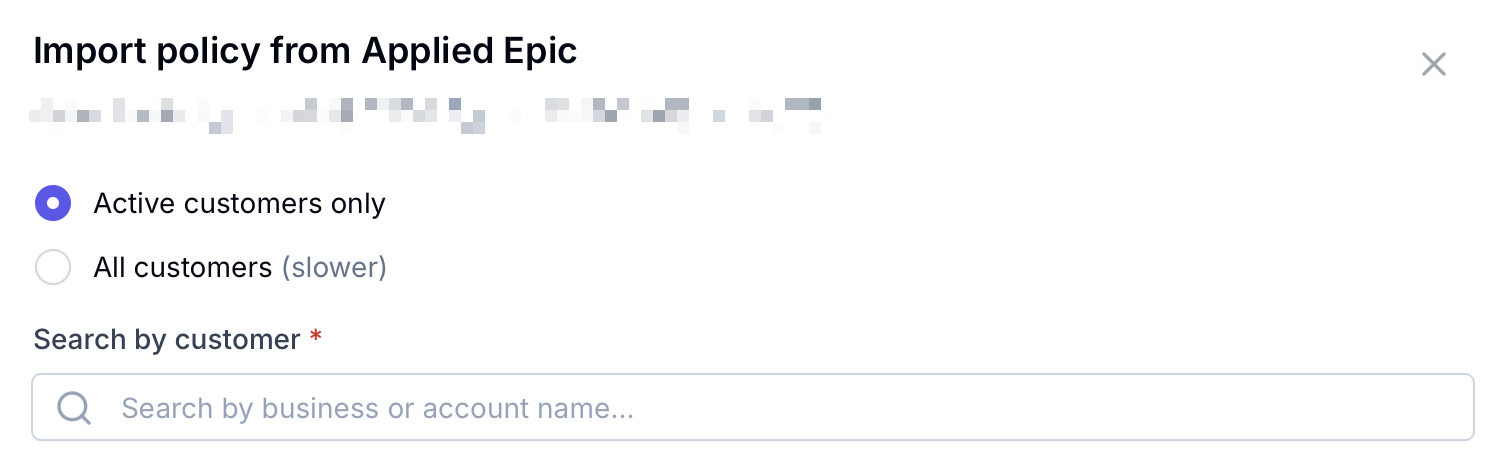
In the window that appears, search for an active policy and customer associated with the payer.
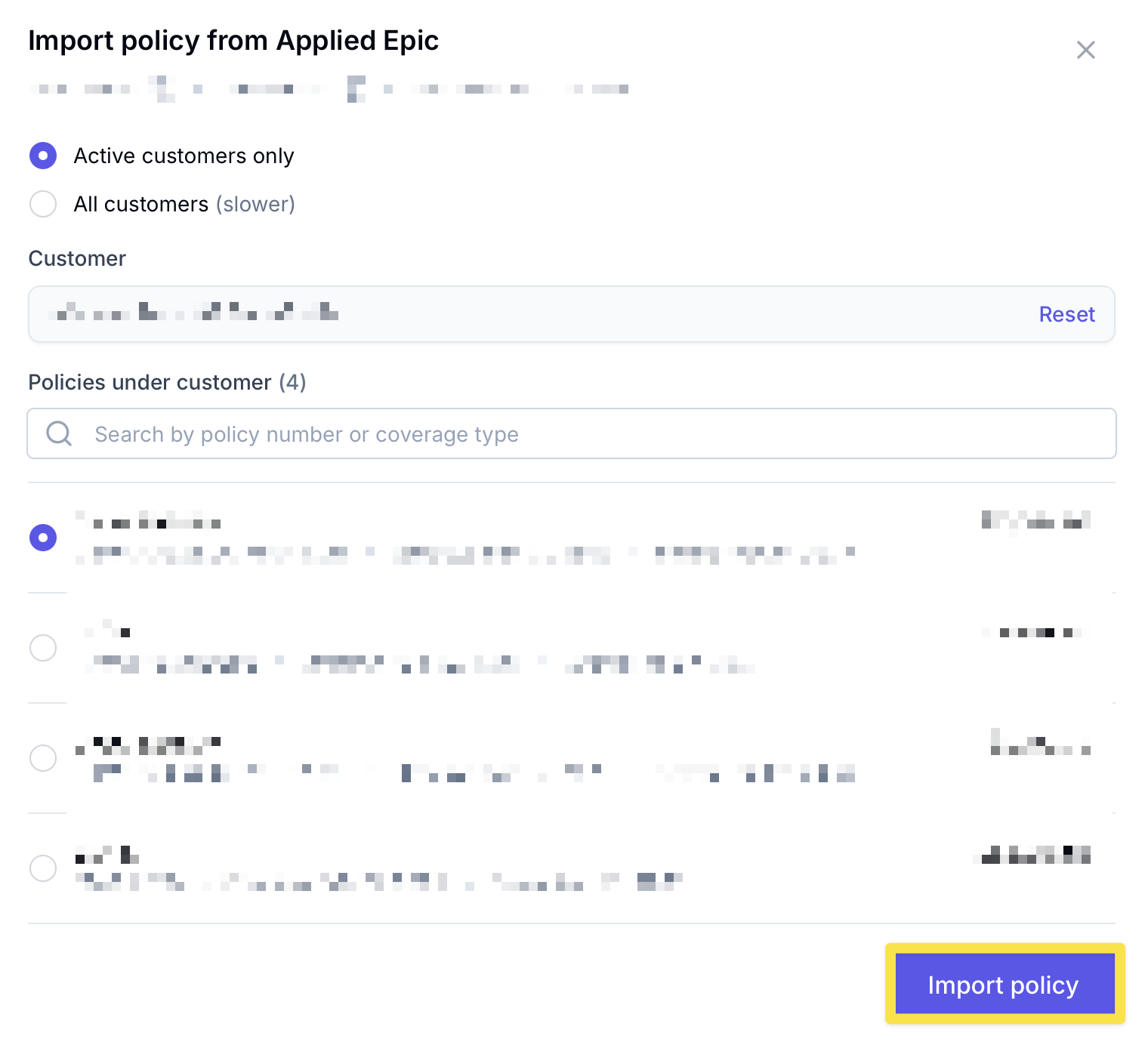
Select the correct policy from the search results and import it.
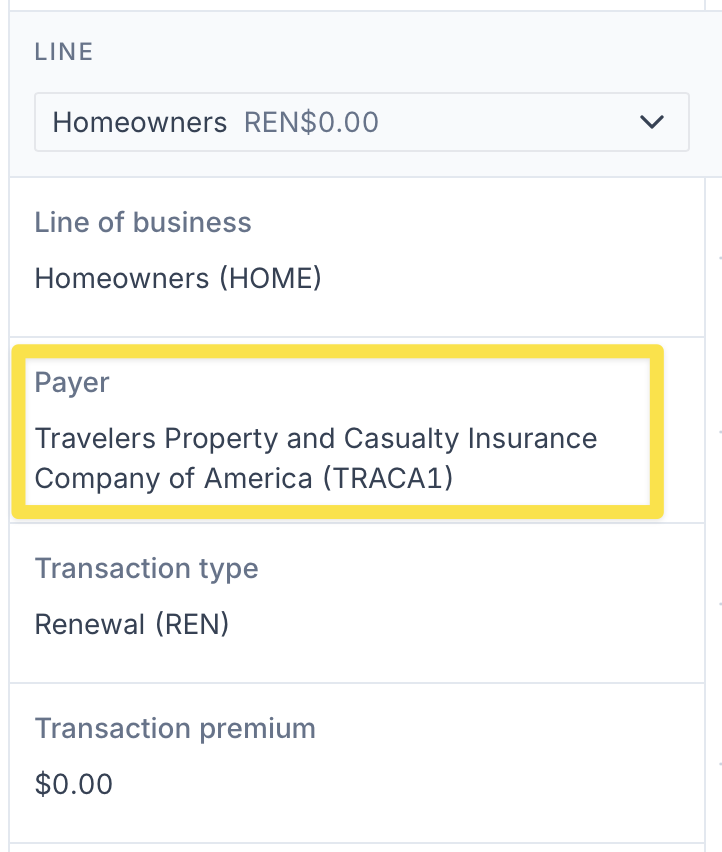
Confirm that the desired payer appears on the left side of the matching drawer.
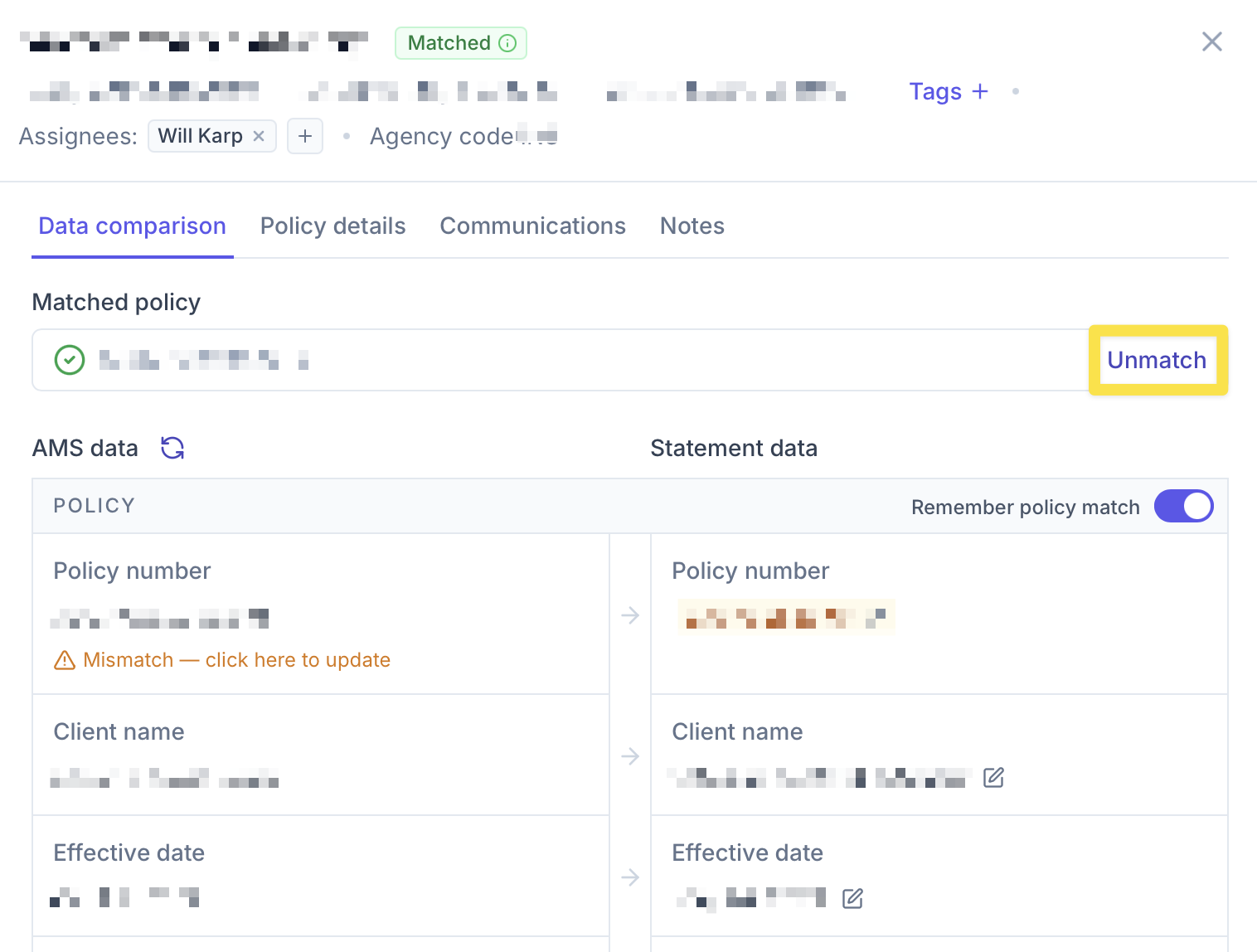
Unmatch the entry.
Return to the statement in the Inbox or on the Statements page. Edit the Carrier/Wholesaler/MGA field and select the newly imported payer.
After the policy is imported, the payer will be available for selection across Ascend’s statement upload workflows.
If payers are frequently missing, contact your Customer Success Manager so the Ascend team can investigate the underlying cause.
Frequently Asked Questions
How does Ascend determine which payers are available?
Ascend surfaces payers associated with active policies in your AMS.
Does Ascend automatically assign a payer?
Ascend attempts to identify and populate the payer based on information extracted from the statement. Review the selection before processing the statement and update it if necessary.
Can I change the payer after a statement has been processed?
Yes. Open the statement from the Statements page and click the pencil icon in the statement header to update the payer.
Why is a payer missing from the dropdown?
The payer may not be associated with an active policy currently available in Ascend. Confirm that an active policy exists in your AMS, then import that policy through the matching drawer.
Do I need to import every policy associated with a missing payer?
No. Importing one active policy associated with the payer should make the payer available for selection in Ascend.
What should I do if payers continue to be missing?
Contact your Customer Success Manager so the Ascend team can investigate the issue.
Contact Us
Need more help? Contact [email protected] for more help.