How to use Ascend's Agency Bill Integrations with Applied Epic
Last updated: October 22, 2026
This is a guide that will teach you:
Summary of Ascend's Epic integrations
How to use the integration
This article explains how to use Ascend's integrations with Applied Epic. For more information on how to set up the integrations, click here.
Summary of Epic Integrations
The integration requires the agency have purchased the Applied SDK, which bears an additional cost from Applied.
Policy Import & Service Summary Integration


Ascend integrates with Applied Epic's Accounts, Policies, Transactions, and Service Summary modules to import insured and policy/transaction information into Ascend from Epic to automatically create a Program (payment link, finance agreement, invoice).
Ascend's Smart Inbox also integrates with Epic's Accounts module to automatically link documents sent to Smart Inbox to the corresponding account in Epic.
Anytime a policy is billed in Ascend, a linkage is created to the corresponding Account, policy and transaction(s) for that policy. This will enable us to detect policy changes entered in Epic and allow the user to import premium-increasing endorsements to be billed in Ascend.
Accounts Receivable Integration

Ascend can integrate with Applied Epic's General Ledger module to create transactions, create receipts, and apply credits to debits (apply cash to open invoices). This can automate the invoicing and A/R reconciliation process from end to end.
The Epic integration is highly customizable based on the agency's workflow, and the desired setup / functionality should be discussed with Ascend before implementing the integration
Using the Integrations
Scenario 1: Account Managers Invoice in Epic
The least disruptive way to implement Ascend and the Epic integration is to have account managers continue to invoice in Epic, then use the integration to import the transaction information into Ascend to create a new program.
Import from Epic
Click "New Program"
Click "Import from Applied"
Type in the name of the insured and select the account
Select the policy(s) you want to import. You can attach up to 25 policies to a single program/invoice in Ascend and click "Import"
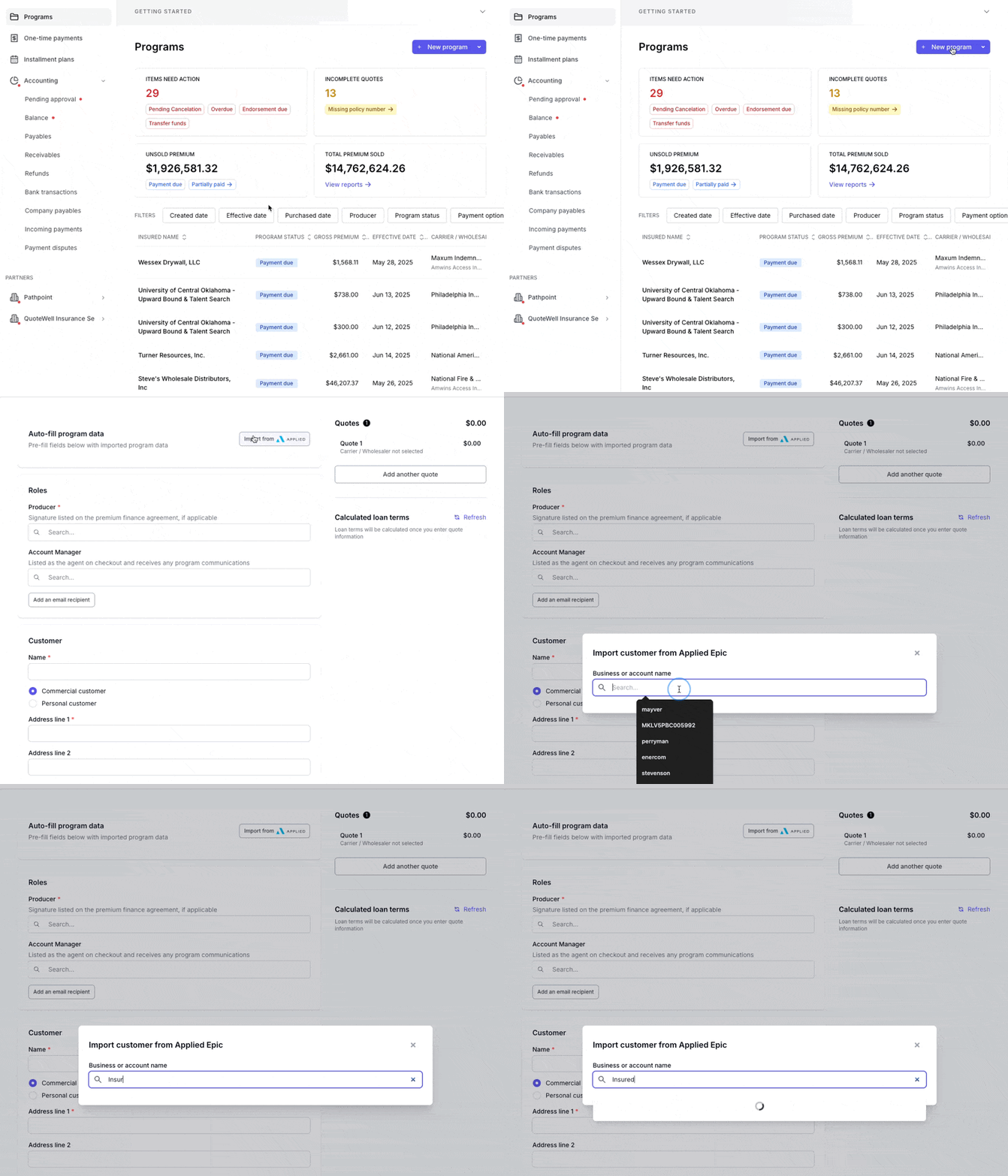
This maintains a standard, known workflow for account managers during the transition while still allowing the agency to take advantage of Ascend's payment automation.
Once the insured completes payment and the carrier payout is approved, accountants can use Ascend to create the receipts and apply them to invoices (see here).
Scenario 2: Account Managers Invoice in Ascend
If the agency wants to utilize the Epic integration to its fullest extent, Ascend has the ability to create new transactions directly in Epic, using Ascend's dashboard. This means that account managers no longer need to spend time invoicing/transacting in Epic, which can be a huge timesaver.
Once a program is invoiced in Ascend, you can ensure accurate automated transaction creation by Linking to Epic using the steps below.
Invoicing in Ascend means that account managers can use Ascend to ingest policy documents, which can then be used to create programs.
Once the insured submits payment, the accountant can follow the same steps below to create the transactions and receipts.
Click "Create Program"
Click "Import Document" and upload the policy quote, binder, or invoice. Up to 25 documents/policies can be attached to a single invoice/finance agreement in Ascend
Add the customer contact information
Click "Save Program"
Scroll down to the "Policies" section
Select the policy to open the sidebar and click the "AMS Transactions" tab
Assuming Ascend was able to automatically link to the account andn policy in Epic, you'll see a green callout, click the "Review transactions" button
Select all transactions you want to create (suggested based on the information that was entered in Ascend) and click "Create transactions" to create the transactions in Epic:
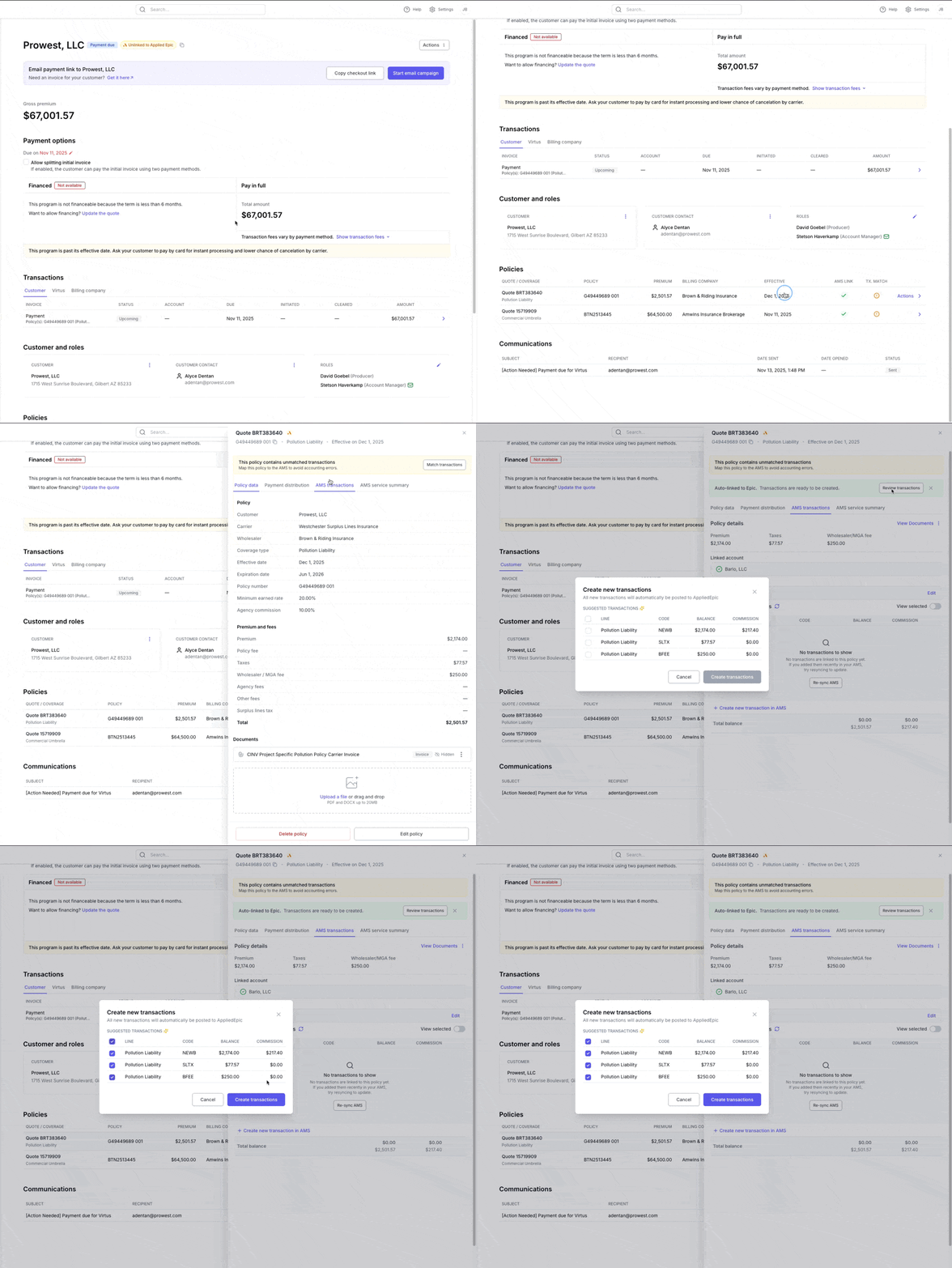
Creating Cash Receipts & Applying Credits to Debits
This action is only available to users with Admin or Accounting permissions
Visit the Bank Transactions tab in Ascend
Select an unposted transaction
Click "Post to Applied Epic"
Select a policy row to ensure the transactions are matched correctly
Click "Post to Applied Epic"
For a deeper dive on troubleshooting, please refer to the SOP below:
The receipt date posted to Epic is the commission payout date — i.e., when the funds were actually paid out and hit the bank account, not when Ascend posts the receipt to Epic.
If you notice an error with the transaction month, please reach out to [email protected].
Creating, Finalizing, and Paying the Premium Payable Statement
This integration requires a dedicated seat in Applied Epic and separate implementation by Ascend. If you are unsure if this has been configured, please reach out to your Ascend representative or [email protected].
Once the cash receipt has been posted, navigate to the "Company Payables" section of the dashboard: https://dashboard.useascend.com/accounting/company-payables and follow these steps:
Select the company payable you want to reconcile from the list
Click "Post to Applied Epic" - the integration will attempt to create, finalize, and pay a statement for the selected payable.

If successful, the "AMS status" column will update to "Posted":

If unsuccessful, the the "AMS status" column will update to "Failed":
See below for error resolution
Company payable statement creation date is set to be the day that the bot action runs, not when the payout is sent
Most Complete Automation: Automated Transaction Creation and GL Posting
The most automated application of Ascend's Epic integration automates the manual steps required above to create transactions, match them to policies in Ascend, and post the receipts.
This is an entirely automated way to manage A/R reconciliation and can be enabled by request.
Please note this removes all manual touches from the A/R invoicing and reconciliation process. This option should only be enabled if you are comfortable with full automation.
Once a payout to a carrier / wholesaler is approved and funds are released, the following automations take place:
Automated Transaction Creation & Receipt Posting
Ascend will attempt to create the transactions based on the premium and fees mapping set up in Epic configuration page in Ascend Settings.
If new business or renewal, the transaction description will be set using the format defined in Epic based on the transaction code.
If endorsement, the transaction description will be set based on the endorsement reason entered into Ascend.
Once Ascend creates the transactions, the integration will automatically post receipts to Epic, apply credits to debits, and transfer commission from the FBO account to the Operating account (as configured here). Requirements for automated posting include:
PR/BR added to the policy - if you don't always require PR/BR, please reach out to Ascend and we can turn this off
Policy number in Ascend matches policy number in Epic
Receipt description
If new business or renewal, the description will be set based on the payout identifier generated by Ascend
If endorsement, the description will be set based on the endorsement reason entered into Ascend.
If we are not able to automatically post, an error message will be exposed in the Epic posting detail modal, which can include:
Missing producer or broker commissions: No PR/BR on the line, so we can't create the transaction. Please add the PR/BR to the line in Epic to resolve this issue.
No open receivables found:
No matching policy: We could not match the Ascend policy to the Epic policy, usually because the policy numbers are different. Please match and create transactions manually.
No matching AMS line: Only applicable if 1 Ascend policy is mapped to 1 Epic Policy with multiple lines. We try to match on coverage type but if this doesn't work, we can't create the transactions. Please match and create transactions manually.
Missing payable contract ID: See below screenshot - the
Payable contractis missing on the line. Usually because policy is Direct Bill.
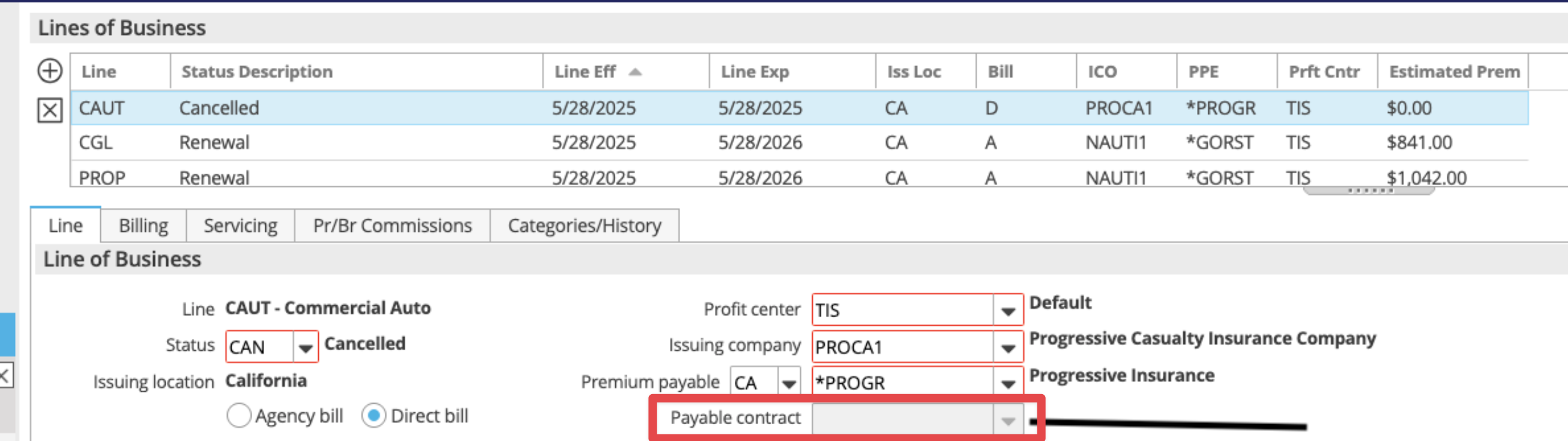
Failed to create broker fee/taxes and fees transaction: Generic catch all for a reason not already captured here - we're working on improving the messaging here, please reach out to [email protected] in the meantime.
Failed to create premium transaction: Generic catch all for a reason not already captured here - we're working on improving the messaging here, please reach out to [email protected] in the meantime.
Failed to create deposit: Generic catch all for a reason not already captured here - we're working on improving the messaging here, please reach out to [email protected] in the meantime.
Automated Company Payable Statement & Disbursement Creation
After receipts are successfully posted, the integration will attempt to create and finalize the premium payable statement in Epic, then will create a disbursement and apply it to the statement.
The statement description will be set based on the batch payment ID generated by Ascend.
The disbursement description will be set based on the batch payment ID generated by Ascend.
Error Messaging - Company Payable Statement

Unposted cash receipts: This means that the corresponding bank transaction hasn't been posted yet. Click "View all unposted receipts" to resolve the error.

Posting failed due to an unexpected error: This means that there is a company payable statement already in suspense for the selected PPE. Finalize the open statement to clear this error and re-attempt posting.
Company payable statement failed to create. The following transactions were not found in Applied Epic: XXXXXX
Company payable statement already exists. Please check the statement in Applied Epic.
Company payable statement failed to create or finalize. Please contact support.
Please reconcile any failed items manually. After completion, mark this transaction as reconciled. For assistance, contact support.
Integration Limitations
The Epic integration currently has the following limitations
Unable to handle cancelations and premium-reducing endorsements
Unable to reconcile take rate payments from Ascend
Unable to create a receipt at the Account level, only at the Policy level
Unable to customize bank account posting (ie cannot select between multiple GL accounts)
Automated transaction creation is not available on policies that are not active - transactions should be created manually in Ascend then matched and posted
Ascend automatically sync with Epic hourly, and attempts to auto-match to accounts/policies
Unable to handle INST transaction types.
Multi-line package policies are imported into Ascend as three policies, even if premium only existing on one line in Epic
Automated Document Posting from Ascend to Epic
Premium Finance Agreement Posting to Epic
When an insured finances a policy through Ascend, they sign the Premium Finance Agreement (PFA) electronically at checkout. If the organization uses the Applied Epic integration, Ascend can automatically upload that signed agreement into Applied Epic and attach it to the correct policy.
What happens automatically
At checkout — The insured signs the PFA. Ascend stores the signed document.
After reconciliation — Once the payment is reconciled in Applied Epic (receipts posted, credits applied, funds transferred), Ascend uploads the PFA to the folder you configure in Epic.
On each policy — If the program includes multiple policies, a copy is attached to each linked policy in Epic.
What needs to be set up
An Applied Epic folder selected for where PFAs should be stored (e.g. a dedicated “Ascend PFAs” folder)
In Epic: Configure -> Attachment -> Attachment Folders
In Ascend: configure the folder here
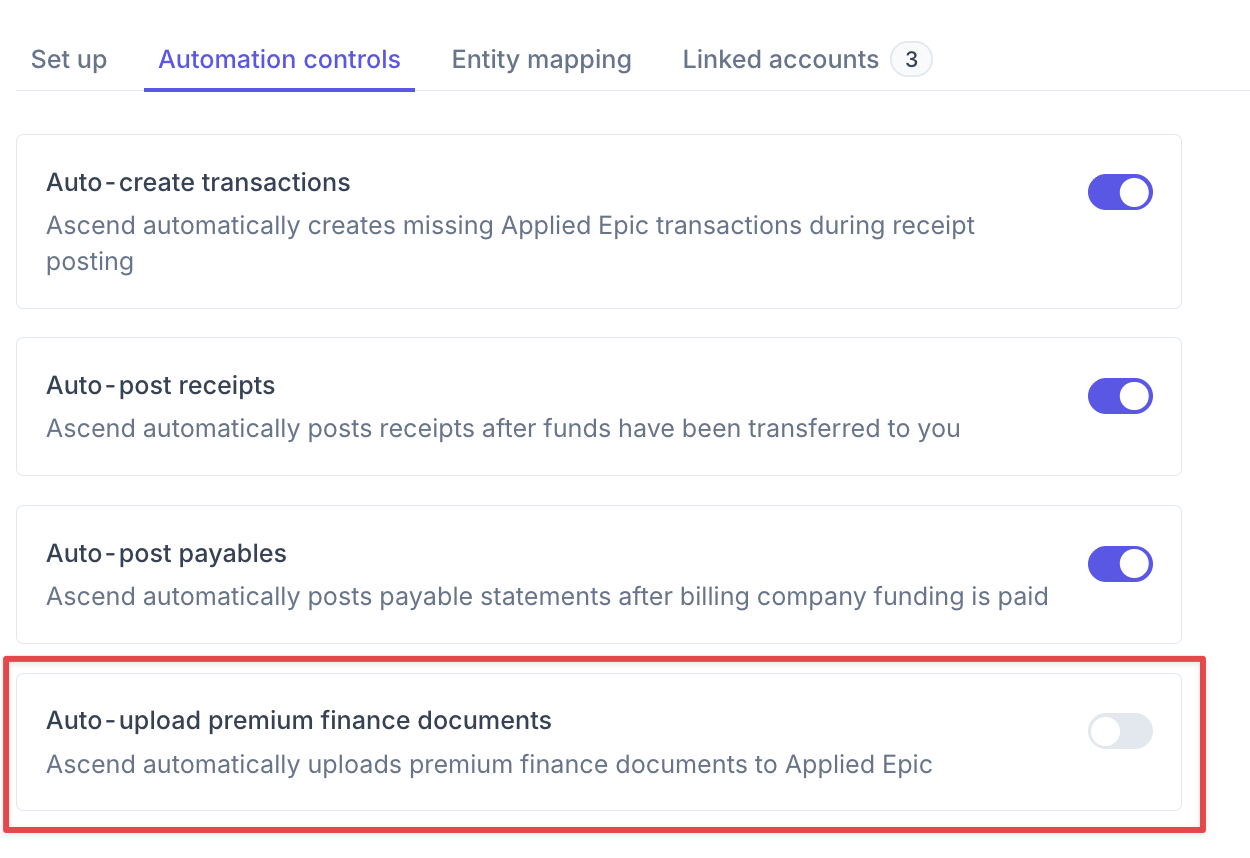
How documents appear in Epic
The documents can be found in the Attachments section of each Client page. The documents are attached down to the policy level.
Each file is named for easy identification, for example: Premium Finance Agreement [Contract #] Initial Bind [Date/Time]
For endorsements, the label will say Endorsement instead of Initial Bind.
When the automation runs
Posting happens after the transaction is successfully reconciled in Applied Epic — not at the moment of checkout. That way the PFA lands in Epic alongside the related financial activity.
If posting fails for a policy (for example, a policy/account mismatch in Epic), Ascend tracks the status and can retry. Your team can also trigger a manual repost if needed.
FAQ
How do you handle negative transactions?
Ascend does not currently create or reconcile negative transactions, but this is a near term roadmap item we expect to be live in November 2026.
How do you handle CFIN (financed) transactions?
Ascend does not yet create CFIN transactions when a policy is financed but this is an enhancement that we are looking at developing.
Can other documents (ie quotes/binders/invoices) be posted to Epic automatically, in addition to the premium finance agreement?
Ascend cannot yet post other document types but this is functionality that we will be adding in 2027.
Contact Us
Need more help? Contact us at [email protected] for more help.