Matching and Exception Handling
Last updated: February 14, 2026
Direct Bill Automation
This guide covers:
How to access and review statements
How to filter and customize the statement view
How to interpret key reconciliation icons
How to apply match logic and perform manual matches
How to use entry details and collaborate
How to triage unmatched entries
Overview
Ascend reconciles entry data that matches your AMS data. For any entries that are not auto-matched, you can choose from suggested matches, flag items for review, assign work to teammates, or collaborate via in-app email.
You can log in to Ascend at dashboard.useascend.com and enter your email address. If you aren't able to log in, please contact your Ascend administrator or [email protected].
The core functionality of matching and exception handling in Ascend includes:
Using Ascend to match statement entries with polices/lines in your AMS. Click here for more.
Using Ascend to identify exceptions in the matching process (ie, policy tagged as agency bill, non-renewed, payer mismatch, etc.). Click here for more.
Using Ascend to notify account managers/CSR of exceptions and updates that need to be made in your AMS. Click here for more.
Statement Dashboard Orientation
Navigating to Statement Dashboard
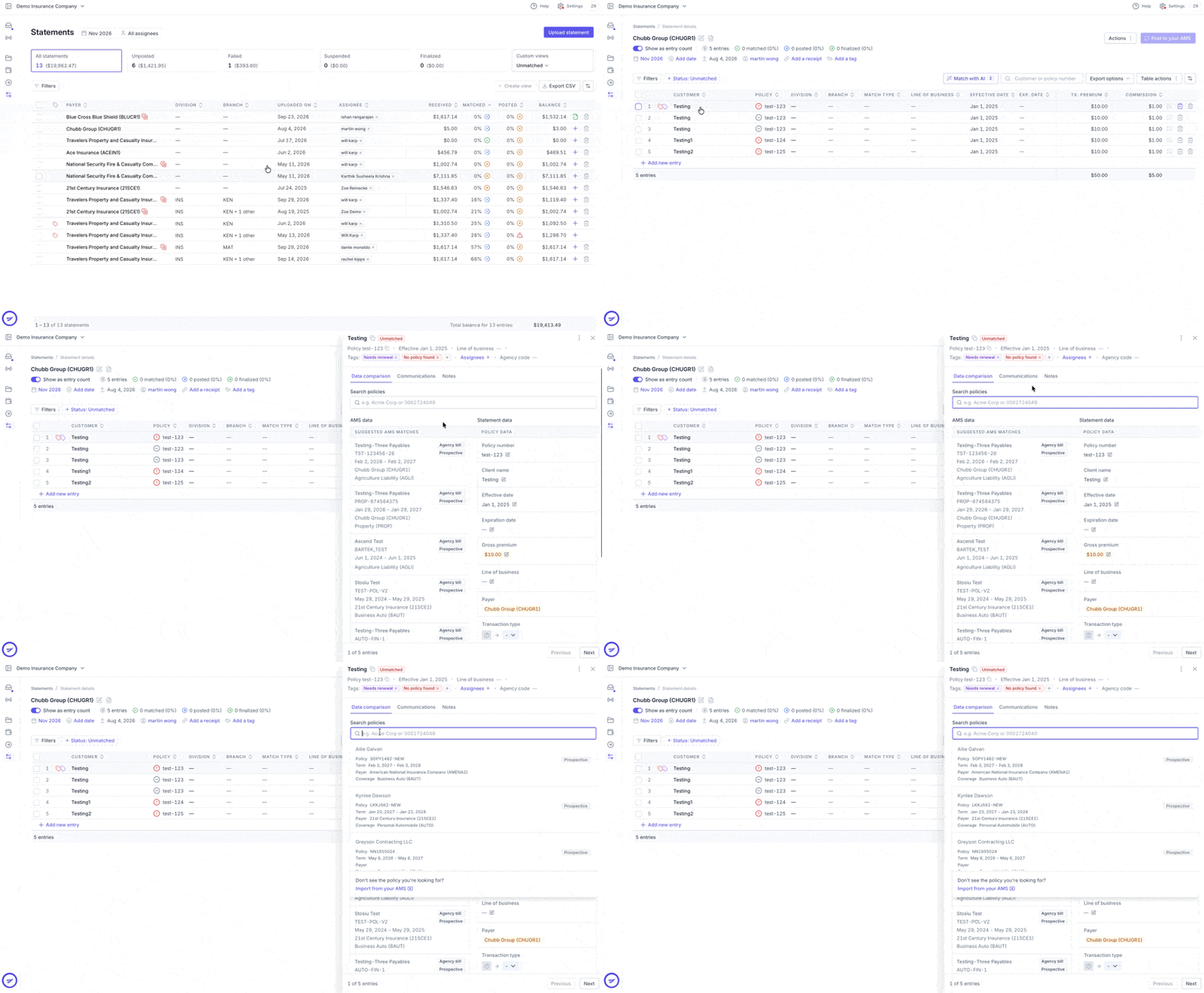
After logging in to Ascend, select Statements in the left panel. The table displays every carrier statement and its current reconciliation status by accounting month.

To switch between accounting months, click the dropdown at the top of the screen and select the desired accounting month.

Click any statement row to open its entries in a new view.

Table Layout
At the top, you will see the accounting month that the statements listed correspond to.

At the top right side, there is an Upload statement button. Read more here to learn how to upload statements.

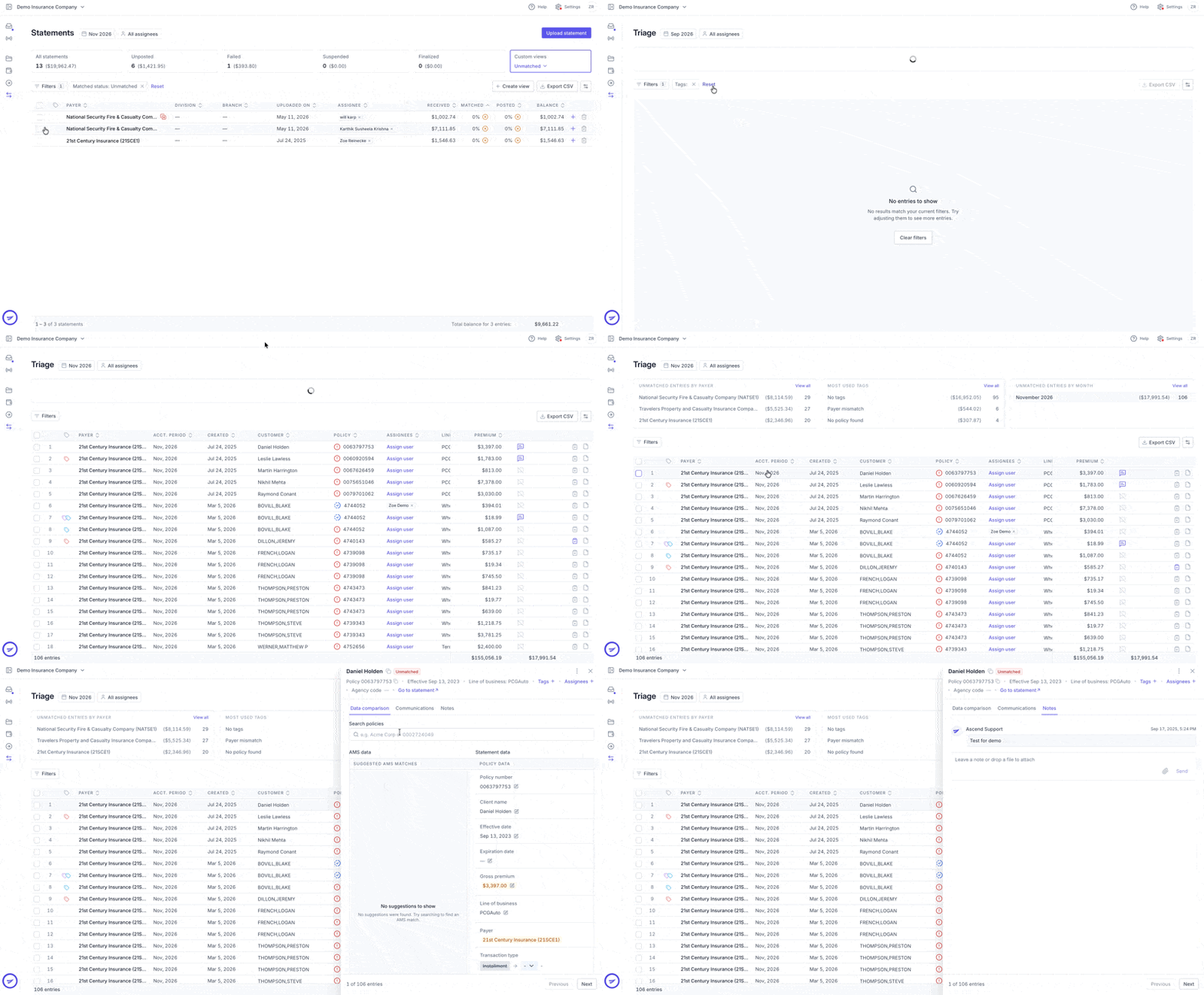
You also have the ability to customize the view by All statements, Unmatched, Unposted, and Completed as well as by filters. The filters include indicated the Payer, Uploaded On, Completed On, Matched, Posted, and Assignee. This allows you to further filter your Statement dashboard.

Icons
Unique icons are populated in the Payer, Matched, and Posted columns.
Payer Column
Document with Exclamation: Possible duplicate statement found.

Matched Column
Green Circle: The statement has been completely matched.

Blue Circle: The statement has been partially matched.

Red Circle: None of the statement entries have been matched.

Posted Column
Green Circle: The statement has been completely posted to your AMS.

Blue Circle: The statement has been partially posted to your AMS.

Red Circle: None of the statement has been posted to your AMS.

Statement View Orientation
Navigating to Statement View
After logging in to Ascend, select Statements in the left panel.
Click on any statement row to open the Statement view.
Table Layout
By default, columns include Customer, Policy, Line of Business, Effective Date, TX. Type, TX. Date, Premium, TX. Premium, and Commission. These can be customized.

To show or hide columns, click the column selector icon (two horizontal lines) at the upper right side of the screen and check your preferred fields.

Actions Menu
The Actions button on the right side of the screen brings a dropdown which includes:
View posting history: See who posted the reconciled data to your AMS and when.
Create new entry: Add a manual entry to the statement.
Download statement document: Retrieve the original file.
Re-extract statement: Re-process the statement if errors occur in extraction.
Delete statement: Permanently removes the statement, and all associated manual changes will not be remembered by Ascend for future reconciliation.

Statement Summary Bar
Above the table, review at-a-glance metrics:
Matched: The percent of the statement entries that were automatically matched by Ascend.
Posted: The percentage of the statement that has been posted to your AMS.
Accounting Month: The accounting month that the statement corresponds to.
Payment Received: The date when the payment was received.
Upload date: The date when the statement was uploaded.
Assigned To: If enabled, this will show which of your team members have been assigned to the statement. This can be edited at any time by admins using the pencil icon.
Linked Deposit: Your agency can link a statement to a deposit via this button (for Applied Epic users only).
Statement Tag: Customizable tags that indicate where the statement is in the reconciliation process.

Filters
Use the filter bar above the table to focus on specific entries:
Non-zero commissions:Entries that have a commission amount greater than $0.Status: Available statuses include All, Matched, Partially matched, Posting error, Unmatched, Posting, and Posted.
Policy Tags: Tags are manually added to specific entries. Automatically, you will have tags for No policy found, Needs renewal, and Payer mismatch.
Match Type: Filter for entries that were auto-matched, remember-matched, and manually-matched.
Division: Filter via Division.

Icons
Unique icons are populated in the Customer and Policy columns.
Customer Column
Tag Icon: Hover over the icon to view the assigned tag.

Sparkle Icon: Indicates a remembered match learned from a previous manual action.

Policy Column
Green Check Mark: Entry is fully matched to a policy and line in your AMS.

Blue Circle: The entry has been partially matched. Matched to a policy but not a line.

Red Circle: The entry has not been matched.

Grey Circle: The premium and commission for the policy are both $0 and will not be posted to your AMS.

Matching Logic
Ascend matches entry data to policies in your AMS on
Policy number
Effective date
Transaction date
Entry Details
The entry details panel guides you through reconciling data, confirming amounts, and managing entry-related communications.
Navigating to Statement View
In the Statement dashboard, click any statement you are interested in looking into further.
Click any entry row to open its side panel.

At top: Customer, Add Tags, Assign Users (+ icon), and a Search bar for manual matching.
Navigate tabs within the panel:

Data Comparison
Two columns: AMS Data vs. Statement Data
Auto-matched: When the entry data from the statement has been automatically matched to your AMS data, the panel will show what Ascend matched the statement information to in your AMS.
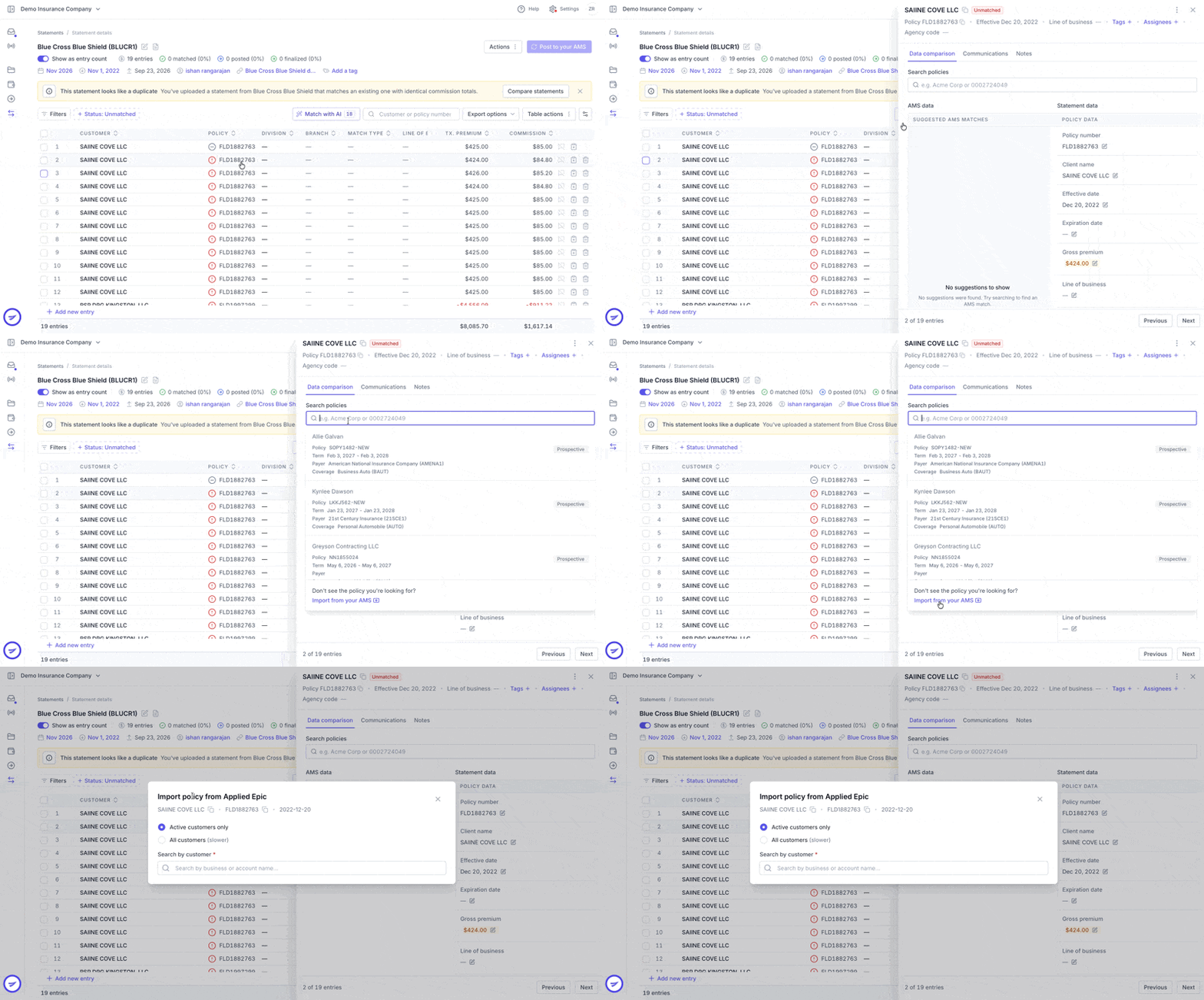
Manual Match: When the entry data was not automatically matched to your AMS data, the panel will provide suggestions from your AMS, which you then click to match. If that information is still not correct, use the Search bar to search for statement data that might be in your AMS.

Policy Details
If this feature is turned on, this tab shows you the Received and Expected amount.

Optional feature, please contact your Ascend administrator or [email protected] to add.
Collaboration
Allows you to send new emails and track previous emails sent between team members related to the specific entry. Click + New email to compile and send an email related to the entry.

Optional feature, please contact your Ascend administrator or [email protected] to add.
Exception Handling
When an entry is not auto-matched to your AMS data, you will need to reconcile the entry.
Open Entry Details
Click the desired entry's row to view its detail panel.
Suggested Matches
Immediately to the left of the Statement Data column, Ascend displays potential AMS matches. Click the box corresponding to the correct suggestion to apply it.

Using the Search Bar
If none of the suggested matches are appropriate, enter keywords in Search to locate the correct record in your AMS. To copy field values directly into Search:
Click the square icon beside the customer name at the top of the detail panel.
Click the square icon beside the policy number.

Importing New AMS Data
When an entry requires data that does not yet exist in your AMS, click Import from your AMS beneath the Search bar. This ensures that newly created records are available before the next scheduled sync.

Line Match
If you match by line and the line was not correctly matched, click the dropdown and indicate the correct line.

Remembering Matches
By default, Ascend will remember any manual policy match for future entries. To disable this behavior, toggle off Remember policy match at the bottom of the detail panel.

Add Tags
If additional attention needs to be given to the entry, you can flag the entry with one of the default tags or cutomized tags. This then adds the entry to the Triage dashboard.

Collaboration
If you would like to send emails to team members about actions that need to be taken to reconciled the entry and track it all in one place, use Collaboration. This allows you to have a record of all communication related to the reconciliation of the entry.

Ascend also has templated emails for you to quickly collaborate with team members. Just click + New email to see the templated email options.

Triage Dashboard (Exception Handling)
Accessing Triage
After logging in to Ascend, click on Triage underneath the Direct Bill section. This view aggregates all unmatched entries for streamlined management.

Filtering Entries
Use the filter bar to focus on specific items by:
Entry Status
Customer
Payer
Tags
Assignees
Apply multiple filters in combination to narrow the list precisely.

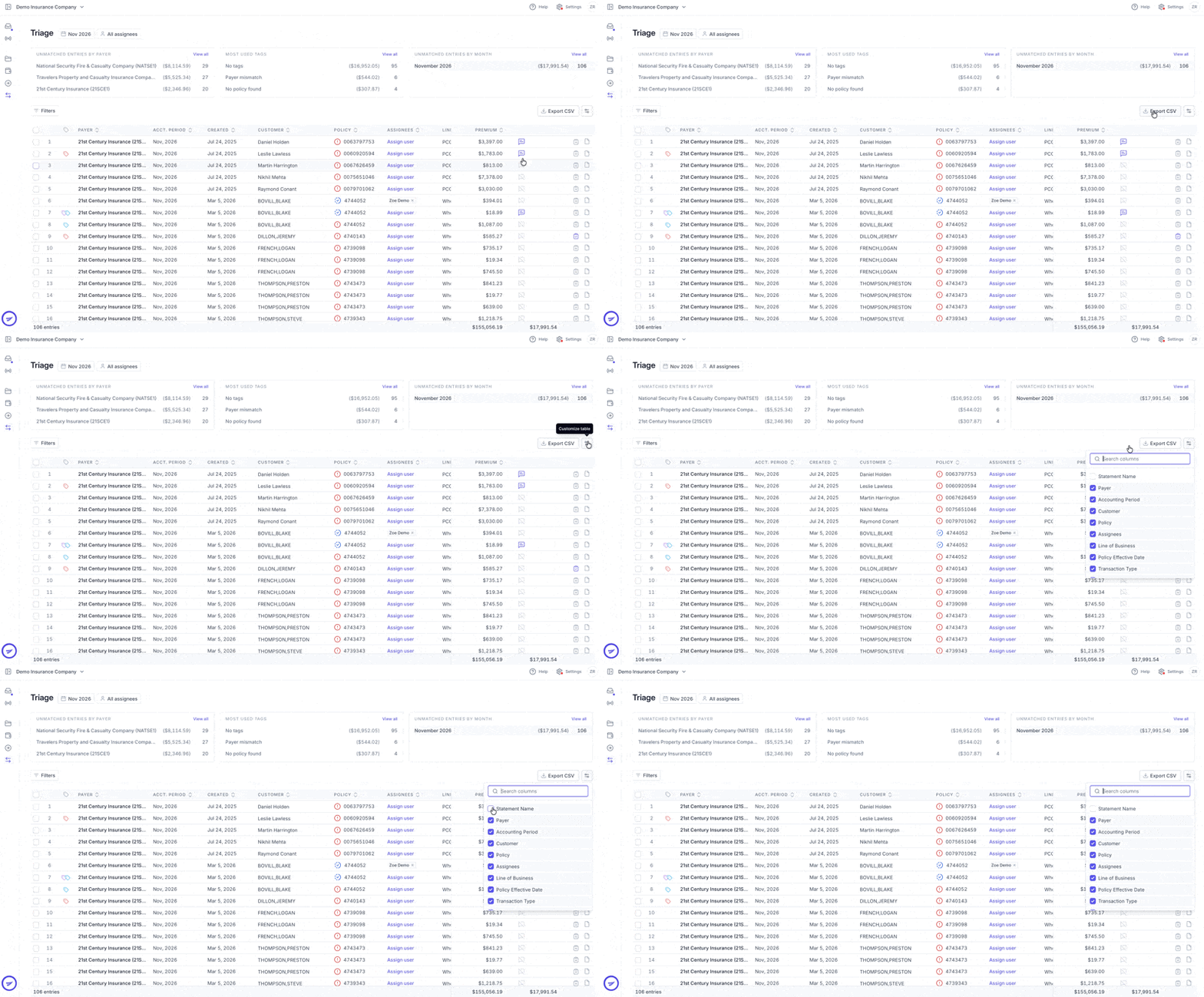
Customizing Columns
Click the column‑selector icon on the right side of the table to show or hide any field. Display only the data most relevant to the current review.

Exporting Your View
Once filters and column selections are configured, click Export CSV to download exactly the entries in view. This ensures the exported report reflects only the subset of data under analysis.

Frequently Asked Questions
1. How are statements accessed and reviewed?
After logging in, select Statements in the left panel. The dashboard displays every carrier statement along with its reconciliation status. Click any row to open the entries in a detailed view.

2. What options exist for filtering and customizing the statement view?
Use the filter bar above the table to narrow entries by commission amount, reconciliation status, or policy tags. Click the column‑selector icon (two horizontal lines) at the upper right to show or hide fields such as Customer, Policy, Effective Date, Premium and Commission.
3. What do the reconciliation icons indicate?
• A green check mark denotes a fully matched entry.
• A blue circle indicates partial matching (policy matched but not line).
• A red circle signals an unmatched entry.
• A grey circle shows zero‑dollar items that will not post.
• A sparkle icon marks a remembered match learned from a prior manual action. Hover over the tag icon in the Customer column to view any applied tags.
4. How does Ascend’s match logic operate?
Fuzzy matching is performed on the policy number, then verification occurs by comparing extracted dates (effective and transaction) to your Epic data. Suggested matches appear automatically; if none apply, manual matching may be performed.
5. How are manual matches applied?
Open an entry’s side panel by clicking its row. In the Data Comparison tab, review suggested matches from your AMS. If those do not apply, use the search bar to locate the correct policy or transaction, then select it to confirm the match.
6. How can tags and assignments be managed?
Within an entry’s side panel, click Add Tags to categorize entries or use the Assign Users (+) icon to delegate tasks. Assigned teammates appear under “Assigned To” in the statement summary bar, which admins can edit at any time.
Contact Us
Need more help? Contact us at [email protected] for more help.