Renewing a Program in Ascend
Last updated: June 5, 2025
This is a guide that will teach you:
How to Renew a Program
Frequently Asked Questions
Renewals
This is a guide for renewing an existing program in Ascend. If you are billing a policy for the first time in Ascend (new business or renewal), you'll need to create a new program. More info here.
How to Renew a Program
Step-by-Step Instructions
Ascend has a simple process for creating renewals in our system from an existing program to help you save time and reduce data entry work for your team.
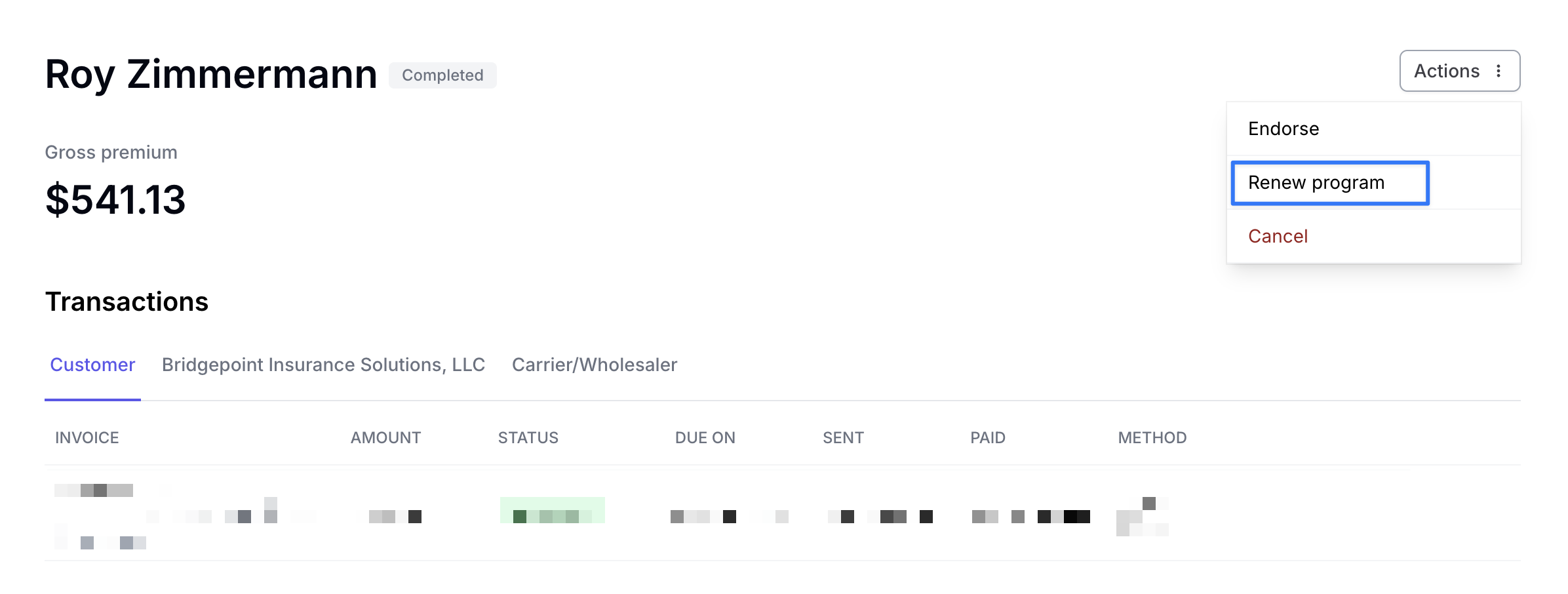
When a client's policy term reaches 90 days from the policy's expiration date, a "Renew Program" option will become available in the Actions menu for that program.
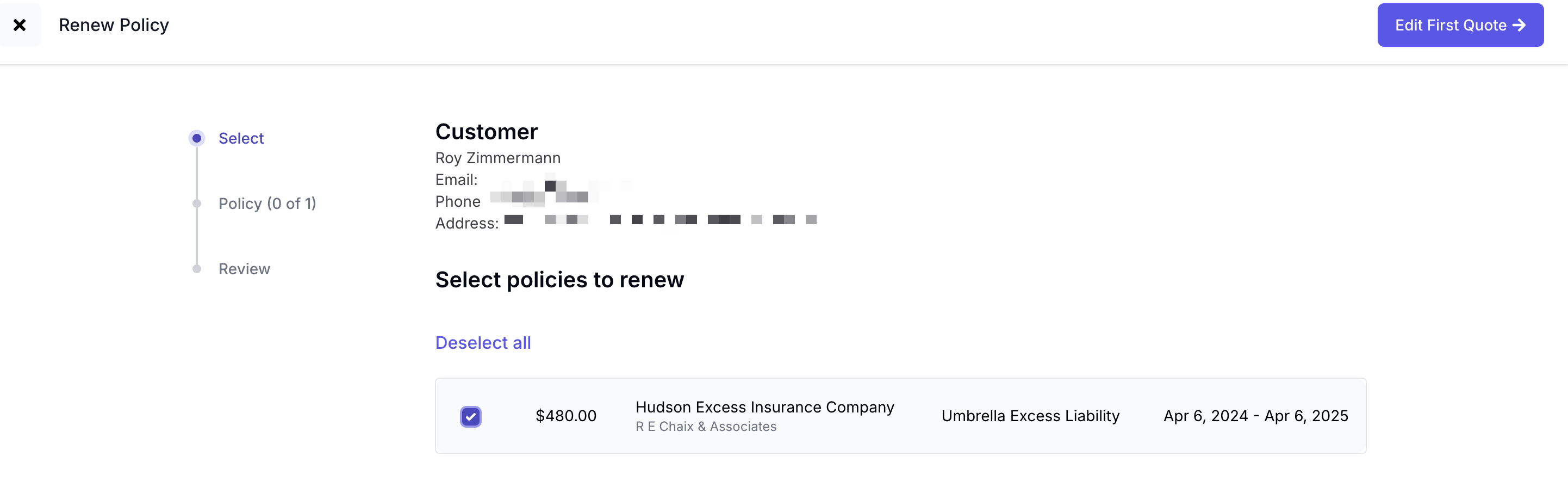
Select the policy or policies to be renewed and then click Edit First Quote.
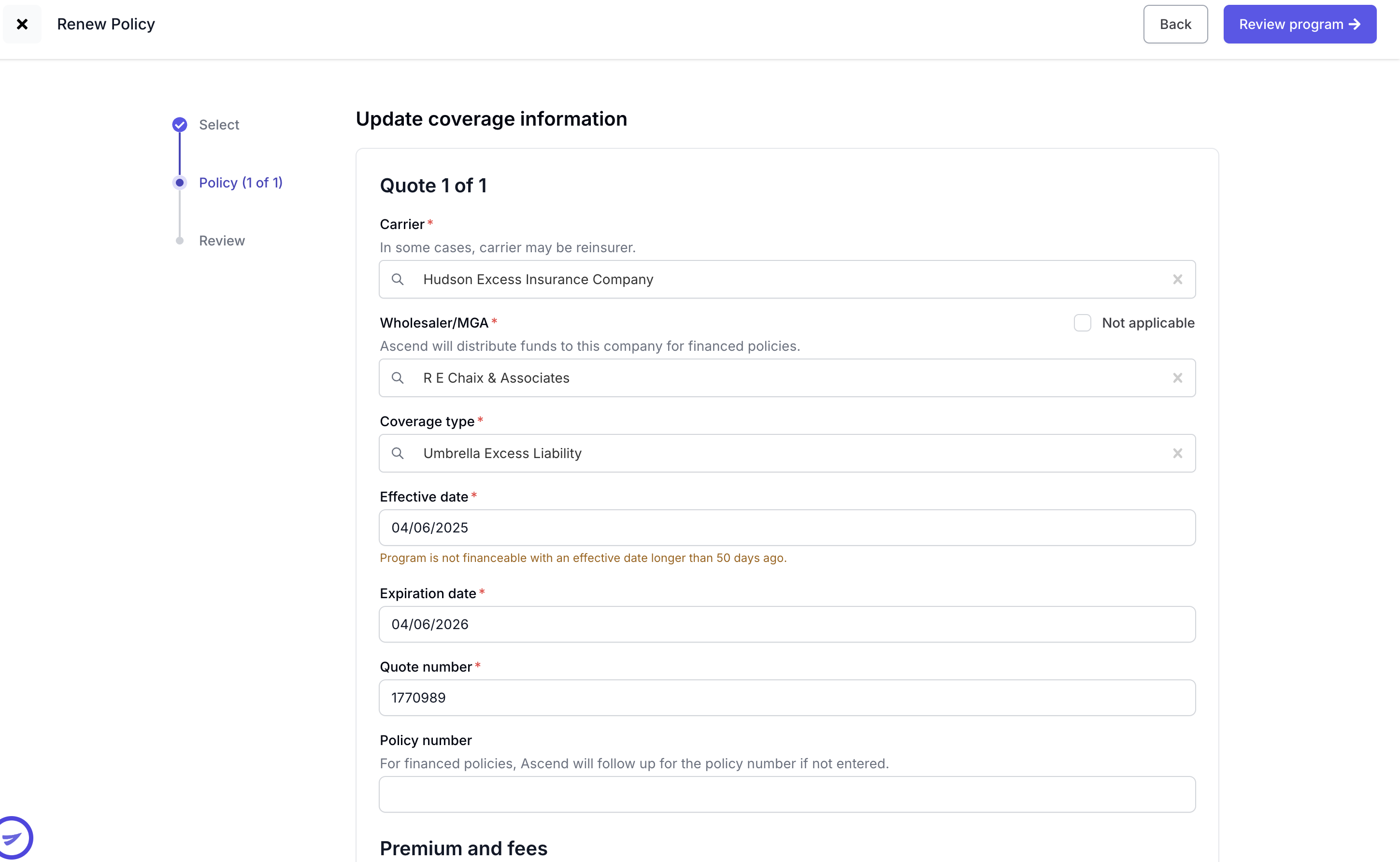
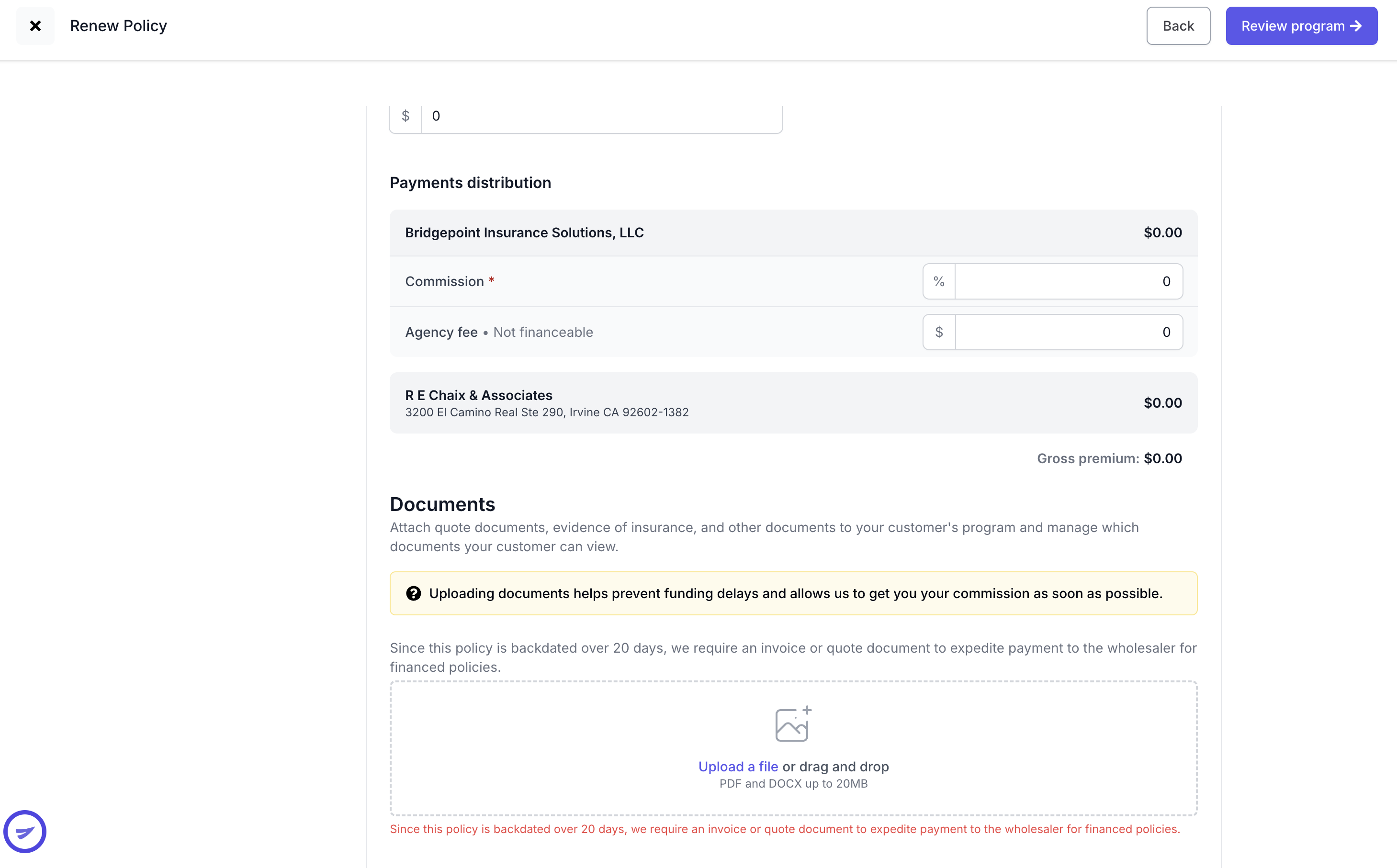
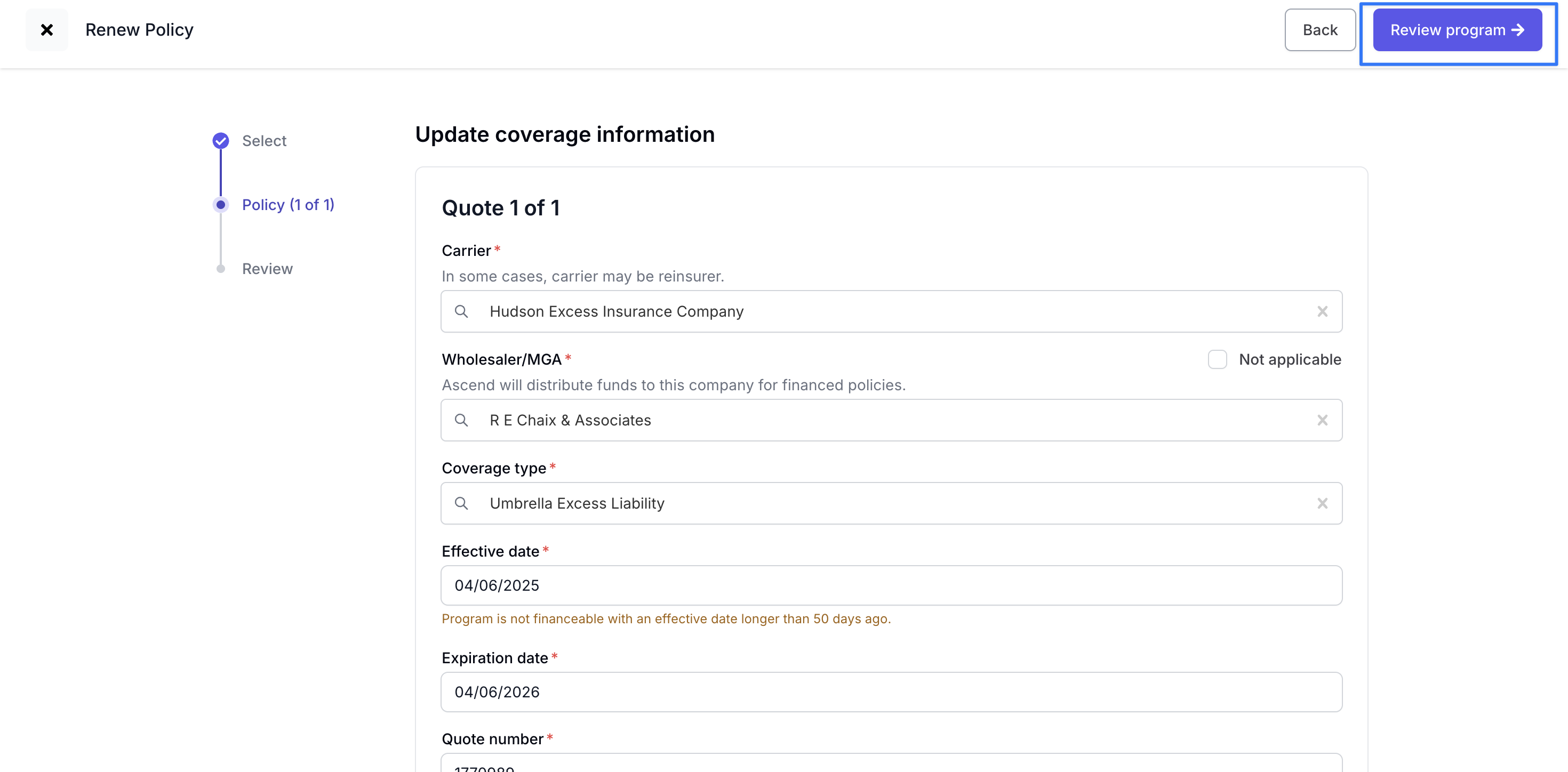
On the following page, enter the quote details for the renewal policy/policies.Be sure toreview Carrier, Wholesaler, and Coverage Type, as these fields are imported from the expiring policy, and should be confirmed before continuing forward. Once complete, click Review Program to continue.
Review the quote details once more. If everything looks good, select Renew to create the program. This action will not send purchase link to your client. You can still edit quote details after proceeding past this page.
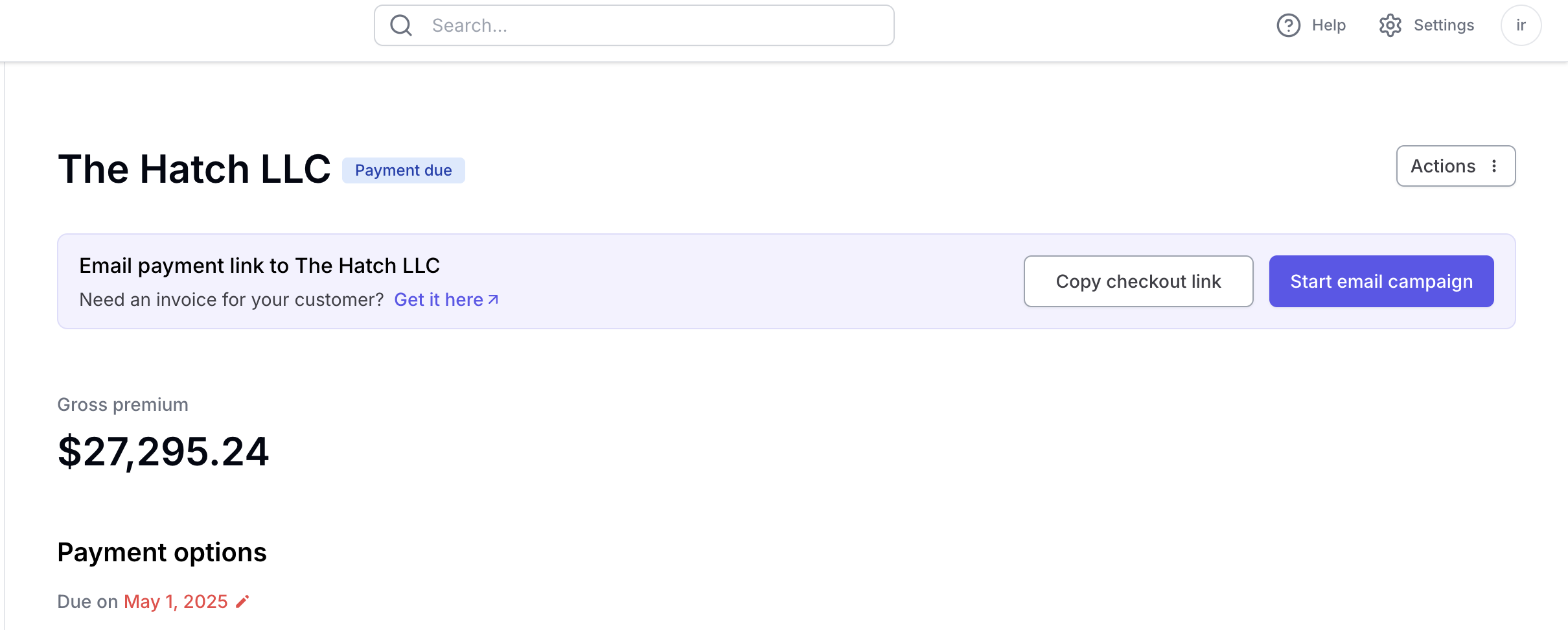
You will then be directed to the Program Page for the renewal, where you can make any further edits as needed, including adding additional lines of business.
Send the Program to the Insured by using the Send Email button, or copy the link and sent to your insured for purchase.
Frequently Asked Questions
Are users notified of programs eligible to be renewed?
The account managers will be notified of eligible programs for renewal on a weekly basis, as programs reach 90 days from expiration.
Contact Us
Need more help? Contact us at [email protected] for more help.