Payable Statement Failures
Last updated: September 19, 2026
This is a guide that will teach you how to:
Understand common posting warning/error messaging
Resolve errors
Overview
Payable statements can fail to post from Ascend to Applied Epic for a variety of reasons. It is important that you review failure reasons and correct them to not cause delays in payment to carriers.
To review payable statement failures, navigate to the Statements dashboard under Payables and toggle to the Failed quick-filter.
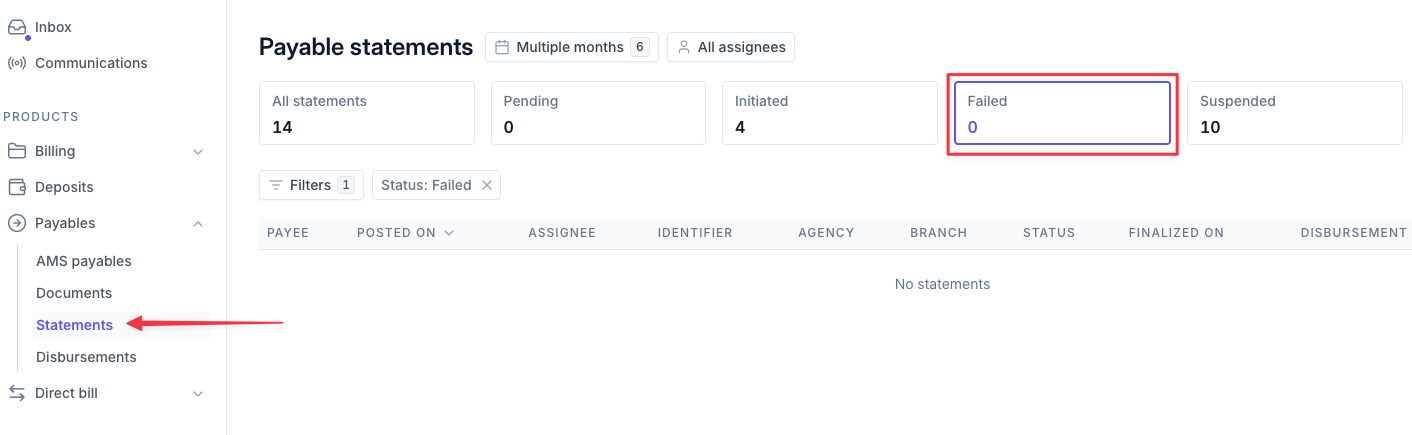
To view the statement failure reason for a particular statement, click into the row to open the Payable Statement details dashboard. The top failure banner will display the failure message:

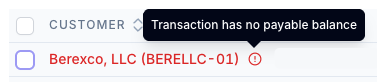
You may also see a red ! next to the customer name indicating an error as well. Hover over the ! to see additional error details.
Amount to Pay Cannot Be Greater Than Payable Due
What it means: The full payable amount has already been paid.
How to resolve: No action is required. This transaction does not need to be posted. Instead, archive the statement:

Transaction/Item Number Not Found

What it means: The entry was matched to a transaction with a payee that does not match the document payee.
How to resolve:
First, determine which PPE is correct for the payable statement: PPE identified from the carrier documentation or PPE billed on the transaction in Applied Epic.
Hover over the red ! to view the PPE billed on the transaction in Applied Epic. Example below is billed under ENDAS1.
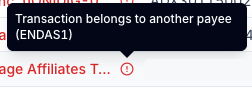
Compare it to the PPE from the carrier documentation - to view, click the document hyperlink in the Document ID column.

From the Document details dashboard, view the current PPE of the document or view the original file uploaded into Ascend.

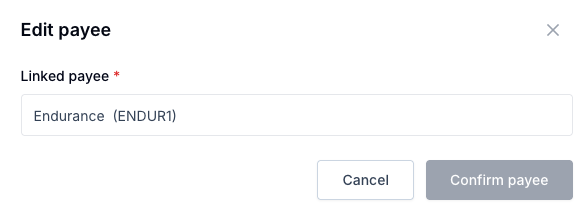
If the carrier documentation PPE is incorrect - use the pencil icon to change the PPE and retry posting.

If the PPE billed on the transaction is incorrect - follow your exceptions workflow to communicate to your servicing team to adjust the transaction in Applied Epic. Please see this Help Article for more information on communication workflows.
Statement Already Created (Suspended Statements)

What it means: A suspended statement already exists for this payee. Ascend cannot post a new one until the existing statement is finalized.
How to resolve: Finalize the existing suspended statement for the payee in Applied Epic before posting another statement from Ascend.
Timeout Exceeded

What it means: This is typically a temporary connectivity issue between Ascend and Applied Epic.
How to resolve: From the Payable Statements dashboard, click Retry posting to AMS. If the issue persists, contact your Ascend representative.

Items with Pending Processes Cannot Be Reconciled
What it means: A transaction in the statement has a pending process in Applied Epic, meaning that the transaction is currently being accessed/updated by a user in Epic. This action must be completed before Ascend can post.
How to resolve: Resolve the pending process in Epic by identifying who has the transaction open and why. Once the user has the transaction closed, click Retry posting to AMS from the Payables Statements dashboard.
Contact Us
Need more help? Contact us at [email protected] for more help.