Ascend Integrations: BindHQ
Last updated: October 10, 2025
This is a guide that will teach you:
How to set up the Ascend integration with BindHQ
How to use the Ascend integration with BindHQ
Background
This document describes the integration between Ascend and BindHQ. This integration enables joint customers to easily invoice customers and reconcile their Accounts Receivable without leaving BindHQ.
Ascend's BindHQ is an automatic integration. It is triggered when a policy is bound in BindHQ, which means that all required fields should be completed before binding a policy.
Setting up Integration
To ensure a successful integration launch, please prepare the following data exports from BindHQ:
Export of carriers, including name, address, and BindHQ ID
Export of marketing companies, including name, address, and BindHQ ID
Export of coverage types, including name and BindHQ ID
Export of agencies including
Name
Address
Phone number
Primary contact name
Primary contact email
How-to Guide
Step-by-Step Instructions
Set up your receipt bank account in BindHQ:
Navigate to Accounting -> G/L Account Admin -> Add A New Account
Create the account called "Ascend FBO"
Go to Settings -> Integrations -> Ascend -> View & edit integration configuration
Add the Ascend FBO account to the "Receipt Bank Account" field
Navigate to Settings -> Integrations in the BindHQ platform.
Choose the Ascend option -> View & edit integration configuration.
Toggle "Enable Ascend Integration" ON
Share the following with your Ascend contact:
API key
BindHQ URL
Client code
Share list of Coverage Types with your Ascend contact (including BindHQ codes)
Add list of retail agencies you work with in Ascend here.
Add list of marketing companies and carriers you work with in Ascend here.
Using the Integration
This integration consists of the following functionality:
Program/invoice creation (new policies)
Premium adding endorsement creation
Voids
Receipts
Program (invoice) Creation
Note - only the following billing type are supported:
Agency Bill
Insured Direct Bill
Create a new application and policy in BindHQ. This will automatically create a new program in Ascend.
Navigate to your Ascend Dashboard to see the newly created program.
You can now send the Ascend payment link to the client.
Failed Imports
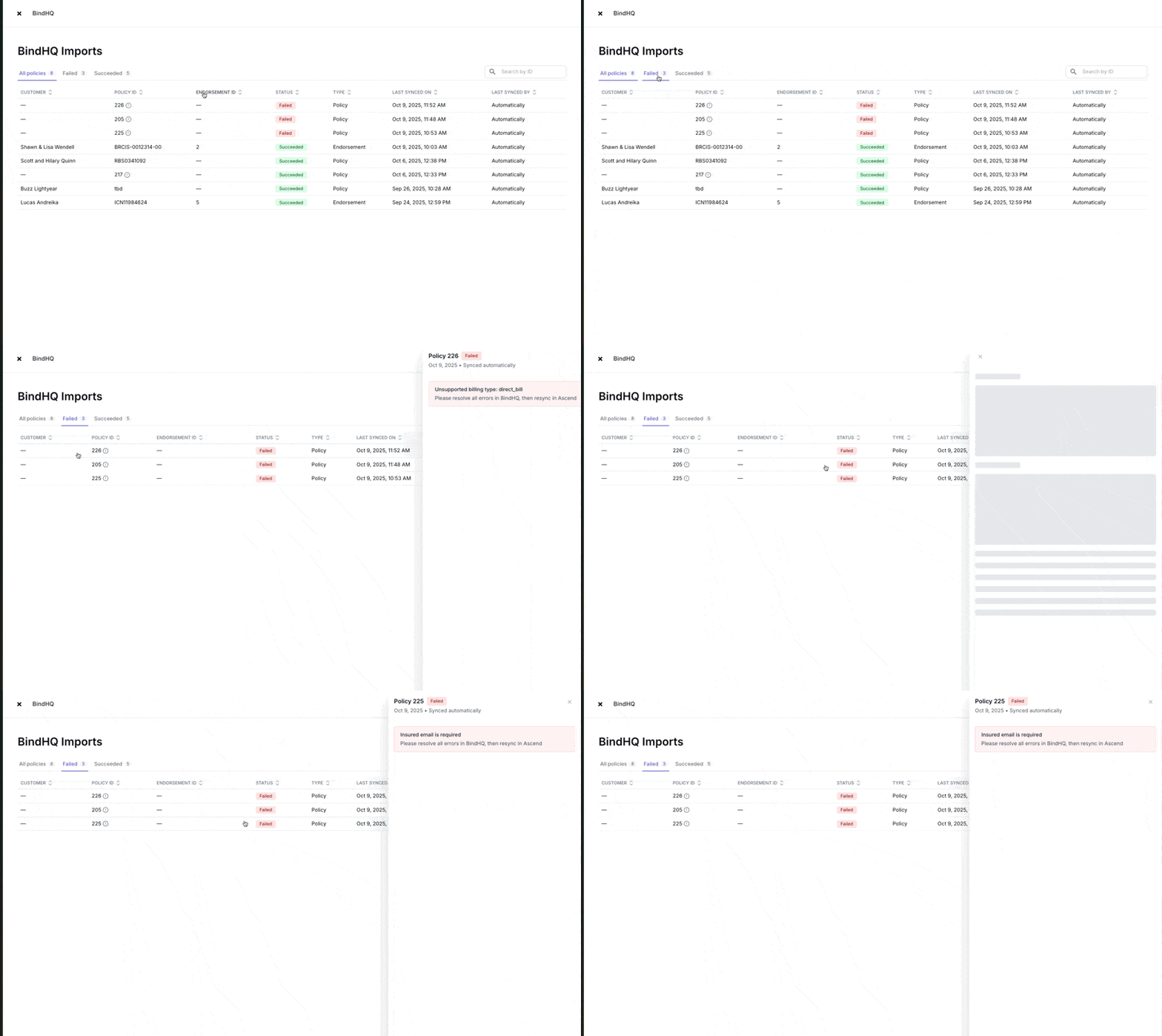
Your team can access failed imports from the Incomplete Quotes card on the Programs List page.

Clicking this will bring you to the BindHQ Imports page, where you can see all the imported records, and see the import failure reason by clicking into a failed record.
Required fields:
Insured
Name (insured.name )
Accounting Address
insured.accounting_address.line1insured.accounting_address.cityinsured.accounting_address.stateinsured.accounting_address.postal_codeinsured.emailinsured.phone
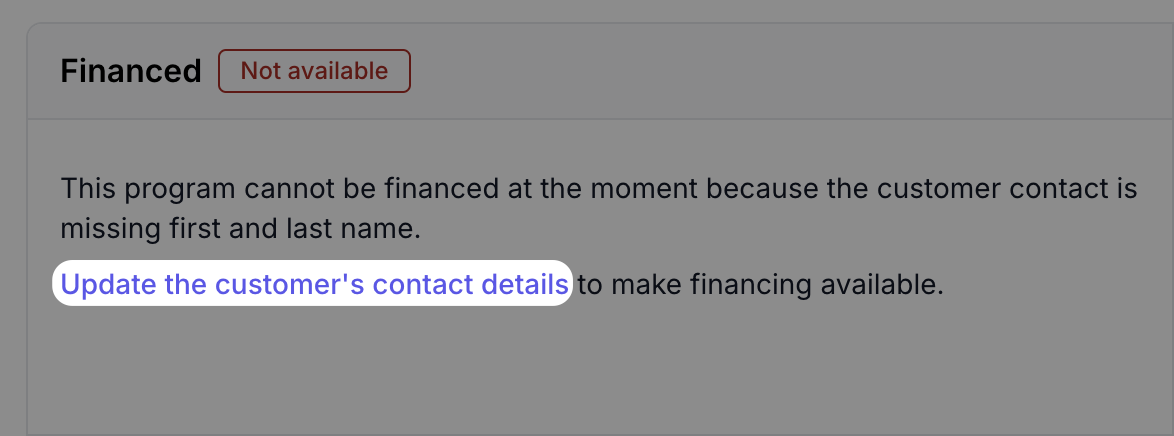
If using insured type Corporation for Insured Direct Bill, first and last name for the insured's billing contact will need to be manually entered by clicking "Update the customer's contact details" to unblock premium financing.
Policy/Quote
Policy type (
policy.type)Carrier (
policy.carrier)Policy number (
policy.policy_number)Term
policy.effective_datepolicy.expiration_date
Premium, taxes, and fees (
quote.line_items)Minimum earned rate (
quote.minimum_earned_premium_percentage)Retailer/wholesaler commission (
quote.agent_commission_per1centage)
Retailer commission is what determines the retailer/wholesaler commission payout, if your company uses Ascend for commission payables. Leaving this field blank will remit gross commission to your company.
Agency
Name (
agency.name)Email (
agent.email)Phone Number (
agency.phone)Mailing address (
agency.mailing_address)Billing contact first name (
agent.first_name)Billing contact last name (
agent.last_name)
If all retailer fields are not all complete, the integration will fail. Please reach out to your Ascend account manager to re-sync the policy to Ascend.
Premium Adding Endorsements
Create a new premium adding endorsement in BindHQ.
If original policy exists in Ascend, this will create a premium-adding endorsement on that policy in Ascend.
If original policy does not exist, this will create a new Ascend program
Navigate to your Ascend Dashboard to see the endorsement.
You can now send the Ascend payment link to the client.
Voids
If the policy or premium adding endorsement that was synced in steps #1 and #2 is voided in BindHQ, the corresponding program/endorsement will be archived in Ascend.
Customers will no longer receive emails to make payment for this invoice and the payment link will expire
Receipts
When the customer makes payment and Ascend sends funds to your bank account, a receipt will be created in BindHQ and applied to the invoice.
Field Mapping
BindHQ Field | Ascend Field |
|
|
|
|
|
|
|
|
|
|
|
|
|
|
|
|
| contact first + last name |
|
|
|
|
|
|
|
|
|
|
| premium + fees |
|
|
| retail agency commission |
| org account |
| producer email (from retail agency) |
|
|
|
|
|
|
|
|
Troubleshooting the Integration
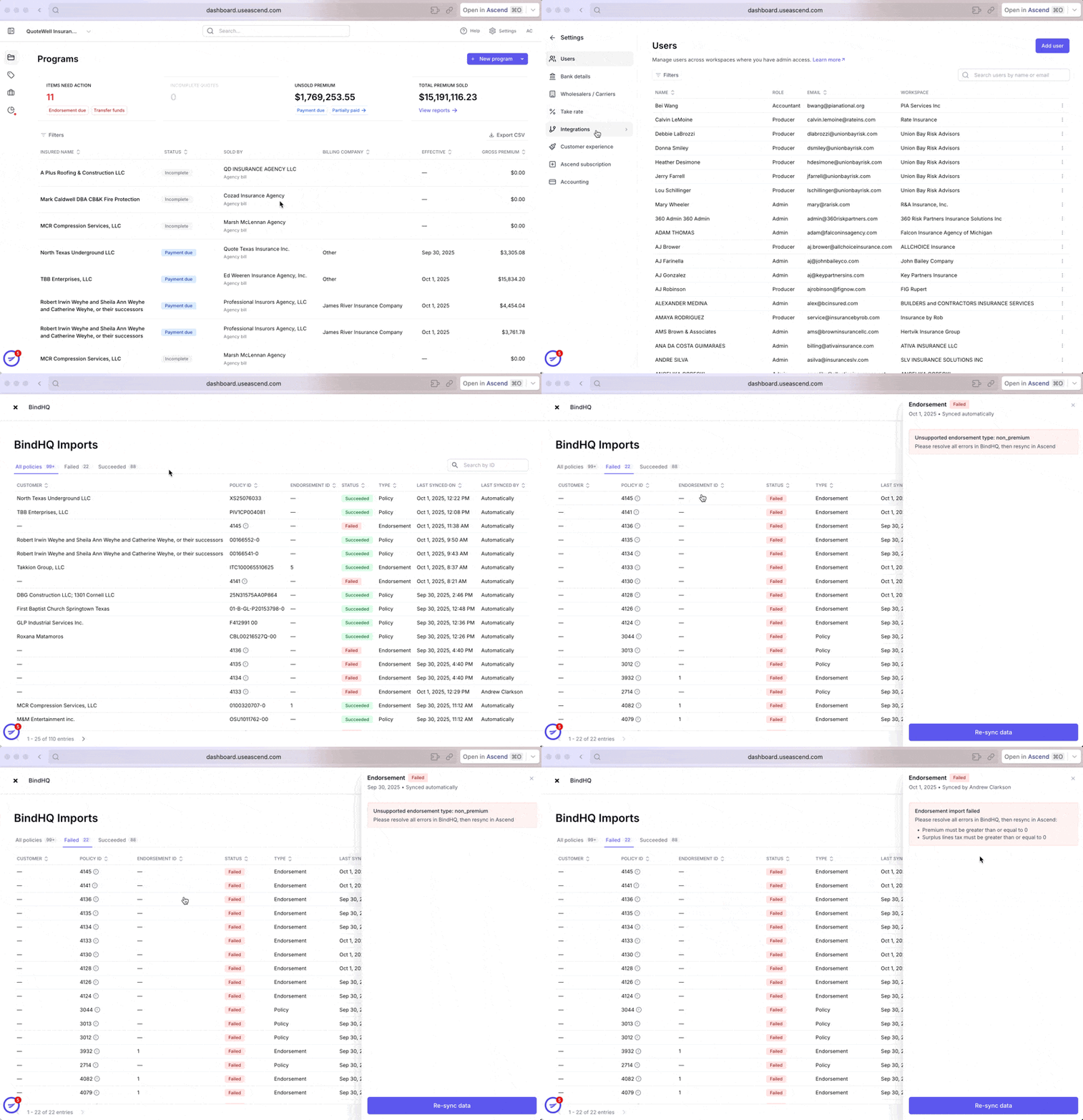
If the sync to BindHQ fails, you can visit this page to attempt a manual resync: https://dashboard.useascend.com/settings/integrations/bindhq
Select the failed import
Review and resolve the error message (typically missing information, error messages detailed below)
Click "Re-sync data" to attempt the sync again
Policy/Endorsement Level Failures:
Unsupported billing type (supported types are agency_bill or direct_bill_insured)
Premium is less than or equal to zero
Surplus Lines is less than or equal to zero
Other Missing Info Failures
Partner Agency
Name
Email
Phone
Address (Street 1, city, state, zip code)
Insured
Valid phone number (if present)
Name
Email
Address (Street 1, city, state, zip code)
Account manager / Producer (MGA user)
Email
Valid phone (if present)
First name
Last name
Retail agent
Email
Valid phone (if present)
First name
Last name
FAQ
How are my Retail Agencies synced from BindHQ to Ascend?
Your agencies are automatically synced to Ascend on an hourly basis.
If the agency is missing in Ascend when creating the application, the integration will automatically create the agency in Ascend.
Inactive agencies are excluded and will not be synced to Ascend.
How are my users synced from BindHQ to Ascend?
When creating a policy in BindHQ, the user will automatically be created in the Ascend system if it does not yet exist.
How are reinstatements handled?
Ascend is currently not integration with BindHQ for reinstatements. If a policy is reinstated in BindHQ, you should also reinstate it in Ascend. This could mean:
If a payment was made and the program is in "Canceled" status, click Actions > Reinstate
If no payment was made and the program is in "Archived" status, click "Un-archive"
Does the integration mark carrier payments as paid if Ascend is managing payables?
No, currently BindHQ does not have APIs to update carrier payables. Once available we will look to build out this functionality.
Contact Us
Need more help? Contact us at [email protected] for more help.