Cancelations Page
Last updated: April 8, 2026
This guide will teach you how to:
Monitor and manage all policy cancelation requests
Use preset and advanced filters to find specific cancelations
Review cancelation details in the summary drawer
Export cancelation data as CSV
Mark cancelations as resolved or unresolved
Overview
The cancelations page provides a view of all policy cancelations across your organization. Each row tracks key information including return premium status, return commission status, attached documents, and any high-priority issues that require attention.
Key Benefits
See all open and completed cancelations in one place
Quickly identify cancelations that need action
Track return premium and commission collection status at a glance
View and manage individual policy cancelation details, documents, and notes
Export cancelation data for reporting
Navigating to the Cancelations Page
The Cancelations page can be found within the Accounting section of the navigation sidebar.
Cancelations Page
Preset Filter Cards
At the top of the page, five preset filter cards give you a quick summary of your cancelation workload. Each card shows a count and can be clicked to filter the table.

Open Cancelations: All policy cancelations that are not yet completed. Cancelations are considered Open until Return Premium and Return Commission have been received back.
Missing Cancelation Invoice: Cancelations that are missing documentation Upload a cancelation invoice or supporting files to complete this requirement.
Missing Return Premium: Filters to cancelations where return premium has not yet been received.
Missing Return Commission: Filters to cancelations where return commission has not yet been received.
Completed: Shows cancelations where all requirements are complete, or which have been manually marked as resolved. Cancelations are not considered completed until Return Premium and Return Commission have been received back.
High-Priority Items
Within each preset card (except Completed), you may see a high-priority count badge. Clicking this badge narrows the filter to show only high-priority items within that category. High-priority cancelations are flagged by Ascend when they require specific action from your team.
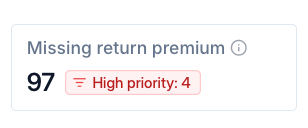
There are three types of high-priority issues:
Confirm cancelation — Ascend could not verify the policy cancelation with the carrier/MGA. Upload proof of cancelation or a return premium invoice for Ascend to review.
Send funds — There is an outstanding balance on this policy. Create or complete a return funds transfer for Ascend to review.
Contact Insured — Outreach to your client is required to collect outstanding funds or required documentation.
Table Layout
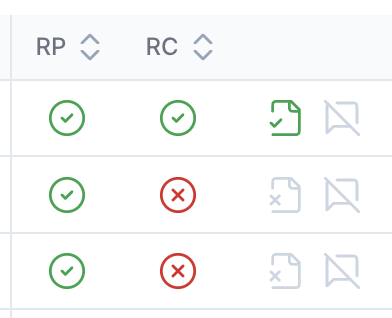
Each row in the table represents a policy cancelation. Canceled policies from the same program will each have their own row on the table. On the righthand side of the table, there are three pinned columns.
Column | Description |
RP (Return Premium) | A green check or red X indicates whether return premium has been received |
RC (Return Commission) | A green check or red X indicates whether return commission has been received |
Icons | Document and notes status — these icons show whether cancelation documents are attached and whether notes have been added |
Cancelation Summary Drawer
Click any row in the table to open the cancelation summary drawer on the right side of the page. The drawer provides detailed information about the selected cancelation.
Drawer Header
The header shows:
Customer name — links to the full program page
Policy Number, coverage type, and effective date
A high-priority issue badge, if applicable
Return Summary Cards
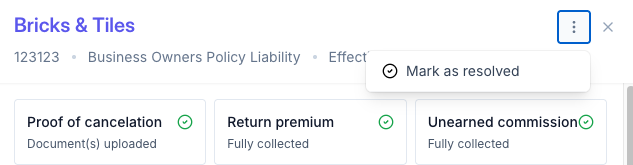
At the top of the drawer, summary cards show the status of:
Cancelation Invoice — Whether cancelation documents have been uploaded
Return premium — how much return premium has been collected
Unearned Commission — How much return commission has been collected (agencies only)
Tabs
The drawer contains tabs for cancelation data, loan data, and notes.
Cancelation Data
Displays a detailed financial summary of the cancelation including:
Payment Type (Financed or Paid in full)
Canceled effective date
Flat cancelation status (Yes/No)
Net premium amount
Unearned commission amount
Additional line items when applicable: Policy fee, Surplus lines tax, Other fees, Taxes and fees, Broker fee, Agency fees
Total amount
Below the summary, you'll find:
Return invoices — A table of all return premium and commission invoices created for this cancelation. If no invoices exist yet, a prompt explains how to generate them.
Documents — Any uploaded cancelation documents (e.g., cancelation invoices, proof of cancelation). If none are attached, a prompt encourages uploading supporting files.
Loan Data
Available only for financed programs, this tab shows loan details including:
Transaction date
Total sale price
Downpayment
Take rate
APR and total interest
Loan duration (number of installments and frequency)
Loan balance
Notes
View and manage internal notes on the cancelation. You can add new notes or delete existing ones. Ascend's operations team may also leave notes directly for your team here.
Drawer Actions
At the bottom of the drawer, depending on the cancelation state:
Manage cancelation — Opens the full cancelation editing flow where you can update return premium amounts, commission details, and upload documents
View unpaid balance(s) — Navigates to unpaid return invoices for the insured
Mark as Resolved / Unresolved
For cancelations without a high-priority issue, you can mark them as resolved or unresolved using the kebab menu (three-dot icon) in the drawer header. This helps your team track which cancelations have been reviewed and handled. Mark as resolved moves the cancelation to Completed.
Exporting Data
Click the Export button in the toolbar to download a CSV report of your cancelation data.
The export respects your currently applied filters, so you can export a targeted subset of cancelations
The confirmation dialog shows how many records will be included
For large exports, the file is generated in the background and sent to you by email
High-Priority Issues Explained
When Ascend identifies a cancelation that requires your attention, it is tagged with a high-priority issue. These appear as red badges in the table and as alert messages in the summary drawer.
Issue | What it Means | What to Do |
Confirm cancelation | Ascend could not verify the policy cancelation with the supplier. | Upload proof of cancelation or a return premium invoice. Ascend will review and follow up. |
Send funds | There is an outstanding balance on this policy | Create or complete a return funds transfer. Ascend will review and follow up. |
Contact insured | Outreach to the client is required | Contact your client to collect outsanding funds or required documentation. Ascend will review and follow up. |
High-Priority policy cancelations are regularly reviewed by Ascend. Once your team has taken action, our team will review and complete the cancelation.
Frequently Asked Questions
Q: What is the difference between "Open cancelations" and "Completed"?
A: Open cancelations are still in progress — they may be awaiting return premium, commission collection, or document uploads. Completed cancelations have finished all accounting, or have been manually marked as resolved.
Q: What do the RP and RC columns mean?
A: RP stands for Return Premium and RC stands for Return Commission. A green check means the funds have been received; a red X means they have not.
Q: How do I upload proof of cancelation?
A: Click on a cancelation row to open the summary drawer, then click Manage cancelation at the bottom. From the editing flow, you can upload cancelation invoices and other supporting documents.
Q: Can I filter by multiple criteria at once?
A: Yes. You can combine any number of advanced filters together, and they work alongside the preset filter cards.
Q: Why don't I see the Loan Data tab?
A: The Loan Data tab only appears for financed programs. If the program was paid in full, this tab will not be shown.
Q: Will exporting the CSV include all cancelations?
A: The export includes only the cancelations matching your current filters. Adjust or reset your filters before exporting to control which records are included.
Q: What happens when I mark a cancelation as resolved?
A: Marking a cancelation as resolved is an organizational tool for your team, and moves the cancelation to Completed. It indicates that the cancelation has been reviewed and no further action is needed from your side. You can always mark it as unresolved again if needed.
Q: How do high priority issues get resolved?
A: Ascend regularly reviews high priority cancelations for activity. When an action is taken, Ascend will update any remaining requirements or mark the cancelation completed.
Contact Us
Need more help? Contact us at [email protected] for more help.