Cancelations: Initiating a Cancelation
Last updated: August 17, 2026
NOTE: This article covers how to initiate a cancelation in the Ascend dashboard. For an overview of how cancelations work, see: [Cancelations: Overview →].
This guide will teach you:
How to cancel a policy in Ascend (voluntary cancelation)
What information you'll need before you start
How to initiate a cancelation with or without a cancelation invoice
What happens after you submit
Before You Begin
Before canceling a policy in Ascend, make sure you have confirmation from the carrier, wholesaler, or MGA that the cancelation has been processed. This typically comes as a cancelation endorsement or written confirmation, along with the cancelation effective date. If you have a cancelation invoice from the carrier, wholesaler, or MGA, Ascend can use it to autofill most of the details for you.
If you don't have everything on hand yet, you can still proceed. Ascend will prompt you for only what's needed based on what you have available.
Cancelations should only be initiated in Ascend after the carrier, wholesaler, or MGA has confirmed the cancelation.
Step-by-Step: Canceling a Policy
Step 1: Navigate to the Program Page
From your Ascend dashboard, find the program you want to cancel.
Step 2: Request the Cancelation
Click the Actions button in the top right corner and select Cancel. Select which policies you wish to cancel, and then select Continue.
Step 3: Upload the cancelation invoice
Note that a cancelation invoice is required in order to issue a refund to your insured. If you don't have the cancelation invoice but would like to pause monthly installment email reminders, you can still proceed.
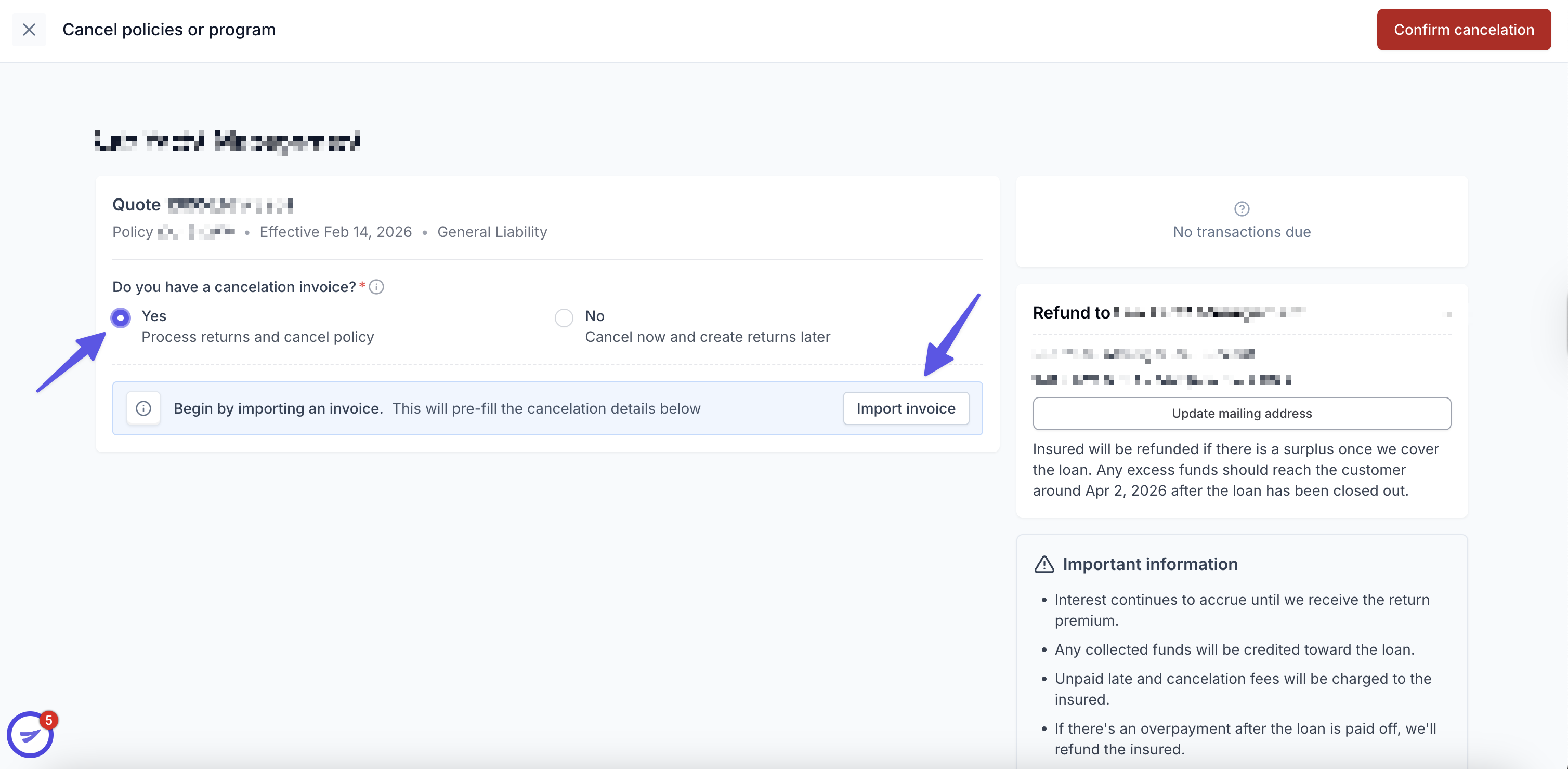
The first thing Ascend will ask is whether you have a cancelation invoice from the carrier, wholesaler, or MGA.
If you select Yes:
You'll be prompted to import the invoice. Ascend will attempt to autofill the cancelation details, such as effective date, policy number, and return premium/unearned commission amounts, directly from the document. Review the prefilled fields carefully and correct anything as needed before continuing.
Once the invoice has been uploaded, the system will suggest "Return invoices":
On a financed program, there will be a return invoice for your agency to send unearned commission to Ascend, and a return invoice for Ascend to collect the return premium from the billing company.
On a paid in full program, the return invoices will allow your agency to send both return premium and unearned commission to Ascend, at which point Ascend will issue the refund directly to your insured.
Note that you are able to deposit return premium checks directly into Ascend to expedite the refund process. For more information, please see here.
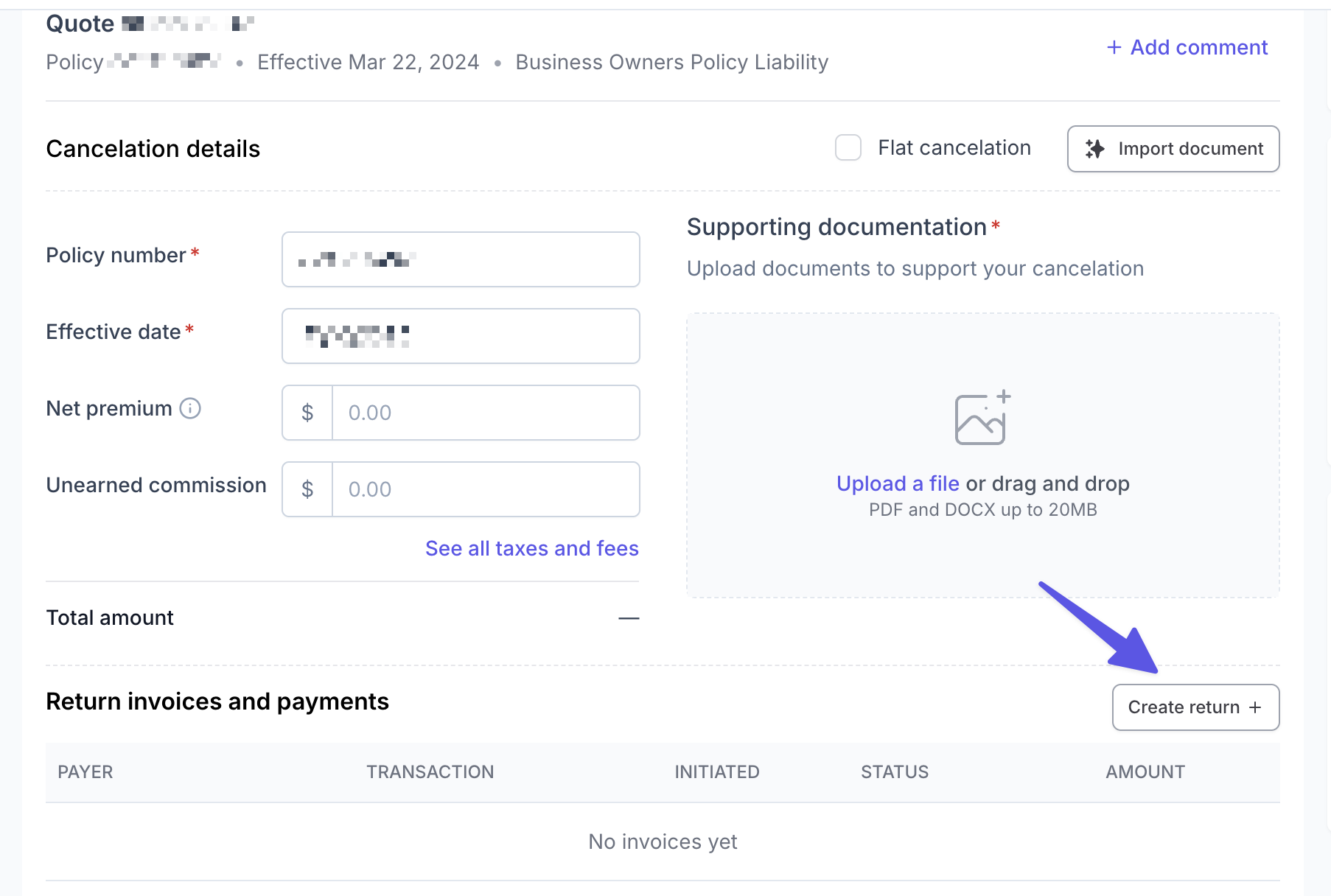
For each return invoice, you'll select:
Payer: Who is responsible for sending the funds. This will be either:
Agency: for return commission (RC) owed by your agency to Ascend
Carrier: for return premium (RP) when the wholesaler/carrier is sending funds directly to Ascend
Return amounts: The net premium and unearned commission amounts for that invoice
Make sure the correct payer is correctly selected for each invoice, this is how Ascend tracks what's been collected and from whom.
Select Create transaction to save a return invoice.
Note if your agency needs to return commission to the carrier/wholesaler/MGA (i.e., RT Specialty), funds should not be returned to Ascend, and you should delete the suggested return invoice for return commission.
If you select No:
You'll be asked to fill in three fields manually:
Policy number
Cancelation effective date
Supporting documentation
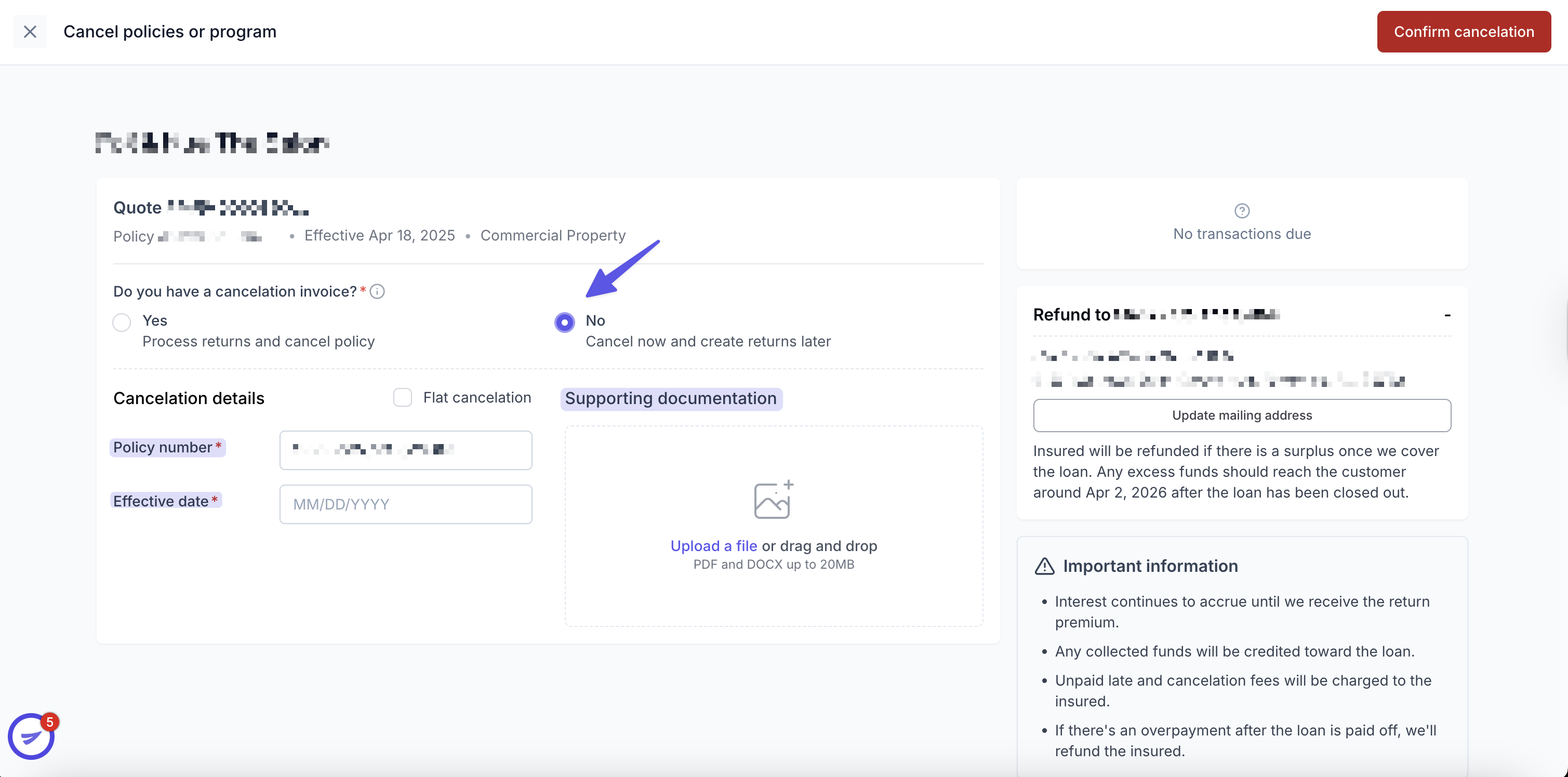
Once you do receive the cancelation invoice from the carrier/wholesaler/MGA, please create Return invoices as stated above.
Step 4: Review and Confirm Cancelation
Review your details, then click Confirm cancelation in the top right corner to complete the cancelation. Future invoices are voided immediately, the program status updates, and the policy appears in your Cancelations page for ongoing tracking.
After the Cancelation
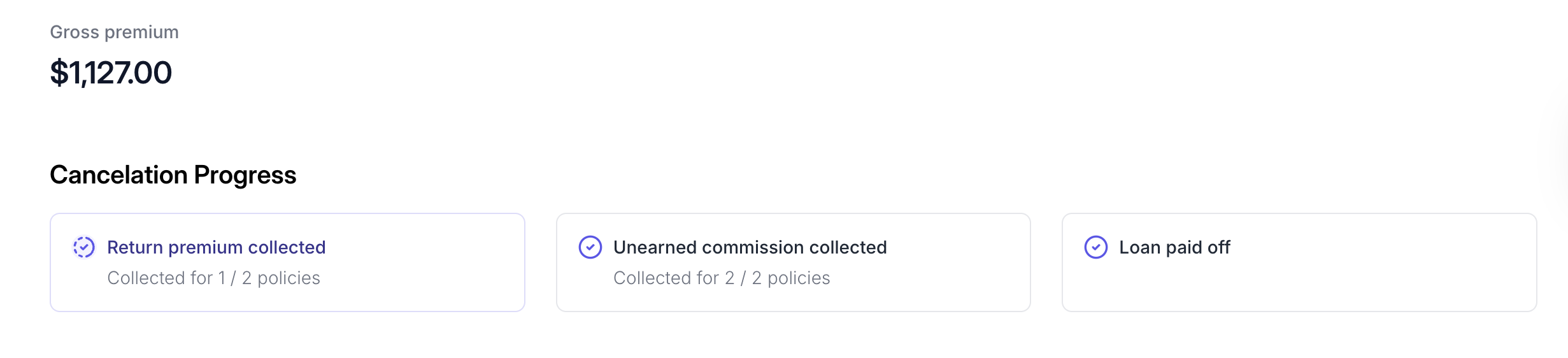
Once submitted, Ascend begins tracking the return premium (RP) and return commission (RC) requirements for the policy. You can follow the status of both from your [Cancelations Page →] or the transactions on the Program page. Our team may reach out if additional documentation is needed.
When the Standard Flow Doesn't Apply
In practice, how RP and RC are collected doesn't always follow a straight path. There are two common variations worth knowing about.
The carrier, wholesaler, or MGA sends RP directly to the agency
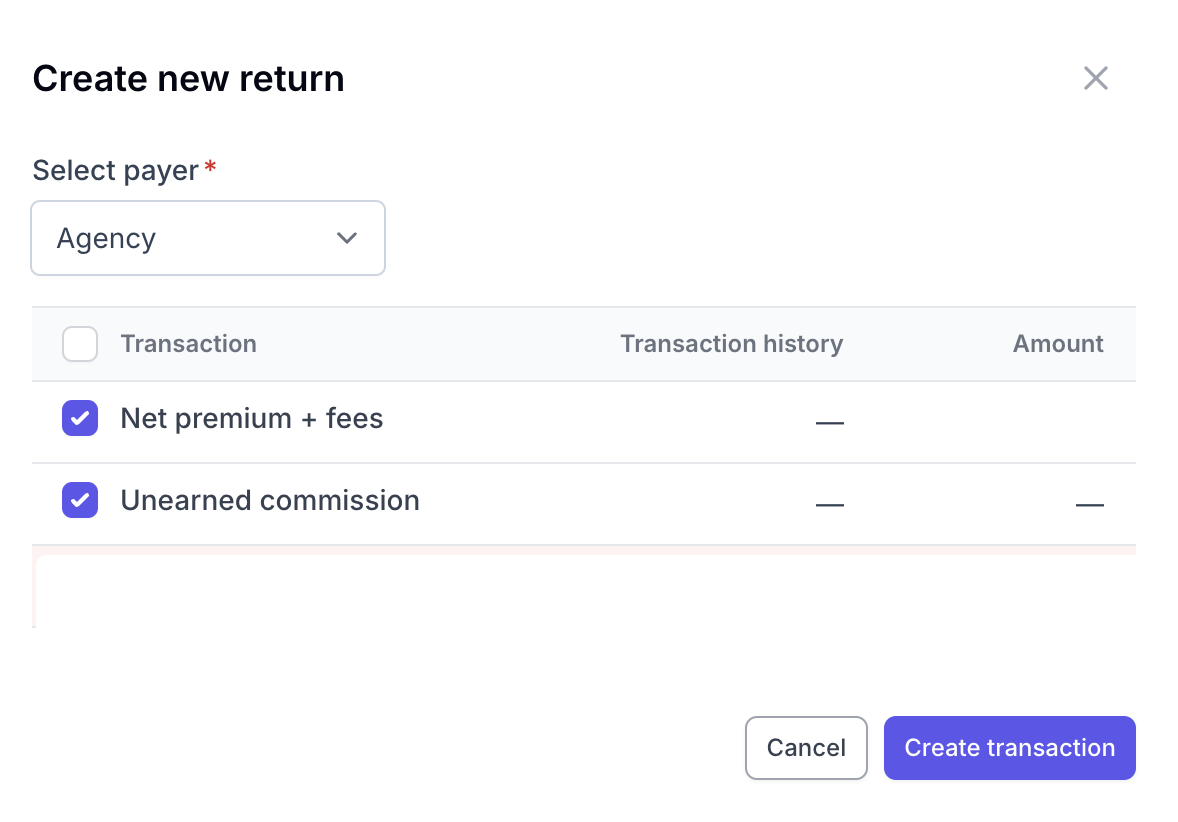
Sometimes the carrier, wholesaler, or MGA routes the return premium to the agency instead of Ascend. In this case, the agency is responsible for forwarding the full gross return premium, which includes both RP and RC, back to Ascend. In this case, please select Agency as the payer for both Net premium + fees and Unearned commission.
The carrier, wholesaler, or MGA requests RC from the agency directly
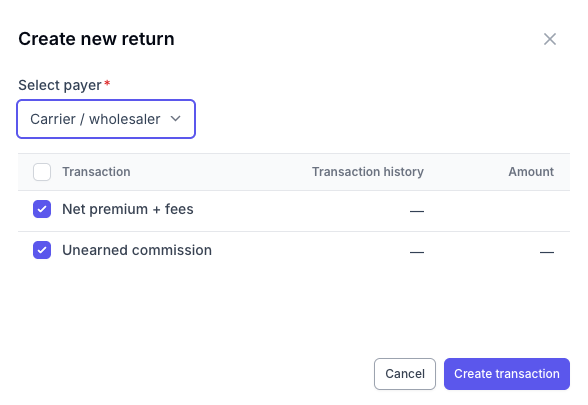
In other cases, the carrier, wholesaler, or MGA collects the return commission from the agency directly, then remits the full gross return premium, RP and RC, to Ascend themselves. The agency pays RC to the carrier, wholesaler, or MGA, and Ascend receives the combined amount from their side. In this case, please do not create a return invoice for your agency to pay RC. Instead, please select Carrier / wholesaler as the payer for both Net premium + fees and Unearned commission.
Frequently Asked Questions
Q: What if the carrier, wholesaler, or MGA says no return premium is owed (e.g., due to filings or an expired policy)?
When a policy is cancelled, the return premium is calculated and issued entirely by the insurance carrier, wholesaler, or MGA — Ascend has no role in determining that amount. In some cases, the carrier may determine that no return premium is owed (for example, due to state filing requirements, minimum earned premium provisions, or an expired policy). If the return premium is less than the insured's remaining loan balance, or if no return premium is issued at all, the insured is still responsible for paying off the outstanding balance. For questions about why a specific return premium amount was issued, we recommend reaching out to the carrier directly.
Q: Can I return more funds after I've already submitted a return?
Yes. If you need to return additional funds after a previous transfer has been paid, you can create a new return invoice from the Cancelation detail drawer.
Q: What if I entered an incorrect return amount?
If the transfer has not yet been paid, you can edit the invoice from the Cancelation detail drawer. If the transfer is already in progress, contact [email protected].
Q: Who calculates the return premium amount?
Return premium is calculated by the carrier, wholesaler, or MGA based on the cancelation effective date and any applicable minimum earned premium. Ascend displays expected amounts based on what they provide.
Contact Us
Need more help? Contact us at [email protected].