AMS360: Ledger Integration Setup
Last updated: April 21, 2026
Description
The integration requires adding the Ascend FBO account to your AMS360 instance, and then inputting the Bank Account Short Name for your organization's Trust, Operational, and Ascend FBO bank accounts from 360 into Ascend.
Create the Ascend FBO Account in AMS360
Navigate to Admin page, select
Accountingsection and clickChart of Accounts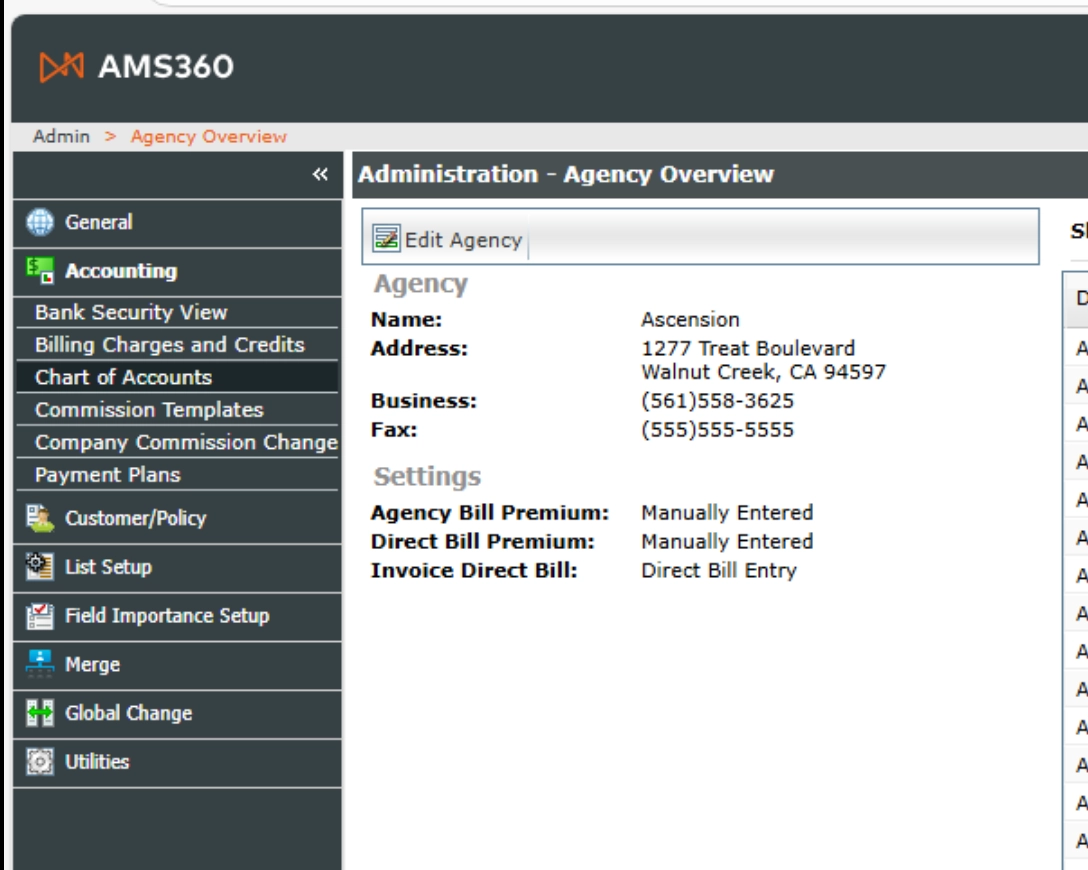
In the
Chart of Accounts window, clickNew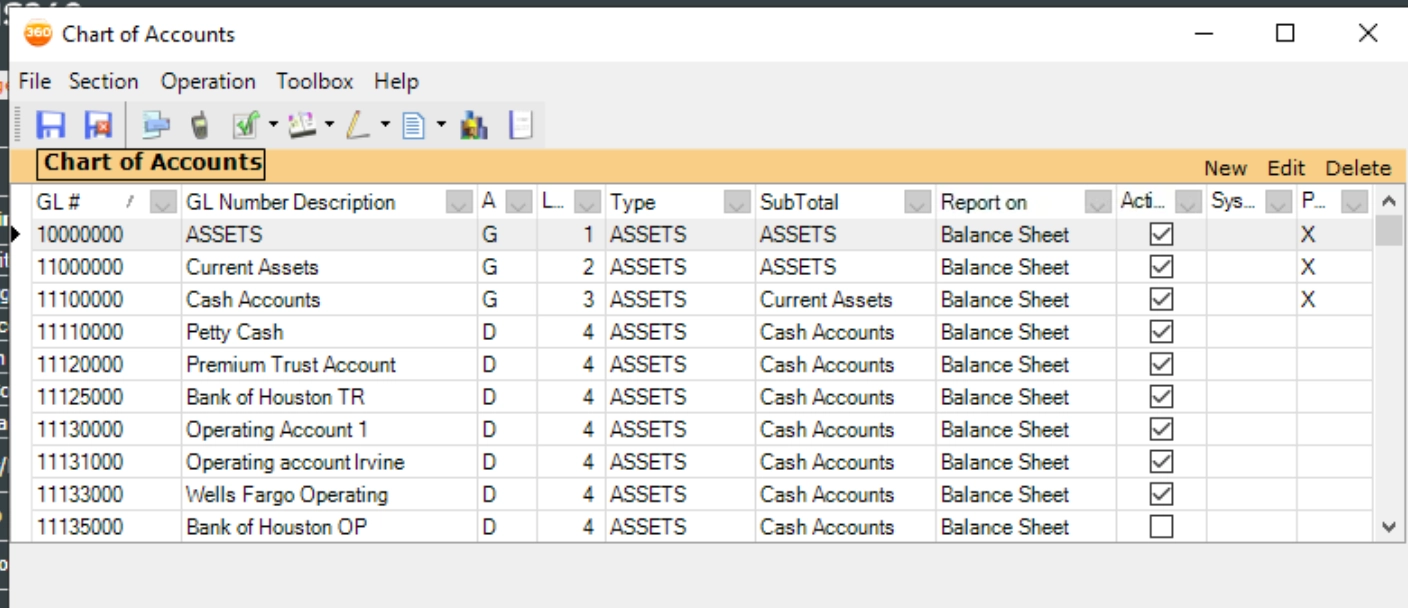
Fill out the new account form
GL Number:
11199999GL Description:
ASCEND FBO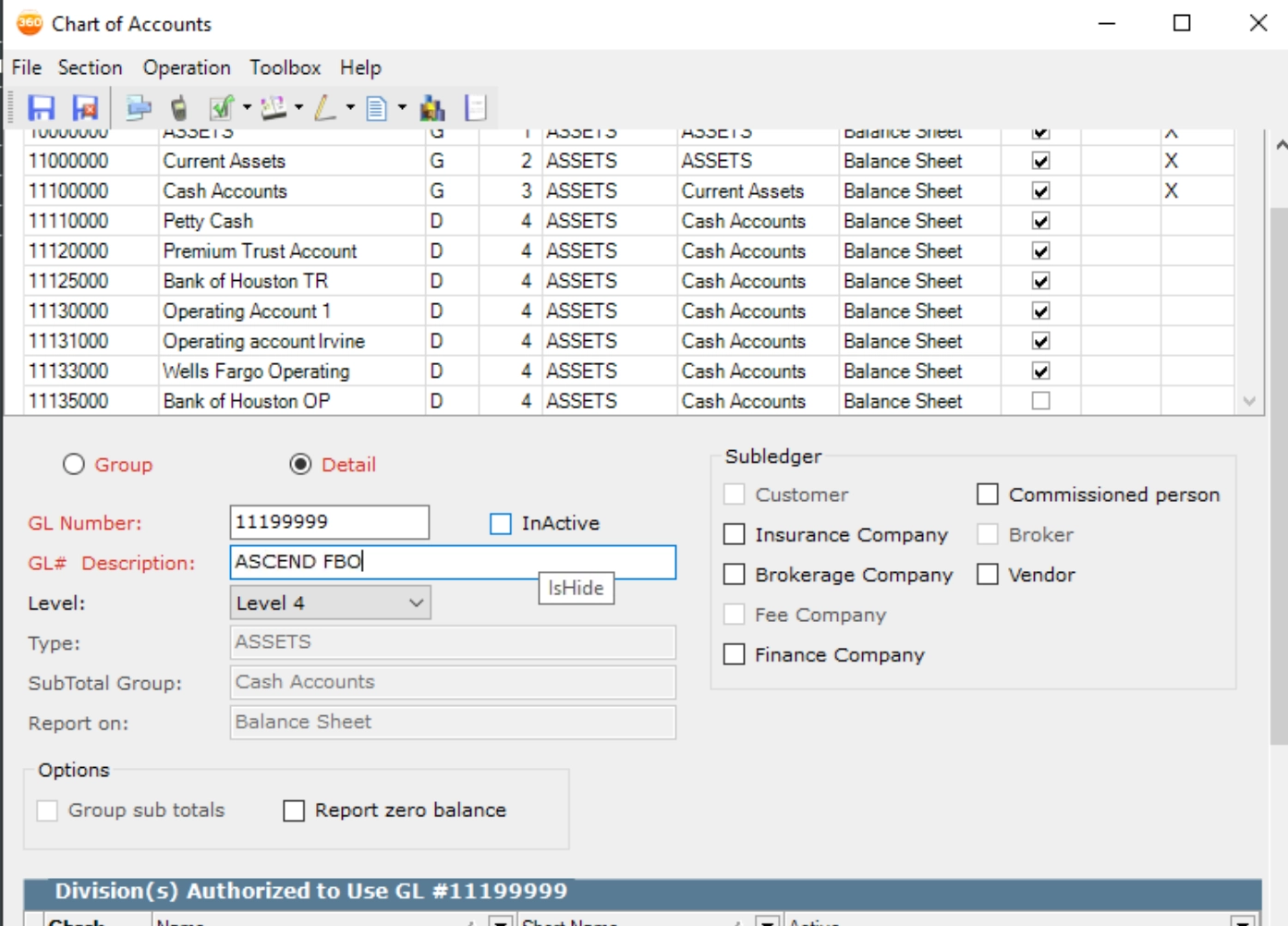
Navigate to Banks page and click
New bank
Fill out the new bank form
Bank name:
Ascend FBOShort name:
ASCFBOGL Number:
11199999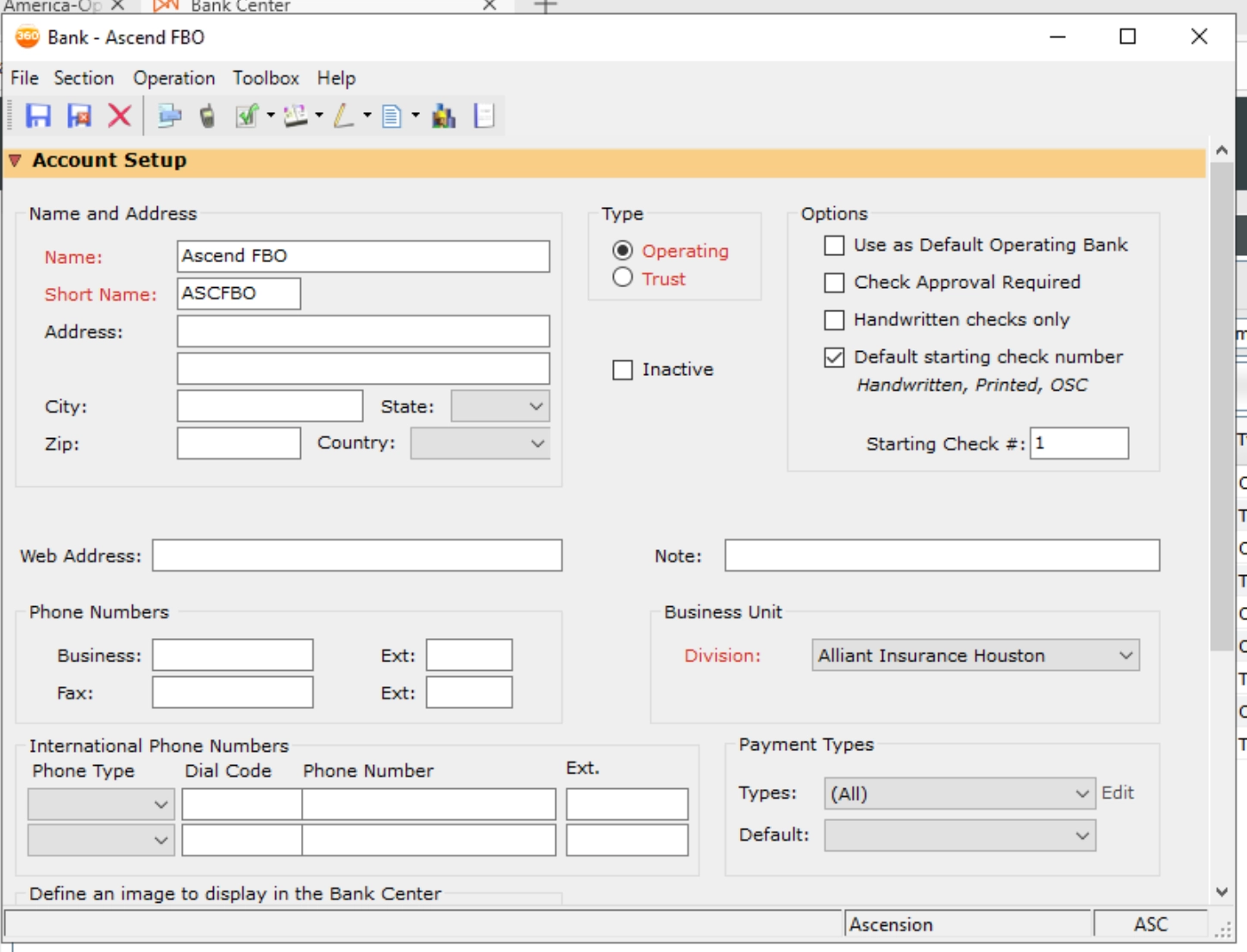
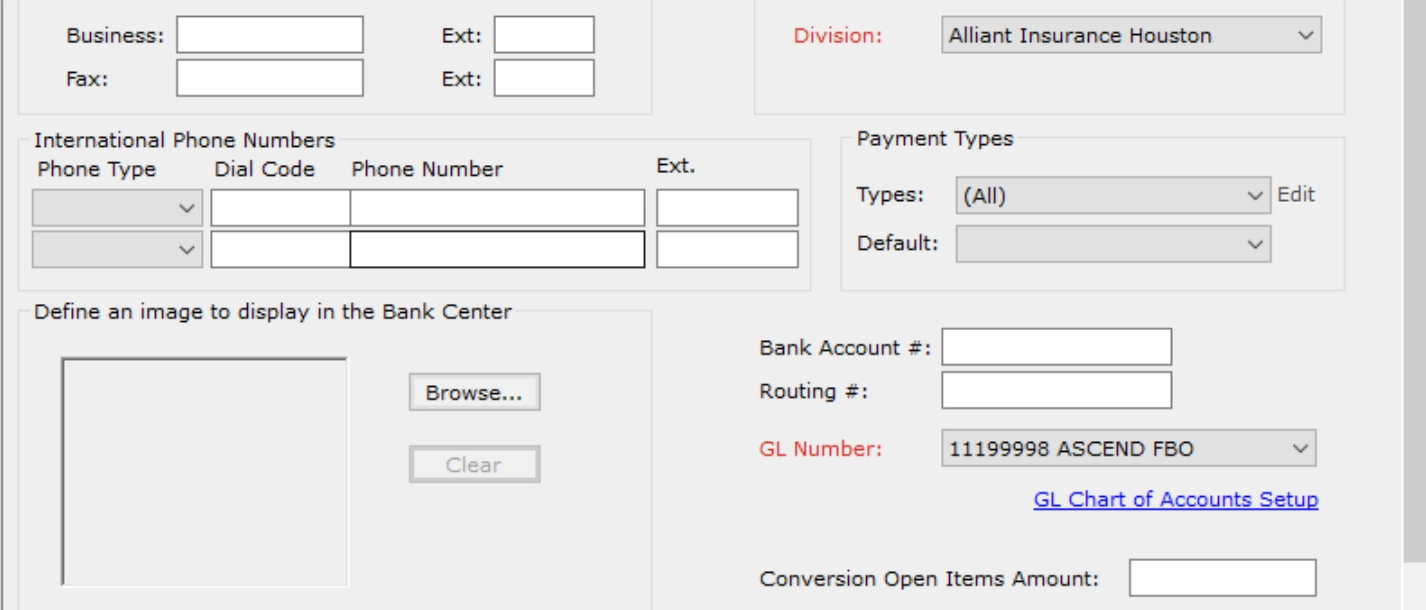
Configure Ledger Accounts in Ascend
Once you’ve created the Ascend FBO Account in AMS360,
Ensure the Employee Authorizations access is set to All. This allows Ascend to detect the bank account via API.
Grab the following short codes for the Trust, Operational & Ascend FBO Account from AMS360.
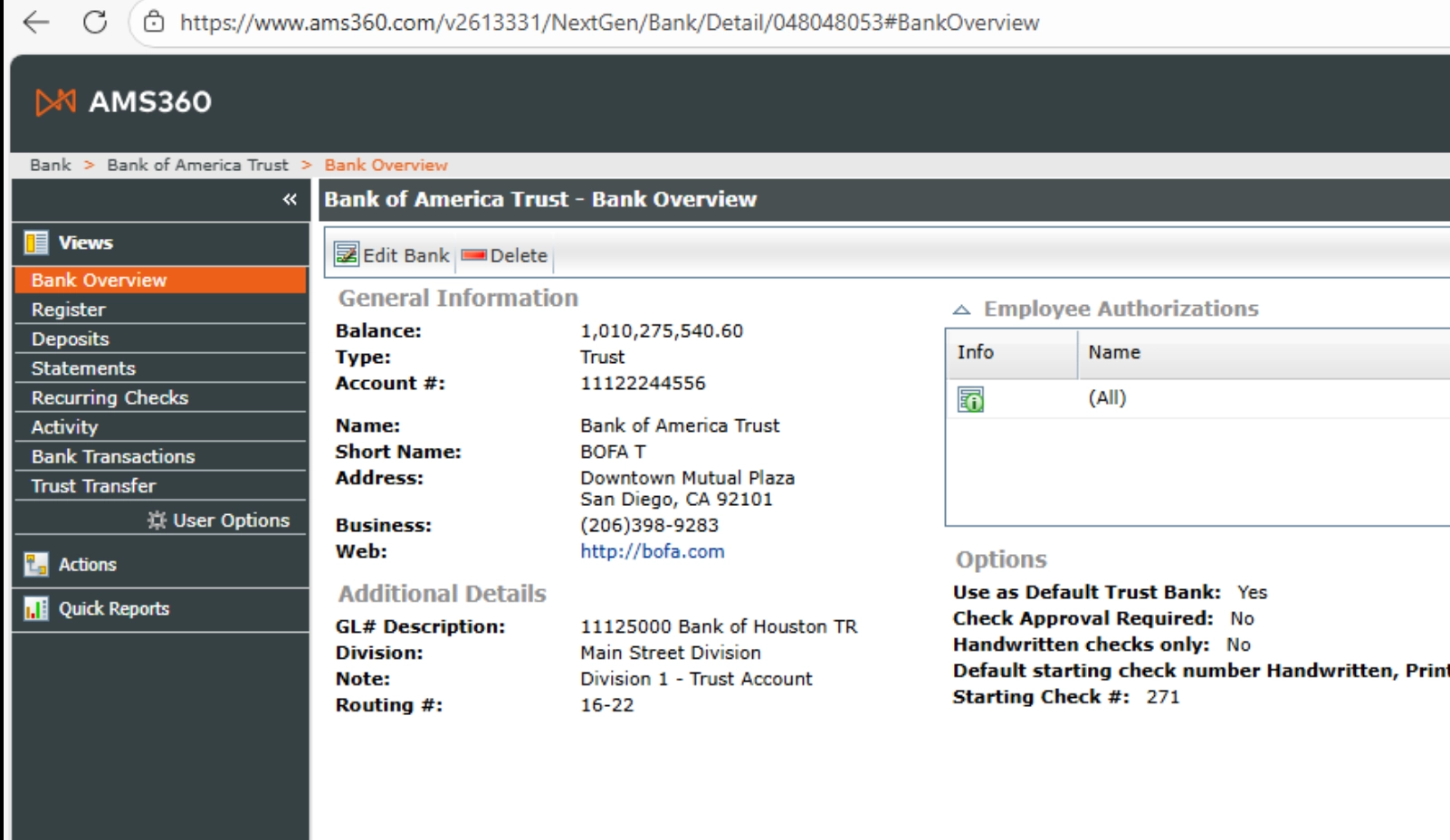
Enter them at Settings > Partner Integrations > AMS360.
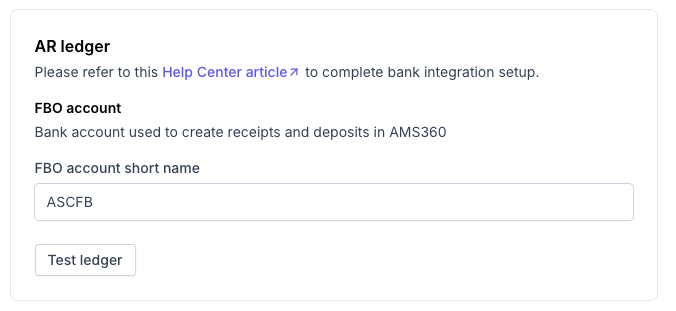
Confirm the settings are good with
Test Ledger Information