Using Ascend's AMS 360 integration for Agency Bill
Last updated: August 5, 2026
This is a guide that will teach you:
How to use Ascend's general ledger integration for AMS 360
If you are looking for instructions on how to set up the integration, see here
How to Use the AMS 360 Integration to create a program/invoice in Ascend
If a policy isn't showing up when importing from AMS 360, double check that:
The policy is marked as Agency bill in AMS360
The policy is current (is not expired).
If the policy is not marked as agency bill or is not current, it will not appear in the search bar
Step-by-Step Instructions
How to create a program in Ascend from AMS360
Click the +New Program button from the Program page in Ascend here
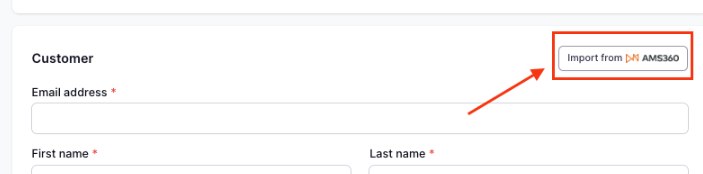
Click the Import from AMS360 button in the right corner of the Customer section
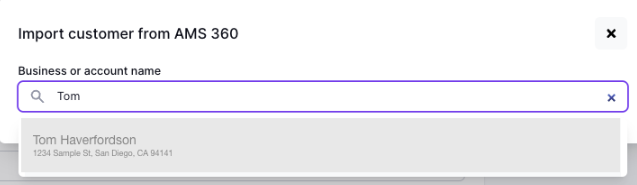
Type in the insured's name or business name into the search field and select the customer from the dropdown, then select which policy(s) you'd like to import to the program
A policy must be Agency Bill and not be expired to be pulled into the policy list in Ascend
The customer's info should auto-populate, along with some policy/quote details
Verify the policy details are accurate, and enter the remaining required info that doesn't auto-populate from AMS360:
Minimum earned rate
Once all details are confirmed to be accurate, click the Save program button
Your program is now ready to send the payment link to the customer!
AMS360: Receipt Posting Workflow
Once a customer makes payment in Ascend, you can use Ascend's integration to post the receipt to AMS360 and apply cash to transactions/invoices. In some cases, you may first require you to match transactions between AMS 360 and Ascend.
Step-by-step Guide
How-to Guide
Go to Incoming Payments
Select a payment row with the status "Needs matching" (or use the filter card at the top of the page to view all payments that require matching)
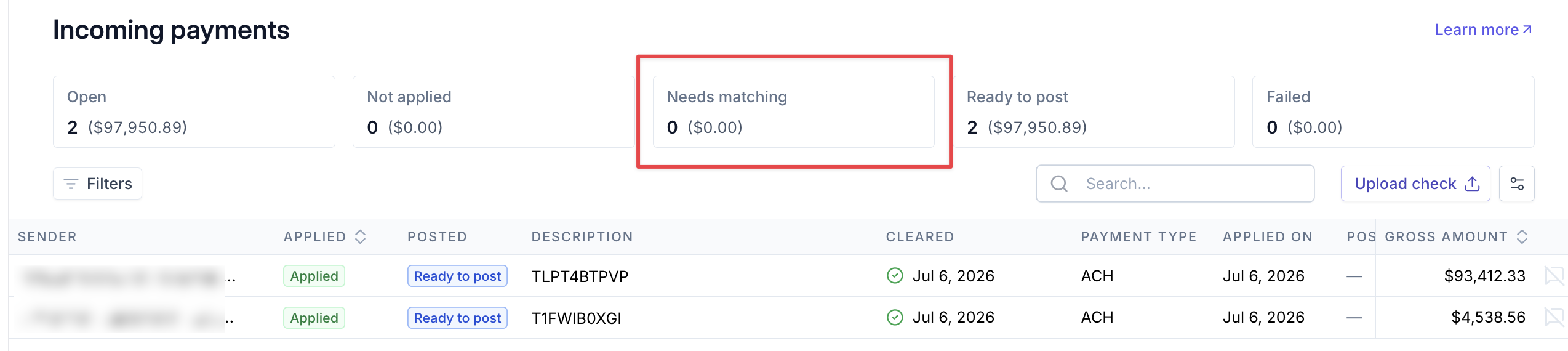
Select a record
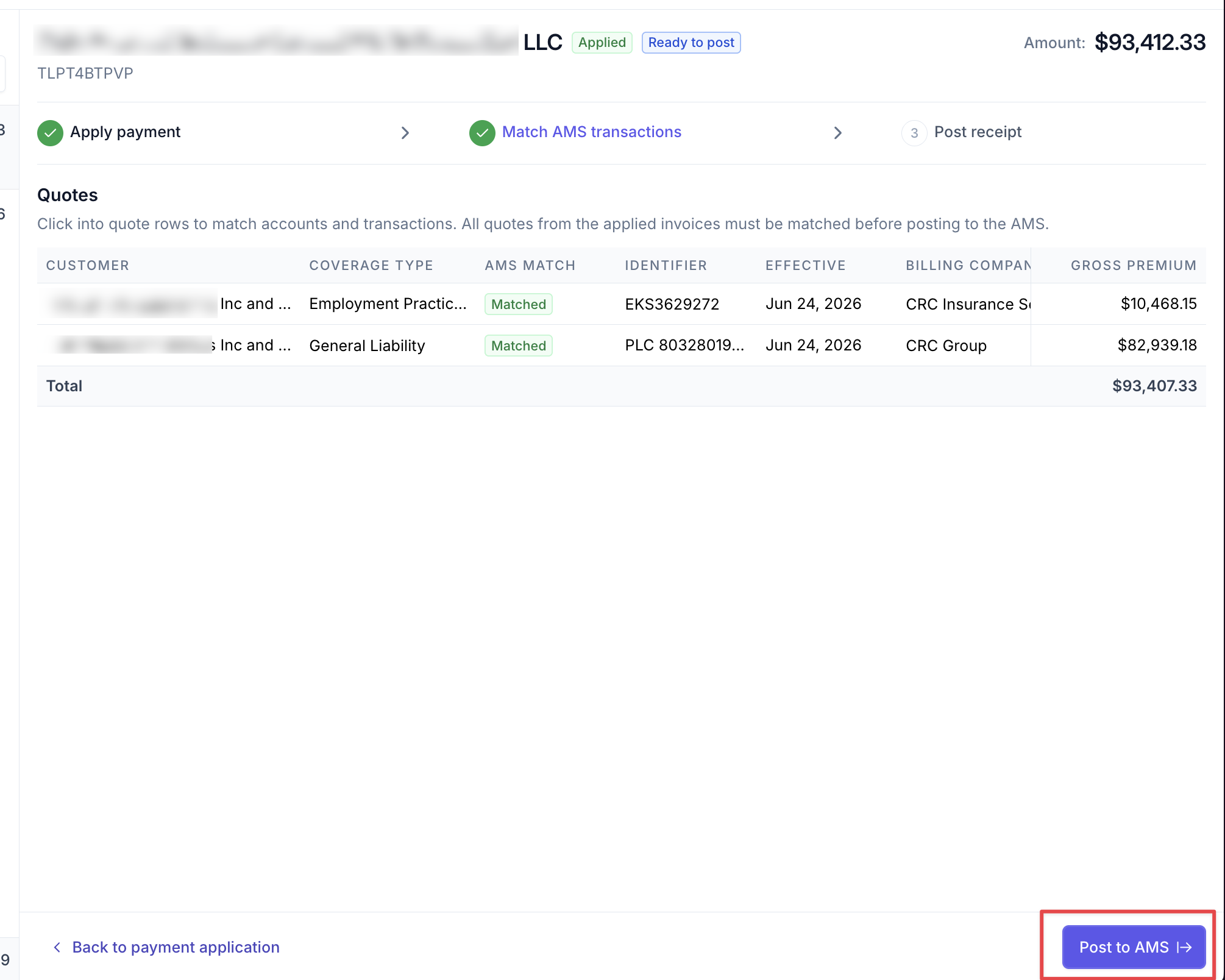
This will open the Payment Detail page, where you can see the Quote(s) that the payment was applied to.
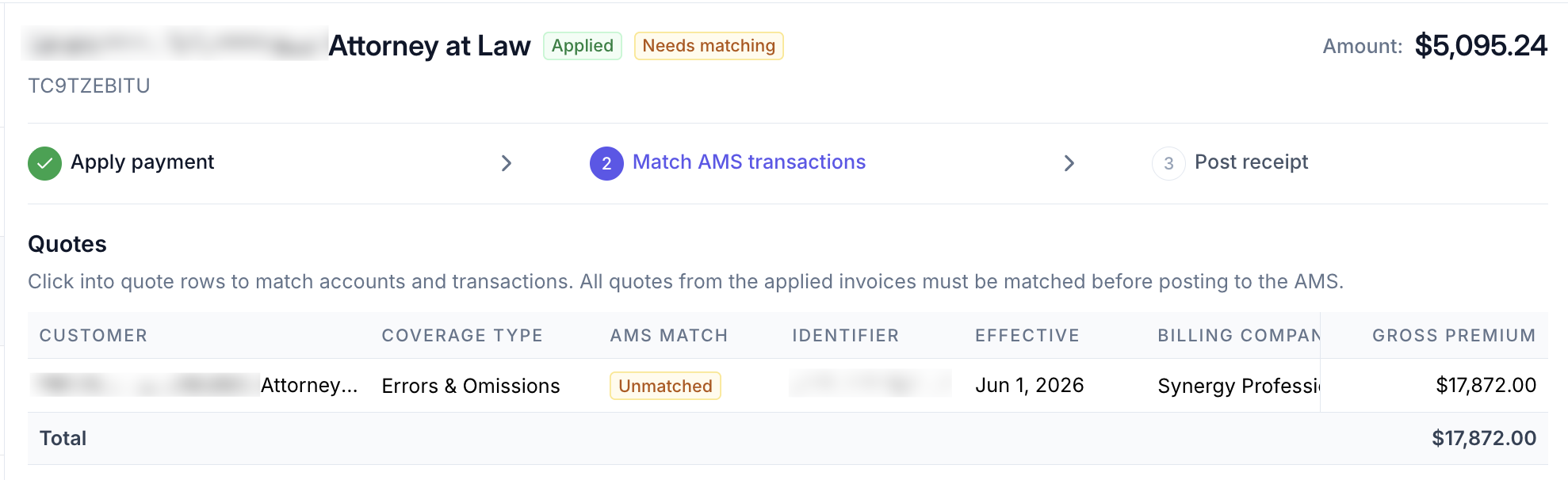
Select a quote
This will open a drawer where you can link the customer's Account, Policies, and Transactions in AMS360 to the Ascend Quote.
💡 Note that transactions must share the same invoice ID in order to successfully match and post
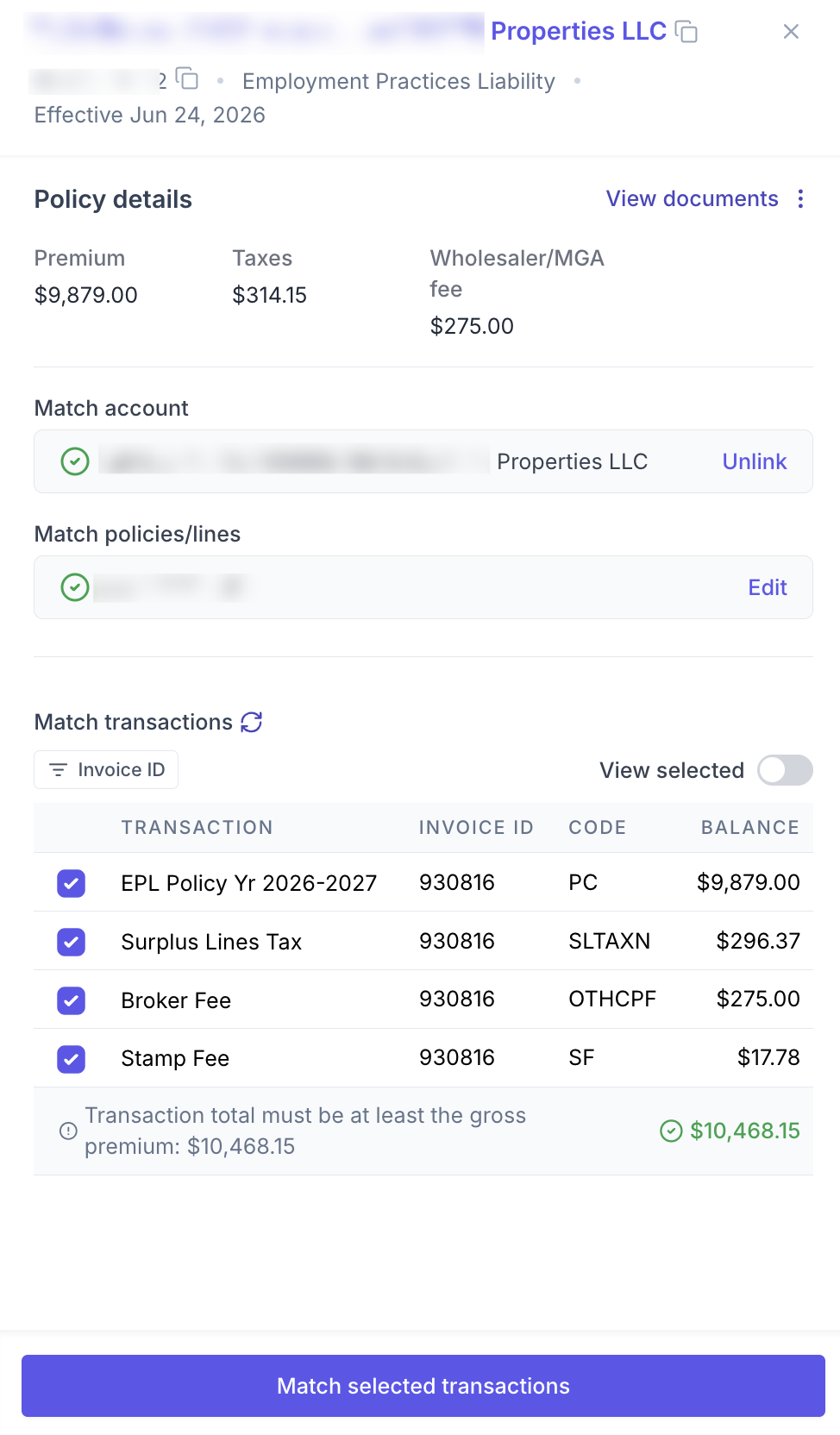
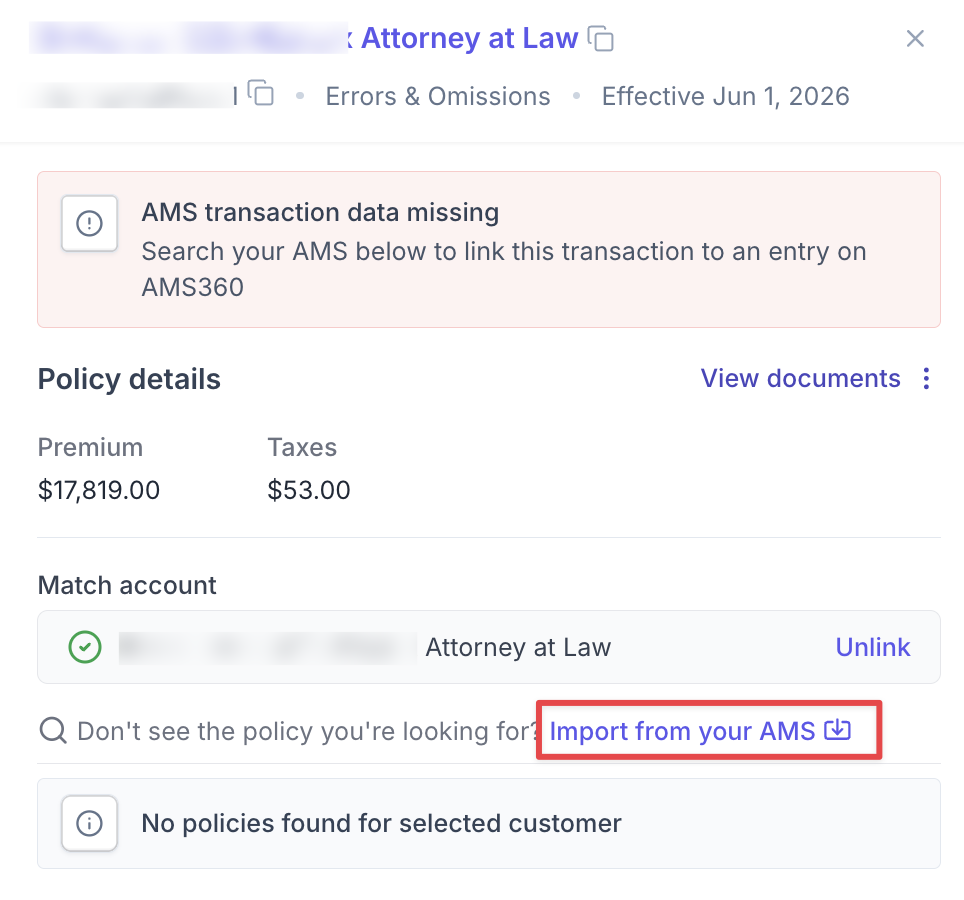
If you are unable to see the correct account or policy when matching, click the "Import from AMS" button to do a deeper search:
Once all transactions have been selected, click "Match selected transactions", close the drawer, and click "Post to AMS"
Note: The transaction total must be at least the gross premium of the invoice.
Once posting is complete, you can verify in AMS 360 that the receipt(s) were accurately created and applied to the transactions.
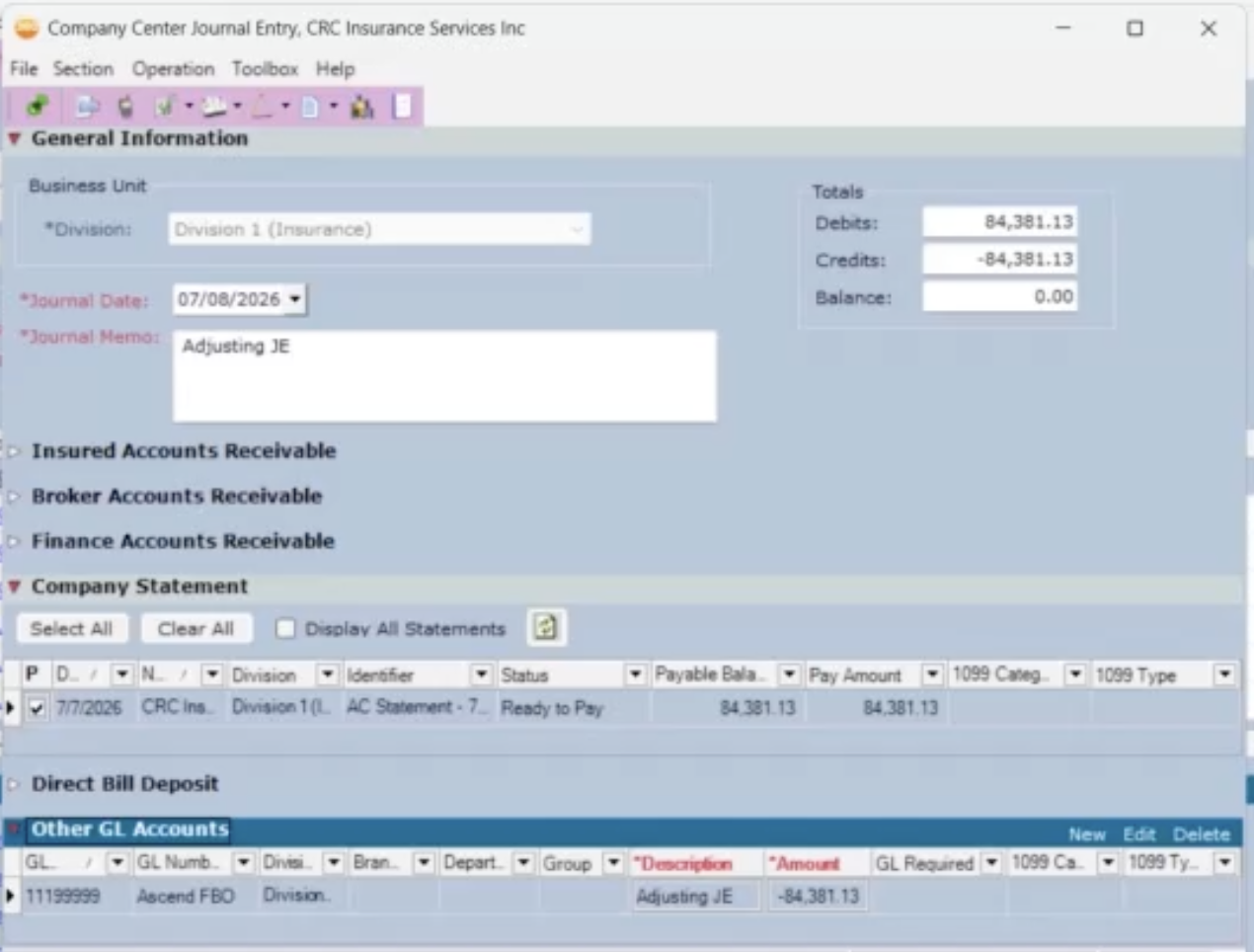
Once the receipt is posted, there will be a balance for the gross premium in the FBO account in AMS 360. To resolve the balance:
You'll need to create an interbank transfer to move the commission into your agency's operating account
You'll need to use a journal entry to clear the payable statement to the carrier from the FBO account. Ascend does not currently support payables reconciliation in AMS 360.
Contact Us
Need more help? Contact us at [email protected] for more help.