Ascend Integrations: Setting up AMS 360 for Agency Bill
Last updated: July 27, 2026
This is a guide that will teach you:
How to set up the Ascend integration with AMS 360
How to use the Ascend integration with AMS 360
How-to Guide
How to complete initial connection between AMS 360 and Ascend
AMS360 Admin Section
There are two steps required here in AMS360:
Create the Web Service Application Authorization (WSAPI API user)
Install the Ascend integration to your AMS360 account.
WSAPI API User (AMS360 Admin Settings)
Go to
Administration->General->Web Service APIIn the popup window under
Web Service Application AuthorizationclickNew
In the new section,
Fill
WSAPI Login IDasASCCreate your own secure password and cverify on the next line (you will need to enter this in Ascend)
sample password:
Ascend2023
On the right, set
Data Security Based ontoEntity Access Security OnlyUnder
Entity Access, clickCheck AllOnce completed, click
Addat the top
Subscribe to Ascend app (AMS360 Admin Settings)
Go to
Administration->General->Application CatalogFind
AscendunderAvailable Applicationsand clickSubscribeClick New and fill out the following information:
Username:
AscendShortname:
ASCNew Business Unit Group Access: First option (All)Application key: Click "Add"
Click
Subscribein the bottom rightClick
EditClick the eyeball icon and copy the
application key, this will be used in AscendSelect
Canceland thenSave and Close
Ascend Dashboard Settings
Visit the integrations page of your Ascend organization settings
Select
Learn Moreunder AMS360Add the following information from your AMS360 Account
Agency number: (this should end in -01)
Username: ASC
Password: Ascend2023 (or the password you selected)
Application key: copy and paste from steps above
Once these steps are completed, you will be ready to begin using the integration.
How to complete general ledger integration between AMS 360 and Ascend
AMS360: Ledger Integration Setup
Description
The integration requires adding the Ascend FBO account to your AMS360 instance, and then inputting the Bank Account Short Name for your organization's Trust, Operational, and Ascend FBO bank accounts from 360 into Ascend.
Create the Ascend FBO Account in AMS360
Navigate to Admin page, select
Accountingsection and clickChart of Accounts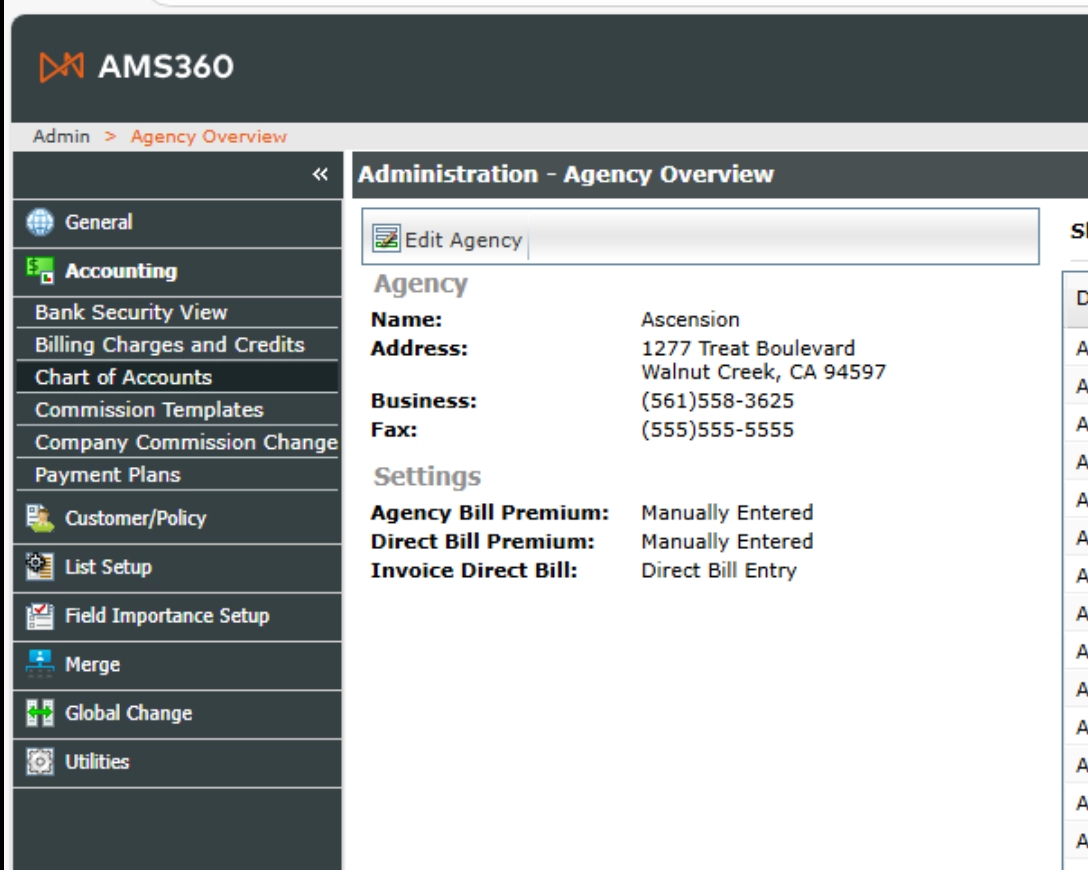
In the
Chart of Accounts window, clickNew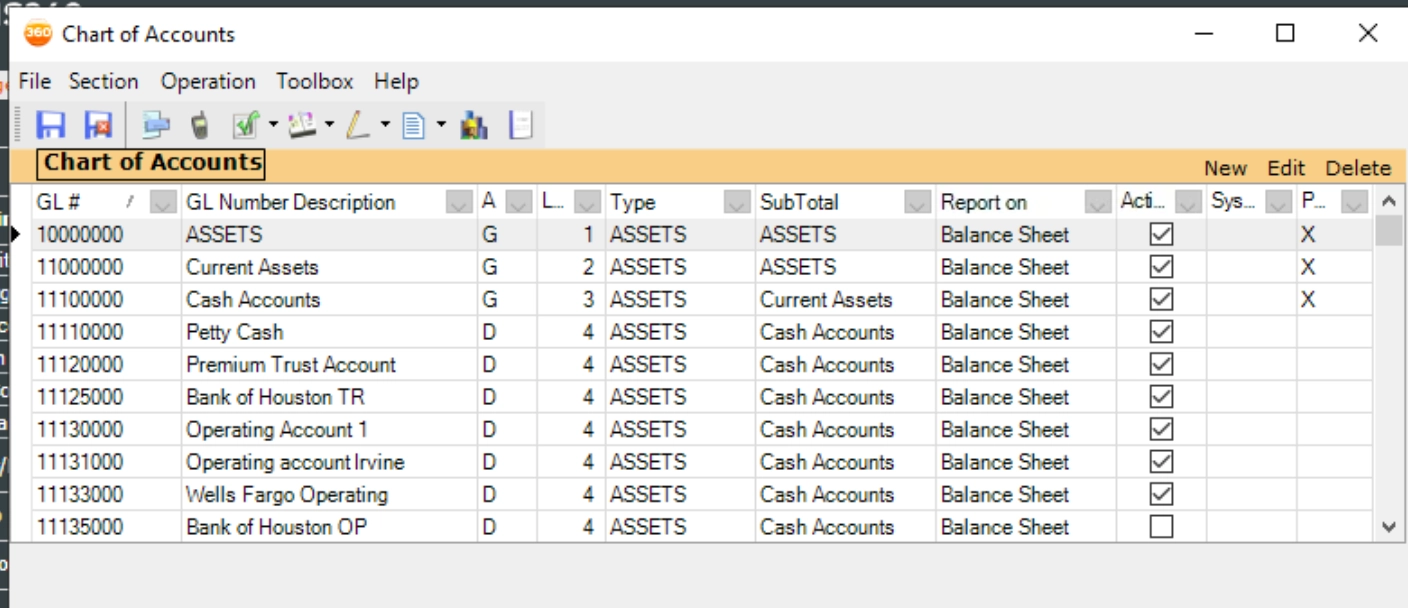
Fill out the new account form
GL Number:
11199999GL Description:
ASCEND FBO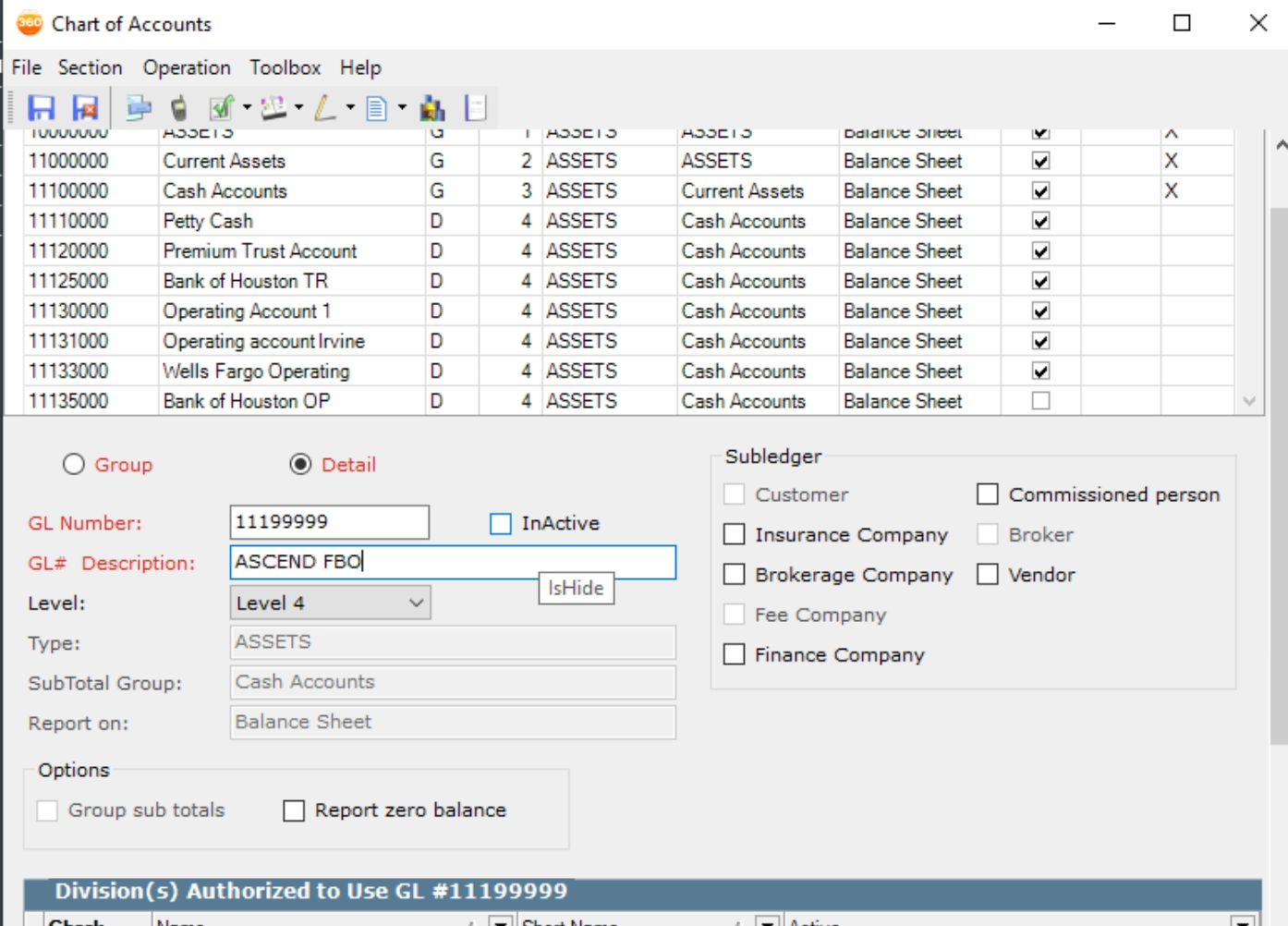
Navigate to Banks page in the top menu bar and click
New bank
Fill out the new bank form
Bank name:
Ascend FBOShort name:
ASCFBOGL Number:
11199999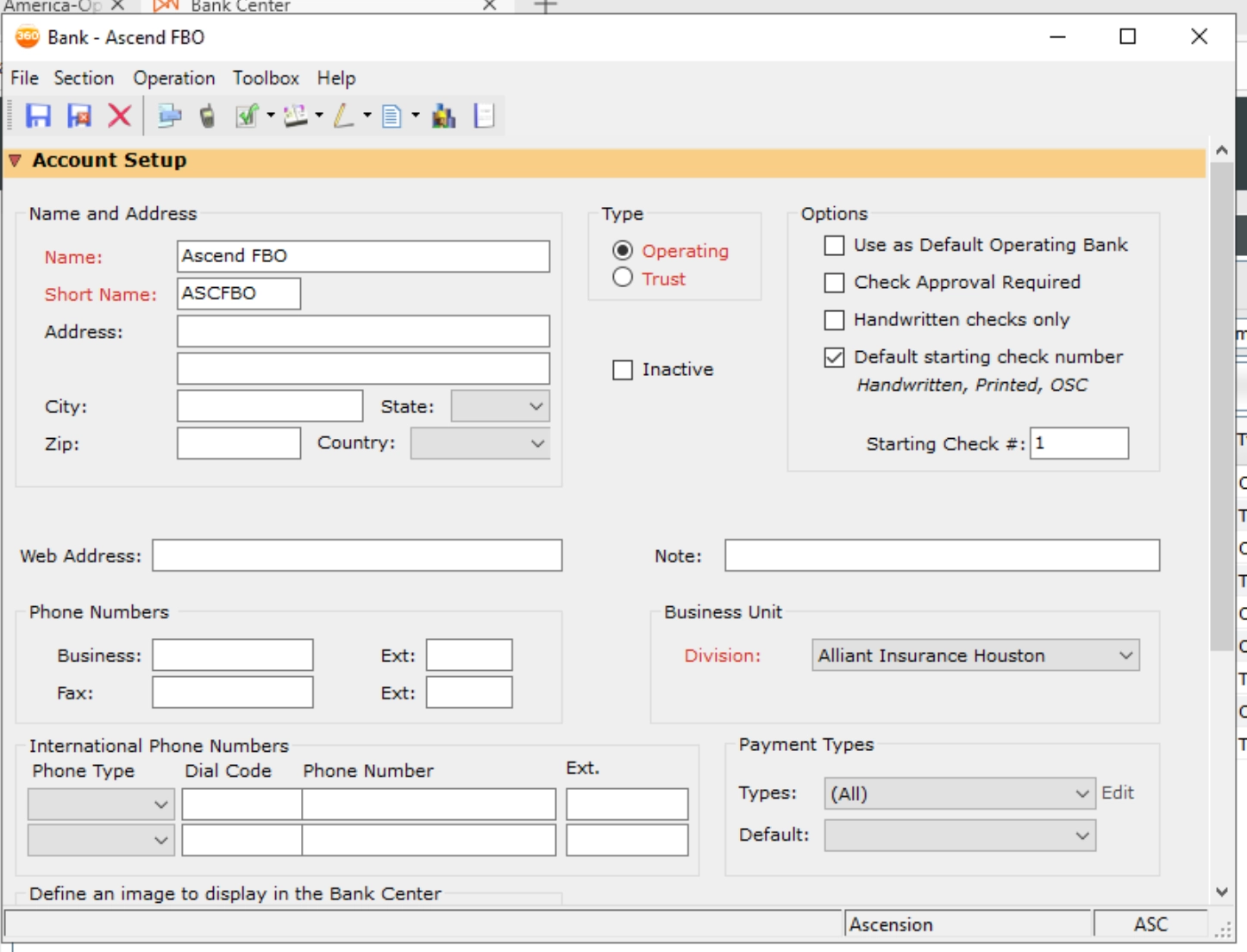
Configure Ledger Accounts in Ascend
Once you’ve created the Ascend FBO Account in AMS360,
Ensure the Employee Authorizations access is set to All. This allows Ascend to detect the bank account via API.
Grab the following short codes for the Trust, Operational & Ascend FBO Account from AMS360.
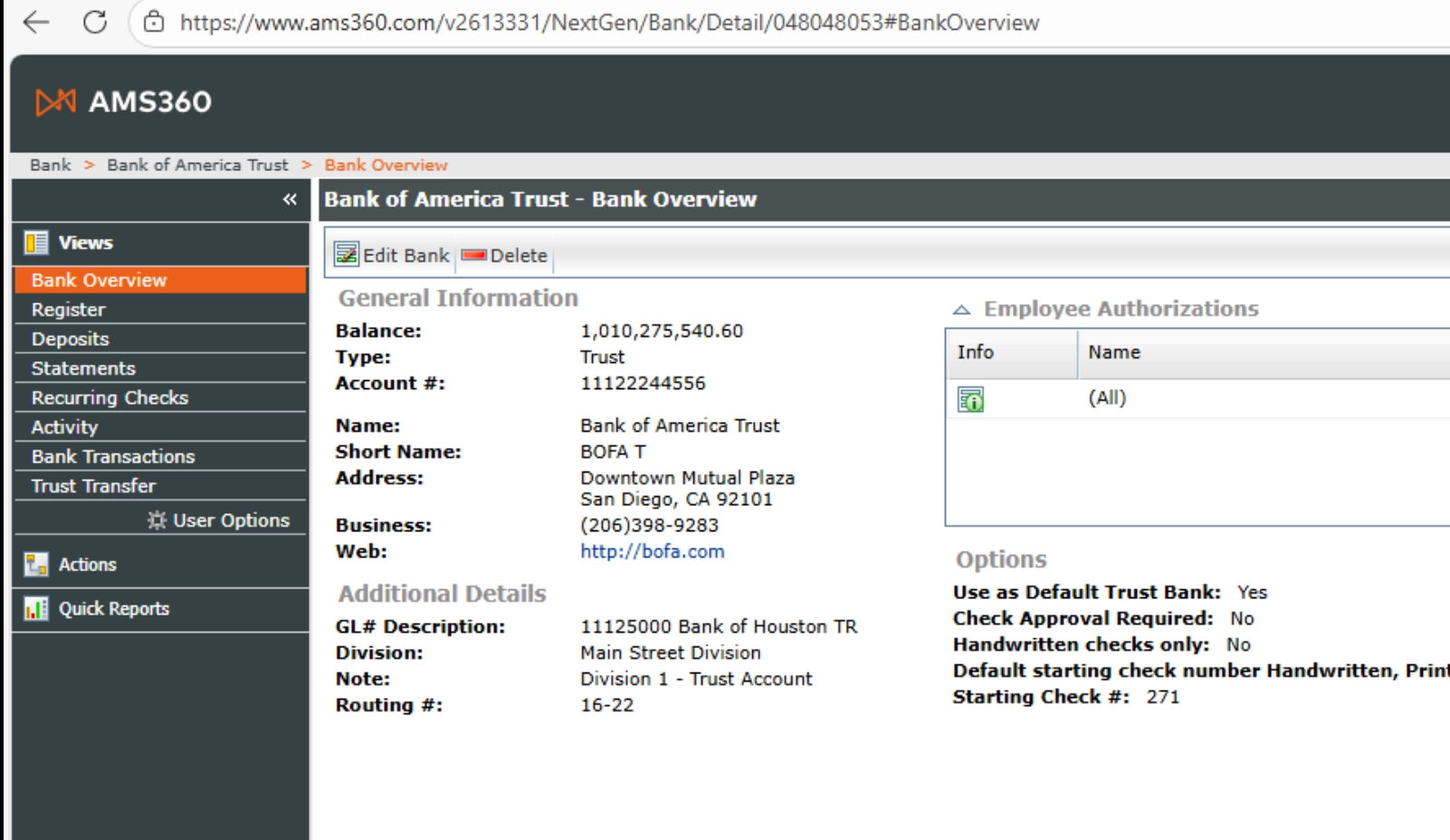
Enter them at Settings > Partner Integrations > AMS360.
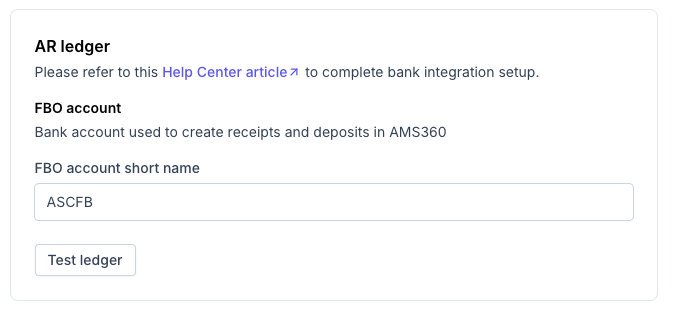
Confirm the settings are good with
Test Ledger Information
How to Use the AMS 360 Integration
If a policy isn't showing up when importing from AMS 360, double check that:
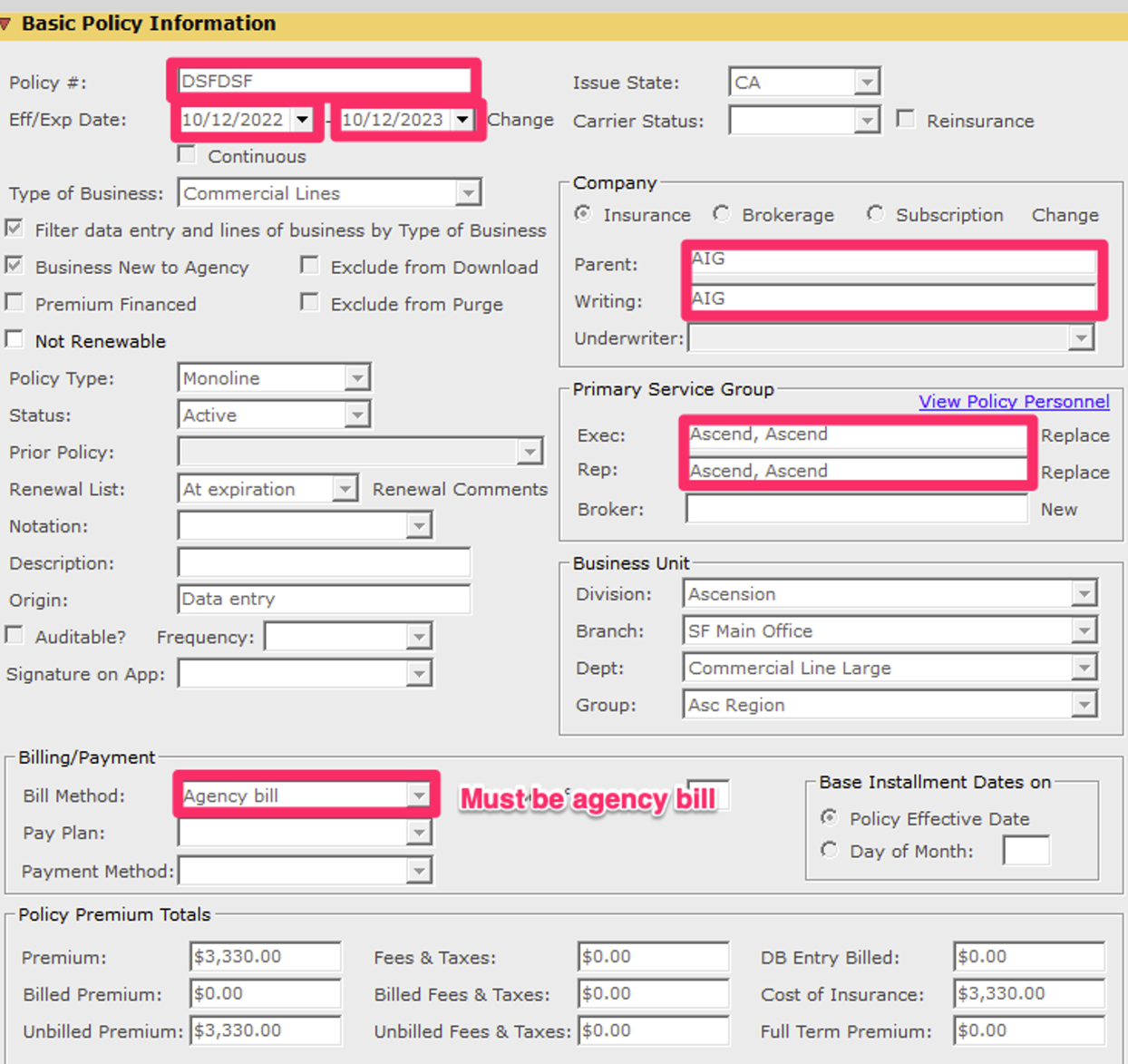
The policy is marked as Agency bill in AMS360
The policy is current (is not expired).
If the policy is not marked as agency bill or is not current, it will not appear in the search bar
Step-by-Step Instructions
How to create a program in Ascend from AMS360
Click the +New Program button from the Ascend programs homepage here
Click the Import from AMS360 button in the right corner of the Customer section
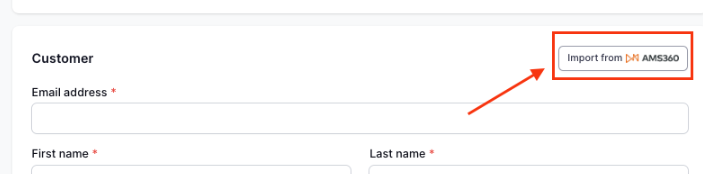
Type in the insured's name or business name into the search field and select the customer from the dropdown, then select which policy(s) you'd like to import to the program
A policy must be Agency Bill and not be expired to be pulled into the policy list in Ascend
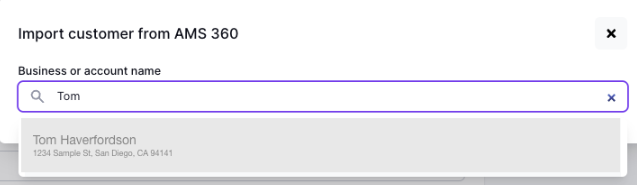
The customer's info should auto-populate, along with some policy/quote details
Verify the policy details are accurate, and enter the remaining required info that doesn't auto-populate from AMS360:
Minimum earned rate
Once all details are confirmed to be accurate, click the Save program button
Your program is now ready to send the payment link to the customer!
Field Mapping from AMS360 to Ascend
Insured Information
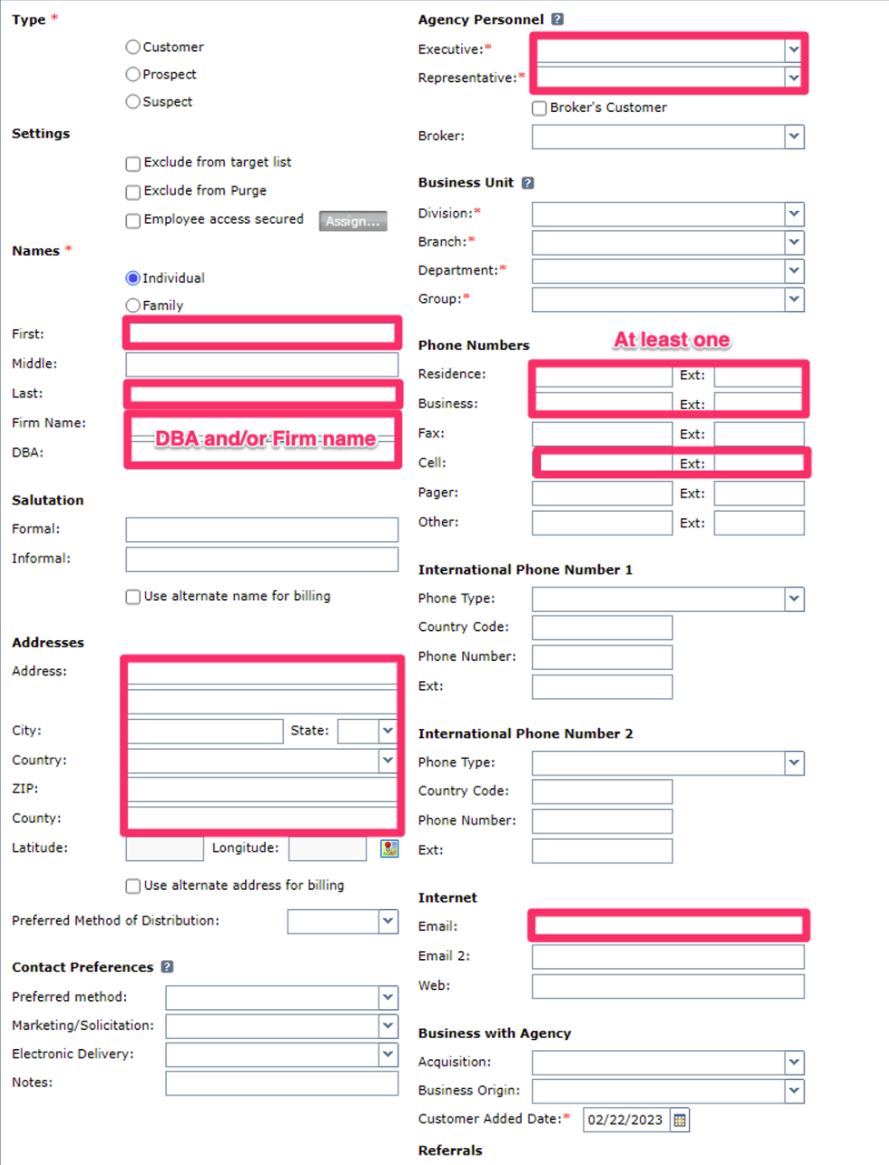
Insured and business information is pulled from the Customer Account record in AMS360. The fields that we pull to create the Ascend program are:
First Name
Last Name
Firm Name or DBA
Address
Email
Phone number
Quote/Policy Information
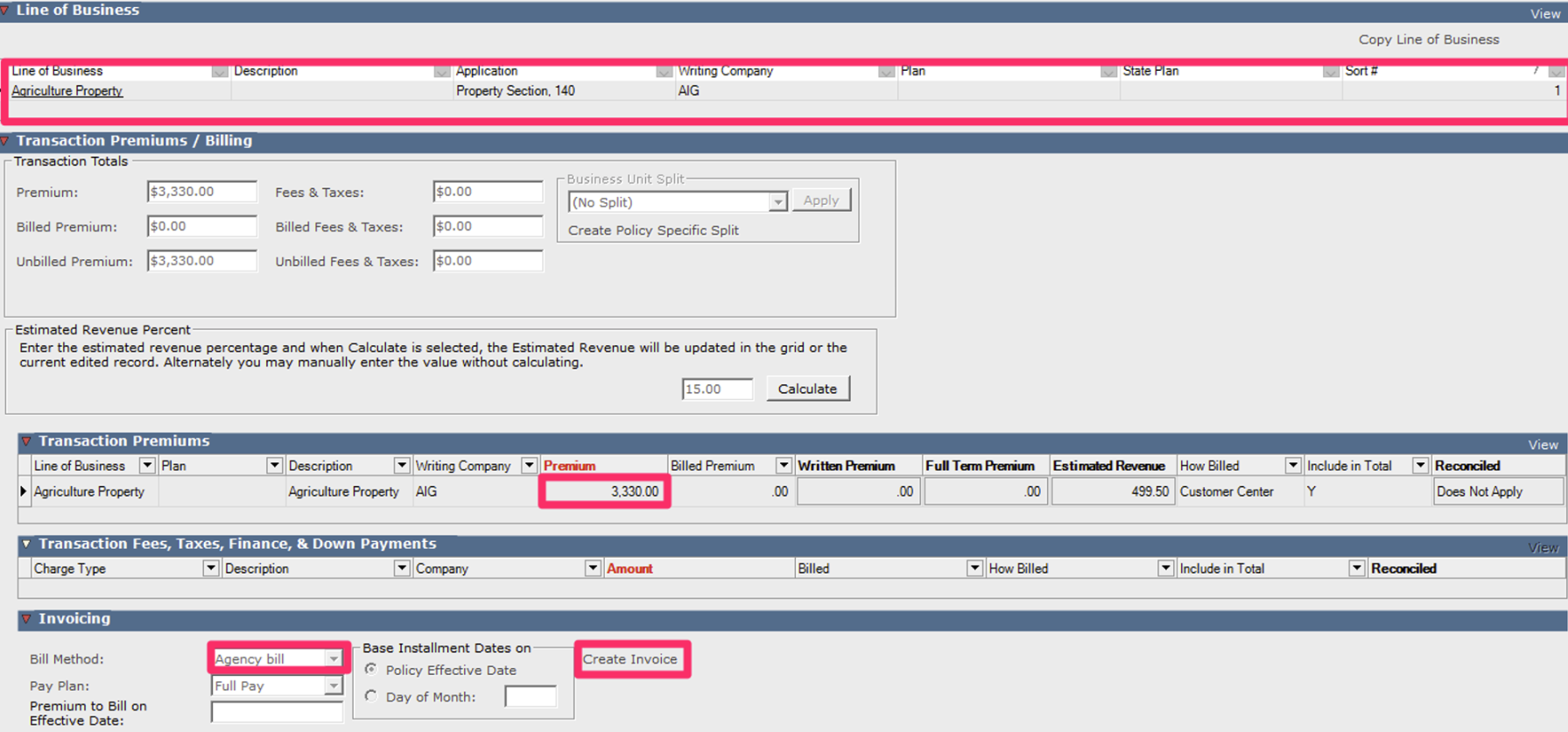
Quote/policy information is pulled from the Policy record in AMS360. We get the following fields:
Policy #
Effective and expiration dates
Writing company
Line of business
Premium
Fee Mapping from AMS360 to Ascend
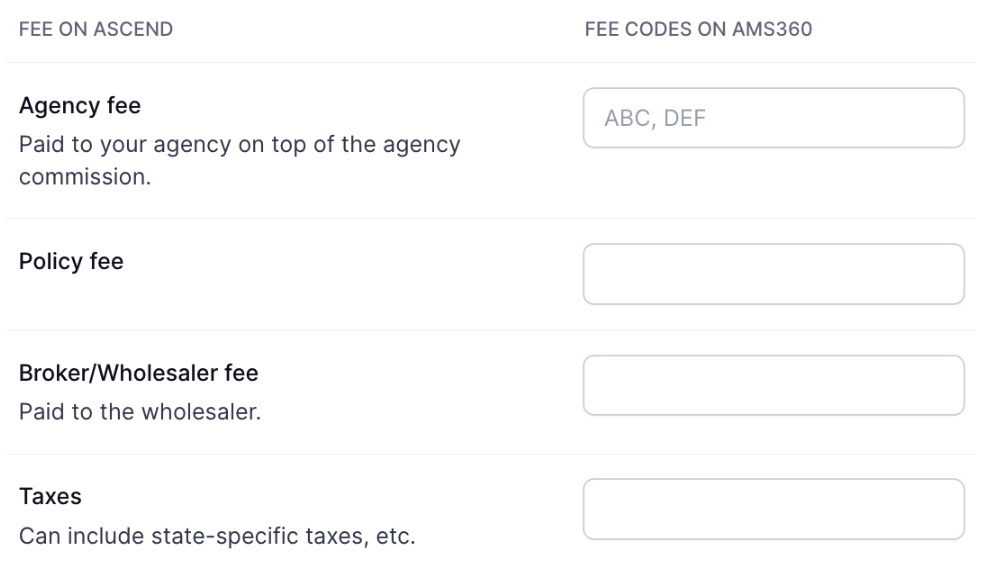
You can customize the fee mapping between Ascend and AMS360. To enter fee codes, from the AMS360 platform, check out the Fee mapping section here in the dashboard settings page. Please note that any other fees that are not represented here will be added up as "Other fees" on Ascend.
Your team ill need to fill in the fee codes from AMS360 to the corresponding Fee on the Ascend platform:
Agency fee
Policy fee
Broker/Wholesaler fee
Taxes
These codes are unique to your agency's AMS360 system.
Frequently Asked Questions
Why isn't the policy I'm looking for coming up in Ascend from AMS360?
There are a few reasons why you might not be able to locate the policy you're looking for:
The policy is not marked as Agency bill in AMS360
The policy is not current/is expired.
Contact Us
Need more help? Contact us at [email protected] for more help.