Bank Accounting Mapping
Last updated: June 9, 2026
This is a guide that will teach you:
How to add bank accounts to Ascend
How to update bank account mapping in Ascend
Overview
As your agency adds or consolidates bank accounts, Ascend Admin users can update this information directly within the platform. Keeping your bank account mapping current is essential because postings will fail if the necessary mapping is not in place.
Adding a Bank Account
Follow the steps below to add a bank account and complete the mapping:
Log into your Ascend dashboard as an Admin user.
Navigate to https://dashboard.useascend.com.
Enter your email address.
Submit the code that was sent to your email Inbox.
Once logged into Ascend, navigate to Settings.

Click on Integrations.
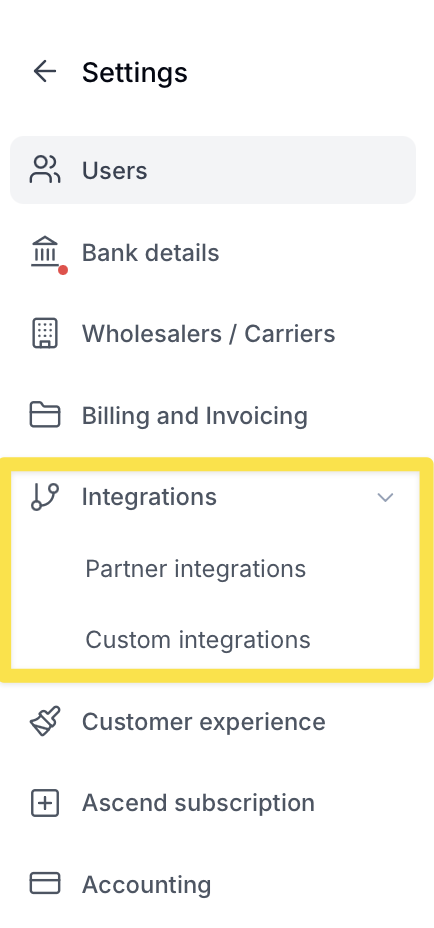
Click on Partner Integrations.
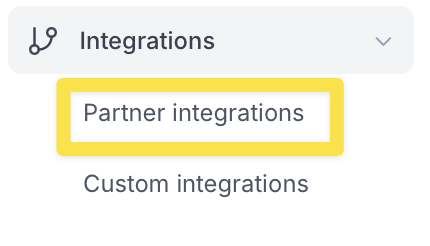
Click Edit to the right of Applied Epic.
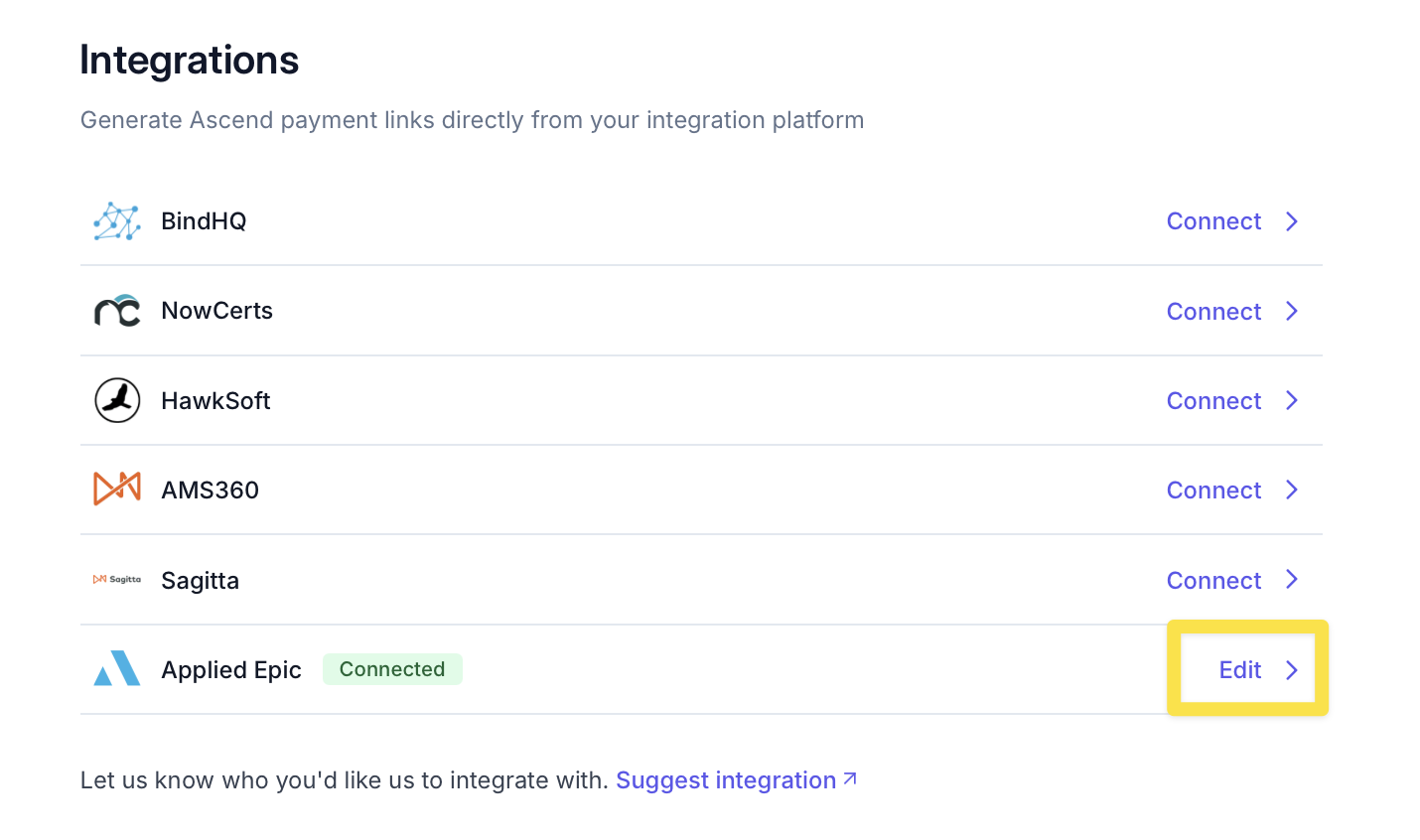
Click on Linked Accounts.

Click Link New Account.
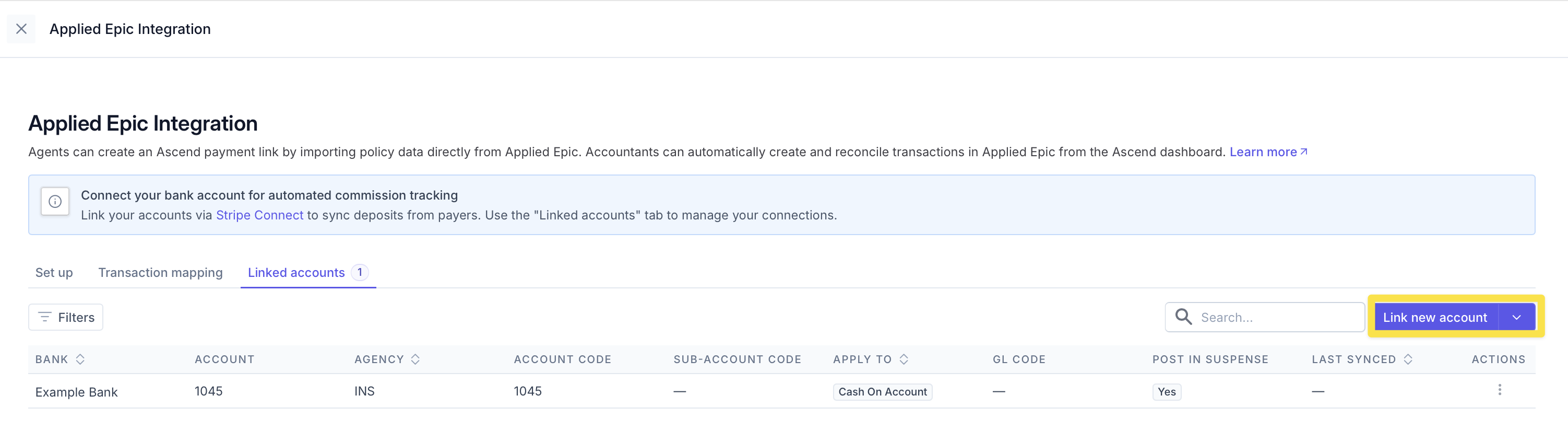
Complete the required fields indicated by an asterisk (*).
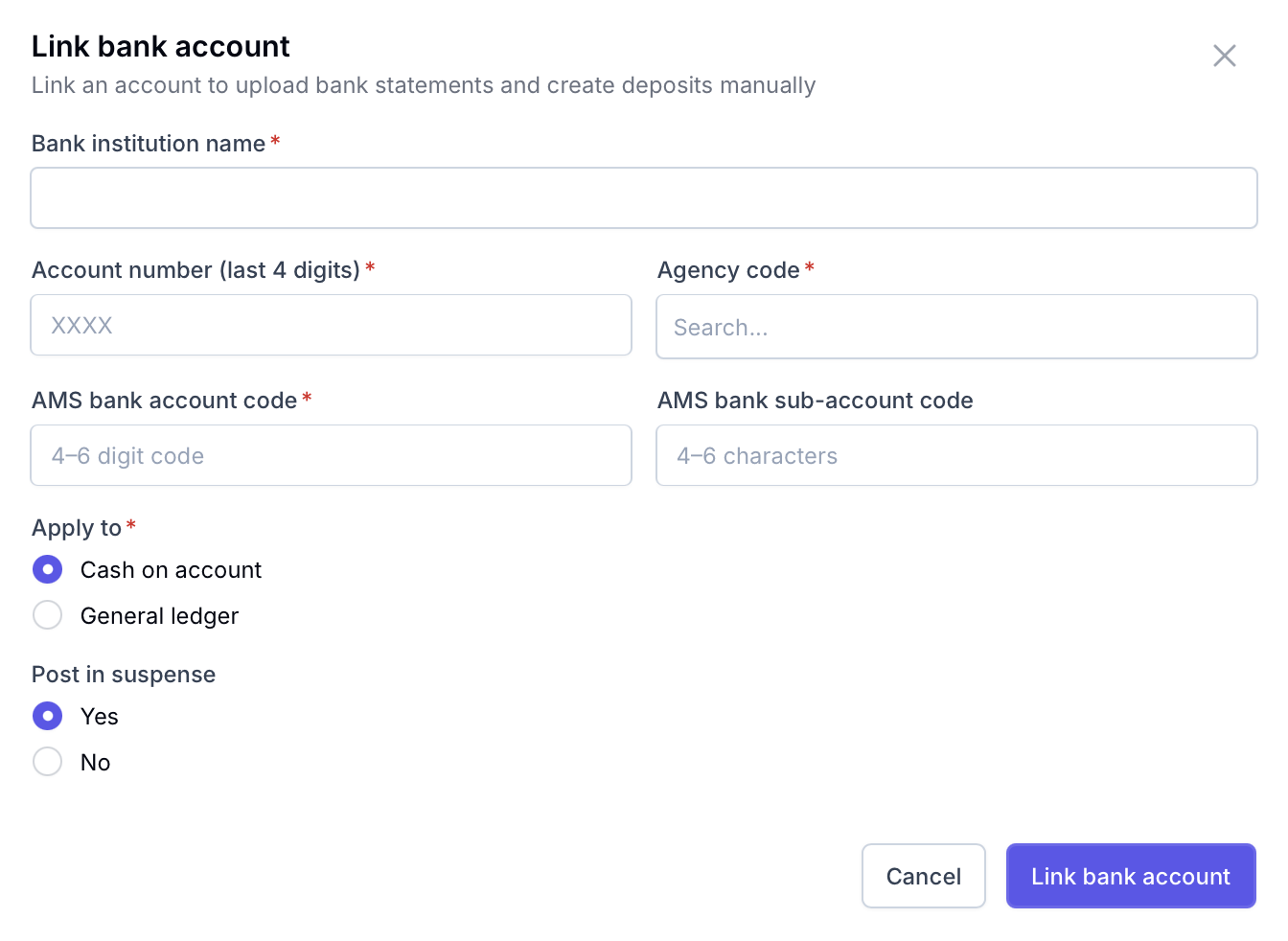
Once the necessary fields are completed, click Link bank account.
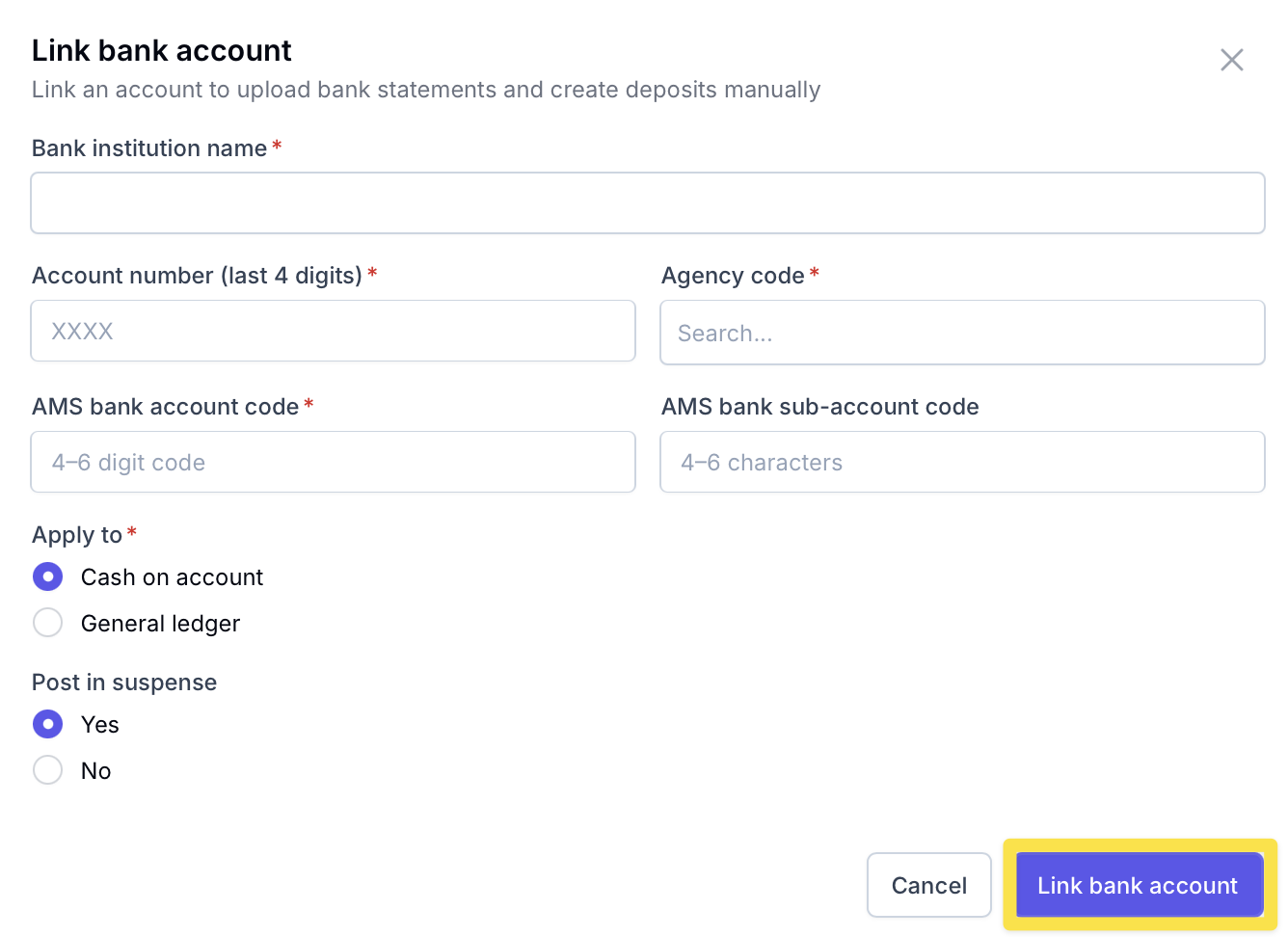
Once the account has been added, you will be able to upload documents related to that account.
Updating or Removing a Bank Account
Follow the steps below to update or remove an existing bank account:
Log into your Ascend dashboard as an Admin user: https://dashboard.useascend.com
Navigate to Settings.
Click on Integrations.
Click on Partner Integrations.
Click Edit to the right of Applied Epic.
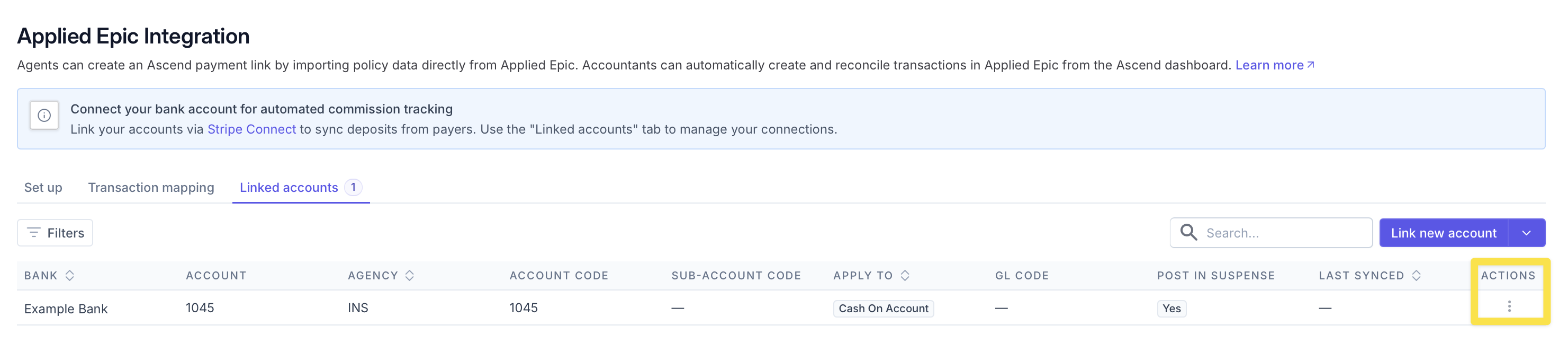
Click on Linked Accounts.
Click the three vertical dots in the Actions column next to the relevant account.
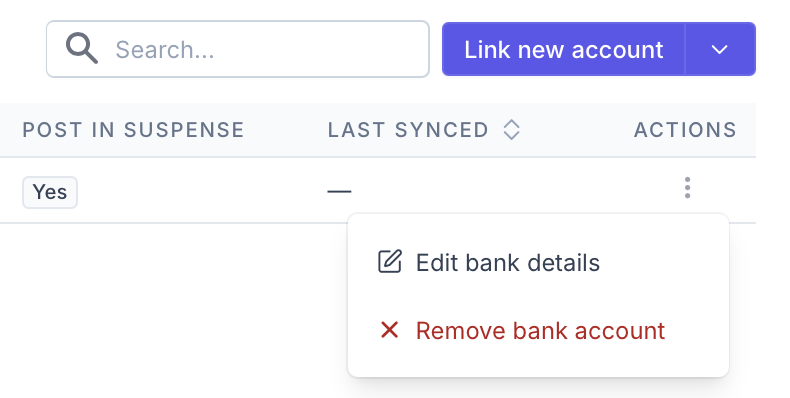
Select Edit Bank Details or Remove Bank Account.
Frequently Asked Questions
1. Who can add or update bank accounts in Ascend?
Only users with Admin permissions can add, update, or remove bank accounts. If you do not have Admin access, please contact your Customer Success Manager.
2. What happens if a bank account is not mapped correctly?
Postings associated with that account will fail until the mapping is corrected. If you are experiencing posting failures, verify that your bank account mapping is complete and accurate.
3. Can I add multiple bank accounts at once?
Bank accounts must be added individually through the Linked Accounts section. If you have a large number of accounts to add, reach out to your Customer Success Manager for assistance.
4. What information do I need to add a new bank account?
You will need to complete all fields marked with an asterisk (*). This typically includes the bank account number, bank name, and the corresponding accounting codes from your agency management system.
5. Will removing a bank account affect historical postings?
Removing a bank account will not alter any previously completed postings. However, any future postings associated with that account will fail until a replacement mapping is in place.
6. How do I know if my bank accounts are mapped correctly?
If postings are completing successfully, your mapping is correct. If you are seeing posting errors, navigate to Linked Accounts in your settings to review and update your mappings.
Contact Us
Need more help? Contact your dedicated Customer Success Manager for more help.