AMS360: Net Funding Reconciliation Workflow
Last updated: April 3, 2026
Description
This workflow guide describes the steps needed to reconcile payments in AMS360 for organizations with net funding.
When net funding, Ascend will transfer commissions to the Agency, and Ascend will fund the Carrier, MGA, or Wholesaler directly.
While Ascend completes these transfers, the agency will need to record the money movement manually in Applied.
Commissions
Upon payout approval in Ascend, commission funds will be transferred from the Ascend FBO account to your organization operational account.
Record Interbank Transfer from FBO to Operational Account
Your team will need to record the interbank transfer between these two accounts.
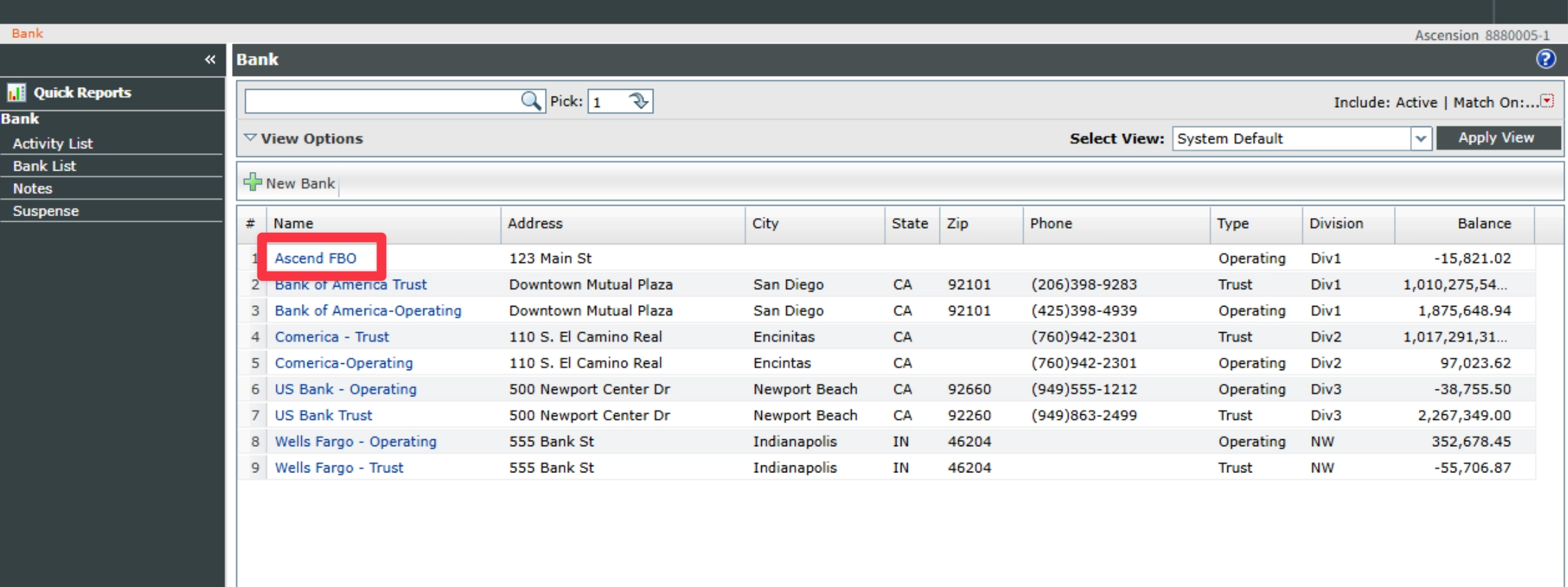
Select Ascend FBO bank account
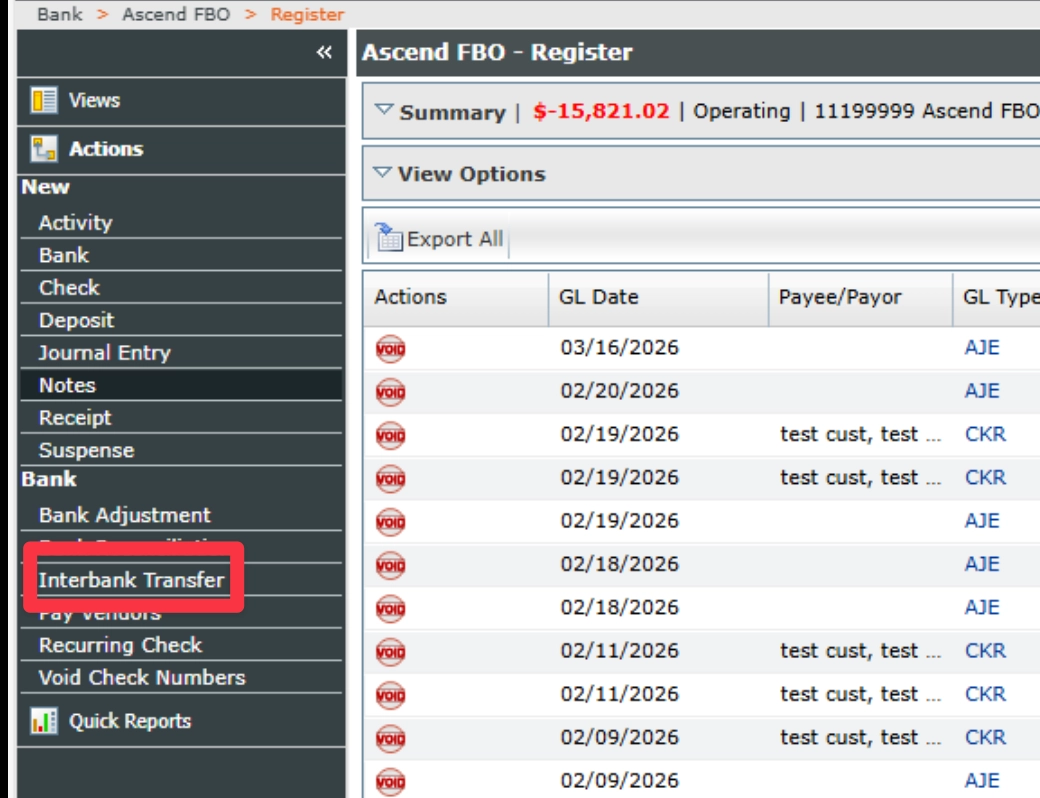
Under actions, select Interbank Transfer
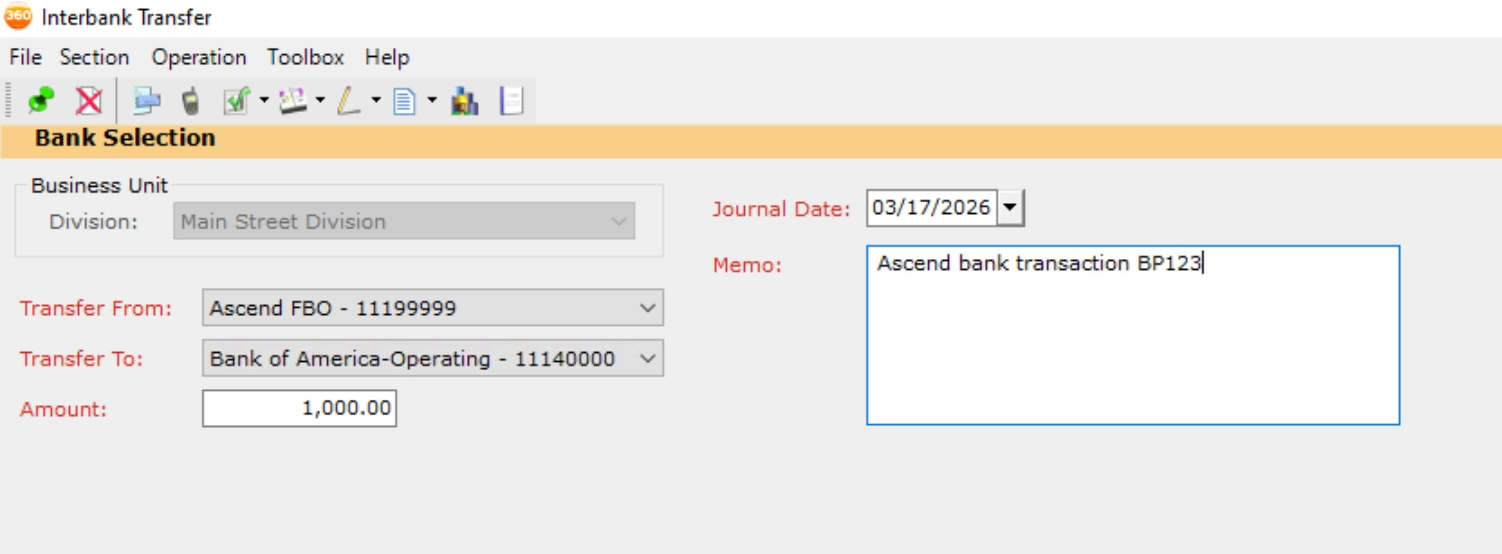
Fill out interbank transfer information
Select Operating Account for Transaction to
Enter the amount for the bank transaction
Add memo with the Ascend bank transaction identifier
Post transfer
Complete Producer Payables
Once your team has recorded the interbank transfer, you will be able to complete reconciliation of commissions to producer payables according to your agency's standard process.
Payables
Upon payout approval in Ascend, net premium funds will be transferred from the Ascend FBO account to the carrier, MGA, or wholesaler for the policy.
Record Company Payables
Your team will also need to record company payables, to track the funds that Ascend issued to suppliers on your behalf.
Create the Statement
Navigate to Company
Search the company you want to create the payable for
Navigate to Pay Account Current
Input the Through Date, Statement Date, and Statement
Include Invoices Partially Paid or Unpaid to Agency
Include invoices Paid in Full to the Agency
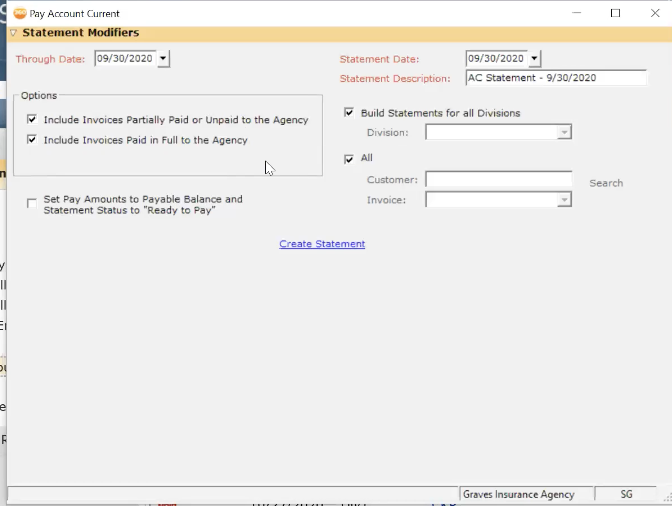
Create Statement
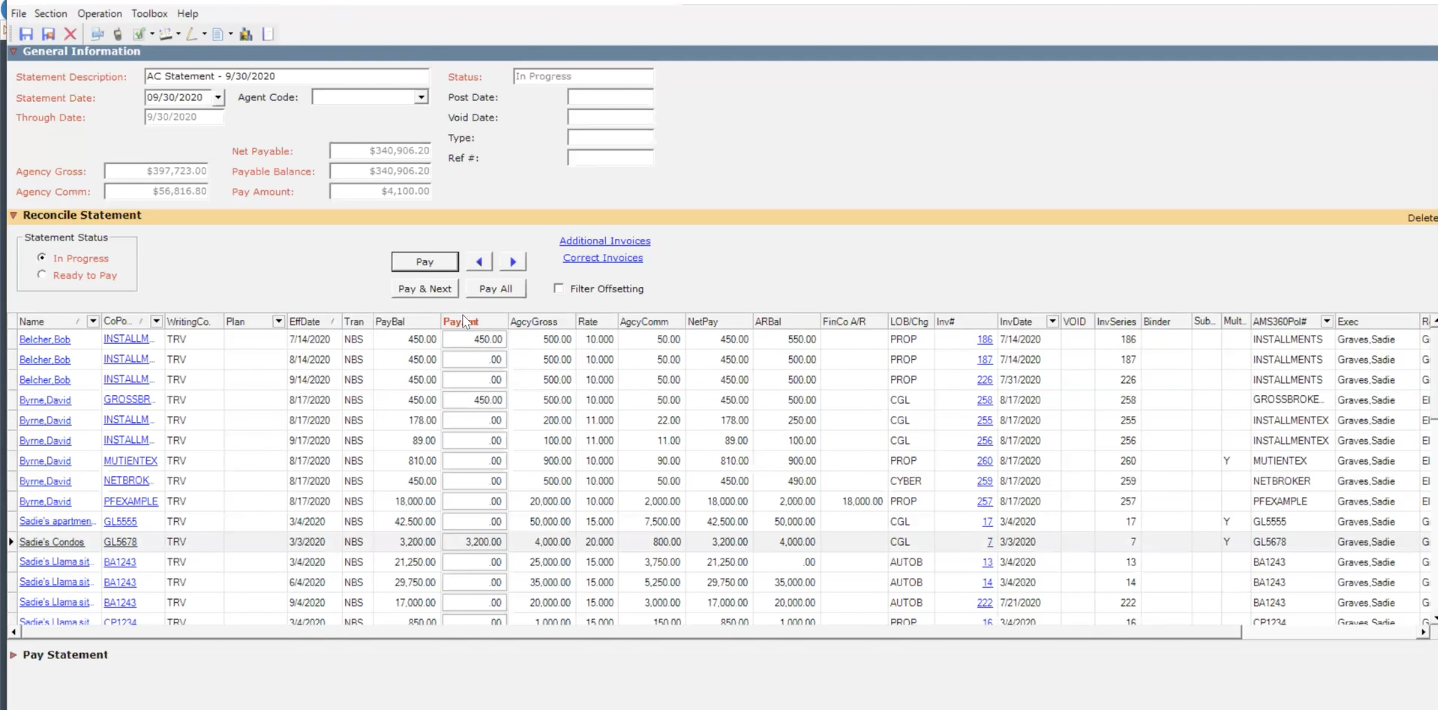
Pay Account Current Statement
From Reconcile Statement section of the page, select each of the policies to be reconciled and click pay
Once you've selected all the payments to reconcile, scroll down to Pay Statement
Pay Statement
Create a check for the amount of the statement
a. Select the FBO account
b. Type: ACH
c. For / Memo: Reference funded by Ascend / Financed
d. Post
OR
Create a journal entry for the amount of the statement
a. Select the FBO account
b. Type: ACH
c. For / Memo: Reference funded by Ascend / Financed
d. Post