Ascend Integrations: Momentum
Last updated: April 29, 2026
This is a guide that will teach you:
How to set up the Ascend integration with Momentum
How to use the Ascend integration with Momentum
How to Setup Momentum Integration
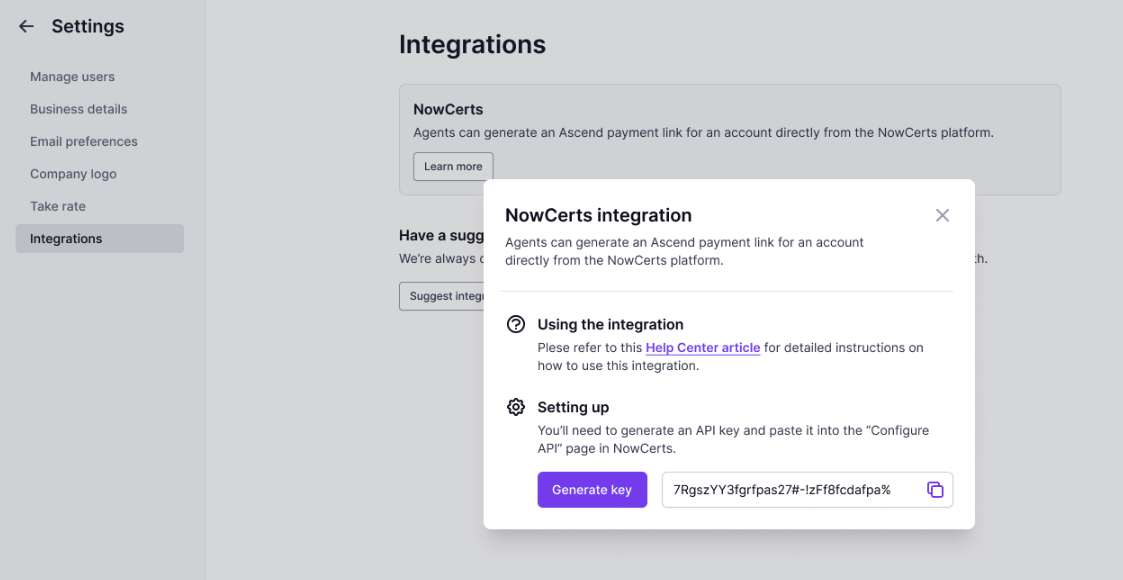
Visit your Integrations Page, and click Learn more in the Momentum section.
Click Generate Key, and Copy your Ascend API Token.
In Momentum, go to Agency Profile, and then Configure API. Then scroll to the bottom of the page to Ascend Token.
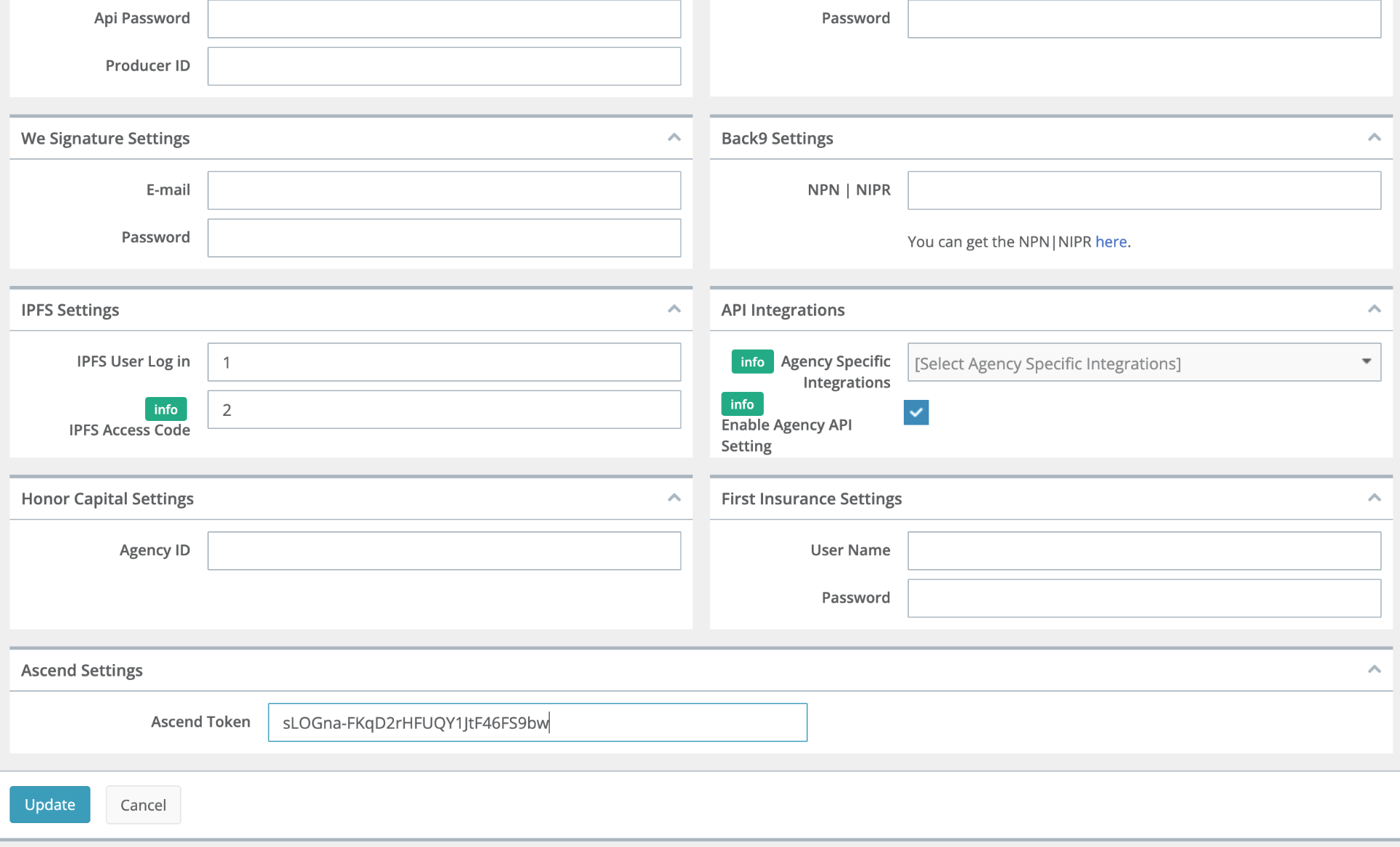
Paste your Ascend API Token into the field and click Save.
How to Use the Momentum Integration
Summary
There are two ways you can use the Ascend <> Momentum integration. The setup above works for both, and you can use each one separately or in parallel:
Premium Finance
Invoicing
Option 1: Premium Finance Integration
Update all fields for the policy in question (note that if you make updates later in Momentum, then these changes currently won't be reflected in Ascend so it's best to update all fields beforehand)
Go to Insureds in the left navigation bar and select an insured that you want to quote.
Navigate to Documents, and select External Finance Agreements
Click Add New

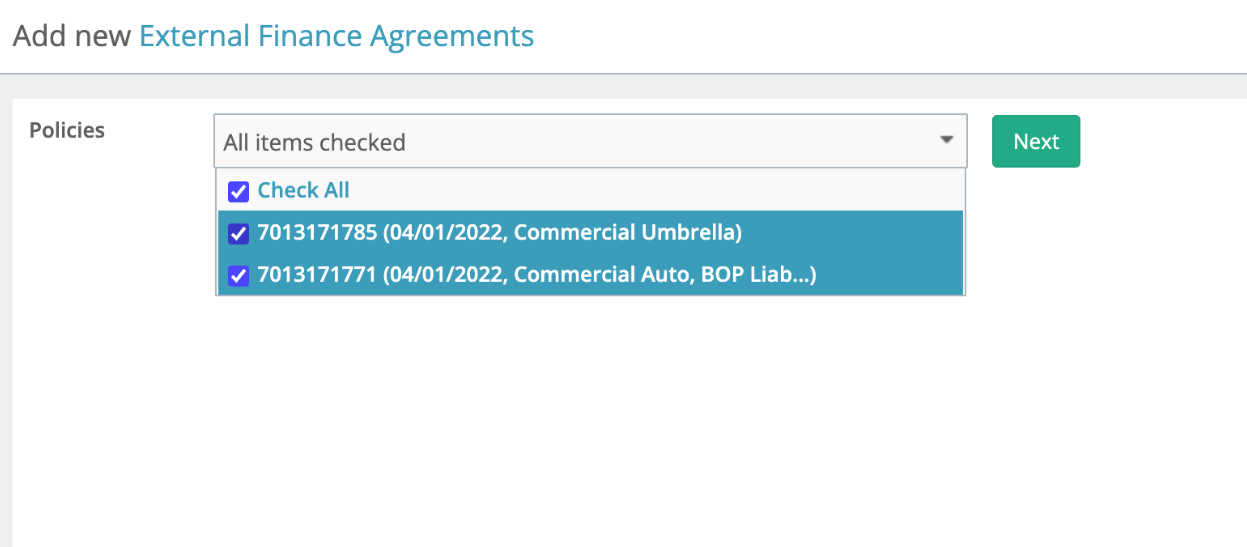
Select the policies you'd like added to the checkout link and tap Next
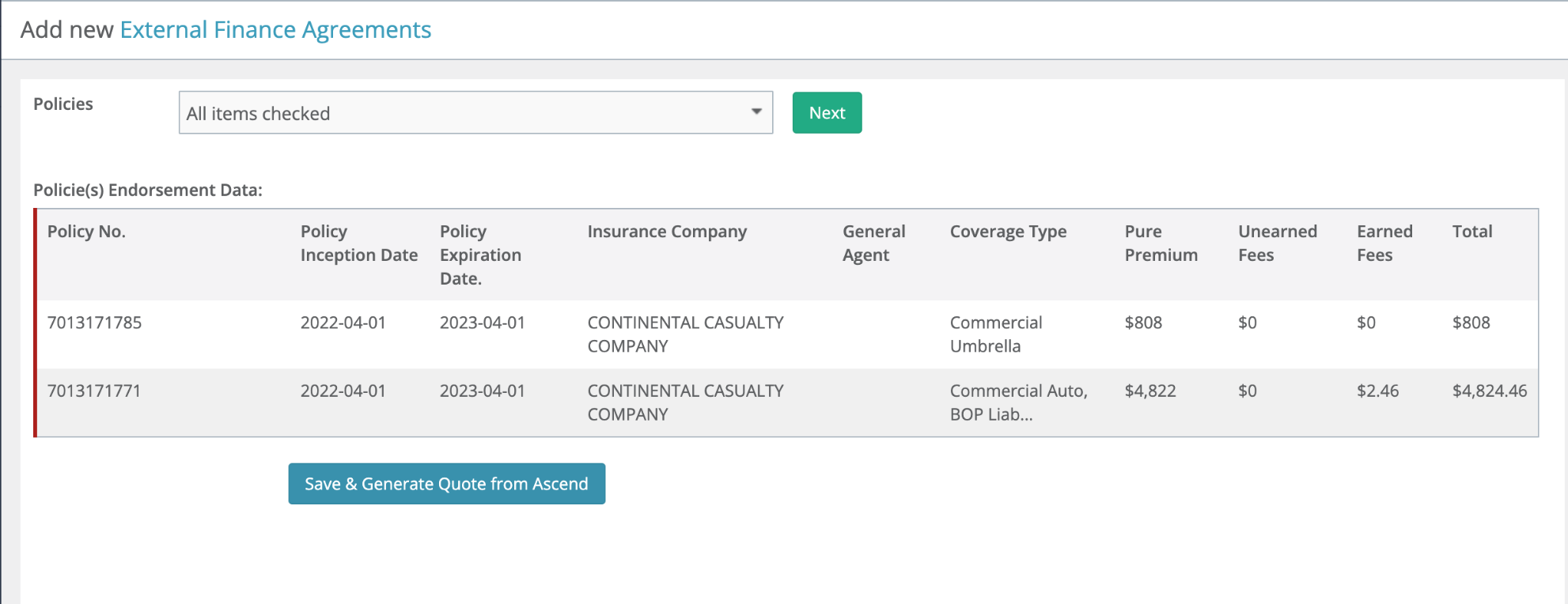
Click Save & Generate Quote from Ascend
Quote Link will appear hyperlinked as "Go to Ascend"
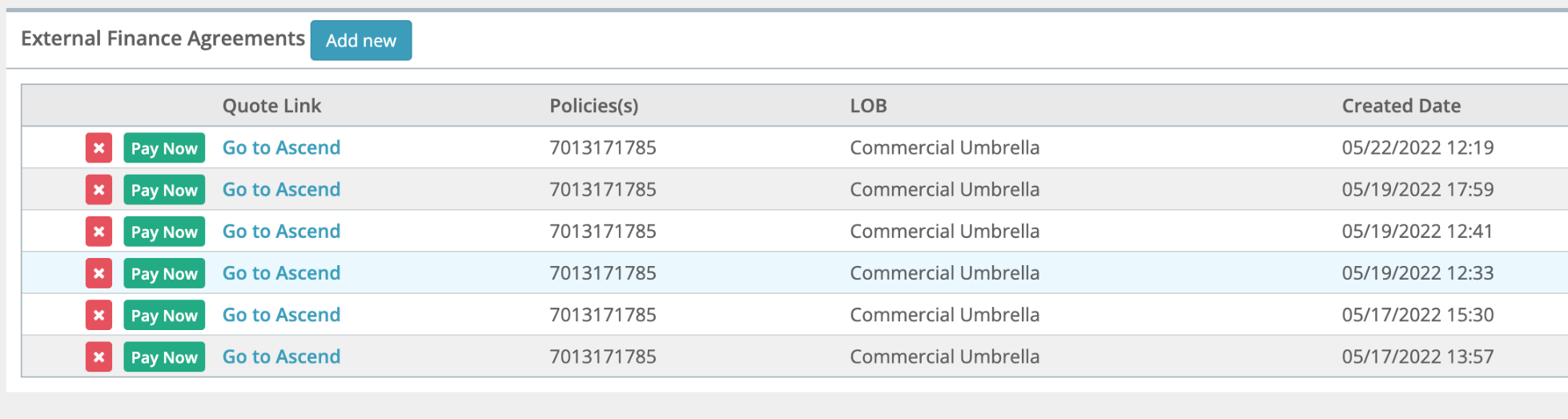
Click Go to Ascend
NOTE: On the new program, financing will not be available until edits have been made.
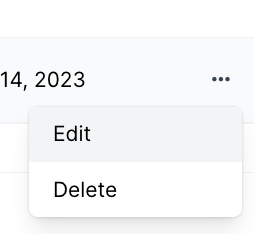
Check key fields. Scroll down to Quotes section, click the breadcrumb icon ("•••") , and Edit.
Update Carrier
Wholesaler
Coverage Type
Check fee fields
Click Save changes.
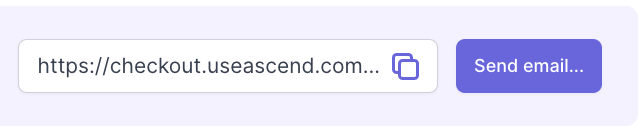
Success! You can now send link from Ascend or use "Pay Now" button in Momentum. If you send from Ascend, then our system will automatically send reminders if the customer hasn't completed purchase. You will also be able to see if and when the customer has opened the email notifications.
Post Purchase
Post purchase, the agent will receive an email notification.
Agent goes to Momentum to update line items to mark the policy(s) purchased.
Option 2: Invoicing
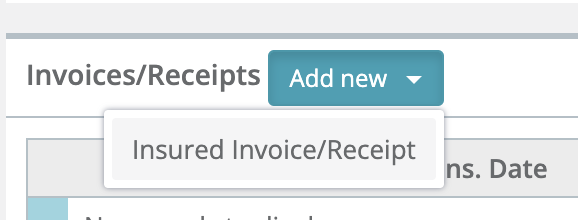
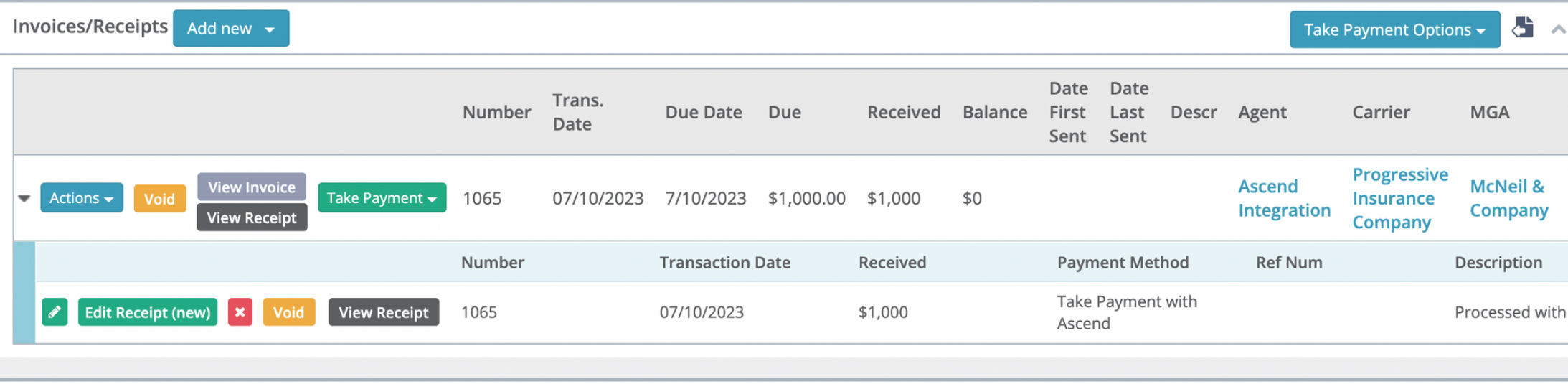
For any insured/policy, go to Documents → Invoices/Receipts for an insured
Add new -> Insured Invoice / Receipt
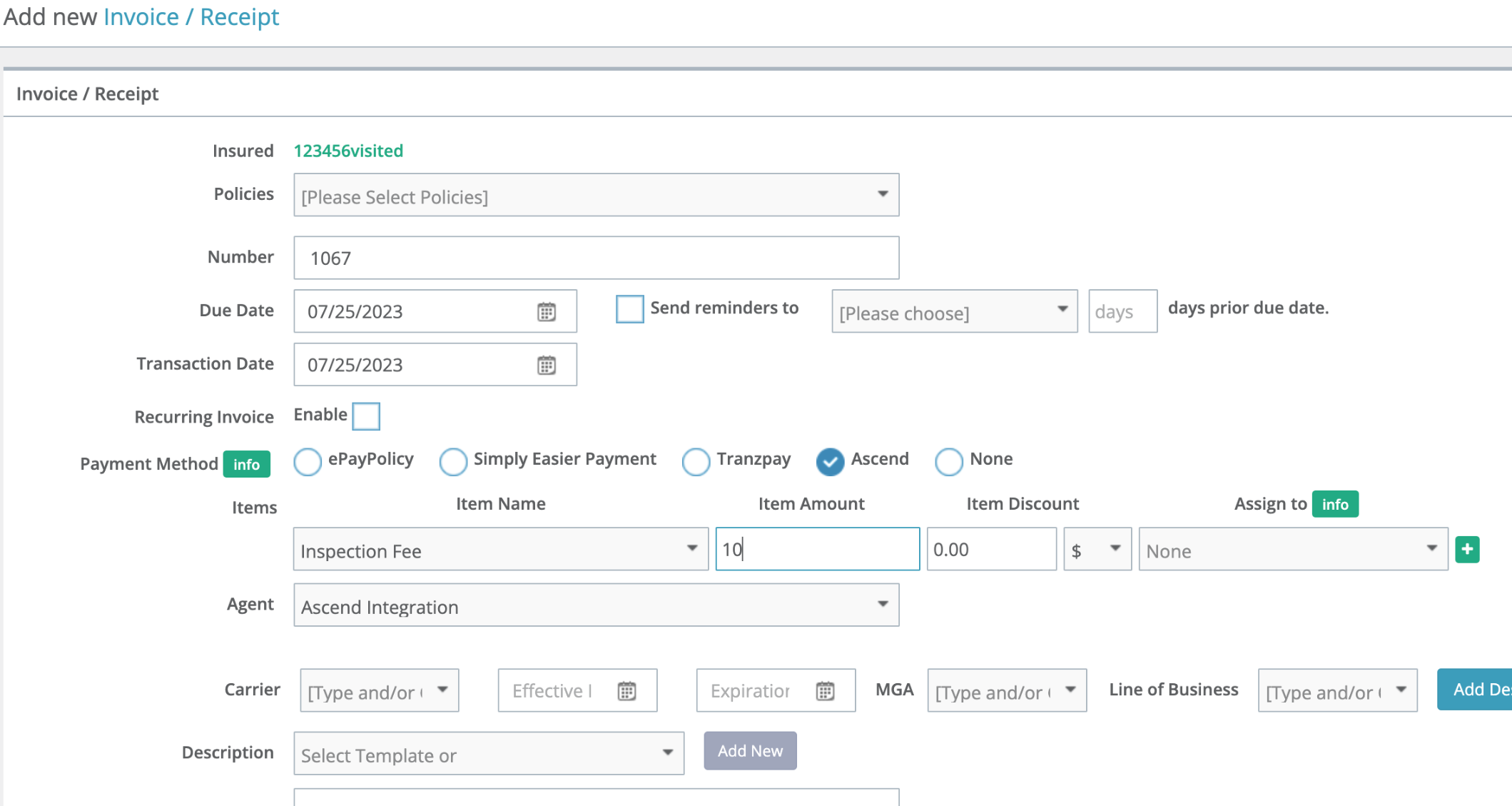
3. Choose Ascend as the payment method, add item(s), and click add in the bottom left corner
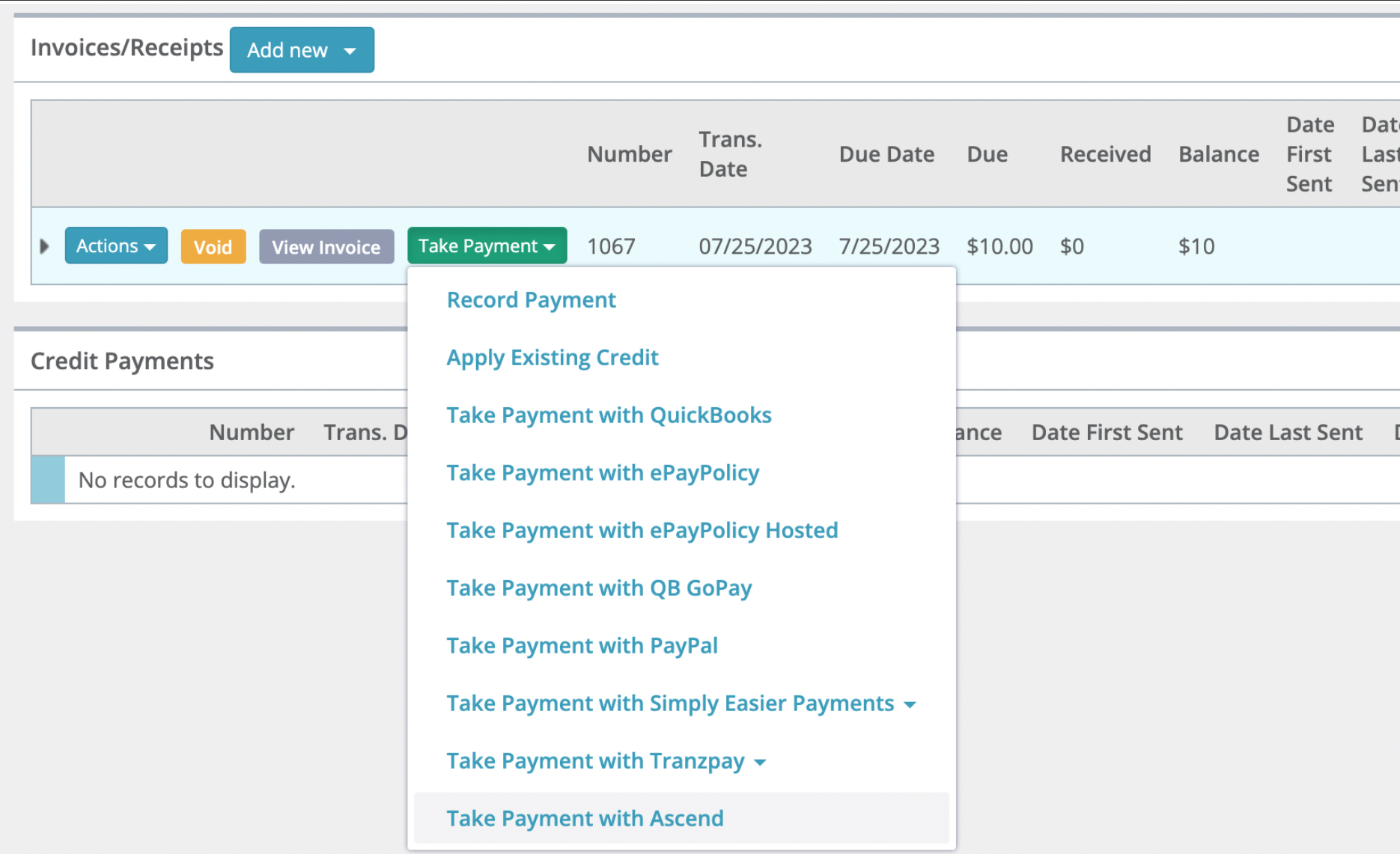
4. Click Take Payment → Take Payment with Ascend (go back to list view)
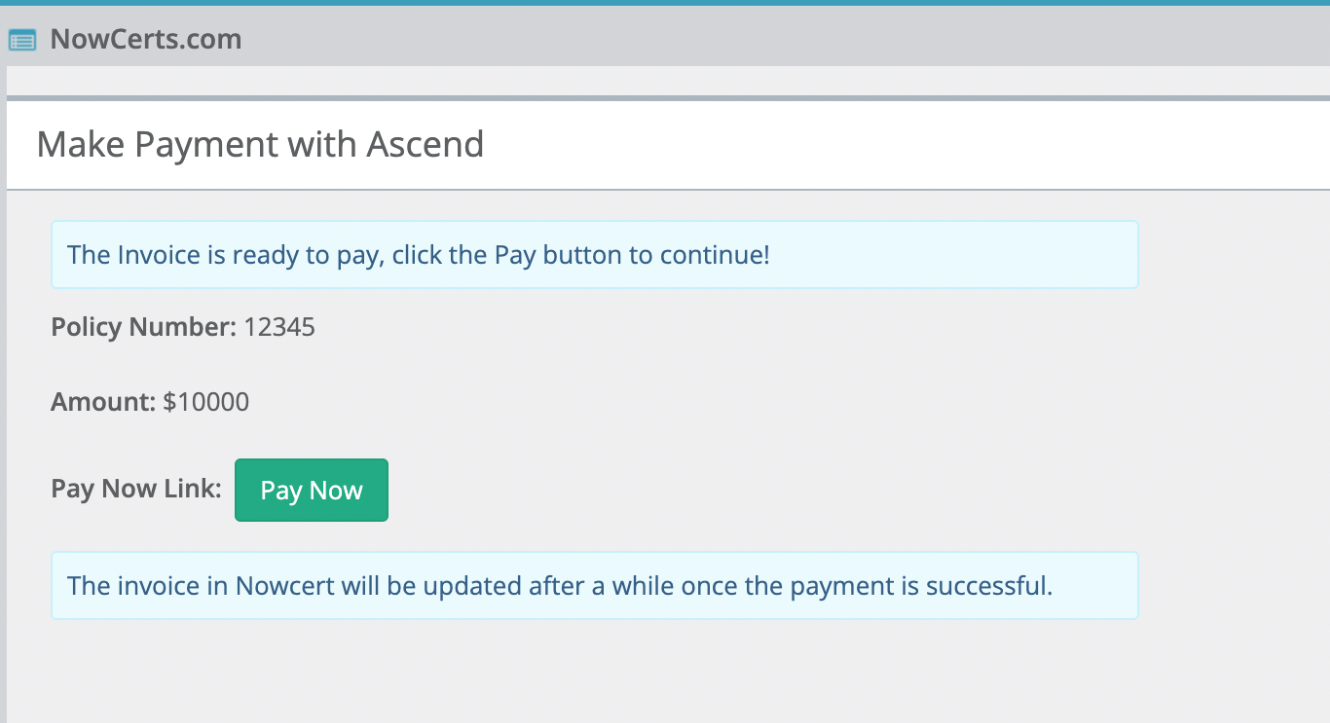
5. Click pay now and make payment
6. Click drop down arrow to see receipt
Contact Us
Need more help? Contact us at [email protected] for more help.